
典拠管理ルール
- 目録編集者
- 目録マネージャー
- 目録管理者
- リポジトリマネージャー
- 一般システム管理者
To create and configure the Link BIB Headings rules and preferred term correction rules, you must have one of the following roles:
- 目録管理者
- 一般システム管理者
Authority control rules give you more control over when linking bibliographic headings should be done and when linking should be skipped.They also provide greater control over the preferred term correction process and the end results from preferred term correction.典拠管理ルールの設定ページには、設定オプションのリソースリストからアクセスできます([設定メニュー > リソース > 一般 > 典拠管理ルール])。
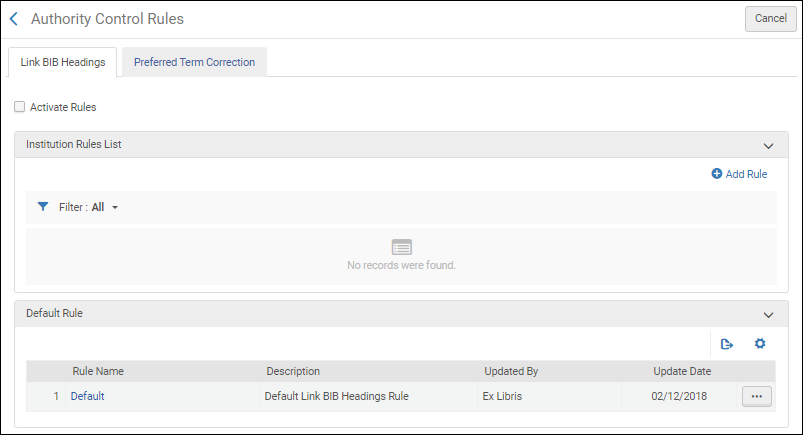
To learn more about authority control rules, see the Linking Bibliographic Headings Rules and the Managing Preferred Term Correction sections below.Note that these sections assume that you are familiar with the information on the Using the Authority Control Task List page.
Linking Bibliographic Headings Rules
Link BIB Headings rules enable you to control when linking occurs when the link bibliographic headings job is run.See Authorities - Link BIB Headings for more information.
With Link BIB Headings rules, you can define in which cases linking upon save and automatic linking (as part of the Link Bibliographic Headings job) is skipped for bibliographic headings.As an example, you can specify not to perform linking for undifferentiated personal names.
リンクジョブの結果として[典拠管理タスクリスト]に表示される書誌標目レコードを管理するプロセスは、特定のタイプのレコードを識別するタグを実装することにより合理化できます。See Using Tags for more information.
The Link BIB Headings rules are defined on the Authority Control Rules page (Configuration Menu > Resources > General > Authority Control Rules > Link BIB Headings).To define them, use the parameters below, then specify an operator (=, Contains, In List, Not Equals, or Not in List), and select/enter a value.When records are saved or when the Link Bibliographic Headings job attempts to automatically link bibliographic headings, these rules evaluate the data in your bibliographic records to determine whether to link or not link the records.
When you create rules, you can specify if linking should or should not occur.
複数のルールを作成し、有効化/無効化することができます。When there are multiple rules defined, they are processed in the order in which they exist in the Institution Rules List; and when one rule's conditions are met, the process uses that rule's output and does not process any of the remaining rules.If no rules are created, the default Link BIB Headings rule is used.
- Authority ID — Refers to the authority ID information stored in the MARC 21 $0 or UNIMARC $3, for example (for details, see Using Originating System IDs for Linking Bibliographic Records to Authority Records).
- Bibliographic Headings Value — Use to evaluate the value of the displayed bibliographic headings, to determine if linking should be skipped.For example, if the Bibliographic Headings Value is configured as contains Human History, and the displayed bibliographic headings contain Human history, the linking is skipped.
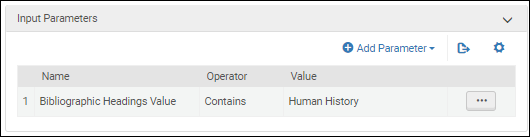 書誌標目の値パラメータ
Use the operator Contains to ignore the ending punctuation in the heading, or Equals if you want that punctuation to be considered.
- Diacritics — When this rule is set, Alma does not normalize diacritics and instead considers their UTF-16 encoding value when matching.Only diacritics with the same UTF-16 value are considered a match.For example, bib heading 650 $$a Tröll is considered Diacritics = not identical when matched against the authority record with 150 $$a Troll.
- フィールド – このパラメータを選択すると、値としてフィールド番号を指定できます。
- 言語 – このパラメータは、$9(MARC 21)または$7(UNIMARC)で目録化された情報を指します。
- Subfield Codes — When this rule is set, Alma compares both the content and the subfields used for matching.For instance, the bibliographic heading 700 $$a Shakespeare, William, $$d 1564-1616 $$t Tragedies is considered Subfield codes = not identical when matched against an authority record with 100 $$a Shakespeare, William, $$d 1564-1616 $$x Tragedies.
- Source Code — When this parameter is selected, you may choose from the following drop-down list of values: authority type such as call number/classifications, chronological term, corporate name, genre/form, geographic name, meeting name, personal name, topical name, or uniform title.
- 未分類の個人名 - このパラメーターでは、以下を調べます:
- MARC 21 authority 008 control field, position 32 = "b"
- UNIMARC authority 120 control field, position 1 = "a"
このパラメータを選択すると、TrueまたはFalseを選択できます。 - Vocabulary — When this parameter is selected, you may select any of the local authority or Community Zone vocabulary codes to which you have access.
For more information about creating rules that use these parameters, see Creating Link BIB Headings Rules.
- If not active, check the Active checkbox.
- Verify that the default rule is set up according to your institution's preference.Almaは上から順にルールをチェックし、すべての入力パラメータが一致する最初のルールを適用します。いずれのルールも適用されない場合は、デフォルトのルールが使用されます。デフォルトのルールをリンクに設定することをお勧めします。
- 常に適用される入力パラメータを使用して最初のルールを設定します - ルールごとに1つのパラメータを使用して、他のパラメータに依存せずにこのパラメータが常に適用されるようにします。たとえば、サブフィールドが一致しない場合にレコードをリンクしたくない場合は、最上位のルールを次のように設定できます。
- 入力パラメータ: サブフィールドコード = 同一ではない
- ワークフロー設定: リンクしない
- Below these, set up rules that only apply if certain other conditions are met.パラメータを組み合わせて、特定の状況の組み合わせにのみ適用することができます。たとえば、図書館が特定の語彙の発音区別記号の正規化を防止したい場合は、次のようなルールを設定できます。
- 入力パラメータ:
- 語彙=フィンランド語名前典拠ファイル
- 発音区別符号 = 同一ではない
- ワークフロー設定: リンクしない
- 入力パラメータ:
- If there is a specific sub-case in which the institution wants to enable linking, add a rule with Workflow setup: Link above the rule that prevents the general case from linking.You can also add a tag when linking to help catalogers identify these headings in the Authority Control Task List.
典拠管理–リンキングから見出しを除外
ユーザーは、典拠フィールドに$$9 no_linkageを追加することにより、自動処理による典拠レコードへの特定の見出しのリンクを除外することができます。This is especially useful when a field contains data that is similar to an existing heading but is not really related to that heading.これにより、フィールドが誤って見出しに関連付けられることを防ぎ、ライブラリのメタデータの整合性を向上させます。This is advantageous in cases where a creator's name is identical to an authorized creator, and not enough data exists to distinguish the two and prevent linking (for example, a library catalogs an old thesis work by John Smith and has no further biographic information on the creator).
This functionality is not available for Community Zone records or Community Zone-linked bibliographic records.
Creating Link BIB Headings Rules
Link BIB Headings rules can be created using the Authority Control Rules configuration option.
- Open the Authority Control Rules page (Configuration Menu > Resources > General > Authority Control Rules), and select the Link Bib Headings tab.
- [機関ルールリスト]セクションで、[ルールの追加]を選択します。
- ルールの名前と説明を入力します。
- 入力パラメータを入力します。
- 入力パラメータセクションで、[パラメーターの追加]を選択します。
- ドロップダウンリストから、(名前の)オプションを選択し、演算子を選択します。
- Enter or select a value and select Add Parameter.
- ワークフロー設定パラメータを入力します。
- 次の適用方法のいずれかを選択します。
- Link – Select this option when you want the Authorities - Link BIB Headings job or linking upon Save(in the MD Editor) to link the bibliographic headings when the criteria of one of the Link BIB Headings rules is met.
- Do not link – Select this option when you want the Authorities - Link BIB Headings job or linking upon Save(in the MD Editor) to not link the bibliographic headings when the criteria of one of the Link BIB Headings rules is met.
Select a tag from the Tag as drop-down list (optional).Note that the Authority Control Rule Tags appear for both Link BIB Headings rules and preferred term correction rules (when enabled for your system; see Managing Preferred Term Correction for more information).Tags are only used for automatic link bibliographic headings jobs (when you select the Link option) and streamlines the process for working with records in the Authority Control Task List.Note that when you select Do not link, there is no option to specify a tag.
If no tags exist, add them by doing the following:
- [タグの追加]を選択します。
- [行の追加]を選択します。
- [典拠管理タスクリスト]の[タグ]列にファセットとして表示されるタグコードと説明を入力し、このタブをデフォルトとして設定する場合は[はい]、そうでない場合は[いいえ]を選択します。
- [行の追加]を選択します。
- このプロセスを繰り返して、他のタグを追加します。
- Select Customize or Save.作成するすべてのタグが [タグ付け] ドロップダウンリストに表示されることに注意してください。
- 次の適用方法のいずれかを選択します。
- [保存]を選択します。ルールが[機関ルールリスト]セクションに追加されます。ルールの作成後、編集、複製、または削除を選択できます。複数のルールがある場合、[上に移動]および[下に移動]機能を使用してルールの順序を変更することもできます。各ルールは個別に有効または無効にできます。
- Select the Activate Rules checkbox for the rules that you create to be applied when records are saved or when the Link Bibliographic Headings job attempts to automatically link bibliographic headings.Note that both the Link BIB Headings and Preferred Term Correction tabs have an Activate Rules checkbox so that each type of rule can be activated/deactivated independently.
使用例
特定のフィールド値が一致した場合のリンク
If you want a rule to include the Authorities - Link BIB Headings job link bibliographic headings when specific field values occur, use the following configuration:

ソースコード値が一致した場合のリンク
If you want a rule to include the Authorities - Link BIB Headings job link bibliographic headings when source code values are met, use the following configuration:

権限管理タスクリスト
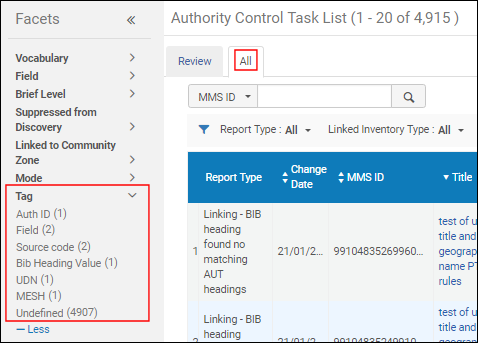
With Link BIB Headings rules, the Authority Control Task List provides an additional column and facets for tags (see Using Tags).
一部の列はデフォルトで非表示になっていることに注意してください。To view these columns, select the Configuration iconin the table actions list to open the configuration pane.Select the Tag column option to add this column to your view of the table if it is not already visible.
Using Tags
With Link BIB Headings rules, you can configure tags for managing records in the Authority Control Task List (see the Creating Link BIB Headings Rules procedure).典拠管理ルールタグのリストについては、以下の例を参照してください。Note that these tags appear for both Link BIB Headings rules and, when enabled, preferred term correction rules (see Managing Preferred Term Correction for more information).
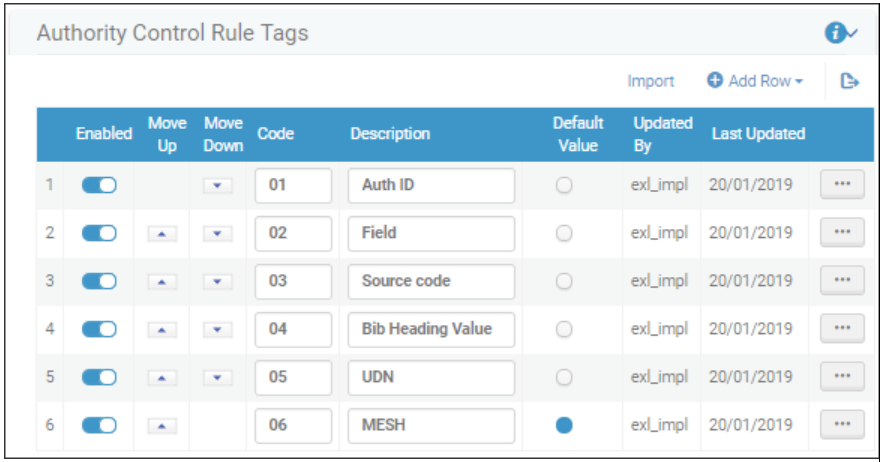
When the tags are used in the Link BIB Headings rules, they appear as facets that you can use to filter the list of records on the All tab in the Authority Control Task List (Resources > Cataloging > Authority Control Task List).

Managing Preferred Term Correction
優先語修正ルールを設定すると、優先語修正ジョブの実行時に優先語修正プロセスの母集団を管理できます。See Authorities - Preferred Term Correction for more information.
With Preferred term correction rules, you can mark and stop corrections from occurring automatically when the preferred term correction job is run.Subsequently, staff can review/mediate marked changes in the Authority Control Task List before they are executed.
When you configure preferred term corrections rules for mediation (by selecting Apply mediated preferred term correction), the preferred term correction job identifies the correction that needs to be made and adds an entry to the Authority Control Task List that shows the current term and the term that it will be changed to if corrected.
With preferred term correction rules, you can create tags for identifying certain types of records in order to streamline your process for working with the Authority Control Task List (see Identify Certain Records for Mediation and Tags for more information).
Almaの優先語修正ルールを使用すると、以下を定義できます。
- Which records should be corrected automatically
- 修正すべきではないレコード
- [典拠管理タスクリスト]で修正のための提案がされるものの、自動的に実行されないレコード(仲介/手動レビューのために保持)
This capability is managed through preferred term correction rules that are processed when the Authorities - Preferred Term Correction job runs.With these rules, you control the preferred term correction population in the Authority Control Task List.See the Use Case Examples section for ideas regarding this capability.
To define the rules for managing the Authorities - Preferred Term Correction job (see Authorities - Preferred Term Correction for more information), use the parameters below, specifying an operator (=, Contains, In List, Not Equals, or Not in List) and selecting or entering a value.これらのルールは、処理されると、書誌レコードの既存のデータを評価して、優先語の修正を処理する方法を決定します。
- Authority ID— This parameter refers to the authority ID information stored in the MARC 21 $0 or UNIMARC $3, for example (for details, see Using Originating System IDs for Linking Bibliographic Records to Authority Records).
- Field— When you select this parameter, you can specify a field number as the value.
- Indication rules— When you select this parameter, all the indication rules that you have created appear in a drop-down list from which you can select.Indication rules are executed in the authority record's metadata.For more information, see Working with Indication Rules.
- Language— This parameter refers to the information cataloged in $9 (MARC 21) or $7 (UNIMARC).
- Normal and linked fields are linked to different authority records— This option appears if the 880 field is enabled (by Ex Libris) as an authorizing field.This option can be used to identify cases where a field and its linked 880 field are linked to different multilingual authorities.Your options are to select true or false.
- Source Code— When this parameter is selected, you may choose from the following drop-down list of values: authority type such as call number/classifications, chronological term, corporate name, genre/form, geographic name, meeting name, personal name, topical name, or uniform title.
- Vocabulary— When this parameter is selected, you may select any of the local authority or Community Zone vocabulary codes to which you have access.
For more information about creating rules that use these parameters, see Creating Preferred Term Correction Rules.
When you create rules, you can specify what is applied or not applied during the preferred term correction job, and you can specify which changes you want to mediate.
複数のルールを作成し、有効化/無効化することができます。複数のルールが定義されている場合、それらは優先用語修正ルール リスト内に存在する順序で処理されます。1 つのルールの条件が一致すると、プロセスはそのルールの出力を使用し、残りのルールは処理しません。
If no rules are created, the default preferred term correction rule is used when the preferred term correction job is run.The default preferred term correction rule is also utilized when the enabled rules are evaluated in priority order and none of those rules have logic that applies to the record being analyzed for preferred term correction.
As part of the rules functionality, you can set up custom tags that can be applied when the preferred term correction job runs and, subsequently, be used to more easily locate information in the reports presented in the Authority Control Task List.See Tags for more information.
MARC 21 Preferred Term Corrections May Swap Headings with Cross-References Across Fields
Alma enables libraries to be configured to correct bibliographic headings based on authority cross-references, updating them to the preferred term and changing the field tag in the bibliographic record accordingly (such as from 610 to 630).This ensures bibliographic data stays aligned with authority records' preferred terms.
To enable this functionality in your institution, input the vocabulary codes for the relevant authority vocabularies into the customer parameter authority_ptc_ignore_suffix(Configuration Menu > Resources > General > Other Settings), separated by commas.For more information on the parameter, see Configuring Other Settings (Resource Management).
書誌フィールドがX30フィールドにアップデートされると、書誌レコード内の非ファイリングインジケータは、リンクされた典拠レコードに基づいて調整されます。MARC21標準に従って、典拠フィールド130(非ファイリング文字) の1番目のインジケータが、X30書誌フィールドの2番目のインジケータにコピーされます。
Once enabled, headings updated by this new behavior appear in the Authority Control Task List under a new report type,Preferred Term Correction - Bib Heading updated and tag modified, enabling catalogers to review and make further updates as necessary (such as adjusting indicators).For more information on the report type, see Using the Authority Control Task List.
相互参照を通じて典拠レコードにリンクされていますが、優先レコードと非優先レコードが異なるフィールドにある書誌見出し(たとえば、優先レコードは典拠フィールド130にあり、相互参照は典拠フィールド410にある)も、代替グラフィック表記を含むフィールドに対応しています。
Libraries that configured Alma to manage this scenario for any of their authority vocabularies after the November 2024 release can now see preferred term corrections applied to cases with a linked Alternate Graphic Representation while preserving the link.
This enhancement applies to bibliographic headings linked to authorities starting from the November 2024 release date onward.To apply this option to already-linked headings, either manually re-link them using F3 or run the Unlink bib records from authority records job (Admin > Manage Jobs and Sets > Run a Job) on a selected set of records.
優先語修正ルールの作成
Preferred Term Correction rules can be created using the Authority Control Rules configuration option.
- Open the Authority Control Rules page (Configuration Menu > Resources > General > Authority Control Rules), and select the Preferred Term Correction tab.
- [機関ルールリスト]セクションで、[ルールの追加]を選択します。
- ルールの名前と説明を入力します。
- 入力パラメータを入力します。
- 入力パラメータセクションで、[パラメーターの追加]を選択します。
- ドロップダウンリストから、(名前の)オプションを選択し、演算子を選択します。
- Enter or select a value and select Add Parameter.
- ワークフロー設定パラメータを入力します。
- 次の適用方法のいずれかを選択します。
- 優先語の修正を適用する
- 仲介による優先語の修正を適用する
- 優先語の修正を適用しない
Select a tag from the Tag as drop-down list (optional).Note that when you select Do not apply preferred term correction, there is no option to specify a tag.
If no tags exist, add them by doing the following:
- [タグの追加]を選択します。
- [行の追加]を選択します。
- [典拠管理タスクリスト]の[タグ]列にファセットとして表示されるタグコードと説明を入力し、このタブをデフォルトとして設定する場合は[はい]、そうでない場合は[いいえ]を選択します。
- [行の追加]を選択します。
- このプロセスを繰り返して、他のタグを追加します。
- カスタマイズを選択します。作成するすべてのタグが [タグ付け] ドロップダウンリストに表示されることに注意してください。
- 次の適用方法のいずれかを選択します。
- [保存]を選択します。ルールが[機関ルールリスト]セクションに追加されます。ルールの作成後、編集、複製、または削除を選択できます。複数のルールがある場合、[上に移動]および[下に移動]機能を使用してルールの順序を変更することもできます。各ルールは個別に有効または無効にできます。
- [ルールの有効化]チェックボックスをオンにします。レコードを保存するとき、または書誌標目のリンクジョブが書誌標目を自動的にリンクしようとするときに、作成したルールを適用するには、このチェックボックスをオンにする必要があります。Note that both the Link BIB Headings and Preferred Term Correction tabs have an Activate Rules checkbox so that each type of rule can be activated/deactivated independently.
使用例
優先語修正処理および結果の制御に使用される優先語修正ルールの例については、次のセクションを参照してください。
優先語修正で特定のレコードをスキップする
If you want a rule to have the Authorities - Preferred Term Correction job skip preferred term correction for certain records, the configuration could be entered as shown below with Do not apply preferred term correction selected.See Authority Control Task List for more information.

仲介用の特定のレコードを識別する
If you want the Authorities - Preferred Term Correction job to tag certain records for mediation, the configuration could be entered as shown below with Apply mediated preferred term correction selected and tagging for LCNAMES (or other tag that you created).See Authority Control Task List for more information.

特定の修正を選択的に自動化する一方で、他の仲介による修正を特定する
件名の標目を自動的に修正したいものの、個人名の修正を仲介したい場合は、以下のルール例を参照してください。

LCNAMESにリンクされたフィールドは自動的に修正でき、医療件名標目(MESH)にリンクされたフィールドは、仲介されたレポート/レビュー用に識別されます。

権限管理タスクリスト
With preferred term correction rules, the Authority Control Task List provides additional columns and facets (see Using Modes and Tags) and options for applying corrections (see Applying Changes for Mediated Corrections in the Authority Control Task List).
モードとタグの使用
優先語修正ルールを使用すると、変更が自動的に行われるように指定したり、仲介による変更を識別したりするように指定できます。[典拠管理タスクリスト]のオプションは、これらの仕様を使用してレコードをフィルタリングする方法を提供します。優先語修正ルールで指定したタグは、[典拠管理タスクリスト]でもフィルタリングできます。以下の例を参照してください。
-
Mode — identifies when rules were applied automatically or specified mediation.
 モード列
 モードファセット
-
Tags — For the tags that you identify in your preferred term correction rules, you can view and filter the Authority Control Task List reports with these tags.
 タグ列とファセット
モードとタグの列はデフォルトで非表示になっていることに注意してください。To view these columns, select the Configuration iconin the table actions list to open the configuration pane.[モード]および[タグ]オプションを選択して、表のビューに追加します。

Applying Changes for Mediated Corrections in the Authority Control Task List
[典拠管理タスクリスト]の[レビュー]タブで仲介による修正を確認した後、修正したい書誌標目に変更を適用できます。これにより書誌レコードが、典拠レコードデータを有しつつ、修正されます。仲介による修正は、次の方法で適用できます。
- Individual rows — For each row in the Authority Control Task List to which you want to apply the changes, you can select the Apply action from the row actions, or you may select the check box at the beginning of the row and, subsequently, select Apply Selected.
- Multiple rows — You can select multiple records across multiple pages, up to 100 records, and use Apply Selected.
- All mediated rows — Select the Apply All option to apply the mediated corrections on all the mediated rows that appear in the list (across pages).
Page tags: article:topicproduct:almacontent:Documentationlang:english
