
表示ルールの操作
表示ルールは、フィルタリングのセットに使用されます。表示ルールはデータを変更しません。They are solely used to read records that are part of a set and filter records out based on conditions.フィルタリングプロセスの結果、元のセットやフィルタリングされたセットのサブセットとして新しいセットが作成されます。See Filtering Sets on the Managing Search Queries and Sets page for more information.
MARC書誌レコードには表示ルールが使用され、Dublin CoreレコードにはXML表示ルールが使用されます。
以下のセクションでは、表示ルールを作成およびテストする方法について説明し、ワークフローに組み込む例を示します。
- Creating Indication Rules
- Testing Indication Rules
- MARC Indication Rules Syntax Examples
- XML Indication Rules Syntax Examples
- Form-Based Indication Rules
さらに、セットを使用する他の機能領域の表示ルールを作成できます:
- Delete holding records with no items job – See Delete holding records with no items.
- General Publishing Profile (Resources > Publishing > Publishing Profiles > select Add Profile > General Profile) – See Filter Records.
- Import Profile Details – See Filter out the data using.
Almaのすべてのエリアとワークフローに同じ表示ルールを使用できるわけではありません。
Creating Indication Rules
MDエディタを使用して、表示ルールを作成および管理します。
For Network Zone consortia members, users can control whether to save new rules locally or in a network institution.この選択を行うには、[レコード]または[テンプレート]領域を開き、[新規] > [配置オプション]に移動します。この選択はユーザーごとに行われることに注意してください。
Backslashes (\) are used as escape characters for Indication Rules and Form-Based Indication Rules, according to the same principles as the Normalization Rules.
- MDエディターを開きます。
- Select New > Indication.表示ルールのプロパティダイアログが開きます。
 プロパティダイアログボックス
-
ルールの名前と、他のユーザーがルールの機能を理解するのに役立つ説明を示します。
- In "Type" , select whether to create the rule as Drool (for MARC bibliographic records) or as XSL (for Dublin Core records).
- ルールをプライベートとして作成するか共有として作成するかを指定します。This determines in which folder the indication rule is saved.(プロパティを変更して)共有フォルダーに移動する前に、表示ルールをプライベートフォルダーに保存し、最初にテストすることをお勧めします。Private indication rules cannot be used in the "Filter Set" functionality invoked from the Manage Sets page.コミュニティフォルダーには、コピーすることで独自の表示ルールを作成できる表示ルールがあります。
- Select Save in the dialog.The MD Editor editing pane opens.
- 以下のようにルールを作成します。
- If you selected to create an indication rule for MARC records, enter the Drools logic for your indication rule.Refer to the section Normalization Rules – Syntax and Examples for the syntax to use when creating indication rules.Almaでは以下の表示ルールが提供されています。
See the Indication Rules Syntax Examples section for more examples.MultiTitleIndication.dslr BriefIndication.dslr 提供されている表示ルール(複数のタイトル) このルールでは、コントロールフィールドの条件は存在しません。提供されている表示ルール(簡易的な件名) ルールに複数のブール演算子を含めることはできますが、多数のブール演算子を選択すると、パフォーマンスが低下する可能性があります。したがって、ブール演算子は各ルールあたり200個以下に収める必要があります。 - If you selected to create an XML indication rule for Dublin Core records, enter the indication rule in XML format.
- If you selected to create an indication rule for MARC records, enter the Drools logic for your indication rule.Refer to the section Normalization Rules – Syntax and Examples for the syntax to use when creating indication rules.Almaでは以下の表示ルールが提供されています。
- [保存]を選択します。
Testing Indication Rules
実際に表示ルールを使用してセットをフィルタリングするジョブを実行する前に、MDエディタ内でルールをテストすることができます。
表示ルールと正規化ルールは両方ともテスト モードで機能します。
- MDエディタで書誌レコードを開きます。
- Select
 Split Editor.
- 左側画面の[ルール]タブを選択し、[表示ルール]フォルダーを展開します。
- Locate the rule that you want to test in the Private or Shared(not the Community) folder.ルールを選択して、アクションのリストを表示します。
- [編集]
- [削除]
- [CZに投稿]
- [複製]
- [プロパティ]
- [編集]を選択します。表示ルールは書誌レコードの横の分割画面で開かれます。分割画面で表示ルールを開く
- [試す]を選択します。Depending on the results, a pop-up appears with either True or False response indicating that the bibliographic record either met or did not meet the Drool logic in the indication rule.
 表示ルール - 試行応答
Indication Rules for MARC Records - Syntax Examples
Examples of indication rules syntax are provided below and at Alma Indication Rule Examples.See Conditions for more information.
In rules that search for a certain term, use an asterisk to find the exact term.サブフィールドに用語以外に何かが含まれている場合、アスタリスクがない限り、サブフィールドはそれを検索しません。アスタリスクは用語の最後に配置するだけでよく、最初に配置する必要はないことに注意してください。
The line exists "130.a.Bible" works as an "Equals" search, thus if the subfield contains anything in addition to the term, it will not find it, unless there is an asterisk..
例1
949フィールドに$aを含むセット内のレコードを識別します。
例2
$0(サブフィールド0)に1XXや6XXまたは7XXを含むセット内のレコードを識別します。
例3
65で始まるフィールド(650や659など)に$0(サブフィールド0)を含むセット内のレコードを識別します。
例4
600、630、650、659などの6で始まるフィールドに$0(サブフィールド0)を含むセット内のレコードを識別します。
例5
複数の300フィールドがあり、それぞれにサブフィールドを持つすべてのレコードを取得します。
Example 6
フィールド630および650に重複するサブフィールドxおよびzを持つすべてのレコードのセットを作成します。
See the Alma Indication Rule Examples page in the Developer Network for more examples of indication rules.
DCレコードのXML表示ルール - 構文例
以下は、XML表示ルールの構文例です。
例1
以下は、レコードにdc:subjectフィールドがある場合に、Trueを返すXSL表示ルールの例です。
例2
以下は、レコードのdc:subjectフィールドがTheologyにしい場合にfalseを返すXSL表示ルールの例です。
例3
以下は、レコードのdc:creatorフィールドまたはdcterms:creatorフィールドがTolstoyを含む場合にtrueを返すXSL表示ルールの例です。
フォームベースの表示ルール
All users can create indication rules.
Ex Libris provides the ability to create indication rules in the MARC format using a structured form, thus making the process easy and intuitive (this new functionality is in addition to the existing abilities to create Drool rules in the MARC format and create XML rules in the DC format manually, both of which remain unchanged).For complete information about indication rules, see Working with Indication Rules.
The structured form allows to enter the different fields and subfields and values in a wizard-like fashion, and provides pop-up assistance when entering tags and tag names.ルールを作成すると、ルールをデプロイする前に、構造化フォームを使用してルールが期待どおりに機能しているかテストできます。
この機能はデフォルトで無効になっています。To enable it for your institution, contact Customer Support.
制限事項
- Currently you can create only MARC21 and UNIMARC form-based indication rules.
- The form-based rules can only be used for filtering sets at this time, and the ability to use them in other workflows that use indication rules is on our roadmap and will be added in the future.
新しいフォームベースの表示ルール
「フォーム」タイプの表示ルールが導入されました。This type has the same rule actions as the other indication rules (New,Edit,Delete,Duplicate,Contribute to CZ, etc.).新しいフォームベースのルールを作成すると、このルールはメタデータエディタでバッジ「フォーム」を受け取ります。

Creating a Form-Based Indication Rule
- Open the Metadata Editor >Rules area.
- Select New > Indication.The Indication Rules Properties dialog opens.

- [名前]の下にルールに名前を付け、[説明]の下に(任意で)他のユーザーがこのルールの機能を理解できるよう説明を入力します。
- Under "Type", select whether to create the rule as Drool (for MARC bibliographic records), as XML (for Dublin Core records), or as Form.
- [アクセスレベル]で、ルールをプライベートとして作成するか共有として作成するかを指定します。This determines in which folder the indication rule is saved.(プロパティを変更して)共有フォルダーに移動する前に、表示ルールをプライベートフォルダーに保存し、最初にテストすることをお勧めします。Private indication rules cannot be used in the "Filter Set" functionality invoked from the Manage Sets page.コミュニティフォルダーには、コピーすることで独自の表示ルールを作成できる表示ルールがあります。
- [レコードタイプ]に基づいて、ルールを使用して書誌レコード、権限レコード、または保有レコードのセットを作成するかどうかを選択します。
- [フォーマット]で、セットのタイプのレジストリを選択します。使用可能なオプションはシステムでアクティブなフォーマットによって決まります。
- Select Save in the dialog.The MD Editor editing pane opens.
- In the right-hand panel of the Metadata Editor, configure your rule as per the Configuring the Indication Rules section below.
- 保存を選択します。
Configuring the Indication Rules
フォームベースの表示ルールを作成すると、その条件を構成できるパネルが開きます。An indication rule can be composed of one or more conditions.
手動またはシステムサポートによる表示ルールの作成
次のいずれかの方法で表示ルールを作成できます。
- クエリが実行されるフィールドの情報を手動で入力します。
- Using pop-up assistance to help you select the desired field.The pop-up assistance derives its information from the metadata profile defined in your system (see Configuring Cataloging)
| 情報を手動で入力するには: | ポップアップサポートを使用するには: |
|---|---|
|
|


フォームベースの表示ルールのフィールドの定義
For the different types of fields, different rule syntax is displayed.
- 条件で、フィールドを次のように定義します。
フィールドタイプ このタイプの入力フィールド Control fields 001 / 003 / 005 / 009 制御フィールド001/003/005/009を入力するには:- Type in (or select using the pop-up assistance) the field's tag.
- 必要な比較基準を選択します。
- フリーテキストを入力します。

All other control fields他の制御フィールドを入力するには:- Type in (or select using the pop-up assistance) the field's tag.
- If you are inputting the LDR, 006, 007, or 008 field, from the "Positions" dropdown, select the relevant position and select Done.

The indication rules for the 007 field require two conditions, one for the "Category of material" and another for the "Specific material designation."
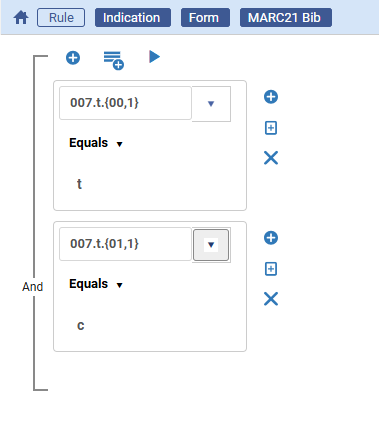
- 必要な比較基準を選択します。
- フリーテキストを入力します。
Data fields — including fields that are not in the metadata profile (e.g. fields defined locally) To input a data field:- Type in (or select using the pop-up assistance) the field's tag.
- 目的のインジケーターとサブフィールドを選択し、[完了]を選択します。
- 必要な比較基準を選択します。
- フリーテキストを入力します。

- If you do not specify any value for an indicator/subfield in the condition, this is displayed as * and is interpreted by Alma as any value.
- To indicate an empty (undefined) value for indicators (in the fields that allow it), type in the # value.
- When you enter text in the Value field, Alma does not attempt to validate the text.This enables you to choose a non-valid value for data correction purposes.
- To add more conditions, or groups of conditions,Working with Indication Rules see below.
- Select Save on the toolbar to save the indication rule.
Testing a Form-Based Indication Rule
Prior to running a job to filter a set using an indication rule, it may be a good idea to validate that your rule may works as desired; and if it does not, to edit it some more.ルール全体をテストしたり、ルール内の条件の1つのグループのみをテストしたりすることができます。
- Once you have created and saved your rule, click
above the rule.Depending on the results, a pop-up appears with either a True or False response, indicating that the bibliographic record either met or did not meet the logic specified in the indication rule.

フォームベース表示ルールの操作
オプション 説明 ルールに条件を追加するには - Select
above the condition to add another condition.
- Select
to the right of the condition and duplicate this condition ; then edit the new condition as necessary.
ルールに条件のグループを追加するには When creating an indication rule, you can either add individual conditions or create groups of conditions.Select above the condition lines and add as many conditions as necessary.
However, not that you can only add up to 3 nested levels of conditions in the form-based rules.

To change the relationship between groups of conditions Baseline conditions default to an AND relationship, meaning that each condition must be true to retrieve the bibliographic record.When adding a group of conditions, you can change the relationship within the group to OR.In this case, the bibliographic record will be retrieved when either of these conditions is true.
ルールに含めたフィールドのみがレコードの取得に使用されることに注意してください。Fields that you did not include in the rule do not affect the retrieval, meaning that records with any values in these fields will be retrieved.
Click on any Boolean operator between the conditions.ANDとORのフラグがリストの一番上に表示されます。Click a flag to select this type of relationship.To stop displaying these flags, click again on the Boolean operator.
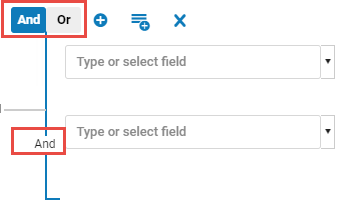
While it is permissible to include multiple Boolean Operators in an indication rule, when many of Boolean operators are selected, slower performance is likely to result.したがって、ブール演算子は各ルールあたり200個以下に収める必要があります。
条件を削除する方法 Select the X right of the condition to remove it from the rule. - Select
Page tags: article:topicproduct:almacontent:Documentationlang:english
