
Configuring App Basics
Configuring the App Name
The app name appears in the app store and in the app title bar on the end-user's device.
- On the Change general settings page (App Settings > App Settings > General Settings), under App name, enter the app name.
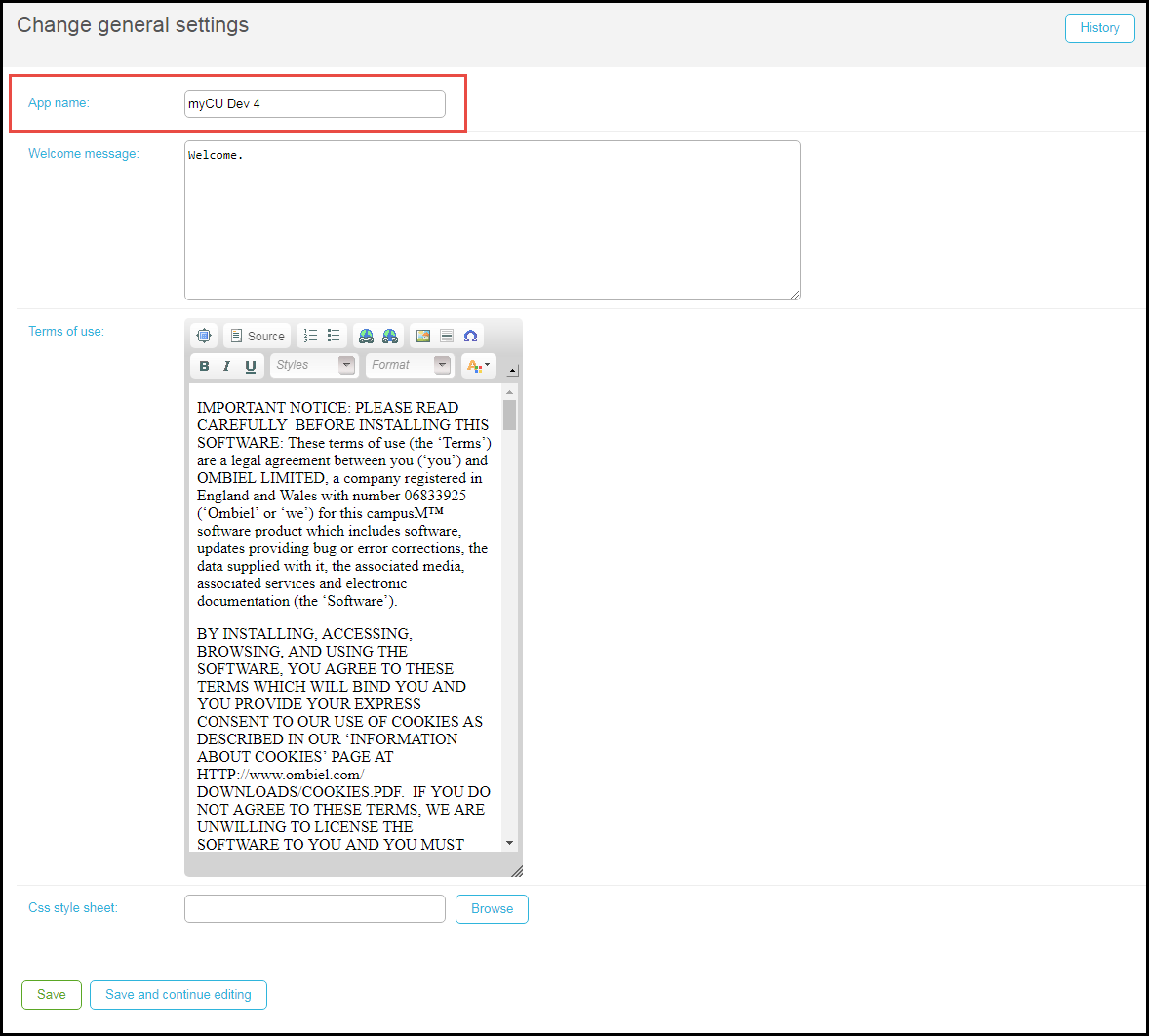
Change General Settings Page - Save the changes to the page.
Configuring the Web-App Icon
- On the Change app device icons page (App Settings > App Settings > Web App Icons), select Browse, and then select the icon for the web app from the Asset Manager (see Uploading Files). See the on-screen text for content type and file size limitations. The selected icon is displayed beside the Browse button.
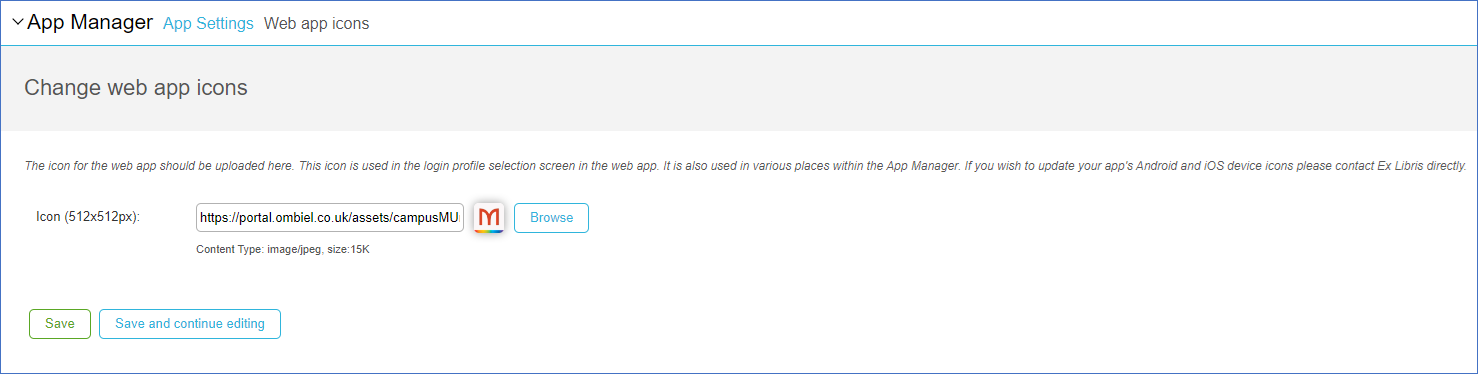 Change Web App Icons Page
 - Save the changes to the page.
Forcing End-Users to Upgrade of Native Apps
If an end-user's app is obsolete, they may experience unexpected app malfunctions. In order to prevent this from occurring, Ex Libris customer support can set minimum release versions for Android and iOS. When the end-user tries to open the app, if the version they are using does not meet the requirement, the app does not open, and they are prompted to reinstall the application. To set minimum release versions for your app, contact Ex Libris customer support.
Configuring App Information Screens
You can configure the following information panes and screens in your app:
- Welcome Message pane — When the end-user first opens the app, the app displays this message on a screen where the end-user selects the app profile. You configure the welcome message pane in the Welcome Message field on the Change general settings page (App Settings > App Settings > General Settings). The contents of the message must be text, only.Welcome Message
- Terms of Use screen — The app displays this screen after the end-user selects a profile group but before the end-user registers or logs in. The text of this screen is pre-configured by Ex Libris (North American EULA or International EULA) and should not be changed. Extra lines may be added to the EULA intro
,such as hyperlinks to the organization ’s own website, Privacy Policy, web use guidelines, etc. Such changes may only be requested to be implemented by Ex Libris. You can view the text in the Terms of use field on the Change general settings page (App Settings > App Settings > General Settings). - About screen — About screens are associated with specific profiles; see Managing Profiles.
- iPhone / iPad splash screens — The app displays a splash screen every time the end-user launches the app on an iOS device. The splash page is an image; for an iPad, it is a pair of images, one for portrait and one for landscape. You configure these pages on the Select iPhone/iPad splash page to change page (App Settings > iOS Splash Pages > iPhone Splash Pages or App Settings > iOS Splash Pages > iPad Splash Pages). Each page presents a list of splash screens for the device. For information about working with lists, see Working with Lists.
Due to legacy configurations of campusM, while the configuration of splash screen is available per profile, the application only uses a single image. It is, therefore, recommended to configure only one image in this list or to configure them all identically.
- Upload the image(s) to the Asset Manager (see Uploading Files).
- Select the image(s) from the Asset Manager. For the iPad, you select two images, one for portrait and one for landscape. The recommended sizes are:
- iPhone — 1000x2000 pixels (WxH) minimum
- iPad (portrait) — 1000x2000 pixels (WxH) minimum
- iPad (landscape) — 2000x1000 pixels (WxH) minimum
- Optionally configure a date and time for the image(s). If the date/time you configure is more recent than the date/time of the image(s) on the end-user's device, the app downloads the newer image(s).
If you change the configuration of the splash screens, the change is only visible after rebuilding and resubmitting the application to the App Store, which can be done by submitting a support case.
Configuring Biometric Identification
Biometric Identification allows mobile devices to identify users by their biometric information, such as fingerprint or facial recognition. The Biometric Identification functionality is accessible to users with permissions:Customer Super User - All permissions. Alternatively, you can contact Ex Libris support for help in managing this feature.
- Select Biometric Identification from the App Settings page (App Manager > App Settings > App Settings):
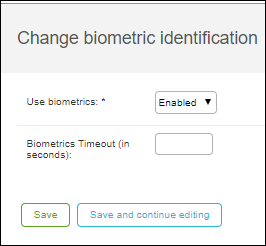
Biometric Identification - For the Use Biometrics field, select Enabled.
- For the Biometrics Timeout field (optional), enter the number of seconds for which an identification remains valid. After this time, the user is required to be identified again.The timeout counter starts when Library Mobile is closed and runs in the background. If Library Mobile is reopened, the timeout counter is reset.
- Select Save.
Configuring App Emails
Library Mobile, or the Library Mobile app, sends certain emails. The emails are (email codes are in parentheses):
- Activation (ACTIVATION_EMAIL) — Sent to new, registered guest users.
- Forgot password (FORGOTTEN_PASSWORD_EMAIL) — Sent to the end-user to change their password.
- Problem (PROBLEM_EMAIL) — Sent by the app to a user (see Configuring Email Addresses to Receive Feedback) when the end-user submits a problem report.
- Idea (IDEAS_EMAIL) — Sent by the app to a user when the end-user submits an app suggestion.
- Feedback (FEEDBACK_EMAIL) — Sent by the app to a user when the end-user submits general feedback.
- Welcome (WELCOME_EMAIL) — Sent to all new users except registered guest users as soon as they log in for the first time.
- We recommend consulting with Ex Libris customer support before making any changes to email templates.
- Any emails you add to this page are ignored. To configure additional emails, contact Ex Libris customer support.
- There cannot be more than one email of each type (as indicated by the codes in the above list).
- If an email type is missing, the relevant email is not sent.
You configure emails on the Select email template (App Settings > App Settings > Email Templates). This page presents a list of emails. For information about working with lists, see Working with Lists. For each email, configure:
- Type — Do not modify this. Must be a valid email code (see above).
- Email header — The subject of the email.
- Email body — The body of the email. To work with this field, see Working with the Text Editor. In addition to the usual features, you can add one of the following parameters to the body (or subject) that will be replaced when the email is sent:
- Application name {#app_name#}
- Email Address {#email#}
- First Name {#first_name#}
- Last Name {#last_name#}
- Password {#password#}
- Verification link tags (ACTIVATION_EMAIL only){#link#} text text text {#link#}
- New, temporary password (FORGOTTEN_PASSWORD_EMAIL only){#new_password}
- Feedback (FEEDBACK_EMAIL, PROBLEM_EMAIL, and IDEAS_EMAIL only){#feedback#}
Configuring App Feedback
When the end-user submits feedback, the feedback is available to view in the App Manager and an email is sent to the default email address for the profile. To configure this email, see Configuring App Emails.
To view app feedback, see Viewing Feedback.
Configuring Problem Feedback Categories
You configure problem feedback categories on two pages: the Select problem page category page (App Settings > Feedback > Problem Page Categories) for problems about particular pages, and the Select problem app category page (App Settings > Feedback > Problem App Categories) for general problems with the app. Each page presents a list of categories; for information about working with lists, see Working with Lists.
For each category, configure:
- Value code — A unique code, for use in reporting.
- Description — The category name as it appears in the app.
- English / Dutch / English US — Enter a description of the category in English. The other language fields are not in use.
Configuring Email Addresses to Receive Feedback
You can configure three email addresses to receive feedback from end-users: one email address each to receive feedback for problems, ideas, and general feedback, respectively. The email addresses are configured as a set, and the set is assigned to a profile to receive feedback from end-users of that profile.
You configure email addresses to receive feedback on the Select contact email addresses to change page (App Settings > Feedback > Contact Email Addresses). This page presents a list of sets of email addresses; for information about working with lists, see Working with Lists.
For each set, configure the email addresses for general feedback (Feedback email address), problems (Problem email address), and ideas (Ideas email address).
Configuring App Social Network Sharing
End-users can share a link to the app, or a screen from the app, by email, or Twitter. You can configure these features during installation, but you can also configure them later. For more information about end-user communication, see End-User Communication.
Configuring Twitter Sharing
You configure Twitter sharing on the Select Twitter Settings to change page (App Settings > Sharing > Twitter Settings). This page presents a list of sharing elements; for information about working with lists, see Working with Lists. The elements are:
- Screenshot of — Default text to post a link to a page. Use the code #page# to have the app substitute the current page name in the text.
- App Name — Default text to post a "get this app" message. Use the code APPNAME to have the app substitute the app name in the text.
For each element, configure the
- Description — The text, as it appears in the app.
- English / Dutch / English US — Enter English. The other language fields are not in use.
Configuring Email Sharing
You configure email sharing on the Select Email Settings to change pages (App Settings > Sharing > Email Settings). This page presents a list of sharing elements; for information about working with lists, see Working with Lists. The elements are:
- Page / App Email Subject Title — The subject when sending an email about a page / the app. Use the code APPNAME to have the app substitute the app name in the text.
- Page / App Email Body — The body when sending an email about a page / the app. Enter a name for this entry (the default is Page Email Body) and the body text in English, US English, and/or Italian. Use the code APPNAME to have the app substitute the app name in the text. To edit the text, see Working with the Text Editor.
Page tags: article:topiccontent:Documentationproduct:campusmlang:englishcommunity:training_materialsproduct:alma_specto
