
Configuring Portal View
Portal view is available to students when viewing Library Mobile on a Web-based desktop or laptop computer instead of a mobile device. You configure Portal View from the App Builder.
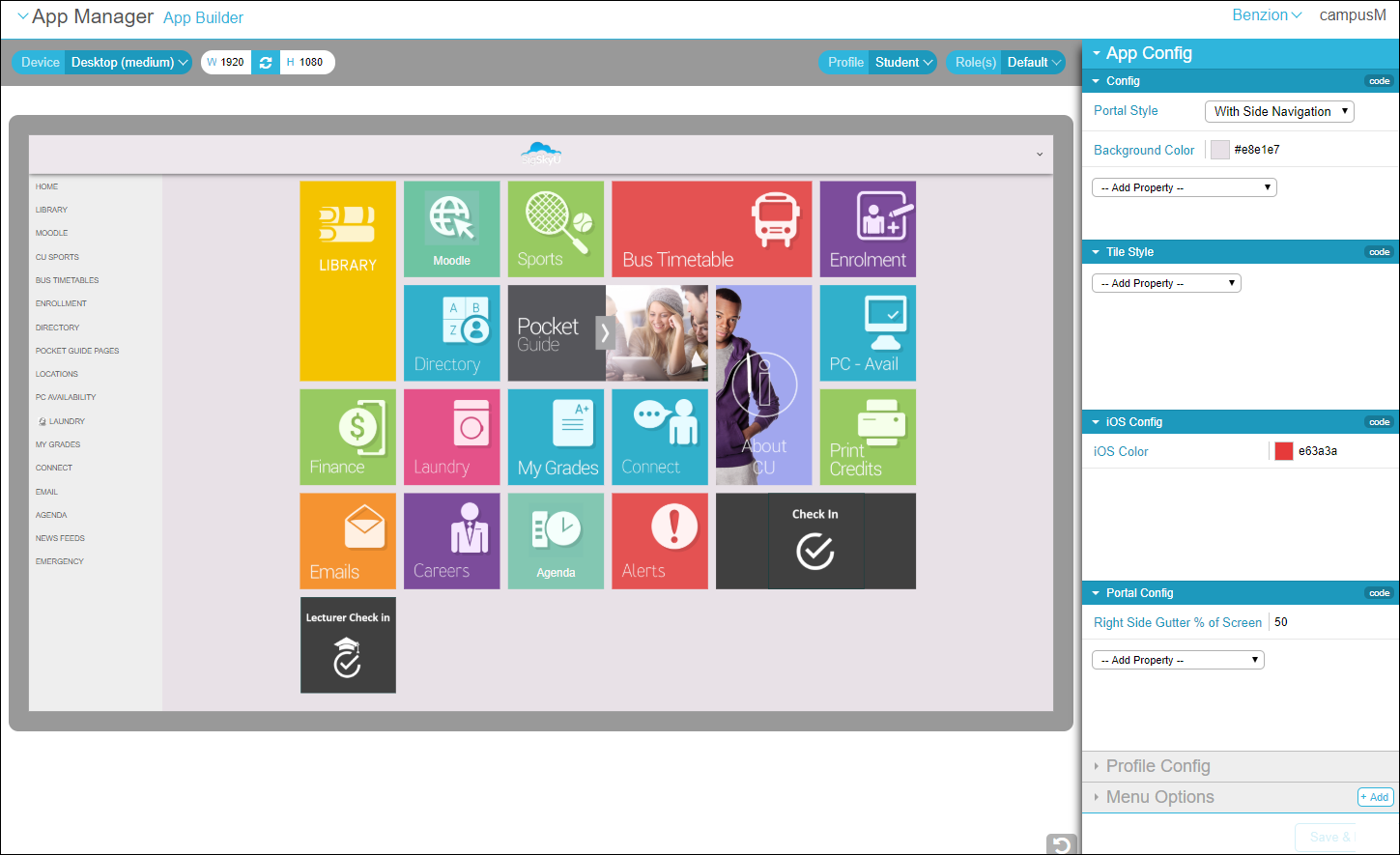
Select With Side Navigation from the Portal Style drop-down menu. The Navigation side bar appears in the Device Display Pane and the Portal Config section appears in the configuration pane. Select a property under App Config to configure the property on the app level, such as the side bar color. You can also configure services to appear with a right gutter at the profile or service level to improve their appearance on the page.
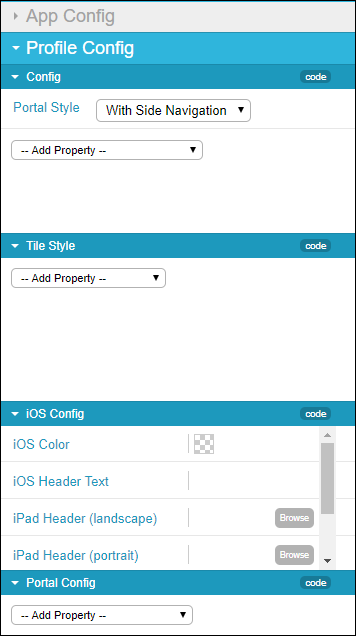
Select Profile Config to configure the Portal View on the profile level.
Select Menu Options and select a service to configure Portal View on the service level.
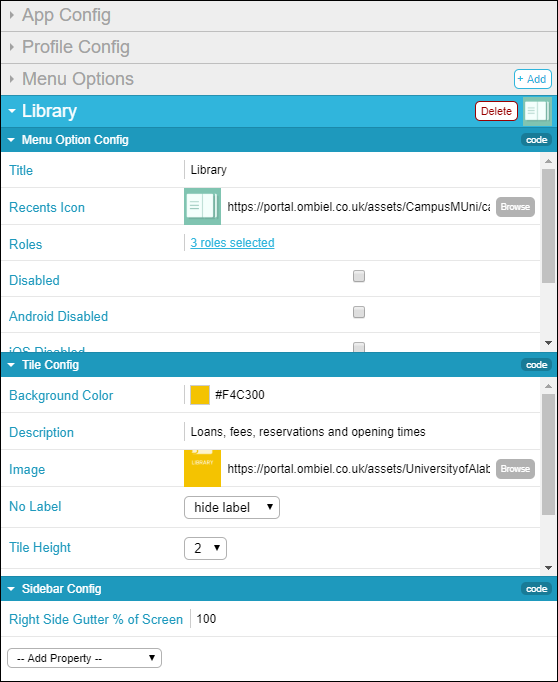
Under Title Config you configure the service option as a tile, and under Sidebar config you configure the service option in the sidebar. For example, you can hide a service from the sidebar, from being displayed as a tile, or both.
Click Save and Publish to make your changes visible to users.
Page tags: article:topiccontent:Documentationproduct:campusmlang:englishcommunity:training_materialsproduct:alma_specto
