
Publishing the App
After you save most changes in the App Manager, the end-user sees the changes when they log out and in to the app or switch profiles. You can force these changes to appear immediately to the end-user by publishing the app.
The following changes display immediately to the end-users even if you do not publish the app:
- Changing a map image (and some other images, where noted in this document) - See Adding Maps.
- Changing an iPhone / iPad splash page - See Configuring App Information Screens.
You publish the app in either of two ways:
- When configuring services (see Configuring Services), select Save & Publish to publish all service changes.
- Publish selected changes on one of the Publishing pages (see below).
You can publish some or all changes on one of the Publishing pages (App Settings > Publishing > Publish Content).
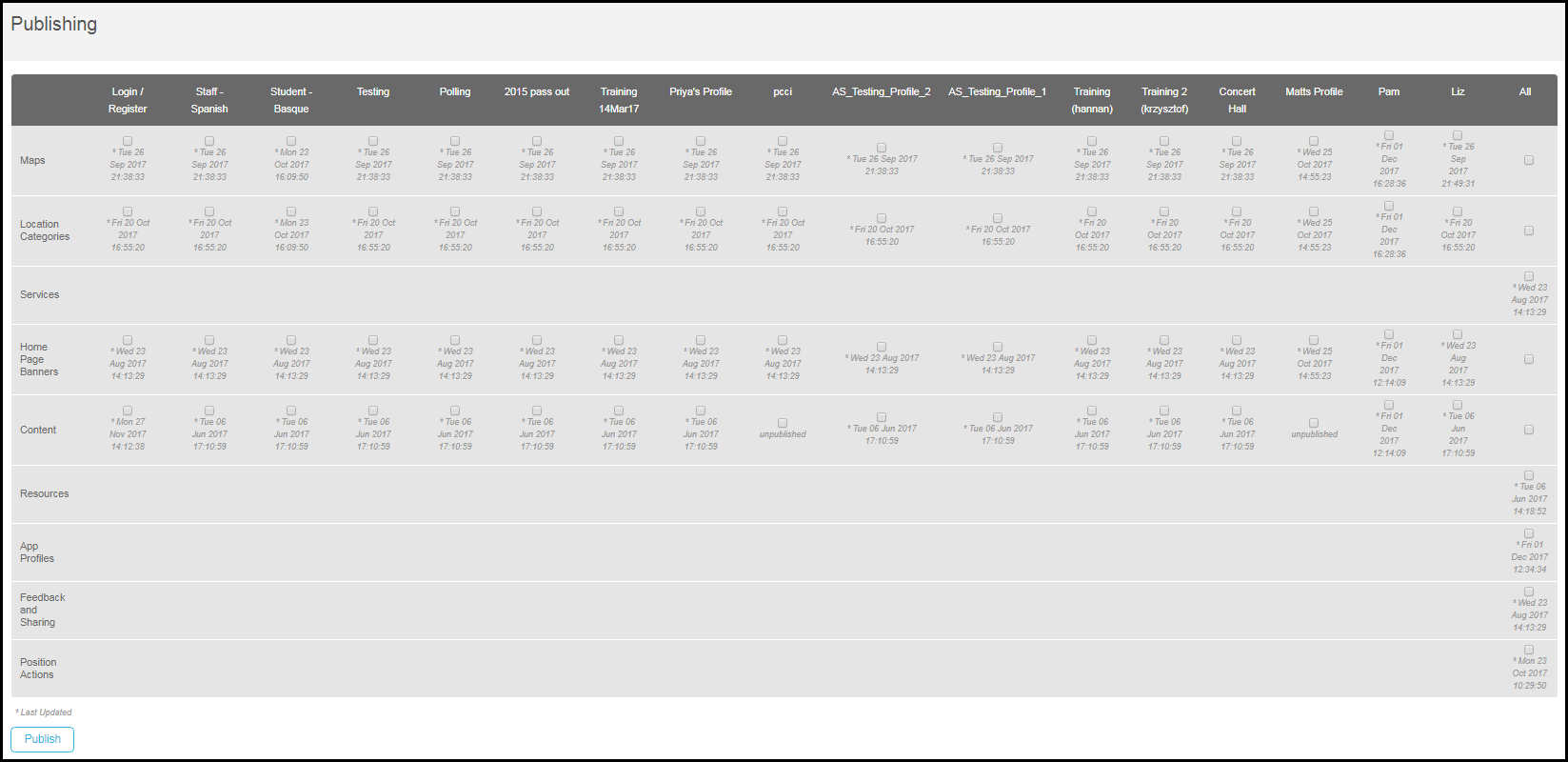
On these pages, each column corresponds to a profile; the last column is used to publish changes for all profiles. Each row corresponds to a Library Mobile feature. On the general Publishing page, the features are:
- Maps - See Adding Maps.
- Location Categories - See Adding Location Categories.
- Services - See Creating Services and Configuring Services.
- Home Page Banners - The default banner images. See Configuring Default Banner Service Images.
- Content - See Working with Static Content and the Content Menu.
- Resources - Not in use.
- App Profiles - See Managing Profiles.
- Feedback and Sharing - See Configuring App Feedback.
- Position Actions - See Adding Actions at Map Locations.
- For each profile, or for all profiles, select the features to publish. If you do not select a particular feature/profile, end-users of that profile will still see the changes for that feature when they log out and in to the app or if they switch profiles.
- Select Publish. End-users connected by carrier are asked to update the app (they can defer the update). For other end-users, including end-users using devices connected to Wi-Fi and end-users using a web app in a browser, the changes are seen immediately.
Page tags: article:topiccontent:Documentationproduct:campusmlang:englishcommunity:training_materialsproduct:alma_specto
