
Creating MARC 037 fields for Encore eBook Integration
Encore requires that bibliographic records for eBooks and audiobooks contain 037 fields that follow a specific format. The 037 field must contain the vendor record identifier in subfield a and the standardized vendor name in subfield b. For example:
y037  |aA0AFCF42-EF59-4110-B15E-A23DD2B67CF0|bOverDrive
y037  |aog3689|b3M
If your records do not already contain 037 fields in this format, you can use Create Lists and Global Update in your Sierra or Millennium system to create the 037 fields, by copying the 856 field from your OverDrive or cloudLibrary records.
Each of the OverDrive and cloudLibrary records in your library's database should contain an 856 field with your URL for that title, including the vendor record identifier. With Global Update, that 856 field can be used to create an 037 field with the required information.
The basic steps are:
- Use Create Lists to gather the records into review files.
- Identify patterns in the 856 field data. This data is used to create Global Update commands.
- Use Global Update to copy the 856 fields into 037 fields.
- Use Global Update to replace unneeded data in the new 037 fields with required data, retaining the unique vendor record identifier for each title.
Below are steps which describe one way to use Global Update to create the 037 fields that meet Encore's requirements using records in the relevant format:
Evaluating 037 Fields
Before creating new 037 fields, you can evaluate existing 037 fields in your OverDrive and cloudLibrary records to determine if the fields can be used as is.
To do this, create a review file of the records and either view the files in Global Update or export a list of the fields using Create Lists.
The 037 fields must contain the vendor record identifier in subfield a and subfield b must begin with "OverDrive" or "3M" (for cloudLibrary); extra subfields do not impact Encore functionality. For example, all of the following 037 fields can work:
037    |a9E48EEE0-4FEF-4ABE-9248-617BCD22B9|bOverDrive
037    |a9E48EEE0-4FEF-4ABE-9248-617BCD22B9|bOverDrive, Inc.
037    |a9E48EEE0-4FEF-4ABE-9248-617BCD22B9|bOverDrive, Inc.|nhttp://www.overdrive.com
037    |adydncr9|b3M
037    |adydncr9|b3M Cloud Library
037    |adydncr9|b3M Cloud Library|nhttp://ebook.3m.com
OverDrive Records
- Create a review file with Create Lists.
- Review the 856 fields in your records for patterns.
- Copy the 856 fields into 037 fields.
- Add the required data to the 037 fields.
- (Optional) Modify your 037 field indicators for the MARC standard.
Create a review file with Create Lists
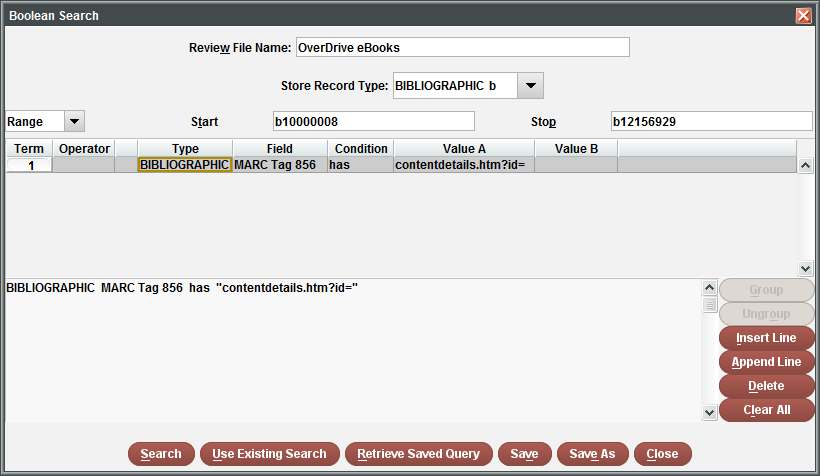
Use Create Lists to create a review file of bibliographic records with 856 fields that contain the following string:
ContentDetails.htm?id=
The Create Lists search strategy is:
BIBLIOGRAPHIC MARC Tag 856 has "contentdetails.htm?id="
Review the 856 fields in your records for patterns
Use Global Update to review the 856 fields in your records. You then can copy the patterns you find into a text editor for use in the next step.
- In the Select records tab, retrieve the records from the review file. By default, the title field is displayed and all records are selected.
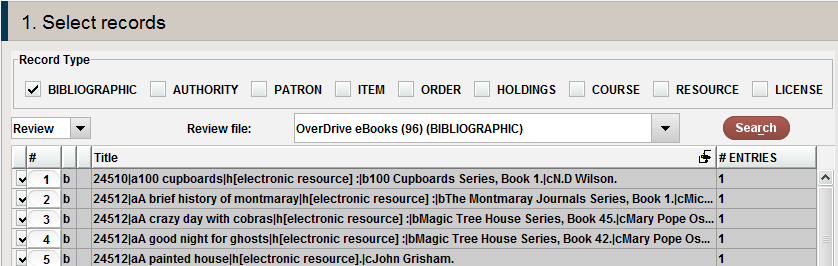
- Toggle the field displayed here by clicking on Tools | Toggle | Bibliographic Variable-Length Fields | Misc from the menu bar. The display changes to show all fields from the y field group (Misc), including the 856 fields.
- Scroll down to find the 856 fields that contain your library's OverDrive URL. There might be additional 856 fields, with URLs for images or excerpts, but the fields with your OverDrive URL are the ones that contain the required data. If necessary, expand the window so that you can see more of the data in the fields.

- Note any consistent patterns. There might be more than one pattern present in your records. For example (with the vendor record identifier highlighted):
Examples
The following are examples of 856 fields. The vendor record identifiers are highlighted.
|uhttp://yourOverDriveURL.lib.overdrive.com/ContentDetails.htm?ID={01C398E7-5069-4286-9041-86B5C5CB374C}|zClick to access digital title.
|uhttp://yourOverDriveURL.lib.overdrive.com/ContentDetails.htm?ID={15D1A3AA-B144-47FA-A487-F6EE6B0CD46A}|zA downloadable audio book accessible through the World Wide Web; click for information
|uhttp://yourOverDriveURL.lib.overdrive.com/ContentDetails.htm?ID=7C7D29B8-F75D-4EF8-8957-71832F59D892|zConnect to this eAudio title
|uhttp://yourOverDriveURL.lib.overdrive.com/ContentDetails.htm?ID={4EE12F85-0507-4DB4-9615-6A2E3C0A8649}&Format=410|zAccess OverDrive to check device compatibility, status, and place holds
|zClick here to access|uhttp://yourOverDriveURL.lib.overdrive.com/ContentDetails.htm?ID=7521BEC2-E604-4FE3-A927-91E9F8511050
In the first four examples, you can use Global Update to replace the data string before the vendor record identifier with |a and the data string after the vendor record identifier number with |bOverDrive.
In the last example, you can use Global Update to replace the data string before the vendor record identifier with |a and to add |bOverDrive to the end of the 037 field.
As you identify different patterns in the Select records tab:
- Click once to highlight a record with each pattern.
- Click the Edit button in the toolbar to open that record.
- Click the View or Edit button to access the full bibliographic record.
Copy the complete contents of the 856 field (including subfield delimiters) and paste the data into a text editor (such as NotePad) so you have it readily accessible.
If you find it difficult to identify your 856 field patterns using Global Update, you can export or list the 856 fields from the review file in Create Lists and examine the data outside of Sierra or Millennium.
Variable Data
If you find that your 856 fields contain variable data before the vendor record identifier, see Notes on Non-standard Patterns before proceeding with the next steps. For example:
|uhttp://yourOverDriveURL.lib.overdrive.com/2A1808C4-663C-48C8-9374-08D7C397A17E/10/385/en/ContentDetails.htm?ID=5AFDA85D-4ABD-4A2A-81BC-168889A8E7B1|zClick here to access
Copy the 856 fields into 037 fields
- In the Select records tab of Global Update, select all of the records from your review file (you can use CTRL-A to select all records).
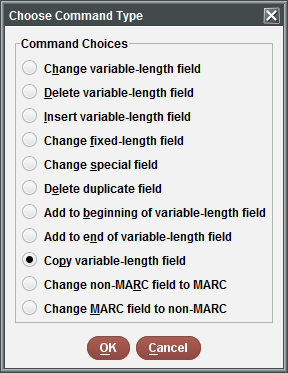
- Click on the Command input tab and select the Copy Variable-length Field command from the Choose Command Type box.
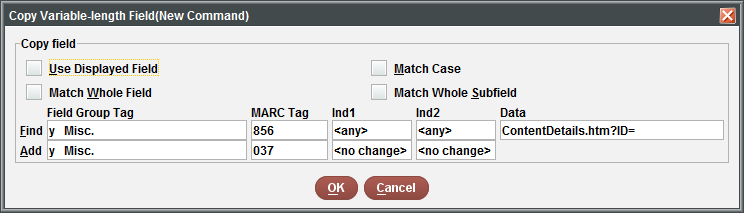
- Enter the command as follows:
- Uncheck the Use Displayed Field option.
- In the Find line, change Field Group Tag to y (Misc), MARC Tag to 856, and enter the following into the Data field: ContentDetails.htm?ID=
- In the Add line, change Field Group Tag to y (Misc) and MARC Tag to 037. Leave Ind1 and Ind2 unchanged.
- Click OK.
- Click the Preview tab to preview your changes. The existing 856 field should be copied into a new 037 field.

- Process the changes.
Add the required data to the 037 fields
Use Global Update to replace unneeded data in the new 037 fields with required data, retaining the unique vendor record identifier for each title.
- In Global Update, return to the Select records tab and retrieve the records in your review file.
- Click on the Command input tab and delete the command used to copy the 856 field to the 037 field.
- Click Add and select the Change Variable-length Field command from the Choose Command Type box.
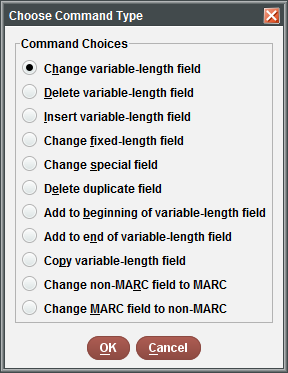
- Enter the command as follows:
- Uncheck the Use Displayed Field option.
- In the Find line, change Field Group Tag to y (Misc) and MARC Tag to 037.
- Modify the Data field using the copy you made of the 856 field from one of your OverDrive records in your text editor. Copy the data string before the vendor record identifier from your example. Stop at the last character before the vendor record identifier number and include any subfield delimiters. Paste the copied string into the Data field.
For example, add the highlighted element of the following URL into the Data field on the Find line:
|uhttp://yourOverDriveURL.lib.overdrive.com/ContentDetails.htm?ID={4DF1E376-701E-43CB-946E-1C4746D4CD33}|zClick to access digital title. - In the Replace line, enter |a into the Data field.
- Click OK.

If you identified more than one pattern in the data before the vendor record identifier, add additional commands to change those data strings or process the changes in batches.
Add a Change Variable-length Field command to replace the data string after the vendor record identifier with |bOverDrive. Enter the command as follows:
- Uncheck the Use Displayed Field option.
- In the Find line, change Field Group Tag to y (Misc) and MARC Tag to 037.
- Modify the Data field using the patterns from your 856 fields in your text editor. Copy the data string after the vendor record identifier from your example and paste that string into the Data field.
For example, paste the highlighted field into the Find line:
|uhttp://yourOverDriveURL.lib.overdrive.com/ContentDetails.htm?ID={4DF1E376-701E-43CB-946E-1C4746D4CD33}|zClick to access digital title. - In the Replace line, enter the following in the Data field: |bOverDrive
- Click OK.
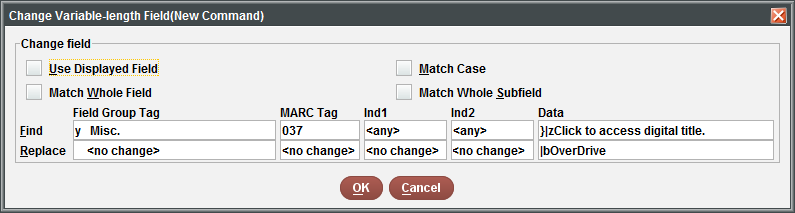
If you identified more than one pattern in the data after the vendor record identifier, add additional commands to change those data strings or process the changes in batches.
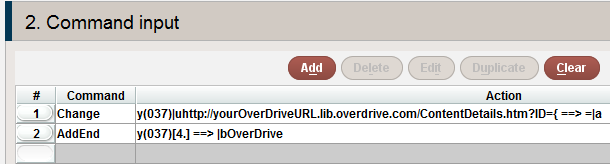
If you need to add |bOverDrive to the end of 037 fields and do not need to replace data, use the Add to End of Variable-length Field command.
- Uncheck the Use Displayed Field option.
- In the Find line, change Field Group Tag to y (Misc), MARC Tag to 037, and Ind1 to 4.
Using the indicator value ensures that you do not add an additional subfield b to any previously existing 037 fields. - In the Add line, enter the following in the Data field: |bOverDrive.
- Click OK.
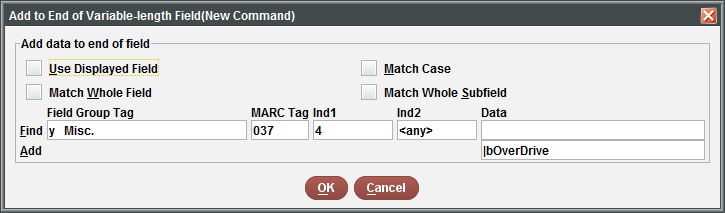
Examples of Commands
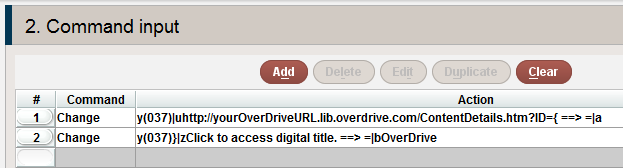
or
Optional: Modify the 037 Field Indicators for the MARC standard
- Use the Change Variable-length Field command, to change the indicators to <blank>. Enter the command as follows:
- Uncheck the Use Displayed Field option.
- In the Find line, change Field Group Tag to y (Misc), MARC Tag to 037, and Ind1 to 4.
- In the Replace line, change Ind1 and Ind2 to <b> blank.
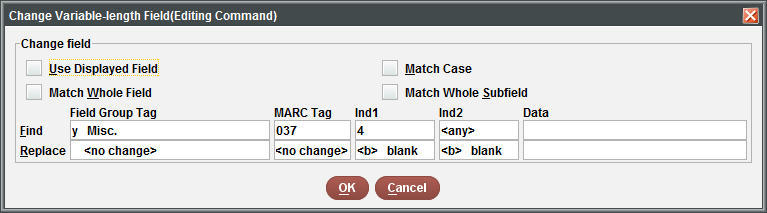
- Click OK.
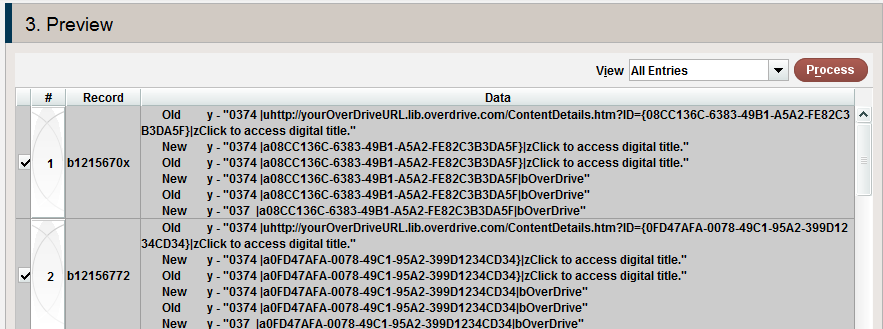
- Click the Preview tab to preview your changes. For each record:
- Any data before the vendor record identifier should be replaced by |a.
- Any data after the vendor record identifier should be replaced by |bOverDrive (or |bOverDrive should be added to the end).
- Optionally, the indicators should be blank.
The end result for each record should be an 037 in the required format.
- Process the changes.
cloudLibrary Records
- Create a review file with Create Lists.
- Review the 856 fields in your records for patterns.
- Copy the 856 fields into 037 fields.
- Add the required data to the 037 fields.
- (Optional) Modify your 037 field indicators for the MARC standard.
Create a review file with Create Lists
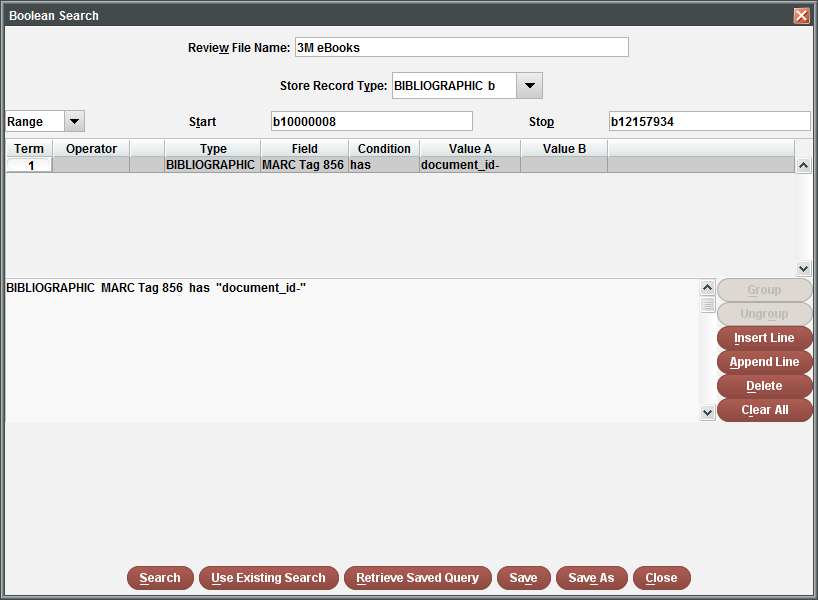
Use Create Lists to create a review file of bibliographic records with 856 fields that contain the following string:
document_id-
The Create Lists search strategy is:
BIBLIOGRAPHIC MARC Tag 856 has "document_id-"
Review the 856 fields in your records for patterns
Use Global Update to review the 856 fields in your records. You then can copy the patterns you find into a text editor for use in the next step.
- In the Select records tab, retrieve the records from the review file. By default, the title field is displayed and all records are selected.
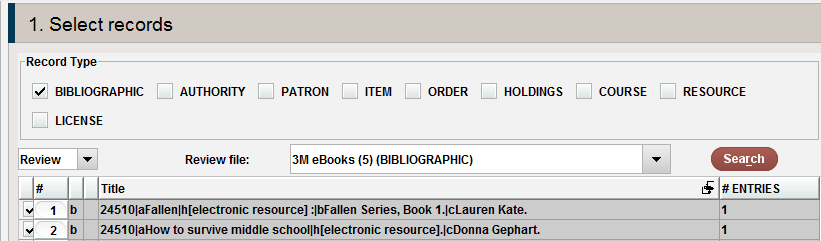
- Toggle the field displayed here by clicking on Tools | Toggle | Bibliographic Variable-Length Fields | Misc from the menu bar. The display changes to show all fields from the y field group (Misc), including the 856 fields.
- Scroll down to find the 856 fields that contain your library's cloudLibrary URL. There might be additional 856 fields, with URLs for images or excerpts, but the fields with your cloudLibrary URL are the ones that contain the required data. If necessary, expand the window so that you can see more of the data in the fields.

- Note any consistent patterns. There might be more than one pattern present in your records. For example (with the vendor record identifier highlighted):
Examples
The following are examples of 856 fields. The vendor record identifiers are highlighted.
|uhttp://ebook.3m.com/library/MyLibrary-document_id-ntuag9|zDownload the 3M eBook
|uhttp://ebook.3m.com/library/MyLibrary-document_id-vlocg9|zDownload the item
|3Whole product|uhttp://www.mylibrary.org/cgi-bin/j/jump.pl?http://ebook.3m.com/library/MyLibrary-document_id-dxoh9r9
In the first two examples, you can use Global Update to replace the data string before the vendor record identifier with |a and the data string after the vendor record identifier number with |b3M.
In the third example, you can use Global Update to replace the data string before the vendor record identifier with |a and to add |b3M to the end of the 037 field.
As you identify different patterns in the Select records tab:
- Click once to highlight a record with each pattern.
- Click the Edit button in the toolbar to open that record.
- Click the View or Edit button to access the full bibliographic record.
Copy the complete contents of the 856 field (including subfield delimiters) and paste the data into a text editor (such as NotePad) so you have it readily accessible.
If you find it difficult to identify your 856 field patterns using Global Update, you can export or list the 856 fields from the review file in Create Lists and examine the data outside of Sierra or Millennium.
Variable Data
If you find that your 856 fields contain variable data before the vendor record identifier, see Notes on Non-standard Patterns before proceeding with the next steps.
Copy the 856 fields into 037 fields
- In the Select records tab of Global Update, select all of the records from your review file (you can use CTRL-A to select all records).
- Click on the Command input tab and select the Copy Variable-length Field command from the Choose Command Type box.
- Enter the command as follows:
- Uncheck the Use Displayed Field option.
- In the Find line, change Field Group Tag to y (Misc), MARC Tag to 856, and enter the following into the Data field: document_id-
- In the Add line, change Field Group Tag to y (Misc) and MARC Tag to 037. Leave Ind1 and Ind2 unchanged.
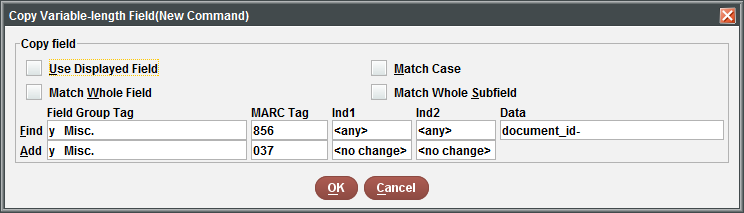
- Click OK.
- Click the Preview tab to preview your changes. The existing 856 field should be copied into a new 037 field.
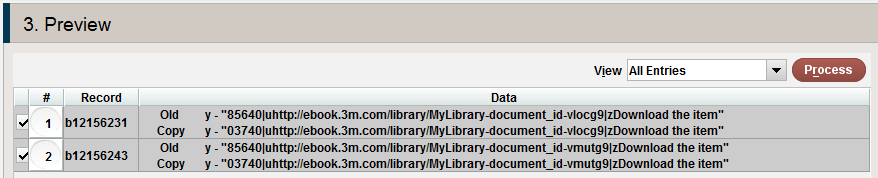
- Process the changes.
Add the required data to the 037 fields
Use Global Update to replace unneeded data in the new 037 fields with required data, retaining the unique vendor record identifier for each title.
- In Global Update, return to the Select records tab and retrieve the records in your review file.
- Click on the Command input tab and delete the command used to copy the 856 field to the 037 field.
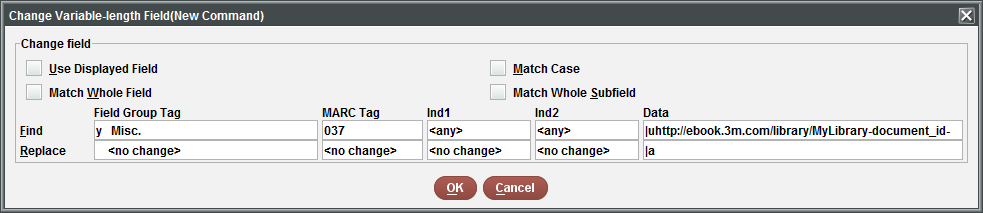
- Click Add and select the Change Variable-length Field command from the Choose Command Type box.
- Enter the command as follows:
- Uncheck the Use Displayed Field option.
- In the Find line, change Field Group Tag to y (Misc) and MARC Tag to 037.
- Modify the Data field using the copy you made of the 856 field from one of your cloudLibrary records in your text editor. Copy the data string before the vendor record identifier from your example. Stop at the last character before the vendor record identifier number and include any subfield delimiters. Paste the copied string into the Data field.
For example, add the highlighted element of the following URL into the Data field on the Find line:
|uhttp://ebook.3m.com/library/MyLibrary-document_id-vlocg9|zDownload the item - In the Replace line, enter |a into the Data field.
- Click OK.
If you identified more than one pattern in the data before the vendor record identifier, add additional commands to change those data strings or process the changes in batches.
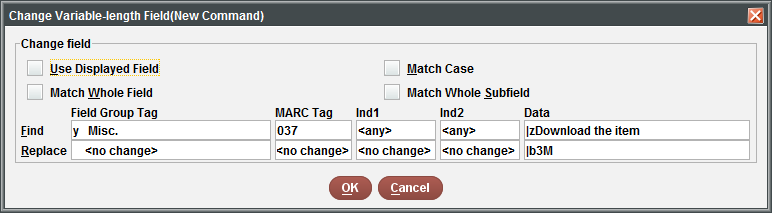
Add a Change Variable-length Field command to replace the data string after the vendor record identifier with |b3M. Enter the command as follows:
- Uncheck the Use Displayed Field option.
- In the Find line, change Field Group Tag to y (Misc) and MARC Tag to 037.
- Modify the Data field using the patterns from your 856 fields in your text editor. Copy the data string after the vendor record identifier from your example and paste that string into the Data field.
For example, paste the highlighted field into the Find line:
|uhttp://ebook.3m.com/library/MyLibrary-document_id-vlocg9|zDownload the item - In the Replace line, enter the following in the Data field: |b3M
- Click OK.
If you identified more than one pattern in the data after the vendor record identifier, add additional commands to change those data strings or process the changes in batches.
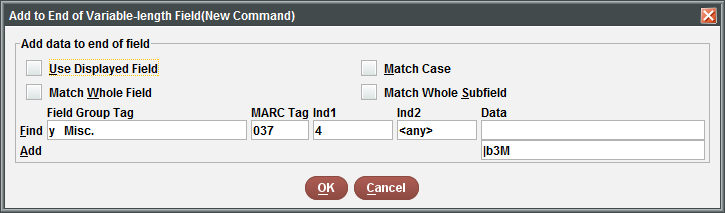
If you need to add |b3M to the end of 037 fields and do not need to replace data, use the Add to End of Variable-length Field command.
- Uncheck the Use Displayed Field option.
- In the Find line, change Field Group Tag to y (Misc), MARC Tag to 037, and Ind1 to 4.
Using the indicator value ensures that you do not add an additional subfield b to any previously existing 037 fields. - In the Add line, enter the following in the Data field: |b3M.
- Click OK.
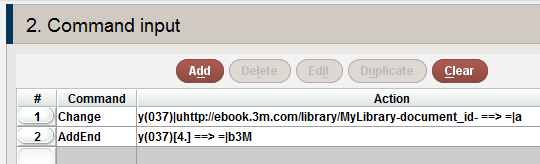
Examples of Commands
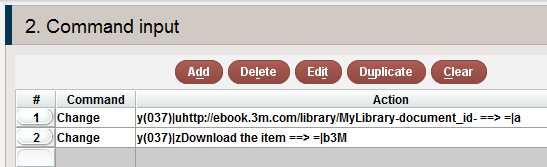
or
Optional: Modify the 037 Field Indicators for the MARC standard
- Use the Change Variable-length Field command, to change the indicators to <blank>. Enter the command as follows:
- Uncheck the Use Displayed Field option.
- In the Find line, change Field Group Tag to y (Misc), MARC Tag to 037, and Ind1 to 4.
- In the Replace line, change Ind1 and Ind2 to <b> blank.
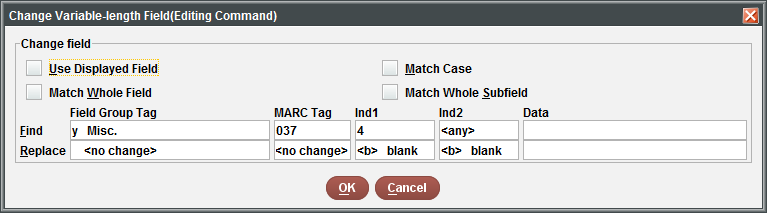
- Click OK.
- Click the Preview tab to preview your changes. For each record:
- Any data before the vendor record identifier should be replaced by |a.
- Any data after the vendor record identifier should be replaced by |b3M (or |b3M should be added to the end).
- Optionally, the indicators can be blank.
The end result for each record should be an 037 in the required format.
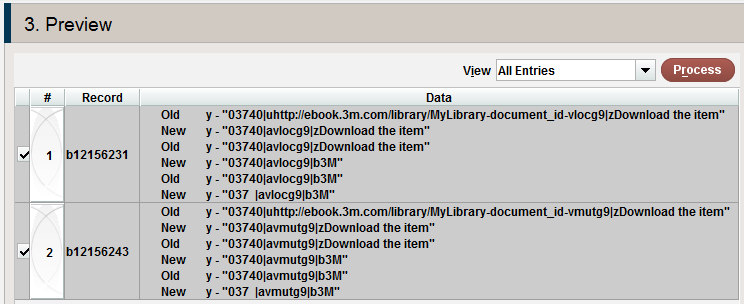
- Process the changes.
Notes on Non-standard Patterns
If you find that your 856 fields do not contain a consistent pattern before the vendor record identifier, you can replace the standard data string that is immediately before the vendor record identifier with |a, leaving the data in the subfield u before the vendor record identifier unchanged. This does not affect Encore functionality.
For example, there is a variable number following your library's OverDrive URL, and before the vendor record identifier:
|uhttp://yourOverDriveURL.lib.overdrive.com/2A1808C4-663C-48C8-9374-08D7C397A17E/10/385/en/ContentDetails.htm?ID=5AFDA85D-4ABD-4A2A-81BC-168889A8E7B1|zClick here to access
Replace ContentDetails.htm?ID= with |a.
This results in the 037 field including a non-standard subfield u before the subfield a with the vendor record identifier. For example:
037 |uhttp://yourOverDriveURL.lib.overdrive.com/2A1808C4-663C-48C8-9374-08D7C397A17E/10/385/en/|a5AFDA85D-4ABD-4A2A-81BC-168889A8E7B1|bOverDrive
Global Update cannot replace a variable string in the middle of a field, so there is no way to remove that data. As long as subfields a and b contain the correct information, Encore functions normally.
Additional Variations
There might be additional variations in the format of the 856 fields in your OverDrive and 3M bibliographic records that are not accounted for above. Adjust the steps as necessary.
