
Import MARC Records Automatically via FTP
Polaris supports an automated process for importing MARC records. Libraries that order fully cataloged records from third-party suppliers now have the option to automatically import MARC records directly from vendors’ FTP servers without having to download and import them manually.
The automatic MARC import setup is done in the Supplier Workform > MARC Import, where libraries can configure connections to the vendors' FTP servers and schedule automatic MARC imports. Each schedule defines when an import profile retrieves MARC data from the vendor’s FTP server. The imports are executed via the Polaris Jobs service. The Polaris connects to the FTP server configured in the supplier record, detects available files, and automatically adds them to the MARC import queue for processing. In the MARC import queue, files are processed using the import profile defined in the supplier record.
This section covers the following topics:
Setting Up Automatic MARC Imports in Supplier Record Workform
This section covers the following:
-
Adding an automatic MARC import connection in the Supplier record workform
-
Editing an automatic MARC import connection in the Supplier record workform
-
Deleting an automatic MARC import connection in the Supplier record workform
Adding an automatic MARC import connection in the Supplier record workform
To add a connection for automatic MARC import in the Supplier record workform
-
In the Leap header, select FIND to open the Find Tool.
-
Select Supplier to change the search database.
-
Select the supplier record you for the automatic MARC import and select OPEN.
The Supplier workform appears.
-
Select the MARC Import tab.
MARC Import view appears. If no MARC Import connections have been added, the view displays the message "There are no MARC imports for this supplier record."
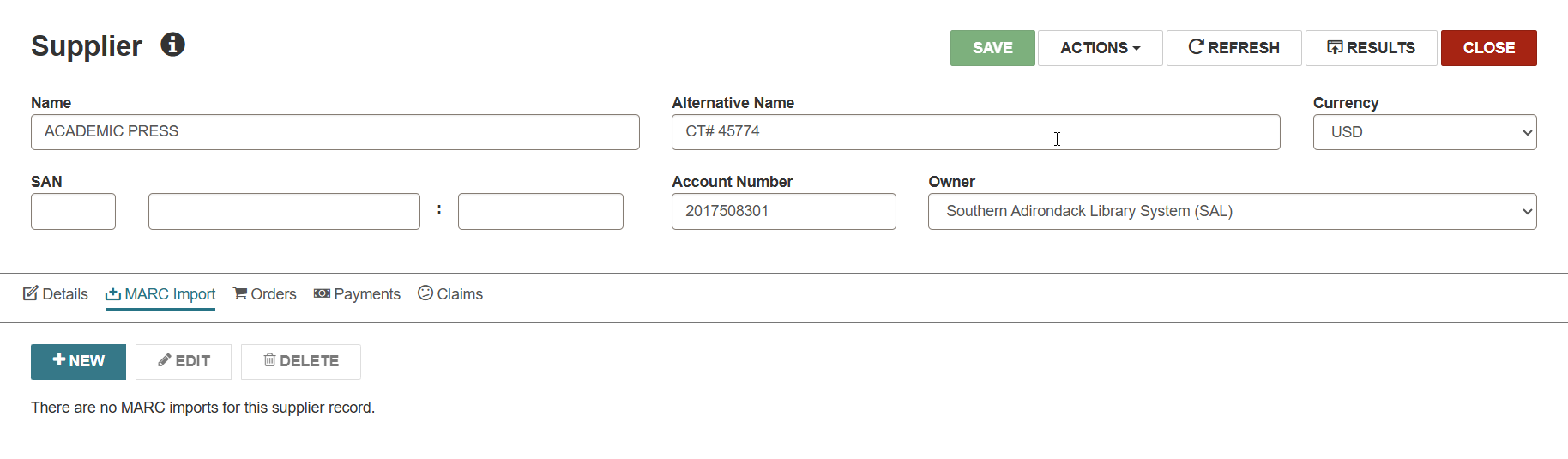
Otherwise, a table with a list of connections is displayed with the MARC import configuration details.

You can add a new MARC import connection, edit or delete an existing one.
-
To add a MARC import connection, select NEW.
Add MARC Import dialog appears, featuring the following fields for configuring automatic MARC import from a vendor's FTP server.
-
FTP Address - Enter the vendor's FTP server address from which the records will be retrieved.
-
Username
-
Password
-
MARC Directory - Enter the vendor's MARC directory from which the records will be retrieved.
-
File Extention - Enter the desired file extension for import.
-
Frequency - From a dropdown list of options, select the frequency of automatic imports:
-
Daily (once per day)
-
Hourly
-
Continuously (each time the process runs, which is every 5 minutes)
-
Never
-
-
Daily Schedule - Set the runtime of daily automatic imports. The data you enter is processed by the Polaris.Jobs schedule.
-
Import Profile - Select FIND to open the Find Tool. Choose the desired profile and select OPEN.
Note:
All fields are required for proceeding.Once you complete all the fields, select OK.
-
-
The added connection appears in the table on the MARC Import view. To save the MARC import connection, select SAVE in the Supplier workform header.
Note:
Changes to the automatic import jobs may take a few minutes to reconcile in the Polaris.Jobs service.Files found on the configured FTP site will be added to the standard MARC import queue for processing. In the MARC import queue, files are processed using the import profile defined in the supplier record.
Editing an automatic MARC import connection in the Supplier record workform
To edit an automatic MARC import connection in the Supplier record workform
-
In the Leap header, select FIND to open the Find Tool.
-
Select Supplier to change the search database.
-
Select the supplier record you for the automatic MARC import and select OPEN.
The Supplier workform appears.
-
Select the MARC Import tab.
-
Select the checkbox next to a connection you want to edit and select EDIT.
The Edit MARC Import dialog appears.
-
Edit the MARC Import fields. See Adding an automatic MARC Import connection in the Supplier record workform for more information about the fields.
-
To save the changes to the MARC import connection, select SAVE in the Supplier workform header.
Note:
Changes to the automatic import jobs may take a few minutes to reconcile in the Polaris.Jobs service.Files found on the configured FTP site will be added to the standard MARC import queue for processing. In the MARC import queue, files are processed using the import profile defined in the supplier record.
Deleting an automatic MARC import connection in the Supplier record workform
To delete an automatic MARC Import connection in the Supplier record workform
-
In the Leap header, select FIND to open the Find Tool.
-
Select Supplier to change the search database.
-
Select the supplier record you for the automatic MARC import and select OPEN.
The Supplier workform appears.
-
Select the MARC Import tab.
-
Select the checkbox next to a connection you want to delete and select DELETE
The system prompts you to confirm that you want to delete the connection.
-
To save the changes to the MARC import connection table, select SAVE in the Supplier workform header.
Note:
Changes to the automatic import jobs may take a few minutes to reconcile in the Polaris.Jobs service.
Tracking the Status of Automatically Imported MARC Records
To check the status of an automatic MARC record import
-
Select Utilities > Background Processing.
Background Processing page appears.
-
Select MARC Import tab.
MARC Import view appears with the list of all MARC imports and their statuses. For more information about the Backgorund Processing > MARC Import view see View the Status of a Record Import.
-
Click on the MARC import record to see its Import Report.
