
Claim a Serial Issue from the Serials Check In Workform
You can claim an individual serial issue from the Serials Check In workform.
Note:
You can claim serial issues if you have the Serial issues/standing order parts: Claim permission enabled in Polaris Administration (staff client). For more information, search for "Serials Workflow Permissions" in the Polaris staff client help.
To claim an issue from the Serials Check In workform
-
Select Utilities > Serials Check In.
The serial holdings record Find Tool appears.
- Use the Find Tool to search for and open a serial holdings record.
-
On the Serial Holdings Record workform, select Links > Serials Check In.
The Serials Check In workform appears.
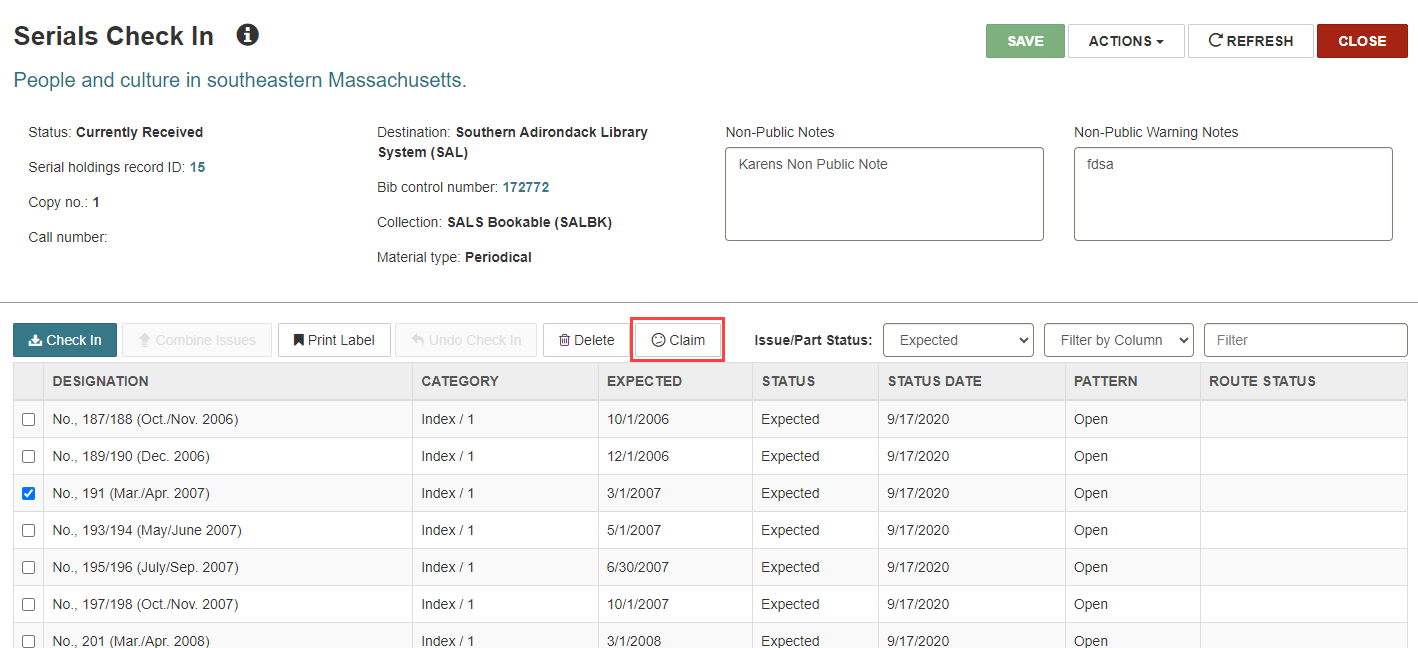
- Select the issue you want to claim.
-
Select Claim.
Leap prompts you to confirm that you want to claim the issue.
-
Select YES.
The Claim Issue/Part dialog appears.
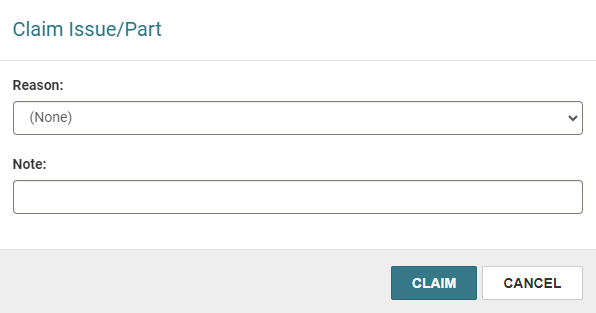
- (Optional) Select a claim reason from the Reason list.
- (Optional) Enter a note in the Note box. After you claim an issue, this note appears on the Claims view of the Issue Record workform.
-
Select CLAIM.
Leap does the following:
- Processes the claim
- Displays a success message
- Sets the status of the issue or part to Claimed
