
View and Enter Serial Holdings Record Claim Intervals
When a serial issue is not received by its expected date and the number of days specified in the Days After Release/Expected Arrival setting in the supplier record elapses, the claim cycle begins. Claim intervals determine when claim notices are generated (if your library uses automatic claiming) or when a serial issue appears in the Claim Alert List (if your library uses manual claiming). For more information, search for "Claiming in Serials" in the Polaris staff client help.
Note:
You can add serial holdings record claim intervals if you have the Serial holdings records: Modify permission enabled in Polaris Administration (staff client). For more information, search for "Serials Workflow Permissions" in the Polaris staff client help.
This section covers the following topics:
- View Claim Intervals for a Supplier's Subscription Number
- Add Serial Holdings Record Claim Intervals
View Claim Intervals for a Supplier's Subscription Number
To view the claim intervals for a supplier's subscription number
- Find the supplier's subscription number printed on claim notices.
- Use the Find Tool to search for and open the serial holdings record.
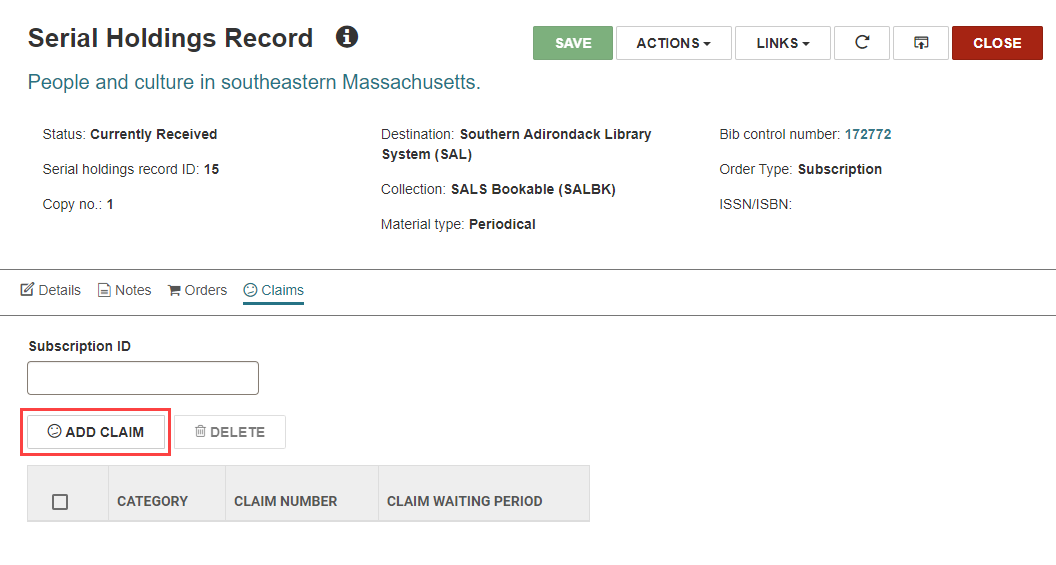
- On the Serial Holdings Record workform, select the Claims tab.
-
Enter the supplier's subscription number in the Subscription ID field.
The claim intervals appear in the table.
Add Serial Holdings Record Claim Intervals
To add a claim interval for a serial holdings record
- Use the Find Tool to search for and open the serial holdings record.
-
On the Serial Holdings Record workform, select the Claims tab.
-
Select ADD CLAIM.
Leap displays the Add Claim Interval dialog.
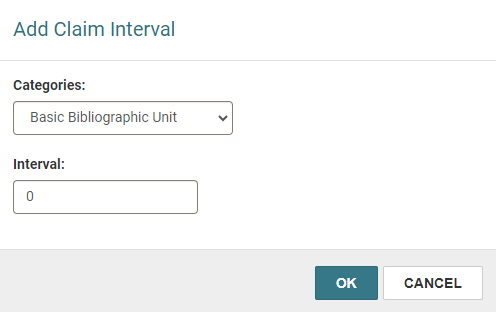
- From the Categories list, select a type of serial publication.
-
In the Interval box, enter the number of days for the claim interval.
-
Select OK.
Leap adds the claim interval and displays a success message. The new claim interval appears in the table on the Claims tab.
