
Advanced Export Queries
- Manual Export
- Text Tab-Delimited File Format
- HTML File Format
- MARC XML File Format
- Aleph Sequential Format
- KBART Format
- PubMed XML LinkOut Format
- Google Scholar Format
- CDI Format
- Export File Naming Conventions
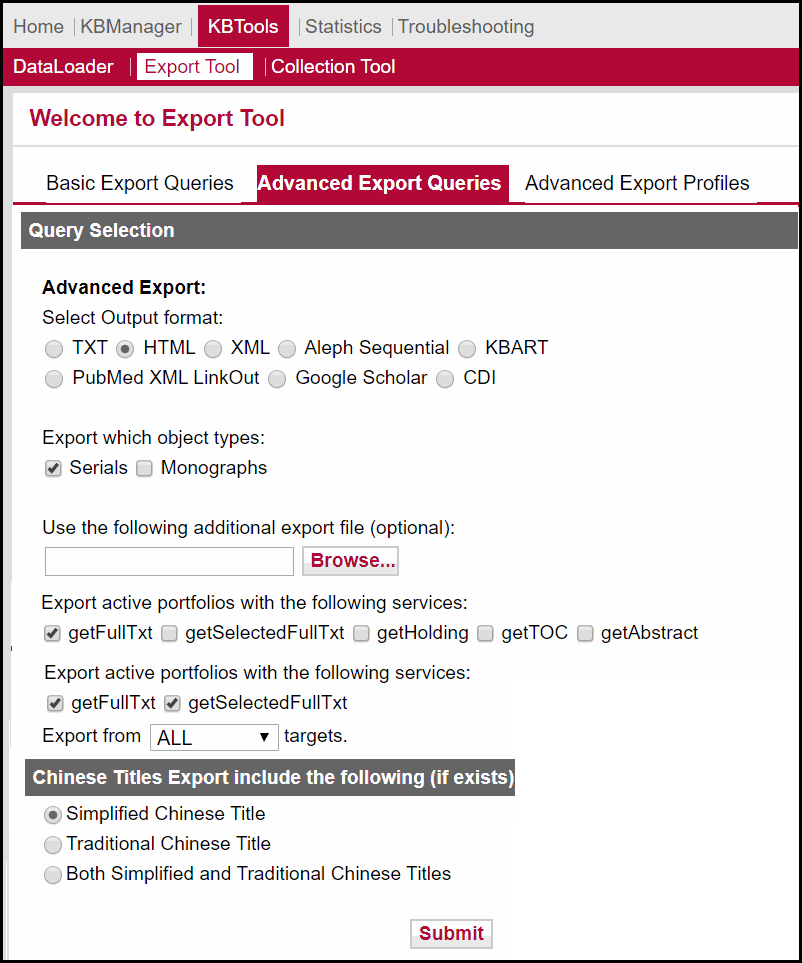
Manual Export
- Select one of the following output formats:
- Tab-delimited TXT
- HTML
- XML
- ALEPH Sequential
- KBART
- PubMed XML LinkOut
- Google Scholar
- CDI
-
Choose to include serials (for example, journals) and/or monographs (for example, books)
in the export file.
When choosing to export serials, objects with the following object types are exported:
- JOURNAL
- SERIES
- CONFERENCE
- NEWSPAPER
- TRANSCRIPT
- WIRE
When choosing to export monographs, objects with the following object types are exported:
- PROCEEDING
- BOOK
- DISSERTATION
- DOCUMENT
- MANUSCRIPT
- REPORT
- CD
- DATABASE
- VIDEO
- AUDIO
- SCORE
- Specify institute information (optional).
If institutes have been defined, it is possible to filter the export query results by institutes or groups. (For more information about institutes, refer to the Institute Feature section of the SFX Advanced User's Guide.) Select an institute from the Restrict to the following institutes/groups (optional) text box.
Select Default to export only books/journals active for DEFAULT. Institute-specific activations are not included.
Select one institute to export all books/journals active for that institute, active for the group to which the institute is affiliated, or active for DEFAULT. (Note that group or default activations are not included if an item is explicitly set to inactive for the institute.)
Select one group to export all books/journals active for that group or active for DEFAULT (and not explicitly set to be inactive for the group). Note that when selecting a group, objects active for institutes affiliated with the group are not included in the export file.
The following hierarchy is used:
- Institute-specific date coverage
- If there is no institute-specific date coverage, group-specific date coverage is used (but only if the activation is also for the group).
- If there is no group-specific date coverage, then the default date coverage is used. (The local threshold is used if it exists; if not, the global threshold is used.)
- In the Use the following additional export file (optional) field, specify an additional .txt file to be used when generating the export file in a form other than .txt.
- In the Export active portfolios with the following services field, select the type of service you want to export. It is possible to select more than one service type.
- From the Export from drop-down list, select either ALL or SPECIFIC and select the targets you want to include in the export.
- For .txt, see Text Tab-Delimited File Format
- For HTML, see HTML File Format
- For XML, see MARC XML File Format
- For Aleph Sequential, see Aleph Sequential Format
- For KBART, see KBART Format
- For PubMed XML LinkOut, see PubMed XML LinkOut Format
- For Google Scholar, see Google Scholar Format
- For CDI, see CDI Format
Text Tab-Delimited File Format
- If Chinese titles are included in the export, select Simplified Chinese Title, Traditional Chinese Title, or Both Simplified and Traditional Chinese Titles to include the type of Chinese titles you want in the title field.
- Click Submit.
- Column 1 – Sortable Title (used internally in SFX for sorting purposes)
- Column 2 – Title
- Column 3 – Title Non-Filing Character
- Column 4 – ISSN
- Column 5 – Object ID
- Column 6 – Target Public Name
- Column 7 – Threshold (textual format)
- Column 8 – eISSN
- Column 9 – Abbreviated Title
- Column 10 – Target Service Type
- Column 11 – LCCN
- Column 12 – Object Portfolio ID
- Column 13 – 856-u (empty)
- Column 14 – 856-y (empty)
- Column 15 – 856-a (empty)
- Column 16 – 245_h (empty)
- Column 17 – Local Threshold
- Column 18 – Global Threshold
- Column 19 – Target ID
- Column 20 – Target Service ID
- Column 21 – Object Portfolio ID
- Column 22 – Categories
- Column 23 – Local Attribute
- Column 24 – ISBN
- Column 25 – eISBN
- Column 26 – Publisher
- Column 27 – Place of Publication
- Column 28 – Date of Publication
- Column 29 – Object Type
- Column 30 – Activation status for DEFAULT
- Column 31 – Institute ID (if available)
- Column 32 – Institute Name (if available)
- Column 33 – Institute Availability (if available)
- Column 34 – Language (three-letter code)
- Column 35 – Main Title (important for CJK sorting)
- Column 36 – Full Original Title (CJK only)
- Column 37 – Additional ISBNs
- Column 38 – Additional eISBNs
- Column 39 – Author
- Column 40 – Owner
- Column 41 – THRESHOLD_LOCAL
- Column 42 – PARSE_PARAM
- Column 43 – IS_FREE (1 = free, 0 = restricted)
- Column 44 – General note
- Column 45 – Authentication note
- Column 46 – Internal note
- Column 47 – Alternative titles
- Column 48 – DB ID (CDI identifier)
- Column 49 – Selective (1 = Yes, 0 = No)
- Column 50 – Do not show as Full Text in CDI (1 = Yes, 0 = No)
- To include author information, select the Include author information check box.
- To include note and authentication information, select the Include note and authentication information check box.
- To include internal note information, select the Include Internal note information check box.
|
<Simplified Chinese>/#/<Traditional Chinese> |
HTML File Format
- If Chinese titles are included in the export, select Simplified Chinese Title, Traditional Chinese Title, or Both Simplified and Traditional Chinese Titles to include the type of Chinese titles you want in the title field.
- Click Submit.
- Journal title
- ISSN
- Public target name
- Appropriate thresholds (dates that the journal is available)
- A direct link to the Web page of the electronic journal when clicking the journal title
- A link to the SFX menu by clicking the SFX button of a particular journal

|
exlibris/sfx_ver/sfx4_1/<instance name>/templates/e-collection-html/results |
|
e-journals-A.html e-journals-G.html e-journals-M.html e-journals-S.html e-journals-B.html e-journals-H.html e-journals-N.html e-journals-T.html e-journals-C.html e-journals-I.html e-journals-O.html e-journals-U.html e-journals-D.html e-journals-J.html e-journals-P.html e-journals-V.html e-journals-E.html e-journals-K.html e-journals-Q.html e-journals-W.html e-journals-F.html e-journals-L.html e-journals-R.html |
|
http://<sfx_server:port>/<sfx_instance>/e_collection/e-journals-A.html |
|
exlibris/sfx_ver/sfx4_1/<instance_name>/templates/e-collection-html/listing.tmpl |
MARC XML File Format
-
Select Fresh export or
Compare export from previous file.
If you select Compare export, select a previous export file to compare against.
- Fresh export – This option exports all active getFullTxt, getHolding, getAbstract, and getTOC portfolios for all active targets or a selection of active targets.
- Compare with previous export – This option exports and compares the
export file with a previously created export file. In the header of each record, information indicates
whether the record has changed, not changed, been deleted, or added.
If you select Compare with previous export, you may select Exclude objects that were not changed. This excludes unchanged records but includes new, deleted, or changed ones.
The top part of the export file contains information about the type of export and the name of the SFX instance from which information was exported.
The following is an example of a fresh export:
|
<!-- FIRST INCREMENTAL --> |
The following is an example of a compare export:
|
<!-- INCREMENTAL --> |
The first time you create an export file, the drop-down list of previous files is empty, and all items in the XML file are marked as new. The second time you export, the previous file appears in the list. If you choose Compare with previous export and select the previous file, the new export file contains information about changed, unchanged, added, and deleted items. The leader of each record contains status information.
Status information can be found in the sixth character after the leader. For example:
- For new records (or if this is the first export created in this format):
|
<leader>-----nas-a22-----z--4500</leader> |
- For records deactivated or deleted in the SFX database between the previous export and the current export:
|
<leader>-----das-a22-----z--4500</leader> |
- If a change was made between the previous export and the current export (for example, a change to coverage information):
|
<leader>-----cas-a22-----z--4500</leader> |
- If no change was made between the previous export and the current export:
|
<leader>------as-a22-----z--4500</leader> |
The previous export files used during the comparison are stored in the following directory:
|
exlibris/sfx_ver/sfx4_1/<sfx_instance>/dbs/scratch/e_collection_update |
- (Optional) In the Specify export file prefix field, specify a prefix to be added to the export file. This is an optional feature that makes it easier to find the export file later.
A prefix can also be used to distinguish partial exports (for example, using only selective targets) from a complete export.
- In the Specify base URL (856 $u) field, specify the base URL of your instance.
- In the link text (856 $y) field, specify the link text information to be included for each record in the XML file. Each record of the resulting export file contains an OpenURL and link text in the 856 field.
For example:
|
<datafield tag="856" ind1="" ind2=""> <subfield code="u"> http://demo.exlibrisgroup.com:3210/demo?url_ver=Z39.88-2004&ctx_ver=Z39.88-2004&ctx_enc=info:ofi/enc:UTF-8&rfr_id=info:sid/sfxit.com:opac_856&url_ctx_fmt=info:ofi/fmt:kev:mtx:ctx&sfx.ignore_date_threshold=1&rft.object_id=954925218001&svc_val_fmt=info:ofi/fmt:kev:mtx:sch_svc&svc.fulltext=yes </subfield> <subfield code="y">SFX linking</subfield> </datafield> |
- In the Specify institution info (852 $a) field, specify institution information to be included in the 852 MARC tag for each record (for example, to make it easier to merge different XML).
For example:
|
<datafield tag="852" ind1="" ind2=""> <subfield code="a">Science Campus</subfield> </datafield> |
- In the Title note information (245 $h) field, specify text to be included in the 245 MARC field (subfield h) of each record in the export file. The text is identical for all records.
For example:
|
<datafield tag="245" ind1="" ind2=""> <subfield code="a">Conformal geometry and dynamics</subfield> <subfield code="h">[electronic content available]</subfield> </datafield> |
- To add categories in the <650> MARC field (optional), select the Add categories to the export file check box.
Category information is exported according to the Active mode in the Category Setup tool. Depending on the setup, SFX exports Ex Libris categories, translated categories, or local categories and corresponding assignments.
For example:
|
<datafield tag="650" ind1="" ind2="4"> <subfield code="a">Arts and Humanities</subfield> <subfield code="x">Education & Careers</subfield> </datafield> <datafield tag="650" ind1="" ind2="4"> <subfield code="a">Arts and Humanities</subfield> <subfield code="x">Performing Arts, Travel and Leisure</subfield> </datafield> |
- To add LOCAL attributes in the <901> MARC field (subfield $1), select the Add local attributes to the export file check box.
- To include a serviceType restriction in the OpenURL, select the Include service type restriction in 856 URL check box. By default, a service type restriction is included that limits the SFX services in the resulting SFX menu to only those with service types included. To remove this element from the OpenURL, clear the check box.
For example:
|
<datafield tag="856" ind1="" ind2=""> <subfield code="u"> http://demo.exlibrisgroup.com:3210/demo?url_ver=Z39.88-2004&ctx_ver=Z39.88-2004&ctx_enc=info:ofi/enc:UTF-8&rfr_id=info:sid/sfxit.com:opac_856&url_ctx_fmt=info:ofi/fmt:kev:mtx:ctx&sfx.ignore_date_threshold=1&rft.object_id=954925218001 </subfield> <subfield code="y">SFX linking</subfield> </datafield> |
For more information on serviceType restrictions in the OpenURL, see ServiceType Feature.
- To include information about all relevant institute settings in the SFX database, select the Include institute information check box.
To create a Verde localization file, select this check box.
- To include author information in the SFX database, select the Include author information check box.
- To include note and authentication information in the SFX database, select the Include note and authentication information check box. (Only object portfolio information is included, not target or target service.)
- To include internal note information in the SFX database, select the Include Internal note information check box. (Only object portfolio information is included, not target or target service.)
- To include additional title information in the XML file, select Include alternative titles.
- If Chinese titles are included in the export, select Simplified Chinese Title, Traditional Chinese Title, or Both Simplified and Traditional Chinese Titles to include the type of Chinese titles you want in the title field.
- Click Submit.
- Journal title
- Abbreviated titles
- ISSN
- LCCN
- Public target name
- Thresholds
- Title note
- 856 MARC fields with OpenURL information and an institution indication (can be used when merging different XML files)
- Categories
- Local
- 010 subfield a: LCCN number
- 008: date in YYMMDD format and language code in ISO 639-2 standard format
The format of the field is: YYMMDDuuuuuuuuuxx-uu-|------u|----|LNG-d
- 020: ISBNs and eISBNs (repeatable)
- 022 subfield a: ISSN
- 030 subfield a: CODEN
- 090 subfield a: OBJECT number of the journal in the SFX database
- 100 subfield a: Main Author (personal name)
- 110 subfield a: Main Author (corporate name)
- 111 subfield a: Main Author (meeting name)
- 210 subfield a: abbreviated title information
- 245 subfield a: journal title
- 245 subfield h: journal title
- 246 subfield a: Alternative title
-
260 Imprint
- subfield a – Place of publication
- subfield b – Name of publisher
- subfield c – Date of publication
-
650 Category information (included only if the option to include categories is selected)
- subfield a – category
- subfield x – subcategory
- 700 subfield a: Additional Author (personal name)
- 710 subfield a: Additional Author (corporate name)
- 711 subfield a: Additional Author (meeting name)
- 776 subfield x: eISSN
- 852 subfield a: institution indication (same for all records; added in Export tool)
- 856 subfield u and y: OpenURL and link text
- 866 subfield a: activation status information
-
866 subfield b: threshold information in Perl statement format
This subfield is included only in case of:
- local thresholds
- global thresholds for local OPs
-
866 subfield c: describes type of threshold included in 866 b. Possible values:
- I – institute
- G – global
- L – local
- 866 subfield i: INSTITUTE for which this 866 record applies
- 866 subfield j: List of INSTITUTE exceptions if subfield i is DEFAULT
- 866 subfield s: target service Internal ID
- 866 subfield t: target Internal ID
- 866 subfield x: target name and service
- 866 subfield z: object portfolio Internal ID
- 901 subfield a: information stored in the LOCAL field of the objects
-
945 field: exported only for CJK language objects
- subfield c: original language title (Chinese only; Simplified Chinese)
- subfield m: main title
-
subfield s: normalized title used for sorting purposes
- Chinese titles – Pinyin (China) or stroke sequence (Taiwan)
- Korean titles – Hangul
- Japanese titles – Katakana or Hiragana
- subfield t: original language title (Traditional Chinese)
|
<record> <leader>-----nas-a22-----z--4500</leader> <controlfield tag="008">080911uuuuuuuuuxx-uu-|------u|----|eng-d</controlfield> <datafield tag="010" ind1="" ind2=""> <subfield code="a">11007619</subfield> </datafield> <datafield tag="245" ind1="" ind2="4"> <subfield code="a">The American economic review</subfield> </datafield> <datafield tag="210" ind1="" ind2=""> <subfield code="a">AM ECON REV</subfield> </datafield> <datafield tag="210" ind1="" ind2=""> <subfield code="a">AMERICAN ECONOMIC REVIEW</subfield> </datafield> <datafield tag="260" ind1="" ind2=""> <subfield code="a">Nashville, Tenn. [etc.]</subfield> <subfield code="b">American Economic Association.</subfield> </datafield> <datafield tag="022" ind1="" ind2=""> <subfield code="a">0002-8282</subfield> </datafield> <datafield tag="090" ind1="" ind2=""> <subfield code="a">954921334029</subfield> </datafield> <datafield tag="856" ind1="" ind2=""> <subfield code="u"> http://demo.exlibrisgroup.com:3210/demo?url_ver=Z39.88-2004&ctx_ver=Z39.88-2004&ctx_enc=info:ofi/enc:UTF-8&rfr_id=info:sid/ sfxit.com:opac_856&url_ctx_fmt=info:ofi/fmt:kev:mtx:ctx&sfx.ignore_date_threshold=1&rft.object_id=954921334029&svc_val_fmt=info:ofi/fmt:kev:mtx:sch_svc&svc.fulltext=yes& </subfield> </datafield> <datafield tag="866" ind1="" ind2=""> <subfield code="a">Available from 1911 volume: 12 issue: 3.</subfield> <subfield code="b">$obj->parsedDate(">=",1911,12,3)</subfield> <subfield code="s">110994096325001</subfield> <subfield code="t">110994096325000</subfield> <subfield code="x">JSTOR Arts and Sciences 1:Full Text</subfield> <subfield code="z">110994097836161</subfield> </datafield> <datafield tag="650" ind1="" ind2="4"> <subfield code="a">Business, Economy and Management</subfield> <subfield code="x">Economics</subfield> </datafield> <datafield tag="650" ind1="" ind2="4"> <subfield code="a">Business, Economy and Management</subfield> <subfield code="x">Finance</subfield> </datafield> <datafield tag="650" ind1="" ind2="4"> <subfield code="a">Business, Economy and Management</subfield> <subfield code="x">General and Others</subfield> </datafield> <datafield tag="901" ind1="" ind2=""> <subfield code="a">ZDB00123778</subfield> </datafield> </record> |
|
exlibris/sfx_ver/sfx4_1/<sfx_instance>/dbs/scratch/e-collection.MMDDYYYYHHMMSS.xml-marc |
|
exlibris/sfx_ver/sfx4_1/sfx_local/dbs/scratch/e-collection.10312003092008.xml-marc |
| 866 Subfield | Description |
|---|---|
| 866 subfield i | INSTITUTE information |
| 866 subfield j | List of INSTITUTE exceptions if subfield i is the DEFAULT INSTITUTE |
|
<record> <leader> nas a22 z 4500</leader> <controlfield tag="008">eng</controlfield> <datafield tag="022" ind1="" ind2=""> <subfield code="a">0002 8282</subfield> </datafield> <datafield tag="245" ind1="" ind2="4"> <subfield code="a">The American economic review</subfield> </datafield> <datafield tag="210" ind1="" ind2=""> <subfield code="a">AM ECON REV</subfield> </datafield> </datafield> <datafield tag="210" ind1="" ind2=""> <subfield code="a">AMERICAN ECONOMIC REVIEW</subfield> </datafield> <datafield tag="260" ind1="" ind2=""> <subfield code="a">Atlanta,</subfield> <subfield code="b">AHC Media LLC</subfield> </datafield> <datafield tag="090" ind1="" ind2=""> <subfield code="a">954921334029</subfield> </datafield> <datafield tag="866" ind1="" ind2=""> <subfield code="a">Available from 1911 until 2002.</subfield> <subfield code="b">$obj->parsedDate('>=','1911','undef','undef') && $obj->parsedDate('<=','2002','undef','undef')</subfield> </datafield> <subfield code="i">InstA</subfield> <subfield code="s">110994096325001</subfield> <subfield code="t">110994096325000</subfield> <subfield code="x">JSTOR Arts and Sciences 1:Full Text</subfield> <subfield code="z">110994097836161</subfield> </datafield> <datafield tag="866" ind1="" ind2=""> <subfield code="a">Available from 1950 until 2002.</subfield> <subfield code="b">$obj->parsedDate('>=','1950','undef','undef') && $obj->parsedDate('<=','2002','undef','undef')</subfield> <subfield code="i">DEFAULT</subfield> <subfield code="j">InstB</subfield> <subfield code="s">110994096325001</subfield> <subfield code="t">110994096325000</subfield> <subfield code="x">JSTOR Arts and Sciences 1:Full Text</subfield> <subfield code="z">110994097836161</subfield> </datafield> </record> |
- Items active for DEFAULT if the activation status of the target, target service, and object portfolio is active and no target institute, target service institute, or object portfolio institute entries exist.
This means that all institutes have access to the journal. The 866 tag includes the DEFAULT institute information in subfield i.
For example:
|
<datafield tag="866" ind1="" ind2=""> <subfield code="a">Available from 1950 until 2002.</subfield> <subfield code="i">DEFAULT</subfield> <subfield code="s">110994096325001</subfield> <subfield code="t">110994096325000</subfield> <subfield code="x">JSTOR Arts and Sciences 1:Full Text</subfield> <subfield code="z">110994097836161</subfield> </datafield> |
- Items active for DEFAULT with institute exceptions if the activation status of the target, target service, and object portfolio is active and inactive target institute, target service institute, or object portfolio institute entries exist.
This means all institutes except the ones listed have access to this journal. The 866 tag includes the DEFAULT institute information in subfield i and lists the inactive institutes in subfield j.
|
<datafield tag="866" ind1="" ind2=""> <subfield code="a">Available from 1911 until 2002.</subfield> <subfield code="b">$obj->parsedDate('>=','1911','undef','undef') && $obj->parsedDate('<=','2002','undef','undef')</subfield> <subfield code="i">DEFAULT</subfield> <subfield code="j">InstA,InstB</subfield> <subfield code="s">110994096325001</subfield> <subfield code="t">110994096325000</subfield> <subfield code="x">JSTOR Arts and Sciences 1:Full Text</subfield> <subfield code="z">110994097836161</subfield> </datafield> |
- Items active for INSTITUTE
If a specific item is available for an institute, the 866 tag includes the institute name in subfield i.
For example:
|
<datafield tag="866" ind1="" ind2=""> <subfield code="a">Available from 1911 until 2002.</subfield> <subfield code="b">$obj->parsedDate('>=','1911','undef','undef') && $obj->parsedDate('<=','2002','undef','undef')</subfield> <subfield code="i">InstA</subfield> <subfield code="s">110994096325001</subfield> <subfield code="t">110994096325000</subfield> <subfield code="x">JSTOR Arts and Sciences 1:Full Text</subfield> <subfield code="z">110994097836161</subfield> </datafield> |
|
<record> <leader>-----nas-a22-----z--4500</leader> <controlfield tag="008">090924uuuuuuuuuxx-uu-|------u|----|eng-d</controlfield> <datafield tag="245" ind1="" ind2=""> <subfield code="a">Abacus</subfield> </datafield> <datafield tag="260" ind1="" ind2=""> <subfield code="b">Blackwell Publishing Limited</subfield> </datafield> <datafield tag="022" ind1="" ind2=""> <subfield code="a">0001-3072</subfield> </datafield> <datafield tag="090" ind1="" ind2=""> <subfield code="a">954921333005</subfield> </datafield> <datafield tag="856" ind1="" ind2=""> <subfield code="u">http://il-sfx06:3210/mit?url_ver=Z39.88-2004&ctx_ver=Z39.88-2004&ctx_enc=info:ofi/enc:UTF-8&rfr_id=info:sid/sfxit.com:opac_856&url_ctx_fmt=info:ofi/fmt:kev:mtx:ctx&sfx.ignore_date_threshold=1&rft.object_id=954921333005&svc_val_fmt=info:ofi/fmt:kev:mtx:sch_svc&svc.fulltext=yes&</subfield> <subfield code="y">SFX</subfield> </datafield> <datafield tag="866" ind1="" ind2=""> <subfield code="a">Available from 2000.</subfield> <subfield code="i">InstA, InstB</subfield> <subfield code="j">InstC</subfield> <subfield code="s">110975593244097</subfield> <subfield code="t">110975593244095</subfield> <subfield code="x">EBSCOhost Business Source Premier:Full Text</subfield> <subfield code="z">110976733153888</subfield> </datafield> </record> |
|
<record> <leader>-----nas-a22-----z--4500</leader> <controlfield tag="008">090924uuuuuuuuuxx-uu-|------u|----|eng-d</controlfield> <datafield tag="245" ind1="" ind2=""> <subfield code="a">Abacus</subfield> </datafield> <datafield tag="260" ind1="" ind2=""> <subfield code="b">Blackwell Publishing Limited</subfield> </datafield> <datafield tag="022" ind1="" ind2=""> <subfield code="a">0001-3072</subfield> </datafield> <datafield tag="090" ind1="" ind2=""> <subfield code="a">954921333005</subfield> </datafield> <datafield tag="856" ind1="" ind2=""> <subfield code="u">http://il-sfx06:3210/mit?url_ver=Z39.88-2004&ctx_ver=Z39.88-2004&ctx_enc=info:ofi/enc:UTF-8&rfr_id=info:sid/sfxit.com:opac_856&url_ctx_fmt=info:ofi/fmt:kev:mtx:ctx&sfx.ignore_date_threshold=1&rft.object_id=954921333005&svc_val_fmt=info:ofi/fmt:kev:mtx:sch_svc&svc.fulltext=yes&</subfield> </datafield> <datafield tag="866" ind1="" ind2=""> </datafield> </record> |
- (Optional) In the Specify export file prefix field, specify a prefix to be added to the export file. This is an optional feature that makes it easier to find the export file later.
A prefix can also be used to distinguish partial exports (for example, using only selective targets) from a complete export.
- In the Specify base URL (856 $u) field, specify the base URL of your instance.
- In the link text (856$y) field, specify the link text information to be included for each record in the XML file. Each record of the resulting export file contains an OpenURL and link text in the 856 field.
- To add categories in the <650> MARC field (optional), select the Add categories to the export file check box.
Category information is exported according to the Active mode in the Category Setup tool. Depending on the setup, SFX exports Ex Libris categories, translated categories, or local categories and corresponding assignments.
- To include a serviceType restriction in the OpenURL, select the Include service type restriction in 856 URL check box. By default, a serviceType restriction is included that limits the SFX services in the resulting SFX menu to only those with serviceTypes included. Clearing the check box removes this element from the OpenURL.
For more information on serviceType restrictions in the OpenURL, see ServiceType Feature.
- To include author information in the SFX database, select the Include author information check box.
- If Chinese titles are included in the export, select Simplified Chinese Title, Traditional Chinese Title, or Both Simplified and Traditional Chinese Titles to include the type of Chinese titles you want in the title field.
- Click Submit.
|
000000002 LDR L 00000nas-a22-----z--4500 000000002 008 L 101124s----------------------000---eng-d 000000002 090 L $$a954925377920 000000002 210 L $$aBULL AMER METEOROL SOC 000000002 210 L $$aB AM METEOROL SOC 000000002 210 L $$aB AM METEOR 000000002 210 L $$aAMERICAN METEOROLOGICAL SOCIETY BULLETIN 000000002 210 L $$aBULL AM METEOROL SOC 000000002 210 L $$aBULL. AM. METEOR. SOC 000000002 245 L $$aBulletin of the American Meteorological Society 000000002 260 L $$aEaston, Pa.$$bAmerican Meteorological Society 000000002 022 L $$a0003-0007 000000002 776 L $$x1520-0477 000000002 856 L $$uhttp://demo.exlibrisgroup.com:3210/demo?url_ver=Z39.88-2004&ctx_ver=Z39.88-2004&ctx_enc=info:ofi/enc:UTF-8&rfr_id=info:sid/sfxit.com:opac_856&url_ctx_fmt=info:ofi/fmt:kev:mtx:ctx&sfx.ignore_date_threshold=1&rft.object_id=954925377920&svc_val_fmt=info:ofi/fmt:kev:mtx:sch_svc&svc.fulltext=yes&$$ySFX linking 000000002 866 L $$aAvailable from 2000. $$b$obj->parsedDate('>=','2000',undef,undef)$$s17770000000000002$$t17770000000000002$$xTest 1:Full Text$$z17770000000000002 000000002 650 L $$aEarth Sciences$$xGeophysics 000000002 650 L $$aEarth Sciences$$xMeteorology 000000002 650 L $$aEnvironmental Sciences$$xAtmospheric Science 000000002 650 L $$aPhysics$$xAtmospheric Physics |
KBART Format
- If Chinese titles are included in the export, select Simplified Chinese Title, Traditional Chinese Title, or Both Simplified and Traditional Chinese Titles to include the type of Chinese titles you want in the title field.
- Click Submit.
To avoid problems with UNIX not handling file names with specific characters, the following characters are removed from target and subtarget names:
\ / , : * ? # " < > | . ! @ # $ % ^ & ( ) + { } [ ] ~ ` ' + = ;
| Column | Description |
|---|---|
| publication_title | Publication title |
| print_identifier | Print-format identifier (for example, ISSN, ISBN, etc.) |
| online_identifier | Online-format identifier (for example, eISSN, eISBN, etc.) |
| date_first_issue_online | Date of first issue available online |
| num_first_vol_online | Number of first volume available online |
| num_first_issue_online | Number of first issue available online |
| date_last_issue_online | Date of last issue available online (or blank, if coverage is to present) |
| num_last_vol_online | Number of last volume available online (or blank, if coverage is to present) |
| num_last_issue_online | Number of last issue available online (or blank, if coverage is to present) |
| title_url | Title-level URL |
| first_author | First author (for monographs) |
| title_id | Title level JKEY |
| embargo_info |
Embargo information. Consists of 3 parts:
The units field also indicates the granularity of the embargo, that is, how frequently the moving wall moves.
|
| coverage_depth |
Coverage depth (SFX service type in parenthesis):
|
| coverage_notes | Coverage notes |
| publisher_name | Publisher name (if not given in the file's title) |
- If more than one institute is selected in the Export tool Institute drop-down list, there is no indication which institution subscribes to which entry in the KBART file.
- Related object information is not included in the KBART file.
- The following optional KBART II fields are currently not supported:
- date_monograph_published_print
- date_monograph_published_online
- monograph_volume
- monograph_edition
- first_editor
- parent_publication_id
PubMed XML LinkOut Format
- Enter the location of the SFX .gif (URL).
- Enter the SFX base URL.
- Enter the provider ID.
- Enter the URL link text. This should consist of a short phrase that describes the link, such as Link to OpenURL service or Link to SFX.
- If Chinese titles are included in the export, select Simplified Chinese Title, Traditional Chinese Title, or Both Simplified and Traditional Chinese Titles to include the type of Chinese titles you want in the title field.
- Click Submit.
|
<?xml version="1.0" encoding="UTF-8"?> <!DOCTYPE LinkSet (View Source for full doctype...)> <LinkSet> <Link> <LinkId><instance></LinkId> <ProviderId>12</ProviderId> <IconUrl LNG="EN">http://demo.exlibrisgroup.com:3210/demo/sfx.gif</IconUrl> <ObjectSelector> <Database>PubMed</Database> <ObjectList> <Query>"0001-8791" [is] AND "last 24 months" [dp]</Query> <Query>"0003-987X" [is] AND 1998:2010 [dp]</Query> <Query>"1072-4710" [is] AND 1998:2010 [dp]</Query> <Query>"0001-6314" [is] AND 1998:2010 [dp] NOT "last 1 year" [dp] NOT future [sb]</Query> <Query>"0001-4575" [is] AND "last 24 months" [dp]</Query> <Query>"0012-6667" [is] AND 1998:2010 [dp]</Query> <Query>"0003-3928" [is] AND "last 24 months" [dp]</Query> <Query>"0001-1843" [is] AND 2000:2010 [dp]</Query> <Query>"1521-2491" [is] AND 1999:2010 [dp]</Query> </ObjectList> </ObjectSelector> <ObjectUrl LNG="EN"> <Base>http://demo.exlibrisgroup.com:3210/demo</Base> <Rule>?sid=Entrez:PubMed&id=pmid:lo.id</Rule> <UrlName>Link To SFX</UrlName> </ObjectUrl> </Link> </LinkSet> <Query>"J Cell Biol" [ta] AND 1997/06/15:2010/12/31 [dp]</Query> <Query>"0960-9822" [is] AND 1991/01/01:2030 [dp] NOT "last 12 months" [dp] NOT future[sb]</Query> |
|
Portfolio 1 ($obj->parsedDate('>=','1995','57','1')) Portfolio 2 ($obj->parsedDate('>=','1939','1','1')) && ($obj->timediff('>','2y'))] |
|
<Query>"0033-3174" [is] AND 1939:2030 [dp]</Query> |
Google Scholar Format
- It is recommended to produce the output files in a compressed format. Select the Compress output files check box.
For example, change:
http://demo.exlibrisgroup.com:3410/demo/cgi/public/get_file.cgi?file=institutional_holding.xml
to:
http://demo.exlibrisgroup.com:3410/demo/cgi/public/get_file.cgi?file=institutional_holding.gzip
- To include author information in the SFX database, select the Include author information check box.
- If Chinese titles are included in the export, select Simplified Chinese Title, Traditional Chinese Title, or Both Simplified and Traditional Chinese Titles to include the type of Chinese titles you want in the title field.
- Click Submit.
|
institutional_holding-.prt01.xml institutional_holding-.prt02.xml (…) institutional_holding-.prt10.xml |
|
institutional_holding.gzip institutional_holding-.prt01.gzip institutional_holding-.prt02.gzip (…) institutional_holding-.prt10.gzip |
|
institutional_holding-arts.xml institutional_holding-arts.prt01.xml institutional_holding-arts.prt02.xml (…) institutional_holding-arts.prt10.xml |
- Additional tags:
- <eissn> – includes the ISSN of type ELECTRONIC
- <isbn> – repeatable; includes ISBNs of type ELECTRONIC, PRINT_HBK, and PRINT_PBK
- <sfx_id> – includes OBJECT_ID
- <object_type> – values include JOURNAL, BOOK, DISSERTATION, PROCEEDING, CONFERENCE, REPORT, DOCUMENT, SERIES, NEWSPAPER, TRANSCRIPT, DATABASE, WIRE, CD, MANUSCRIPT, VIDEO, AUDIO, SCORE
- <title> – repeatable; includes MAIN and ABBREV titles (up to four total)
- <AuthorList> – includes author information
- <eisbn> – additional ISBNs/eISBNs (repeatable)
- Different item type tags according to the service types exported
It is possible to export the following types of services for the Google Scholar format: getFullTxt, getSelectedFullTxt, getHolding, getAbstract, and getTOC.
Depending on the type of service that exists for a particular exported object, a different <item type> tag value is used:
- <item type="electronic"> – for getFullTxt and getSelectedFullTxt
- <item type="other"> – for getHolding, getTOC, and getAbstract
If both a service of type electronic and of type other exist for one object, two items are created—one with <item type="electronic"> and one with <item type="other">.
|
<institutional_holdings> <item type="electronic"> <title>The Economist</title> <issn>0013-0613</issn> <coverage> <from> <year>1992</year> </from> <to></to> </coverage> </item> <item type="other"> <title>The Economist</title> <issn>0013-0613</issn> <coverage> <from> <year>1908</year> <volume>66</volume> <issue>3358</issue> </from> <to> <year>1959</year> <volume>193</volume> <issue>6069</issue> </to> </coverage> </item> |
CDI Format
- Use this file as additional holdings file in another instance
This option is important in SFX consortia set-ups where activations from another instance (the shared or central instance) are included in a local holdings file (for SFX consortia where consortia API has been set up). Select this option if the export is created in a shared or central instance for use in a local instance where the Use the following additional export file option is selected.
- Use production full text holdings when publishing to CDI + Production PC key.
This option is used when publishing to CDI when running or scheduling the CDI export in your SFX test instance. Select this option in the sfxtst41 instance if you want to use the SFX full text activations from the sfxlcl41 instance instead of the full text activations of the sfxtst41 instance. You need to specify the Primo production PC Key.
Full text activations are ignored in the SFX test instance and instead only the search activations and link target activations are published to CDI. For the full text holding file, the SFX production instance activations are used.
| File Name | Description |
|---|---|
| <INST_code>_INST_holding.xml | Contains CDI Title level full text availability |
| <INST_code>_db_ids.xml | Contains CDI Database level full text availability |
| <INST_code>_searchable_dbids.xml | Contains CDI Search activations |
Export File Naming Conventions
- If no institutes have been defined in the instance:
|
e-collection-ALL.<timestamp>.<format> |
- In an instance with at least one institute defined, institute name information is included in the export file name:
|
e-collection-<institute_name>-<institute_name>.<timestamp>.txt |
- If all institutes + default activations are included in the export (either no restrictions are selected from the drop-down list or all institutes + default is selected), ALL is used as the institute name.
- If not all institutes are selected or the default is selected, all selected institute names (and/or the default, if applicable) are included in the file name.
| Selected Institutes | File Name |
|---|---|
| No institute specified in the instance | e-collection-ALL.20150610102044.xml-marc |
| ALL institutes (InstA+InstB+DEFAULT) | e-collection-ALL.20150610103157.xml-marc |
| DEFAULT institute | e-collection-default.20150610102556.xml-marc |
| one institute (InstA) | e-collection-InstA.20150610102807.xml-marc |
| more than one institute (InstA+InstB) | e-collection-InstA-InstB.20150610102942.xml-marc |
| more than one institute (InstA+DEFAULT) | e-collection-InstA-default.20150610111507.xml-marc |
