
Portfolios
You can use DataLoader to import batch records of object portfolios into SFX.
- On the DataLoader menu bar, click Portfolios.
- From the SelectTarget+Service drop-down list, select the target service whose object portfolios you want to update.
If a target has multiple subtargets, a second drop-down list is displayed.
- From the Select sub-target + service drop-down list, select one of the following:
- All sub-targets
- All sub-targets for a specific service type (for example, full-text), if multiple service types are available
- A specific sub-target
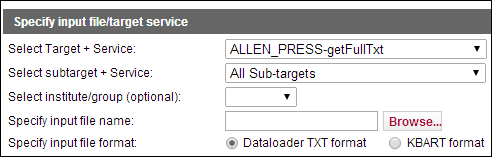 Select Sub-target
 - To specify the input file name, click the Browse button and select the tab-delimited file on your hard disk. The file is generally located in the scratch directory (exlibris/sfx_ver/sfx4_1/
/dbs/scratch) of the SFX instance:- To update object portfolio information, the object must be connected to a specific target or target service.
- The input file must be located on your local hard disk.
- Select an institute or group.
This option allows you to update, add, and remove portfolio information for a specific institute or group. The option appears only if institutes are set up in the instance. (For more information about institutes, .)
- Select an input file format.
- Perform the following steps depending on whether you select Dataloader txt format or KBART format:
- For Dataloader txt format:
- Select an identifier type for the first column of the input file.
The first column contains a a unique identifier called the primary key that exists for each line in your data file. There are several different types of primary keys. Select one identifier for each data file:
- The ISSN number of the journal
- The ISBNnumber of the book
- The LCCN number of the journal, if no ISSN exists
- The object ID – the unique number used to identify an object in the SFX database
- The OCLC number of the object
For example, selecting ISSN as the primary key means that each line of the data file contains an ISSN. DataLoader checks each primary key in the data file. If an eISSN is found, it is replaced by the corresponding ISSN value.
The primary key type must exist in the OBJECT table. If the value is not found in the database, the data in this line is not loaded and object portfolios cannot be created. If this problem occurs, send the list of values not present in the database to Ex Libris. They will be added to the global database in the next update.
- From the drop-down list of the other columns, select one of the following options:
- THRESHOLD
- TARGET_PARSER_PROGRAM
- PARSE_PARAM
- ACTIVATION_STATUS
- AUTHENTICATION_NOTE
- >GENERAL_NOTE
- INTERNAL_DESCRIPTION
- Select an identifier type for the first column of the input file.
- For KBART format:
The following options are displayed:
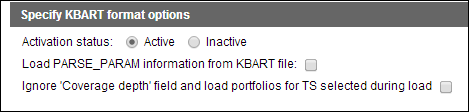
- Select the activation status of the portfolios in the file
- If you are using the KBART file to add or update PARSE_PARAM information for the portfolios (for example, when adding or updating local portfolios), select Load PARSE_PARAM information from KBARTfile. Select one of the following options to use as the jkey:
- TITLE_URL
- TITLE_ID
DataLoader loads the following PARSE_PARAM information for each portfolio, depending on the option you select:
jkey=
or jkey= - To ignore the Coverage Depth field and load all of the portfolios, regardless of the value in the coverage_depth field, select Ignore Coverage Depth field and load portfolios for TS selected during load; otherwise only the following portfolios are loaded:
- When loading portfolios for one or more getFullTxt services – only the rows in the KBART file that have fullText or a blank value in the coverage_depth column
- When loading portfolios for one or more getAbstract or getTOC service – only rows in the KBART file that have abstracts or a blank value in the coverage_depth column
- When loading portfolios for one or more getSelectedFullTxt services – only rows in the KBART file that have selected articles or a blank value in the coverage_depth column
- For Dataloader txt format:
- Specify the load type. Note that one of the first three load types listed must be selected.
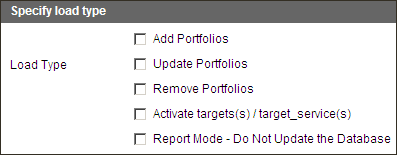 Load Type
- Add Portfolios – Add new object portfolios to the selected target service if no object portfolios exist.
- Update Portfolios – Update portfolio information such as thresholds, activation status, and parse param information. For more information about updating portfolios, see Updating Portfolios.
- Remove Portfolios – Delete portfolios.
- Activate targets / target services – Activate both the target and target service for the portfolios being added or updated. Note that this option cannot be specified by itself. One of the first three load types must also be selected.
- Report Mode – Produces a report but does not update the database. Note that the Report Mode cannot be specified by itself. One of the first three load types must also be selected.
- To start the loading process, click Submit.
- Adding and deleting of multiple portfolios for the same target service and the same object is not possible via DataLoader.
- For institutes, you can load only ACTIVATION_STATUS and THRESHOLD data.
- It is not possible to create new portfolios when loading institute information.
- Leave the field blank if you want to ignore the data contained in that field.
- To reset a specific field, type NULL between the two tabs.
- The maximum length of a threshold is 2048 characters.
