
Linking Book Jacket Images to Resources
You can hyperlink the book jacket images displayed in Sierra to target resources (i.e., the image itself can act as a link to the resource).
You must display the book jacket image before you set it up as a hyperlink. See Displaying Book Jackets in Sierra for more information.
The book jacket image URL and book jacket target resource URL must contain a shared element, such as ISBN, that connects the image and resource.
To make book jacket images act as hyperlinks in Sierra:
- Access the WebBridge Management menu by either:
- entering http://your_library_[domain]/webbridge/edit in the browser address window
- choosing Admin | WB Edit in an application
The WebBridge Management menu displays: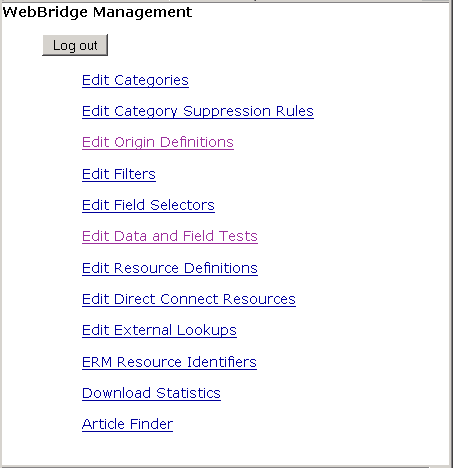
NOTE
Only one user can be logged in to the WebBridge Management menu's edit function. Other users can access the menus in View Only Mode.
If there is no activity by a login within the timeout period, the user is automatically logged out.
- Choose Edit Resource Definitions.
The WebBridge Management - Resources menu displays: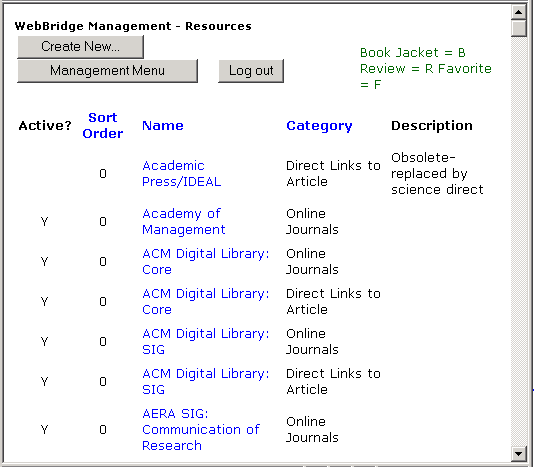
- Choose a resource definition. The WebBridge Management - Resource menu displays:
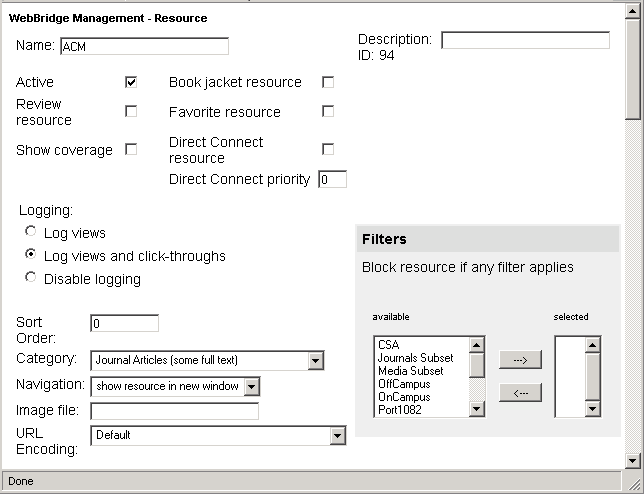
- Select the Favorite resource check box.
- Scroll to the Bibliographic Record Linking section of the WebBridge Management - Resource page:
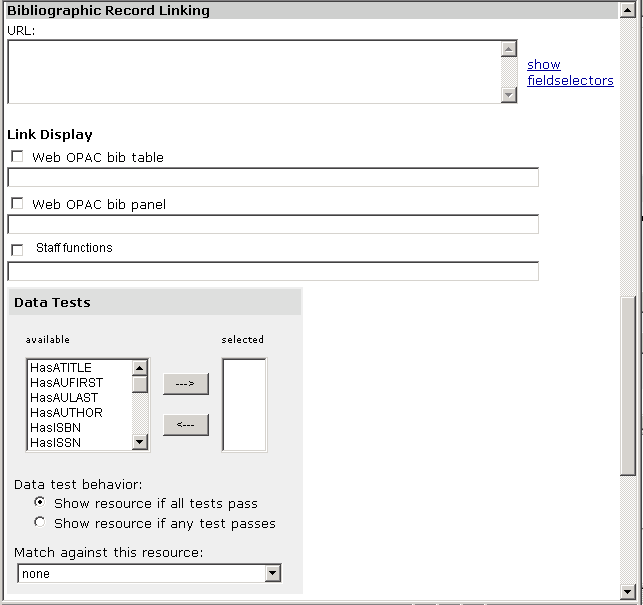
- Enter the URL for the book jacket's target resource in the URL text box.
- Choose Save.
Clicking on the book jacket image in Sierra links to the target resource entered in the Favorite resource resource definition.
