
Using Google Scholar
To participate in Google Scholar, your library must have acquired WebBridge (Product Code 201 AMB). To enable Google Scholar with WebBridge, contact Innovative.
Google Scholar allows patrons to search licensed content that has been indexed by Google.
You can agree to make your holdings information available to Google. If you do so, Google Scholar search results can include links to full text (or other licensed content) in your library's holdings.
If you participate in Google Scholar, Google crawls your library's WebPAC server for updated holdings information at regular intervals. Google's robot uses a file in the /live/screens directory called institutional_links.xml. You maintain all portions of this file except the <electronic_holdings> section. WebBridge automatically updates this section. See Getting Started With Google Scholar for more information about creating this file.
WebBridge also creates files called institutional_holdings<number>.xml in a directory called /public, which is not normally user-accessible. These files contain holdings information from your library's coverage database. The holdings information is formatted according to a Google-defined DTD and is used by Google Scholar. Do not edit or remove these files.
Links to full text licensed by your library display if patrons either:
- use a PC that is within an IP range specified by your library in the institutional_links.xml file
- enter your library's name in their Google Scholar preferences
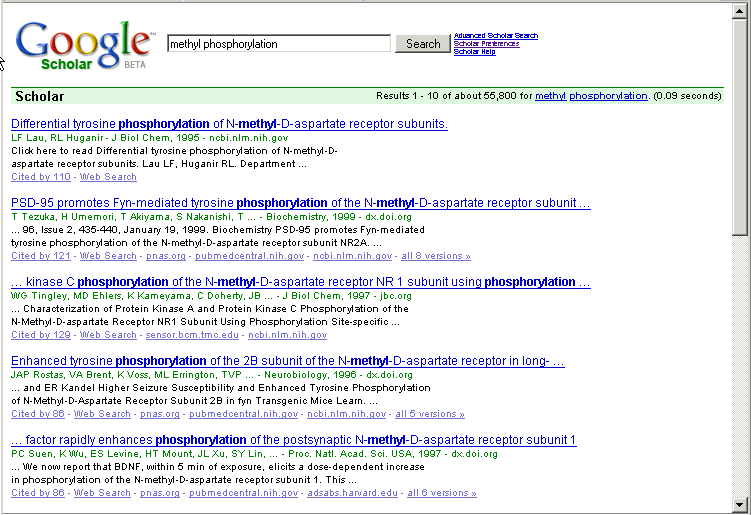
For example, if a patron searched for "methyl phosphorylation," but did not enter a library name in Google Scholar preferences or use an IP specified by a library, the results display as follows:
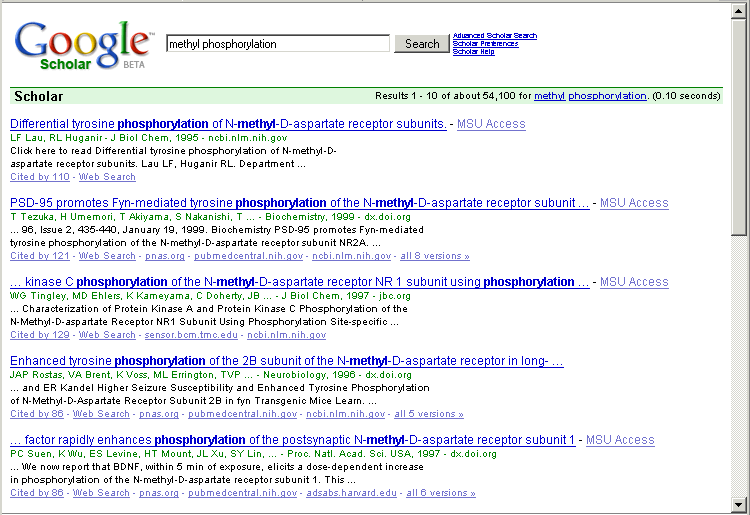
However, if a patron entered "Michigan State University" in Google Scholar preferences and searched for "methyl phosphorylation," the results display as follows:
NOTE
Google allows patrons to enter any library name in preferences. However, the patron will need to authenticate as a patron of the library before viewing licensed content.
When the patron clicks on an MSU Access link, Google passes an OpenURL with values for the article's field selectors (By-Value Metadata Descriptors) to Michigan State University's resolution server.
See Linking Related Web-based Resources and About Linking from External Origins for more information about the WebBridge resolution server and how it responds to OpenURLs from external origins (such as Google).
Getting Started With Google Scholar
To begin participating in Google Scholar:
- Contact Innovative to enable the feature.
- Edit the /live/screens/institutional_links.xml file.
Innovative provides a sample /live/screens/institutional_links.xml file. The sample institutional_links.xml file follows the DTD designed by Google.
Edit the sample file as recommended by Google—except the <electronic_holdings> section. Do not edit the <electronic_holdings> section. WebBridge automatically updates this section.
Do not remove or rename the /live/screens/institutional_links.xml file while your library participates in Google Scholar. - Define an external origin for Google Scholar. In the SID/rfr_id text box, enter "google".
