
Alma's Classic Repository Search
Repository Search Results
Search results appear in a record list, displayed according to the type of resource chosen for your search. You can configure the fields and actions that appear for each result; for more information see Record Lists.
Saving and Reusing Search Queries
For many search results, you can save searches for later use. Saving a query is another name for creating a logical set. A logical set is dynamic, recalculated each time it is accessed—in other words, the search is rerun and the results are the set. When you save a query (set), you are saving a set of search criteria that can be reused. Each time you run a query, the results may be different if the records have changed since the previous run. In contrast, an itemized set is a fixed collection of items that may have been entered by hand, uploaded from a file, or the result of a previous search (but no longer associated with the query terms). Note that you can turn logical sets into itemized sets.
For more information about sets, see Managing Search Queries and Sets.
- After performing a search, select Save Query on the search results.The Set Details page appears.
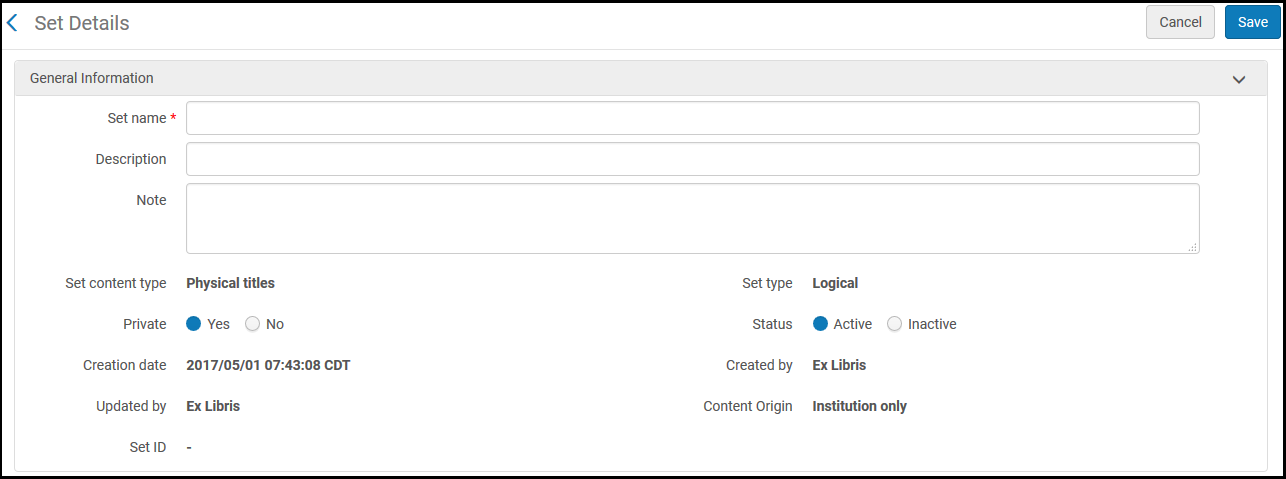
Set Details Page - Follow the procedure in Creating Logical Sets.
Performing a Search Using a Saved Query
To run a saved query; on the Manage Sets page (Administration > Manage Jobs and Sets > Manage Sets), locate the saved query (logical set) and select Results in the row actions list. See Managing Search Queries and Sets.
Sorting Search Results
By default, search results are sorted according to an internal ranking mechanism that is based on Apache Solr; for more information, see http://www.solrtutorial.com/solr-search-relevancy.html. Ranking factors include:
- Term Frequency- The higher the term frequency in the document, the higher the document score.
- Inverse Document Frequency- The rarer a term is across all documents in the index, the higher its contribution to the score.
- Coordination Factor- The more query terms found in a document, the higher its score.
- Field Length- The more words a field contains, the lower its score. This factor penalizes documents with longer field values.
For some search types, you can change the sort using the Sort by and Secondary Sort by drop-down lists, using the following options (where Asc=ascending and Desc=descending):
- Rank
- Title – Asc
- Title – Desc
- Creator – Asc
- Creator – Desc
- Publication Date – Asc
- Publication Date – Desc
- Uniform Title – Asc
- Uniform Title – Desc
- Series – Asc
- Series – Desc
These options are available for search types:
- Electronic collections (Sort by only)
- Electronic portfolios (Sort by only for titles)
- Collections (Sort by only)
The sort order for holdings displayed within a single search result is configured by the sort_library_by_relevance customer parameter (see sort_library_by_relevance).
Filtering Search Results
You can filter search results using the facets in the left pane of the search results. The available facets depend on the type of search and the items in the search results.
| Search Type | Facets Provided |
|---|---|
| Digital files | Entity type |
| File MIME type | |
| File size bytes | |
| File extension | |
| Resource Type | |
| Physical items | Item material type |
| Library | |
| Process type | |
| Resource Type | |
| Electronic portfolio | Type |
| Interface | |
| Electronic collection type | |
| Service | |
| Electronic material type | |
| Availability (Electronic Portfolio) | |
|
Available For (For institutions configured for distributed access to electronic resources and for Network Zone member institutions) |
|
Library - displays portfolios with (For details, see Library set on electronic resource):
|
|
| Collection | Library |
| Electronic collection | Type |
| Interface | |
| Electronic collection type | |
| Availability (Electronic Collection)
This facet represents the collection's service availability, such that electronic collections without a service are not considered in the facet count. |
|
|
CDI Search Activation (Available only when using the Fully Flexible CDI activation model) |
|
|
CDI Search Active For (Shows all campuses via Active for Search, for Electronic Collections but not for Group Settings) |
|
| Library | |
| Authorities |
Heading Usage - determined by the contents as follows:
Names (if LDR pos. 9 equals "a", "b", or "e") Subjects (if LDR pos. 9 equals "c", "d", or "j")
Names (if 008 pos. 14 equals "a") Subjects (if 008 pos. 15 equals "a") Series (if 008 pos. 16 equals "a") Call Number/Classifications (if field 084 exists) |
| Vocabulary - According to the Authority record's registryId in the "Vocabulary" database table; in Alma Configuration > Resources > Metadata Configuration > Authority Vocabularies > Code(see Configuring Controlled Vocabulary Registry). | |
- Community Zone records are updated with the correct electronic collection type, such as Journal, Book, and so forth.
- Locally migrated electronic collections are migrated with the type Journal in all cases (regardless of what type they are).
- New local electronic collections have no electronic collection type.
Customizing the Search Results
After a search has been conducted in Alma, users can customize what is visible in the search results.
After searching in Alma, select the gear icon ( ) to customize the search results for the type of search performed.
For example, if you didn't want to include the "Fulfillment Note" in the search results, it can be removed using the customization icon.
- After searching in Alma, select the gear icon (). The Customize view drop-down option menu is displayed.
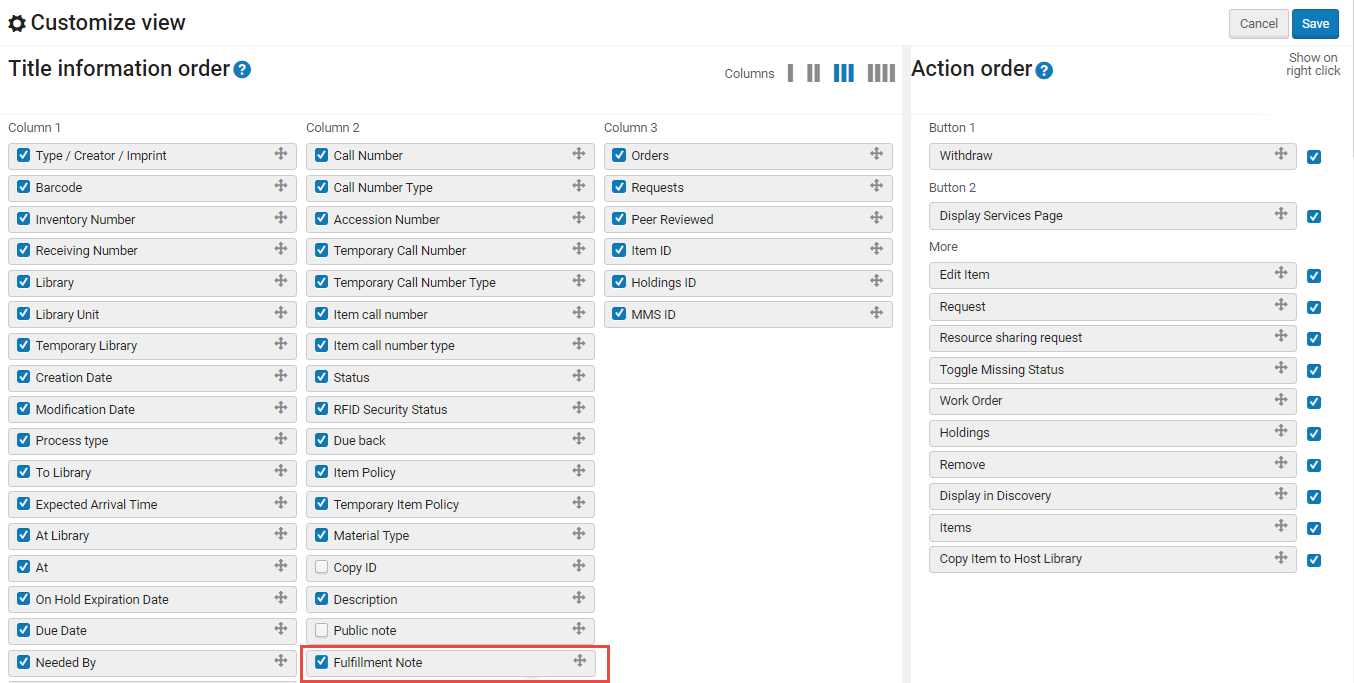 Customize View Drop Menu
 - Select (
 ) the record field(s) you want to remove from appearing in the search results, for example,Fulfillment Note.
 - Select Save. All the selected record fields are displayed in the search results (if they exist).
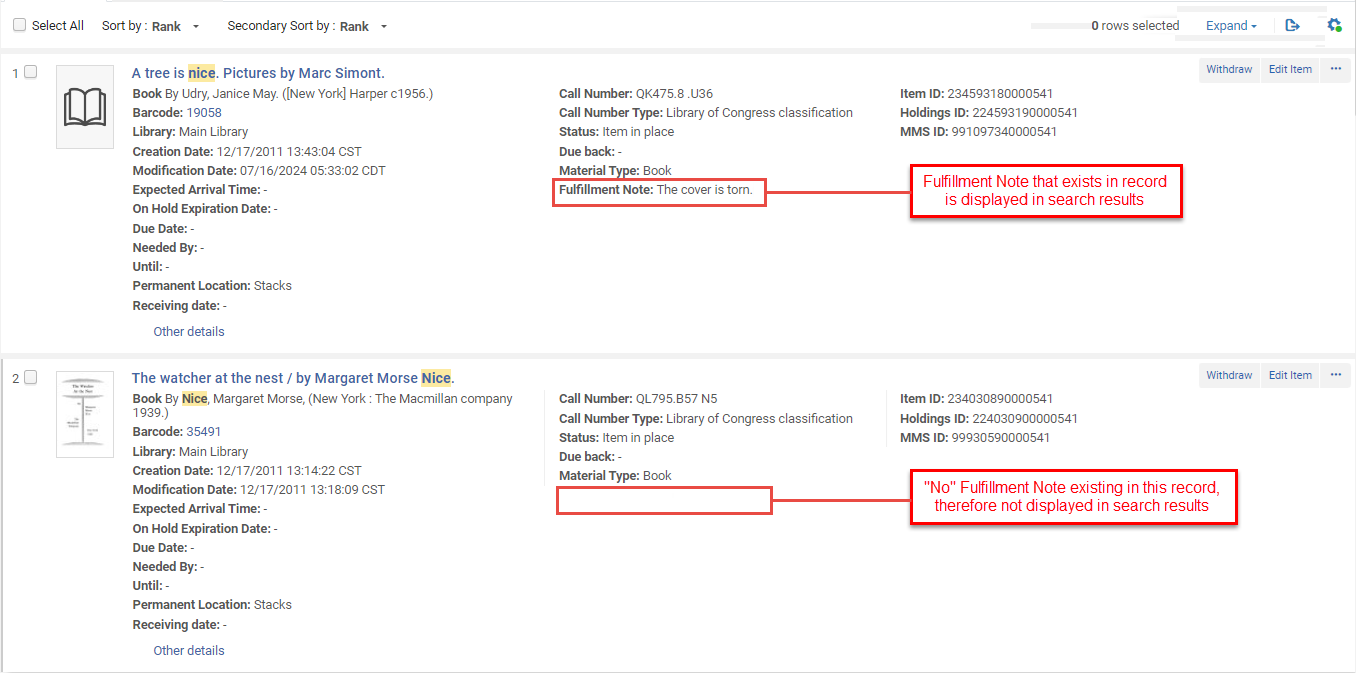 Customize Records Display in Search Results
Counts of Search Results
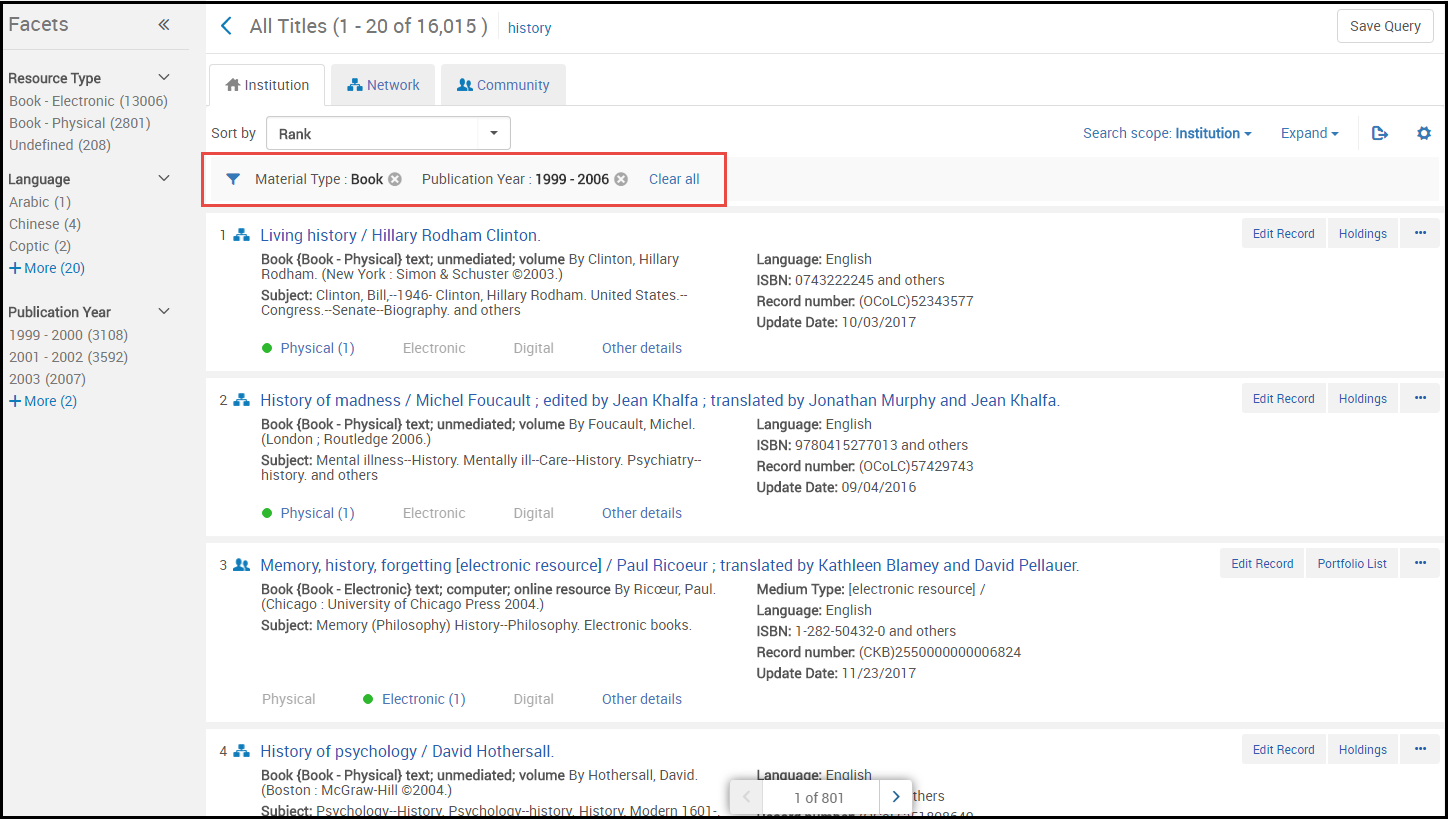
Facets include a count in parentheses next to the facet label.
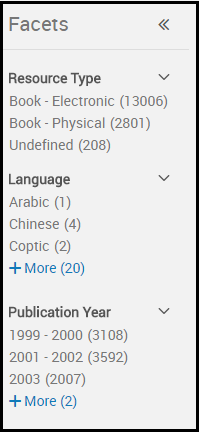
The numbers in parentheses are directly related to the total count provided with your search results.

Exact count is provided only in the total number of results. In all other counts, the count is approximate. To provide reasonable response time with a large number of search results, Alma provides an approximate count for the search results and facet counts. It is assumed that an exact count is not necessary, since with a number of results this high, you are not planning on browsing through all of the results. If necessary, you can determine the exact number of results by saving the results to a set and itemizing (see Converting Logical Sets to Itemized Sets). The number of items displayed for the itemized set (when creating the set, viewing the set creation job report, and viewing the itemized set) is exact. Note that in some cases, the count given may be indicated as approximate, as in the screenshot below, but in other cases it may be not indicated directly as such, but it is approximate in both cases.

Select the facet to narrow the search results. You may select more than one facet when multiple facets are available (see below). To clear your selection of facets that you previously selected, select beside the facet. Select Clear all to clear all your facet selections.
Filtering Electronic Portfolios by ISBN, ISSN, or Title
When viewing results on the Portfolio List page, you can search within the list for a specific ISBN, ISSN, or Title.

Thumbnails in Search Results
Alma attempts to display a thumbnail image for titles (either for digital titles only, or for all title types - see Customizing the Thumbnail Display). If the title has a digital file, a thumbnail of that file appears. If the title has no digital inventory, Alma attempts to acquire a thumbnail image of the cover using the title's ISSN/ISBN/LCCN. If no thumbnail is available, a generic image of the material type (book, video, music, and so forth) appears.
Institution, Community, and Network Tabs
The results from your institution appear in the Institution tab. The Community tab includes results for records in the Community Zone; these are records that are available to all Alma institutions (see Introduction to Resource Management).
If your institution is a member of a collaborative network working with a Network Zone, the Network tab is also available. The Network tab includes results from your Network Zone. For more information regarding the Network tab, see Repository Search in Collaborative Network. You can ask Ex Libris to enable a feature that allows you to display results from your Network Zone in the Institution tab; see Combining Institution and Network Zone Search Results.
Search Result Icons
The following icons may appear beside a search result, depending on the tab you are viewing. Linked records are updated when their target records (in the Community Zone or in the Network Zone) are updated.
| Tab | Icon | Record Condition | Select to Open the Item In |
|---|---|---|---|
| Institution | Record does not appear | NOT defined in the institution | N/A |
| Restricted by an inventory management group | N/A | ||
| No icon | Unlinked, non-electronic resource | N/A | |

|
Record is suppressed, or digital representation is inactive. When a record is suppressed, only the Library staff can see it. The record does not appears in the Primo search results, and students cannot see and cannot request it. For details, see Suppressing Alma Records from Primo. |
N/A | |

|
Peer Reviewed
When performing an All titles, Electronic titles, Electronic portfolios, Electronic collection, Physical titles, Physical items, Digital titles, Digital files, or Collections search, this icon appears for MARC 21 bibliographic records that contain the following: 500 __ $a Refereed/Peer-reviewed |
N/A | |

|
Open access
When performing an All titles, Electronic titles, Electronic portfolios, or Electronic collection search, this icon appears for MARC 21 bibliographic records that contain the following: 506 0_ $f Unrestricted online access $2 star |
N/A | |

|
Unlinked, deactivated electronic resource. This icon appears only in Electronic searches (Electronic Titles/ Electronic Portfolio/ Electronic Collection). It is not applicable in All Titles search and does not appear in this search type. |
N/A | |

|
Unlinked, activated electronic resource.
|
N/A | |

|
Linked to a Community Zone record. | Community tab | |

|
Linked to a Community Zone record, but electronic title, collection, or portfolios are inactive. This icon only appears in Electronic searches (Electronic Titles/ Electronic Portfolio/ Electronic Collection). It is not applicable in All Titles search and does not appear in this search type. |
Community tab | |

|
Linked to a Network Zone record | Network tab | |
| Community | Record does not appear | NOT defined in the Community Zone | N/A |
|
|
Peer Reviewed
When performing an All titles, Electronic titles, Electronic portfolios, Electronic collection, Physical titles, Physical items, Digital titles, Digital files, or Collections search, this icon appears for MARC 21 bibliographic records that contain the following: 500 __ $a Refereed/Peer-reviewed |
N/A | |
|
|
Open access
When performing an All titles, Electronic titles, Electronic portfolios, or Electronic collection search, this icon appears for MARC 21 bibliographic records that contain the following: 506 0_ $f Unrestricted online access $2 star |
N/A | |
| No icon | Linked to a record in the Network Zone
AND Restricted by an inventory management group |
N/A | |
|
|
Linked to a record in the Network Zone
AND NOT linked to a record in the institution AND NOT restricted by an inventory management group Note: This icon also appears if an institution record is linked to the above Network Zone record. |
Network tab | |

|
Linked to a record in the institution
The icon is black if the collection is active but the portfolios in the collection are not.For electronic collections of type 'Database', this icon always appears black in the Community tab, since a database does not have portfolios. The correct indication for electronic collections of type 'Database' is in the Institution tab. |
Institution tab | |
| Linked to a record in the Network Zone
AND Linked to a record in the institution See notes above. |
Whichever link was added last. | ||
| Network | Record does not appear | NOT defined in the Network Zone | N/A |
|
|
Peer Reviewed
When performing an All titles, Electronic titles, Electronic portfolios, Electronic collection, Physical titles, Physical items, Digital titles, Digital files, or Collections search, this icon appears for MARC 21 bibliographic records that contain the following: 500 __ $a Refereed/Peer-reviewed |
N/A | |
|
|
Open access
When performing an All titles, Electronic titles, Electronic portfolios, or Electronic collection search, this icon appears for MARC 21 bibliographic records that contain the following: 506 0_ $f Unrestricted online access $2 star |
N/A | |
| No icon | NOT linked to a Community Zone record
AND NOT linked to a record in the institution |
N/A | |
|
|
Linked to a Community Zone record
AND NOT linked to a record in the institution (note that black indicates an inactive electronic title, collection, or portfolio) |
Community tab | |
|
|
Linked to a record in the institution
The icon is black if the collection is active but the portfolios in the collection are not. |
Institution tab |
Viewing Inventory/Other Details
For title search results, the inventory tabs (Physical,Electronic, and/or Digital),Available For information (see Search Results with Restricted Access), and the Other Details tab appear below each result (see Search Results Tabs for more information). The number of holdings/portfolios/representations appear in parentheses in the name of the tab. Select a tab to expand or collapse more information about the result. See Record Lists for more options.
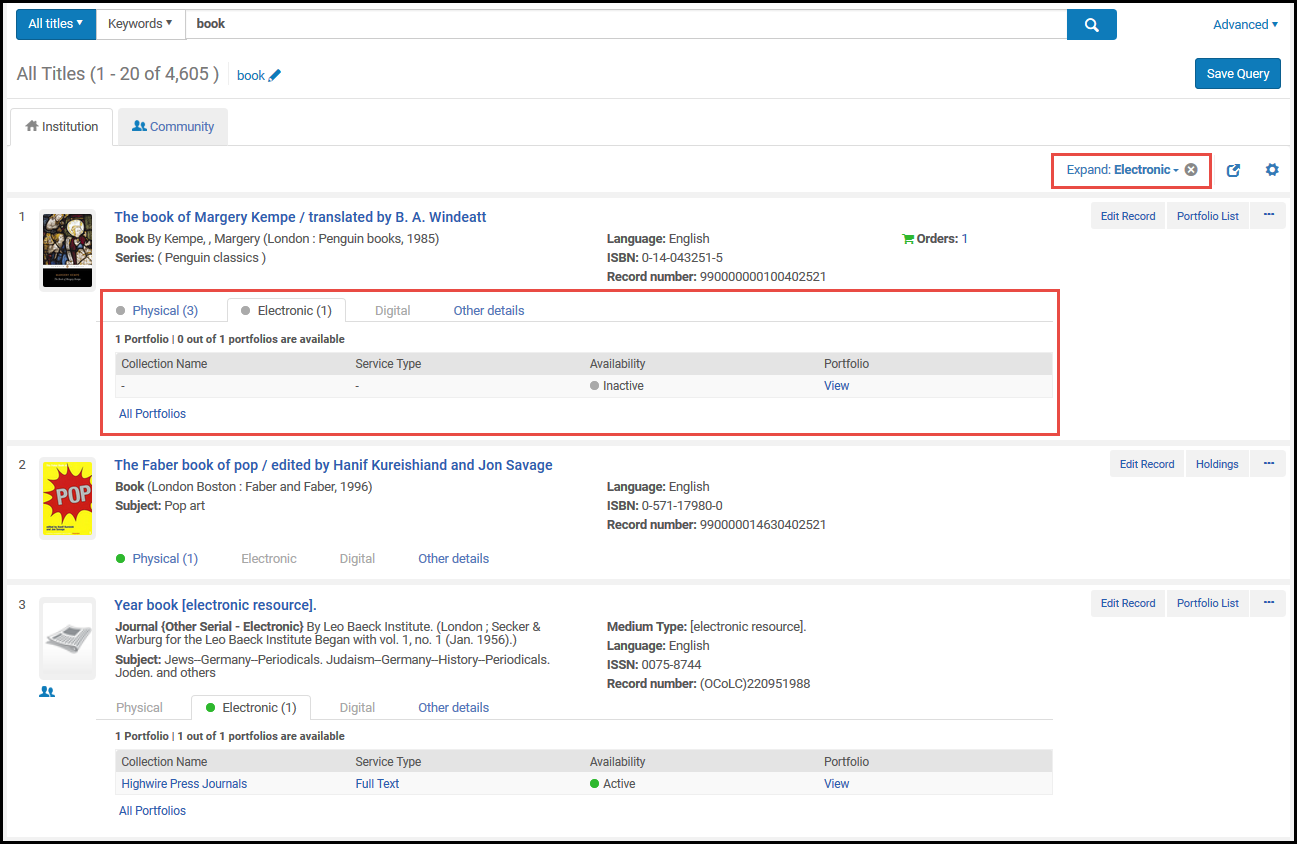
Additionally, in the Physical Title search results, you can navigate to related items for the specific title and see them as physical items search results. This allows the Inventory Operator would like to check possible availability in holdings and items in its hierarchy, and also in related holdings or items: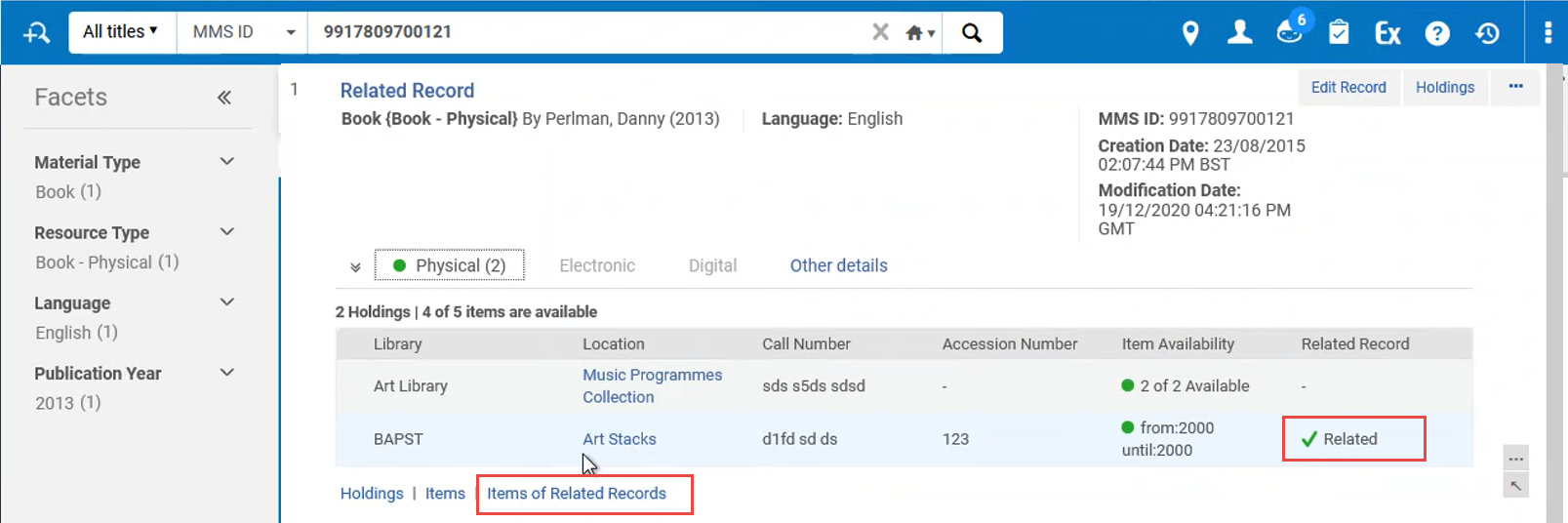
Note that when a specific item or volume or issue are being referenced in the related record (the 77X field contains a $g with specific item information, or even when $g is unspecified), only the relevant holding or item record is shown when using these new navigation links.
| Tab | Description |
|---|---|
|
Physical |
Displays title holdings and item information with links to the List of Holdings page and to the List of Items page.
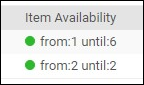
A green dot appears in the tab header if there are holdings and, at least, one of the holdings has an item in place. A grey dot appears if there are holdings but none of them has an item in place. The number that appears next to the Physical tab header, identifies the number of holdings records in that tab. Note that the number displayed is a combination of both real holdings, and "virtual" holdings, which represent an aggregation of items in a temporary location. The Physical tab contains the following columns of information: Library, Location, Call Number, Accession Number, Item Availability, and Related Record. The data that appears in the Item Availability column is determined in the following manner:
In the absence of these conditions, a gray dot appears for Item Availability.
$z is only displayed in the Discovery tool.
|
| Electronic | Displays title electronic inventory, including the collection name, service type, availability, and a link (View) to the portfolio in the Electronic Portfolio Editor. Select Portfolio List to open the Portfolio List page (see Working with the Portfolio List).
A green dot appears in the tab header if there is inventory and at least one of the resources is active. A grey dot appears if there is inventory but none of the resources is active. |
| Digital | Displays title digital inventory. For each digital representations, this tab displays the label, usage type, repository, number of files, and (if configured for long term digital loans) digital loan availability; and provides a link to view the representation.
Select All Representations to open the Digital Resource Editor page for all the representations. |
| Collections | Displays title digital collections, including the collection name and a link for each collection to the Collection Resource Editor. |
| Other Details | Displays:
Select the number, name, or ID to access more details. For portfolios, displays the following information:
For information on displaying the courses associated with a title, see the View Courses Linked to a Title video (2:43 mins). |

Performing Actions on the Repository Search Results Page
See the table below for a description of the actions that you can take while using the repository search results.
| Search Type | Action | Description |
|---|---|---|
| Remove | Remove an item from an itemized set.
This action is available only when managing an itemized set; see Viewing and Removing Members of Itemized Sets. |
|
| Digital Files | View It | View the digital object. Opens the Alma Link Resolver Services page from which you can view the object (if you have permission/access to the object).
For more information regarding the Alma Link Resolver Services page, see Using the Alma Link Resolver Electronic Services Page. |
| Deliver (New Digital Viewer only) | Displays the file in the New Digital Viewer. Only available when the New Digital Viewer is configured. For more information , see Configuring Viewer Services. | |
| Representations | Edit the digital representation. Opens the Digital Resource Editor. For more information, see Managing Digital Resources. | |
| Download | Download the digital file. | |
| Resource Sharing Request | Initiate a resource sharing borrowing request on the title. Opens the Resource Sharing Borrowing Request page (see Adding a Resource Sharing Borrowing Task from a Search). This action appears only if you have one of the roles Fulfillment Services Operator or Fulfillment Services Manager in the scope of the resource sharing library. | |
| Physical Items | Edit | Edit the item. Opens the Physical Item Editor page (see Updating Item-Level Information). |
| Holdings | View holdings information. Opens the MARC simple Record View page (single record) or the List of Holdings page (multiple records). For more information, see Viewing Metadata Read-Only in the Simple Record View Page and Working with the List of Holdings. | |
| Items | View item information. Opens one of the following pages:
|
|
| Request | Initiates a fulfillment request (see Creating a Request). | |
| Resource Sharing Request | Initiate a resource sharing borrowing request on the title. Opens the Resource Sharing Borrowing Request page (see Adding a Resource Sharing Borrowing Task from a Search). This action appears only if you have one of the roles Fulfillment Services Operator or Fulfillment Services Manager in the scope of the resource sharing library. | |
| Work Order | Initiate a work order for the item, such as to request binding or process a withdrawal (see Creating a Request). | |
| More Info | View more information about the item. Opens the More Info dialog box with the following information:
For information on displaying the courses associated with a title, see the View Courses Linked to a Title video (2:43 mins). |
|
| Copy Item to Host Library |
Select in the below cases:
This option appear only when the below takes place (for details, see Joint User of Inventory in Consortia):
|
|
| Electronic Portfolio (Institution tab) | Edit | Edit the portfolio. Opens the Electronic Portfolio Editor page. For more information, see Editing a Portfolio Using the Electronic Portfolio Editor. |
| View | View the portfolio. Opens the Electronic Portfolio Editor page in view mode. | |
| Activate / Deactivate | Activate or deactivate the portfolio. The resource's icon changes when the activation status changes. For example, when an unlinked portfolio is activated, the icon appears in color ( |
|
| Order / Additional Order | Initiate a purchase order. Opens the PO Line Owner and Type page (see Creating PO Lines). | |
| Link to Community | Initiate the process to link a local portfolio to a Community Zone portfolio. This option is available only if a local portfolio was created as a standalone portfolio and not as part of an electronic collection.
You may, for example, use this option when you have created a local portfolio during the acquisition process and later want to link the portfolio to an electronic collection in the Community Zone. When you select Link to Community, the Link Standalone Portfolio to Community Zone Collection wizard opens, in which you 1) select a matching Community Zone portfolio, 2) select a local electronic collection with which to associate the standalone portfolio, and 3) select to use the descriptive metadata from the Community Zone bibliographic record or retain the Institution Zone descriptive metadata. If you choose to retain the Institution Zone descriptive metadata, the portfolio's descriptive metadata will not be synchronized with updates from the Community Zone. After the local portfolio is linked to a Community Zone portfolio, the Link to Community search results action no longer appears and the icon changes from the Institution Zone icon to the Community Zone icon (see Search Result Icons). |
|
| Create E-Activation Task | Create an electronic activation task and displays a confirmation message when successful. | |
| Test Access | Test access to the portfolio and display the results on the Alma Link Resolver Electronic Services page (see Using the Alma Link Resolver Electronic Services Page). | |
| Delete | Delete a local portfolio or a portfolio that is linked to the Community Zone. | |
| Report to Ex Libris | Send a portfolio update, add, remove, or coverage request to Ex Libris. Opens the Report to Ex Libris page. The contact information provided on the Report to Ex Libris page is defined by an administrator; see Configuring CRM Contacts.
For information on using this option in the Institution tab, see the “Send to Ex Libris” for Local Collections video (3:03 mins). |
|
| Resource Sharing Request | Initiate a resource sharing borrowing request on the title. Opens the Resource Sharing Borrowing Request page (see Adding a Resource Sharing Borrowing Task from a Search). This action only appears if you have one of the roles Fulfillment Services Operator or Fulfillment Services Manager in the scope of the resource sharing library. | |
| Electronic Portfolio (Community tab) | Activate | Initiate the process to add and activate portfolios from the Community Zone for a library. |
|
Linking Information |
Select this action to view the base linking information for the portfolio that is available in the Community Zone. This action can be selected for activated portfolios and non-activated portfolios. In the pop-up that appears when this action is selected, there is also the option to choose to activate the portfolio. When present in the Community Zone, static URL and dynamic URL information appears in the pop-up display. |
|
| Order | Initiate a purchase order. Opens the PO Line Owner and Type page (see Creating PO Lines). | |
| Report to Ex Libris | Send a portfolio update, add, remove, or coverage request to Ex Libris. Opens the Report to Ex Libris page. The contact information provided on the Report to Ex Libris page is defined by an administrator; see Configuring CRM Contacts. | |
| Resource Sharing Request | Initiate a resource sharing borrowing request on the title. Opens the Resource Sharing Borrowing Request page (see Adding a Resource Sharing Borrowing Task from a Search). This action appears only if you have one of the roles Fulfillment Services Operator or Fulfillment Services Manager in the scope of the resource sharing library. | |
| Collection | Edit Record | Edit the bibliographic record (title record) for the collection. Opens the MD Editor. |
| Collection | Manage the collection.
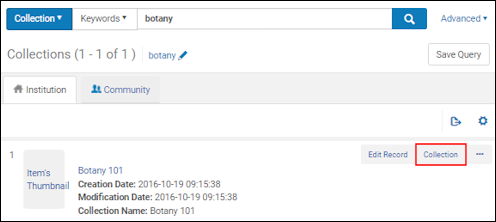 Opens the Collections Resource Editor page where you can view summary information for the collection, look up the history related to this collection, view titles in the collection, and add sub-collections to the collection. 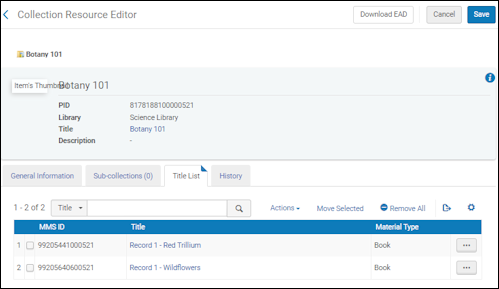 |
|
| Title List | Displays the list of titles in the collection.
 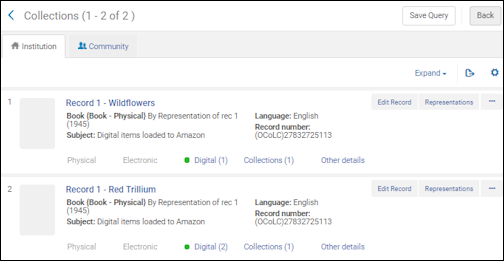 |
|
| View Collection Resource | View all related services and components of the collection without the ability to change or add data. | |
| Electronic Collection (Institution tab) | Edit | Edit the electronic collection. Opens the Electronic Collection Editor. |
| Activate/Deactivate for Search in CDI |
A collection can be activated or deactivated for search in CDI if the following three conditions are met:
|
|
| Remove CDI-only full text activation | When the operator has the CDI Inventory Operator role and CDI is configured as Fully Flexible, this option removes the Active for full text in CDI only status from the collection and allows Primo users to access the collection's full text. Once the status has been removed, you cannot add it back.
During CDI enablement, the Active for full text in CDI only status was applied to collections if the following was true prior to enablement:
For more details, see CDI FAQs. |
|
| Delete | Delete the electronic collection.
A confirmation dialog box presents the option to delete the electronic collection (along with deleting associated electronic collection services, portfolios, and e-activation tasks, and unlinking PO lines) and a drop-down list of options (delete, suppress, or do nothing) for handling bibliographic records without inventory when deleting the electronic collection. 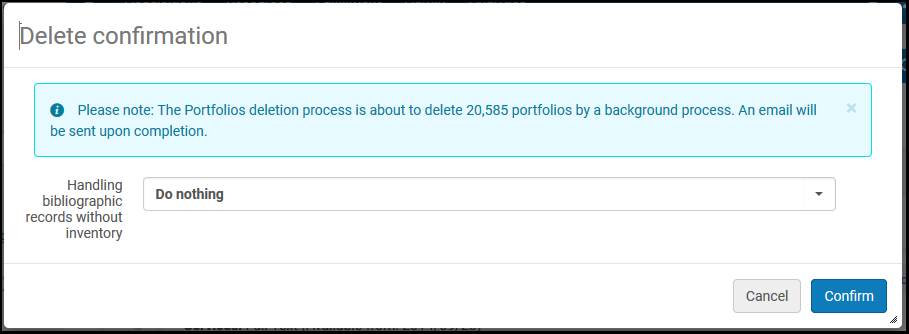 After you select Confirm, a background job runs, deleting the e-collection and its associated components. While the job is running, the action buttons for the record are not available. The job ID appears at the top of the page. To monitor the job and view the job report, see Delete Electronic Collection Job Report. If the job runs for a long time and the actions are still disabled, you can request Ex Libris Support to restore the action buttons. If the e-collection is empty, the deletion is handled online—that is, without running a job. |
|
| View | View the electronic collection. Opens the Electronic Collection Editor page in view mode. | |
| Portfolio List (number) | View the portfolio list. Opens the Portfolios List page. For more information see Working with the Portfolio List. | |
| Order / Additional Order | Initiate a purchase order. Opens the PO Line Owner and Type page (see Creating PO Lines). | |
| Link to Community | Initiate the process to link a local electronic collection to an electronic collection in the Community Zone. Linking local electronic collections to the Community Zone provides the benefit of Community Zone updates to the electronic collections that you link to the Community Zone. See Linking a Local Electronic Collection to the Community Zone for more information. | |
| Create E-Activation Task | Create an electronic activation task and displays a confirmation message when successful. | |
| Publishing Information | View publishing information about the electronic collection. Open the Publishing Information page with the following information (Available explicitly for General System, Repository, and Catalog Administrators, and Deposit Managers):
Learn about debugging publishing information in the Debugging Publishing Information video (1:52 mins). |
|
| Edit Service | Edit the electronic service. Opens the Electronic Service Editor. See Modifying an Electronic Service. | |
| Report to Ex Libris | Send a portfolio update, add, remove, or coverage request to Ex Libris. Opens the Report to Ex Libris page. The contact information provided on the Report to Ex Libris page is defined by an administrator; see Configuring CRM Contacts. | |
| More Info | View more information about the electronic collection. Opens the More Info dialog box with the following information:
For information on displaying the courses associated with a title, see the View Courses Linked to a Title video (2:43 mins). |
|
| Electronic Collection (Community tab) | Portfolio List (number) | View the portfolio list. Opens the Portfolios List page. For more information see Working with the Portfolio List. |
| Activate/Deactivate for Search in CDI |
A collection can be activated or deactivated for search in CDI if the following three conditions are met:
|
|
| Descriptive Record | View a simple view of the electronic collection. Opens the Community Zone level bibliographic record available for the electronic collection in the MARC Record Simple View page. See Viewing Metadata Read-Only in the Simple Record View Page and Working with Electronic Collection Bibliographic Records and URLs Added to the Community Zone for more information. | |
| Activate | Activate the electronic collection. Opens the Activation Wizard (refer to Activating an Electronic Collection Using the Activation Wizard). Where applicable, the collection can also be activated for CDI in the wizard (only when the CDI model is Fully Flexible). | |
| Order | Initiate a purchase order. Opens the PO Line Owner and Type page (see Creating PO Lines). | |
| Report to Ex Libris | Send a portfolio update, add, remove, or coverage request to Ex Libris. Opens the Report to Ex Libris page. The contact information provided on the Report to Ex Libris page is defined by an administrator; see Configuring CRM Contacts. | |
| Authorities (Institution tab) | As available, the Seen from information is provided in the search results. This information is pulled from the 4XX fields. | |
| See also | As available, the See also information is provided in the search results with links to this information. This information is pulled from the 5XX fields. | |
|
Search Bibliographic Records Matching This Value |
When you select the Search Bibliographic Records Matching This Value link, Alma searches for bibliographic records that use the authority record from which you selected this link. Note that the search results depend on your linking strategy. If your linking strategy is based on ID, the ID is searched. Otherwise, a textual string is used for the search. The values that appear in the search results are based on a Solr search and not on the fact that these records are linked to a relevant authority record. |
|
| Edit | Edit local authority information. | |
| Authorities (Community tab) | As available, the Seen from information is provided in the search results. This information is pulled from the 4XX fields. | |
| See also | As available, the See also information is provided in the search results with links to this information. This information is pulled from the 5XX fields. | |
|
Search Bibliographic Records Matching This Value |
When you select the Search Bibliographic Records Matching This Value link, Alma searches for bibliographic records that use the authority record from which you selected this link. Note that the search results depend on your linking strategy. If your linking strategy is based on ID, the ID is searched. Otherwise, a textual string is used for the search. The values that appear in the search results are based on a Solr search and not on the fact that these records are linked to a relevant authority record. |
In addition, the Export button that appears at the top of the page for all search types provides the option to export search results to an Excel file. The columns of information in the Excel file vary depending on the search type that you have used.
Excel files for all search types except Collections and Authorities have an MMS ID column.
For more information, see Export to Excel.
Example Repository Search Results
Since the repository search facility in Alma provides the flexibility to conduct a variety of searches, the search results include information related to physical, electronic, and digital resources. As a result, the content of the search results vary and are specific to the type of search you are conducting. For example, the Titles (All, Physical, Electronic, and Digital) search results include bibliographic information (Note: For repeatable bibliographic fields, only one occurrence of the fields is displayed); and the inventory (such as Items, Portfolios, and Files) search results include details from imported data or data that you have entered using the Physical Item Editor (see Updating Item-Level Information) or the Electronic Portfolio Editor (see Editing a Portfolio Using the Electronic Portfolio Editor).
In general, the repository search results include:
- Material type - See Material Types in Search Results for more information regarding bibliographic material types. See Search Indexes for a list of the MARC tags associated with all the displayed fields.
- Process type - When loan text is displayed, it is a checkable link that displays the On Loan Item page with loan information.
- Resource type - See The Resource Type Field for more information.
- Content type
- Media type
- Carrier type
- Creator
- Publication place
- Publication date
- Publisher
- Subject
- Library - For portfolios, one of the two parameters "Library" or "Electronic Collection Library" is displayed (for details, see Library set on electronic resource):
- The "Library" parameter displays the portfolio-level parameter (if defined).
- The "Electronic Collection Library" parameter displays the portfolio's electronic-collection-level value (if defined).
- Location
- Copy
- Barcode
- Item policy
- Orders - The Orders link shows the number of orders placed for the title, item, portfolio, or collection. Select the number/link to view the PO lines related to the entry. This link connects you to the PO lines using the PO line ID.
- Identifying numbers:
- Alma record number (the first number in 035a, the Other System Number)
- ISSN, ISBN
- Call number
- Item ID (Physical Items)
- Holdings ID (Physical Items)
- (Electronic) Collection ID (Electronic Collection and/or Electronic Portfolios)
- Portfolio ID (Electronic Portfolios)
- Service ID (Electronic Portfolios)
- File ID (Digital Files)
- Representation ID (Digital Files)
- Collection ID (Collection)
- MMS ID (Authorities)
- Dates - Dates are formatted on the display according to your date configuration settings and are included as separate columns of information when you export search results to Excel. Dates can be:
- Creation Date
- Modification Date
- Availability - Provides a link for accessing additional record details.
- Availability of related records - The Availability of Related Records appears in the search results when a bibliographic record is found and contains a 773 field with linking information to another bibliographic record with items. See the example below where the search results of an electronic item shows related records of two physical items.

Related Records Search Results You can configure the appearance of the location and library in the Availability line. For more information, see Customizing How Library and Location Appear.For information about enhanced visibility of related records, see the Enhanced Visibility For Related Record Inventory video (1:42 mins). - Service
- Icons - See Search Result Icons
The illustrations below highlight the following search result examples. For non-bibliographic/authority related searches, see the page referred to at the end of Performing a Simple Search.
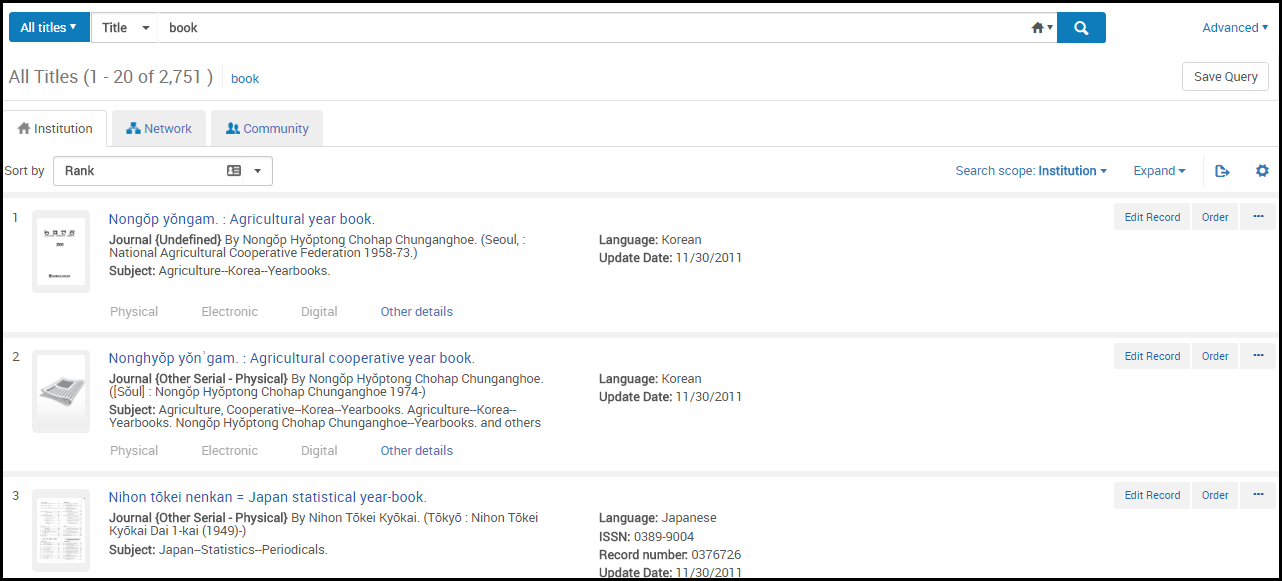
All titles search results (Institution tab):
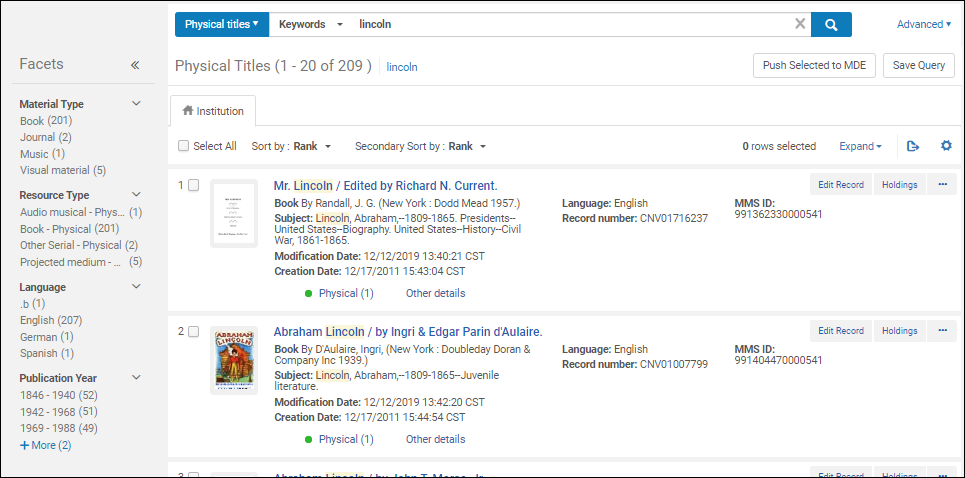
Physical titles search results:
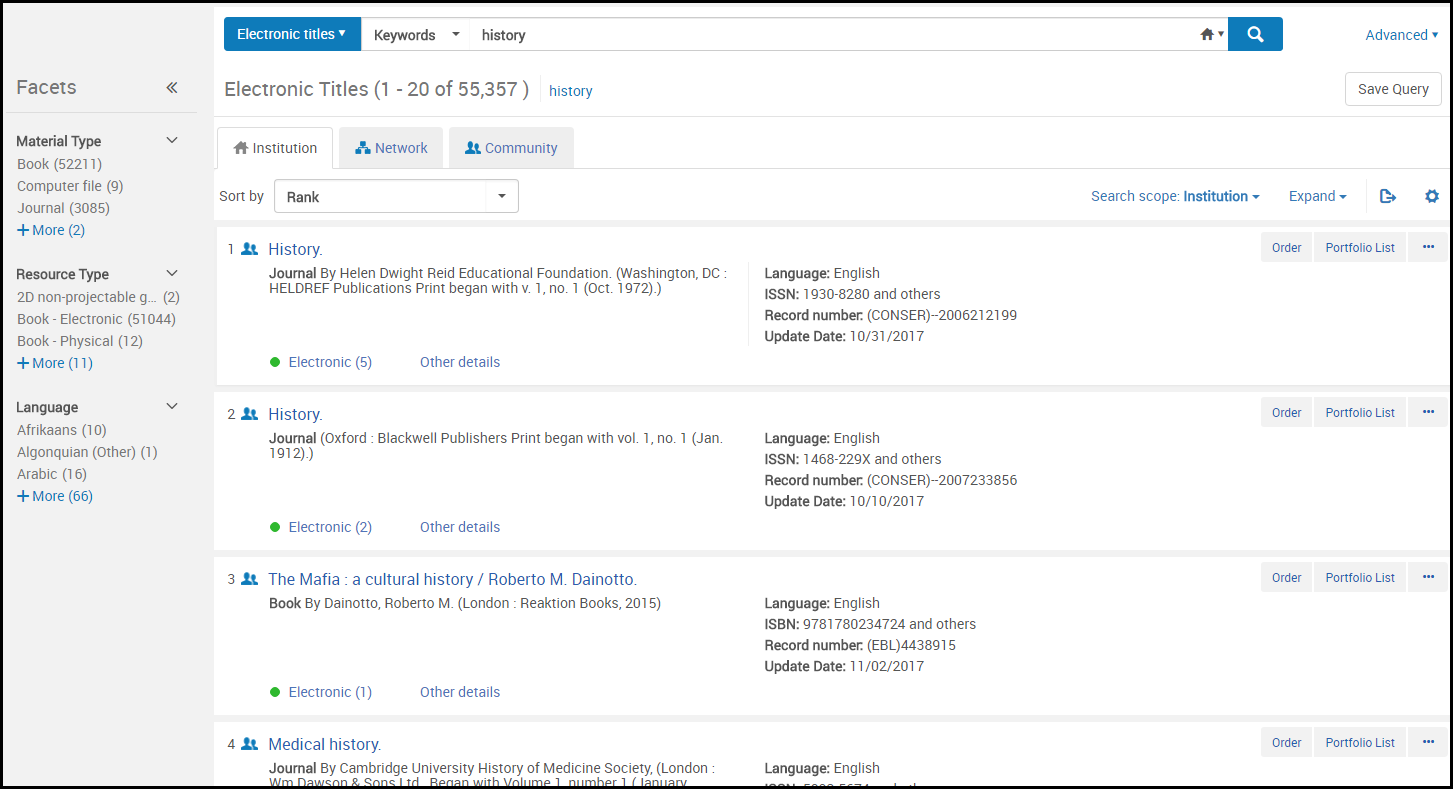
Electronic titles search results (Institution tab):
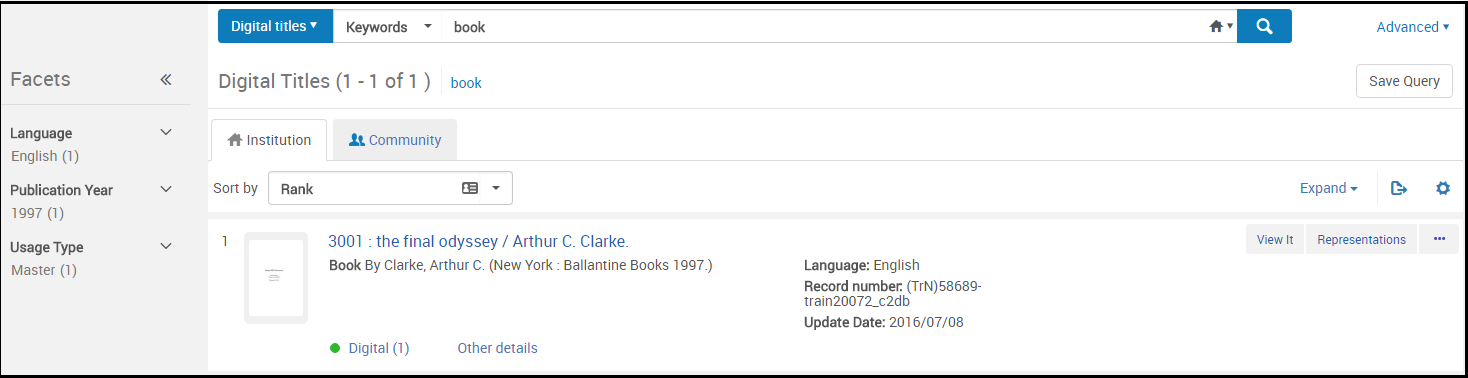
Digital titles search results (Institution tab):
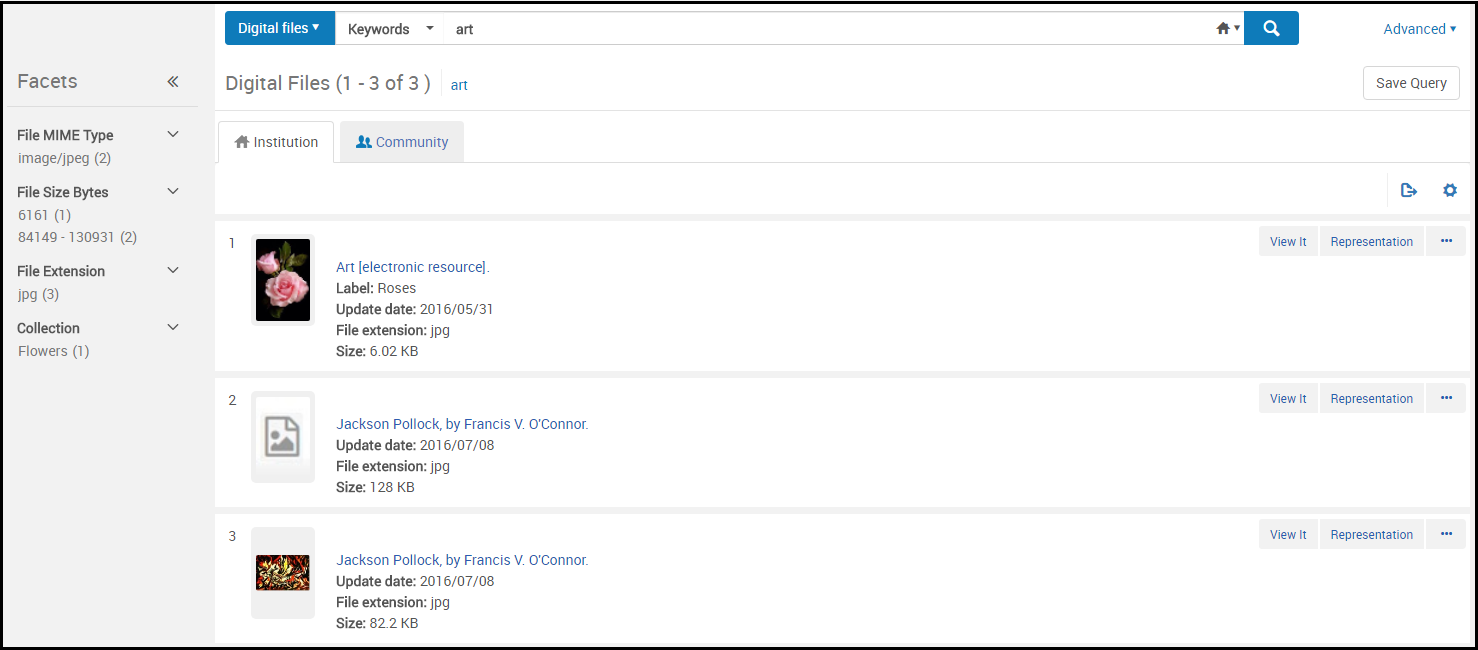
Digital files search results (Institution tab):
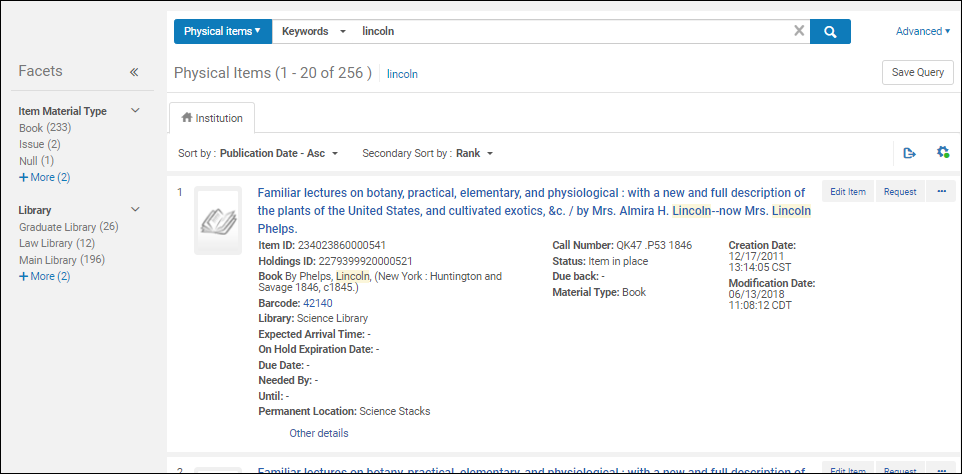
Physical items search results:
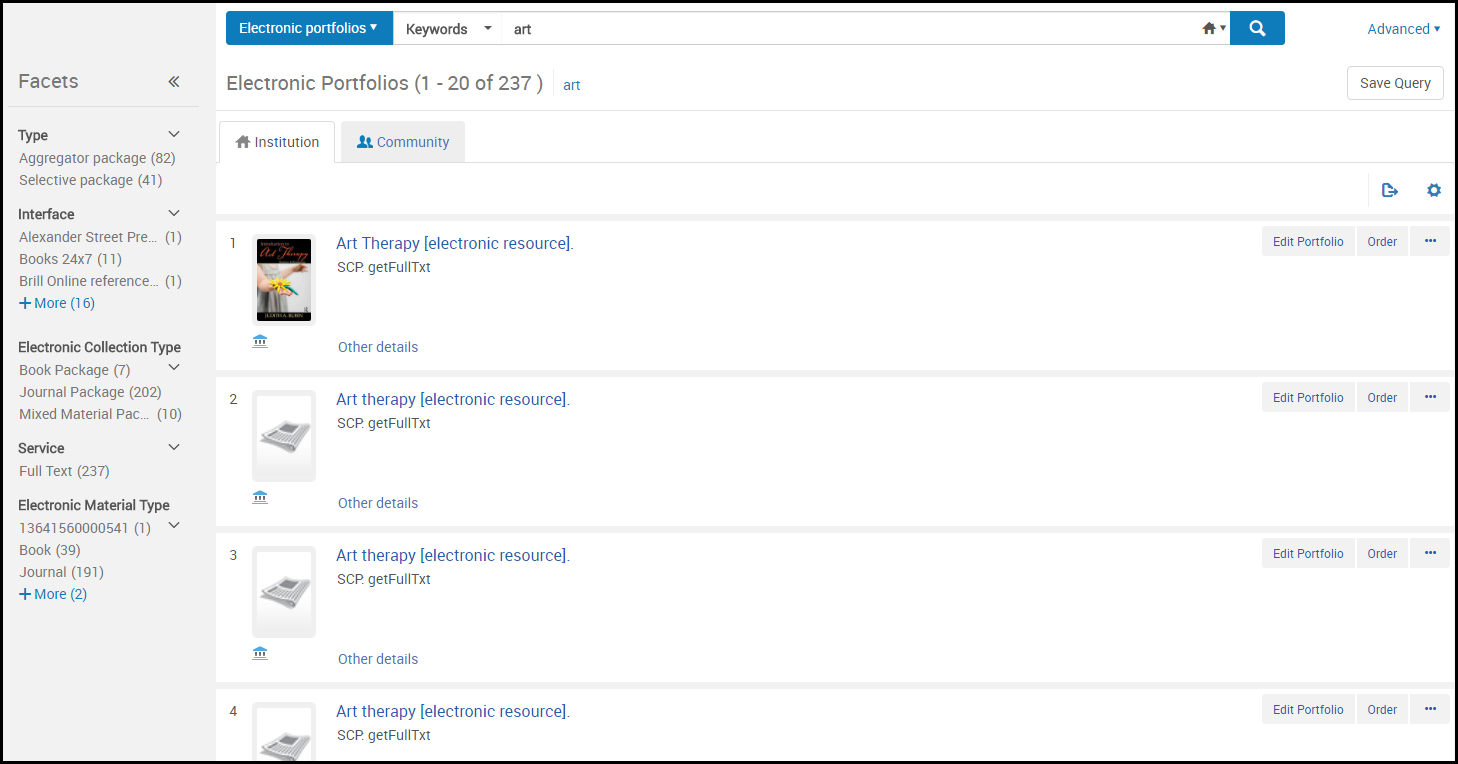
Electronic portfolio search results (Institution tab):
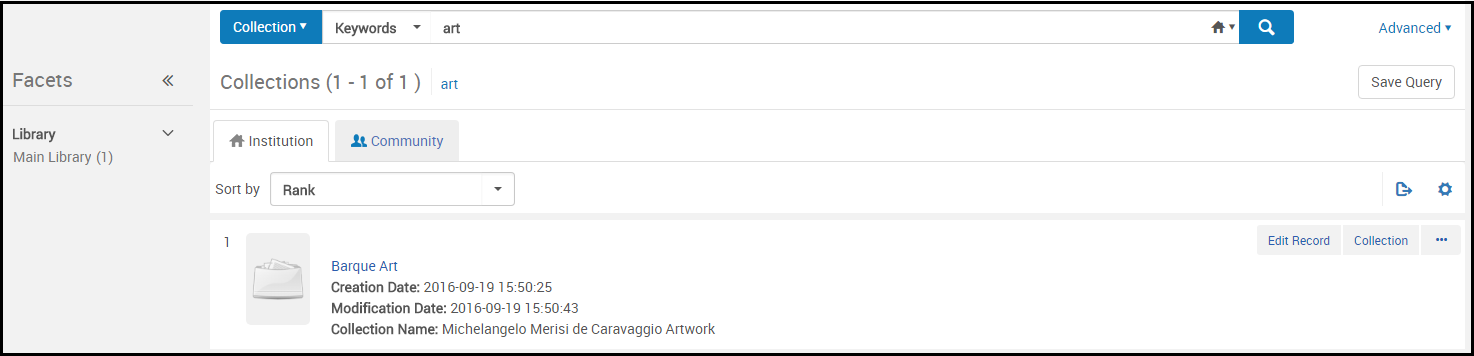
Collection search results (Institution tab):
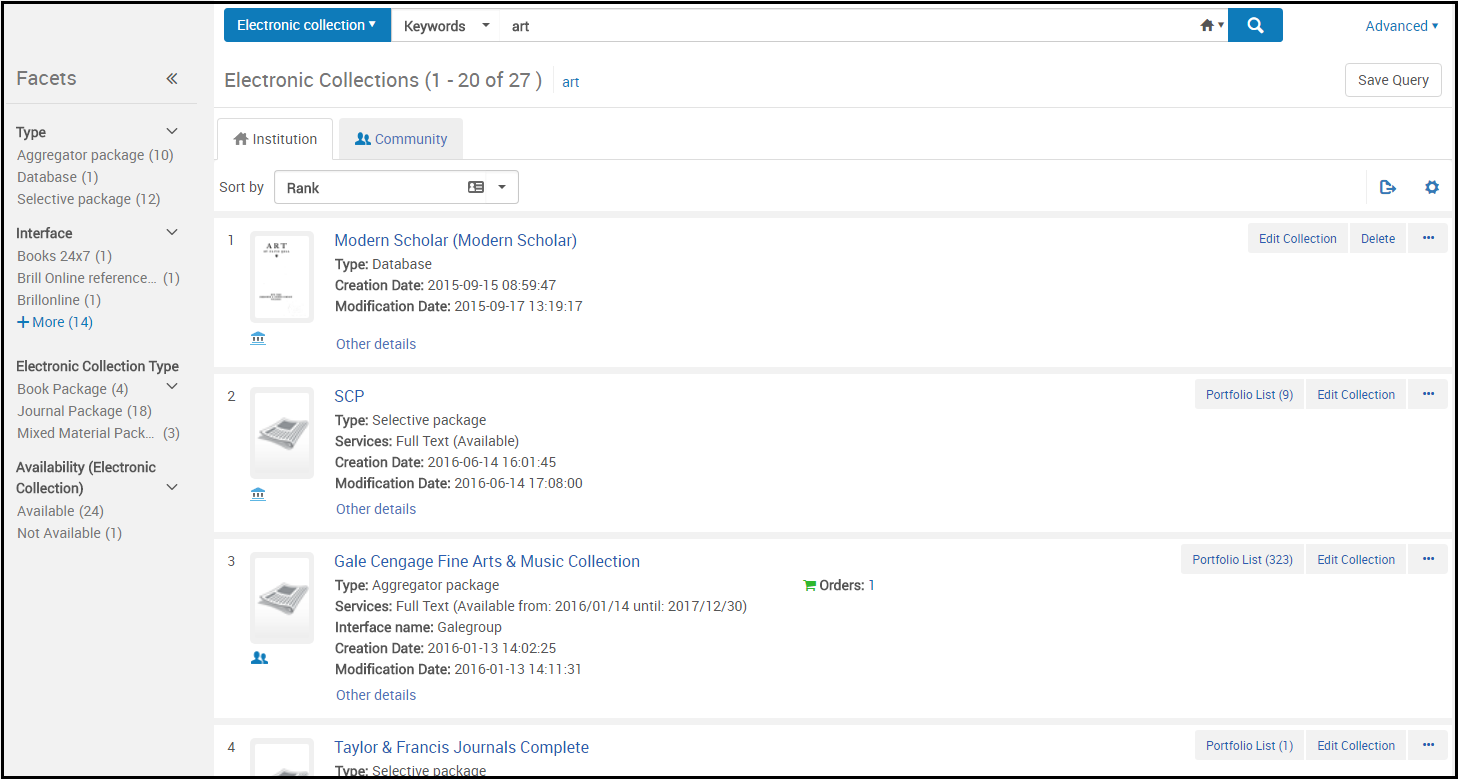
Electronic collection search results (Institution tab):
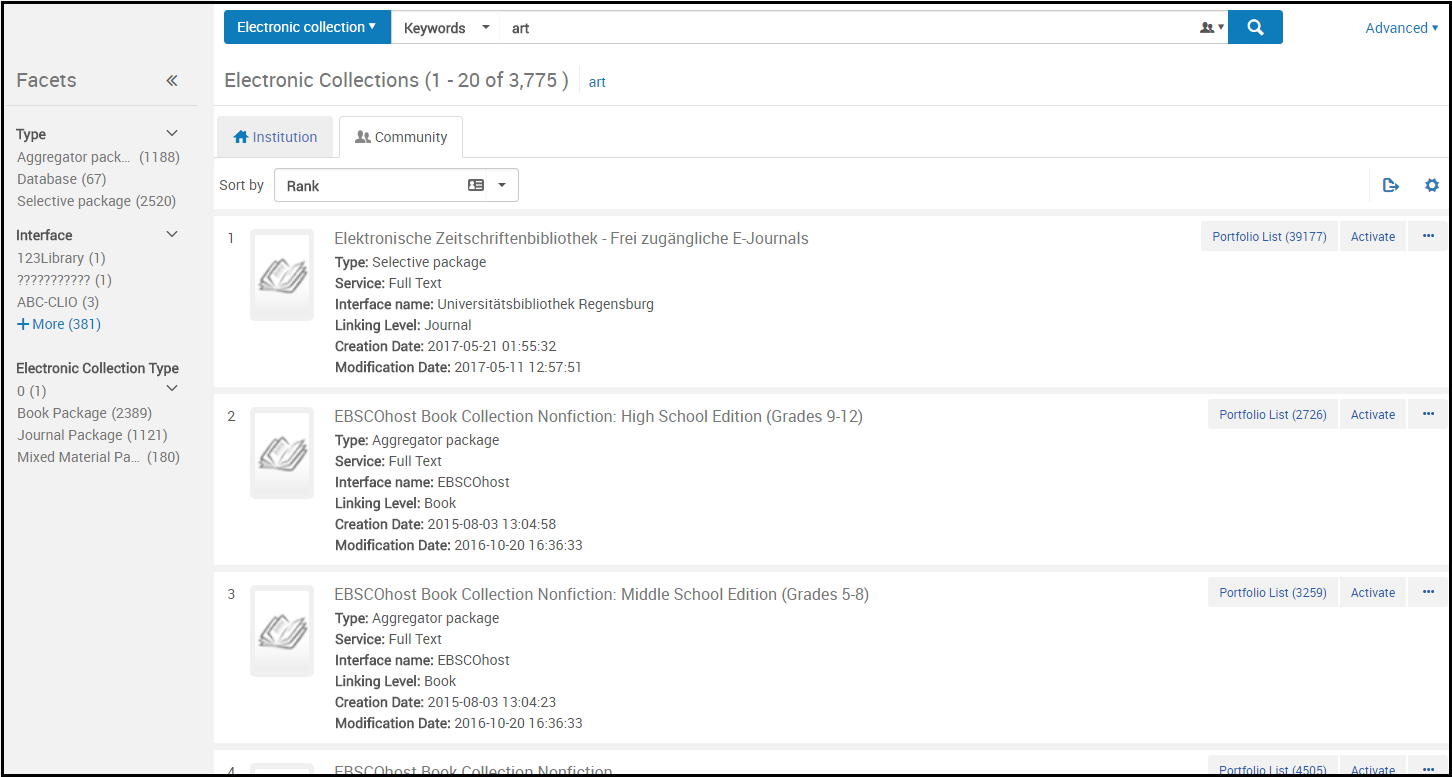
Electronic collection search results (Community tab):
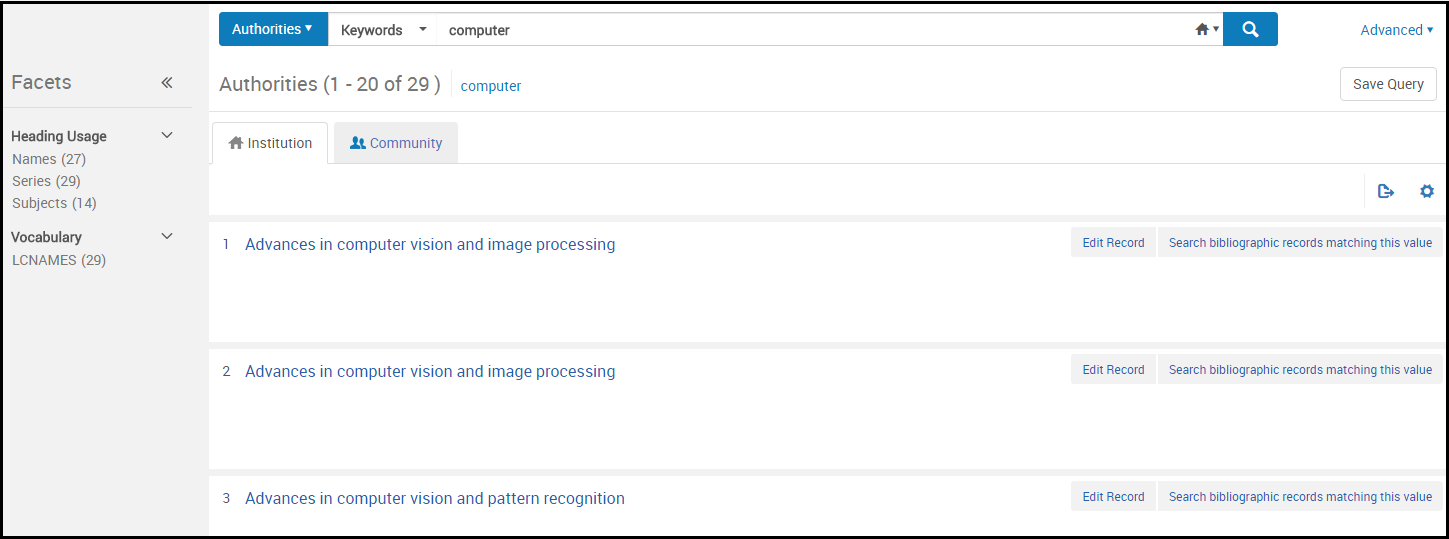
Authorities search results (Institution tab):
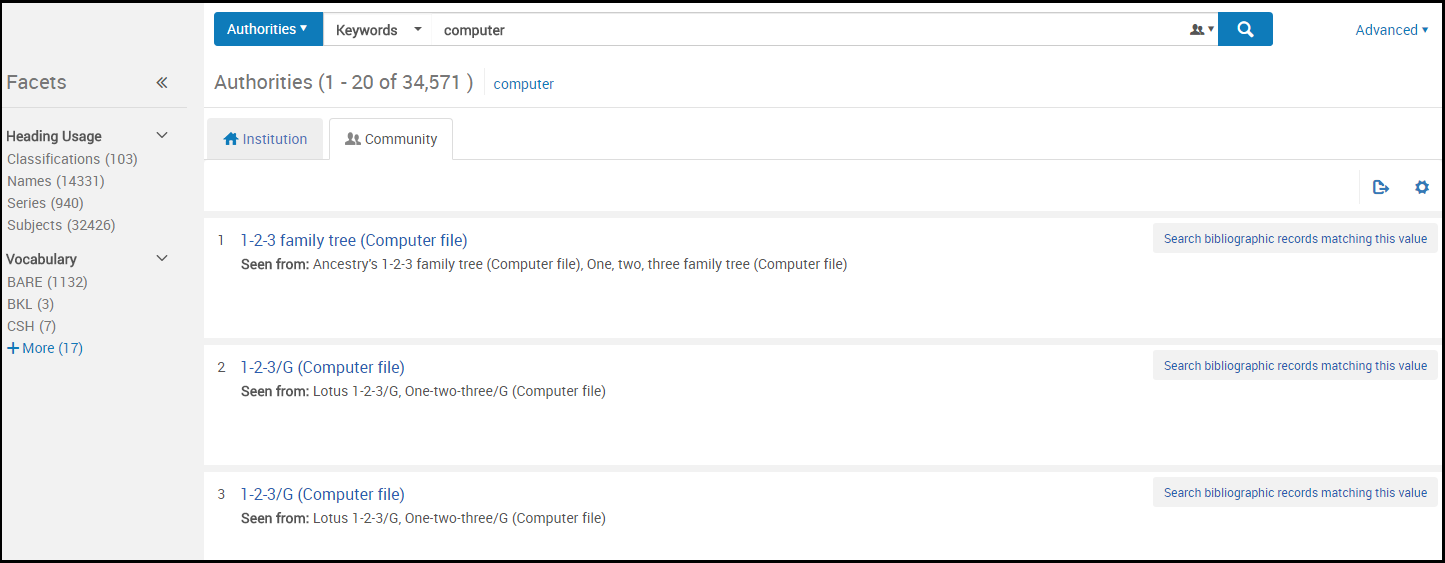
Authorities search results (Community tab):
The Resource Type Field
The Resource Type field is constructed based on existing bibliographic fields such as the LDR and 008 or dc:type or dcterms:type fields, in the case of Dublin Core. The Resource Type field supplements (but does not replace) the Material Type field.
The Resource Type field is searchable, available as a facet, and is extracted to Analytics. It is much more detailed than the Material Type field. As a result, it is a useful means of constructing detailed reports.
For details regarding the Resource Type field and the criteria for its creation, see the following tables:
- Rules Used to Create the Resource Type Field – MARC 21/KORMARC and UNIMARC
- Rules Used to Create the Resource Type Field – CNMARC
- Rules Used to Create the Resource Type Field – Dublin Core
The order of these tables is specific to how the rules are processed from beginning to end for creating the Resource Type field. As soon as a condition is met, the table is no longer consulted. As a result, if a bibliographic record meets conditions of more than one resource type, the first one appearing in the table is used.
After a record is saved or indexed, the Resource Type field information appears in the search results.
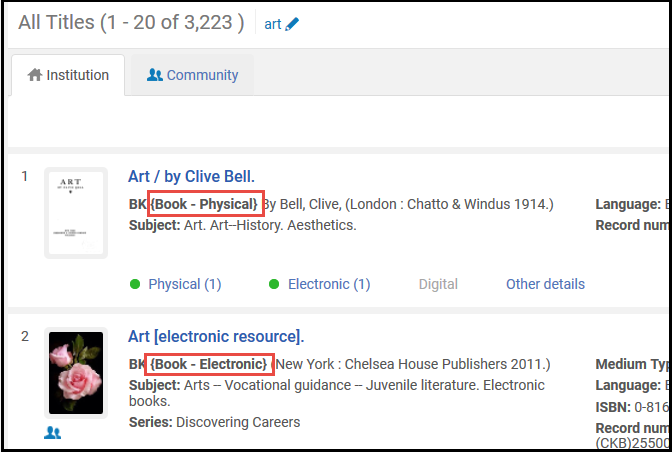
Resource Type is also available as a facet and an option in the advanced search.
| Resource Type | MARC 21 / KORMARC | UNIMARC |
|---|---|---|
|
The following notation is used in this table:
|
||
| Book – Physical | LDR pos. 06 = a AND LDR pos. 7 = m AND 008 pos. 23 != a,b,c,o,f,q,s | LDR pos. 6 = a AND LDR pos. 7 = m |
| Book – Electronic | LDR pos. 06 = a AND LDR pos. 7 = m AND 008 pos. 23 = o,q,s | LDR pos. 6 = l AND LDR pos. 7 = m |
| Other material – Electronic | LDR pos. 06 = m | LDR pos. 6 = l |
|
Map – Microfilm |
LDR pos. 06 = e AND LDR pos. 7 = m,s AND 008 pos. 29 = a AND 008 pos. 25 != e |
|
|
Map – Microfiche |
LDR pos. 06 = e AND LDR pos. 7 = m,s AND 008 pos. 29 = b AND 008 pos. 25 != e |
|
| Map – Physical | LDR pos. 06 = e AND LDR pos. 7 = m,s AND 008 pos. 29 != a,b,c,o,f,q,s AND 008 pos. 25 != e | LDR pos. 6 = e, f AND LDR pos. 7 = m |
|
Map – Microopaque |
LDR pos. 06 = e AND LDR pos. 7 = m,s AND 008 pos. 29 = c AND 008 pos. 25 != e |
|
| Microforms | LDR pos. 06 = !e AND 008 pos. 23 = a,b,c | LDR pos. 6 = a AND 106 $a = t |
| Mixed Materials | LDR pos. 06 = p AND LDR pos. 7 = c | |
| Braille Book – Physical | LDR pos. 06 = a AND LDR pos. 7 = m AND 008 pos. 23 = f | LDR pos. 6 = a, b AND LDR pos. 7 = m AND 106 $a/0 = f |
| Braille Serial – Physical | LDR pos. 06 = a AND LDR pos. 7 = i,s AND 008 pos. 23 = f | LDR pos. 6 = a, b AND LDR pos. 7 = s AND 106 $a/0 = f |
| Braille Map – Physical | LDR pos. 06 = e AND LDR pos. 7 = m AND 008 pos. 29 = f | LDR pos. 6 = e, f AND LDR pos. 7 = m AND 106 $a/0 = f |
| Braille Music – Physical | LDR pos. 06 = c AND LDR pos. 7 = m AND 008 pos. 23 = f | LDR pos. 6 = c, d AND LDR pos. 7 = m AND 106 $a/0 = f |
| Atlas – Physical | LDR pos. 06 = e AND LDR pos. 7 = m AND 008 pos. 29 != a,b,c,o,f,q,s AND 008 pos. 25 = e | LDR pos. 6 = e, f AND 121 $a/8 = c |
| Atlas – Electronic | LDR pos. 06 = e AND LDR pos. 7 = m AND 008 pos. 29 = o,s,q AND 008 pos. 25 = e | LDR pos. 6 = e, f AND 121 $a/8 = c AND 106 $a/0 = s |
| Atlas – Microfilm | LDR pos. 06 = e AND LDR pos. 7 = m,s AND 008 pos. 29 = a AND 008 pos. 25 = e | |
| Atlas – Microfiche | LDR pos. 06 = e AND LDR pos. 7 = m,s AND 008 pos. 29 = b AND 008 pos. 25 = e | |
| Atlas – Microopaque | LDR pos. 06 = e AND LDR pos. 7 = m,s AND 008 pos. 29 = c AND 008 pos. 25 = e | |
| Map – Electronic | LDR pos. 06 = e AND LDR pos. 7 = m AND 008 pos. 29 = o,s,q AND 008 pos. 25 != e | (LDR pos. 6 l AND 120 $a/0 = a,b) OR (LDR pos. 6 = e, f AND 106 $a/0 = s) |
| Newspaper – Physical | LDR pos. 06 = a AND LDR pos. 7 = i,s AND 008 pos. 06 != d AND 008 pos. 21 = n AND 008 pos. 23 != a,b,c,o,f,q,s | LDR pos. 6 = a AND LDR pos. 7 = s and 110 $a/0 = c |
| Newspaper (Ceased publication) – Physical | LDR pos. 06 = a AND LDR pos. 7 = i,s AND 008 pos. 06 = d AND 008 pos. 21 = n AND 008 pos. 23 != a,b,c,f,o,q,s | |
| Newspaper – Electronic | LDR pos. 06 = a AND LDR pos. 7 = i,s AND 008 pos. 06 != d AND 008 pos. 21 = n AND 008 pos. 23 = o,q,s | LDR pos. 6 = l AND LDR pos. 7 = s and 110 $a/0 = c |
| Newspaper (Ceased publication) – Electronic | LDR pos. 06 = a AND LDR pos. 7 = i,s AND 008 pos. 06 = d AND 008 pos. 21 = n AND 008 pos. 23 = o,q,s | |
| Journal – Physical | LDR pos. 06 = a AND LDR pos. 7 = i,s AND 008 pos. 06 != d AND 008 pos. 21 = p AND 008 pos. 23 != a,b,c,o,f,q,s | LDR pos. 6 = a AND LDR pos. 7 = s |
| Journal (Ceased publication) – Physical | LDR pos. 06 = a AND LDR pos. 7 = i,s AND 008 pos. 06 = d AND 008 pos. 21 = p AND 008 pos. 23 != a,b,c,o,f,q,s | |
| Journal – Electronic | LDR pos. 06 = a AND LDR pos. 7 = i,s AND 008 pos. 06 != d AND 008 pos. 21 = p AND 008 pos. 23 = o,q,s | LDR pos. 6 = l AND LDR pos. 7 = s |
| Journal (Ceased publication) – Electronic | LDR pos. 06 = a AND LDR pos. 7 = i,s AND 008 pos. 06 = d AND 008 pos. 21 = p AND 008 pos. 23 = o,q,s | |
| Other Serial – Physical | LDR pos. 06 = a AND LDR pos. 7 = i,s AND 008 pos. 06 != d AND 008 pos. 21 != n,p AND 008 pos. 23 != a,b,c,o,f,q,s | LDR pos. 6 = a AND LDR pos. 7 = s and 110 $a/0 = b, e |
| Other Serial (Ceased publication) – Physical | LDR pos. 06 = a AND LDR pos. 7 = i,s AND 008 pos. 06 = d AND 008 pos. 21 != n,p AND 008 pos. 23 != a,b,c,o,f,q,s | |
| Other Serial – Electronic | LDR pos. 06 = a AND LDR pos. 7 = i,s AND 008 pos. 06 != d AND 008 pos. 21 != n,p AND 008 pos. 23 = o,q,s | LDR pos. 6 = l AND LDR pos. 7 = s and 110 $a/0 = b, e |
| Other Serial (Ceased publication) – Electronic | LDR pos. 06 = a AND LDR pos. 7 = i,s AND 008 pos. 06 = d AND 008 pos. 21 != n,p AND 008 pos. 23 = o,q,s | |
| Serial component part – Physical | LDR pos. 06 = a AND LDR pos. 7 = b AND 008 pos. 23 != a,b,c,o,f,q,s | |
| Serial component part – Electronic | LDR pos. 06 = a AND LDR pos. 7 = b AND 008 pos. 23 = o,f,q,s | |
| Manuscripts – Physical | Music and text manuscripts:
LDR pos. 06 = d,t AND LDR pos. 7 = m AND 008 pos. 23 != a,b,c,o,f,q,s Cartographical manuscripts: LDR pos. 06 = f AND LDR pos. 7 = m AND 008 pos. 29 != a,b,c,o,f,q,s |
Music and text manuscripts:
LDR pos. 6 = b |
| Manuscripts – Electronic | Music and text manuscripts:
LDR pos. 06 = d,t AND LDR pos. 7 = m AND 008 pos. 23 = o,s,q Cartographical manuscripts: LDR pos. 06 = f AND LDR pos. 7 = m AND 008 pos. 29 = o,s,q |
Music and text manuscripts:
LDR pos. 6 = b AND LDR pos. 7 = m and 106 $a/0 = s |
| Notated music – Physical | LDR pos. 06 = c AND LDR pos. 7 = m AND 008 pos. 23 != a,b,c,o,f,q,s | LDR pos. 6 = c |
| Notated music – Electronic | LDR pos. 06 = c AND LDR pos. 7 = m AND 008 pos. 23 = o,q,s | LDR pos. 6 = c and 106 $a/0 = s |
| Audio musical – Physical | LDR pos. 06 = j AND LDR pos. 7 = m AND 008 pos. 23 != a,b,c,o,f,q,s | LDR pos. 6 = j |
| Audio musical – Electronic | LDR pos. 06 = j AND LDR pos. 7 = m AND 008 pos. 23 = o,q,s | LDR pos. 6 = j and 106 $a/0 = s |
| Audio nonmusical – Physical | LDR pos. 06 = i AND LDR pos. 7 = m AND 008 pos. 23 != a,b,c,o,f,q,s | LDR pos. 6 = i |
| Audio nonmusical – Electronic | LDR pos. 06 = i AND LDR pos. 7 = m AND 008 pos. 23 = o,q,s | LDR pos. 6 = i and 106 $a/0 = s |
| Projected medium – Physical | LDR pos. 06 = g AND LDR pos. 7 = m AND 008 pos. 33 = d,f,i,m,p,s,t,v AND 008 pos. 29 != a,b,c,o,f,q,s | LDR pos. 6 = g |
| Projected medium – Electronic | LDR pos. 06 = g AND LDR pos. 7 = m AND 008 pos. 33 = d,f,i,m,p,s,t,v AND 008 pos. 29 = o,s,q | LDR pos. 6 = g and 106 $a/0 = s |
| 2D non-projectable graphic – Physical | LDR pos. 06 = k AND LDR pos. 7 = m AND 008 pos. 33 = a,c,i,k,l,n,o AND 008 pos. 29 != a,b,c,o,f,q,s | LDR pos. 6 = k |
| 2D non-projectable graphic – Electronic | LDR pos. 06 = k AND LDR pos. 7 = m AND 008 pos. 33 = a,c,i,k,l,n,o AND 008 pos. 29 = o,q,s | LDR pos. 6 = k AND 106 $a/0 = s |
| Kit – Physical | LDR pos. 06 = o AND 008 pos. 33 = b AND 008 pos. 29 != a,b,c,o,f,q,s | LDR pos. 6 = m |
| 3D artifact – Physical | LDR pos. 06 = r AND 008 pos. 33 = r,w AND 008 pos. 29 != o,q,s | LDR pos. 6 = r |
| Collection | LDR pos. 06 = a AND LDR pos. 7 = c | |
| Music – Component Part | LDR pos. 06 = c,d,j AND LDR pos. 7 = a | |
| Map – Component Part | LDR pos. 06 = e AND LDR pos. 7 = a | |
|
Manuscript – Component Part |
Cartographical manuscripts:
LDR pos. 06 = f AND LDR pos. 7 = a
|
|
| Projected media – Component Part | LDR pos. 06 = g AND LDR pos. 7 =a | |
| Audio nonmusical – Component Part | LDR pos. 06 = i AND LDR pos. 7 = a | |
| 2D non-projectable graphic – Component Part | LDR pos. 06 = k AND LDR pos. 7 = a | |
| Kit – Component Part | LDR pos. 06 = o AND LDR pos. 7 = a | |
| Monographic component part – Physical | LDR pos. 06 = a AND LDR pos. 7 = a AND 008 pos. 23 != a,b,c,o,f,q,s | |
| Monographic component part – Electronic | LDR pos. 06 = a AND LDR pos. 7 = a AND 008 pos. 23 = o,q,s | |
| Analytic (Component Part) | LDR pos. 7 = a | |
| Undefined | Everything that is not in the defined categories. This category could work as a checklist to find mistakes in the control fields. | Everything that is not in the defined categories. This category could work as a checklist to find mistakes in the control fields. |
| Resource Type | CNMARC |
|---|---|
|
The following notation is used in this table:
|
|
| Microforms | has 130 |
| Rare – Physical | LDR pos. 09 = r,# |
| 2D non-projectable graphic – Electronic | LDR pos. 06 = k AND LDR pos. 7 = m AND has 135 |
| 2D non-projectable graphic – Physical | LDR pos. 06 = k AND LDR pos. 7 = m |
| Atlas – Electronic | LDR pos. 06 = e AND LDR pos. 7 = m AND 124$b = a AND has 135 |
| Atlas – Physical | LDR pos. 06 = e AND LDR pos. 7 = m AND 124$b = a AND 106$a = r |
| Map – Electronic | LDR pos. 06 = e AND LDR pos. 7 = m AND has 135 |
| Map – Physical | LDR pos. 06 = e AND LDR pos. 7 = m AND 106$a = d,r |
| Audio musical – Electronic | LDR pos. 06 = j AND LDR pos. 7 = m AND has 135 |
| Audio musical – Physical | LDR pos. 06 = j AND LDR pos. 7 = m AND has 125 |
| Audio nonmusical – Electronic | LDR pos. 06 = i AND LDR pos. 7 = m AND has 135 |
| Audio nonmusical – Physical | LDR pos. 06 = i AND LDR pos. 7 = m AND has 125 |
| Manuscripts – Electronic | Music and text manuscripts:
LDR pos. 06 = b,d AND LDR pos. 7 = m AND has 135 |
| Manuscripts – Physical | Music and text manuscripts:
LDR pos. 06 = b,d AND LDR pos. 7 = m AND 106$a = h |
| Book – Electronic | LDR pos. 06 = a AND LDR pos. 7 = m AND has 135 |
| Book – Physical | LDR pos. 06 = a AND LDR pos. 7 = m AND 106$a = d,g,j,r |
| Manuscripts – Electronic | Cartographical manuscripts:
LDR pos. 06 = f AND LDR pos. 7 = m AND has 135 |
| Manuscripts – Physical | Cartographical manuscripts:
LDR pos. 06 = f AND LDR pos. 7 = m |
| Notated music – Electronic | LDR pos. 06 = c AND LDR pos. 7 = m AND 125 pos. 0 = a,b,c,d,e,g,m,u,x,z AND has 135 |
| Notated music – Physical | LDR pos. 06 = c AND LDR pos. 7 = m AND 125 pos. 0 = a,b,c,d,e,g,m,u,x,z |
| Projected medium – Electronic | LDR pos. 06 = g AND LDR pos. 7 = m AND has 135 |
| Projected medium – Physical | LDR pos. 06 = g AND LDR pos. 7 = m |
| Rare – Physical | LDR pos. 06 = v AND LDR pos. 7 = m |
| Rubbing – Physical | LDR pos. 06 = u AND LDR pos. 7 = m |
| Journal – Electronic | LDR pos. 06 = a AND LDR pos. 7 = s AND 110 pos. 0 = a AND has 135 |
| Journal – Physical | LDR pos. 06 = a AND LDR pos. 7 = s AND 110 pos. 0 = a |
| Newspaper – Electronic | LDR pos. 06 = a AND LDR pos. 7 = s AND 110 pos. 0 = c AND has 135 |
| Newspaper – Physical | LDR pos. 06 = a AND LDR pos. 7 = s AND 106$a = e |
| Other Serial – Electronic | LDR pos. 06 = a AND LDR pos. 7 = s AND 110 pos. 0 = z AND has 135 |
| Other Serial – Physical | LDR pos. 06 = a AND LDR pos. 7 = s AND 110 pos. 0 = z AND 106$a = d,r |
| 3D artifact – Physical | LDR pos. 06 = r |
| Other material – Electronic | LDR pos. 06 = l |
| Collection | LDR pos. 06 = a AND LDR pos. 7 = c |
| Analytic (Component Part) | LDR pos. 7 = a |
| Undefined | Everything that is not in the defined categories. This category could work as a checklist to find mistakes in the control fields. |
|
Resource Type |
Dublin Core |
|---|---|
| Book Digital | Text |
| Computer file – Digital
This is the default resource type when dc:type or dcterms:type exist but don't match the mapping. |
Dataset / Software |
| Journal Digital | |
| Map Digital | |
| Mixed Material – Digital | Event / InteractiveResource / Interactive Resource / Service |
| Music – Digital | Sound |
| Visual Material – Digital | Image / MovingImage / Moving Image / StillImage / Still Image |
| 3D Artifact – Digital | PhysicalObject / Physical Object |
|
If no dc:type or dcterms:type exist in the record, no resource type or facet appears.
|
|
Material Types in Search Results
The following bibliographic material types are identified in Alma's search results:
- Books
- Journals
- Computer files
- Maps
- Music Records
- Visual materials
- Mixed materials
Bibliographic material types are identified using the MARC 21 format for bibliographic data (described in the Scope of the Bibliographic Format table and the Fields that Identify the Bibliographic Material Type table, both below).
| Scope of the Bibliographic Format |
|---|
|
MARC 21 Format for Bibliographic Data is a carrier for bibliographic information about printed and manuscript textual materials, computer files, maps, music, journals, visual materials, and mixed materials. Bibliographic data commonly includes titles, names, subjects, notes, publication data, and information about the physical description of an item. The Alma Bibliographic Formats described below are built according to the official Bibliographic Formats in MARC as described at:https://www.loc.gov/marc/bibliograph...e/bdintro.html The bibliographic format contains data elements for the following types of material:
|
These material types are identified from the bibliographic fields highlighted in Fields that Identify the Bibliographic Material Type table below.
| LDR Position 6 | LDR Position 7 | Alma Bibliographic Material | Alma Material Type Term |
|---|---|---|---|
| a | a c d m | BK | Book |
| t | BK | Book | |
| a | b i s | CR | Journal |
| c d i j | MU | Music | |
| e f | MP | Map | |
| g k r o | VM | Visual Material | |
| m | CF | Computer File | |
| p | MX | Mixed material | |
| <Default> | BK | Book |
Search Results with Restricted Access
Search results for electronic resources may include details about access restrictions by groups of libraries, campuses, and/or institutions. When restrictions are enabled, an Available For label/row appears in the search results followed by a list of groups that have access. Hover your mouse over the list to see the complete list.
The search result facets include which groups are associated with the campus or library.
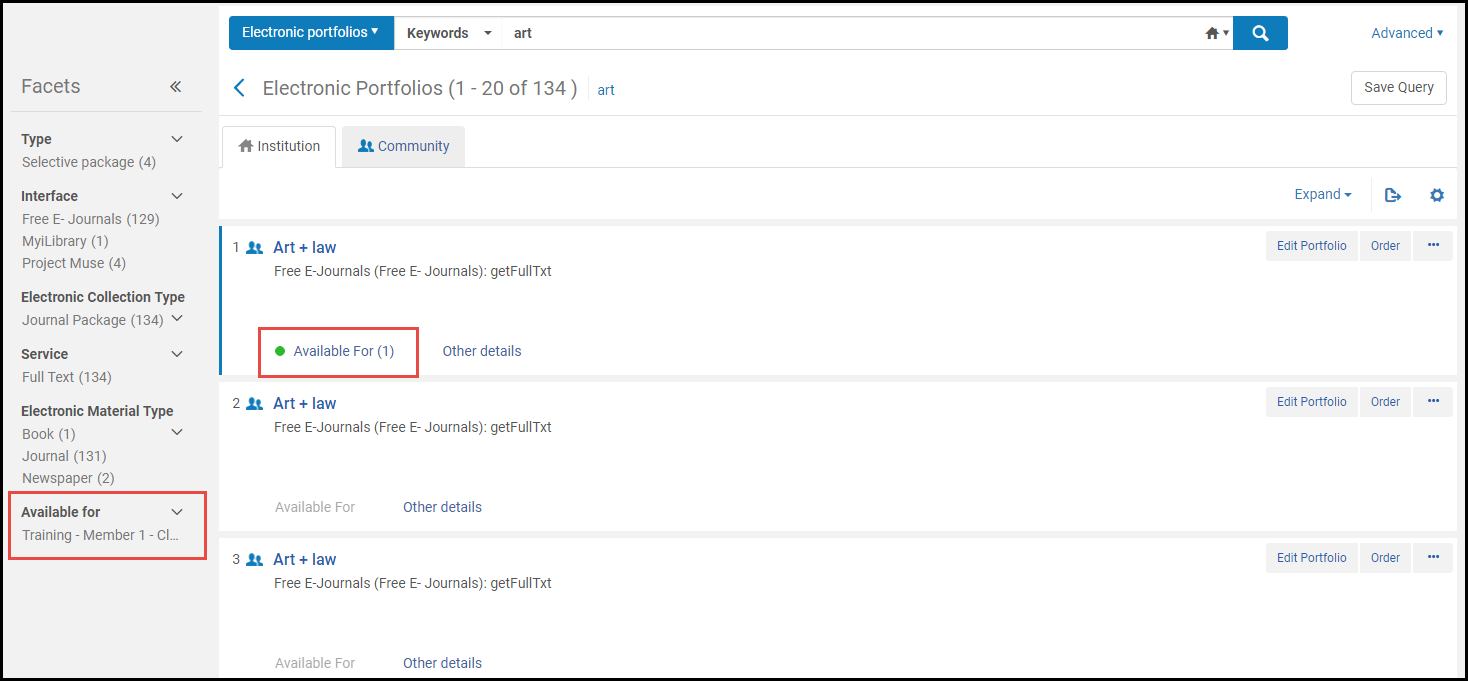
For information on restricting availability for electronic resources, see Configuring Distributed Access to Electronic Resources.
Linked Data in Repository Search Results
You can view linked data in repository search results for the following types of searches:
- All titles
- Physical titles
- Electronic titles
- Digital titles
For more information about linked data, see https://developers.exlibrisgroup.com/alma/integrations/linked_data.
- Complete a titles search for the resource for which you want to access the linked data elements.
- Select the action Linked Data. A list of linked data appears.

Linked Data List Page The list displays the following information:- Vocabulary fieldAccording to context. The default context is https://open-na.hosted.exlibrisgroup.com/alma/contexts/bib. If there is an active Linked Data integration profile (see Linked Data) with a path to a context, this context is used.A Linked Data integration profile does not have to be defined to access linked data in the search results. However, a Linked Data integration profile is required to expose linked data in JSON-LD format (see Linked Data for more information).
- Linked data URI
- LabelFor ISBN, ISSN, and OCLC, the field content appears. For creator and subject, the value of the heading appears.
- Vocabulary field
- Select a link to access the linked data.
Also see Using Linked Data While Working with Bibliographic Records for information regarding linked data in the MD Editor.
Ghost (Deleted) Records in the Repository Search Results
Ghost records are records that appear to exist but do not; they are leftover information about deleted records. On the rare occasion that a ghost record appears in search results, Alma proactively identifies and eliminates the record automatically.
A ghost record appears with the message Indexing issue was identified with record and will be fixed for next search.
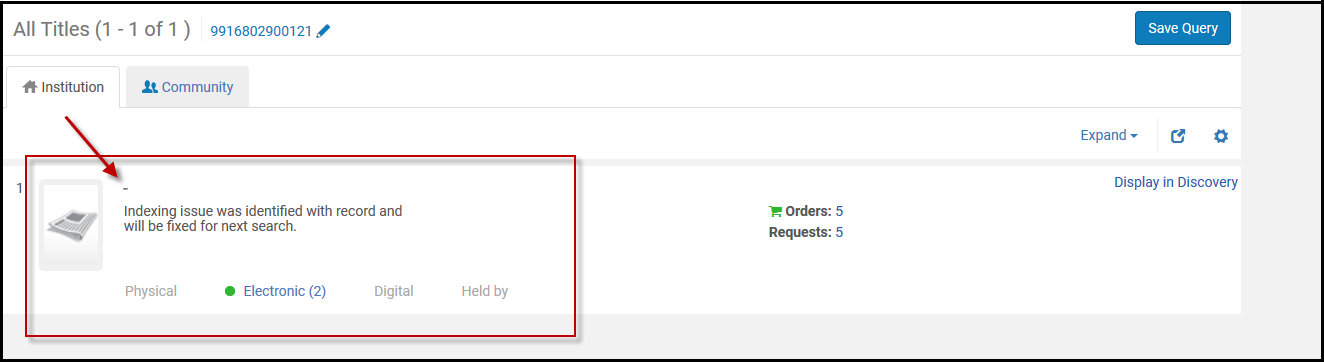
The next time that you search, the message and the ghost record are gone. Since the record is actually a deleted record, it does not appear in Analytics reporting.
Page tags: article:topicproduct:almacontent:Documentationlang:englishleft anchored searchleft match search
