
電子リソースの管理
This topic contains an overview and instructions for working with electronic resources.
- CDI目録オペレーター — セントラル・ディスカバリ・インデックス(CDI)との連携に必須
- 電子目録オペレータ
- 電子目録オペレーター(拡張版)— 削除操作に必須
- リポジトリマネージャー
- 購入オペレータ
さまざまなエディタやプロセスを使用して、電子コレクションとスタンドアローンポートフォリオを作成、維持します。
See Electronic Resources – Scenarios and Workflows to guide you in determining which workflow to follow when creating or acquiring electronic resources.
function uiToggle() {

  var x = document.getElementById("button");

  if (x.innerHTML == "View old UI") {
    x.innerHTML = "View new UI";
  } else {
    x.innerHTML = "View old UI";
  }

   var element2 = document.getElementsByClassName("oldui");

   for (var i = 0; i < element2.length; i++) {
      element2[i].classList.toggle("showElement");
   }

   var element = document.getElementsByClassName("newui");
   for (var i = 0; i < element.length; i++) {
      element[i].classList.toggle("hideElement");
   }

}
電子コレクションの管理
電子コレクションには主に 2 つのタイプがあります。最初のタイプは、ジャーナル、電子書籍、ビデオなどの電子リソースを含む「電子コレクション」です。Alma では、これらの電子リソースを「電子ポートフォリオ」と呼びます。このタイプの電子コレクションが有効化されると、利用可能なポートフォリオがある場合は利用可能とみなされます。これらのポートフォリオは Primo に公開され、PrimoVE の関連タイトルのフルテキストサービスとして表示されます。
The second type of electronic collection is a database collection that typically does not contain portfolios.If there is both a level URL at the Collection Editor -> Additional tab level, and also if there is an unsuppressed bib record for the collection, the database collection is considered active, and a link to the database collection will appear as a full text service in PrimoVE.If the descriptive bib record (the bib record linked to the database electronic collection) is unsuppressed, but there is no level URL at the Collection Editor -> Additional tab level, then the bib will appear in PrimoVE, but no full text service will appear for it.
 Regarding the suppression of records in a Network Zone consortium, see Suppressing Alma Records from Primo VE.
For more information, see the knowledge article at Provider Collection ID and Provider Collection Name.
Community Zone and Local Electronic Resources
電子コレクションとそのポートフォリオは、機関内でローカルに管理することも、Alma コミュニティ ゾーン データを使用することもできます。For more information, see Community Zone Overview.
Management Level indicators are included in search results for community managed collections and provide better transparency for the community to understand how and by whom each collection is maintained.The following are the Management Level options:
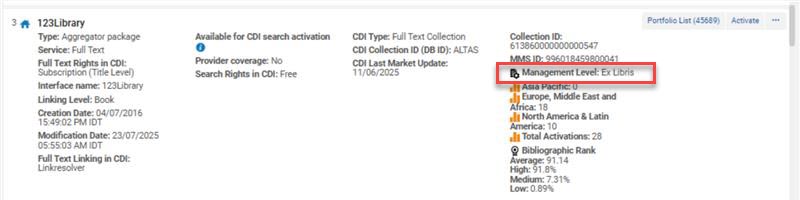
- Ex Libris(Managed by Ex Libris)
- Community(Managed on title level by community)
- Not maintained(The vendor no longer supports this collection - this is a dynamic list that will continue to be assessed by Ex Libris Content Operations over time.)
- Contributed by Institution(Collection contributed and managed by an Alma institution)
- Pending deletion(Collection is planned to be removed in the coming 4 weeks.The date of deletion is displayed, and (if exists), the Pending Deletion Reason and the Alternative Collections as suggested by the Ex Libris content team based on provider recommendations.[代替コレクション]の隣にあるリンクをクリックすると、コミュニティゾーンの提案されたコレクションの検索結果ページに移動します)。

Usage indicates how many times the Community Zone collection/portfolio was activated for full text.
An "Active" collection is a collection that was activated from the Community Zone (in the Institution Zone) and has a condition that causes it to be available for discovery and full text.This happens when one of the following conditions apply:
- 電子コレクションには、1つの利用可能なサービスがあり、少なくとも1つの利用可能なポートフォリオが存在します。
- サービスを持たないデータベースタイプの電子コレクション:
- レベル URL が空ではありません
- 書誌レコードは抑制されません
Region indicates from which region this collection was activated from.
- アジア太平洋
- ヨーロッパ、中東、アフリカ
- 北米、中南米
アクティベーション数とリージョンに関する情報は1週間ごとに更新されます。The information is reflected in the Community Zone collections search results only.
ポートフォリオは、スタンドアローンエンティティまたは電子コレクションの一部として定義できます。The procedure for adding electronic collections and their associated portfolios is provided in Adding a Local Electronic Collection.The procedure for adding a portfolio independent of adding an electronic collection is provided in Managing Local Portfolios.
Adding a Local Electronic Collection
リソースがコミュニティゾーンに存在する場合はコミュニティゾーンレコードから、または出版者、出版者アグリゲータ、エージェントからリソースを取得する場合はベンダーリソースから直接、ローカル電子コレクションを作成して有効化します。For more information specific to database type electronic collections, see Working with Database Type Electronic Collections.
電子コレクションの追加には、コレクションのポートフォリオへのアクセスを説明するサービスの追加が含まれます。データベースコレクション型には、ポートフォリオが含まれておらず、サービスを必要としません。
- On the Electronic Collection Editor page (Resources > Add Local Electronic Collection), enter the basic collection information.
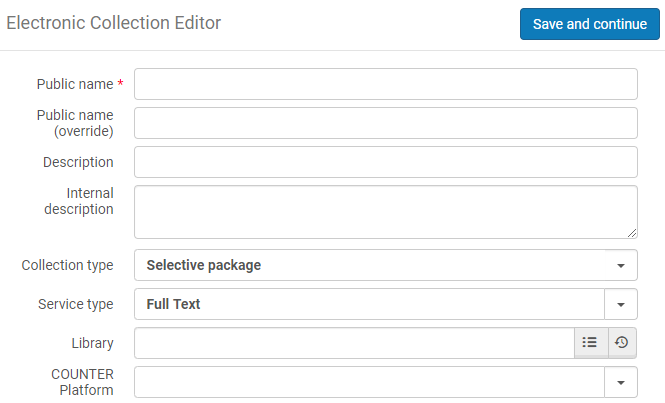
Initial Collection Information オプション 説明 公開名 ディスカバリー検索結果に表示する名前。 ローカル電子コレクションの場合、この名前は電子コレクションエディタで[電子コレクションに関する説明]タブから後で変更することができます(電子的コレクションの保存後)。公開名(上書き) この電子コレクションの公開名の代わりに表示する名前。 説明 検索結果に表示する説明(編集不可)。 内部説明 内部参照のみに関する説明。 コレクション種別 以下のうちの一つを入力してください: - Selective Package – An electronic collection for which the library typically will activate specific portfolios (and not the entire collection).Note that "Selective" package and "Aggregator" package behave the same when the flag "Automatically activate new portfolios" is checked in the electronic collection activation wizard.
- Aggregator Package – An electronic collection for which the library typically will activate the entire collection (and not only specific portfolios).Note that "Selective" package and "Aggregator" package behave the same when the flag "Automatically activate new portfolios" is checked in the electronic collection activation wizard.
- Database – Your collection begins with an online database record.
サービスタイプ - Full Text – Display the full text of the e-resource,
- Selected Full Text – The provider displays full text for some of the articles of the journal, but not for all of them.
- None – Used only for databases without titles, such as abstracting or indexing databases.なしを選択すると、ポートフォリオを追加できません。
図書館 コレクションの図書館を選択します。ユーザーは、自分の役職範囲で設定された図書館と同じ図書館を持つ電子リソースでのみ作業を行うことができます。Users are prevented from performing editing/managing operations on electronic inventory of other libraries.This is to ensure that portfolio activation and other actions are only done by authorized users.
条件 Result 電子コレクションに図書館が定義されていません - The electronic collection's library level is considered institution-level (across all libraries of the institution).これには、次の意味があります。
- All the collection's portfolios are considered institution-level.
- 電子コレクションとそのポートフォリオを管理できるのは、機関レベルの役職範囲を持つユーザーのみです。
- The collection's portfolios can be set with any library.In this case, only users with institution-level role scope and the specific library scope can edit the portfolio.
Specific library is defined on the electronic collection
Defining the library on the collection deletes the library previously set on the portfolios of the collection, and portfolios now inherit the library from the collection.これには、次の意味があります。
- 電子コレクションとそのポートフォリオを管理できるのは、特定の図書館役職範囲を持つユーザーのみです。
- Once you set a library on the electronic collection, the ability to define a library is disabled for the collection's portfolios.
- The "Library" parameter becomes hidden in the following locations:
- The Electronic Portfolio search results - the portfolio-level library label is hidden, and instead the parameter "Electronic collection library" is displayed.
- The Electronic Portfolio Editor - the portfolio-level library label is hidden, and instead the parameter "Electronic collection library" is displayed.
- サービスエディタのポートフォリオテーブルリスト。
- The library set on the electronic collection is displayed on the Portfolio Editor as a read-only parameter "Electronic collection library".
- ライブラリフィールドはコミュニティゾーン更新タスクリストでも使用でき、ライブラリごとにレコードをフィルターできます。電子コレクションから電子ポートフォリオへのライブラリ値の継承は、このタスクリストには適用されないことに注意してください。その結果、ポートフォリオでは、値がポートフォリオレベルで直接定義されている場合にのみ、ライブラリフィールドが表示されます。
Selecting a library on an electronic collection deletes the library on all its portfolios.The deleted libraries cannot be restored.For this reason, when you add a library to a collection, a popup message is displayed:
"Setting a library to the electronic collection will delete any existing library value from all its portfolios, and they will inherit the collection's library definition.This action will be done by a background process and cannot be reversed."
Confirm this message to proceed.Alma displays a success message with the job ID and a link to the Monitor Jobs page where you can track the job.Changing the library of the electronic collection does not trigger publishing of a portfolio.
The entire inheritance flow only works if limiting E-inventory actions is enabled.The temp_user_scope_limits_electronic_resources customer parameter must be enabled for this functionality to work.This parameter can only be enabled by Ex Libris Support.
- [保存して続行]を選択します。
- サービスタイプ[なし]を選択した場合、[電子コレクションエディタ]ページが表示されます。Continue with step 10.
- If you selected service type Full Text or Selected Full Text, the Activation tab on the Electronic Service Editor page appears:
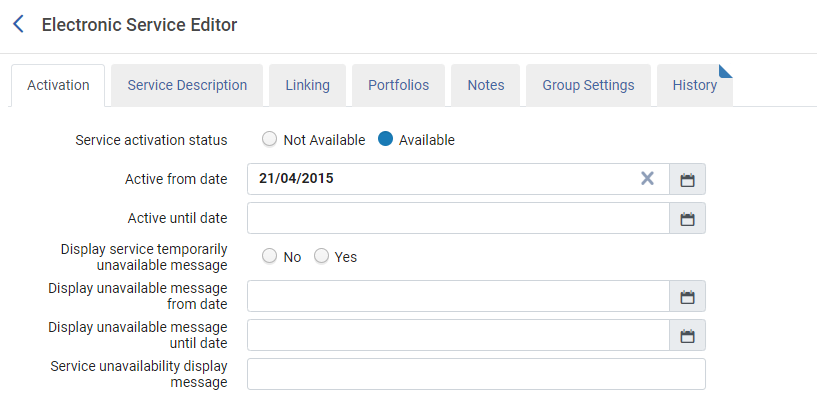
- 有効化情報を入力します。
Activation Tab Options フィールド 説明 サービス有効化のステータス サービスを有効化したい場合、[利用可能]を選択するか、有効化したくなければ、[利用不可]を選択します。 This field is ignored if either or both of the Active from date/Active until date fields are set.サービスに関連する新しいポートフォリオを自動的に有効化しますか? Select to automatically activate new portfolios when they are added to this service.このオプションは、アグリゲータと選択パッケージで使用できます。This option only applies to portfolios with service type Full Text.Portfolios of service type Selected Full Text do not automatically activate even if this option is set to Yes.Selected Full Text portfolios needs to be activated manually.この設定を[はい]に変更した後、新しいポートフォリオは、自動的に有効化されますが、既存のポートフォリオは元のままです。この変更前に非アクティブだったポートフォリオは、非アクティブのままになります。When you use this option, the resulting automatically-activated portfolios can be retrieved by using the Portfolio added to auto-active electronic service report type in the Community Zone Updates Task List (Resources > Manage Inventory > Community Zone Updates Task List).See Portfolio added to auto-active electronic service for more information.自動的に削除されるポートフォリオをサービスから削除しますか? この設定は、コミュニティゾーンから削除されたポートフォリオの処理方法を決定します。If set to Yes, the portfolio will be deleted.; If set to No, the portfolio will be unlinked and deactivated. 有効開始日 有効化の開始日。開始日が入力されていない場合、有効化は現在の日付(本日)から開始します。 There is a daily job that runs and searches to see if the services "Active from date" and "Active until date" are defined.定義に応じて、サービスは次のいずれかになります。 「アクティブ化済み (利用可能)」または「非アクティブ化済み (利用不可)」。
The activation from and until date fields override the Service activation status field. サービス有効化のステータス
有効期限 終了日。終了日が入力されていない場合、有効化は無期限に継続されます。 There is a daily job that runs and searches to see if the services "Active from date" and "Active until date" are defined.定義に応じて、サービスは次のいずれかになります。 「アクティブ化済み (利用可能)」または「非アクティブ化済み (利用不可)」。
The activation from and until date fields override the Service activation status field.サービス有効化のステータスサービスは一時的に利用できないというメッセージ表示はいまたはいいえを選択して、現在の日付または特定の日付にサービスが一時的に利用できないというメッセージを生成します (「 日付まで利用できないメッセージを表示する 」を参照)。これによってサービスが無効化しないことに注意してください。このメッセージは、関連するすべてのポートフォリオについて生成されます。日付まで利用できないというメッセージ表示 サービスを一時的に利用できないというメッセージが生成される日付。入力しない場合、現在の日付(本日)が使用されます。 日付まで利用できないメッセージを表示する The Display unavailable message until date enables the Alma user to set a date where the Temporary Unavailable message expires and no longer appears in the View it.This saves the Alma user from the need to proactively move the Display temporarily unavailable message back to No. Service unavailability display reason (message) サービスを一時的に利用できないというメッセージが表示される理由。 OpenURL リンクリゾルバを使用して、ユーザーのディスカバリーインターフェイスに表示される内容を[電子サービス]ページでプレビューします。 - Select the Service Description tab and review or edit the information as described in the table below:
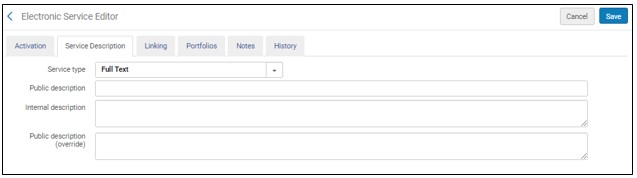
Service Description Tab Options フィールド 説明 サービスタイプ このフィールドには機能的な意味はありません。 See the Initial Collection table.公開用記述 See the Initial Collection table. 内部説明 See the Initial Collection table. 公開用記述(上書き) このフィールドは現在機能していません。 - Select the Linking tab and review or edit the information as described in the Linking Tab Options table.
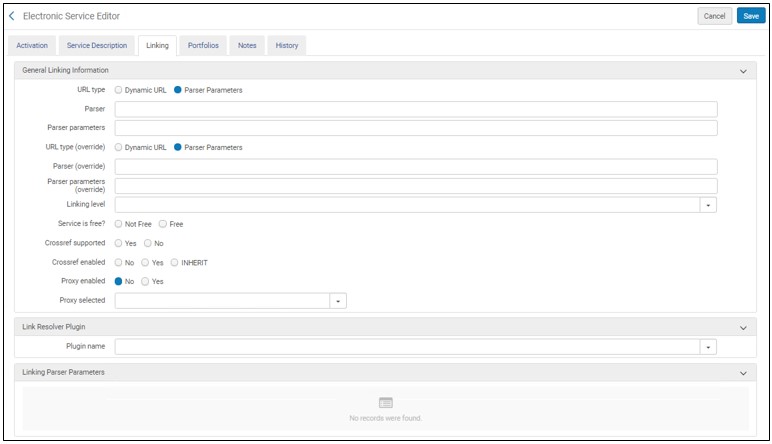
Linking Tab Options オプション 説明 General Linking Information パーサー 宛先サービス。(例: AIP::SCITATION) 各ポートフォリオのターゲットURLがポートフォリオパーサーパラメータのjkey = statementの値とまったく同じ場合、Bulk::BULK Parserを使用します。パーサー(上書き)パーサーフィールドの値を上書きするパーサー。パーサーパラメータ サービス用のリンク/アクセス情報。例: url1=http://link.aip.org/link/?& url2=http://publish.aps.org/& url3=http://link.aps.org/abstract/& agg=sfxパーサーパラメータ (上書き) 代替のものがサービスで指定されている場合のパーサーパラメータへの上書き。To remove the override and restore this field for multiple records in batch, in the Portfolio Loader replace the value of this field with the value “NULL”.For details, see Restore Community Zone linking parameters (remove override of parser).URL種別 このサービスで使用されるURL種別: - 動的URL – 動的URLフィールドで定義された条件のリストに基づいて、サービスレベルでリンクURLを動的に選択します。
- Parser Parameters – An override for the parser's parameters in the Parser parameters (override) field.
URLタイプ(上書き) コミュニティゾーンにリンクされているコレクションにのみ表示されます。If you are the collection contributor, enter a value here to update the collection in the CZ.If you are not the contributor, enter a value here to update your local copy. 動的URL A list of IF conditions to determine the service's linking URL when you select Dynamic URL as the URL Type.IF文の構文を検証するために、[ダイナミックURL構文をテストする]を選択します。 For information on dynamic URLs, see Configuring Dynamic URLs for Electronic Collections and Portfolios.リンキングレベル ボリューム、発行物、記事など、電子コレクションがリンクするリンクレベルまたはユニット。This field is for information only, it does not have any implications in Alma. Linking level (override) コミュニティゾーンにリンクされているコレクションにのみ表示されます。If you are the collection contributor, enter a value here to update the collection in the CZ.If you are not the contributor, enter a value here if you want to change the linking level value in your local copy. サービスは無料ですか? サービスが無料かどうか。 無料です(上書き) コミュニティゾーンにリンクされているコレクションにのみ表示されます。If you are the collection contributor, enter a value here to update the collection in the CZ.If you are not the contributor, enter a value here to update your local copy. Crossrefがサポートされました このフィールドには、リソースについて、CrossRefがコミュニティゾーンの電子サービスでサポートされているかどうかが表示されます。CrossRefのDOI(デジタルオブジェクト識別子)サービスの詳細については、www.crossref.orgを参照してください。 コミュニティゾーンにリンクしているレコードの場合、このフィールドは、コミュニティゾーンのEx Librisで設定されます。ローカル電子コレクションについては、 [はい]/[いいえ]を選択できます。この設定は、ローカル電子コレクションではオプションです。[はい]を選択したら、選択したパーサープログラムがDOIへのURLの追加をサポートしていることを確認します。サポートしていない場合、これを[はい]に設定しても意味がありません。Crossref supported (override) コミュニティゾーンにリンクされているコレクションにのみ表示されます。If you are the collection contributor, enter a value here to update the collection in the CZ.If you are not the contributor, enter a value here to update your local copy. Crossrefが有効化されました [はい]、[いいえ]、または[継承する]を選択して、CrossRefサービスを使用する設定を示します。 - はい - DOIを取得し、リンキングに使用します。また、CrossRef情報を適切に構成する必要もあります。See Alma Resolver Augmentation for information about configuring an Alma integration profile for DOI.
- いいえ - この電子リソースをリンクする際、CrossRefに関連する機能を使用しません。
- 継承 - 階層の前の(上位)レベルで定義されたポリシーを使用します。ポートフォリオの場合、電子サービスレベルポリシーを使用します。電子サービスの場合、ポリシーは、コミュニティゾーン電子サービスで定義されます(上記の[サポートされるCrossref]フィールドで示すとおり)。
プロキシを有効化する プロキシが有効かどうか See Resolver Proxies for information about proxy relationships among portfolios, electronic collections, and services.プロキシが選択されました プロキシプロファイル。When you specify Yes for Proxy enabled, identify which proxy profile is used for authentication (of users outside the library's network) to access the online database you have created.[プロキシを有効化する]に[はい]を指定し、ここで選択を行わない場合、Almaは、自身で構成したデフォルトプロキシを自動で使用します。 The procedure To configure a resolver proxy definition type of integration profile: in the Resolver Proxies section describes how to configure a default proxy profile.利用可否ルール[サービス表示条件ルール]リンクを選択して、システムが自動で作成したルールを表示します。See Display Condition Rules for more information.Link Resolver Plugin リンクリゾルバ プラグイン リンクリゾルバプラグイン(必要時)。 Linking Parser Parameters:
これらのパラメーターは、アグリゲーターおよび選択的コレクションでのみ使用されます。データベースの場合、リンク パラメータは、電子コレクション エディタの [追加] タブで設定する必要があります。
For more information on CDI using these Linking Parser Parameters, see Customer Linking Parameters in CDI Links.
さらに、一部のデータベースでは、ご使用の環境に応じて、次の関連ドキュメントに記載されている構成が必要です。
リンキング パーサー パラメータ 任意の、[リンク]タブのパーサーパラメータフィールドで設定されたパラメータの値詳細については、下の表を参照してください。 $$ U_SHIBBOLETHパラメータでは、関連するエンティティIDを指定する必要があります。さらに、$$ SHIBBOLETHでは、値に[はい]を入力する必要があります。
電子コレクションによっては、図書館固有のパラメータが必要です。SFXのお客様の場合、この情報はSFXから移行されます。SFX以外のお客様については、購読する電子コレクションの値を入力する必要があります。どのパラメータがどの電子コレクションの情報を必要とするかについては、以下の表を参照してください。このテーブルは完全ではないことに注意してください。この表にリストされていない他の電子コレクションには、パラメータ情報が必要な場合があります。For more information, see the Alma and SFX Linking Parser Parameters Guide.For more information on CDI using these Linking Parser Parameters, see Customer Linking Parameters in CDI Links.図書館固有のパラメータ表
コレクション パラメータ 説明 ABC CLIOデータベース USERNAME PASSWORD ABCの担当者からユーザー名とパスワードが提供されます。 CCC(著作権クリアランスセンター)サービス 請求先、ID、INST、メール、および情報源/出処 CCC担当者は、次の各リンクパラメータの詳細を提供することができます: - 請求先 –請求で使用されるEメールアドレス。
- メール –記事の送信で使用されるEメールアドレス。
- 情報源/出処 –CCCから提供される大学のシステムコード。
- INST – CCCから提供されるキャンパス名コード(例として、Fullerton)。
- ID – CCCから提供されるEZProxyユーザーのlibraryUserID。大学のシステムと機関が同じ場合、Get It Nowサービスは情報源/出処パラメーターとINSTパラメーターが同じ値を持つものと想定します。
CCC Get It Nowサービスへのアクセスのテストは(スタッフ検索結果におけるアクセステストアクションを使用)、アクセステストの実施対象となる電子リソースがジャーナルレベルであるため、スタッフユーザーは記事に誘導されません。Ebook Central の恒久的アクセスおよびDDAタイトル CUST_ID Library's code assigned by Ebook Central. EBSCO CUSTOMER_ID, OPID - If you add the $$CUSTOMER_ID linking parameter, your institution will automatically log in when trying to access articles and journals in the EBSCO platform.
- If your institution adds your unique linking parameter called $$OPID in addition to the $$CUSTOMER_ID, the journal level link will work as above, but the article level links will be generated in the following way (EBSCO's new linking method):https://openurl.ebsco.com/c/{OPID}/openurl?prompt=true&{OpenURLcontextObject}This is the recommended method.
If you only use the $$OPID parameter without the $$CUSTOMER_ID, the article level link will be created as above and will work as expected, but the journal level link will lead to the EBSCO login page.
- SSO認証の場合 - SSOリンクパラメータに値「yes」を入力します
- SHIBBOLETH/ATHENS認証の場合 - SHIBBOLETHリンクパラメータに値「yes」を入力します
- IP認証の場合 - IPAUTHリンクパラメータに値「yes」を入力します
For details, see Transition to EBSCOhost New Target Parser - December 2021.
Eureka CUSTOMER_ID Eurekaの担当者から顧客IDが提供されます。 Factiva NAMESPACE, PASS, USER Or: SID Factivaの担当者から、名前空間、ユーザー、およびパスワード情報をもらえます。Or: Specify your XSID value. XSIDでFactivaにリンクする場合、他のパラメーターを取得する必要はありません。See the documents under Alma and SFX for additional parameter details.すべてのGaleデータベース LOC_ID ART DATABASE A Gale representative can provide you with your institution's LOC_ID. ARTパラメータは[はい]でなければなりません。DATABASEパラメーターは、以下のコレクションにのみ関連します:- Galegroup ITカスタムジャーナル
- Galegroup ITカスタム新聞
- Galegroup軍事インテリジェンス
- Galegroup 宗教哲学コレクション
Ovidジャーナル USERNAME PASSWORD 図書館は、IP認証またはログイン資格情報でOvidジャーナルに接続できます。所属の図書館がユーザー名とパスワードを使用する場合、これらの値を指定します。 IPAUTH If your institution is authenticated by IP authorization, type yes (in lowercase letters) in the Value column.この場合、ユーザー名とパスワードを入力する必要はありません。 For other Ovid parameter information, see the documents under Alma and SFX. CSAデータベース USERNAME Provide your library's user name and access values. アクセス ProQuestデータベース CLIENTID クライアントIDは、ネットワークゾーンを実装する共同ネットワークのユーザーには必要です。In other cases, the Client ID is not necessary for linking to ProQuest databases, but may enable additional services, depending on your institution's license with ProQuest.
Some ProQuest databases ask for CLIENTID, while others for ACCOUNTID.This is the same value in both cases, the ProQuest account ID.
ProQuestの担当者から、クライアントIDが提供されます。For the Chadwyck electronic collections based on the ProQuest platform, refer to the documents under Alma and SFX for parameter details.Westlaw SPONSORCODE Westlawの担当者から顧客コードが提供されます。 - Select the Portfolios tab:
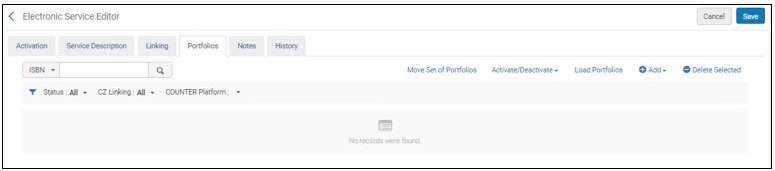 From the Portfolios tab, you can perform the following actions:
Electronic Service Editor Page アクション 説明 ローカルポートフォリオを追加
To add a local portfolio to the service, select Add and select Add Local Portfolio.The New Portfolio page appears.See Adding a Standalone Portfolio and the New Portfolio Page Options table for more information.When you have completed the information on the New Portfolio page, select Save and Done.Alma saves the portfolio and refreshes the Portfolios tab of the Electronic Service Editor page with options for activating (and deactivating) the portfolio.次のいずれかを実行して、ポートフォリオ情報を後で追加できます:
- 電子コレクションを編集し、ポートフォリオ情報を追加します。
- Add local portfolios using the Add Local Portfolio option accessed from Resource Management > Create Inventory > Add Local Portfolio(see Adding Portfolios Individually to an Electronic Collection).
コミュニティからポートフォリオを追加 この CZ コレクションから追加のポートフォリオをアクティブ化するには、このオプションを選択します。Select Add and the select Add Portfolios from Community.The Portfolios List page appears for the CZ collection.Mark the portfolios you want to activate and select the Activate selected button. コミュニティの全ポートフォリオを追加 このCZコレクションからの全ポートフォリオをアクティブ化するには、このオプションを選択します。Select Add and the select Add All Portfolios from Community.The Activate confirmation message appears.Select Confirm to activate all the portfolios in the collection. ポートフォリオのロード 複数のポートフォリオをロードするために、Excel形式のファイルを選択します。For more information, see Adding, Editing, or Removing Portfolio Information in Bulk セットから追加 既存セットからポートフォリオを追加します。選択用の使用可能なセットを開き、1つ選択します。これは、コミュニティゾーンにリンクしているコレクションのオプションではないことに注意してください。 After adding at least one portfolio, the following additional actions are available
These actions are enabled only if the library set in the electronic resource matches the library defined on the user's role scope.その他の電子リソースの場合、これらのアクションは無効になっています。For details, see Library set on electronic resource.
アクション(ポートフォリオごと) ポートフォリオにつき、次の操作を選択します: - 編集–[電子ポートフォリオエディタ]を編集モードで開きます。For more information, see Editing a Portfolio Using the Electronic Portfolio Editor.
- 表示–[電子ポートフォリオエディタ]を読み取り専用モードで開きます。
- アクセスのテスト - ポートフォリオを[電子サービス]ページ上で表示します(または、ダイレクトリンクが有効になっている場合、新しいウィンドウで表示を選択する場合)。
When a Vendor website does not support iframe,Test Access displays a blank screen.For such cases, use the Display in new window option.
- 削除–ポートフォリオを削除します。確認ダイアログボックスで、以下のどれを実施するか選択します:
- 書誌レコードを削除する
- 何もしない
- 書誌レコードをサプレスする
- 無効化–ポートフォリオを無効化します。
- 複製 – このアクションを選択したローカルポートフォリオから、ローカルポートフォリオ情報(内部説明、注文明細、カバレッジ、認証ノート、公開ノートなどの上書き情報)を複製し、編集用に複製された情報を含む[電子ポートフォリオエディタ]ページを開きます。
有効化選択済 選択したポートフォリオを有効化します 無効化選択済 選択したポートフォリオを無効化します 全てを無効化 リスト内のすべてのポートフォリオを無効化します すべて有効化 リスト内のすべてのポートフォリオを有効化します 選択項目を削除する 選択したポートフォリオを削除します。確認ダイアログボックスで、以下のどれを実施するか選択します: - 書誌レコードを削除する
- 何もしない
- 書誌レコードをサプレスする
Tools 
- 拡張エクスポート–拡張情報を含むポートフォリオリストをExcelにエクスポート
- Excel (現在のビュー)–ポートフォリオのリストに表示されるフィールドのみをExcelにエクスポート
エクスポートには、非アクティブ(使用不可)ポートフォリオが含まれることがあります。For more information, see Portfolio Loader.Specific to exporting portfolios from Alma to BrowZine, see Exporting Electronic Portfolios from Alma to BrowZine in the Developers Network. - 「ノート」タブでは、認証ノート(ディスカバリーシステムに表示する認証関連のノート)とパブリックノート(ディスカバリーシステムに表示するサービス情報)を入力できます。For more information, see Notes Tab.
When a group setting is defined for an Electronic Collection, a public note defined in the Electronic Service Editor does not trickle down to portfolios.If a group setting is defined, define the public note in the Notes tab of the Collection Editor or in the service-level Group Settings Profile.
-
You can view information about changes to the service on the History tab (for more information, see History Tab).サービスが最初に作成される際には、このページには情報がありません。変更ごとに次の情報が含まれます:
- 日付
- オペレータ - 変更を行ったユーザー。
- フィールド名 - 変更されたフィールド。All fields of the Electronic Collection are tracked for changes.
- 旧値
- 新値
-
位置に基づいて、リソース(複数可)へのアクセスを制限するには、[グループ設定]タブを選択し、必要な情報を入力します。You must first configure inventory management groups (see Configuring Distributed Access to Electronic Resources).
- [電子コレクションエディタ] > [グループ設定タブ]
Should only be used for Alma Electronic Collections and Databases not indexed in CDI.
- Electronic Collection Editor > CDI > Group Setting Tab Should be used to only assign group settings to Databases indexed in CDI.
-
[グループ設定を追加]を選択します。[情報で利用可]ダイアログボックスが表示されます。
- リソースを制限するグループを選択します。
- [プロキシを有効化する]の場合、以下を選択します:
- はい - このリソースを解決する際にプロキシを追加します。選択された電子コレクションプロキシでプロキシを指定します。
- いいえ - このリソースを解決するときにプロキシを追加しません。
- リソースデフォルト - リソースからプロキシ定義を使用します。See Resolver Proxies for information on the hierarchy of proxy relationships among portfolios, electronic collections, and services.デフォルトのリソースは、この階層で決定されます。
特定のインベントリ管理グループに制限されたリソースにプロキシを使用する場合は、このオプションを「はい」に設定します。Setting it to Resource Default for a group might not resolve correctly.
- 必要に応じて、リソースの公開名および認証ノートまたは公開ノートを追加します。
For public notes limited to a specific inventory management group, always include the campus/library that belongs to this group in the openUrl.
- [設定を保存]を選択しますAfter saving the group settings, you must also save the portfolio or service; otherwise, the group settings are not applied.
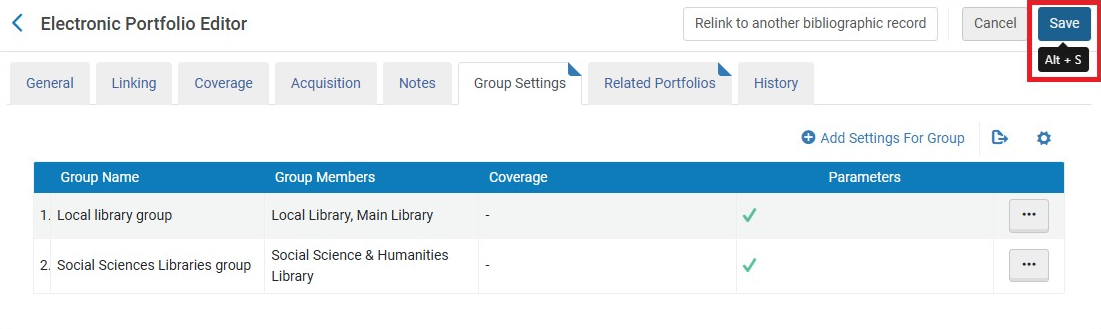 グループ設定 - 保存されました
For an example, see Configuring Distributed Access to Electronic Resources.
- Select Save to save all the entries and changes on the Electronic Service Editor page.[電子コレクションエディタ]ページが表示されます。
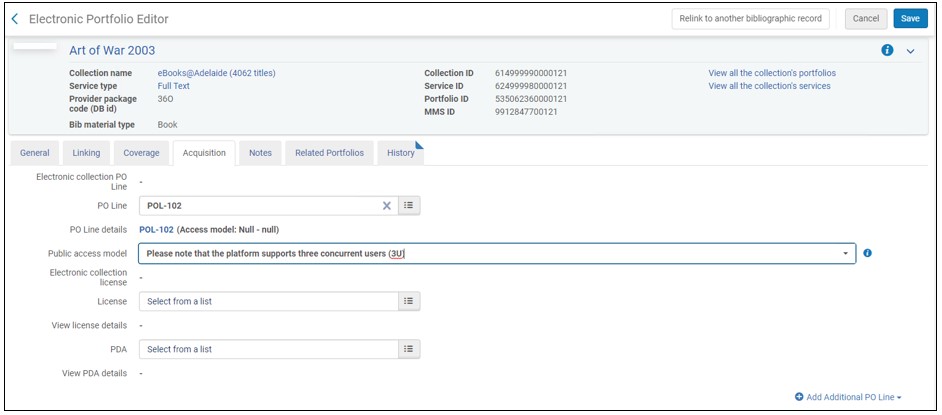
電子コレクションエディタ
- Select Save to save all the entries and changes on the Electronic Service Editor page.[電子コレクションエディタ]ページが表示されます。
- [電子コレクションエディタ]ページのタブを見て、設定を確認します。[電子コレクションエディタ]ページのタブとフィールドに関する説明については、以下の表を参照してください。
Electronic Collection Editor Tabs and Fields オプション 説明 コレクション名 電子コレクション名。 コレクションID 電子コレクションID。 電子コレクション注記タブ: See the Initial Collection table.
[一般]タブ– 概要と目録情報セクション: ( この情報の大部分は、データベース型の電子コレクションにのみ関連しています。)
電子コレクションタイプ よりサービス指向の高い発注モデルに従う場合は、別の電子コレクションタイプを選択してください。 タイプ(上書き) コミュニティゾーンにリンクされているコレクションにのみ表示されます。If you are the collection contributor, enter a value here to update the collection in the CZ.If you are not the contributor, enter a value here to update your local copy. 利用開始日 ポートフォリオが自動的に利用可能に設定される時間を指定します。For more information, see Electronic Portfolio Editor Page. 有効期限 Specifies when the portfolio is automatically set to Not available.For more information, see Electronic Portfolio Editor Page. インターフェイス名 このデータベースのベンダーインターフェイス。 インターフェイス名を入力すると、ベンダーインターフェイスに関する説明へのリンクが表示されます。
インターフェイス名(上書き) コミュニティゾーンにリンクされているコレクションにのみ表示されます。If you are the collection contributor, enter a value here to update the collection in the CZ.If you are not the contributor, enter a value here to update your local copy. サービス サービス情報(利用可能な場合)。 プロセスタイプ
The only value that this field can display is 'Acquisition'.コミュニティゾーンコレクションで行発注アクションをクリックすると、自動的に入力されます。これは、このコレクションが取得ワークフローの一部としてアクティブ化されたことを示しています。
In other cases this field is blank.
アクセスタイプ
アクセスタイプは、電子コレクションのライセンス権を特定する次のオプションのいずれかで指定できます:
- 現在-これはデフォルトのオプションです。作成中の電子コレクションの場合、これは、現在加入し、支払っているライセンス契約を特定します。
- Perpetual – For the electronic collection that you are creating, this indicates that the titles of the collection have permanent access during the period of a license agreement.
- 現在および恒久的アクセス – 作成中の電子コレクションについて、これは、現在のリソースと永続的なリソースを共に含むライセンス契約を特定します。
分析では、アクセスタイプのデータも利用できます。
See Electronic collection access type and Access type(Portfolio) for more information.
Access type(Electronic Collection)
インターフェイスから派生したCOUNTERプラットフォーム これは、Ex Libris がこの電子コレクションに関連付けられたインターフェースにマッピングした COUNTER プラットフォームを表示する読み取り専用フィールドです。デフォルトでは、Alma はこのプラットフォームを使用して、電子コレクションを Alma アナリティクスの COUNTER レポートと照合します。To override this platform value and use a different platform for matching in Alma Analytics, use the COUNTER Platform field described below. COUNTERプラットフォーム
Use this parameter to indicate the platform by which you want usage data tracked for a specific electronic collection for Alma Analytics usage data and cost-per-use reports.
The list of options for this parameter comes from the list of platforms included in the loaded COUNTER reports.このリストに値を表示させるには、COUNTERレポートをロードしておく必要があります。
If you leave this COUNTER Platform field blank, Alma Analytics will use the platform in the COUNTER Platform derived from interface field (described above) to match the electronic collection to COUNTER reports in Alma Analytics.
[一般]タブ-受入とライセンス情報セクション: ( この情報の大部分は、データベース型の電子コレクションにのみ関連しています。)
注文明細 追加対象のデータベース型の電子コレクション用に作成されたメインの注文明細。
When trying to link an electronic collection to a PO Line, the PO Line must be of type Electronic Collection (Onetime or Subscription).
データベースタイプの電子コレクションを追加する場合、このオプションをスキップして、データベース目録レコードの保存後にオーダー情報を処理できます。注文明細の詳細 メイン注文明細の詳細へのリンク(利用可能な場合)。 公開アクセスモデル Displays the active access model associated with the portfolio, as inherited from the PO line that created the portfolio.For more information, see Public access model in the Acquisitions tab.
ユーザーは、コレクションレベルでアクセスモデルを確立でき、そのコレクション内のすべてのポートフォリオがそれを自動的に採用します。This enables libraries employing auto-activated collections to ensure that each new addition seamlessly inherits the access model.
For institutions that have the "Ebook Central Perpetual, DDA and Subscription Titles" Collection activated from the Community Zone and have the "Upload Electronic Holdings" integration enabled with "ProQuest Ebook Central", the new "Electronic Collection Access Model" field will be disabled.
有効化日時 リソースが有効化済としてマークされた日付。これは、有効化日([有効化]タブで定義)と必ずしも同じではないことに注意してください。 有効化予定日 有効化予定日 ライセンス 追加しているコレクションのベンダーライセンス。 ライセンス詳細を表示する アクティブなライセンスが選択された際のライセンス詳細へのリンク。 追加注文明細このコレクションに関連付けられている追加の注文明細リスト。注文明細に関する情報を表示するリンクを選択します。他の注文明細をこのコレクションの追加注文明細に関連付けるには、[クイック追加]セクションで注文明細番号を検索または入力し、[注文明細の追加]を選択します。追加の注文明細として注文明細を削除するには、追加の注文明細で[削除]を選択します。 [一般]タブ-ライセンス履歴情報セクション: このセクションは、ライセンスが定義されている場合にのみ表示されます。ライセンスが変更されるたびに、このセクションに行が追加されます。ライセンスに関するライセンス詳細ページを開くには、[ビュー]を選択します。
Additional tab – Electronic Collection Information section: 出典 将来的に使用するため。 出典ID 将来的に使用するため。 著者 将来的に使用するため。 代替タイトル 将来的に使用するため。 電子コレクションレベルURL これは、ローカル電子コレクション用に入力されたURLです。最大1,000文字(長いURLは削除されます)。
コミュニティゾーンレコードの場合、これは(有効化された)電子コレクションのコミュニティゾーンで特定されるURLである場合があります。See Working with Electronic Collection Bibliographic Records and URLs Added to the Community Zone for more information.
データベース型の電子コレクションの場合、電子コレクションを有効化してPrimoに公開するには、このフィールドと追加の説明情報 が必要です。
[機関ゾーン]アイコンを有効化するには、このフィールドと[追加の説明情報]の双方を指定する必要があります。電子コレクションレベル URL (上書き) これは、ローカル電子コレクション用に入力された電子コレクションレベルURLフィールドに提供されたURLを上書きするために入力されたURLです。See Working with Electronic Collection Bibliographic Records and URLs Added to the Community Zone for more information. 電子コレクションは無料ですか? 電子コレクションは無料かどうか。 無料です(上書き) コミュニティゾーンにリンクされているコレクションにのみ表示されます。If you are the collection contributor, enter a value here to update the collection in the CZ.If you are not the contributor, enter a value here to update your local copy. 電子コレクション プロキシが有効化されました プロキシを有効化するかどうか。 電子コレクション プロキシが選択されました プロキシプロファイル。When you specify Yes for Electronic Collection Proxy Enable, identify which proxy profile is to be used for authentication (of users outside the library's network) to access the online collection.[プロキシを有効化する]に[はい]を指定し、ここで選択を行わない場合、Almaは、デフォルトプロキシを自動で使用します。 See Resolver Proxies for information regarding how to create a proxy profile.The procedure To configure a resolver proxy definition type of integration profile: in the Resolver Proxies section describes how to configure a default proxy profile.
言語 コレクションの言語。 言語(上書き) コミュニティゾーンにリンクされているコレクションにのみ表示されます。If you are the collection contributor, enter a value here to update the collection in the CZ.If you are not the contributor, enter a value here to update your local copy. カテゴリ オンラインコレクションが処理する対象(オプション)。このフィールドには機能的な用途はありません。 Category (override) コミュニティゾーンにリンクされているコレクションにのみ表示されます。If you are the collection contributor, enter a value here to update the collection in the CZ.If you are not the contributor, enter a value here to update your local copy. 追加の説明情報 このコレクションにリンクするMARC書誌レコード。 このオプションで選択したMARC書誌レコードは、ディスカバリ(Primo)検索結果に表示されます。This is the MARC bibliographic record that the library's cataloger has created specifically for the collection being added.このフィールドは、Primoへの公開に必要です。データベースをアクティブにしてPrimoに公開するには、このフィールドと電子コレクションレベルURLが必要です。[機関ゾーン]アイコンを有効化するには、このフィールドと[電子コレクションレベルURL]の双方を指定する必要があります。ポートフォリオの数 ポートフォリオ一覧内のポートフォリオの数。電子コレクションにつながる[ポートフォリオ一覧]ページを開くには、このリンクを選択します。
文字設定 文字設定情報。 Additional tab – Services section: ローカルサービスを追加 開いている電子コレクションにサービスを追加します。See Adding a Local Electronic Collection, starting with the bullet under step 2 that references the Electronic Service Editor page for more information regarding adding a service. 更新 この機能を使用して、サービスを削除しているバックグラウンドジョブの進行状況を追跡します。[更新]を選択すると、[サービス]セクションに表示されるサービス情報が更新されます。  Refresh
サービス行 サービス行ごとに、次のアクションを使用できます:
- 編集
- 表示
- ポートフォリオリスト - これにより、[電子サービスエディタ]ページの[ポートフォリオ]タブが開きます。
- 無効化
- 削除
これにより、サービスを削除するバッチプロセスが開始されます。[削除を確認する]メッセージが表示されます。ここで、削除リクエストを処理する際、目録なしで書誌レコードを処理する方法を選択できます。オプションには、「何もしない」、「書誌レコードを削除」、または「書誌レコードをサプレス」があります。
Select Confirm to process your delete request, and check the History tab on the Monitor Jobs page (see Viewing Completed Jobs) to view the results of your job.確認メッセージが表示されます。
See Delete Electronic Service Job Report on the Viewing Completed Jobs page for more information.
リンキング パーサー パラメータ これらのパラメーターは、アグリゲーターおよび選択的コレクションでのみ使用されます。データベースの場合、リンク パラメータは、電子コレクション エディタの [追加] タブで設定する必要があります。More information about CDI using these Linking Parser Parameters can be found at:Customer Linking Parameters in CDI Links.
さらに、一部のデータベースでは、ご使用の環境に応じて、次の関連ドキュメントに記載されている構成が必要です。
Notes tab: For more information, see Notes Tab.
認証注記 認証に関連するメモ(ディスカバリーシステムへの表示用)。 公開メモ データベースに関する情報(ディスカバリーシステムへの表示用)。 Group Settings tab – See the Group Settings tab explanation above in the step for editing the Group Settings tab.Also see Configuring Distributed Access to Electronic Resources. このダイアログボックスでの以下の変更はサービスに適用されます。 - サービスには公開名がありません
- 必要なリンクパラメータ値を全て入力します。これらのパラメータは、サービスの[リンク]タブで定義されています。The values are used by the OpenURL link resolver to create correct links.For detailed information, see the Library-Specific Parameters table above and the Alma and SFX Linking Parser Parameters Guide.
- In the case of a Network Zone consortium with electronic collections (and corresponding portfolios) activated from the Community Zone and “Available For” member institutions: If the Network Zone makes an electronic resource “Available For” a member institution and the member institution already has a copy of the same resource (two resources are considered “the same resource” when they have the same CZ portfolio id), then: If the existing electronic resource in the member institution is inactive or suppressed this can cause the electronic resource which is made available from the Network Zone to not appear in discovery.Therefore, all inactive or suppressed copies of the same resource in the member institution should be either deleted (preferable to prevent duplicates) or made active and unsuppressed.
History tab – Information on this tab is only relevant when the electronic collection was updated whether manually or by Alma system processes. This is a read-only tab that displays a list of changes that were made to the electronic collection or the electronic collection's group settings (for institutions where the multi_campus_inventory_management customer parameter set to true).
見たい履歴情報を示すには、次のいずれかのラジオボタンを選択します。
- コレクションの変更
- グループ設定の変更
- [New for February 2026] General Notes changes
保存された変更ごとに、[履歴]タブに次の情報が表示されます。
- Date of the change
- 変更を行ったオペレータ(変更がジョブまたはシステムプロセスによって行われた場合、オペレータフィールドに「システム」と表示されます)。
- Group Name (for Group Settings changes)
- 変更されたフィールド名
- 旧(前の)値
- 新値
空白または空のフィールド/列の場合、[履歴]タブの列にダッシュが表示されます。
[2026年2月開始]複数の履歴レコードが同じタイムスタンプを共有する場合、それらはすべて単一の更新イベント中に生成されたものです。これらのレコードが表示される順序は、実際の変更の順序とおりではない可能性があります。In cases of linking a resource to the community or unlinking it, the history may show certain fields as deleted and re-added (with the same value) in two separate lines.
For more information about this History tab, see the History Tab for Electronic Resources video (4:26 min).Note that although the user interface in the video may differ, the workflow remains the same.CDI tab – Except for the Do not share as Full Text available in CDI even if active in Alma field, all other fields on this tab appear only when the collection is indexed in CDI (i.e. the Available for CDI search activation facet is set to Yes).
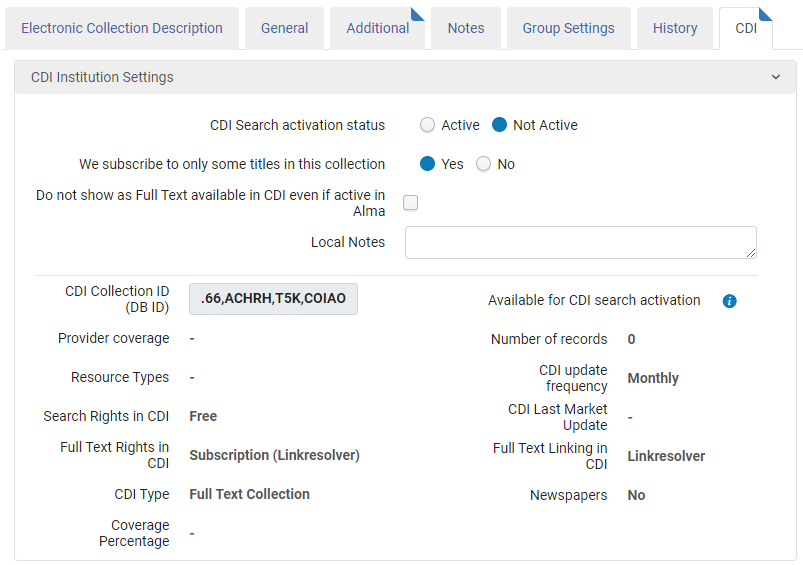 CDIタブ - CDIで索引付けされたコレクション
CDI Search activation status (only available when the CDI model is Fully Flexible)
This setting controls which records will appear in the Primo ‘Expand' search (when user selects the Expand beyond the Library collection option).
When set to Active, records from the collection will appear in the Discovery expand search.Records will be flagged as No full text available, unless there are full text activations for this collection.For the full text activations, the indication ‘Full text available' will be shown.
When set to Not Active, records from the collection do not appear in the search results at all.
- フルテキストを購読しているため、有効になっているAlmaコレクションは、CDIで自動的に検索できるようになります。これらのコレクションの場合、個別の検索有効化は必要ありません。
- 購読が検索可能である必要があるコレクション(たとえば、A&Iデータベース)は、検索可能であるためにAlmaでアクティブである必要があります。そのようなコレクションはAlmaにCDIの検索権:購読としてマークされています。このようなコレクションは、有効化がCDIに公開される方法のため、検索のために単純に有効化することはできません。If you subscribe to such collection, you need to activate it in Alma (in the same way you activate a full text collection) or set the collection to Full text in CDI only: Yes to ensure this collection will become searchable in CDI.Note that the word “full text” in “Full text in CDI only” is a bit misleading in the context of A&I databases but this function can still be used for such collections (see details in the “Active for full text in CDI only" section).
CDIのみのフルテキスト有効化
This option is used when the library wants the collection to be active in CDI but does not want to publish the bibliographic record of the collection and its content to Primo and does not want the collection to appear in the Alma Uresolver Services Page for OpenURL requests initiated from other sources (for instance, Google Scholar).
It can be used for all collections that use Link in record type of linking in CDI, regardless of whether the collection has portfolios or not.Content of collections that are using Link in record type of linking in CDI are set to full text available on the collection level.If Do not show as Full Text available in CDI even if active in Alma is selected as well, an error is generated when saving.
If you create groups in the CDI Group Settings section, the CDI-only full text activation appears only in the individual groups and is hidden from the institution section.
このオプションを使用すると、次のような影響があります:
- コレクションとポートフォリオの書誌レコードはAlmaで非公開となり、CDIに公開されません。
- コレクションレベルのレコードは、ゼロタイトルファイルでCDIに公開され、コレクションはフルテキストに設定され、CDIで利用または検出可能になります。
は選択的です
Select Yes to indicate a selective subscription (where you subscribe to only part of the content) or No to indicate a non-selective subscription for this collection (where you subscribe to all of the content in the collection).
このオプションは、アグリゲータ/選択的コレクションでのみ使用できます(ポートフォリオが存在しないデータベースタイプのコレクションでは使用できません)。デフォルト設定ははいです。
Selecting No should be done only in case your subscription is non-selective (for example for aggregator collections or where you subscribe to the full content of the collection) and will cause the Full Text Available indicators to appear for all records in the collection.It is recommended to set the value to No for Link in Record link type of collections as these are typically non-selective subscriptions and this will make sure that also non-ID content is flagged as available.
It is recommended to keep the default setting Yes for Linkresolver link type of collections because setting the value to No may result in linking failures, if the collection in CDI contains additional content that is not reflected in the object portfolio list in Alma.
Almaでアクティブな場合でも、CDIで利用可能なフルテキストとして表示しない
このオプションを選択すると、所蔵情報をCDIに公開する際にこのコレクションが抑制されます。その結果、コンテンツがアクティブで抑制されていない別のコレクションからも利用可能でない限り、コンテンツはフィルタリングされた検索で利用可能なフルテキストとしてフラグが立てられません。コレクションは引き続きリンクリゾルバに表示され、ユーザーは他の検索エンジンまたはプラットフォームからアクセスしたときにフルテキストにリンクできます。When a collection is ‘suppressed', its content is also not searchable in the expand search, unless the collection set to active for search or unless the same content is available from other active collections.
このオプションは、次のいずれかの設定のコレクションにのみ表示されます。
- The Available for CDI search Activation field is set to Yes.
- The Available for CDI search Activation is set to No, but the collection has portfolios in Alma.
結果:
コレクションのすべてのポートフォリオは、CDI所蔵ファイルから削除されます。これにより、コンテンツがアクティブで抑制されていない別のコレクションからも利用可能でない限り、コンテンツに「フルテキスト利用可能」のフラグが付けられなくなります。
The collection still appears on your Alma Uresolver Services Page for OpenURL requests initiated from other sources (for instance, Google Scholar), but not from Primo/CDI.
フルテキストが抑制されているコレクションのコンテンツも、検索用にアクティブに設定されていない限り、または同じコンテンツが他のアクティブなコレクションから利用可能でない限り、展開検索で検索できません。
The local bibliographic records are not affected and are published to the local Primo Index for discovery.
このオプションを使用する理由:
オープン アクセス コレクションなど、特定のコレクションのコンテンツが Primo の結果に表示されないようにします。このコンテンツについては、他のソースから開始された OpenURL リクエストの Alma Uresolver サービス ページに全文が表示されるようにする必要がありますが、ユーザーの結果リストが乱雑になる可能性があるため、検出 (Primo/CDI) のフィルター検索で同じ全文が表示されないようにする必要があります。
書誌レコードがPrimoローカルに公開され、さらにCDIレコードが結果リストに表示される電子書籍の重複結果を防止します。このオプションは、CDIレコードが結果リストに表示されないようにします。これにより、CDIのチャプターレベルのレコードも削除されることに注意してください。For a full list of options for excluding duplicate ebook results, refer to: eBooks in Discovery
The following fields are view only and their information is taken from the registration system.
Unless otherwise noted, we update these fields quarterly.
To understand the various mix of settings possible and which ones to use to match to the outcome, see Activating Targets/Collections for CDI by Collection Type for Discovery.
CDIコレクションID
CDIコレクションID - 機関のCDI所蔵ファイルを公開する際に使用されます。
レコード数
レコード数 - 現在CDIで索引付けされているレコードの数。この数には、リソースのすべてのバージョン (参加者) が含まれます。
この情報は毎週更新されます。
The number that appears for DBID searches in Primo/Primo VE may not be same as the listed count since it depends on your institution's activations.
CDI更新頻度
CDIでのコレクションの推定更新頻度。値は、毎週、毎月、四半期、または毎年のいずれかです。更新頻度は過去12か月の平均更新頻度に基づいており、コレクションごとに年に2回Almaで更新されます。
この情報は毎週更新されます。
CDI内のフルテキストの権利
以下のフルテキストの権利がサポートされています。
オープンアクセス – このコレクションのプロバイダーコンテンツにレコードレベルでオープンアクセスの表示が含まれている場合、またはプロバイダーコレクション名にオープンアクセスコンテンツであることが明確に示されている場合。In the latter case, note that some of the collection's CDI records may not have an Open Access indication, especially if the CDI content comes from alternative sources (provider Coverage = NO).For more information on OA content in CDI, see Open Access Content in CDI.
購読(コレクションレベル) – 全文の購読が必要で、コレクション レベルで利用可能に設定されているすべてのコレクション。コレクションのコンテンツを選択的に利用可能に設定するために、リンク リゾルバーは使用しません。
購読(タイトルレベル) – 全文にアクセスするために購読を必要とするすべてのコレクションと、作成したリンク リゾルバーのアクティブ化によって、アイテム レベルの可用性をどの程度選択的に設定するかが決まります。
CDIタイプ
CDIタイプ - CDI内のデータベースのタイプ。値は次のとおりです。
A&Iデータベース:引用のみのデータベース。コレクションからのレコードは、CDIでのフルテキストリンクを提供しません。However, some of the records from the A&I database may be included in the CDI filtered search, with ‘Full text available' indication, in case there are active portfolios in Alma from other collections.
フルテキストコレクション:コレクションからのレコードは、CDIでフルテキストリンクを提供します。
ハイブリッド:プロバイダープラットフォームのフルテキストへの直接リンクは、コレクションの一部にのみあります。
新聞
次の新聞検索オプションがサポートされています。
はい – このコレクションの新聞コンテンツは、新聞検索インターフェイスと Primo/Primo VE の通常の検索インターフェイスの両方で利用できます。
はい、新聞検索のみ – このコレクションの新聞コンテンツは、Primo/Primo VE の通常の検索インターフェイスではなく、新聞検索インターフェイス経由でのみ利用できます。
No – This collection does not include any newspaper content.
CDI検索の有効化にて利用可能
Yes indicates that at least 80% of the content of the collection is searchable in CDI.No indicates the data in the collection is not searchable or less than 80% of the content is searchable in CDI.ほとんどのコレクションでは、データフィードはプロバイダーから直接受信されます。プロバイダーから直接索引が作成されていないコレクションの場合、CDIは索引内の他のコレクションのメタデータを自動的に使用し、コンテンツは引き続き検索可能となります。
プロバイダーカバレッジ
コレクションがCDIでどのように索引付けされるかを示します。
If set to ‘Yes', the collection is indexed with data received directly from provider.
If set to ‘No', we do not get a database directly from the provider, but at least 80% of the content of the collection is covered in CDI by data received from other providers.
リソースタイプ
コレクションで最も頻繁に索引付けされるリソースタイプを最大5つまで一覧表示します。
CDIタブおよびコレクションリストに公開されるコンテンツタイプは、CDIレコードを分析するプロセスから自動的に作成されます。Since there are more granular resource types on records, these content types are also published in the CDI tab.
CDI検索権
Select Free for all collections whose content can be searched for free or Subscription for all collections that require a subscription for searching their content.
検索権を使用したCDIコレクション:購読では、コレクションから検索結果を取得するために、Primo/Primo VEのユーザーがログインする必要があります。
CDIフルテキストリンク
CDIフルテキストリンク - コレクションのフルテキストを提供するために必要なリンクのタイプ(コレクションレベルまたはリンクリゾルバー)を示します。Valid values are Link via Link resolver, Link in record, and Hybrid.
For CDI records, in case the CDI full text linking is Link in Record, the Alma link resolver is not invoked; the linking uses the link from the provider record directly.その結果、Alma内のサービス設定(コレクション名、表示ルール、サービスの並べ替え順、ノート情報など)は使用されません。
カバレッジ率
This field indicates the percentage of titles from this specific collection, which has coverage in the Index.カバレッジは、同じプロバイダーまたは他のソースから取得できます。
When it is a Collection of Type Database and it has FT, the coverage is 100%.
タイプ A/I のデータベースにはカバレッジ率がありません。
この情報は毎週更新されます。
CDI最終市場の更新
少なくとも1つの電子コレクションのレコードがCDI索引で更新された最終日。
We update this information weekly; however, if no information is available, it is left blank.
CDI activation required – (only available when the CDI model is EasyActive)
With the EasyActive setting, all collections are automatically searchable for the user and do not require search activation, except those listed in the EasyActive collection list.These collections require activation in Alma (either via the CDI only full text activation option or via regular Alma activation) and receive the CDI activation required = Yes in Alma.
これらのコレクションは次のいずれかの条件を満たします。
The providers either do not want their content to be searchable automatically or their databases require subscriptions.
一部のコレクションは、一部の機関でのみ使用される可能性があります。
What the users see in the filtered search is fully controlled by your full text activations in Alma.追加の検索のアクティブ化は、拡張検索のみに影響します。
For more information about this option, see Managing Collections for Discovery with EasyActive.
- When you have completed your review, select Save or Contribute to Community (see Community Zone Contribution Guidelines for more information).
Modifying an Electronic Collection
このアクションは、電子リソースに設定されている図書館がユーザーの役職範囲で定義されている図書館と一致する場合にのみ有効になります。For other electronic resources, this action is disabled.For details, see Library set on electronic resource.
- 更新する電子コレクションを検索します。
- 行アクションリストから[コレクションの編集]を選択します。[電子コレクションエディタ]ページが表示されます。
- 要件と一致するよう、[電子コレクションエディタ]ページの各タブのフィールドを更新します。For information on all tabs, see the Electronic Collection Editor Tabs and Fields table.
- [保存]を選択して、電子コレクションへの変更を保存します。
Modifying an Electronic Service
サービスを追加する際、Almaはウィザードで関連情報を取得します。[電子サービスエディタ]ページを使用して、ウィザードのステップに対応するタブでこの情報を更新できます。
このアクションは、電子リソースに設定されている図書館がユーザーの役職範囲で定義されている図書館と一致する場合にのみ有効になります。For other electronic resources, this action is disabled.For details, see Library set on electronic resource.
- 更新する電子サービスがある電子コレクションを検索します。
- Select Edit from the row actions list.The Activation tab of the Electronic Service Editor page appears.
- 要件と一致するよう、[電子サービスエディタ]ページの各タブのフィールドを更新します。
- For information on all tabs except the History tab, see Adding a Local Electronic Collection, step 3 through step 7.
- For information about the History tab, see the Electronic Collection Editor Tabs and Fields table.
- Select Save to save your changes to the service.
データベース型の電子コレクションによる作業
主としてオンラインデータベースに依存する電子コレクションの設定は、主にサービスをベースとするパッケージタイプとは多少異なります。
オンラインデータベースを目録に組み込むには、データベースレコードを目録に追加してから、目録関連のタスクを実行する必要があります。定義済みURLと関連付けられたサプレス解除済み書誌レコードを得ると、これらのコレクションは、ユーザーが見つけ出すために自動的に有効化されます。
Adding/changing an Electronic Collection Level URL (override) does not trigger Ongoing Discovery Indexing.The affected records need to be manually re-indexed for the change to take effect in Primo.
- Open the Electronic Collection Editor page (Resources > Create Inventory > Add Local Electronic Collection).
- 初期データベース情報を入力します。For more information, see the Initial Collection table.
- [コレクションタイプ]について、[データベース]を選択します。
- For Service Type, select None(this is selected by default).
- [保存して続行]を選択します。[電子コレクションエディタ]の[電子コレクション注記]タブが表示されます。
- データベースをPrimoVEでフルテキスト サービスとして利用可能にするには、[追加]タブに少なくとも一つのコレクションレベルURLおよび追加の説明情報(書誌レコード)を入力する必要があります。
- タブの情報を入力したら、[保存]を選択します。[リポジトリ検索]ページが表示され、追加したデータベースレコードが表示されます(下図を参照)。このレコードを使用すると、発注など、オンラインデータベースに関連する他のタスクを処理できます。
- 発注する電子コレクションのデータベース型を見つけます。
- 行アクションリストから発注を選択します。[注文明細オーナーと種別]ページが表示されます。
- [購入種別]および[注文明細オーナー]を入力して、[注文明細を作成]を選択します。
- オンラインデータベースの注文明細情報を入力します。(See Creating PO Lines for additional information regarding these fields.)
- 注文明細情報の入力が完了したら、今すぐ発注を選択します。発注を完了すると、[レビュー中の注文明細]ページが表示され、通常の受入ワークフローを完了できます。発注が完了すると、電子リソース有効化タスクが電子リソース有効化タスクリストに自動的に追加されます。See Activating Electronic Resources for additional information.連続発注の場合、タスクリストでこの発注の[完了]を選択して、Almaが発注を更新できるようにする必要があります。
- オンラインデータベースの[全タイトル]リポジトリ検索を実行します。[全タイトル]検索でオンラインデータベース目録レコードを探すには、リポジトリリンクがオンラインデータベースレコードに含まれている必要があります。リポジトリリンクが、[追加の説明情報]オプションの[追加]タブに入力されます。
- 行アクションリストから[見る]を選択します。
- 適宜、[新しいウィンドウで表示する]を選択します。
In order for a Database Type of Electronic collection to be discoverable in CDI, the conditions defined in step 1 AND (step 2 OR step 3) must be met:
- The database collection has CDI settings: Provider coverage: Yes.AND
- コレクションの書誌レコードは抑制されておらず、コレクションにはコレクション レベルのURLがあります。OR
- The CDI-only full text activation option on the CDI tab is selected.
- To deactivate an electronic collection of type database, delete the URL from the electronic collection and suppress the bibliographic record.
- For customers using CDI, this ensures that the content from this database will no longer appear and will be flagged as Full text available in CDI, unless the CDI-only full text activation setting is used for the database.In this case, remove the CDI-only full text activation flag.コレクションのコンテンツが検索できなくなる(およびCDI拡張検索結果に表示されない)ようにするには、CDIでの検索のためにコレクションも非有効化する必要があります。
URL を削除しても書誌レコードが抑制されていない場合、書誌は PrimoVE で検索可能ですが、フルテキスト サービスは表示されません。
Linking a Local Electronic Collection to the Community Zone
ローカル電子コレクション(サービスやポートフォリオを含む)をコミュニティゾーンにリンクできます。これにより、これらの電子コレクション/ポートフォリオの最新のコミュニティゾーンを見ることができます。
最初に電子コレクションをコミュニティゾーンにリンクすると、電子コレクション、サービス、およびすべてのローカルポートフォリオをリンクできます。Once an electronic collection is linked to the Community Zone, you can link any local portfolios that are part of the electronic collection to Community Zone portfolios that are part of the electronic collection (see Linking a Local Portfolio that is part of a Community Zone-Linked Collection to the Community Zone for related information).
これは、リソースをコミュニティゾーンにリンクするプロセスの第1ステップです。
Alma executes the Link local electronic resources to the CommunityZone job to process your linking request to the Community Zone.The results are available on the Monitor Jobs page (see Viewing Completed Jobs).For more information, see Viewing the Link Local Electronic Resources to the Community Zone Job Report.
Linking to community is supported only for collections with portfolios.If your collection does not have portfolios, you can instead delete the collection and activate it from Community Zone.
- コミュニティゾーンにリンクするローカル電子コレクションを検索します。
- [コミュニティにリンク]を選択します。[電子リソースをコミュニティにリンク]ページが表示されます。このページには、電子コレクション名、コレクションのタイプ(選択パッケージ、アグリゲータパッケージ、またはデータベース)、ベンダーインターフェイス名(利用可能な場合)、および次のセクションを含む一般ヘッダーが含まれています:
- ローカル情報-このセクションでは、次の情報が提供されます:
- サービスタイプ(フルテキスト、選択フルテキスト、またはなし)
- ポートフォリオの総数
- ローカルポートフォリオの数
- コミュニティ情報-このセクションを使用して、コミュニティゾーンでリンクする電子コレクションの名前を指定します。Once you have specified this information, the Type,Interface name, and Service type information is updated based on the information provided by the Community Zone link.
- 書誌レコード設定-このセクションを使用して、コミュニティゾーンで利用可能な書誌レコード情報をAlmaで使用する方法を指定します。[はい]を選択し、コミュニティゾーンでポートフォリオの一致が見つかった場合、リンクされたポートフォリオに関連付けられている書誌レコードは、コミュニティゾーンの書誌レコードです。[いいえ]を選択し、コミュニティゾーンでポートフォリオに一致があることがわかった場合、コミュニティゾーンポートフォリオにリンクされたポートフォリオは、ローカル書誌レコードを使用します。このジョブの照合ルーチンは、ISSNまたはISBN識別子のいずれかを使用して、コミュニティゾーンのポートフォリオにリンクされている電子コレクションのローカルポートフォリオ同士の一致を確認します。
- ローカル情報-このセクションでは、次の情報が提供されます:
- [電子コレクション名]オプションのブラウズ機能を使用して、リンクするコミュニティゾーンで電子コレクションを見つけます。
- 結果のリストから電子コレクションを選択します。The Link Electronic Resources to Community page appears with your selection and related information.コミュニティゾーンから電子コレクション名を選択すると、コミュニティ情報セクションおよび書誌レコード設定セクションのフィールドが動的に更新されます。
- コミュニティ書誌レコードを使用オプションでは、[はい]、または[いいえ]を選択し、リンクを選択します。実施したリンク選択に関する概要/警告を記載したダイアログボックスが表示されます。
- ダイアログボックスの情報を確認し、すべてが問題なければ、[確認]を選択します。Almaは、リンクジョブ(リクエスト)が送信されたことを示す成功メッセージを表示します。(これは、前手順で説明したように、コミュニティゾーンリンクリクエストを処理する際、Almaが自動的に実行するリンクジョブです。)
電子コレクションの削除
コレクション内のポートフォリオの数が多い場合、時間がかかる可能性があるため、削除はバックグラウンドプロセスによって実行されます。When the deletion process has been completed, Alma notifies you by an email.
このアクションは、電子リソースに設定されている図書館がユーザーの役職範囲で定義されている図書館と一致する場合にのみ有効になります。For other electronic resources, this action is disabled.For details, see Library set on electronic resource.
For information on deleting electronic collections of 'database' type, see Working with Database Type Electronic Collections.
- 削除する電子コレクションを検索します。
- In the collection's list of row actions, select Delete.削除確認メッセージが開きます。
- メッセージで、目録なしで書誌レコードを処理する方法を選択します:
- 何もしない - 書誌レコードをそのまま(目録なしで)Almaに残します
- [書誌レコードを削除する]
- [書誌レコードを非公開にする]
- 確認をクリックします。プロセスの実行が開始されます。実行中、コレクションは「削除プロセス中」のコメントとともに表示され、行アクションのリストは表示されないため、ユーザーはこのコレクションに対して他の変更を実行できません。
Electronic collection in the deletion process - [管理者] > [ジョブの監視]に移動します。The Running tab opens showing the job status of the Delete Electronic Collection job.
- Once the job completed running, select the History tab to view the job results.
- リポートでは、削除された電子コレクションは「目録のない書誌レコード」の下にリストされています。
- 「子のない書誌レコードの数」とは、電子リソースを削除した後、関連する目録がないまま残っている書誌レコードの数です。これらはジョブパラメータに従って処理され、削除、抑制、またはそのまま残されます。
- Select Report from the list of row actions to open the job report.

Managing Local Portfolios
- 電子インベントリオペレータ
- 電子インベントリオペレータ(拡張)(削除操作で必要)
ポートフォリオは、特定の電子タイトルに関連する特定カバレッジ、サービス、およびリンク情報です。ポートフォリオは、スタンドアローンエンティティまたは電子コレクションの一部として定義できます。Almaを使用すると、ローカル電子コレクションを追加する際に使用されるワークフローとは別に、ポートフォリオを作成、更新できます。For more information on adding local electronic collections, see Adding a Local Electronic Collection.
Electronic Material Types
ポートフォリオには電子版資料種別があります。電子資料タイプは、次のようにポートフォリオに割り当てられます。
- For an electronic collection added by Ex Libris, the electronic material type of its associated portfolios is assigned automatically for the Electronic material type originating from Bib parameter.Alternatively, you can manually specify the type on the portfolio level using the Electronic material type parameter (see Electronic material type).
- ローカルのスタンドアローンポートフォリオを追加する際、資料タイプを選択できます。
It is currently not possible for libraries to create their own custom Electronic material types.
選択可能なタイプは次のとおりです:
- 図書
- ジャーナル
- 学位論文
- 議事録
- 会議
- レポート
- 文書-このタイプは、本来、タイプが分からない場合、コミュニティゾーンの電子コレクションのポートフォリオで使用できることがあります。このタイプがコレクション表示され、それが間違っていると思われる場合、Salesforceケースを開いて、修正してください。
- シリーズ
- 新聞
- 成績証明書
- データベース
- ワイヤー
- CD-ROM
- 原稿・写本
- 音声録音
- 地図
- その他の視覚資料-スライドや写真が含まれます。
- 楽譜
- ストリーミングビデオ
- ストリーミング音声
- データセット
- ウェブサイト
- ビデオ
- 一次(修士)論文
- 政府刊行物
資料種別には「なし」を選択できます。However, if the portfolio is linked to the Community Zone (CZ), and the linked portfolio in the CZ has an Electronic Material Type, then when selecting an empty value, the job will overwrite this field with the value in the CZ.For example, if the value in the CZ is Journal, and you select the empty value, then after saving, the field in the local portfolio is updated to Journal.
Adding the Provenance Information to an Electronic Portfolio
Catalogers working with the electronic inventory can manually select Provenance information on new/existing portfolio entities or by using the API.The values in Provenance drop down list are derived from the codes configured in the Provenance table (Configuration Menu > Resources > General > Provenance Code).
For Community Zone data, the Provenance field is empty.Customers activating portfolio/s from the Community Zone need to select a value from the drop down list.
ネットワークゾーンのインポートプロファイルを機関ゾーンへコピーする際には、ネットワークゾーンと機関ゾーンで来歴の設定が異なる可能性があるため、来歴の値は引き継がれません。機関ゾーンの管理者は、機関ゾーン内のインポートプロファイルに対して、適切な来歴の値を手動で設定する必要があります。
Adding a Standalone Portfolio
ローカルスタンドアローンポートフォリオを一度に1つずつ追加できます。
ポートフォリオを追加したら、リポジトリ検索でこのポートフォリオを見つけ、コミュニティゾーン内で一致するポートフォリオにリンクできます。For more information, see Link to Community.
For linking standalone portfolios to the community zone, see Best Practice Toolkit: Linking Standalone Portfolios to Community Zone.
- [新しいポートフォリオ]ページを開きます([リソース]> [目録を作成する]> [ローカルポートフォリオを追加])。
- [ポートフォリオタイプ]が[スタンドアローン]に設定されている場合、次の表に示すように、必要なポートフォリオ情報を入力します。(For a portfolio that is part of an electronic collection, see Adding Portfolios Individually to an Electronic Collection.)
New Portfolio Page Options (Standalone and Electronic Collection) フィールド 説明 Descriptive Information: 作成種別 新しいタイトルを作成か、または、既存タイトルを使用を選択します。 レコード種別 [作成種別[が[新しいタイトルを作成]である場合、このパラメータを使用できます。[1回限り]または[継続]のいずれかを選択します。 [1回限り]を選択した場合、作成されたレコードのLDRは、POSでmです。7.[継続]を選択した場合、作成されたレコードのLDRは、POSでsです。7.008とposに注意してください。23 will be o(online)新しいレコードの設置 このパラメータは、共同ネットワークでしか使用できません。For information, see Selecting Where to Create New Bibliographic Records. タイトルを選択
When you select Use an existing title, use the Choose Title parameter to select an existing title.
Select the Select from a list icon to open the Repository Search page and select a bibliographic record.
タイトル
新しいタイトルを入力してください。これは、作成種別として[新しいタイトルを作成する]を選択した場合に必要です。
This identifies the name of the local portfolio that you are creating and is used to create the title (245 field) in the bibliographic record for the portfolio that you are creating.
代替タイトル 1 新しいタイトルを作成した場合の追加情報。 代替タイトル2 ISSN e-ISSN ISBN e-ISBN レコードフォーマット
This field appears only if your institution supports multiple record formats such as MARC 21, KORMARC, UNIMARC, or CNMARC.
ドロップダウンリストから、作成中のポートフォリオの書誌レコードを作成する際に使用するフォーマットタイプを選択します。言語(新しいポートフォリオのみ)
新しいポートフォリオを作成する場合、ドロップダウンリストからポートフォリオ言語を選択します。MARC 21のデフォルト値は英語で、KORMARC、UNIMARC、およびCNMARCについては、ブランク/空値です。このパラメータは、新しいポートフォリオを作成する場合にしか使用できないことに注意してください。
The language information that you select for this parameter is placed in the new bibliographic record's 008 (positions 35-37) for MARC 21 / KORMARC and the 101 0# $a for UNIMARC / CNMARC.
このパラメータはオプションです。空白のままにすると、システムは、作成される書誌レコードに次の情報を入力します:
- MARC 21: eng
- KORMARC: empty (the 008, positions 35-37 are left blank)
- UNIMARC / CNMAR: 空白(101 0# $aは空白のままです)
General Information: ポートフォリオタイプ
[スタンドアロン]または[電子コレクションの一部]を選択します。
When you select "Part of an electronic collection", a popup opens where you need to select the electronic collection to which to link the portfolio.The selection screen that opens all collections, but allows selecting only the collections that match your role scope(s).For details, see Library set on electronic resource.When linking a standalone portfolio that has a library set, and attaching it to an electronic collection that has a library set, the portfolio's library is deleted.When the library of the standalone portfolio and the library of the destination electronic collection are different, a warning is displayed on the collection selecting popup (see below): "The portfolio you are about to attach has a different library definition than the selected electronic collection.Once confirmed, the portfolio will inherit the electronic collection's library definition.このアクションは元に戻すことはできません。」
電子コレクション(電子コレクションの一部用) Enter the name of the electronic collection to which you want to link the local portfolio that you are creating.Select the Select from a list icon to open the search page and select the electronic collection from the repository.
電子コレクションの作成のステップとしてポートフォリオを作成すると、電子コレクションのリンクはデフォルトで作成中になります。サービス(電子コレクションの一部のため) 選択した電子コレクションのサービス(フルテキストなど)を入力します。リポジトリから電子コレクションを選択すると、選択した電子コレクションについて特定されたサービスを使用して、サービスパラメータが入力されます。 インターフェイス名(スタンドアローン用) Select a vendor interface for the standalone portfolio.[リストから選択]アイコンを使用して、利用可能なベンダーインターフェイスリストから検索します。 図書館
When you choose an electronic collection that this portfolio will be part of, and this electronic collection has a library set, then the "Library" parameter displays the library set on the selected electronic collection in read-only mode.コレクションに図書館セットがない場合は、ポートフォリオの図書館を設定します。You can only select from libraries within your role's scope.For details, see Library set on electronic resource.
COUNTERプラットフォーム
使用情報を追跡するためのCOUNTERプラットフォームを指定します。
See COUNTER Platform for more information.
Coverage Information: 日付情報: 年から 購入/有効化済コンテンツを示す対象範囲フィールド。これらのフィールドは、サービス解決(Primoなど)に影響します。対象範囲は、リポジトリ検索結果に表示されます(~から/~まで利用可能)。これにより、ポートフォリオのしきい値が決まります。
During CDI availability calculation, only the Year, Month and Day fields (not the Volume and Issue fields) are used in the calculation.
以下の年まで 月から 以下の月まで 日から 以下の日まで 巻から 以下の巻まで 発行元 以下の号まで 記事差し止め/開始年: オペレータ 利用可否の調整壁。 年数 月数 Inventory and Linking Information: パーサー (電子コレクションの一部用)必要なリンク情報(これらの詳細が電子コレクションのリンク情報と異なる場合)。 Example:EBSCO_HOST::ebsco_amThis defaults to the parser information available with the electronic collection that you selected in the General section.For detailed information, see the Library-Specific Parameters table above and the Alma and SFX Linking Parser Parameters Guide.サービスパーサーパラメータ (電子コレクションの一部用)The electronic collection's parser parameters. 例:db_host=poh&ebscohosturl = http://search.ebscohost.com & linkurl=http://openurl.ebscohost.com/linksvc/linking.aspx & shib=$$SHIBBOLETH & customer_id=$$CUSTOMER_IDThis defaults to the service's parser parameters available with the electronic collection that you selected in the General section.Parser Parameters or URL 必要に応じて、次のオプションパラメータの一つを入力します: - この設定が以前に特定された(上記)サービスパーサーパラメータと異なる場合、ポートフォリオレベルのパーサーパラメータ(電子コレクションの一部)となります。サービスレベルのパーサー/パーサーパラメータと異なる場合、Almaは、ポートフォリオレベルのパーサー/パーサーパラメータを使用します。
- ポートフォリオにアクセスするためのURL(スタンドアローンまたは電子コレクションの一部)。このURLは、電子コレクション、サービス、およびポートフォリオから取得したパラメータに基づいて作成されたURLを上書きします。
プロキシを有効化する プロキシが有効かどうか。 See the Resolver Proxies section for information regarding proxy relationships among portfolios, electronic collections, and services.プロキシが選択されました ドロップダウンリストからのプロキシプロファイルオプション。When you specify Yes for Proxy enabled, you must identify which proxy profile is used for authentication (of users outside the library's network) to access the online database you have created.プロキシを有効化するに[はい]を指定し、[プロキシが選択されました]ドロップダウンリストから選択しない場合(つまり、オプションを空白のままにした場合)、Almaは設定したデフォルトプロキシを自動的に使用します。 See the Resolver Proxies section for information regarding how to create a proxy profile.The procedure To configure a resolver proxy definition type of integration profile describes how to configure a default proxy profile.利用可否ステータス ポートフォリオが有効または無効か。 利用開始日 ポートフォリオが自動的に利用可能に設定される時間を指定します。For more information, see Electronic Portfolio Editor Page. 有効期限 Specifies when the portfolio is automatically set to Not available.For more information, see Electronic Portfolio Editor Page. 電子版資料種別 The electronic material type from the drop-down list of options; see Electronic Material Types. ソース 出所コードは冊子の出所を示すために、機関によって定義されています。For more information, see Configuring Provenance Codes. 注記: 認証注記 認証に関連する追加情報 公開メモ ユーザーに見せるポートフォリオに関するノート。 内部説明 ポートフォリオに関するスタッフの追加情報。 - 次の[保存]オプションのいずれかを選択します.:
- 保存して完了–ポートフォリオ情報を保存し、新しいポートフォリオページを閉じます。
- 保存してコピーを作成–ポートフォリオ情報を保存し、[新しいポートフォリオ]ページに同じ情報を再入力して、次のポートフォリオ用に編集できるようになります。
- 保存して新規作成–ポートフォリオ情報を保存し、[新しいポートフォリオ]ページを再度開き、次の新しいローカルポートフォリオを入力します。これにより、新しいポートフォリオページを手動で開き直す手間を節約できます。
To view a video of the Save options, see Efficient Creation of Multiple Portfolios for a Bibliographic Record(4:00 mins).ポートフォリオを保存したら、[電子サービス]ページ上で結果を表示するOpenURL リンクリゾルバでリンクアクセスをテストできます。See Using the OpenURL Link Resolver Debugger Tool.
電子コレクションにポートフォリオを個別に追加する
ポートフォリオを個別にいつでも電子コレクションへ追加できます。
- [新しいポートフォリオ]ページを開きます([リソース]> [目録を作成する]> [ローカルポートフォリオを追加])。
- Enter the required portfolio information as described in the New Portfolio Page Options (Standalone and Electronic Collection) table in Adding a Standalone Portfolio, making sure that Portfolio Type is set to Part of an Electronic Collection and the associated electronic collection and service are specified.(For a standalone portfolio, refer to Adding a Standalone Portfolio.)
- [保存]オプションの1つを選択します。
Adding a Set of Standalone Local Portfolios to a Local Electronic Collection
スタンドアローンのローカルポートフォリオのセットをローカルの電子コレクションサービスに追加することにより、ポートフォリオをより簡単に管理できます(一度にひとつずつではなく、グループごとに有効化、無効化、エクスポート、および削除します)。ポートフォリオが電子コレクションにグループ化されると、ポートフォリオローダー機能でポートフォリオを保守できます。(See Adding, Editing, or Removing Portfolio Information in Bulk for information about using Load Portfolios.)
セットによるポートフォリオの追加は、コミュニティゾーンにリンクしているコレクションのオプションではないことに注意してください。
- ローカルスタンドアロンポートフォリオのセットを作成します。
- スタンドアローンポートフォリオのセットを既存のローカル電子コレクションに追加するには、以下を実行するか、ステップ3に進んで、ポートフォリオを新しい電子コレクションに追加します。
- 検索で、既存のローカル電子コレクションを見つけます。
- [サービスを編集する]を選択し、以下のステップ4に進みます。
- 新しいローカル電子コレクションにスタンドアローンポートフォリオのセットを追加するには:
- [電子コレクションエディタ]ページ([リソース]> [目録を作成する]> [ローカル電子コレクションを追加する] )で、電子コレクションの[パブリック名]および他の詳細を入力します。You can specify the service type —Full Text,Selected Full Text, or None— on the Electronic Collection Editor page (eliminating additional steps to make this specification).[フルテキスト]または[選択フルテキスト]を選択しても、機能上の意味はないことに注意してください。[なし]が選択されている場合(データベースの場合)、ポートフォリオを追加できません。
- [保存して続行]を選択します。[電子サービスエディタ]ページが表示されます。
- [電子コレクションエディタ]ページ([リソース]> [目録を作成する]> [ローカル電子コレクションを追加する] )で、電子コレクションの[パブリック名]および他の詳細を入力します。
- [ポートフォリオ]タブを選択します。
- [セットから追加]を選択します。[セットから追加]ページが表示されます。
- セット名(ステップ1で作成/保存したもの)を検索/選択します。
- [提出]を選択したら、[確認]を選択して、メッセージを確認します。[電子サービスエディタ]ページには、ジョブが送信したメッセージが表示され、ジョブ詳細を記載したシステムジョブ通知メッセージが、電子メールで送信されます。
- [保存]を選択します。[電子コレクションエディタ]ページには、電子コレクションが正常に更新されたというメッセージが表示されます。
- 行アクションリストから[ポートフォリオリスト]を選択して、電子コレクションに追加されたスタンドアローンポートフォリオを確認します。
電子コレクションからローカルポートフォリオを削除する
電子コレクションからローカルポートフォリオを削除できます。電子コレクションからローカルポートフォリオを削除すると、スタンドアローンポートフォリオに変わります。
- 削除するローカルポートフォリオを含む電子コレクションのリポジトリ検索を実行します。
- In your search results containing the local portfolio to remove, select Edit Service.
- [ポートフォリオ]タブを選択します。電子コレクションの内容が表示されます。
- 削除するポートフォリオを選択して、[選択項目を削除する]を選択するか、行アクションリストから[削除]を選択します。
- [保存]を選択します。
Using Portfolio Loader for Adding, Updating or Removing Portfolio Information in Bulk
You can create, update, and delete portfolios for an electronic collection in batch mode by uploading an Excel spreadsheet or a KBART file that contains a list of portfolios.For information, see Portfolio Loader(Excel file) or Portfolio Loader Support to KBART Files.
- Related Portfolios can only be updated using the Portfolio Loader.Creation of Related Portfolios using the Portfolio Loader is not supported.
- このアクションは、電子リソースに設定されている図書館がユーザーの役職範囲で定義されている図書館と一致する場合にのみ有効になります。For other electronic resources, this action is disabled.For details about library inheritance by portfolios, see Library Set on Electronic Resource.
[ファイルアップロード]ウィザードを使用すると、ポートフォリオのセットを全てロードするか、最後のロード以降に更新されたポートフォリオのみをロードするかを選択できます。
Refer to the following workflow diagram for a general understanding and illustration of the Portfolio Loader process:

- [電子サービスエディタ]ページの[ポートフォリオ]タブから、[ポートフォリオをロードする]を選択します。[アクティベーションウィザードファイルアップロード]ページが表示されます。
- In the Format field, select the file type you are loading into the Portfolio Loader.For instance, select either the default Portfolio Loader Format (an Excel file) or KBART file.
- In the Select File section, enter the name and path of the Excel file (with either the .xls or .xlsx extension) or KBART file (with either the .tsv or .xsl extension ) you prepared, or select Browse
 to select the file.
 フォーマットとファイルの選択 - ポートフォリオのロード
- [ローディングポリシーの選択]セクションで、次の[ローディングポリシータイプ]の1つを選択します:For more information on the Alma portfolio loader, see Portfolio Loader.
- 完了 -既存のポートフォリオを上書きしながら、ポートフォリオのセットを全てロードします。こちらを選択すると、次のオプションを使用できます:
- ローカルポートフォリオの追加 – ポートフォリオを(入力ExcelまたはKBARTファイルで)次の方法で処理します。
- ポートフォリオのコミュニティゾーンで一致が見つかった場合、ポートフォリオは追加されて、コミュニティゾーンにリンクされます。
- ポートフォリオのコミュニティゾーンで一致が見つからない場合(識別子に基づいて)、機関ゾーンで照合を試行して、見つかった場合、ポートフォリオは電子コレクションのローカルポートフォリオとして追加されます。そうでない場合は、新しいローカルポートフォリオレコードが作成され、電子コレクションに追加されます。
- ポートフォリオの更新 – このオプションが選択されている場合、一致するポートフォリオの Excel または KBART ファイルにリストされている情報で既存のローカルポートフォリオを更新します。コミュニティゾーンにリンクされたポートフォリオの場合、このオプションを選択すると、パーサーパラメータと対象範囲情報のみが更新されます。ポートフォリオローダーを使用してローカルポートフォリオを更新する場合、パーサーは常にBulk:BULKに変更されます。Verify that the URL type (override) isnotset for Parser parameters if the Parser parameters (override) value is empty.それ以外の場合、サービスはエラーになります。
- ポートフォリオを削除 - このオプションを選択すると、次を示します:インクリメンタル読み込みポリシータイプの削除オプションが選択されている場合、Alma が Excel または KBART ファイルのコンテンツを処理する方法とは異なります(以下の説明を参照)。[ポートフォリオを削除する]オプションは、ポートフォリオの削除時に書誌レコードを処理する方法を指定可能とする次の追加オプションを提供し、目録なしの書誌レコードが生成されます:
- If portfolios are in the electronic collection and not in the Excel or KBART file, they will be deleted.
- ポートフォリオが Excel またはKBARTファイルにあるものの、コミュニティゾーンにリンクされた電子コレクションにはない場合、そのポートフォリオはコミュニティゾーンからアクティブ化します (これは、ポートフォリオがコミュニティゾーンに存在する場合、およびコレクション自体がコミュニティゾーンにリンクされている場合にのみ適用されます)。
- 書誌レコードを削除する
- 書誌レコード(複数)をサプレス
- 何もしない
- ローカルポートフォリオの追加 – ポートフォリオを(入力ExcelまたはKBARTファイルで)次の方法で処理します。
- インクリメンタル–特定の電子コレクションのポートフォリオリストへとインクリメンタル変更のみを含むファイルを読み込みます。こちらのオプションを使用すると、最終ロード以降に更新されたポートフォリオのみを読み込みできます。[インクリメンタル]を選択すると、ページが更新され、次のインクリメンタルオプションが表示されます:
- 新規追加–こちらのオプションは、以下の場合に既存のコレクションに新しいポートフォリオを追加します:
- 電子コレクションがコミュニティゾーンにリンクされていて、新規追加が選択されている場合、この操作は、Excel または KBART ファイルのタイトルをコミュニティゾーンの同じコレクションのポートフォリオと照合しようとし、見つかった場合は、関連するポートフォリオをアクティブにします。一致しない場合、ローカルポートフォリオが作成されます。
- 電子コレクションがローカルで、新規追加が選択されている場合、ポートフォリオローダーは Excel または KBART ファイルのタイトルをローカルポートフォリオとして追加します。コミュニティゾーンに既存の書誌レコードがある場合はいつでも、ポートフォリオローダーはこのレコードを優先的に使用します。これは、ポートフォリオローダーがローカルポートフォリオを作成する場合でも当てはまります。優先されるのは、依然としてコミュニティゾーンの書誌レコードです。
- 更新–このオプションは、ファイルにリストされる電子コレクションポートフォリオすべての詳細をアップデートします。
- Delete – When this option is selected, any portfolios that are in the Excel or KBART file that match the portfolios in the electronic collection are deleted from the repository.これは、[完全]ローディングポリシータイプの[ポートフォリオを削除する]オプションとは異なります(上記の説明を参照)。[削除]オプションは、ポートフォリオの削除時に書誌レコードを処理する方法を指定可能とする次の追加オプションを提供し、目録なしの書誌レコードが生成されます:こちらの例では、[完全]と[ローカルポートフォリオを追加]を選択します。
- 書誌レコードを削除する
- 書誌レコード(複数)をサプレス
- 何もしない
- 新規追加–こちらのオプションは、以下の場合に既存のコレクションに新しいポートフォリオを追加します:
- 完了 -既存のポートフォリオを上書きしながら、ポートフォリオのセットを全てロードします。こちらを選択すると、次のオプションを使用できます:
- [レコードフォーマット]について、作成するレコードの種類を選択します。このフィールドは、所属の機関が、複数のレコード形式をサポートする場合のみに表示されます(Ex Librisで有効化)。
- Select the relevant option for Handle Multiple MMS to determine how Alma handles cases where a row in the uploaded file matches multiple bibliographic records:This does not handle cases of multiple matching portfolios - they will need to be resolved manually.
Skip line – The system will skip the row, and no portfolio will be activated or created.
Select preferred MMS – The system will automatically select the most suitable bibliographic record based on inventory presence and bibliographic rank.すでに機関ゾーンにリンクされているレコードは、リンクされていないコミュニティゾーンのレコードよりも優先されます。
Alma selects a preferred MMS using the following logic.Note that if Alma detects multiple MMS where the MMS records have different formats (such as UNIMARC vs. MARC21), then the preferred MMS logic will not be implemented.
コミュニティ内のレコードよりも機関にリンクされたレコードを優先する
目録が最も多い MMS を選択します。
同じ最高目録数の MMS ID が複数存在する場合は、最もランクの高いものを選択します。
同じ目録とランクを持つ複数の MMS ID が存在する場合は、最初の ID を選択します。
- 以下のガイドラインに従って、適切な検証ポリシーを選択してください。
- 最大2MBのファイルをオンラインで検証できます。
- For files bigger than ~2 MB and up to 10 MB, select the Validate offline option.Select one of these options:
- エラーがない場合にファイルをロードする – 検証がエラーなしで(オフラインで)完了すると、Excel または KBART ファイルのポートフォリオレコードがアップロードされ、アクティブ化されます。行にエラーがある場合、ジョブは正常に完了しますが、行はアップロードまたは有効化されません。
- ファイルのロード – エラーのある行を無視する – 検証がエラーで完了する(オフライン)場合、エラーのある Excel または KBART ファイルのポートフォリオレコードは無視され、残りのポートフォリオレコードがアップロードされてアクティブ化されます。
- 分析のみ – コレクションに変更を加えずに、アップロードされたファイルの事前分析を実行します。このオプションでは、ファイルの内容を既存のコレクションと比較し、ファイルをロードした場合にアクティブ化、更新、または削除されるポートフォリオを示すレポートを生成します。After the analysis is complete, you can review the results under Admin > Monitor Jobs by searching for the job ID or the job name, which will be formatted as:Electronic activation job – [collection name].
- 次へを選択します。If the Excel or KBART file contains validation errors, the Activation Wizard File Upload page specifies that errors exist.Correct the errors in your original Excel or KBART file and re-import/upload the file as described in the previous steps.
ファイルに検証エラーがない場合、[アクティベーションウィザード:有効化概要]ページが表示され、有効化されるポートフォリオの数とローカルで作成されるポートフォリオの数が表示されます。
ポートフォリオ ローダーを使用した分割カバレッジのエクスポート/サポート
When using the Extended Export function (E.Collection search > Portfolio list > Extended Export), the exported file supports the export of portfolios with multi-coverage (in addition to the existing support for single-coverage).The exported file is structured and formatted so that it is suitable for use in the portfolio loader (E.Collection search > Edit Service > Portfolios (tab) > Load Portfolios).
This enables users to utilize the exported file, easily edit it and upload it using the portfolio loader.The portfolio loader loads all of the date ranges for the various coverages and does not require the user to manually update multi-coverage portfolios.
See here for an example file that presents the structure of the Export/Load file.In this example you can see a single portfolio with multi coverage, each row represents different coverage information for the same portfolio.
Portfolio Loader Support to KBART Files
The Portfolio Loader also supports the KBART format, which is used in institutions around the world for electronic resource exchange with vendors.To learn more about the KBART format, see here.
Alma では、特定の KBART フィールドのみがサポートされています。See List of Supported KBART Fields.
サポートされているKBART形式のタイプは、*.tsv、*.txt、 および *.xsl です。
The KBART file has a standard, for the upload E holdings to function.Two things need to occur:
- The publisher needs to ensure their KBART files follow the standard above (click the standard link).
- 発行者は Ex Libris と協力して、統合が期待どおりに機能することを確認する必要があります。
ポートフォリオローダーへの KBART ファイルのアップロード
「フォーマット」オプションがポートフォリオローダーに追加されました。
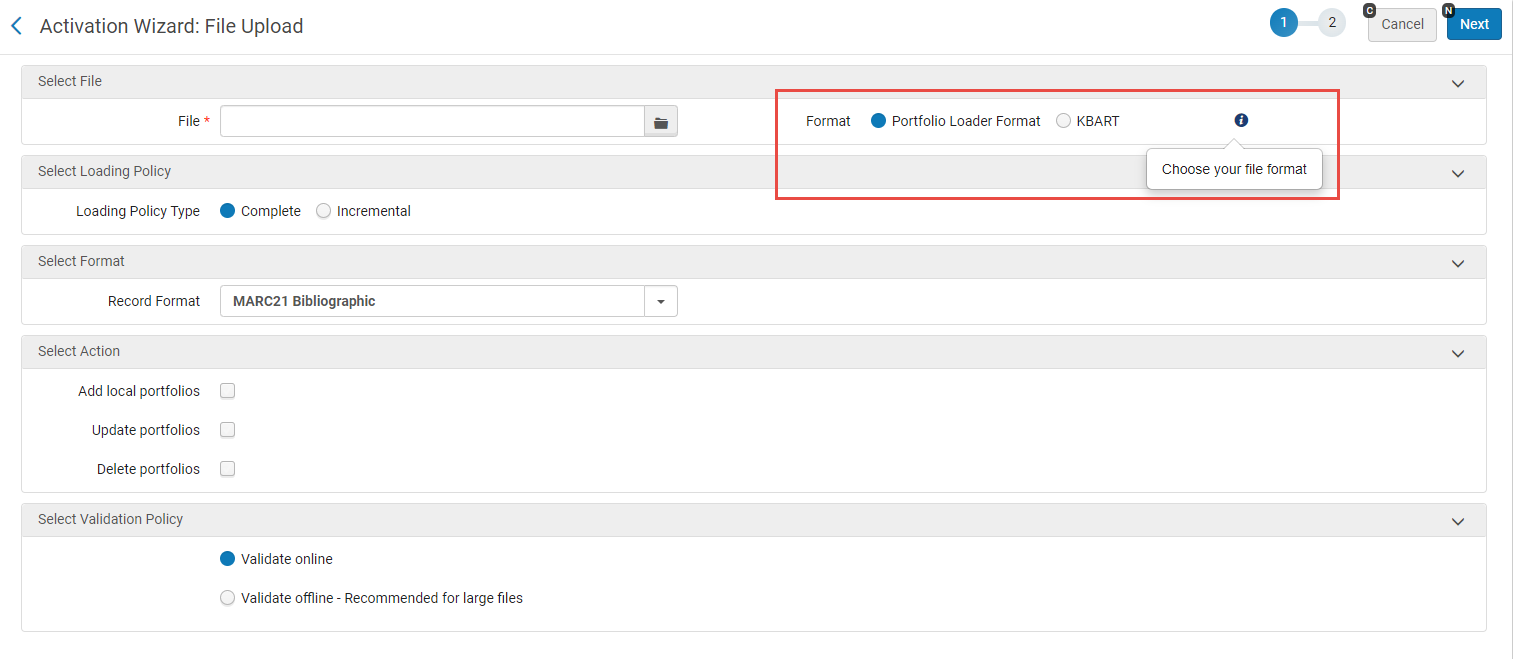
次のオプションが利用可能です:
- Portfolio Loader Format(previously, the only option) - Select to upload an input file in the Excel format.For details, see Portfolio Loader.
- KBART- Select to upload an input file in the KBART format.
In cases where the KBART file contains additional columns beyond the supported ones listed below, the upload will work without errors.
List of Supported KBART Fields
The following KBART fields are supported by the Portfolio Loader:
これは、静的URLのアップロードのみをtitle_urlフィールドを介してサポートしています。顧客がパーサーパラメータまたは動的URLを使用してポートフォリオをアップロードする必要がある場合は、Excelアップロード方法を使用する必要があります。
潜在的な複雑さを避けるために、*.xlsx ファイル内の列 (KBART フィールド) の順序は次のようにする必要があります。publication_title, print_identifier, online_identifier, date_first_issue_online, num_first_vol_online, num_first_issue_online, date_last_issue_online, num_last_vol_online, num_last_issue_online, title_url, first_author, title_id, embargo_info, coverage_depth, coverage_notes, publisher_name。
The required KBART fields are print_identifier and/or online_identifier, but it is customary to include the others.
[Journals] - Click here for a sample file.
[eBooks] - Click here for a sample file.
| Almaフィールド | KBART フィールド | JP-KBART 拡張 | 例 |
|---|---|---|---|
| アクセスタイプ | access_type | ||
| カバレッジノート | coverage_notes | ||
| オンラインで入手可能な創刊号の日付 | date_first_issue_online | ||
| オンラインで入手可能な最新号の日付 | date_last_issue_online | ||
| オンラインで最初に公開されたモノグラフの日付 | date_monograph_published_online | ||
| モノグラフが最初に印刷された日付 | date_monograph_published_print | ||
| 禁輸情報 | embargo_info | ||
| The last name of the book's first author | first_author | ||
| 最初の編集者 | first_editor | ||
| Ichushi コード | ichushi_code |

|
Other System Number (e.g. 035 # $a + prefix ICHUSHI) |
| J-STAGE CDJOURNAL | jstage_code |
|
Other System Number (For example 035 ## $a + prefix JSTAGE) |
| 言語 | language |
|
|
| モノグラフ版 | monograph_edition | ||
| モノグラフの巻 | monograph_volume | ||
| NCID | ncid |
|
その他のシステム番号 例:
|
| NDL書誌ID | ndl_bibid |
|
Other System Number (For example 035 ## $a + prefix JTNDL) |
| NDL コール番号 | ndl_callno |
|
Other Classification Number (For example 084 ## $a <call-num> $2 kktb) |
| オンラインで入手可能な創刊号の数 | num_first_issue_online | ||
| オンラインで利用可能な最初の巻の数 | num_first_vol_online | ||
| オンラインで入手可能な最新号の数 | num_last_issue_online | ||
| オンラインで入手可能な最後の巻の数 | num_last_vol_online | ||
| オンライン形式の識別子 | online_identifier | ||
| 印刷形式の識別子 | print_identifier | ||
| タイトル | publication_title | ||
| 発行タイプ | publication_type | ||
| 発行者名 | Publisher_name | ||
| タイトルの代替 | title_alternative |
|
|
| タイトル識別子 | title_id | ||
| タイトルの書き起こし | title_transcription |
|
|
| タイトルレベルのURL | title_url |
Portfolio Loader
ポートフォリオローダーを使用すると、次のアクションを実行できます。
- Activate/deactivate electronic portfolios managed in the Community Zone
- Create a new electronic collection in the Institution Zone
- Excelスプレッドシートを使用して、選択したポートフォリオを有効化/無効化したり、ポートフォリオ情報(プロキシ設定、URL、パーサーパラメータ、目録管理グループなど)をインポートおよびエクスポートしたりすることができます。
When using the portfolio loader to complete an incremental update to portfolios, the local coverage is removed once the job is complete unless the upload file is populated with the local coverage values.ローカルカバレッジ値を保持するには、それを入力します。
The portfolio loader accepts one of two formats as an input file:
- Excel file with the necessary information to Alma.Excleスプレッドシートには、特定の列を特定の順序で含める必要があります。
- KBART file, for more information, see Uploading KBART Files in the Portfolio Loader.
- To add new portfolio information, use the blank file linked here -Excel spreadsheet.
- To edit existing information, you can export this information from Alma, edit in Excel, and then upload it back again.To do that, go to the portfolios tab in the Electronic Service Editor, select the portfolios you want to edit, and select
 Export>Extended Export.This generates a file identical to the above, but with a few additional columns that are not part of the Portfolio Loader file/import process.これらの追加の列は、下の表のライセンスの説明に記載されています。アクセスするには電子サービス編集者、編集するポートフォリオを含む既存の電子コレクションを開き、行アクションメニューからサービスの編集を選択します。
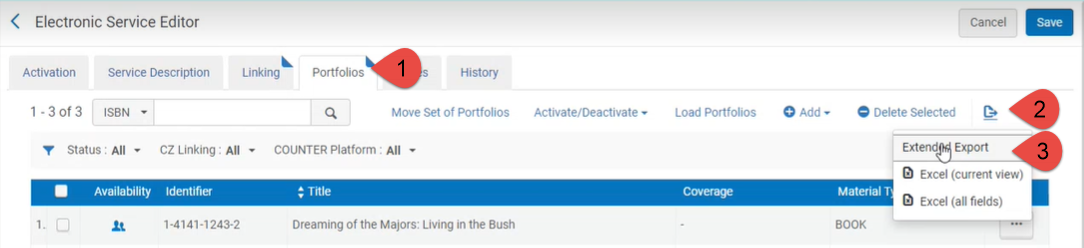
Excelスプレッドシートには、最初の行に見出し情報が表示され、後続の各行に単一のポートフォリオの情報が表示されます。
- Excelファイルの最大サイズは10MBです。
- サポートされている形式は.xlsおよび.xlsxです。
- You can load local portfolios (see Adding, Editing, or Removing Portfolio Information in Bulk) without an identifier such as ISSN, ISBN, or portfolio ID.
- If there are duplicated ISBNs/ISSNs in the Excel spreadsheet, remove them before loading into Alma.If you do not, the Portfolio Loader will show the correct number of portfolios to be activated, even if the activation job completes successfully.
- For update and checking purposes, you can include only the columns needed.たとえば、コレクション内のポートフォリオURLのみを更新する場合は、フィールドPORTFOLIO_PID、MMS、およびURLを含めるだけで、この変更を行うことができます。
- ポートフォリオの古い値は新しい値に置き換えられます。To delete portfolio information, manually run the Change Electronic Portfolio Information job.
- アクティブ化されるポートフォリオがコミュニティゾーンからではなくローカルポートフォリオである場合、資料タイプは入力ファイルから使用されます。ただし、有効化されているポートフォリオがコミュニティゾーンからのものである場合、入力ファイルの資料タイプの値は無視され、必要に応じてポートフォリオエディタを使用して後で入力できます。
- 新しい書誌レコードを作成する場合、書誌の資料タイプはポートフォリオのレコードタイプの影響を受けます。If the portfolio Record Type is set to ‘One time', the bib material type will be 'Book'.If the portfolio Record Type is set to ‘Continuing' – the bib material type will be 'Serial'.
- 新しいローカルポートフォリオをロードすると、新しく作成された書誌レコードのタイプは、入力ファイルのISBN列の存在に影響を受けます。If there is an ISBN for the portfolio in the input file, the bib material type will be set to 'Book'.ISBNがない場合、その書誌の資料タイプは「雑誌」になります。
-
To clear the following fields using the Portfolio Loader, include a blank cell for these columns in the input file: FROM_YEAR, TO_YEAR, FROM_MONTH, TO_MONTH, FROM_DAY, TO_DAY, FROM_VOLUME, TO_VOLUME, FROM_ISSUE, TO_ISSUE, PUBLICATION_DATE_OPERATOR, PUBLICATION_DATE_YEAR, PUBLICATION_DATE_MONTH, ACCESS_TYPE, PERPETUAL_FROM_YEAR, PERPETUAL_TO_YEAR, PERPETUAL_FROM_MONTH, PERPETUAL_TO_MONTH, PERPETUAL_FROM_DAY, PERPETUAL_TO_DAY, PERPETUAL_FROM_VOLUME, PERPETUAL_TO_VOLUME, PERPETUAL_FROM_ISSUE, PERPETUAL_TO_ISSUE, PERPETUAL_PUBLICATION_DATE_OPERATOR, PERPETUAL_PUBLICATION_DATE_YEAR, PERPETUAL_PUBLICATION_DATE_MONTH, AUTHENTICATION_NOTES, INTERNAL_DESCRIPTION, PDA, PUBLIC_NOTES.
-
To clear the following fields for a group setting, specify the group name and use a blank cell for these columns in the input file: GROUP_FROM_YEAR, GROUP_TO_YEAR, GROUP_FROM_MONTH, GROUP_TO_MONTH, GROUP_FROM_DAY, GROUP_TO_DAY, GROUP_FROM_VOLUME, GROUP_TO_VOLUME, GROUP_FROM_ISSUE, GROUP_TO_ISSUE, GROUP_PUBLICATION_DATE_OPERATOR, GROUP_PUBLICATION_DATE_YEAR, GROUP_PUBLICATION_DATE_MONTH, GROUP_PROXY_ENABLE, GROUP_PROXY_SELECTED, GROUP_AUTHENTICATION_NOTES, GROUP_PUBLIC_NOTES.
-
A known issue exists where after running the portfolio loader, the portfolios in the list are activated, even when the respective column is not in the uploaded file.この問題を修正するには、関連するポートフォリオを可用性とともにエクスポートします。Then run the Portfolio Loader on the exported file (including the "Availability" column), with the addition of the changes you want to introduce.
次の表は、ポートフォリオローダーのExcelファイルに含まれる可能性のあるフィールドの一覧です。
| フィールド | 説明 | ||||||||||||||||||||||||||||||||||||||||||||||||||||
|---|---|---|---|---|---|---|---|---|---|---|---|---|---|---|---|---|---|---|---|---|---|---|---|---|---|---|---|---|---|---|---|---|---|---|---|---|---|---|---|---|---|---|---|---|---|---|---|---|---|---|---|---|---|
|
LOCALIZED |
Excelファイルでlocalizedと表示されたフィールドは、所属機関に対してコミュニティゾーンポートフォリオがローカライズ/有効化されたことを示しています。 See Extended Export for more information. |
||||||||||||||||||||||||||||||||||||||||||||||||||||
| ISSN | 複数の(E-ISSNなどのISSNが複数存在する場合)ISSN識別子(最大3つ)。Almaは正常に一致した識別子のうち、最初のものを使用します。
Excelファイルで、PORTFOLIO_PID、ISSN、ISBN、またはOTHER_SYSTEM_NUMBERの少なくとも1つが使用可能である必要があります。 |
||||||||||||||||||||||||||||||||||||||||||||||||||||
| ISBN | 1つ以上の(E-ISBNなどの複数のISBNが存在する場合)ISBN識別子(最大3つ)。Almaは正常に一致した識別子のうち、最初のもの(ISBN10またはISBN13)を使用します。
Excelファイルで、PORTFOLIO_PID、ISSN、ISBN、またはOTHER_SYSTEM_NUMBERの少なくとも1つが使用可能である必要があります。 |
||||||||||||||||||||||||||||||||||||||||||||||||||||
|
OTHER_SYSTEM_NUMBER |
One or more other system numbers (up to three).Alma uses the first other system number that provides a successful match. Excelファイルで、PORTFOLIO_PID、ISSN、ISBN、またはOTHER_SYSTEM_NUMBERの少なくとも1つが使用可能である必要があります。 |
||||||||||||||||||||||||||||||||||||||||||||||||||||
|
PORTFOLIO_PID |
Almaのポートフォリオに使用される内部PID番号。この識別子は、[エクスポートの拡張]を選択し、[電子サービスエディタ]ページの[ポートフォリオ]タブにリストされているポートフォリオをExcelにエクスポートした場合にのみ使用できます。It is exported in cases where there is no ISSN or ISBN.If you are adding this field manually to the input file Excel sheet, then it should be added in cells which are formatted as text. Excelファイルで、PORTFOLIO_PID、ISSN、ISBN、またはOTHER_SYSTEM_NUMBERの少なくとも1つが使用可能である必要があります。 |
||||||||||||||||||||||||||||||||||||||||||||||||||||
| MMS | このフィールドは、Alma MMS IDに使用されます。 | ||||||||||||||||||||||||||||||||||||||||||||||||||||
| TITLE | The 245 | a to apply for this title.[ローカルポートフォリオを追加]が選択され(以下の手順を参照)、一致が見つからない場合、このフィールドはローカルポートフォリオ情報に追加されます。 | ||||||||||||||||||||||||||||||||||||||||||||||||||||
| FROM_YEAR | タイトルのカバレッジ開始日の年(YYYY形式)。 | ||||||||||||||||||||||||||||||||||||||||||||||||||||
| TO_YEAR | タイトルのカバレッジ終了日の年(YYYY形式)。 | ||||||||||||||||||||||||||||||||||||||||||||||||||||
| FROM_MONTH | タイトルのカバレッジ開始日の月(MM形式)。 | ||||||||||||||||||||||||||||||||||||||||||||||||||||
| TO_MONTH | タイトルのカバレッジ終了日の月(MM形式)。 | ||||||||||||||||||||||||||||||||||||||||||||||||||||
| FROM_DAY | タイトルのカバレッジ開始日(DD形式)。 | ||||||||||||||||||||||||||||||||||||||||||||||||||||
| TO_DAY | タイトルのカバレッジ終了日(DD形式)。 | ||||||||||||||||||||||||||||||||||||||||||||||||||||
| FROM_VOLUME | タイトルカバレッジが始まる数値の巻番号。 | ||||||||||||||||||||||||||||||||||||||||||||||||||||
| TO_VOLUME | タイトルカバレッジが終了する数値の巻番号。 | ||||||||||||||||||||||||||||||||||||||||||||||||||||
| FROM_ISSUE | タイトルカバレッジが始まる数値の発行番号。 | ||||||||||||||||||||||||||||||||||||||||||||||||||||
| TO_ISSUE | タイトルカバレッジが終了する数値の発行番号。 | ||||||||||||||||||||||||||||||||||||||||||||||||||||
| WARNINGS | システム生成するメッセージ。複数のカバレッジが定義され、かつ最初に定義されたカバレッジのみがエクスポートされていることを示します。 | ||||||||||||||||||||||||||||||||||||||||||||||||||||
| PUBLICATION_DATE_OPERATOR | 記事差し止め日付の演算子。次のいずれかを使用します:>、<、または= | ||||||||||||||||||||||||||||||||||||||||||||||||||||
| PUBLICATION_DATE_YEAR | カバレッジ情報の年数。This relates to the Number of Years field for Embargo/Rolling Year under Coverage Information for a portfolio (refer to the New Portfolio Page Options (Standalone and Electronic Collection) table in Adding a Standalone Portfolio). | ||||||||||||||||||||||||||||||||||||||||||||||||||||
| PUBLICATION_DATE_MONTH | カバレッジ情報の月数。This relates to the Number of Months field for Embargo/Rolling Year under Coverage Information for a portfolio (refer to the New Portfolio Page Options (Standalone and Electronic Collection) table in Adding a Standalone Portfolio). | ||||||||||||||||||||||||||||||||||||||||||||||||||||
| GLOBAL_FROM_YEAR |
[電子ポートフォリオエディタ>カバレッジ情報]タブに表示されるグローバルカバレッジ情報。 Coverage of multiple periods (for example, from 2011 to 2015 & from 2017 to 2020) is not supported by the Portfolio Loader.Excelファイルに複数の期間が記載されている場合は、最後の期間のみが取得されます。Entering additional coverage periods can be done from the Electronic Portfolio Editor (see Editing a Portfolio Using the Electronic Portfolio Editor). |
||||||||||||||||||||||||||||||||||||||||||||||||||||
| GLOBAL_TO_YEAR | |||||||||||||||||||||||||||||||||||||||||||||||||||||
| GLOBAL_FROM_MONTH | |||||||||||||||||||||||||||||||||||||||||||||||||||||
| GLOBAL_TO_MONTH | |||||||||||||||||||||||||||||||||||||||||||||||||||||
| GLOBAL_FROM_DAY | |||||||||||||||||||||||||||||||||||||||||||||||||||||
| GLOBAL_TO_DAY | |||||||||||||||||||||||||||||||||||||||||||||||||||||
| GLOBAL_FROM_VOLUME | |||||||||||||||||||||||||||||||||||||||||||||||||||||
| GLOBAL_TO_VOLUME | |||||||||||||||||||||||||||||||||||||||||||||||||||||
| GLOBAL_FROM_ISSUE | |||||||||||||||||||||||||||||||||||||||||||||||||||||
| GLOBAL_TO_ISSUE | |||||||||||||||||||||||||||||||||||||||||||||||||||||
| GLOBAL_WARNINGS | Almaシステムが生成したメッセージ。複数のグローバルカバレッジが定義され、かつ最初に定義されたカバレッジのみがエクスポートされていることを示します。 | ||||||||||||||||||||||||||||||||||||||||||||||||||||
| GLOBAL_PUBLICATION_DATE_OPERATOR | [電子ポートフォリオエディタ>カバレッジ情報]タブに表示されるグローバルカバレッジ情報。 | ||||||||||||||||||||||||||||||||||||||||||||||||||||
| GLOBAL_PUBLICATION_DATE_YEAR | |||||||||||||||||||||||||||||||||||||||||||||||||||||
| GLOBAL_PUBLICATION_DATE_MONTH | |||||||||||||||||||||||||||||||||||||||||||||||||||||
| ACCESS_TYPE | 現在、恒久的、または現在、恒久的 | ||||||||||||||||||||||||||||||||||||||||||||||||||||
| PERPETUAL_FROM_YEAR | See the Perpetual Date Information section for more information. | ||||||||||||||||||||||||||||||||||||||||||||||||||||
| PERPETUAL_TO_YEAR | |||||||||||||||||||||||||||||||||||||||||||||||||||||
| PERPETUAL_FROM_MONTH | |||||||||||||||||||||||||||||||||||||||||||||||||||||
| PERPETUAL_TO_MONTH | |||||||||||||||||||||||||||||||||||||||||||||||||||||
| PERPETUAL_FROM_DAY | |||||||||||||||||||||||||||||||||||||||||||||||||||||
| PERPETUAL_TO_DAY | |||||||||||||||||||||||||||||||||||||||||||||||||||||
| PERPETUAL_FROM_VOLUME | |||||||||||||||||||||||||||||||||||||||||||||||||||||
| PERPETUAL_TO_VOLUME | |||||||||||||||||||||||||||||||||||||||||||||||||||||
| PERPETUAL_FROM_ISSUE | |||||||||||||||||||||||||||||||||||||||||||||||||||||
| PERPETUAL_TO_ISSUE | |||||||||||||||||||||||||||||||||||||||||||||||||||||
| PERPETUAL_PUBLICATION_DATE_OPERATOR | See the Perpetual Embargo/Rolling Year section for more information. | ||||||||||||||||||||||||||||||||||||||||||||||||||||
| PERPETUAL_PUBLICATION_DATE_YEAR | |||||||||||||||||||||||||||||||||||||||||||||||||||||
| PERPETUAL_PUBLICATION_DATE_MONTH | |||||||||||||||||||||||||||||||||||||||||||||||||||||
| AVAILABILITY | 次の値のいずれか:
The values above are case sensitive and must be all CAPITALIZED for the loader to work. |
||||||||||||||||||||||||||||||||||||||||||||||||||||
| PUBLISHER | フリーテキスト。[ローカルポートフォリオを追加]が選択され、かつ一致が見つからない場合、このフィールドはローカルポートフォリオ情報に追加されます。 | ||||||||||||||||||||||||||||||||||||||||||||||||||||
| PLACE_OF_PUBLICATION | このフィールドは、書誌レコードの260 $$aから取得されます。 | ||||||||||||||||||||||||||||||||||||||||||||||||||||
| DATE_OF_PUBLICATION | このフィールドは、書誌レコードの260 $$cから取得されます。 | ||||||||||||||||||||||||||||||||||||||||||||||||||||
| URL |
グローバルポートフォリオのURLのオーバーライドまたはローカルポートフォリオでのURLの設定のみを目的としたURL。[ローカルポートフォリオを追加]が選択され、かつ一致が見つからない場合、このフィールドはローカルポートフォリオ情報に追加されます。 The content of the URL column will be added to the Static URL (override) parameter on the Linking tab. |
||||||||||||||||||||||||||||||||||||||||||||||||||||
|
PARSER_PARAMETERS |
リンク情報(電子サービスエディタの[リンク情報]タブなど)。 ポートフォリオローダーExcelファイルがアップロードされると、[リンキング]タブのパーサーパラメータ(上書き)パラメータにPARSER_PARAMETERS列のコンテンツが追加されます。以下の例を参照してください。
To remove the override and restore the value of this field for multiple records in batch, replace the value of this field with the value “NULL”.For details, see Restore Community Zone linking parameters (remove override of parser). |
||||||||||||||||||||||||||||||||||||||||||||||||||||
| PROXY_ENABLE | Trueは、電子ポートフォリオエディタの[リンキング情報]タブで有効なプロキシの[はい]ラジオボタンを選択するのと同じです。
Falseは、電子ポートフォリオエディタの[リンキング情報]タブでプロキシを有効にするためにラジオボタンを選択しないことと同じです。 このパラメータでは大文字と小文字が区別されます。入力するオプションは小文字(trueまたはfalse)でなければなりません。 PROXY_ENABLEを使用するには、 “portfolio” PROXY_LEVELを指定する必要があります。 |
||||||||||||||||||||||||||||||||||||||||||||||||||||
| PROXY_SELECTED | PROXY_ENABLEフィールドにtrueを指定する場合、使用するプロキシを指定します。
PROXY_ENABLEを使用するには、 “portfolio” PROXY_LEVELを指定する必要があります。 |
||||||||||||||||||||||||||||||||||||||||||||||||||||
| PROXY_LEVEL | ポートフォリオまたはサービスを指定します。
このパラメータでは大文字と小文字が区別されます。入力するオプションはすべて大文字でなければなりません(PORTFOLIOまたはSERVICE)。 |
||||||||||||||||||||||||||||||||||||||||||||||||||||
| AUTHOR | フリーテキスト。[ローカルポートフォリオを追加]が選択され、かつ一致が見つからない場合、このフィールドはローカルポートフォリオ情報に追加されます。 | ||||||||||||||||||||||||||||||||||||||||||||||||||||
| ELECTRONIC_MATERIAL_TYPE | ドロップダウンリストの値の1つ。
It is important to select the code value and not the description in the drop-down list options (see below).
|
||||||||||||||||||||||||||||||||||||||||||||||||||||
| OWNERSHIP | ポートフォリオを所有する図書館の名称。 | ||||||||||||||||||||||||||||||||||||||||||||||||||||
|
GROUP_NAME |
目録管理グループの名称。セミコロンで区切ると、このフィールドに複数のグループ名を指定できます。 このフィールドに複数のグループ名が指定されている場合、グループカバレッジフィールド内の情報の順序は、GROUP_NAMEフィールド内のグループの順序と同じシーケンス順になります。複数のグループのカバレッジ情報を1つのセルに入力し、セミコロンで区切ることができます。ポートフォリオに指定されていないカバレッジ情報については、セミコロンがプレースホルダーとして使用されます。以下の例を参照してください。
この例では、CCグループ1とCCグループ2の順序で指定された2つのグループ名があります。 Group From Year / To Yearに関する情報は次のとおりです。
CCグループ1には巻についての情報がなく、存在しない情報にセミコロンがプレースホルダーとして付けられているように表示されます。
|
||||||||||||||||||||||||||||||||||||||||||||||||||||
| GROUP_FROM_YEAR | 電子ポートフォリオエディタの[グループ設定]タブに表示されるグループのカバレッジ情報。 | ||||||||||||||||||||||||||||||||||||||||||||||||||||
| GROUP_TO_YEAR | |||||||||||||||||||||||||||||||||||||||||||||||||||||
| GROUP_FROM_MONTH | |||||||||||||||||||||||||||||||||||||||||||||||||||||
| GROUP_TO_MONTH | |||||||||||||||||||||||||||||||||||||||||||||||||||||
| GROUP_FROM_DAY | |||||||||||||||||||||||||||||||||||||||||||||||||||||
| GROUP_TO_DAY | |||||||||||||||||||||||||||||||||||||||||||||||||||||
| GROUP_FROM_VOLUME | |||||||||||||||||||||||||||||||||||||||||||||||||||||
| GROUP_TO_VOLUME | |||||||||||||||||||||||||||||||||||||||||||||||||||||
| GROUP_FROM_ISSUE | |||||||||||||||||||||||||||||||||||||||||||||||||||||
| GROUP_TO_ISSUE | |||||||||||||||||||||||||||||||||||||||||||||||||||||
| GROUP_PUBLICATION_DATE_OPERATOR | |||||||||||||||||||||||||||||||||||||||||||||||||||||
| GROUP_PUBLICATION_DATE_YEAR | |||||||||||||||||||||||||||||||||||||||||||||||||||||
| GROUP_PUBLICATION_DATE_MONTH | |||||||||||||||||||||||||||||||||||||||||||||||||||||
| GROUP_PROXY_ENABLE | |||||||||||||||||||||||||||||||||||||||||||||||||||||
| GROUP_PROXY_SELECTED | |||||||||||||||||||||||||||||||||||||||||||||||||||||
| GROUP_AUTHENTICATION_NOTES | |||||||||||||||||||||||||||||||||||||||||||||||||||||
| GROUP_PUBLIC_NOTES | |||||||||||||||||||||||||||||||||||||||||||||||||||||
| AUTHENTICATION_NOTES | [電子ポートフォリオエディタ > メモ]タブに表示される認証メモ。 | ||||||||||||||||||||||||||||||||||||||||||||||||||||
| PUBLIC_NOTES | [電子ポートフォリオエディタ > メモ]タブに表示される公開用メモ。 | ||||||||||||||||||||||||||||||||||||||||||||||||||||
| INTERNAL_DESCRIPTION | [電子ポートフォリオエディタ] > [機能上のメモ]タブの公開メモフィールドに表示される内部の説明。 | ||||||||||||||||||||||||||||||||||||||||||||||||||||
| COVERAGE_STATEMENT | [電子ポートフォリオ]エディタの[カバレッジ情報]タブに表示される次のカバレッジステートメントのいずれか。
|
||||||||||||||||||||||||||||||||||||||||||||||||||||
| ACTIVATION_DATE | [電子コレクションエディタ > 一般情報]タブに表示される有効化の日付情報。 | ||||||||||||||||||||||||||||||||||||||||||||||||||||
| EXPECTED_ACTIVATION_DATE | [電子コレクションエディター > 一般情報]タブに表示される有効化の予定日情報。 | ||||||||||||||||||||||||||||||||||||||||||||||||||||
| LICENSE | [電子コレクションエディタ > 一般情報]タブおよび[電子ポートフォリオエディタ > 受入情報]タブに表示されるライセンスの詳細情報。
When using Extended Export from a portfolio list, the exported Excel file contains the following extra columns:LICENSE_NAME,COLLECTION_LICENSE, AND COLLECTION_LICENSE_NAME.これらの列は、インポート/ポートフォリオのロード中には使用されません。 |
||||||||||||||||||||||||||||||||||||||||||||||||||||
| PDA | [電子ポートフォリオエディタ > 受入情報]タブに表示されるように、ユーザー主導型の受入の際に使用されます。 | ||||||||||||||||||||||||||||||||||||||||||||||||||||
|
言語 |
この列には、ポートフォリオの言語情報が含まれています。It is expected to contain the three-character abbreviation for the portfolio language such as eng (English), fre (French), kor (Korean), and so forth. When you use the Load Portfolios action to load multiple portfolios into Alma using the Portfolio Loader Excel spreadsheet, a bibliographic record is created for each portfolio; and the language information is placed in the following fields:
レコードをAlmaに読み込むときにこの列が空の場合、デフォルトで以下が書誌レコードに入力されます。
It is a known issue that similar to the behavior in the MD Editor where you can enter invalid / uppercase values in the 008 field (to include the Language portion of that field) of a bibliographic record, you can also import invalid / uppercase values to the 008 field of the bibliographic record that is created from the content that is entered in the Language cells of the Portfolio Loader file. |
||||||||||||||||||||||||||||||||||||||||||||||||||||
|
COUNTERプラットフォーム |
Almaにロードされるポートフォリオに使用するCOUNTERプラットフォームを指定します。 |
||||||||||||||||||||||||||||||||||||||||||||||||||||
| NOTES | Any notes you would like included in the portfolio's General Notes field.
メモはインポート時に既存のメモコンテンツに追加されます。メモをエクスポートし、続いて同じメモコンテンツをインポートすると、メモコンテンツが重複する場合があります。 |
||||||||||||||||||||||||||||||||||||||||||||||||||||
| PO_LINE | この列は、ポートフォリオのエクスポートでのみ使用されます。
It is ignored in the Portfolio Loader.If desired, you can remove this column from the spreadsheet. |

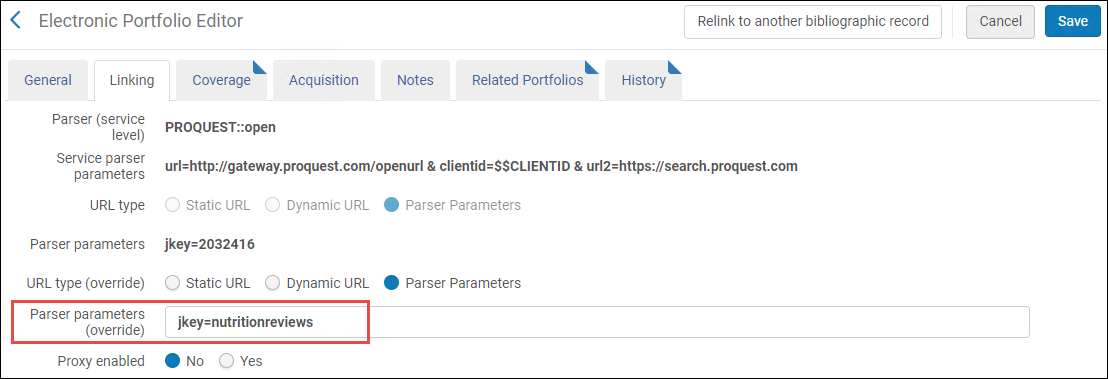


Editing a Portfolio Using the Electronic Portfolio Editor
ポートフォリオの作成中、Almaは[新しいポートフォリオ]ページを使用して、電子コレクションにポートフォリオを追加するか、スタンドアローンポートフォリオを作成します。[電子ポートフォリオエディタ]ページでは、次のタブでこの情報を表示および更新できます:
- General
- Linking
- Coverage
- Acquisition
- Notes
- Group Settings
- Related Portfolios
- History
- 更新する電子ポートフォリオを検索します。電子ポートフォリオの大まかな結果が表示されます。
- [ポートフォリオを編集する]を選択します。[電子ポートフォリオエディタ]ページが表示されます。
- 必要に応じて各タブのフィールドを更新します。ポートフォリオパラメータについては、以下の表を参照してください。
Electronic Portfolio Editor Page フィールド 説明 電子ポートフォリオ情報: リソースの記述 電子ポートフォリオのタイトル。タイトルを選択して、ポートフォリオのMARC書誌レコードの簡素なビューを表示します。 コレクション名 (Electronic Collection only) The electronic collection name that the portfolio is a part of.Select the collection name link to open the Electronic Collection Editor page to view and edit the electronic collection information. コレクションID (電子コレクション専用)ポートフォリオが含まれる電子コレクションレコードのID。 コレクションのポートフォリオをすべて表示する Use this link to open the Electronic Service Editor to view and/or edit the information on this page.It defaults to opening the Portfolios tab that lists all the portfolios. インターフェース名 (スタンドアローン専用)スタンドアローンポートフォリオのベンダーインターフェイス名。 サービスタイプ 電子コレクションの電子サービスタイプ。サービスタイプリンクを選択して、[電子サービスエディタ]ページを開き、電子サービス情報を表示および編集します。 サービスID 電子サービスタイプレコードのID。 すべての蔵書のサービスを表示する Use this link to open the Electronic Collection Editor to view and/or edit the information on this page.デフォルトでは、[サービス]セクションを含む[追加]タブが開きます。 書誌資料種別
こちらは、このリソースの書誌レコードについて保存されている資料タイプを示します。
ポートフォリオID ポートフォリオのレコードID。 基本ステータス ポートフォリオが含まれる電子コレクションの関連情報を表示する読み取り専用フィールド。See Collection Activation Tab Options.
These parameters are displayed only for portfolios included in electronic collections; they are not displayed for stand-alone portfolios.
Activate from 有効期限 サイトダウン Site Down Date Site Down Date 選択的表示 Read-only fields that display relevant information of the electronic service linked with the portfolio.See Collection Activation Tab Options.
These parameters are displayed only for portfolios included in electronic collections; they are not displayed for stand-alone portfolios.
インターフェイスの公開名 General tab: ポートフォリオの利用可否 ポートフォリオが有効かどうか。 有効の場合(利用可能)、現在の日付が[有効化日時]フィールドに入力されます。無効の場合( 利用不可)、[有効化予定日]フィールドが有効になります。Available from date Available until date ポートフォリオが自動的に利用可能に設定される時間を指定します。ポートフォリオが自動的に利用不可に設定される時点を指定します。
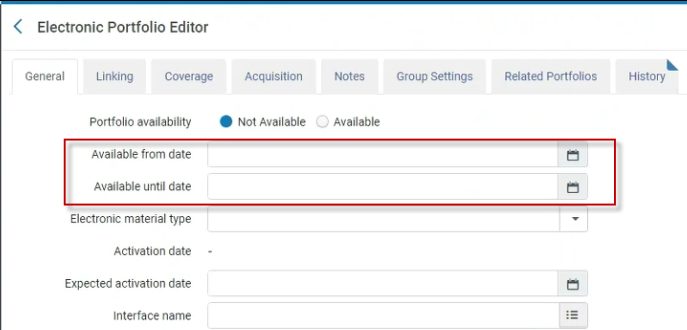 利用可能開始日および利用可能終了日のフィールド
These two fields enable users to set a date which defines:
- When the portfolio becomes Available.
- ポートフォリオが利用不可になる時点。
- A date range in which the portfolio are Available.
A daily job (Electronic portfolio availability update) runs every day and checks the dates defined on the portfolios and according to these dates, sets the portfolio as Available or Not available.
The Electronic portfolio availability update job activates or deactivates portfolios based on the "Active from date" field.Almaは、カレンダー日付の終わりまでポートフォリオを有効化または無効化するのを待ちます。
These two fields enable institutions that have electronic collections where they purchase 1 year of access for selected titles to set a date when these selected titles will be set as Not available.
The existing Activation date(the date when the portfolio was first activated) and Expected activation date fields remain as informative fields only.
In the case where the Electronic Service is set as Available and the Portfolio is set as Not available, then the Portfolio will be Not available.But in the case where the Electronic Service is set as Not available the Portfolio will be Not available(even if it is defined as Available on the Portfolio level).
When Alma looks at the records to update, it looks at the Bib records and their portfolios.There could be cases where a single Bib record holds more than one portfolio.In that case, the Monitor jobs(History tab) presents the count of the processed Bib records (not the Portfolios).When clicking on the report action and entering the report, there is a counter of how many Portfolios were actually handled by the job.
有効期限 ポートフォリオが自動的に利用不可に設定される時点を指定します。 Electronic material type originating from Bib
(以前は電子版資料種別として知られていました)
コミュニティゾーンにリンクされたポートフォリオの場合、こちらの読み取り専用フィールドには、ポートフォリオの書誌レコードからコピーされ、コミュニティゾーンでポートフォリオが作成された際にポートフォリオレコードに保存された資料タイプが表示されます。
If at a later time the material type is changed in the bibliographic record, the material type in this field is not automatically synchronized and, therefore, will not match the material type specified in the bibliographic record.
Alternatively, you can use the Electronic material type parameter (see Electronic material type) to manually specify the electronic material type on the portfolio level.For advanced searches that use the Material Type (Electronic Portfolio) search criteria, the value in the Electronic material type parameter overrides the material type specified in the Electronic material type originating from Bib parameter.
電子版資料種別
このパラメータでポートフォリオの資料タイプを選択します。You may use this parameter to identify the electronic material type for both local and Community Zone linked portfolios.
これまでは(2018年7月リリース前)、ローカルポートフォリオの電子版資料種別を手動でしか指定できませんでした。
When you perform an advanced search using Material Type (Electronic Portfolio) for your search criteria, the value stored in this parameter (Electronic material type) is used for locating the records with a matching material type.The value in this parameter overrides the value stored in the Electronic material type originating from Bib parameter.
書誌レコードレベルで資料タイプを検索する場合は(ポートフォリオレベルではなく)、詳細検索でタイトルレベルの資料タイプ検索条件を使用する必要があることに注意してください。
See Electronic Material Types for more information.
資料タイプは、Primoの[入手する]タブと[詳細]タブにのみ表示されます。
ソース 出所コードは冊子の出所を示すために、機関によって定義されています。For more information, see Configuring Provenance Codes. 有効化日時 ポートフォリオが有効化された日付。 有効化予定日 ポートフォリオが無効の場合、有効化する予想日。 電子コレクション図書館 This read-only parameter displays the library inherited by the portfolio--which is the library set for the electronic collection.For details about library inheritance by portfolios, see Library Set on Electronic Resource.This parameter is not displayed for standalone portfolios (which are always in the scope of the user role).
When this parameter is displayed, the portfolio-level parameter "Library" is hidden.
インターフェイス名 (スタンドアローン専用)[ベンダーインターフェイスを選択]ページからベンダーインターフェイスを選択する。 図書館 Select the library for the portfolio.このフィールドは、図書館がコレクションで定義されていない場合にのみ表示されます。If the library was defined for the collection, the portfolio inherits this library and it appears in the read-only "Electronic collection library" field.For details about library inheritance by portfolios, see Library Set on Electronic Resource.
電子コレクションアクセスタイプ
電子コレクションから継承されたアクセスタイプが表示されます。See Access type(Portfolio) for more information.
アクセスタイプ
アクセスタイプは、電子ポートフォリオのライセンス権を特定する次のオプションのいずれかで指定できます(これは、電子コレクションから継承されたアクセスタイプとは異なることがあります):
- 空白-電子コレクションから継承されたアクセスタイプを使用するには、このオプションを選択します。
- 現在-編集中の電子ポートフォリオについて、これは、現在加入し、支払っているライセンス契約を示します。
- Perpetual – For the electronic portfolio that you are editing, this indicates the right to permanently access the title during the period of a license agreement as represented in the perpetual access coverage date/embargo range.
- 現在および恒久的アクセス – 編集中の電子ポートフォリオについて、これは、現在のリソースと永続的なリソースを共に含むライセンス契約を特定します。
See the Perpetual Date Information section and the Perpetual Embargo/Rolling Year section for more information.
インターフェイスから派生したCOUNTERプラットフォーム これは、Ex Libris がこの電子コレクションに関連付けられたインターフェースにマッピングした COUNTER プラットフォームを表示する読み取り専用フィールドです。デフォルトでは、Alma はこのプラットフォームを使用して、電子コレクションを Alma アナリティクスの COUNTER レポートと照合します。To override this platform value and use a different platform for matching in Alma Analytics, use the COUNTER Platform field described below. 電子コレクションのCOUNTERプラットフォーム
This parameter shows the COUNTER Platform specified at the electronic collection level.If the electronic collection to which the portfolio is linked has a platform specified, then it is inherited from the electronic collection to the portfolio and is the default platform for the portfolio.
電子コレクションの選択を上書きする場合は、COUNTERプラットホームパラメータのドロップダウンリストから別のプラットフォームを選択します。See COUNTER Platform below.
COUNTERプラットフォーム
電子ポートフォリオエディタのCOUNTERプラットフォームパラメータを使用して、特定のポートフォリオの使用状況データを追跡するプラットフォームを指定します。The platform that you select for this parameter overrides the electronic collection's COUNTER Platform selection when the electronic portfolio is linked to the electronic collection and a COUNTER Platform is specified at the electronic collection level.See Electronic collection COUNTER Platform.
The list of options for this parameter comes from the list of platforms included in the loaded COUNTER reports.このリストに値を表示させるには、COUNTERレポートをロードしておく必要があります。
If you leave this COUNTER Platform field blank, Alma Analytics will use the platform in the COUNTER Platform derived from interface field (described above) to match the electronic collection to COUNTER reports in Alma Analytics..
Linking tab: パーサー (サービスレベル) (Electronic Collection only) The destination service specified for the electronic collection.
On the Electronic Portfolio level, the parser is inherited from its parent collection and cannot be overridden.
For detailed information, see the Library-Specific Parameters table above and the Alma and SFX Linking Parser Parameters Guide.
サービスパーサーパラメータ (電子コレクション専用)サービスのリンク/アクセス情報。 パーサーパラメータ (電子コレクション専用)このポートフォリオのリンク/アクセス情報。 URL (電子コレクション専用)ポートフォリオにアクセスするためのURL。URLは、パーサーパラメータ(オーバーライド)オプションの代替として指定できます。 (スタンドアローン専用)ポートフォリオにアクセスするためのURL。URLパラメーターは編集できません。スタンドアローンポートフォリオでは、URLが正しくない場合は、他のURLパラメータ(静的URLまたは動的URL)でURLパラメータを上書きします。URL種別 このポートフォリオで使用されるURL種別: - 動的URL – Almaは、[動的URL]フィールドで定義された条件のリストに基づいて、ポートフォリオレベルでリンクURLを動的に選択します。
- 静的URL - [静的URL]パラメータで定義された静的URLでリンクURLを上書きします。
- Parser Parameters – (Electronic Collection only) An override for the parser's parameters in the Parser parameters (override) field.
Alma dynamically encodes dynamic and static URLs, which means that it transforms certain characters in the URL to their HTML representations (Alma only transforms & with %26, which is not a full encode).Thus, it is not necessary for you to include the encoded form.If you would like patrons to be redirected to an encoded URL, encode it twice before saving.In this case Alma will decode it once and it will then be encoded again.
動的URL A list of IF conditions that Alma uses to determine the service's linking URL.[ダイナミックURL構文をテストする]ボタンを使うと、IF文の構文を検証できます。 For information on dynamic URLs, see Configuring Dynamic URLs for Electronic Collections and Portfolios.静的URL このURLは、電子コレクション、サービス、およびポートフォリオから取得したパラメータに基づいて作成されたURLを上書きします。例:http://link.aip.org/link/? Static URL (override) / Static URL (override) / Parser Parameters (override)
Depending on what is selected for URL type (override) field
(電子コレクション専用)
電子コレクションパーサーパラメータを上書きするか、またはポートフォリオにアクセスする際のURLを入力するかのいずれかのパーサーパラメータ。
Example: url1=http://link.aip.org/link/?& url2=http://publish.aps.org/& url3=http://link.aps.org/abstract/& agg=sfx図書館固有のパラメータについては、図書館固有のパラメータの表を参照してください。If the fields Static URL (override),Dynamic URL (override) or Parser parameters (override) are left empty, Alma ignores the URL type (override) field.
プロキシ有効 プロキシが有効になっているかどうか(はい / いいえ )。 See the Resolver Proxies section for information regarding proxy relationships among portfolios, electronic collections, and services.プロキシが選択されました プロキシプロファイル。When you specify Yes, identify which proxy profile to use for authentication (of users outside the library's network) to access the online database you have created.[はい]を指定し、[プロキシが選択されました]ドロップダウンリストから選択しない場合(つまり、オプションを空白のままにした場合)、Almaは設定したデフォルトプロキシを自動的に使用します。 See Resolver Proxies for information regarding how to create a proxy profile.The procedure To configure a resolver proxy definition type of integration profile: in Resolver Proxies describes how to configure a default proxy profile.アクセスのテスト リソースへのアクセスをテストする場合に選択します。 Crossref Supported, ポートフォリオが含まれる電子コレクションの関連情報を表示する読み取り専用フィールド。See Collection Linking Tab Options.
These parameters are displayed only for portfolios included in electronic collections; they are not displayed for stand-alone portfolios.
Crossref Enabled, プロキシが選択されました リンクリゾルバセクション リンクリストセクション Coverage tab Note that in the case of a Network Zone consortium with electronic collections (and corresponding portfolios) activated from the Community Zone and “Available For” member institutions: If there is a portfolio in the member institution and the same portfolio is also being made available from the Network Zone, and the member institution's portfolio has different coverage than the network zone portfolio, then the coverage from the member institution will take precedence.This means that the coverage used for access in discovery will come from the portfolio in the member institution.If there is a need to use both coverages (from the portfolio of the network zone and the portfolio from the member institution) then a different portfolio should be used (for example from a different collection). どの対象範囲ステートメントを適用しますか? Newly activated resources come with a global coverage statement that you can accept entirely (ONLY global), select portions based on your institution's preferences (ONLY local), or require a BOTH/AND or an OR/EITHER presence of coverage. 電子コレクション内の対象範囲ステートメントを指定します:- ローカル専用:記事の発行日がポートフォリオに追加されたローカル対象範囲に含まれる場合、フルテキストが表示されます。
- グローバルとローカル:記事の発行日がポートフォリオに追加されたローカル対象範囲、および主要な知識ベースで定められた対象範囲に含まれる場合、フルテキストが表示されます。
- グローバルまたはローカル:記事の発行日がポートフォリオに追加されたローカル対象範囲、または主要な知識ベースで定められた対象範囲に含まれる場合、フルテキストが表示されます。
- グローバル専用:記事の発行日が主要な知識ベースで定められ対象範囲に含まれる場合、フルテキストが表示されます。
Coverage tab - Global Date Information section: 年から 購入/有効化されたコンテンツを示す対象範囲フィールド。これにより、ポートフォリオのしきい値が決まります。 これらのフィールドは、サービス解決(Primoなど)に影響します。対象範囲は、リポジトリ検索結果に表示されます。たとえば、1980年からリソースを利用できる場合、[年から]フィールドに1980と入力します。月から 日から 巻から 発行元 以下の年まで 以下の月まで 以下の日まで 以下の巻まで 以下の号まで Coverage tab - Local Date Information section: 年から
購入/有効化されたコンテンツを示す対象範囲フィールド。これにより、ポートフォリオのしきい値が決まります。
これらのフィールドは、サービス解決(Primoなど)に影響します。対象範囲は、リポジトリ検索結果に表示されます。たとえば、1980年からリソースを利用できる場合、[年から]フィールドに1980と入力します。
これは、[日付情報]セクションで指定されたグローバル対象範囲(コミュニティゾーンから取得)情報を上書きしようとするローカル対象範囲(所属機関の対象範囲)情報です。
対象範囲日付情報が電子リソースに追加され(たとえば、電子ポートフォリオエディタなどに)、年と月の内容のみを入力した場合、システムは、デフォルトで、[日から]を月の初日に、[以下の日まで]を月の31日に設定します。[日付情報を追加]を選択して、特定日付および対象範囲の巻範囲を追加します。月から 日から 巻から 発行元 以下の年まで 以下の月まで 以下の日まで 以下の巻まで 以下の号まで Coverage tab - Global Embargo/Rolling Year section: オペレータ 利用可否の調整壁。ポートフォリオの詳細と一致するよう、これらの詳細を入力します。For example, if the portfolio is available from 1980, but the last five years are not available, enter 1980 in the From Year(as indicated above), select Greater than from the Operator drop-down list, and enter 5 in the Number of Years box.
The operators that you can select are 'Greater/Less than' and 'Greater/Less than or equal to':
- 'Greater/Less than': Preceding/following the year you got as the result, not including the year of the result.For example, 'less than 20 years' means that the coverage includes 20 years from today's date.
- 「以上/以下」:結果の年を含む、結果として得られた年の前年/翌年。For example, 'less than or equal to 20 years' means that the coverage includes 19 years from today's date+current year.
年数 月数 Coverage tab - Local Embargo/Rolling Year section: オペレータ
利用可否の調整壁。This is similar to the the Global Embargo/Rolling Year section but applies to one of the following selected local coverage statement options:
- ローカル専用
- グローバルとローカル
- グローバルまたはローカル
See also above for additional details.
年数 月数 Coverage tab - Perpetual Date Information section: 年から
このセクションの情報は、ポートフォリオの恒久的対象範囲の一部とされる日付、巻、および/または発行を特定します。
[日付情報を追加]を選択して、この情報を入力します。
The Perpetual Date Information section only appears when Perpetual or Current and perpetual are selected for the access type.See Access type(Portfolio) for more information.
The information in the Perpetual Date Information section is for staff information purposes.If you want this same information to appear in discovery, you need to add it to the Local Date Information section.See also above for additional details.月から 日から 巻から 発行元 以下の年まで 以下の月まで 以下の日まで 以下の巻まで 以下の号まで Coverage tab - Perpetual Embargo/Rolling Year section: オペレータ
利用可否の調整壁。This is similar to the the Global Embargo/Rolling Year section but applies to one of the following selected local coverage statement options:
- ローカル専用
- グローバルとローカル
- グローバルまたはローカル
The Perpetual Embargo/Rolling Year section only appears when Perpetual or Current and perpetual are selected for the access type.See Access type(Portfolio) for more information.
The information in the Perpetual Embargo/RollingYear section is for staff information purposes.If you want this same information to appear in discovery, you need to add it to the Local Embargo/Rolling Year section..
年数 月数 Acquisitions tab: 電子コレクション 発注明細 (電子コレクション専用)電子コレクションのメイン発注明細。 注文明細 ポートフォリオのメイン発注明細。 注文明細の詳細 ポートフォリオのメイン発注明細の詳細へのリンク(利用可能な場合)。 公開アクセスモデル Displays the active access model associated with the portfolio, as inherited from the PO line that created the portfolio.Any updates to the access model on the PO line are reflected in this field.You can also change the value of this field, and this determines the active access model of the portfolio.ただし、ポートフォリオのアクセスモデル値を変更しても、注文明細のアクセスモデルは更新されません。 - In case a PO line of type 'License Upgrade' was added to the portfolio as an additional PO line, the Public Access Model field on the portfolio displays the access model associated with the license-upgrade order.
To control the presentation of the access model to patrons via Alma Link Resolver, institutions can use a designated configuration located under Fulfillment > Discovery Interface Display Logic > Other settings.Select the checkbox Enable Display of Access Model to display in Primo the access model information located on the portfolio.The Enable Display of Access Model option is disabled by default.Institutions that want to control the presentation of the access model to patrons via Alma Link Resolver, need to select the Enable Display of Access Model option.See Configuring Other Settings.
ユーザーは、コレクションレベルでアクセスモデルを確立でき、そのコレクション内のすべてのポートフォリオがそれを自動的に採用します。This enables libraries employing auto-activated collections to ensure that each new addition seamlessly inherits the access model.
For institutions that have the "Ebook Central Perpetual, DDA and Subscription Titles" Collection activated from the Community Zone and have the "Upload Electronic Holdings" integration enabled with "ProQuest Ebook Central", the new "Electronic Collection Access Model" field will be disabled.
電子コレクションライセンス (電子コレクション専用)電子コレクションのライセンス。 ライセンス ポートフォリオの有効ライセンス。 ライセンス詳細を表示する [ライセンス]リンクを選択して、ポートフォリオのライセンスに関する詳細を表示します。 EBAプランID If EBA plans were defined as part of Rialto for your institution (see Working with Evidence Based Acquisition (EBA)), this displays the EBA plan's ID.This is the ID of the electronic portfolio made available by the Vendor to access and select titles from through the EBA agreement.
For portfolios that are not part of an EBA plan, this field is always empty and you can ignore it.
PDA
これを使用して、移行された電子書籍をPDAプログラムに関連付けます。[ブラウズ]アイコンを選択して、[ユーザー主導受入リスト]ページを表示し、リストからPDAを選択してポートフォリオに割り当てます。
指定して保存したPDA情報は、電子ポートフォリオ検索結果の[その他の詳細]タブに表示されます。
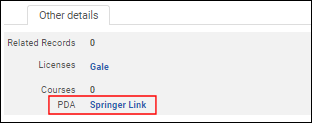 その他詳細タブTo assign a PDA to a set of electronic portfolios, run the Change electronic portfolio information job.See Performing Global Changes on Portfolios Using a Job for more information.For more information about assigning a PDA to an electronic portfolio, refer to the Assign a PDA to Electronic Portfolios video (5:08 mins).
PDA詳細を表示する PDAリンク(ID)を選択して、ユーザー手動受入に関する詳細を表示します。 追加注文明細このポートフォリオに関連付けられている追加の発注明細リスト。注文明細に関する情報を表示するリンクを選択します。他の注文明細をこのコレクションの追加注文明細に関連付けるには、[クイック追加]セクションで注文明細番号を検索または入力し、[注文明細の追加]を選択します。追加の注文明細として注文明細を削除するには、追加の注文明細で[削除]を選択します。 Ebook Central & JSTOR Purchase Model Section
編集中の電子ポートフォリオの場合、このセクションでは、そのポートフォリオに適用される購入方法を示します。
このオプションは、「Ebook Central Perpetual、DDAおよび購読タイトル」コレクションまたは「JSTOR自動所蔵書籍」に属するポートフォリオに対してのみ表示されます。For more information, see Upload Electronic Holdings from Ebook Central for Subscriptions/Owned/DDA and Upload Electronic Book Holdings from JSTOR.
Notes tab
When notes are entered and saved, the Notes indication icon (
 ) appears in the portfolio search results.
認証注記 認証に関連するメモ(ディスカバリーシステムへの表示用)。 公開メモ ユーザーデータベースに関する情報。(メモはディスカバリーシステムに表示されます。) 内部説明 スタッフユーザー向けの情報。(メモはスタッフのみに表示されます。) 一般注記 Use the Quick Add section to add any additional notes for the staff users.For more information, see Notes Tab. Group Settings tab: 編集中のポートフォリオの目録管理グループ設定(参照用に利用可)を入力します。 目録管理グループは、次のレベルで設定できます::- 電子コレクション
- 電子サービス
- ポートフォリオ
See the Group Settings tab explanation in step for editing the Group Settings tab in Adding a Local Electronic Collection for more information.以下の目録管理グループ設定をポートフォリオ用に構成できます:- グループ-設定が適用されるグループ名。
- 日付
- 記事差し止め/開始年 - 選択したグループについて、利用可否の調整壁(記事差し止め/開始年)を指定できます。上記の説明を参照してください。
- フィールド:
- プロキシを有効化する
- プロキシが選択されました
- 認証注記
- 公開メモ
電子コレクションおよび電子サービスの目録管理グループの設定とは異なり、ポートフォリオにはパブリック名がありません。
[日付情報を追加]を選択して、特定日付および利用できる巻範囲を追加します。日付、巻および発行の設定が表示されます。See Configuring Distributed Access to Electronic Resources for more information.Related Portfolios tab This tab displays a list of all portfolios that are linked to the same bibliographic record as the electronic portfolio that you are editing and provides each portfolio's coverage information across providers for all access types (Current, Perpetual, and Current and Perpetual).
各ポートフォリオの対象範囲情報を1つのタブに一元化することで、優先範囲に関連する購入決定が一層簡単になります。
[関連ポートフォリオ]タブに表示される恒久的アクセス情報は、アクセスタイプが[恒久的アクセス]、並びに[現在および恒久的アクセス]のポートフォリオの[対象範囲]タブに入力できます。
適切な権限があれば、[関連ポートフォリオ]タブにリストされている各ポートフォリオを編集および表示できます。
The following columns of information are provided on this tab: Availability, Portfolio ID, Access Type, Interface Name, Collection Name, Coverage, Perpetual Coverage, Available For Groups, Identifier, Title, Material Type, and MMS ID.
When there are related portfolios, the Related Portfolios indication icon (
 ) appears in the portfolio search results.
History tab This is a read-only tab that displays a list of changes that were made to the electronic portfolio or the electronic portfolio's group settings (for institutions where the multi_campus_inventory_management customer parameter set to true).
見たい履歴情報を示すには、次のいずれかのラジオボタンを選択します。
- ポートフォリオの変更
- グループ設定の変更
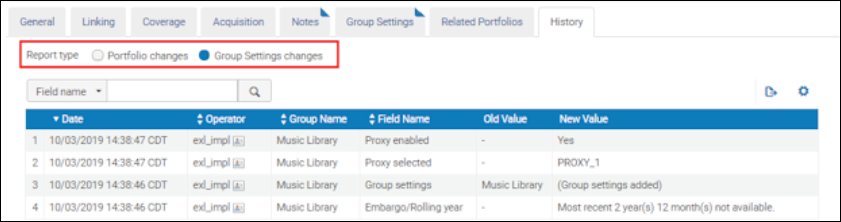 履歴タブのラジオボタン
保存された変更ごとに、[履歴]タブに次の情報が表示されます。
UIまたは内部システムプロセスによって行われた変更のみがこのタブに表示されます。他のジョブによって行われた変更は行われません。- Date of the change
- 変更を行ったオペレータ
- グループ名
- 変更されたフィールド名
- 旧(前の)値
- 新値
For more information about this History tab, see the History Tab for Electronic Resources video (4:26 mins). - 単一のスタンドアロンポートフォリオの場合、オプションで[電子コレクションに添付]を選択して、電子ポートフォリオエディタを使用して既存の電子コレクションにリンクします。このボタンは、スタンドアロンポートフォリオにのみ表示されます。See the procedure Linking a Standalone Portfolio to an Electronic Collection for more information.
- 適宜、ポートフォリオが誤った記述レコードに関連付けられている場合、もしくは、恐らく、ポートフォリオにはより正確な記述レコードがあり、これを別の書誌レコードに再リンクしたい場合、[別の書誌レコードへ再リンクする]を選択します。For more information, see Linking a Portfolio to a Different Record.
- [保存]を選択します。
Linking a Portfolio to a Different Record
A portfolio linked to the Community Zone receives Community Zone updates even if the bibliographic record for the portfolio is not linked to the Community Zone (local).
- リポジトリ検索を使用して、再リンクするポートフォリオを探して、電子ポートフォリオエディタで開きます。
- [別の書誌レコードへ再リンクする]を選択します。[再リンク確認]ダイアログボックスが表示されます。
- ポートフォリオを再リンクさせる書誌レコードをブラウズします(タイトルを選択)。[リポジトリ検索]ページが表示され、リンク先の書誌レコードを検索できます。[コミュニティ]タブおよび[ネットワーク]タブ(共同ネットワーク内)を選択して、電子ポートフォリオをリンクさせる別の書誌レコードが見つかります。For more information about relinking a portfolio's bibliographic record to a different bibliographic record in the Community Zone or Network Zone, see the Change Bibliographic Record of a CZ or NZ Record video (01:51 minutes).
- Select the tab (Institution,Network, or Community) to match your requirements and complete your search for the bibliographic record to which you want to link.
- 再リンクする書誌レコードを選択します。[再リンク確認]ダイアログボックスが表示され、選択したタイトルが表示されます。[コミュニティ]または[ネットワーク]タブでリンクする書誌レコードを検索する際、Almaは選択した書誌レコードが既にローカライズされているかどうかを判断します。選択されたレコードがローカライズされていない場合、Almaは選択した書誌レコードをローカライズし、通常どおりに再リンクを処理します。
- [目録なしの書誌レコードを処理する]には、次のオプションから一つ選択します:
- 書誌レコードを削除する
- 何もしない
- 書誌レコード(複数)をサプレス
- [確認]を選択してください。
電子コレクションにスタンドアローンポートフォリオをリンクするには
- リポジトリ検索を使用して、電子コレクションにリンクするスタンドアローンポートフォリオを探して、電子ポートフォリオエディタで開きます。検索がしやすくなるよう、詳細検索でスタンドアローンである電子ポートフォリオの検索オプションを使用します。
- [電子コレクションに添付する]を選択する。[コレクションとサービスの選択]ダイアログボックスが表示されます。
- ブラウズして、ポートフォリオを追加する電子コレクションを選択します。電子コレクションを選択するポップアップが開きます。The selection screen displays all collections, but allows selecting only the collections whose library matches the libraries defined your role scope(s).For details about library inheritance by portfolios, see Library Set on Electronic Resource.
- ポートフォリオを追加する電子コレクションを選択します。When linking a standalone portfolio that has a library set to an electronic collection that has a different library set, the portfolio's library is deleted.A warning is displayed: "The portfolio you are about to attach has a different library definition than the selected electronic collection.確認されると、ポートフォリオは電子コレクションの図書館定義を継承します。Note that this action cannot be reversed." Select Confirm to proceed.
- [コレクションとサービスの選択]ダイアログボックスで、サービスの種類を選択し、[確認]を選択します。
電子サービスエディタで電子コレクションのポートフォリオを編集する
個々のレベルまたはコレクションの一部として、電子ポートフォリオでジョブを管理できます。このセクションでは、コレクションの一部であるポートフォリオを電子サービスエディタで変更する方法について説明します。
このアクションは、電子リソースに設定されている図書館がユーザーの役職範囲で定義されている図書館と一致する場合にのみ有効になります。For other electronic resources, this action is disabled.For details about library inheritance by portfolios, see Library Set on Electronic Resource.
- 電子コレクションの検索を実行します。
- [サービスを編集する]を選択します。[電子サービスエディタ]で[有効化]タブを開きます。
- [ポートフォリオ]タブを選択します。ここでの情報に加え、タブの[すべてのサービスを表示する]リンクを選択して、他のサービスおよび関連する電子リソースを表示できます。これにより、総ポートフォリオ数、有効ポートフォリオ数、およびサービス種類ごとの有効開始日/終了日を含む[電子コレクションエディタ]ページが開きます。
- 編集するポートフォリオの行アクションリストから[編集]を選択します。
- See Editing a Portfolio Using the Electronic Portfolio Editor for information about editing the electronic portfolio.
Performing Global Changes on Portfolios Using a Job
In addition to uploading bulk changes to portfolios using an Excel file (see Adding, Editing, or Removing Portfolio Information in Bulk), inventory operators can make global changes to portfolios by creating a set of portfolios and then running a job on the set.Almaがサポートするジョブによるポートフォリオへのグローバルな変更は、以下のとおりです:
- ローカルカバレッジを削除する
- プロキシの設定
- URLの更新(たとえば、EZプロキシプレフィックスの削除など)
- ポートフォリオのライセンスへの関連付け
- ポートフォリオの有効化/無効化
- ポートフォリオの削除(適切な権限が必要)
- Apply a library to multiple electronic resources in bulk (For details, see Library set on electronic resource).
This tool cannot be used to update bibliographic record data.
- Run the Change Electronic Portfolio Information or Delete Portfolios jobs.
ローカルポートフォリオを削除する
ポートフォリオの削除法は、複数あります。このセクションでは、次の方法について説明します:
- ジョブを実行してポートフォリオを削除する
- ローカルのスタンドアローンポートフォリオを手動で削除する
- ローカルまたはコミュニティゾーンの電子コレクションの一部であるローカルポートフォリオを手動で削除する
ポートフォリオを削除すると、そのポートフォリオに関連付けられている電子リソースの有効化タスクも削除されます。
コミュニティゾーンで削除されたグローバルポートフォリオは、ローカルで無効化されます(ローカルで有効ではなく)。
電子コレクションの検索結果で表示される[削除]リンクを使用して対話的に実行する場合、特に多数のポートフォリオを削除すると、システムのパフォーマンスが影響を受ける恐れがでます。多数のポートフォリオを削除するには、バッチジョブの実行が望ましい方法です。
Run the Delete Portfolios job, as described in Running Manual Jobs on Defined Sets.
- リポジトリ検索を使用して、削除するポートフォリオを探します。
- [削除]を選択します。[削除を確認する]ポップアップウィンドウが表示されます。
- 選びたい[目録なしの書誌レコードを処理する]オプションを選択して、[確認]を選択します。処理が完了すると、成功メッセージが表示されます。
- リポジトリ検索を使用して、ポートフォリオが属する電子コレクションを見つけ、[編集]を選択して、電子コレクションエディタを開きます。
- [追加]タブでは、[サービス]セクションの行アクションリストから[ポートフォリオリスト]を選択すると、コレクションに含まれるすべてのポートフォリオのリストが表示されます。
- 削除するポートフォリオを選択して、[選択項目を削除する]を選択します。[削除を確認する]ポップアップウィンドウが表示されます。
- 選びたい[目録なしの書誌レコードを処理する]オプションを選択して、[確認]を選択します。処理が完了すると、Almaは成功メッセージを表示します。
コミュニティゾーンへのコミュニティゾーンにリンクされたコレクションの一部であるローカルのポートフォリオへのリンク
コミュニティゾーンへのコミュニティゾーンにリンクされたコレクションの一部であるローカルのポートフォリオにリンクすることができます。これにより、これらの電子コレクション/ポートフォリオの最新のコミュニティゾーンを見ることができます。Alma executes a job to process your linking request to the Community Zone and provides a report of the results on the Monitor Jobs page (see Viewing Completed Jobs).See Linking a Local Electronic Collection to the Community Zone for related information.
The "Link local portfolios to Community" action is enabled only if the library set in the electronic resource matches the library defined on the user's role scope.For other electronic resources, this action is disabled.For details about library inheritance by portfolios, see Library Set on Electronic Resource.
- コミュニティゾーンにリンクするローカルポートフォリオを含むコミュニティゾーンにリンクされた電子コレクションを見つけます。
- コミュニティゾーンにリンクするローカルポートフォリオを含む電子コレクション用に[サービスを編集する]を選択します。[電子サービスエディタ]ページが表示されます。
- [ポートフォリオ]タブを選択します。
- [ローカルポートフォリオをコミュニティにリンクする]を選択します。[電子リソースをコミュニティにリンク]ページが表示されます。
- 書誌レコード設定セクションでは、[コミュニティ書誌レコードを使用する]オプションの[はい]、または[いいえ]を選択し、[リンク]を選択します。Almaは、リンクアクションの概要/警告を含む[確認]ダイアログボックスを表示します。
- 表示された情報を確認し、すべてが問題なければ、[確認]を選択します。リンクジョブが問題なく終了したら、[ポートフォリオ]タブのすべてのローカルポートフォリオ(ステップ3から)を、コミュニティゾーンにリンクします。
ポートフォリオにライセンスを関連付ける
ライセンス情報を、電子コレクションの一部であるポートフォリオに一つずつ関連付けることができます。適切な役職を使用すると、オプションにアクセスして各ポートフォリオのライセンスを指定できます。ポートフォリオレベルで指定されていない場合については、Almaは電子コレクションライセンス(電子コレクション用に特定されたものであれば)をポートフォリオに関連付けます。
この機能をサポートする電子ポートフォリオエディタから提供される機能に加えて、次の関連オプションもライセンス機能をサポートします:
- その他詳細The name of the license appears in the Otherdetails tab (see Working with the Portfolio List for additional information).Select the name link to display the details of the license information.
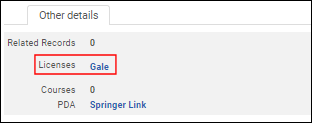
その他の詳細ライセンス情報 - [見る/ Alma リンクリゾルバ]でライセンスリンクを表示するWhen you use the View It link (from the Electronic Titles search results) to display a resource's information using the OpenURL Link Resolver, the Show (Hide) license link in the OpenURL Link Resolver window displays the license information defined at the portfolio level.
- [受入ライセンスの詳細インベントリ]タブ受入では、[有効なリソース]セクションおよびライセンスの詳細に関する[目録]タブの[リソース履歴]セクションのフィルターには、電子コレクションとポートフォリオ双方のフィルターオプションがあります。[リソースタイプ]列には、[目録]タブの電子コレクションまたはポートフォリオ情報が表示されます。For related information, see Managing Licenses and Amendments.
- 電子ポートフォリオエディタページの[受入]タブでライセンスを関連付けます。For more information, see Editing a Portfolio Using the Electronic Portfolio Editor.
Link Resolver Usage in Portfolio Search Results
ポートフォリオの検索結果を確認すると、利用者にポートフォリオのサービスが表示された回数と、リンク リゾルバを使用して実際にクリックされた回数を示すカウンターが表示されるようになりました。この合計数はタイトル レベルでも表示されます。This usage data is provided for Network Zone institutions as well, and you can find it in both electronic portfolio search results and on the Held by page.
カウンターのデータの期間は過去12か月間です。
This feature is an addition to the COUNTER usage information already available in analytics.It's designed to help institutions that use data to make informed decisions about their electronic holdings.
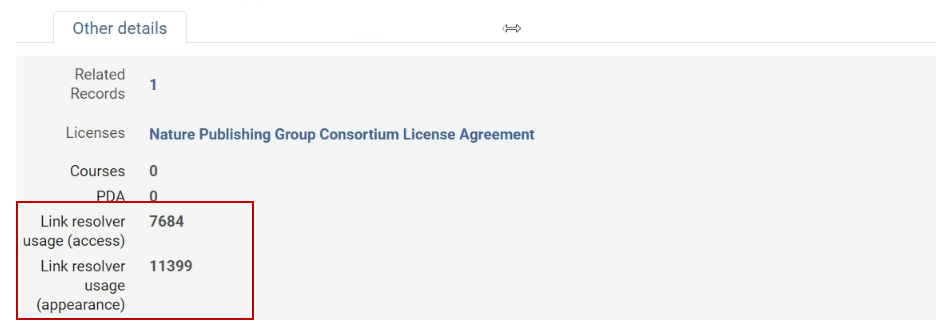
さらに、ポートフォリオの使用状況は、インスティテューションゾーンとネットワークゾーンの機関で異なる方法で表示されます:
機関ゾーンの場合:
- ポートフォリオの検索結果には、2つの数値が表示されます:
- Link Resolver Usage (Appearance)- The number of times the portfolio appeared in the "View it" section.これは、利用者に電子サービスが何回表示されたかを示すカウンターです。
- Link Resolver Usage (Access)- The number of times patrons clicked on the portfolio.これは「リンクリゾルバの使用状況:x/y」と表示されます。This is a counter that indicates how many times patrons accessed the electronic services.
- For "All Title" search results in the Other details tab, you'll see total usage values for all the portfolios under the title and the total number of times the portfolios appeared.
- In electronic title search results in the Other details tab, you'll also see total usage values for all the portfolios under the title.
ネットワークゾーンの場合:
- 電子ポートフォリオの検索結果で、ポートフォリオの利用状況を確認できます。
- In the Held by tab for all titles, you'll find usage information per portfolio, per institution.
- The usage data presented in the Other details tab is taken from Alma analytics.
- For Network Zone institutions, the Held by page displays the usage for each institution.
Working with the Portfolio List
<electronic collection name>のポートフォリオリストには、電子コレクションに関連付けられているポートフォリオが表示されます。The Portfolio List appears when you select PortfolioList from the electronic titles or electronic collection search results (see Searching in Alma) or when you select the number link for Number of Portfolios on the Additional tab in the Electronic Collection Editor.
ポートフォリオリストから、役職/権限、および[機関]、[コミュニティ]、あるいは[ネットワーク]タブなどのリストを開いたリンク/位置に応じて、以下のアクションを実行できます:
- 編集[機関] –[電子ポートフォリオエディタ]ページを開いて、ポートフォリオレコードを編集します。For more information, see Editing a Portfolio Using the Electronic Portfolio Editor.
- 表示[機関] –[電子ポートフォリオエディタ]ページを開いて、ポートフォリオレコードを表示します。このオプションでアクセスする情報は読み取り専用です。
- 有効化/無効化(機関およびコミュニティ)– 電子ポートフォリオを有効化/無効化します。複数のリソースを有効化/無効化するには、各リソースのチェックボックスをオンにし、ドロップダウンリストから[有効化]または[無効化]を選択し、[実行]を選択します。また、[コミュニティ]タブからポートフォリオリストにアクセスする場合、[選択項目をローカライズする]を選択して複数のポートフォリオを有効化します。
- Order (Institution and Community) – Open the PO Line Owner and Type page to initiate a purchase order (see Creating PO Lines).これには、すでにローカルで有効化されている電子コレクションからポートフォリオを発注する機能が含まれます。
- コミュニティ(機関)にリンクする–ポートフォリオをコミュニティゾーンにリンクします。
- E アクティベーションタスクを作成する(機関)–リソースのE アクティベーションタスクを作成します。
- アクセスをテストする(機関)–電子ポートフォリオへのアクセスをテストします。
- 削除(機関)-「子レコードのない書誌レコード」または「目録のない書誌レコード」を削除します。
- Ex Librisに送信する(機関およびコミュニティ)–リクエストを送信します。
- 見る(ネットワーク)–[UResolver]ページで電子ポートフォリオを開きます。
- 文書配信-[リクエストを作成する]ぺージを開きます。
Row level actions Edit,Move,Remove,Duplicate,Deactivate,Delete (enabled for the Electronic Inventory Operator Extended role) are enabled only if the library set in the electronic resource matches the library defined on the user's role scope.その他の電子リソースの場合、これらのアクションは無効になっています。For details about library inheritance by portfolios, see Library Set on Electronic Resource.
さらに、以下で説明するように、拡張エクスポートとExcelエクスポートを実行できます。

-
拡張エクスポート-電子コレクション内のすべてのポートフォリオをExcelファイルにエクスポートします。See Portfolio Loader for a list of all the information (Excel columns) that is exported.日付列(有効化日時列など)は、Excelの並べ替えとフィルタオプションを使用して、日付として(テキスト文字列だけでなく)並べ替えることができます。コレクションに5,000以上のポートフォリオが含まれる場合、各サービスタイプのポートフォリオは、個別のファイルに保存され、ジョブはバックグラウンドで実行されます。You can use the Monitor Job page (see Viewing Running Jobs) to monitor the job's progress and view the Excel files.少ないポートフォリオのコレクションもExcelファイルに保存されますが、ジョブはフォアグラウンドで実行され、各サービスタイプのポートフォリオは、Excelファイルの個別のタブに保存されます。ポートフォリオローダーは、ISSNまたはISBNだけでなく、コミュニティゾーンポートフォリオIDに基づいて、コミュニティゾーンポートフォリオのマッチングをサポートします。Excelファイル内の[ローカライズ]フィールドは、コミュニティゾーンポートフォリオが、所属機関用にローカライズ/有効化されたことを示しています。
拡張Excelエクスポートをサンプリングする For more information about Extended Export, see the Export Tasks From CZ Updates Task List video (3:43 mins). - Excel(現ビュー)–ポートフォリオのリストをExcelファイルにエクスポートします。
Moving Portfolios to a Different Electronic Collection
コミュニティゾーンから有効化されたローカルポートフォリオおよびポートフォリオは、一度に1つずつ、またはポートフォリオのセットを使用して、現電子コレクションから別の電子コレクションまで移動できます。詳細については、次のセクションを参照してください:
- Moving a Single Portfolio to a Different Electronic Collection
- Moving a Set of Portfolios to a Different Electronic Collection
The Move action is enabled only if the library set in the electronic resource matches the library defined on the user's role scope.For other electronic resources, this action is disabled.For details about library inheritance by portfolios, see Library Set on Electronic Resource.
異なる電子コレクションに一つのポートフォリオを移動する
ある電子コレクションから別の電子コレクションにポートフォリオを移動する前に、ポートフォリオが存在する現電子コレクションを特定し、移動先の電子コレクションを特定する必要があります。
コミュニティゾーンに登録されたポートフォリオが、あるコレクションから別のコレクションに移動した場合、そのポートフォリオはローカライズされ、コミュニティゾーンからリンク解除されます。
-
From the Portfolio List page (Electronic Collection search results -> Portfolio List (action)) or the Portfolios tab on the Electronic Service Editor page (Electronic Collection search results -> Edit Collection -> View Full Text Service (link in the summary section) -> Portfolios (tab)), select Move from the list of actions.
-
[宛先電子コレクション]、および[宛先サービスタイプ]情報を入力します。移動させるポートフォリオの主な特性は、[ポートフォリオを移動する]ポップアップウィンドウに表示されます。続行する前に、この情報をよく読んでください。
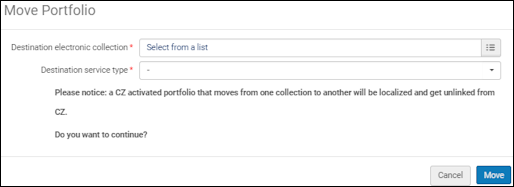 ポートフォリオ宛先電子コレクションおよびサービスタイプ情報を移動する
-
[移動]を選択します。ポートフォリオが移動します。
Moving a Set of Portfolios to a Different Electronic Collection
ポートフォリオのセットを移動する前に、ポートフォリオが存在する現電子コレクションを特定し、移動先の電子コレクションを特定する必要があります。
- コミュニティゾーンに登録されたポートフォリオが、あるコレクションから別のコレクションに移動した場合、そのポートフォリオはローカライズされ、コミュニティゾーンからリンク解除されます。
- このアクションは、電子リソースに設定されている図書館がユーザーの役職範囲で定義されている図書館と一致する場合にのみ有効になります。For other electronic resources, this action is disabled.For details about library inheritance by portfolios, see Library Set on Electronic Resource.
-
ポートフォリオのセットのソース電子コレクションの[電子サービスエディタ]ページの[ポートフォリオ]タブから、[ポートフォリオのセットを移動する]を選択します。
-
Enter the Set name,Destination electronic collection, and Destination service type information.移動させるポートフォリオセットの主な特性は、[ポートフォリオを移動する]ポップアップウィンドウに表示されます。続行する前に、この情報をよく読んでください。
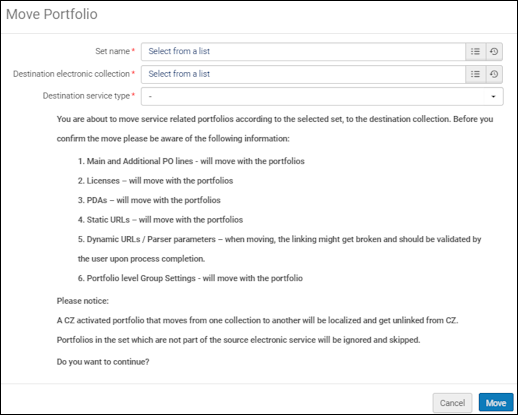 ポートフォリオセット名、宛先電子コレクション、およびサービスタイプ情報を移動する
-
[移動]を選択します。「ポートフォリオを別の電子コレクションに移動させる」ジョブは、ポートフォリオを移動するために実行します。ジョブレポートを確認できます。
-
詳細カウンターレポートの横にある[レポートのダウンロードを選択する]リンクを選択します。トランザクションまたはステータスの変更ごとに、同じポートフォリオIDがExcelファイルレポートの新しい行に表示されます。
 詳細カウンターレポートのExcelファイル
Accessing the Community Zone Update Task List from Electronic Resource Editors
You can easily navigate from the electronic resource editors (Electronic Collection Editor / Service Editor / Portfolio Editor) to the Community Zone Update Task List page (see Working with the Community Zone Updates Task List).To do that, select the button "Review CZ Updates (X)", where "X" indicates the number of CZ updates available in the Review tab of the Community Zone Update Task List for that resource.
This button appears for resources linked to the Community Zone, including portfolios that were linked to CZ in the past and got localized due to portfolio deletion from the CZ.This button appears only for users with Repository Manager role (regardless if the role's scope is library-level or institution-level).
Page tags: article:topicInventoryLink Resolverproduct:almacontent:Documentationlang:englishLink Resolvingportfolio loader Excelactivate electronic resourceElectronic Collectionelectronic serviceelectronic portfolioelectronic material typedisplay CTO
