
コースの管理
コース情報を追加またはインポートできます。コースは学生のための図書リストと引用を作成するときに使用されます。司書が学生のために資料を予約、処理、注文するために使用します。
This page describes how to manage courses including adding courses, managing reading lists, user and course enrollment information, etc. For an overview of the workflow for courses and reading lists see Workflow.For links to all the main fulfillment documentation pages see Fulfillment.
- コースリザーブマネージャー
- フルフィルメントサービス管理者
- コースリザーブオペレータ
- (New for February 2026) Course Reserves Viewer (read-only access)
コースローダ統合プロファイルを使用して、コース情報をインポートできます。For more information, see Configuring Course Loading.コースは、[コース]ページで管理します([フルフィルメント]>[コースリザーブ]>[コース])。[コース]ページには、機関用に作成されたすべてのコースが直接リスト表示されます。When searching for courses using the Simple and Advanced Searches, this page displays the results.
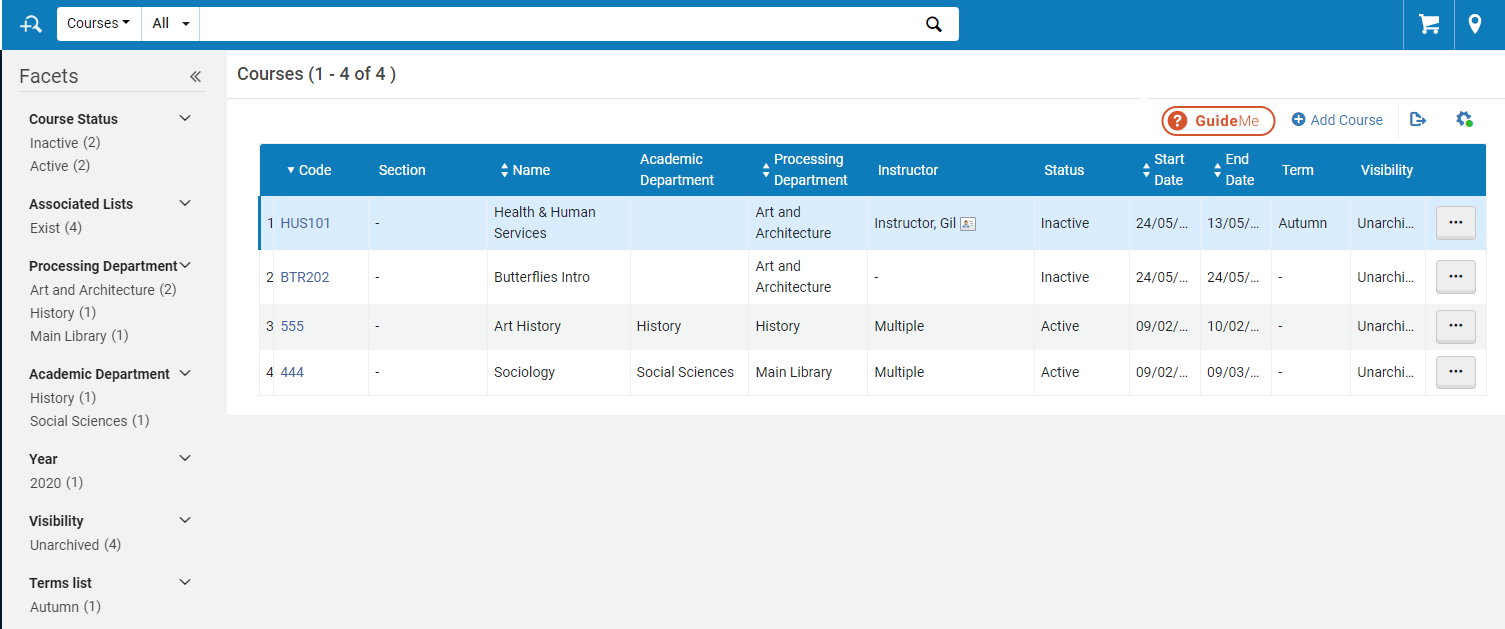
このページから、ページの上部にある検索ボックスを使用してコースを検索し、次のファセットを選択して結果をフィルタリングできます:
-
コースステータス
-
関連リスト:
-
あり(コース数)
-
なし(コース数)
-
-
処理部署
-
学術部署
-
キャンパス
-
年
-
可視性
-
期限リスト
To publish course information to Primo, see Configuring Course Reserves in Primo.To publish course information to Summon, see Enabling the Course Reserves Facets in Summon and Configuring the Course Reserves View.
Adding a Course
- Legantoを使用している場合、CMSから到着したときに、インストラクターがLegantoに直接コースを追加できるようにすることができます。さらに、インストラクターがコースの日付やLegantoの参加者数を変更できるようにすることができます。See Configuring Whether Instructors Can Create or Modify Courses.
- コース読み込み統合プロファイルを使用して、コースを一括で追加できます。For more information, see Configuring Course Loading.
- [コース]ページ([フルフィルメント]> [コースリザーブ]> [コース])で、コースを追加を選択します。[コース情報の管理]ページが開きます。
コース情報の管理ページ - 必要に応じてコース情報を入力します。
コース情報の管理フィールド フィールド 説明 コード(必須) コースコードとセクションの統合は一意である必要があります。セクションを使用しない場合、すべてのコースコードは一意である必要があります。 セクション コースをセクションに分割して、学生向けのリソースとアクティビティをより適切に整理することができます。各セクションは、異なる施設メンバーによって教えられ、個別の説明が含まれ、学部メンバーが必要とするだけのリソースが含まれています。コースコードとセクションの統合は一意である必要があります。 名前(必須) 一意である必要はありません。 処理部局(必須) コースを「管理」する部局。現在、このフィールドは情報提供のみを目的としています。Use the quick pick list to select a department predefined by an administrator (see Configuring Processing Departments) 学術部局 コースに関連する学術部局。Select from a list predefined by an administrator (see Configuring Academic Departments) 期限リスト コースが教えられる期間。Select from a list predefined by an administrator (see Configuring Course Terms) リストを送信(Legantoのみ) コースの開始前に十分な時間をかけて処理するために、インストラクターに図書リストを送信するように催促する日付。この日付に関する通知は、コースに関連付けられているすべての図書リストについてLegantoに表示されます。 ステータス コースのステータス。It is determined by the course start and end date.コースを作成しているとき、このフィールドは無効になっています。 - アクティブ-コースは開講中
- 非アクティブ-コースは過去に教えられた、または教えられる予定だが、現在教えられていない
Course data for inactive courses is not published to Primo (see the Course Restricted field in Adding a New Book or Journal Article.Also see The Format of Published Data).開始日 現在の日付がデフォルトの日付です。An administrator can set the default for this value, see default_course_start_date in Configuring Other Settings). 終了日 この日付を開始日よりも前にすることはできません。An administrator can set the default for this value, see default_course_end_date in Configuring Other Settings). The course's end date is transferred to the course's reading lists.参加者数 コースに登録している学生の数。このフィールドは、キャンパスを使用していないか、参加者の数がどのキャンパスにも定義されていない場合にのみアクティブになります。それ以外の場合、このフィールドの値は、すべてのキャンパスの参加者の合計となります。 週ごとの時間 週あたりのコースの授業時間数。 年 学科コースの年。 検索可能なID コースの追加ID。Primoおよび外部システムの検索インデックスに使用されます。 タブ: インストラクター インストラクタータブで、コースのインストラクターを参照し(リストはすべてのAlmaユーザーで構成されます)、インストラクターの追加を選択します。インストラクターがコースに追加されます。 1つのコースに複数のインストラクターを追加できます。コースに複数のインストラクターがいる場合、[コース]ページのインストラクター列の値は複数です。(Legantoのみ)デフォルトでは、インストラクターは、Legantoの学生およびゲストユーザーに対し、コース関連のツールチップおよびこのコースに関連付けられた図書リストのパネルに表示されます。Legantoに表示されるように設定されているインストラクターには、このタブのインストラクターの表示列に緑色のチェックマークが付いています。To configure an instructor to appear / not appear in Leganto, select Unhide/Hide in the row actions list for the instructor.See Enabling Instructor Information in Leganto.(Leganto only) Instructors arriving from the CMS are added as instructors to the relevant course if they are not already associated with the course as an instructor.Multiple instructors are listed by name in the header of the Course's Reading List page (Fulfillment > Course Reserves > Courses, select Reading List in the row actions list for a course).キャンパス キャンパスタブで、オプションで事前定義されたキャンパスを選択し、キャンパスの参加者数を入力して、キャンパスを追加を選択します。キャンパスがコースに追加されます。To configure campuses; see Configuring Campuses. 1つのコースに複数のキャンパスを追加できます。すべてのキャンパスの参加者数は、コースの参加者総数としてリストされています。キャンパスが定義されていない場合、またはキャンパスの参加者数を入力しない場合、コースの参加者数を手動で管理できます(上記を参照)。学生
(Leganto only) On the Students tab, you can view all students that are enrolled in the course, add students, and delete specific students or all students from the course.
For additional information on how to load user enrollment information, see Configuring Importing Course Enrollment Jobs.
注記 一般ノートタブを使用すると、コースに関する一般的な情報を含むメモを追加できます。 - [保存]を選択します。コース教材が保存されます。
- [コース]ページ([フルフィルメント]> [コースリザーブ]> [コース])で、コースの行リストアクションで重複を選択します。[コース情報の管理]ページが表示されます。表示されるフィールドの詳細については、上記のコース情報フィールドの管理のテーブルを参照してください。
- 必要に応じて関連フィールドを変更し、保存選択します。新しいコースが[コース]ページに表示されます。
コースの編集
- [コース]ページ([フルフィルメント]> [コースリザーブ]> [コース])で、コースの行アクションリストで編集を選択します。[コース情報の管理]ページが開きます。If the course was rolled over from another course, a link to the original course appears in the header; for more about course rollover, see Rolling Over Courses.
- Modify the course information as required; see Adding a Course.When editing a course, you can add notes in the Notes tab (see Editing a Reading List).
- 保存を選択します。
削除していないコースが見つからない場合、サポートに連絡する。
コースリーディングリストの管理
コースリーディングリストを表示したり、それをコースにコピーしたりできます。For details on working with reading lists, see Managing Reading Lists.
Legantoユーザーは、Legantoインターフェースでの読書リストの表示順序を変更することもできます。
コースリーディングリストの表示
[コース]ページ([フルフィルメント]> [コースリザーブ]> [コース])で、コースの行アクションリストで図書リストを選択します。The Course's Reading List page appears.このページには、コースに関連するリーディングリストが含まれています。
リーディングリストタスクリストページからもこのページにアクセスできます([フルフィルメント]>[コースリザーブ]>[リーディングリスト]、リーディングリストの行アクションリストでこのコースのすべてのリーディングリストを選択)。リーディングリストが複数のコースに関連付けられている場合、このアクションは使用できません。コース列からコースコードを選択して、そのコースのリーディングリストを表示します。
Legantoでコースの読書リストを並べ替える
Legantoでのコースの表示を並べ替えるには、下に移動/上に移動列の上/下の矢印を選択します。
リーディングリストのコピーとコースへの追加
- [コース]ページ([フルフィルメント]> [コースリザーブ]> [コース])で、コースの行アクションリストでリーディングリストのコピーを選択します。[リーディングリストタスクリスト]ページが表示されます。
リーディングリストタスクリストページには、機関に定義されているすべてのリーディングリストが表示されます。
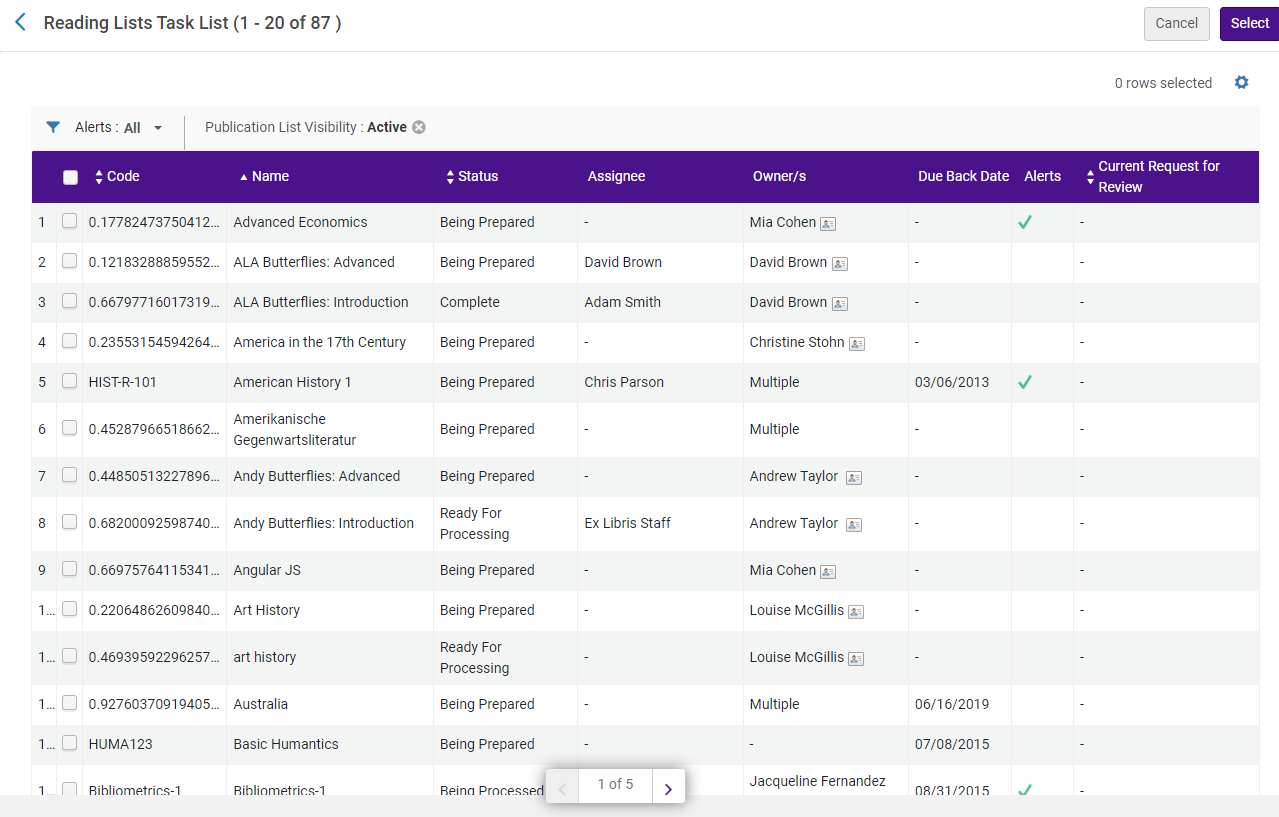 指定リーディングリスト タスクリスト
- コースに追加する各リーディングリストのチェックボックスを選択し、[選択]を選択します。図書リストがコースに追加されます。
追加された図書リストを表示するには、コースの行アクションで図書リストを選択します。
ユーザーおよびコースの登録情報の管理
You can import user and course enrollment information into Alma, which enables students to see all their reading lists on the Lists page without having to enter Leganto using an LTI link for each reading list.With this enhancement, you can use Alma to view student enrollment information and remove students from courses.
Importing user and course enrollment information is performed using the Course Enrollment integration profile (see Configuring Importing Course Enrollment Jobs).
To enable the management of student enrollment information in Alma, the display_course_students field has been added to the Customer Parameters mapping table (Configuration Menu > Fulfillment > General > Other Settings).When set to true, you can view enrollment information in the following tabs:
-
Students – This tab has been added to the Manage Course Information page (Fulfillment > Course Reserves > Courses) to enable you to view all students that are enrolled in a course and to delete specific students or all students from a course.
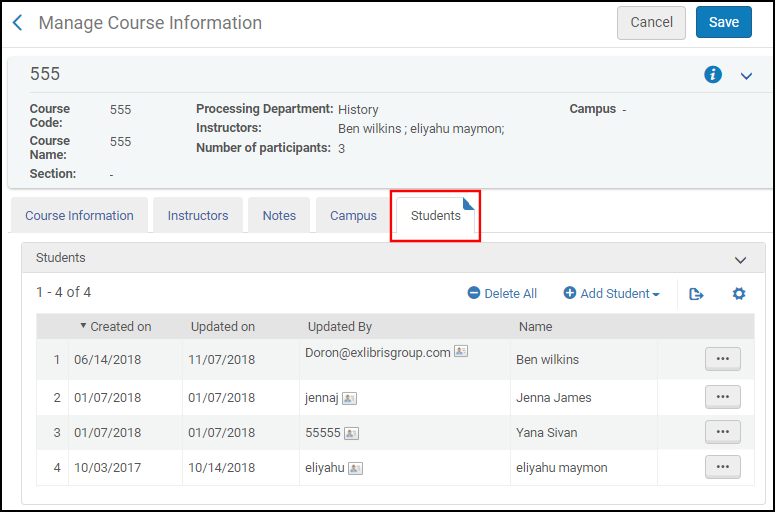 コース情報の管理ページ - 学生タブ
-
Courses – This tab has been added to the User Details page (Admin > User Management > Manage Users) to enable you to view all courses to which a student has enrolled and to delete specific courses or all courses to which a student has enrolled.
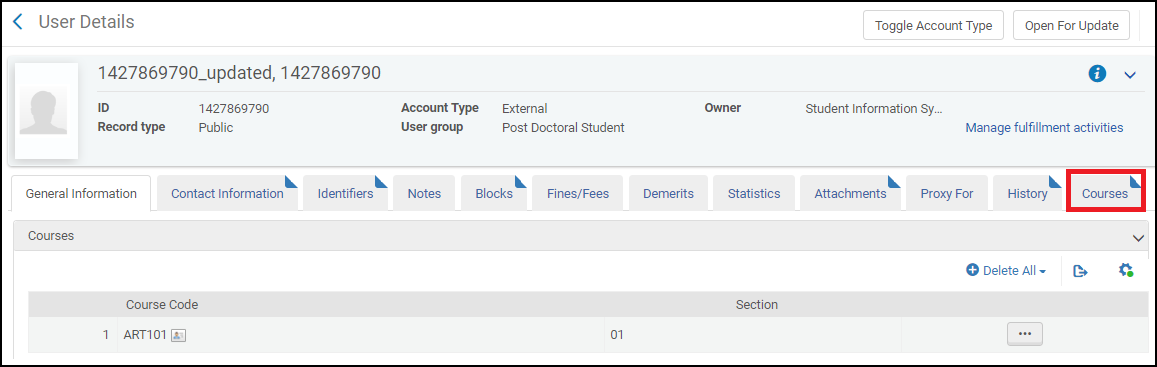 ユーザー詳細ページ - コースタブ
コースのロールオーバー
古い年と新しい年のコースコードをマッピングする方法が分かっている場合は、コースロード統合プロファイルを使用して、コースを1年から次へと一括してロールオーバーできます。統合プロファイルでは次の設定オプションを使用します。
- タブ区切りのデータファイル:
- Enter all of the mandatory fields for each new course and enter ROLLOVER as the action in the Operation field.
- 古いコースコードフィールドと古いコースセクションIDフィールドに、それぞれ古いコースIDとセクションIDを入力します。
- 値をコピーするフィールドごとに、そのフィールドに+を入力します。
- 古いコースリーディングリストとインストラクターを新しいコースにコピーする(またはコピーしない)には、統合プロファイルでロールオーバーオプションが正しく設定されていることを確認してください。
- If you are using Leganto, see Leganto Course Rollover.
For more information, see Configuring Course Loading.詳細については、コースの読み込みの設定を参照してください。Legantoを使用している場合、インストラクターはリーディングリストを手動でロールオーバーできます。
Also see Course Rollover in Bulk via Course Loader.(8分44秒)
コースを削除する
You can delete courses in bulk using either the course loading integration profile (see Configuring Course Loading) or the Course Bulk Update job (see Course Bulk Updates).
[コース]ページ([フルフィルメント]> [コースリザーブ]> [コース])で、コースの行アクションリストで削除を選択し、確認ダイアログボックスで確認を選択します。
コースのアーカイブ
Almaでコースをアーカイブして、過去の情報を削除せずに、Almaで閲覧する図書館のデータ量を減らすことができます。Archived courses are still available for reference purposes, and you can view statistical data on archived courses from Alma Analytics.コースは、個別または一括でアーカイブおよびアーカイブ解除できます。
Use the Archive action in the course action list to easily archive a single course.Marking a course as archived immediately filters the course from the current course list visibility, removing it from view.
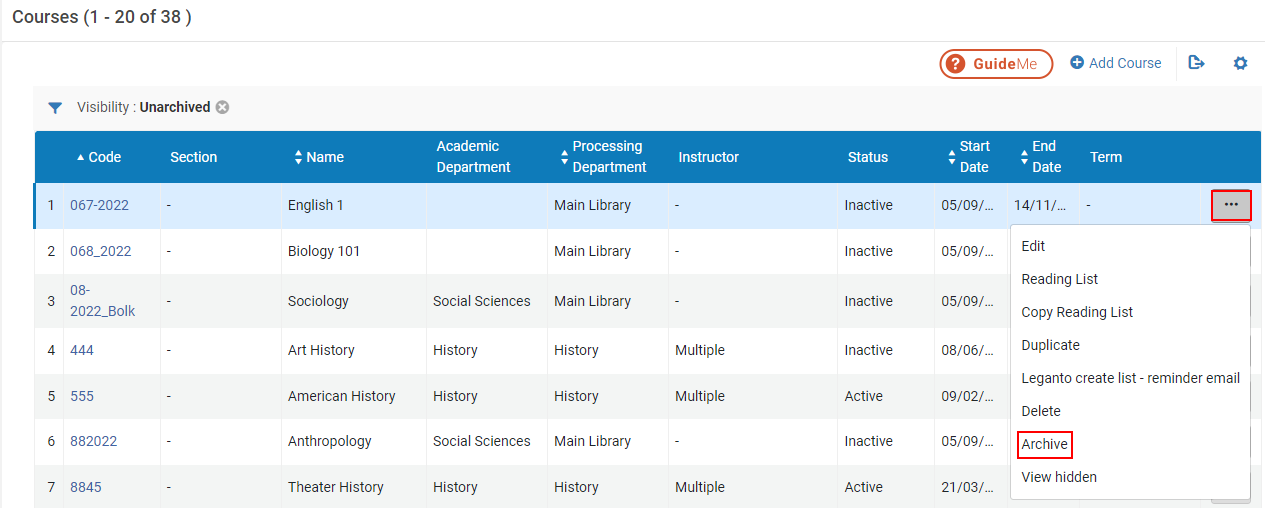
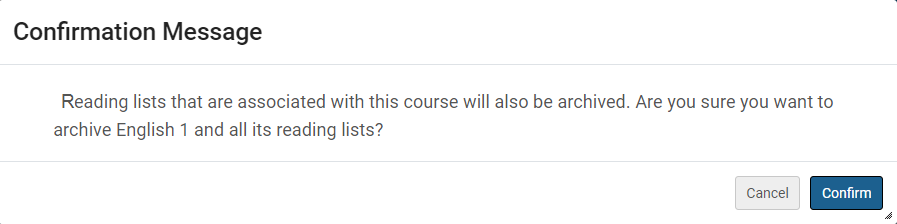
When marking a course as archived, any reading list associated with the course is also archived.したがって、コースに関連付けられているすべてのリーディングリストもアーカイブされているという確認メッセージが表示されます。
Courses whose reading list is linked to additional unarchived courses cannot be archived.If you attempt to archive a course with a reading list that is linked to additional courses, you receive an error message:
This course cannot be archived because it has [number] unarchived reading lists that are linked to other courses.図書リストをアーカイブするか、コースの関連付けを削除してから、もう一度やり直してください。
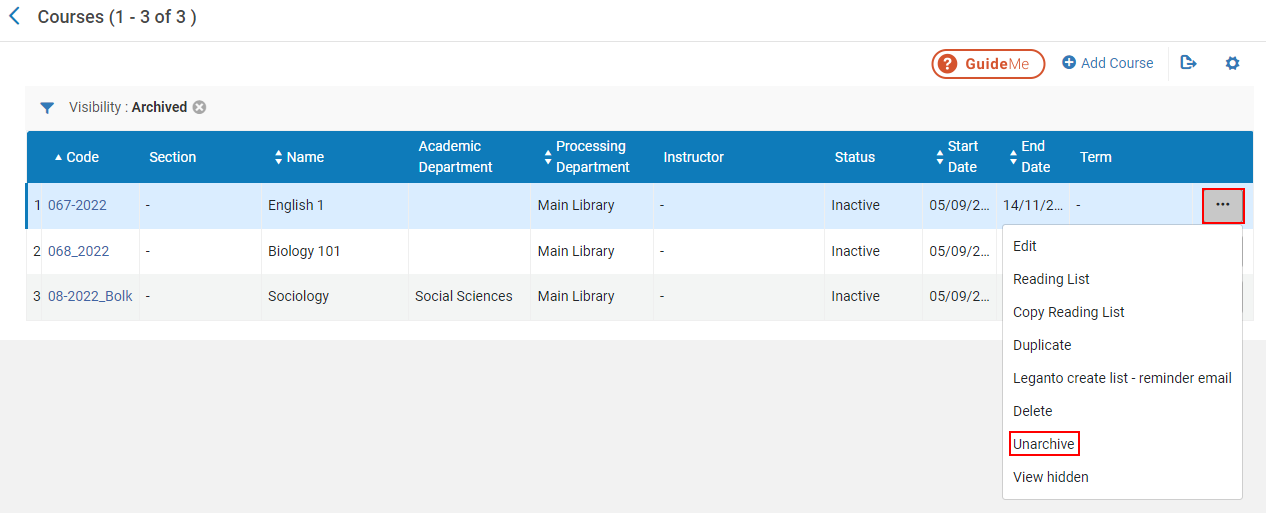
When viewing an Archived course, you can use the Unarchive action to restore archived courses.The course is then restored, but the associated reading lists remain archived, and you need to unarchive them separately.
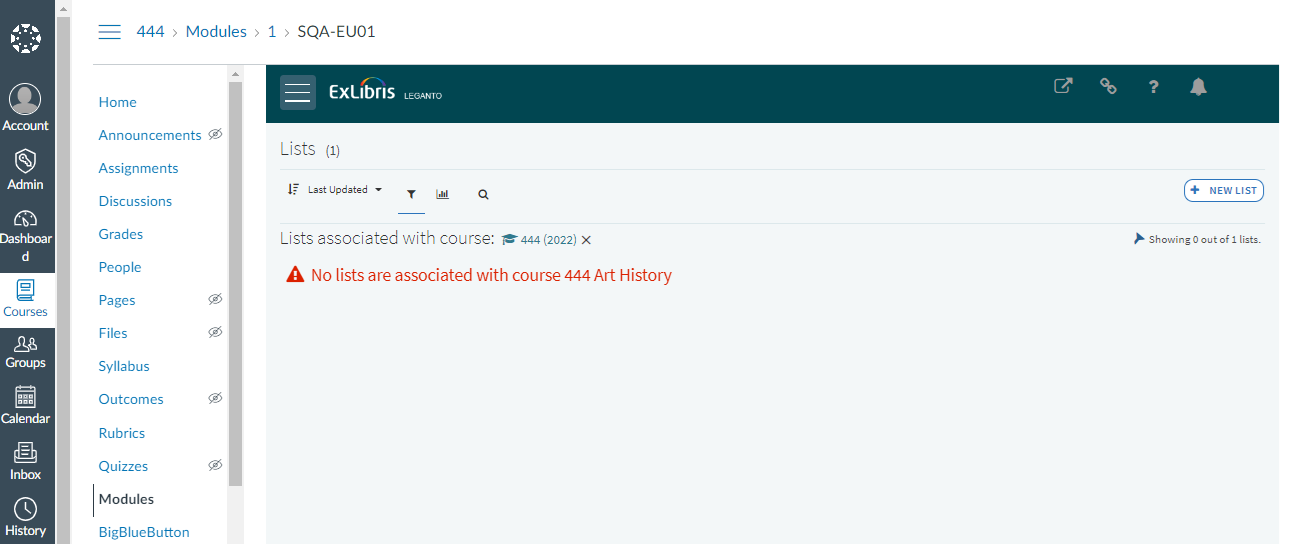
Archived Courses in Leganto
Archived courses are hidden from view in Leganto.When attempting to access an archived course from the Learning Management System (LMS), you receive a message that no lists are associated with the course.
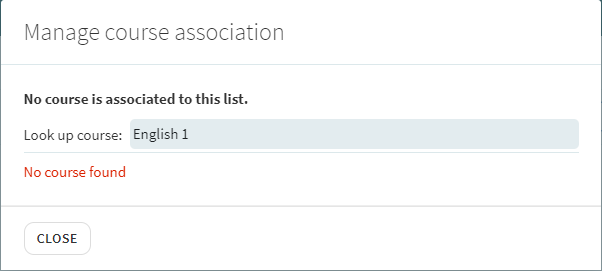
Archived courses are not included in the Manage course association and Roll Over lists in Leganto.
コースの一括更新
The Course Bulk Update job (Admin > Manage Jobs and Sets > Run a Job > Courses > Courses Bulk Update) enables you to perform either of the following actions on a set of courses:
-
Update course information such as processing and academic department, instructors, and so forth.
-
図書リストが添付されていないコースを削除します。
-
コースのアーカイブ/アーカイブ解除。
For details, see Course Bulk Update Job.
Page tags: article:topicProd:Almacontype:documFulfillmentCourses and Reading Listsproduct:almacontent:Documentationinstructorlang:englishCourseacademic departmentprocessing departmentcourse statusdeleting coursesManage Course Informationadd courseadd instructoredit coursemanage course
