
引用を管理
引用は、コースリーディングリストのエントリです。学生が読んだり見たりするべき資料を定義します。司書には、著作権の要件をクリアするなど、資料へのアクセスを提供する責任があります。
このページでは、引用の扱い方について説明します。For an overview of the workflow for courses and reading lists see Workflow.For links to all the main fulfillment documentation pages see Fulfillment.
- コースリザーブオペレータ/管理者
- コースリザーブビューア(読み取り専用アクセス)
- フルフィルメントサービスオペレータ/管理者
引用とは、学生がコースで見たり読んだりすべきアイテムを指します。引用は図書リストに表示されます。コースには複数の図書リストがある場合があります。
引用は、ウェブサイト、アップロードされた文書、電子または冊子フォーマットの本や記事です。本または記事の引用は、アイテムを一意に識別するのに十分な詳細を提供する必要があります。これには、著者、発行日、タイトル、ページ番号が含まれます。また、国際標準図書番号(ISBN)、ウェブサイトのURL、特定の巻、記事、定期刊行物の他の識別可能な部分などの一意の識別子を使用することもできます。
- 本の章、雑誌記事、会議論文は、大きな文書の一部であるため、それらのタイトルは、文書全体のタイトルと異なる場合があります。同様に、著者は、文書全体の著者または編集者と異なる場合があります。これらの引用には、掲載されたソースに関する詳細が含まれています。
- アクティブなコースにリンクされている引用は、コース情報を含めてPrimoに発行されます。Primo検索では、コースID、コース名、インストラクター名を取得できます。For this information to be published to Primo,Course information enrichment must be selected in the Primo publishing profile.Note that it is the status of the Course that determines a Primo record having the citation to a Course; deactivating the reading lists that actually contain the record does not impact this.
- Adding or editing a citation may automatically trigger a purchase request (create a PO line); see Configuring Automatic Purchasing Requests from Citations.
- For information about Ex Libris' reading list/citation management system, see the Leganto Administration Overview.
- Alma UIまたはAlma ウェブサービスAPIを使用して追加された引用は、図書リストのデフォルトセクションに追加されます(セクションはLegantoでのみ関連します)。
- Citations of type Note(citations whose material type is set to Note) are added by instructors in Leganto.They are used to provide information to the students who are viewing the reading list and do not need to be fulfilled by the library staff.
引用は、リポジトリ/目録アイテムにリンクさせることもリンクさせないことも可能です。Titles not linked to the repository are typically articles or videos on external websites or faculty resources that are not part of the institution's inventory.
[引用の編集]ページ([フルフィルメント]> [コースリザーブ]> [引用])で、複数の図書リストから図書リストの引用を管理します。または、[図書リストの編集]ページ([フルフィルメント]>[コースリザーブ]>[図書リスト]、[図書リスト]の引用タブにある単一の図書リストを選択するか、行アクションリストからジョブを選択)から行います。アーカイブされた図書リストからの引用は、このページには表示されないことに注意してください。
You can also access the Edit Citations page by searching for citations; see Searching in Alma.
You can also access the Edit Citations page with any of the citation tasks in the tasks list (see Tasks in the Task List).タスクリストを使用してアクセスすると、選択したタスクに応じて、1つ以上のタブやフィルタが事前に選択されています。
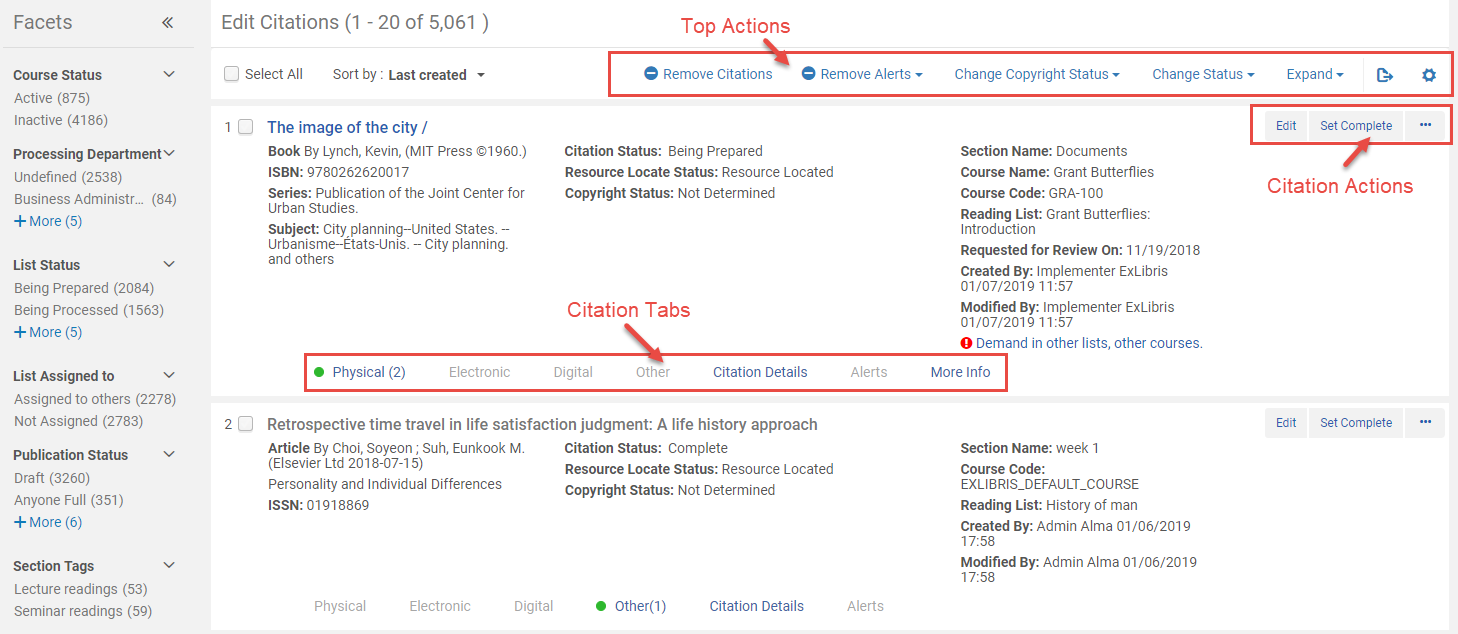
When editing citations, you can select the link following Reading List to access the Edit Reading List page.For more information about editing your reading list, see Editing Reading Lists.
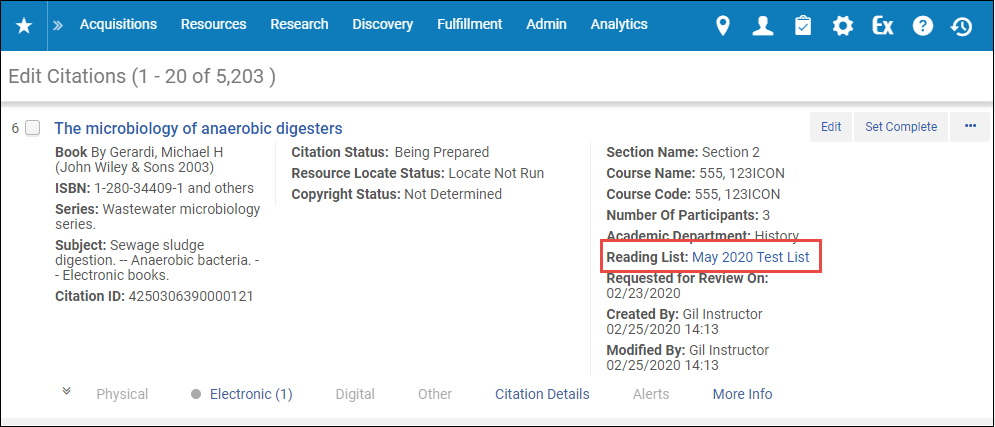
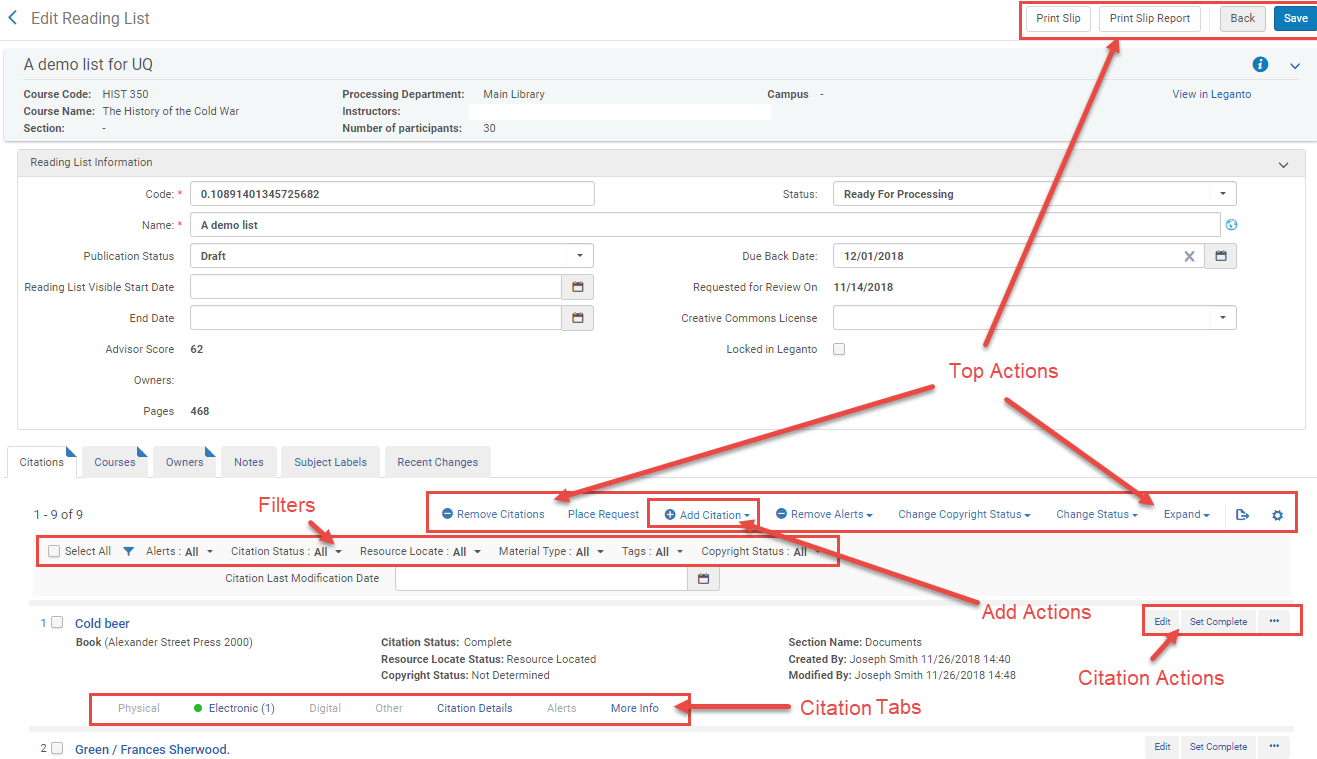
[引用の編集]ページでは、引用がレコードリストとして表示され、最後に作成された引用が最初に表示されます。Legantoを使用している場合は、ソートフィルタを使用してソートオプションを選択できます。[リーディングリストの編集]ページでは、reading_list_citation_orderのパラメータで指定されたオーダーで引用が表示されます。For more information, see Configuring Other Settings.アクションは複数のグループで利用できます。
アラート、目録情報、追加の引用情報は、各引用の下のタブに表示されます。これらのタブは最初は折りたたまれています。タブを選択して、情報を展開または折りたたみます。すべての冊子、電子、その他の目録情報をすべての図書リストに対してデフォルトで展開して表示する場合は、展開の関連オプションを選択します。Almaにログインするたびに、再選択する必要があります。冊子アイテムと所蔵を表示するには、行のアクションリストでアイテムを選択します。
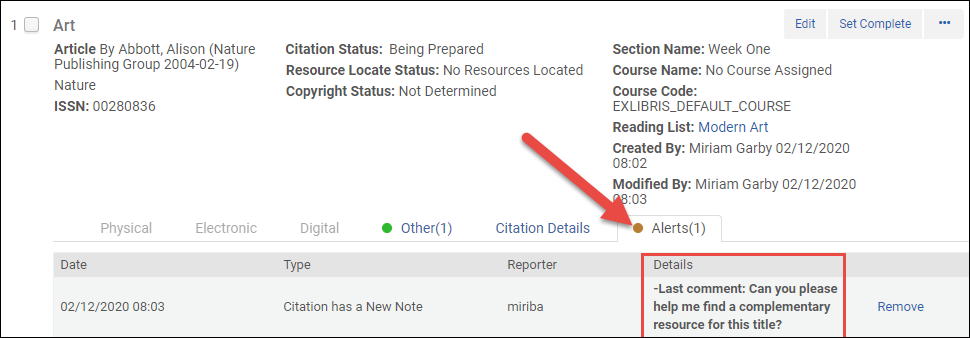
Notes left by users are shown in Details located in the Alerts tab of a citation's brief information as Last comment.
次の図は、AlmaのAlma引用の要約情報の詳細セクションに表示されるメモを示しています。
The following figure shows the notes shown in the Library discussion in Leganto.
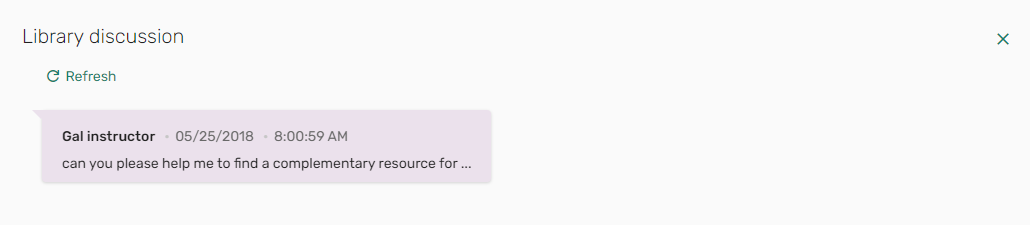
For more information about record lists, and for information about how to configure the arrangement of the fields and citation actions, see Record Lists.
各行の引用タブは次のとおりです。
- Physical,Electronic,Digital- See Viewing Inventory/Other Details.冊子タブには、冊子リソースの請求番号(棚番号)が含まれます。
- Other- Other methods of viewing the citation source material, which include (where relevant) OpenURL link resolver link, link to the uploaded file, or the original source or URL of the citation.少なくとも1つの方法があれば、タブに緑の点が表示されます。
- Citation Details- Additional citation details, some of which may have originated from the repository item to which the citation is linked.See Viewing information about a citation.
- Hold By(New for August 2026) - Appears for Network Zone resources that are used in a citation.
- Alerts- Any alerts related to this citation.アラートの数がタブヘッダーに表示されます。可能な場合は、削除を選択してアラートを削除します。
- More Info- Additional information, including repository item title, related records, orders related to this item, requests or work orders related to this item, and a link to the courses in which this item is in demand as a citation.See Viewing information about a citation.(Legantoのみ)このタブは、複数のコースに関連付けられた図書リストを現在サポートしていません。引用が複数のコースに関連付けられているリーディングリストに関連付けられている場合、コースフィールドの値が正しくない可能性があります。
このページで実行するアクション:
- フィルタ([図書リストの編集]ページ)またはファセット([引用の編集]ページ)を使用して、引用のリストをフィルタ処理できます。
- Alerts- Alert type connected with the citation (see Removing alerts from citations)
- Citation Status- Citation (fulfillment) status of the citation.See Reading List and Citation Statuses.Not Complete matches any citation whose status is not Complete.
- Resource Locate- Resource locate status of the citation.See Managing a Citation's Attachment to an Inventory Item(resource locate).
- Material Type- Primary or material type of the citation
- Tags- A tag set on the citation (appears as Section Tags and Citation Tags on the Edit Citations page; see Adding Citation Tags)
- Copyright Status- The copyright status of the citation (see below)
次のフィルタオプションは、[リーディングリストの編集]ページでのみ使用できます。
- Citation Last Modification Date(Leganto) - Enter a range of dates to match citations whose last modification is between these dates.
次のフィルタオプションは、[引用の編集]ページでのみ使用できます。さらに、このページの引用を、最終修正日、最終変更日、図書リスト名、引用タイトルでソートできます。
- Course Status-Active or Inactive.Legantoを使用していて、図書リストの複数のコースを有効にしている場合、関連するコースのいずれかが選択した値と一致すると、ステータスは引用と一致します。
- Processing Department-Undefined matches any citation from a reading list that does not have an associated course.
- List Status(Leganto) - The reading list's status
- List Assigned to- The user to whom the reading list is assigned.
- Publication Status(Leganto) - The publishing status of the reading list.See Reading List and Citation Statuses.
- License Type(Leganto) - Self-declared, CLA, CCC, and so forth.
- 複数の(1つ以上の)既存の引用を管理するには、目的の引用の横にあるチェックボックスをオンにするか、すべて選択チェックボックスをオンにして、ページの上位アクションの1つを選択します。
- The citation status drop-down list - See Changing a citation's status.
- Change Status- See Changing a citation's status.
- Change Copyright Status- See Manually Managing a Citation's Copyright Status.
- Remove Alerts- See Removing alerts from citations.
- Remove Citations- See Removing citations.
次のアクションは、図書リストの編集ページでのみ使用できます。
- Print Slip- See Printing Slips for Citations or Generating a Citation Print Slip Report.
- Print Slip Report- See Printing Slips for Citations or Generating a Citation Print Slip Report.
- Place Request- See Creating requests for citations.
- 単一の既存の引用を管理するには、引用アクションのいずれかを選択します。以下で説明するように、使用可能なアクションはさまざまな要因によって異なります。
- Edit- See Editing a citation.
- Resource Locate- See Managing a Citation's Attachment to an Inventory Item.
- Set Complete- See Changing a citation's status.
- Manage Fulfillment Options- See Managing Citation Fulfillment Options.
- Purchase Request- See Creating requests for citations.
- Resource Sharing Request- See Creating requests for citations.
- Portfolio List- See Viewing information about a citation.
- Items- See Viewing information about a citation.
- Remove- See Removing citations.
- Duplicate- See To add a citation by duplicating an existing citation in Adding Citations to a Reading List.
- Print Slip- See Printing Slips for Citations or Generating a Citation Print Slip Report.
- Detach from Repository- See Managing a Citation's Attachment to an Inventory Item.
- Recalculate Rules- See Automatically Managing a Citation's Copyright Status.
- Associate to DCS/Enter DCS URL/View DCS/Remove DCS/Update DCS Status- See Attaching a Citation to the CLA Digital Content Store (UK Only).
- Manage Digital Representations(Leganto only) - See Managing a Citation's Digital Representations.Appears only if the Leganto customer parameter display_digital_representations is set to false; see Configuring Digital Representation Display Options.
- Other Formats and Editions(Leganto only) - See Configuring the Display of Other Formats and Editions of Citations.
- View in Leganto(Leganto Only) - Open the citation in Leganto.
- View It- Open the citation.電子アクセスのある引用については、[引用の編集]ページで利用できます。
ノートタイプの引用に使用できるアクションは、編集と削除のみです。 - [図書リストの編集]ページの図書リストに引用を追加するには、既存の引用を重複させるか、追加アクションのいずれかを選択します:
- リポジトリ引用の追加は引用を追加し、リポジトリ内のアイテムに接続します
- 非リポジトリの引用の追加は、リポジトリにない引用を追加します
- 要約を追加は、アイテムをリポジトリに追加し、それに関連付けられている引用を追加します
[図書リストの編集]ページで変更を行った後、保存を選択して変更を保存し、図書リストのタスクリストページに戻ります。[引用の編集]ページで変更を行った後に、保存する必要はありません。
次のリストは、引用の管理に関連するタスクと詳細情報の入手先を示しています。
| アクション | 手順 |
|---|---|
| 引用の追加 | See Adding Citations to a Reading List. |
|
引用に関する情報の表示 |
|
| 引用の編集 | 引用を編集して、メタデータなどを改善できます。
引用を編集するには、編集引用アクションを選択します。[図書リストの引用の編集]ページが表示されます。Modify the information in the Citation tab and other tabs as required and select Save.For information on the fields in the Citation tab, see Adding Citations to a Reading List.著作権の監査が必要を選択し、すぐに承認リクエストリストに移動する場合は、代わりに保存して承認管理を選択します。 If you edit any of the active fields listed in the Match by Fields table (see Configuring Citation Matching Criteria), you are prompted to perform a new resource locate.引用が以前検索されていて、新しい見つけるプロセスで一致が見つからない場合、引用はリポジトリから切り離されます。If your institution is implementing Leganto, see Configuring Repository Locate Workflow for information about configuring this workflow.If the citation is detached from the repository,citation_detached_from_repository is triggered; see Configuring Default Statuses for Citations/Reading Lists) ノートタブでノートを追加、編集、または削除します。For more information about this tab, see Notes Tab.ノートのアップデートテーブルアクションでオプションを選択して、ノートを未読(ノートをアクティブ化)または既読(ノートを却下する)としてマークします。図書館ノートタイプを追加すると、他の司書のみがノートを閲覧できます。インストラクタータイプのノートを追加すると、インストラクターもLegantoでノートを見ることができます(Legantoユーザーのみ)。ノートの作成後にノートのタイプを変更することはできません。 |
|
引用タグの追加と削除 |
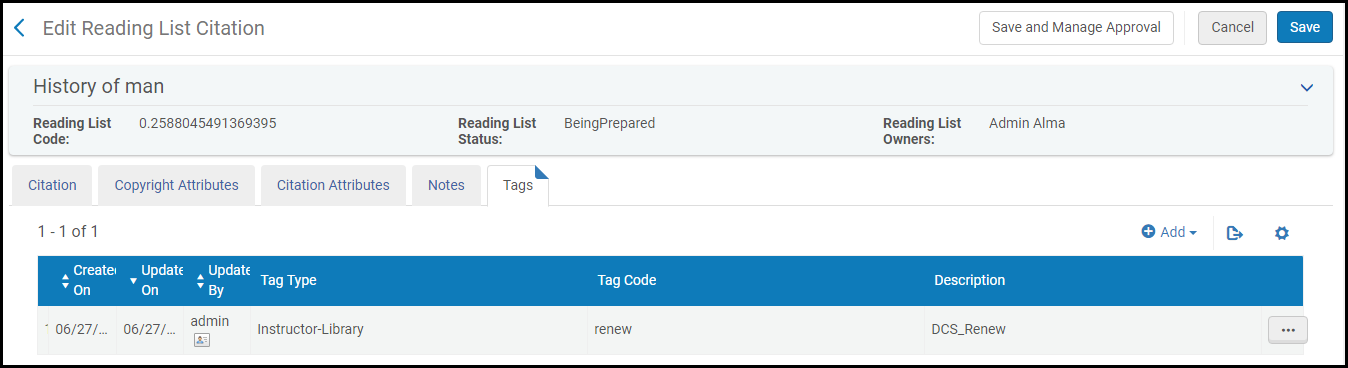
Public tags appear when a patron views the citation in Leganto (Leganto customers only).Instructor-Library tags are viewable by librarians, and, in Leganto, by instructors creating the reading list.Library-Internal tags are visible only by librarians in Alma or Leganto.Some tags are added by Leganto or Alma, are visible by librarians (and instructors in Leganto), but cannot be added, edited, or removed.これらは通常、地域の著作権機関との統合など、LegantoまたはAlmaの機能の結果です。 ユーザーによって作成されたが特定のタグタイプにマップされていないタグである、マップされていないタグを持つことも可能です。Unmapped tags can be added via the Leganto Questions feature and can be manually removed using the Tags tab in Alma but cannot be manually added in either Alma or Leganto. 引用タグを追加または編集するには、引用の編集中にタグタブを選択し、必要に応じてタグを追加または削除し、保存を選択して、Goを選択します。[図書リストの編集]ページでこれらのタグを使用してフィルタ処理できます。To configure the available citation tags and their type, see Configuring Citation and Section Tags.
タグタブ
タグを追加すると、タグは図書リストの編集ページの引用リストに表示されます。タグで引用をフィルタ処理できます。
図書リストの編集ページ
|
| 目録アイテムへの引用の付属物の管理 | See Managing a Citation's Attachment to an Inventory Item. |
| Managing a citation's fulfillment options | See Managing Citation Fulfillment Options.
To see alternate edition suggestions for citations, run the Citation Alternate Suggestions job. |
| 引用属性を引用に添付する | See Attaching Citation Attributes to Citations.Also see Editing a citation above for adding tags to a citation. |
| 引用のためのスリップ印刷 | See Printing Slips for Citations or Generating a Citation Print Slip Report. |
| Changing a citation's status | 引用ステータスを変更しても、図書リストのステータスは変更されません。逆も同様です。引用ステータスは、引用リソースを見つけるステータスとも異なります。
引用ステータスを変更するには、引用を選択し、ステータスの変更上部アクションの左側にあるドロップダウンからステータスを選択し、ステータスの変更を選択します。 Alternately, to set a single citation's status to complete, select the Set Complete citation action. Almaには、変更できない定義済みのステータスが含まれています。For information on configuring additional citation statuses, see Configuring Reading List Citation Statuses.For the default list of citation statuses, see Reading List and Citation Statuses in the Leganto Administration Guide. |
| Changing a citation's copyright status | See Managing a Citation's Copyright Status. |
| Legantoのデジタル引用に表示される代表の変更 | (Leganto only) See Managing a Citation's Digital Representations. |
|
引用のリクエストを作成する |
アイテムを(恒久的または一時的に)移動したり、デジタル化したりするために、1つ以上の引用に機関のリクエストを送信できます。たとえば、図書リストの期限が変更された場合、一括移動リクエストを送信できます。一括リクエストを作成するには、引用を選択し、リクエストを配置上部アクションを選択します。The Create Request page appears (see Create Request Page).Select a request type, fill in the remaining fields (as described in Creating a Request), and select Submit. リクエストは次のとおりです:
Ex Librisによって機関で有効になっている場合、引用から直接購入リクエストを作成できます。引用の購入リクエストを作成するには、購入リクエストの引用アクションを選択します。For more information see Purchase Requests. 図書館は、購入リクエストが新しい MMS ID に再リンクされたときに何が起こるかを構成できます。When a purchase request is linked to a citation, and the purchase request is then relinked to a different MMS ID, when the parameter purchase_request_relink_citation(Configuration > Fulfillment > General > Other Settings) is set to true(default), the citation is linked to the new MMS ID.パラメータがfalseに設定されている場合、引用は元の MMS ID にリンクされたままになります。 元の MMS ID に著作権レコードが関連付けられていた場合、その著作権は取り消され、新しくリンクされた MMS ID には適用されず、著作権が取り消されたことを示すアラートが追加されます。 Ex Librisによって機関で有効になっている場合、引用から直接リソースシェア取寄せリクエストを作成できます。引用のリソースシェア取寄せリクエストを作成するにはリソースシェアリクエスト引用アクションを選択します。リソースシェア取寄せリクエストフォームが表示されます。For more information see Creating a Borrowing Request.The form is prefilled with the citation information, as well as the parameter values of parameters starting with citation_rs_default_; see Other Settings. |
| 引用からアラートを削除する |
目録アイテムが地理的に離れたロケーションにある場合や目録アイテムが配置されている棚にアクセスできない場合は、フルフィルメントオプションを使用してリクエストして表示します。(See Managing Citation Fulfillment Options.) For each step in the citation request workflow, an alert is generated – for example,Citation Digitization Request In Process,Citation Digitization Request Completed.アラートフィルタを使用して、予約エリアへの移動をリクエストした冊子アイテムまたはデジタルフォーマットでリクエストした資料のステータスをモニタできます。たとえば、アラートフィルタを使用して、リクエストの処理が完了した引用のみを表示できます(ステータスを完了としてマークするため)。インストラクターが引用に図書館ノートを追加した場合、またはLegantoでリソースリンクが破損しているとマークした場合も、アラートが表示されます。 表示される可能性のあるアラートは次のとおりです。
引用からアラートを削除するには、引用を選択し、アラートの削除上部アクションを選択し、アラートタイプ(またはすべて)を選択し、アラートの削除を選択し、確認ダイアログボックスで確認を選択します。 Legantoを実装している場合、リストは発行されました/発行されませんでしたアラートは、インストラクターがLegantoで図書リストを発行/発行解除したときに、図書リストタスクリストページのファセットにのみ表示される特別な非ワークフローのアラートです。
|
| 引用を削除する | 引用を選択し、引用の削除上部アクションを選択します。確認のダイアログボックスで確認を選択します。
または、削除の引用アクションを選択します。 |

Adding Citations to a Reading List
3つのワークフローのいずれかを使用するか、既存の引用を複製してコピーを編集することにより、引用を追加します。
- アイテムをスキャンし、[アイテム情報の変更]タブで適切な図書リストを選択することにより、引用を作成することもできます。アイテムは、選択した図書リストに引用として追加されます。For details on the Change Item Information tab, see Changing Item Information.
- You can also add a citation to a reading list by selecting the Add to Reading List action in the search results (see Searching in Alma).
すでにリポジトリにある引用の追加
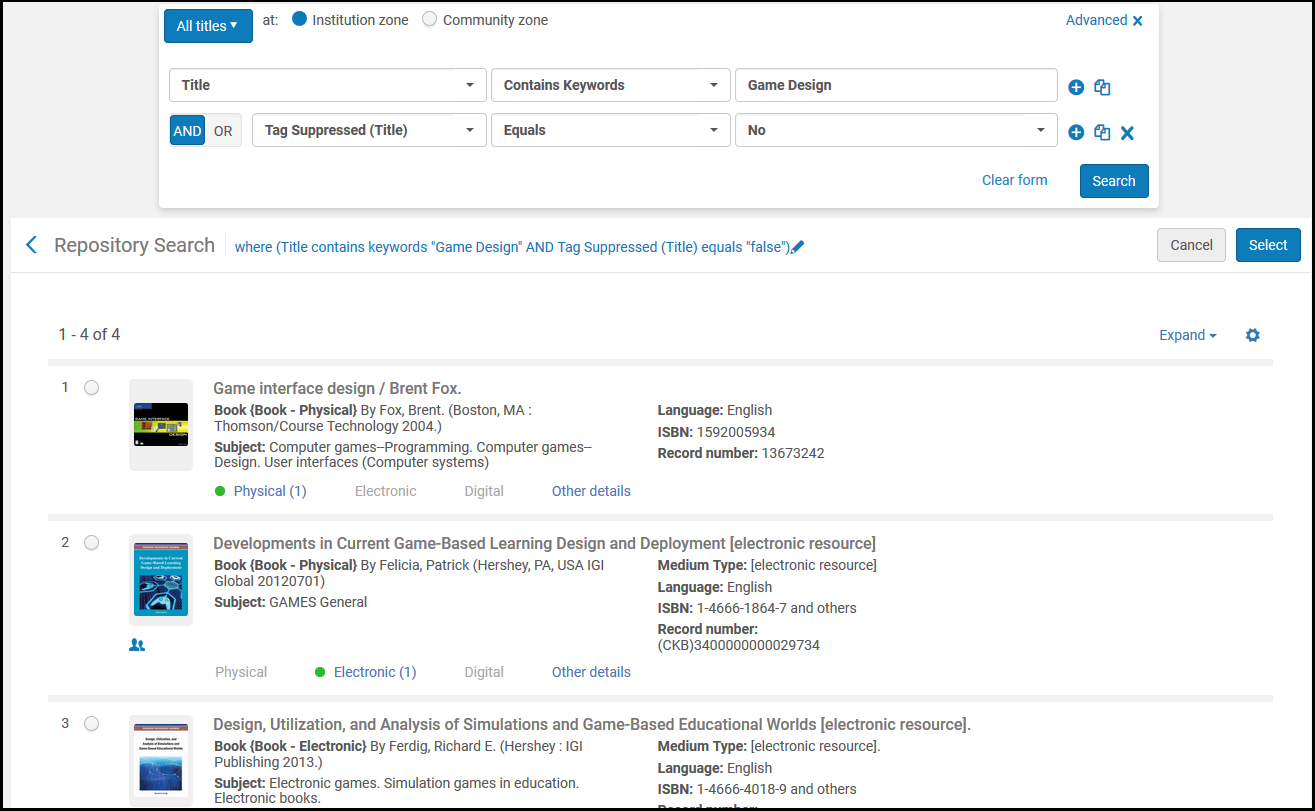
- On the Edit Reading List page (Fulfillment > Course Reserves > Reading Lists; select the reading list) in the Citations tab, select the Add Repository Citation action.[リポジトリ検索]ページが表示されます。
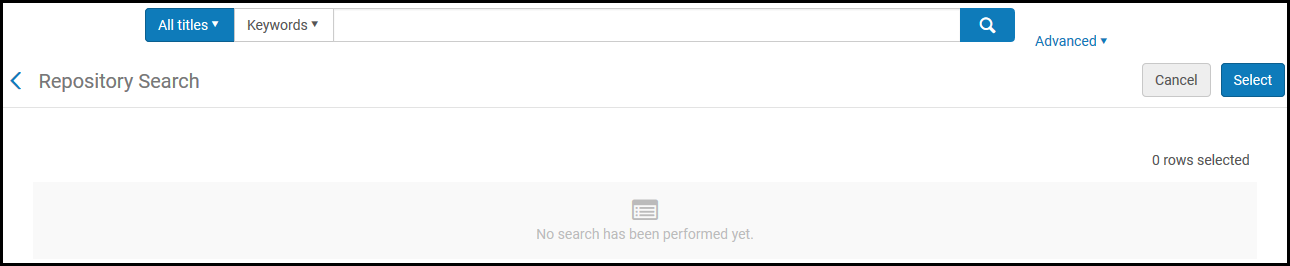 リポジトリ検索
- Search for a title; see Searching in Alma.(New for August 2026) Note that the search can also be performed in the scope of the network zone.
- 追加する1つ以上のタイトルを選択し、選択を選択します。アイテムは引用として追加されます。
リポジトリ検索から引用を追加する場合は、「全タイトル検索」のみ実行できます。検索結果を絞り込むには、「詳細検索」オプションを使用します。
著作権クリアランス情報を追加する、または他の引用情報を設定するには、リポジトリにない引用を(リポジトリに追加せずに)追加するにはを参照してください。追加後に引用を編集する必要があります。See Editing a Citation.
リポジトリにない引用をリポジトリに追加せずに追加
Non-repository citations allow you to represent items that are not part of the library's resources and therefore are listed only in Course Reserves.For more information, see Non-Repository Citations.
非リポジトリの引用は公開されていないため、PrimoおよびPrimo VEには表示されません。
- On the Edit Reading List page (Fulfillment > Course Reserves > Reading Lists; select the reading list) in the Citations tab, select the Add Non-Repository Citation action.[引用タイプを選択する]ダイアログボックスが表示されます。
- 引用のタイプ(書籍または記事)を選択し、選択を選択します。選択した引用タイプのフィールドを含む[図書リストの引用の編集]ページ(非リポジトリの引用用)が表示されます(次の画像を参照)。
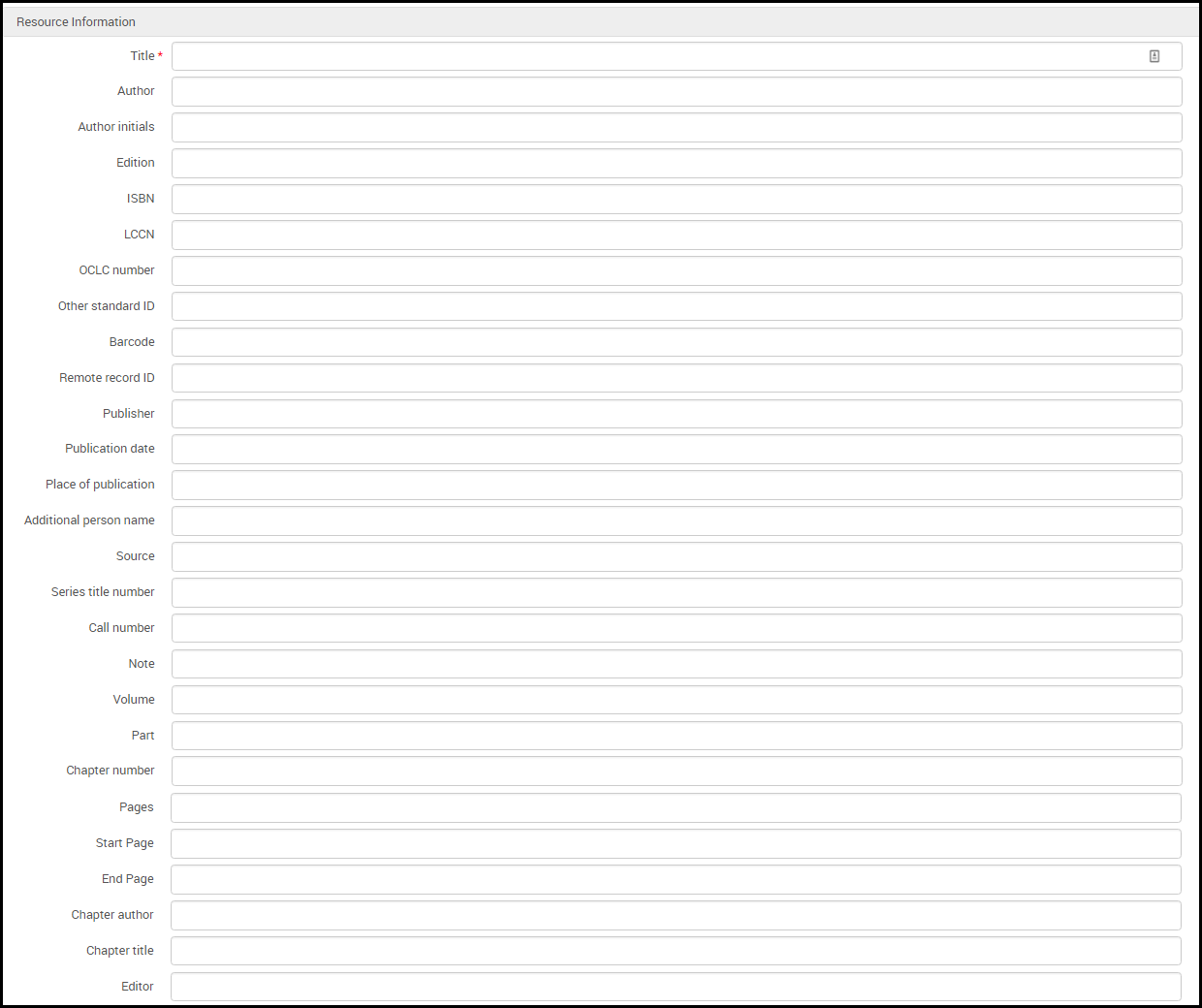 書籍の図書リスト引用編集ページ(非リポジトリの引用用)
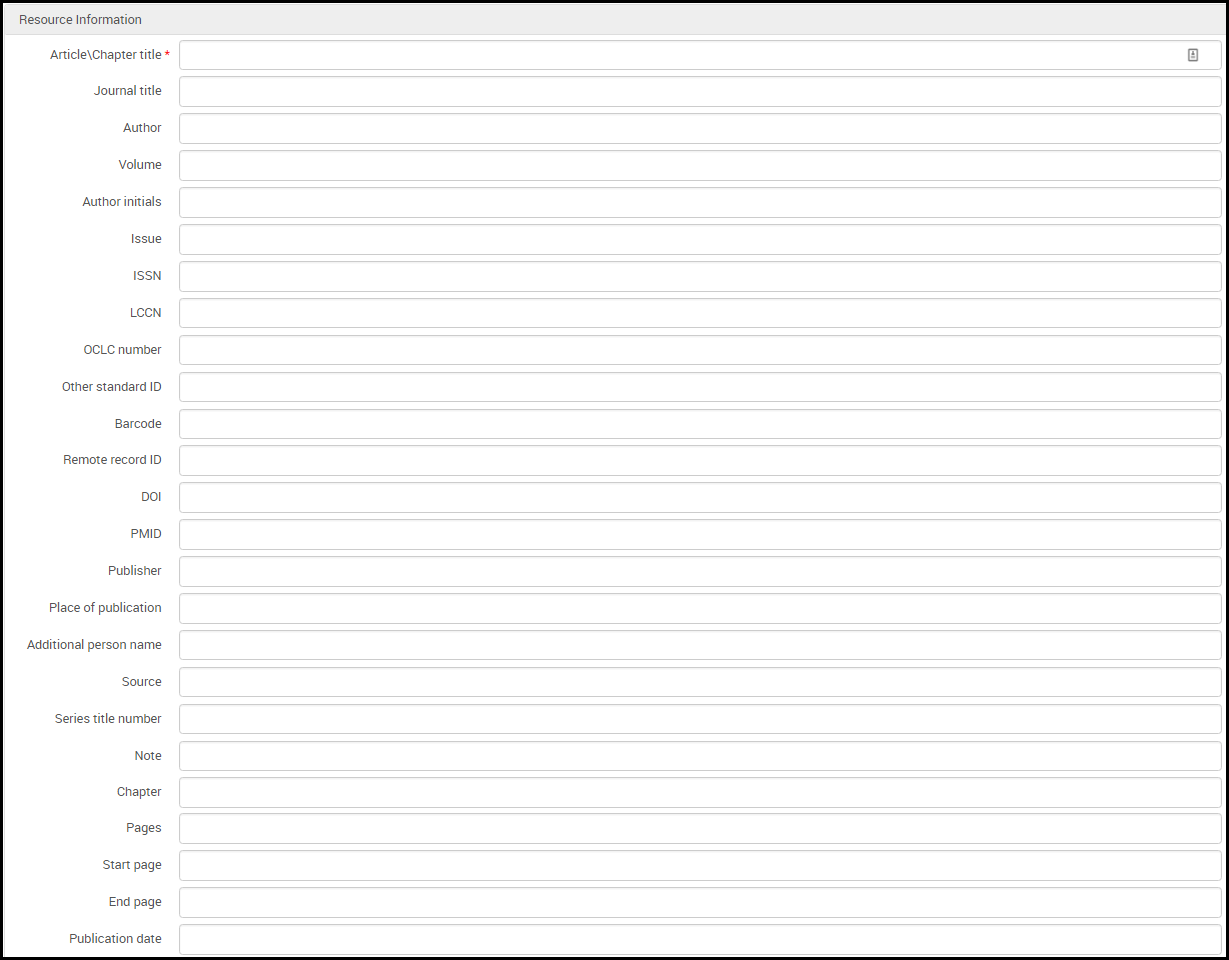 記事の図書リスト引用編集ページ(非リポジトリの引用用)
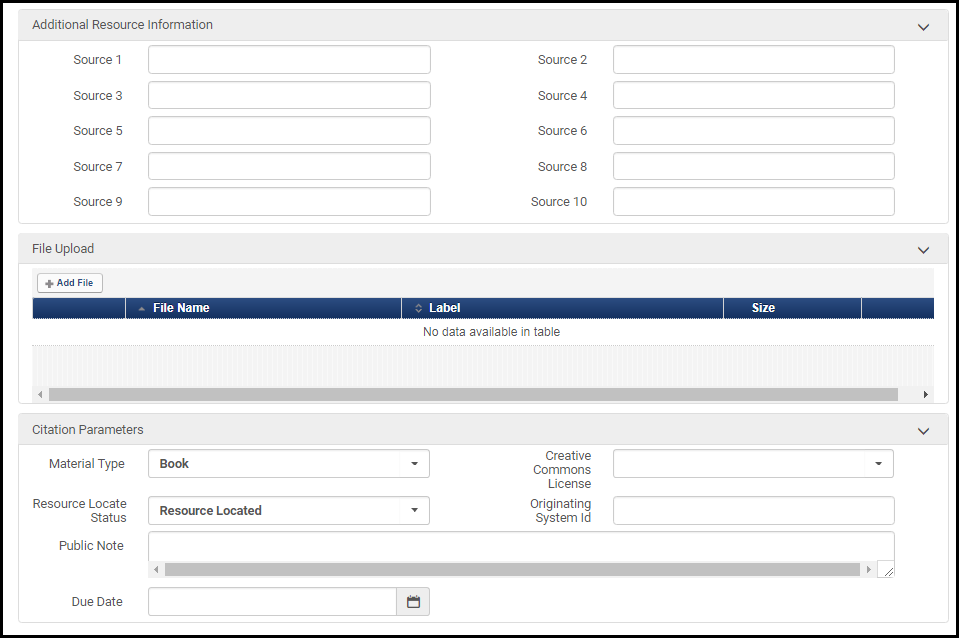 Edit Reading List Citation Page (for non-repository citations) – Bottom of Page (Book or Article)
- リソース情報エリアで、必要な情報をフィールドに入力します。A description of the fields appears in the Resource Information Fields table in Adding a New Book or Journal Article.引用の請求番号は、米国議会図書館の請求番号(フィールド050)を指します。これは、必ずしも冊子リソースに関連付けられた引用に関連付けられた請求番号ではなく、棚番号です。
- Legantoを使用している場合は、追加のリソース情報エリアで、(リソース情報エリアのソースに加えて)引用の追加ソースを手動で追加できます。これらのリンクは、Legantoで引用を表示するときにリンクと利用可否セクションに表示されます。
- ファイルのアップロードエリアで、引用のファイルを選択します(関連する場合)。たとえば、デジタル引用の画像やドキュメントのPDF。アップロードできるファイルは1つだけです。ファイルのアップロード中は、進行ステータスバーが表示されます。アップロードされたファイルを表示するには、ファイル名を選択します(このページを後で編集する場合は、行のアクションメニューでファイルのダウンロードを選択します)。ファイルを削除するには、行アクションメニューで削除を選択します(このページを後で編集する場合は、行の操作メニューで削除を選択します)。ラベルフィールドは現在有効ではありません。
 アップロードされたファイル
- ステータスが完了の引用にファイルをアップロードすると、著作権クリアランスが自己宣言されていない、クリエイティブコモンズでない、承認済みでない場合、引用のステータスは準備中にリセットされます。
- ファイルはどのタイプでも可能です。司書にはファイルサイズの制限はありません。(For the instructor file size limit in Leganto, see Configuring File Upload in Leganto.)
- Alma はファイルをアップロードしたユーザーを記録します。In the File Upload area, this information is displayed under Uploaded by, showing either the username or, if the file was added by a job, the job ID.
- 著作権属性タブ(編集のみ):
- For more information on the Copyright Status field, see Manually Managing a Citation's Copyright Status.When using Leganto, an administrator can make the Source for Copyright field mandatory and select its default value, see copyright_source in Configuring Leganto Copyright-Related Procedures.
- Select Copyright Auditing Required to add intended usage information and have Alma manage the citation's copyright status automatically (see Automatically Managing a Citation's Copyright Status).選択したら、表示される追加フィールドに入力します。For information on most of these fields, see staff digitization request in Creating a Request.
- 引用パラメータエリアで、必要に応じて、以下を選択します。
- Material Type- Select an available option.このリストは、リーディングリストの引用セカンダリタイプテーブルで設定できます。See Configuring Citation Material Types.This list is not the same as the one described in Configuring Physical Item Material Type Descriptions.
- 著作権クリアランスタイプ(自己宣言、クリエイティブコモンズなど)をまだ選択していない場合は、クリエイティブコモンズライセンスフィールドでクリエイティブコモンズクリアランスを選択できます。The options available in this field depend on the customer parameter copyright_region; see Configuring Other Settings.For more information about Creative Commons, see the Creative Commons website.
- In Resource Locate Status, you can manually select a resource status; see Managing a Citation's Attachment to an Inventory Item.
- In Originating System ID, you can optionally enter the ID that this resource had in a previous system if the record was migrated to Alma; see Managing a Citation's Attachment to an Inventory Item.
- Public Note(Leganto customers only; edit only) - Edit a public note that appears in Leganto, if relevant.
- Due Date- Enter the date by which students should read/view the materials.
- Select Save or Save and Manage Approval and select Go.新しい引用が[図書リストの編集]ページに表示されます。
Almaは、単一の目録アイテムが引用と一致するかを確認し、一致する場合、引用はその目録アイテムに自動的にリンクされます。リポジトリから分離させるを選択して、この付属物を削除できます。See Managing a Citation's Attachment to an Inventory Item.You can turn this feature off using the reading_list_auto_locate_citation_upon_creation customer parameter; see Configuring Other Settings.
保存して承認管理を選択すると、承認リクエストリストが表示されます。For more information, see Approving/Rejecting a Request for Digitization.
引用を編集している場合は、ノートを保存してアクティブにするを選択することもできます。See Editing a Citation.
- 必要に応じて、[図書リストの編集]ページでリソースを見つけるの引用アクションを選択して、新しい引用のリソースを見つけます。For more information, see Managing Citation Fulfillment Options.
リポジトリに追加している際のリポジトリにない引用の追加
- [図書リストの編集]ページ([フルフィルメント]> [コースリザーブ]> [図書リスト];図書リストを選択)の引用タブで概略の追加の引用アクションを選択します。
- In the dialog box that appears, select the type of citation you want to create –physical book/article or electronic book/article –and select Choose.[クイック目録ページ]が表示されます。
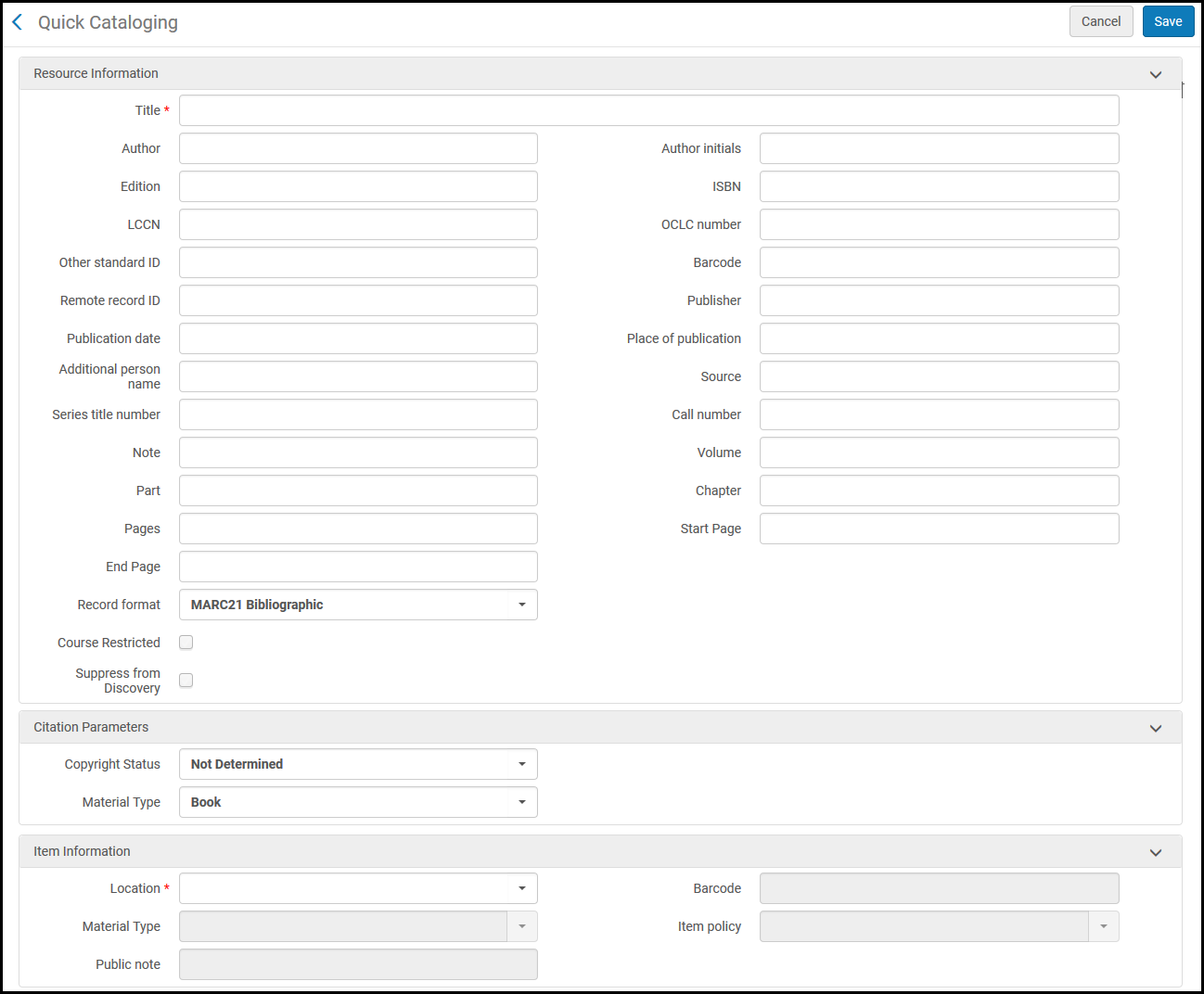 [クイック目録]ページ–冊子書籍の場合
- Configure resource and item information (for information on the fields, see Adding a New Book or Journal Article).In the Citation Parameters area, optionally select the Copyright Status(for more information, see Changing a citation's copyright status in the above table) and Material Type from the available options.
- [保存]を選択します。New inventory is created, and the new citation appears in the Citations tab of the Edit Reading List page.
著作権クリアランス情報を追加する、または他の引用情報を設定するには、リポジトリにない引用を(リポジトリに追加せずに)追加するにはを参照してください。追加後に引用を編集する必要があります。See Editing a Citation.
- すべての物理的資料は、書籍として目録化されています。
- すべての電子資料は、継続的なリソースとして目録化されています。
If you have enabled the RFID integration profile (see RFID Support), you can select Write to RFID and Save to save the new inventory to RFID.
Contributing Instructor Resources to a Reading List
Almaでは、インストラクターがアイテムの個人用コピーを引用のために図書館に貸出・返却することを許可しています。これにより、図書館は、インストラクターが所有するコピーを目録化し、どのインストラクターがアイテムを所有するかを追跡し、以前のアイテムを後続の期間で簡単に再利用できます。
When enabled, library staff can indicate that an item is a personal copy when creating a Brief Citation (Add Citation > Add Brief) and enter the instructor's name.Almaは、専用の個人用コピーの場所を使用して、インストラクターが所有するすべてのコピーに関する情報を保存します。図書館内の場所は、インストラクターのコピーが目録化される際に自動的に作成され、インストラクターごとに1つの場所が割り当てられます。インストラクターが預けたすべてのアイテムは、同じ場所に作成されます。
Personal copy locations indicate that the items are owned by the instructor, and also enable the library to track items that are not physically in the library at that time, but rather, in the instructor's possession.All personal copy locations and the items in them are suppressed.インストラクターがアイテムを図書館に貸し出すと、アイテムは図書館内の非個人用コピーの場所を表す一時的な場所に移動され、標準のフルフィルメントルールに従って貸出・返却されます。たとえば、図書館のスタッフは、アイテムを期間の終わりの返却日とともに「コース予約」の一時的な場所に移動します。The item will temporarily circulate as part of the library collection, but with the instructor's name stored as the permanent location, indicating the person to which the item should be returned at the end of the term.
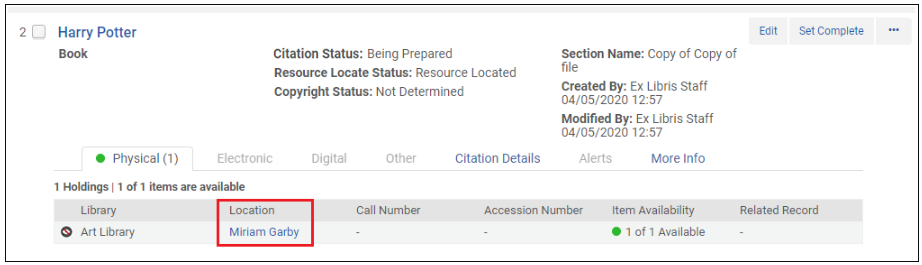
When the item is moved back to its permanent location, which is the personal copy location, it is automatically suppressed.その後、アイテムをインストラクターに戻すことができますが、レコードを削除する必要はなく、上記のワークフローに従うことで、後の期間で簡単に再利用できます。
この機能を有効にするには、次のパラメーターを設定します。
Personal copy library: To enable the personal_copy_library parameter (Fulfillment > General > Other Settings) you must enter a library code as the parameter value, such as MAIN.このコードは、個人用コピーの場所が作成される図書館に対応しています。
Personal copy fulfillment unit: To enable the personal_copy_fu parameter, you must enter a fulfillment unit code as the parameter value.インストラクターが所有する場所にあるアイテムのフルフィルメント条件は、このフルフィルメントユニットで設定されたルールによって決定されます。インストラクターの場所に保管されているアイテムは、現在ライブラリコレクションの一部ではなく、インストラクターとともに物理的に保管されます。
-
[リーディングリストタスクリスト]ページ([フルフィルメント] > [コース予約] > [リーディングリスト])を開きます。
-
引用コードを選択します。
-
Select Add Citation and select Add Brief.
-
冊子を選択し、選ぶを選択します 。
-
アイテムに必要なすべてのフィールドを指定します(例:タイトル)。For more information, see Managing Physical Resources.
-
In the Item Information section, specify the following fields:
-
Personal copy – Select this field to enable the Personal copy of field.
-
Personal copy of – Specify the instructor's name, which will be used for the item's location.
-
-
保存を選択します。The book item is created and displayed in the Physical tab.
-
フルフィルメントプロセスを続行します。
既存の引用を複製して引用を追加する
[図書リストの編集]ページ([フルフィルメント]> [コースリザーブ]> [図書リスト];図書リストを選択)の引用タブで重複の引用アクションを選択します。[図書リストの引用の編集]ページが表示されます。必要に応じてパラメータを変更し、新しい引用を保存します。See the above procedures for details.
Legantoを使用している場合は、既存の引用の代替フォーマットまたは版である引用を追加できます。See Configuring the Display of Other Formats and Editions of Citations.
目録アイテムへの引用の付属物の管理
引用を作成する場合、既存の冊子目録アイテムに添付して作成するか、目録アイテムを同時に作成して新しい目録アイテムに引用を添付できます。
または、目録アイテムに付属物なしで引用を作成できます。目録アイテムに付属物なしで引用を作成すると、Almaは一致する目録アイテムを見つけようとします。単一のアイテムが検出されると、Almaは自動的に引用を目録アイテムに添付します。For more information, see Configuring Citation Matching Criteria.You can turn this feature off using the reading_list_auto_locate_citation_upon_creation customer parameter; see Configuring Other Settings.
- If you set the value of the resource_locate_mode field to "OR", then Leganto locates citations based on any of the fields in the Locate Citations By Fields mapping table.
- If you set the value of the resource_locate_mode field to "AND", then Leganto locates citations based on all the fields in the Locate Citations By Fields mapping table.
When attaching a citation to an inventory item, Alma adds missing information to the citation; for more information, see Repository Fields Used to Overwrite Citation Fields in the Leganto Administration Guide.You can change how the mapping works; see Mapping Bibliographic Record Fields to Citation Fields.
- 記事が図書館に保持されているジャーナルにある場合、記事情報をPrimoに発行するには、情報は引用に添付された目録記録(MMS記録)にある必要があります。引用情報はPrimoに発行されません。
- (Legantoのみ)[引用する]から追加された引用情報を上書きするようにAlmaを設定できます!See Configuring Repository Locate Workflow.
- 目録内の冊子アイテムに引用を添付するプロセスは、電子記事のOpenURLリンク解決とは関係がありません。これは、記事の外部インスタンスへのリンクを見つけることです。However, although attaching a citation to inventory is for physical items only, a citation's locate status also reflects whether the OpenURL link resolver can locate an electronic article for the citation.Almaが引用の冊子および/または電子リソースを見つけた場合、引用が見つけられます。The bulk location job described in Process and Enrich Citations in Bulk also checks the link resolver for this purpose.
- また、このジョブは、URLにアクセスして有効なHTTP応答を確認することにより、URL引用を検証します。
この付属物を削除するには、引用からリポジトリを削除アクションを選択します。このアクションを実行した後、引用はどの目録にも接続されていません。
目録アイテムから引用を切り離した場合、または目録を自動的に見つけることができなかった場合は、目録アイテムに引用を手動で添付できます。1つの引用に対してこれを行うには、以下を参照してください。To do this in bulk, see Process and Enrich Citations in Bulk.
- Information Incomplete- Not enough information was entered to perform a resource locate.
- Locate Failed- A locate was attempted but failed to complete for some reason.
- Locate Not Run- A locate was not attempted.
- Multiple Resources Located- A locate was attempted and multiple resources were found.
- No Resource Located- A locate was attempted but no resource was found.
- Not Complete- A locate attempt is in process.
- Resource Located- A locate was attempted and a single resource was found.
If for some reason you want to set the resource locate status manually, you can do so when adding or editing the citation on the Edit Reading List Citation page; see Adding Citations to a Reading List.
[図書リストの編集]ページ([フルフィルメント]> [コースリザーブ]> [図書リスト];図書リストを選択)の引用タブでリソースを見つけるの引用アクションを選択します。Almaは、引用に一致する目録を見つけようとし、(任意のフォーマットで)単一の目録一致が見つかった場合、Almaはそれを自動的に添付します。
Almaで一致するものが見つからなかった場合、Almaは検索条件を編集できるページを表示します。Almaが複数の一致を検出した場合、Almaは一致の1つを選択したり検索条件を編集したりできる画面を表示します。For more information, see Searching in Alma.
Managing Citation Fulfillment Options
学生が引用を利用できるようにする方法を確認するには、[図書リストの編集]ページ([フルフィルメント]>[コースリザーブ]>[図書リスト];[図書リスト]を選択)の引用タブで、フルフィルメントオプションの管理引用アクションを選択します。
- 目録アイテムが地理的に離れたロケーションにある場合や目録アイテムが配置されている棚にアクセスできない場合は、フルフィルメントオプションを使用してリクエストして表示します。(下記参照。)
In this case, for each step in the citation request workflow, an alert is generated – for example,Citation Digitization Request In Process,Citation Digitization Request Completed.アラートフィルタを使用して、予約エリアへの移動をリクエストした冊子アイテムまたはデジタルフォーマットでリクエストした資料のステータスをモニタできます。
- 目録アイテムが地理的に近くにある場合、および/またはそれらにアクセスできる場合は、スリップの印刷引用アクションを選択して特定の引用のスリップを印刷することにより、棚からアイテムを取得できます。Use the Change Item Information tab to temporarily change the item location, as described in Changing Item Information.
- アイテムが図書館の目録にない場合、または図書館で追加のコピーを購入する場合は、購入リクエストの引用アクションを選択して購入リクエストを行うことを検討してください。For more information, see Purchase Requests.
[図書リストの編集]ページ([フルフィルメント]> [コースリザーブ]> [図書リスト];図書リストを選択)の引用タブでフルフィルメントオプションの管理の引用アクションを選択します。リソースオプションタブが事前に選択されて、[リソースオプションの管理]ページが表示されます。
リンクは、リソースが指定された場合にのみ使用可能です。
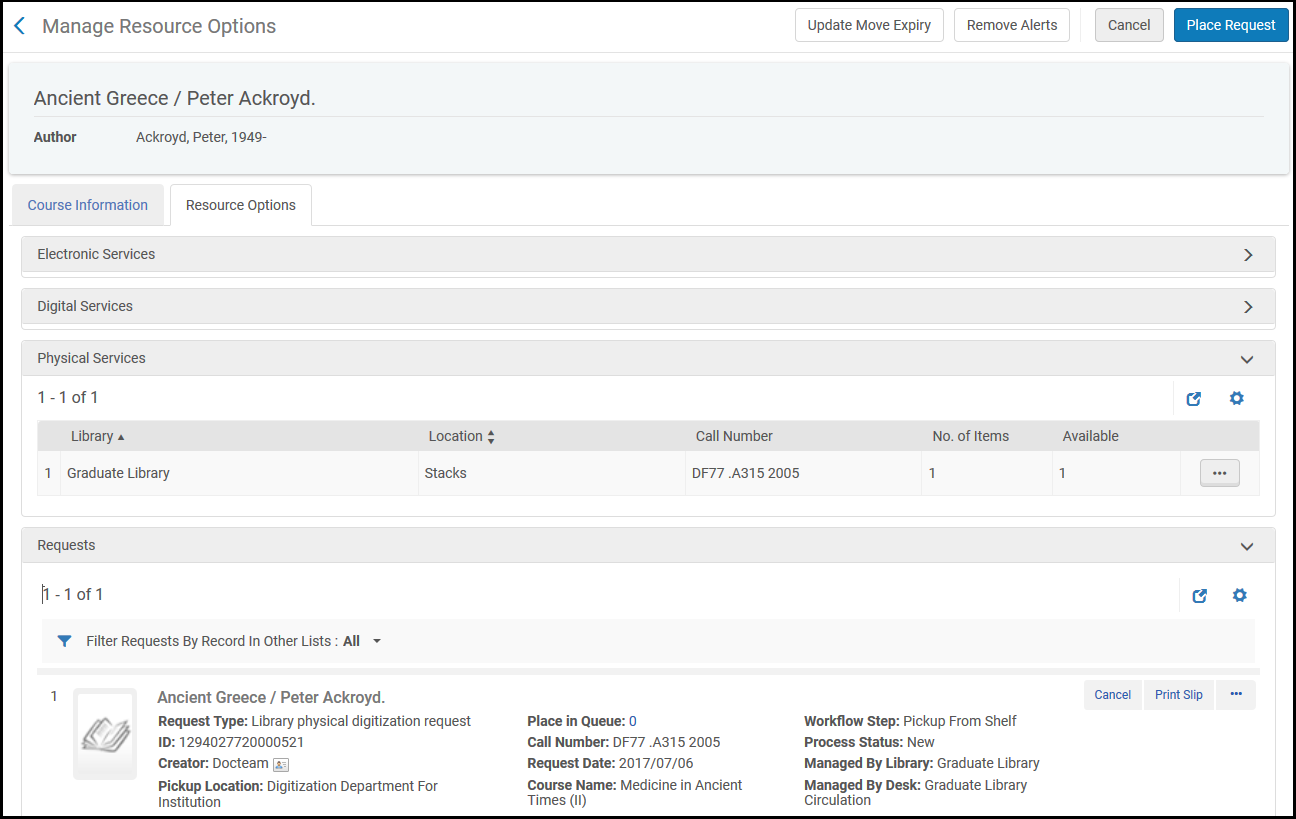
概要ヘッダーには、タイトル、著者、ISBN/ISSNなどのリソースに関する情報、および引用に関するアラートが含まれます。このページには次のフィールドが表示されます。
| フィールド | 説明 |
|---|---|
| コース情報タブ–コース情報 | |
| コースコード | |
| セクション | コースセクション |
| コース名 | |
| 参加者数 | このコースの参加者数 |
| リーディングリスト名 | |
| キャンパス | |
| 全体でY人の参加者がいるXコースの需要 | この引用が表示されるすべてのコースの参加者の数 |
| コース情報タブ–他のリストのこの記録–他の図書リストに表示される引用の書誌記録に関する情報。このエリアのアクションは以下を参照してください。 | |
| コースコード | 他の図書リストのコースコード |
| コース名 | |
| セクションID | コースセクション |
| 学術部署 | |
| 処理部署 | |
| インストラクター | 図書リストの所有者、または複数の所有者がいる場合は複数 。 |
| 開始日 | このコースの開始日 |
| 終了日 | このコースの終了日 |
| 参加者数 | このコースの参加者数 |
| リーディングリスト名 | |
| 図書リストステータス | |
| セクション名 | 図書リストのセクション名 |
| 引用ステータス | |
| [リソースオプション]タブ–電子サービス–引用の電子フルフィルメント情報 | |
| [リソースオプション]タブ–デジタルサービス–引用のデジタルフルフィルメント情報 | |
| [リソースオプション]タブ–冊子サービス–この引用の冊子フルフィルメント情報。このエリアのアクションは以下を参照してください。 | |
| [リソースオプション]タブ–既存のリクエスト–この引用に関連する書誌レコードのリクエスト。一部のリクエストは、図書リストに固有のものです。他のリストの記録でリクエストをフィルタフィルタから図書リストを選択して、その図書リストのリクエストのみを表示します。For more information about the fields and actions in this section, see Managing Requests and Work Orders. | |
冊子サービスでは次のアクションを使用できます:
- アイテムの表示-行アクションリストでアイテムの表示を選択します。The List of Items page appears; see Working with the List of Items.
- Create a request – Select Request in the row actions list or select Place Request in the top actions list.The Create Request page appears (see Creating a Request).Select a request type (as described in Creating a Request) and select Submit.
- Update the item's due back date so that it matches the due back date of the reading list (when the reading list's due back date is later than that of the item) – Select Update move expiry in the row actions list, or select Update Move Expiry in the top actions list.You can also manually update a citation's due back date when adding or editing a citation; see Adding Citations to a Reading List.
Legantoのインストラクターによって開始されたものを含め、リソースに対してアクティブなリクエストがある場合、リクエストエリアに表示されます。While a work order operator can approve or reject requests on the Approval Requests List page (see Approving/Rejecting a Request for Digitization), you can edit or cancel the request in this area.This area presents a record list; for more information about these lists, see Record Lists.
各リクエストで使用可能なアクションは次のとおりです。
- キャンセル-リクエストをキャンセルします。次のオプションで確認するように求められます:
- キャンセル理由-キャンセルの理由を選択します。
- キャンセルノート–必要に応じてノートを追加します。
- ユーザーに通知-これを選択しない場合、キャンセルのノートと理由はAlmaに保存されますが、ユーザーにEメールで送信されません。これを選択して、キャンセルに関するノートをユーザーに送信します。
- Keep citation's copyright information(if this was a DCS request, the field is Keep citation's DCS request) – Select this to preserve any copyright record/request/DCS request that was made simultaneous with the digitization request.これをクリアすると、著作権記録やリクエストも削除されます。For more information on DCS requests, see Attaching a Citation to the CLA Digital Content Store (UK Only).
- スリップの印刷–リクエストをデフォルトのプリンターで印刷します。
- 編集–リクエストを編集します。リクエストタイプを変更することはできません。
- 有効期限のアップデート-リクエストの有効期限を編集します。
- 行方不明としてマーク-リクエストに関連付けられているアイテムを行方不明としてマークします。
- 検索でタイトルを表示-リソースタイトルをAlmaで検索します。
- 監査証跡の表示-リクエスト処理の監査証跡ページでリソースに関連する履歴を確認します。
- 電子デジタル化に変更する–冊子アイテムのデジタル化を電子アイテムのデジタル化に変更します。目録にリクエストを満たすことができる電子アイテムがある場合にのみ変更できます。
- Change to Physical Digitization- Change the digitization of an electronic item to digitization of a physical item.目録にリクエストを満たすことができる冊子アイテムがある場合にのみ変更できます。
次のアクションは、他の図書リストにも表示される引用に対して使用できます。
- 他の図書リストを表示する–行アクションリストで表示を選択します。他の図書リストが表示されます。
- 他の図書リストのリクエストを作成する-行アクションリストでリクエストの配置を選択します。The Create Request page appears (see Create Request Page).Select a request type (as described in Creating a Request) and select Submit.
引用のデジタル代表の管理(Legantoのみ)
デフォルトでは、デジタルリソースに添付された引用に対して、すべてのデジタル代表がLegantoに表示されます。This is because the customer parameter display_digital_representations is set to true by default; see Configuring Digital Representation Display Options.このパラメーターがfalseに設定されている場合、構成しない限り表記は表示されません。The citation action Manage DigitalRepresentations appears on the Edit Reading List page for these types of citations.Legantoに表示する代表を手動で選択する必要があります。
- [図書リストの編集]ページ([フルフィルメント]> [コースリザーブ]> [図書リスト];図書リストを選択)の引用タブでデジタル代表の管理の引用アクションを選択します。[デジタルリソースエディタ]ページが表示されます。For more information, see Editing Representation Metadata and Content.各代表にはチェックボックスが表示されます。
- Legantoに表示する表記のチェックボックスを選択し、[選択]を選択します。選択した代表がLegantoに表示されます。
CLAデジタルコンテンツストアへの引用の添付(英国のみ)
If you are a UK customer (set copyright_region to UK, see Configuring Other Settings), and have implemented a Digital Content Store (DCS) integration profile (see Integrating with the UK's Digital Content Store (DCS)), you can manage the citation's attachment to a DCS item.
- [図書リストの編集]ページ([フルフィルメント]> [コースリザーブ]> [図書リスト];図書リストを選択)の引用タブでDCSの関連付けの引用アクションを選択します。
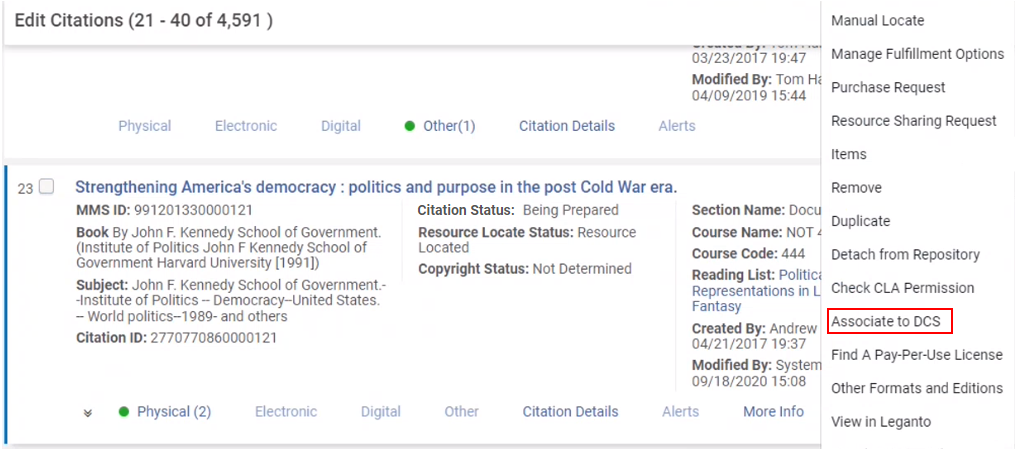 DCSへ関連付ける[DCS検索]ページが表示され、一致するアイテムまたは一致するアイテムのリストが表示されます。
 DCS検索結果ページ
- 必要に応じて、セカンダリ検索を使用して、著者、タイトル、DCSアイテムID(GUID)、識別子(ISBN/ISSN)のすべてまたは一部を検索します。
- 次のステップは、資料のデジタルコピーをすでに持っているかによって異なります。
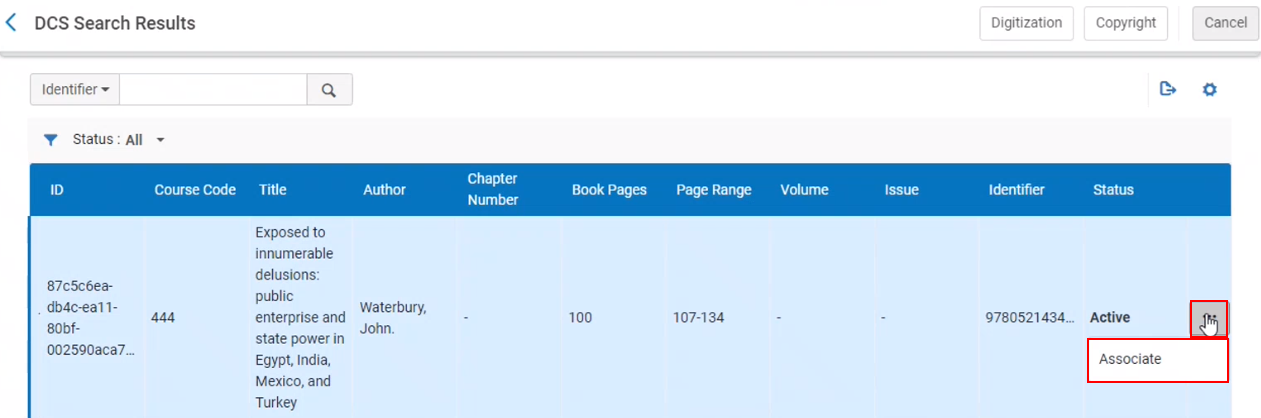 引用を抽出されたレファレンスに関連付けるオプション引用は選択したアイテムに添付され、追加の引用アクションが利用可能になります。
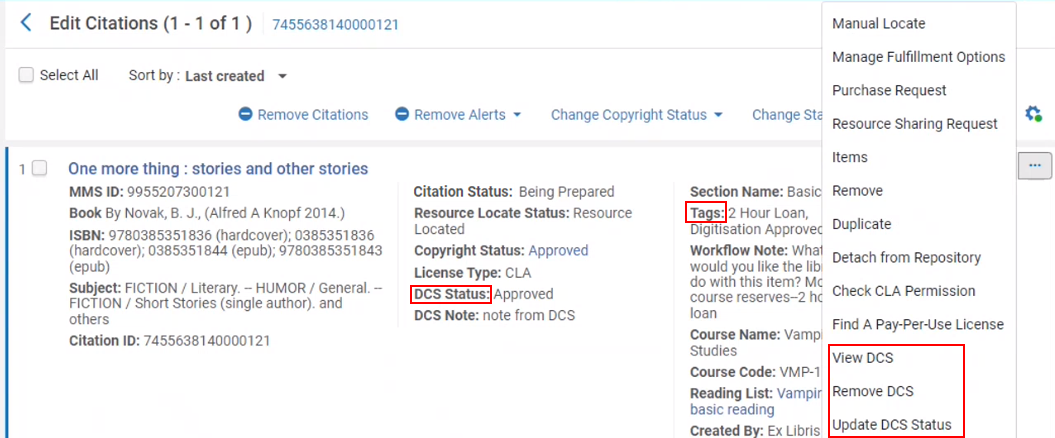 図書リストの編集ページ
- If you have a digital copy of the material but have not uploaded it to the DCS, select Copyright and complete a copyright request (see Automatically Managing a Citation's Copyright Status).The request goes through your institution's copyright rules (see Configuring Digitization and Copyright Rules), which may automatically send the request to the DCS.
- If you do not yet have a digital copy, but the citation has a valid MMS ID, select Digitization and place a digitization request (see Creating a Request).The request goes through your institution's digitization and copyright rules (see Configuring Digitization and Copyright Rules), which may automatically send the request to the DCS.デジタルコピーを取得したら、DCSにログインし、リクエストを作成または検索して、デジタルコピーをアップロードします。
- DCSにデジタルコピーがすでに存在して承認されている場合、必要なアイテムを見つけて、行のアクションリストで関連付けを選択します。
-
The Alma citation is updated with a new DCS Status field displaying the current status of the request and an internal tag to indicate the status.DCSステータス(および関連タグ)は、DCSからの新しいデータによって自動的にアップデートされます。It can be updated as frequently as every 6 hours, as configured in the DCS Synchronize job.Alternatively, you can select Update DCS Status to update the status of the request manually.
The current DCS Status options are:
- リクエストを受信しました
- リクエスト実行中
- レビュー中
- 承認済み
- 拒否されました
- アーカイブ
- 削除しました
- リクエストに失敗しました
Once the file is added to the DCS, (see steps 3a and 3b above) the status is either automatically updated the next time the DCS Synchronize job runs, or when the staff operator selects the option to update manually.
When a DCS request is approved, you can view the digital copy from Alma.
- From the Edit Reading List page (Fulfillment > Course Reserves > Reading List > select the reading list)Citations tab, select the View DCS citation action.DCSウェブサイトが開き、添付アイテムが表示されます。
- From the Edit Reading List page (Fulfillment > Course Reserves > Reading List > select the reading list)Citations tab,, select the Update DCS Status citation action.The DCS Status updates.
- From the Edit Reading List page (Fulfillment > Course Reserves > Reading List > select the reading list)Citations tab,, select the Remove DCS citation action.これにより、引用はDCSアイテムに添付されていない状態になります。
引用への引用属性の付加
To configure the available citation attributes, see Configuring Citation Attribute Types,Configuring Citation Attributes, and Mapping Citation Attributes to Citation Attributes Types.
- Edit the citation (see Editing a Citation).[図書リストの引用の編集]ページが表示されます。引用属性タブを選択します。
- 引用属性セクションで、追加を選択し、マッピングする引用属性タイプと引用属性を選択して、引用属性の追加を選択します。選択した値がテーブルに表示されます。
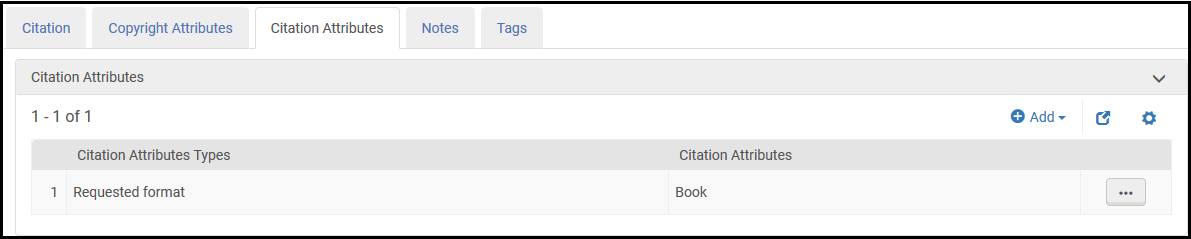 図書リスト–追加された引用属性
- 保存を選択します。追加された引用属性は、[図書リストの編集]ページの図書リスト情報に表示されます。
引用のためのスリップの印刷または引用印刷スリップリポートの生成
目録アイテムが地理的に近くにある場合、それらにアクセスできる場合は、引用用のスリップを印刷することにより、棚からアイテムを取得できます。[図書リストの編集]ページ([フルフィルメント]> [コースリザーブ]> [図書リスト];図書リストを選択)の引用タブで:
- スリップの印刷引用アクションを選択します。
- 1つ以上の引用を選択し、スリップの印刷上部アクションを選択します。引用ごとに印刷スリップが生成されます。Note that when Quick Print is enabled, selecting multiple records does not work i.e.,only the first slip is printed (see Printouts Queue).
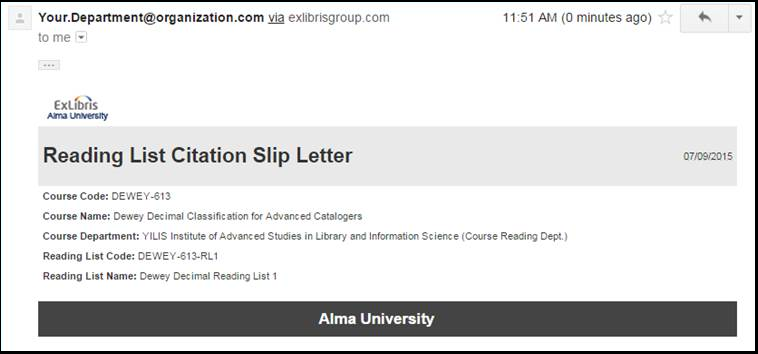
For information about the print slip, see the Ful Citation Slip Letter in Configuring Alma Letters.
You can also generate a print slip report that is sent to a printer or email address or can be downloaded to a local machine.このリポートは、引用、タイトル、著者、ロケーション、請求番号、ISBN/ISSN、版、インプリント、利用可否、電子利用可否、デジタル利用可否などの情報を含むExcelファイルです。
- [図書リストの編集]ページ([フルフィルメント]> [コースリザーブ]> [図書リスト];図書リストを選択)の引用タブで引用を選択し、スリップリポートの印刷の上部アクションを選択します。[スリップリポートの印刷]ダイアログボックスが表示されます。
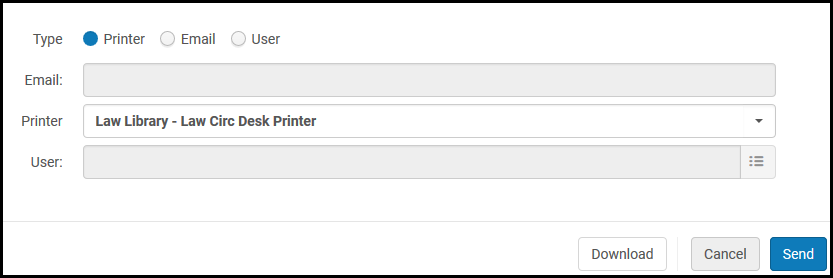 [引用管理スリップリポートの印刷]ダイアログボックス
- リポートをEメール(Eメールまたはユーザー)で送信するか、プリンター(プリンター)に送信するかを選択します。
- 宛先を選択してください:
- Eメールで送信する場合は、EメールフィールドにEメールアドレスを入力するか、ユーザーフィールドにAlmaユーザーを入力します。使用されるEメールレターは、Full引用スリップレターです。For more information on the letter, see Configuring Alma Letters.
- プリンターに送信する場合は、プリンターフィールドでプリンターを選択します。
- 必要に応じて、ダウンロードを選択してリポートをダウンロードします。
- 選択した宛先にリポートを送信するには、送信を選択します。
引用の著作権ステータスの管理
著作権のステータスは、手動で管理するか、Almaの著作権承認システムを使用して管理できます。
- 引用の著作権ステータスを手動で管理する場合、引用の著作権ステータスは情報(UI)および記録保持のみを目的としています。以下の場合を除き、引用のステータスはAlmaでワークフローに影響を与えず、ステータスはLegantoまたはPrimoでの可視性を変更しません。[リーディングリストの引用の編集]ページで[著作権監査が必要]が選択されておらず、引用に対して他の著作権ライセンスが宣言されていない場合(自己宣言、クリエイティブコモンズ)、ステータスは手動で管理されます。
- Almaの著作権承認システムを使用して引用の著作権ステータスを管理すると([図書リストの引用の編集]ページで著作権監査が必要を選択)、著作権ステータスを手動で管理する機能が無効になります。新しい引用、および著作権情報が変更された引用は、自動著作権承認プロセス(著作権承認ルールを使用して設定)を通過します。引用は、必要に応じて手動承認のためにオペレータに送信されます。
引用に利用できる著作権ステータスは次のとおりです。
- Approved- In you are implementing Leganto, you can have Alma automatically change the citation's status when a citation's copyright status is set to Approved.See Configuring Default Statuses for Citations/Reading Lists.
- 拒否されました
- 決定していません
- 不必要
- 必要
- Self Declared- The instructor indicates that no copyright clearance is required; for example, for material written and uploaded by the instructor.
- Waiting for Approval- An approval task is waiting for manual operator intervention.引用にこの著作権ステータスがある場合、[図書リストの編集]ページの引用の下にあるルールの再計算を選択することにより、自動的に承認/拒否するために引用を再送信できます。
- Waiting for CC- Waiting for copyright clearance.引用にこの著作権ステータスがある場合、[図書リストの編集]ページの引用の下にあるルールの再計算を選択することにより、自動的に承認/拒否するために引用を再送信できます。
- 公正利用
新しい引用に対してデフォルトで選択されている著作権ステータスを設定できます。See Configuring the Citation Default Copyright Status.
Legantoを使用している場合、インストラクターは著作権またはデジタル化リクエストを開始したり、引用の著作権を自己宣言したり、Legantoでクリエイティブコモンズライセンスを選択したりできます。
引用の著作権ステータスの手動管理
著作権を手動で管理するには、[図書リストの編集]ページで複数の引用の著作権ステータスを設定するか、引用の編集中に[図書リストの編集]ページで1つの引用を設定できます。
If you are using Leganto, also see Clearing Copyrights Through the Copyright Clearance Center (CCC).
[図書リストの編集]ページ([フルフィルメント]> [コースリザーブ]> [図書リスト];図書リストを選択)の引用タブで引用を選択し、著作権ステータスの変更上部アクションを選択し、表示される[著作権ステータスの変更]ポップアップで著作権ステータスの変更を選択します。
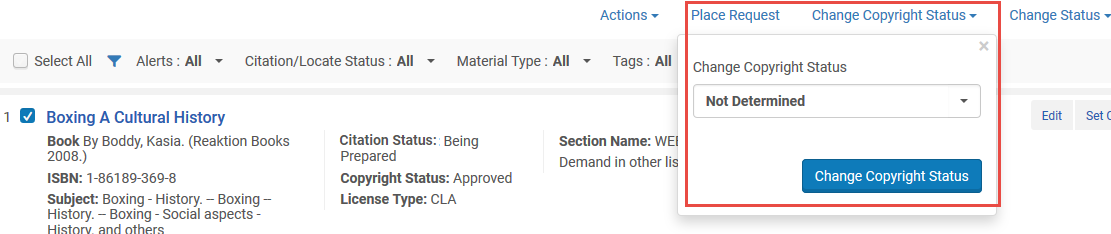
Almaによって自動的に管理されないの選択された引用はすべて、選択された引用にアップデートされます。Almaによって自動的に管理される選択された引用はすべて影響を受けません。
Automatically Managing a Citation Copyright Status
引用に著作権ステータスの自動管理のマークが付いている場合、ユーザーは引用の著作権ステータスを手動でセットできません。
When editing a citation (see Editing a Citation), in the Copyright Attributes tab, select Copyright Auditing Required and enter information in the Copyright Attributes area.For information on most of these fields, see staff digitization request in Creating a Request.If you are implementing Leganto, an administrator can make the Source for Copyright field mandatory and select its default value, see copyright_source in Configuring Leganto Copyright-Related Procedures.
Alma uses digitization and copyright rules to automatically set the copyright status of a new citation (or an existing citation whose copyright attributes are changed) to Approved or Declined or to send an approval task to an operator.For more information, see Configuring Digitization and Copyright Rules.For information about approving or rejecting the requests as an operator, see Approving/Rejecting a Request for Digitization.
引用の著作権ステータスが承認待ちまたはCC待ちの場合、[図書リストの編集]ページの引用の下にあるルールの再計算を選択して、自動承認/拒否の引用を再送信できます。これは、たとえば、デジタル化と著作権のルールを変更する場合、引用の著作権属性が変更されたが、引用が自動承認/拒否のために自動的に再送信されなかった場合などに便利です。
図書リストがコースに関連付けられると、承認された著作権の記録は、経理目的で全部または一部がロックされる場合があります。コースに関連付けられた図書リストで、フィールドに変更を加えた場合、既存の著作権リクエストのタイミングとステータスに応じて、リクエストをアップデートするか、新しいリクエストを行うように求められる場合があります。新規/アップデートされたリクエストが自動的に承認されない場合、Almaは司書が手動で処理するための承認タスクを作成します。承認された著作権リクエスト(ライセンス機関によるもの。自己宣言またはクリエイティブコモンズによるものではない)で引用を削除する場合、記録の取り扱いは削除された日付によって異なります。
- コース開始前-著作権の記録は削除されます。
- コース中-著作権の記録の終了日は、引用が削除された日付に変更されます。自動承認された著作権の終了日は、現在の日付よりも前にセットすることはできません。
- コース終了後-著作権の記録は保存されます。これは、著作権管理を自動から手動に変更した場合にも当てはまります。
すでにデジタル化されたファイルを引用間で再利用する
図書館員は、引用の間でファイルを検索してコピーすることができるため、すでにデジタル化されているファイルをデジタル化する必要がなくなります。引用のアクションリストから既存のファイルを添付を選択します。
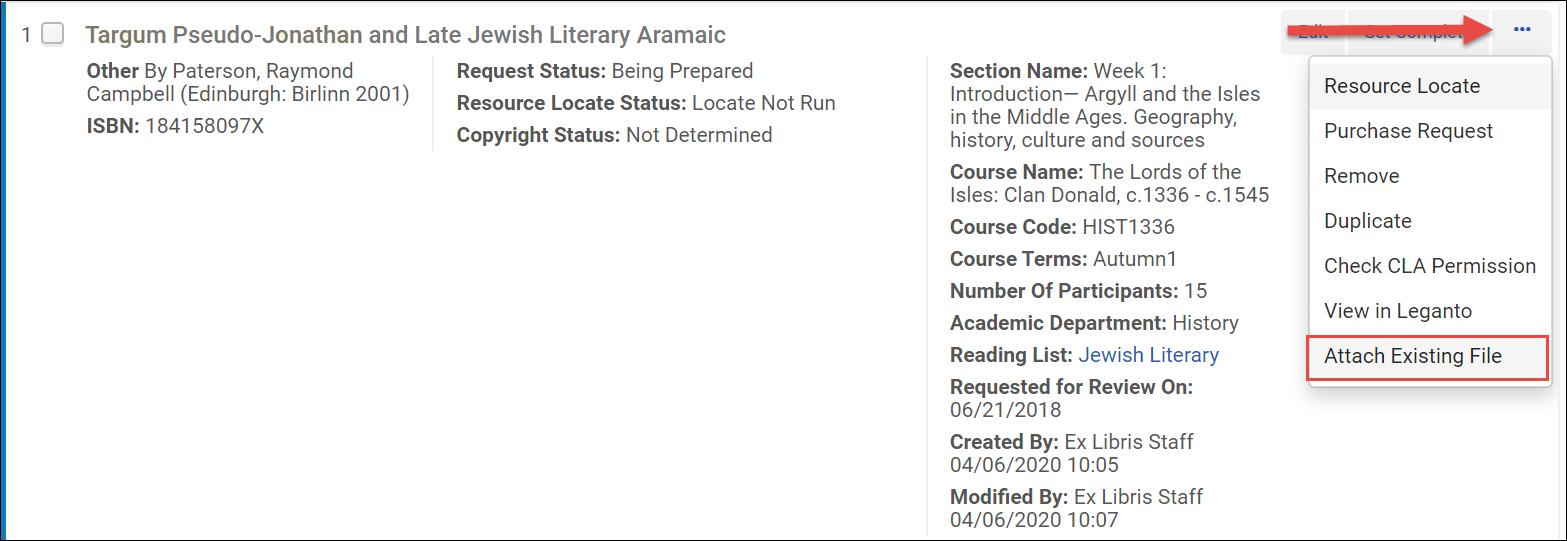
The next screen shows a result screen showing all citations with similar identifiers or titles which include an attached file.
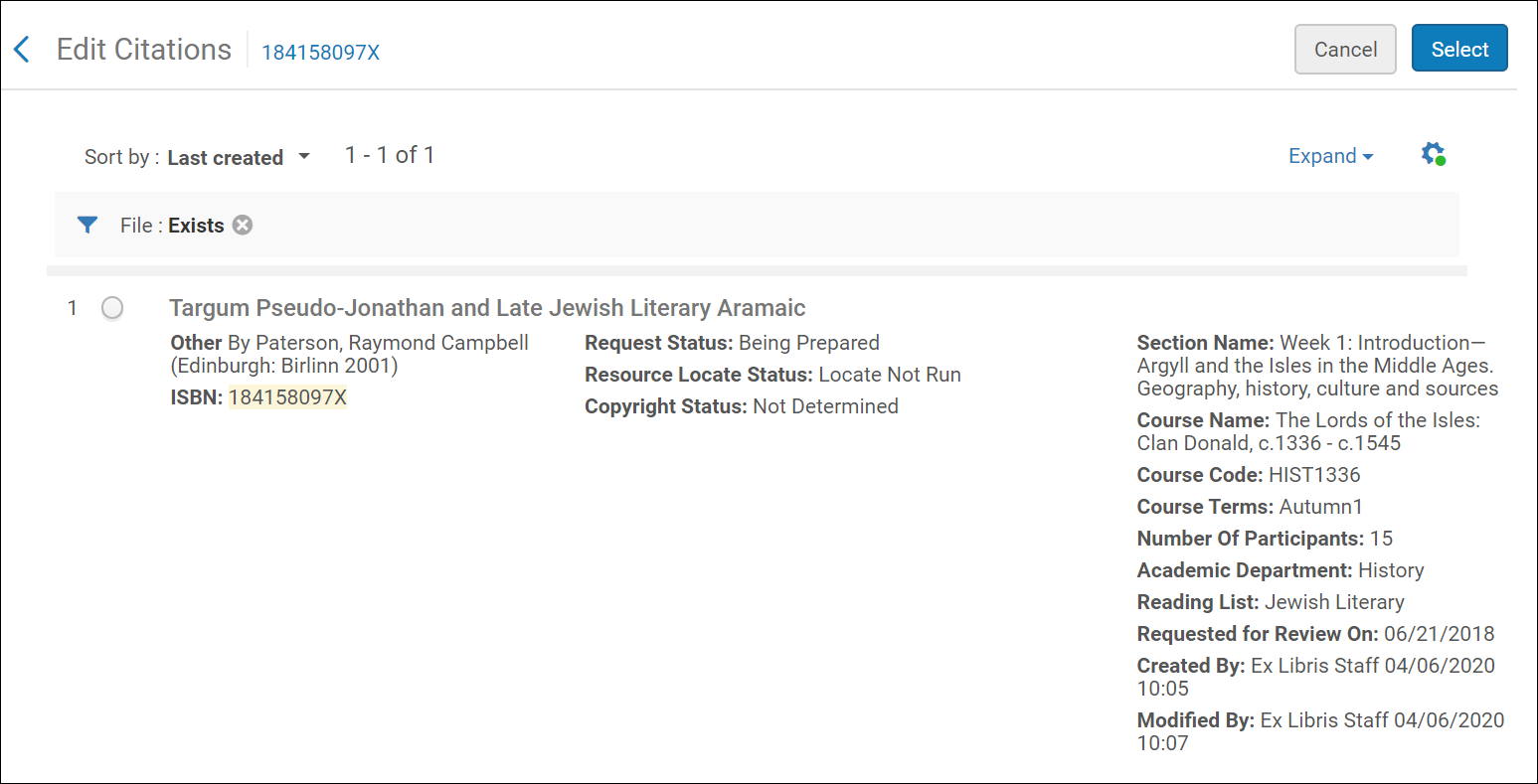
You can select a citation by selecting the radio button corresponding to the citation and clicking Select.この画面で引用を選択すると、ファイルがコピーされ、元の引用に添付されます。
引用にファイルがすでに存在する場合、新しいファイルを添付すると既存のファイルが置き換えられます。また、引用に関する進行中のデジタル化リクエストもキャンセルされます。
Offering a Citation Replacement for an Existing Citation
Leganto は、引用の一括置換をサポートするようになりました。たとえば、この機能を使用して、引用を新しい版に置換したり、物理的な引用を電子的な引用に置換したりできます。ライブラリは、引用がすぐに置換されるかどうか、または置換がインストラクターに提案として表示されるかどうかを構成できます。
承認済の著作権ステータスを伴う引用文は、置換できません。
If your institution would like to have replacements presented to instructors as suggestions, set the parameter replacement_suggestion_auto_replace(Configuration > Leganto > Features > Leganto Features) to false.これがデフォルトです。
引用を編集画面から、置換する引用または引用を選択します。次に、置換提案を選択します。
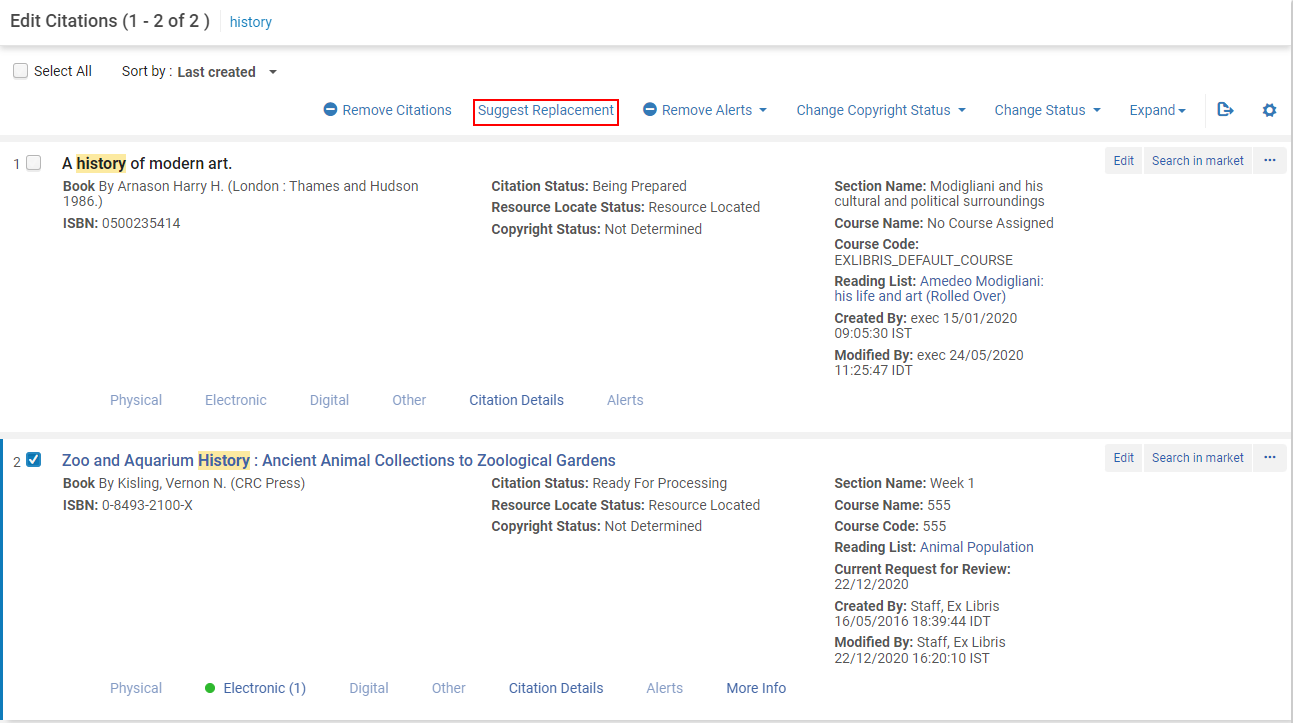
Library staff are directed to the Repository Search, where they can search for and select the new item that they want to use as the replacement.
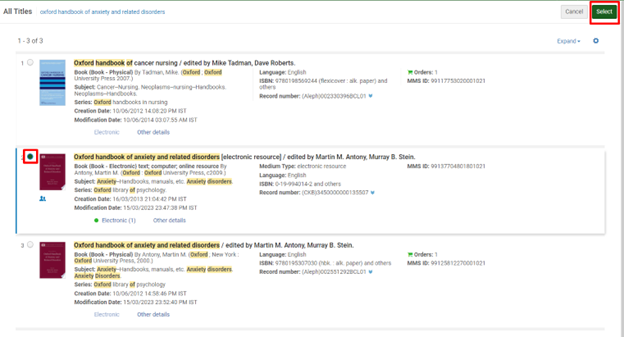
Library staff are presented with a confirmation screen.
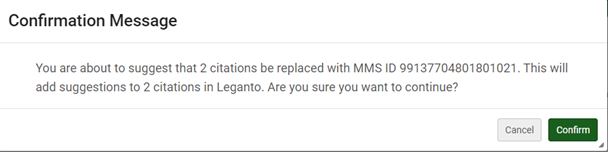
確認を選択後、Legantoの各引用に提案が追加されます。さらに、システムタグ新版ありが各引用に追加されます。
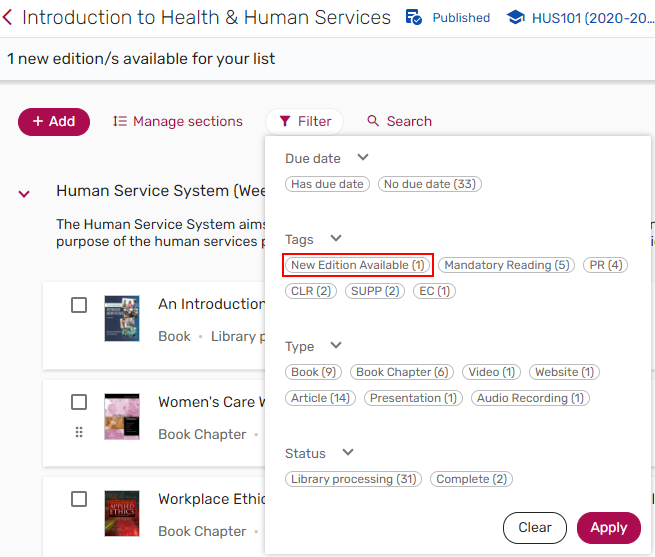
If replacement_suggestion_auto_replace(Configuration > Leganto > Features > Leganto Features) is set to false, when relevant, a banner is displayed indicating that there are new editions available for the list.
バナーは、図書館員、Legantoコースオペレータ、およびリスト所有者にのみ表示されます。

Instructors can select the banner to see items with new edition suggestions.
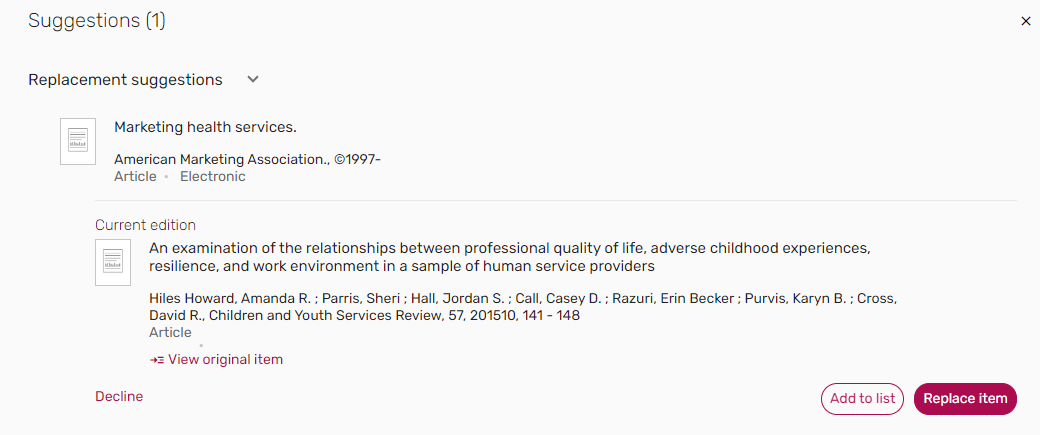
The details of the Replacement suggestions are viewable from the Suggestions pane and the Related items tab on the Full details of an item.
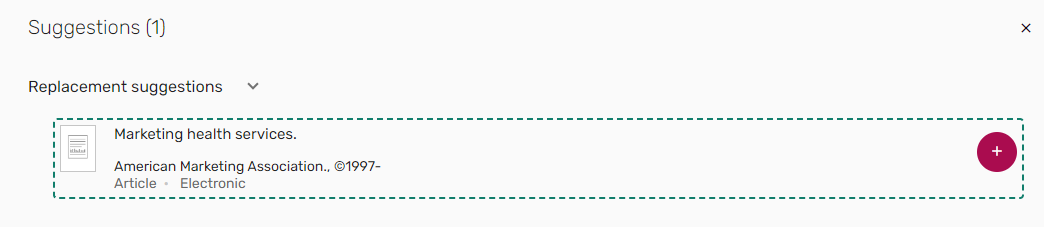
Selecting the suggested item opens the full suggestion, which includes the details of the original item and a link to the original item.From either the Suggestions pane or the Related items tab of the original item, instructors can choose to replace the item, which re-links the citation to the new MMS ID, updating the citation metadata.Other existing information about the citation, including usage information, tags, and notes, is preserved.The instructor can instead choose Add to list, which keeps the original item and adds the suggestion as an additional resource on the list.Alternatively, the instructor can choose to decline the suggestion, which removes the suggestion and the tag.
Alternatively, if your institution would like to have citations replaced immediately, rather than sent to instructors for approval, set the parameter replacement_suggestion_auto_replace(Configuration > Leganto > Features > Leganto Features) to true.図書館スタッフが代替品として使用する新しいアイテムを選択すると、確認画面が表示されます。
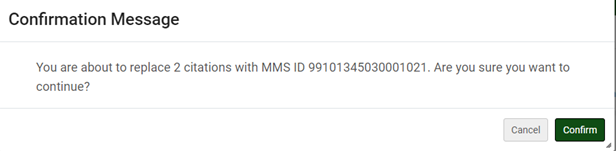
After selecting Confirm, all the citations which were selected for replacement are linked with the MMS ID of the item chosen as the replacement item.The citation metadata and inventory update, but tags, notes, and usage information are preserved.
Page tags: article:topicproduct:almacontent:DocumentationCitationlang:englishmanaging citationsReading List Citationcitation typecitation statusCLA permissionsCopyright Licensing AuthorityCLAcitation tagcitation attributeedit reading list citationnon-repository citationcopyright clearanceManage Resource OptionsDigital Content StoreDCSdue back datecitation due back dateadd reading list citationedit citationmanaging reading list citationsremove citationremove reading list citationdelete citationdelete reading list citation
