
Setting Up Receipt Printing
Printing receipts from Leap depends on the options set for your library organization in Polaris Administration, the device you are using to access Leap, the workform settings in the Polaris ILS, the Print Options and Direct to Printer user settings in Leap, and the receipt printer configuration.
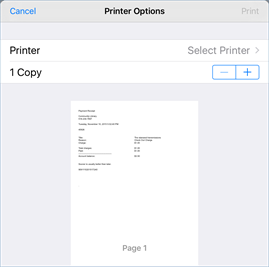
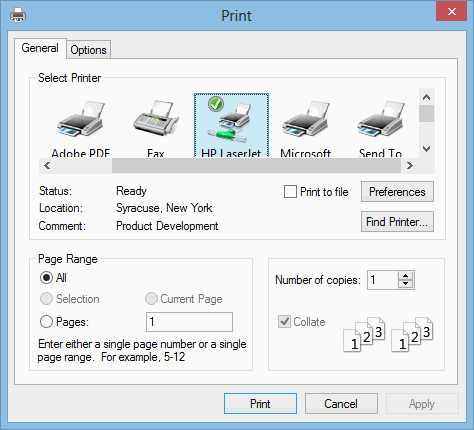
When the receipt printer has been configured, and the workform print options are set to print a receipt for an action, the Printer Options or Print dialog opens automatically when the user performs the action.
Printer Options box for an iPad
Print box for Windows
To send the receipt print job directly to the configured printer without using the browser, you can use the Direct to Printer option. To enable the Direct to Printer feature, see Set Direct to Printer Option for Receipts and Labels.
Note:
Using the Direct to Printer feature is optional. Libraries can use this feature for a more seamless printing experience, but it is not required. If you prefer, you can still use your browser’s built-in print functionality instead to print receipts.
Receipts and slips are printed from Leap according to the settings in Polaris Administration and workform print options, which can be set in the Polaris staff client or in Leap. You can also re-print receipts. For Leap print settings, see Set user print options for receipts and slips. For information on setting workform print options in the Polaris ILS staff client, see the Polaris online Help.
See also:
