
Set User Print Options for Receipts and Slips
If your library has a license for INN-Reach integration with Polaris, you can select the INN-Reach print options.
To set the options for printing receipts and slips in Leap
- Select your user ID in the upper right corner of the page.
- Select Settings.
The Settings page opens with the Print Options view displayed.
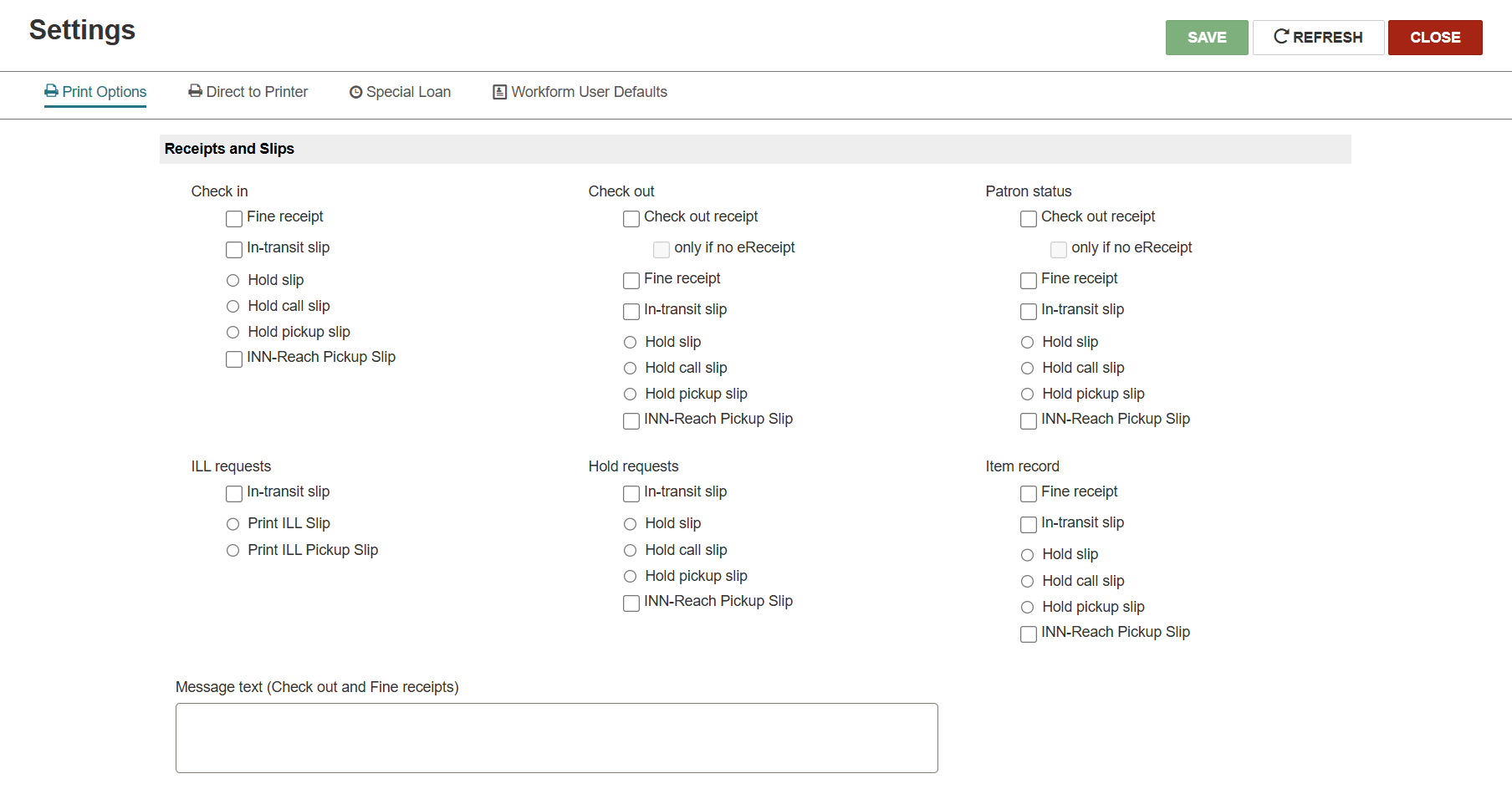
- Select the receipts and/or slips to print.
Configure the receipt printers to print receipts and slips from Leap.
- (Optional) In the Message text (Check-out and Fine receipts) field, enter the message text you want to appear on Check-out and Fine receipts for the branch you are logged into.
To configure the message text for Check-out and Fine receipts in Leap, you must have the following permission: Modify receipt message text: Allow.
For more information about circulation permissions reference, see Circulation Permissions Reference.
The message text can also be configured in Polaris System Administration (web-based) in the Receipt printer: Message text setting. For more information about the Receipt printer: Message text setting, see Patron Services Settings Reference.
