
Return an ILL Item
You can return an ILL item from the ILL Request workform or the ILL view of the Patron Record workform. To return an ILL item, the ILL request must have a status of Received and the linked item must have a status of In or In-Transit.
Note:
The following Polaris Circulation permissions are required to return an ILL item:
ILL requests: Access
ILL requests: Modify
Return an ILL Item from the ILL Request Workform
To return an ILL item from the ILL Request workform
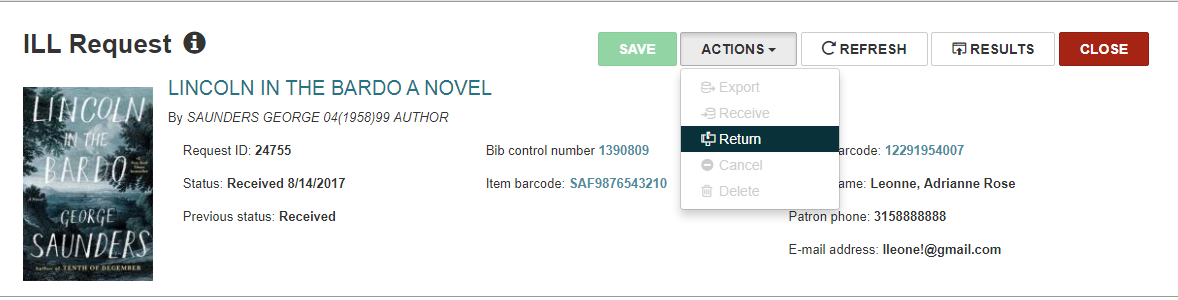
- Open the ILL Request workform for the ILL item you want to return.
- Select ACTIONS > Return.
Note:
This Return option in the ACTIONS menu is enabled only when the ILL request has a status of Received and the linked item record has a status of In or In-transit.
Return an ILL Item from the Patron Record Workform
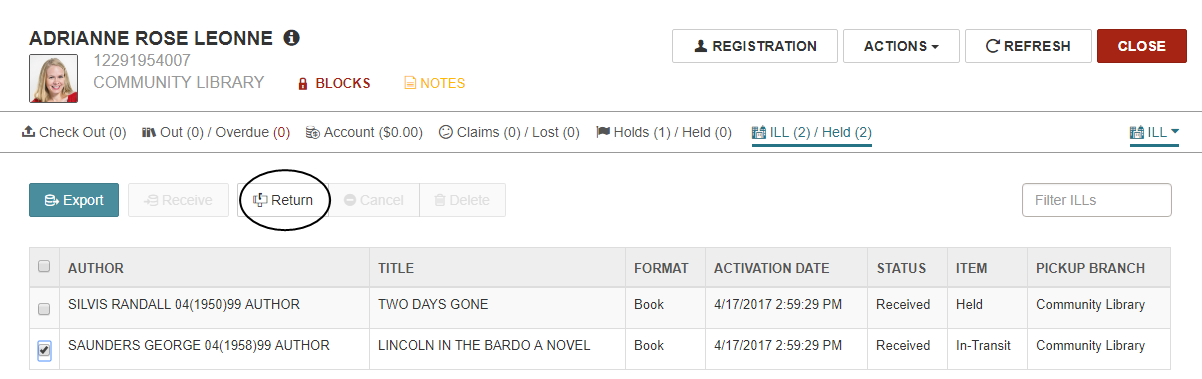
Open the Patron Record workform for the patron who requested the item.
Note:
This Return button is enabled only when the ILL request has a status of Received and the linked item record has a status of In or In-transit.
Return an ILL Item Process
The following automatic processing occurs:
- If the item is In-transit, this message appears: Item has an In Transit status. Please check the item in.
- The ILL request status is updated to Returned with a new status date.
- The linked item record gets a status update to Returned-ILL.
- The item record history includes a new row Return via ILL processing.
- If the ILL item was requested through INN-Reach, the lending library is notified via the INN-Reach API that the item is being sent back.
