
SQL Job Status
SQL jobs manage Polaris automated processing tasks. You can access SQL Job Status from Polaris System Administration (web-based) to view a list of all SQL jobs configured on the server, their statuses, and the history of selected jobs. This allows you to see the status of a job for troubleshooting purposes without having to use SQL Server Management Studio (SSMS). If you share a server, you will only see the SQL jobs configured for your organization.
Note:
SQL Job Status is read-only and doesn’t allow modifications to the jobs, job schedules, or the addition of new jobs.
To access SQL Job Status in Polaris System Administration (web-based)
Note:
This requires administrative-level permissions. To enable access, the Access SQL job status permission needs to be manually added to the staff member's permission group in Polaris System Administration (web-based).
-
On the Home page, select SQL Job Status.
-
The SQL Job Status page appears, displaying a table of all SQL jobs configured on the server with the following information about each job:
-
Name – The name of the SQL job.
-
Enabled – Shows
 if the job is enabled or blank if the job is disabled.
 -
Status – Describes the job's current state (Idle, Executing, etc.) at the time the page was loaded. To see the updated status, refresh the page in your browser.
-
 (Failed icon) – A blank space indicates that the job was successful, while the red icon indicates that the job failed.
 -
Last Run Outcome – Shows the result of the most recent job run (Succeeded, Canceled, etc.).
-
Last Run Date – Displays the date and time of the most recent job run.
-
Next Run Date – Shows the date and time of the next scheduled job run. If the job run wasn’t scheduled, Not scheduled appears.
-
Scheduled – Shows
if the job is scheduled or blank if the job is not sheduled.
-
-
(Optional) To filter the list of jobs or find a specific job, enter your search criteria in the search box at the upper-right corner of the page.
-
(Optional) To sort a column in the table, click its header.
-
-
In the Actions column of the job, click
 and select View to see the history of the selected jobs.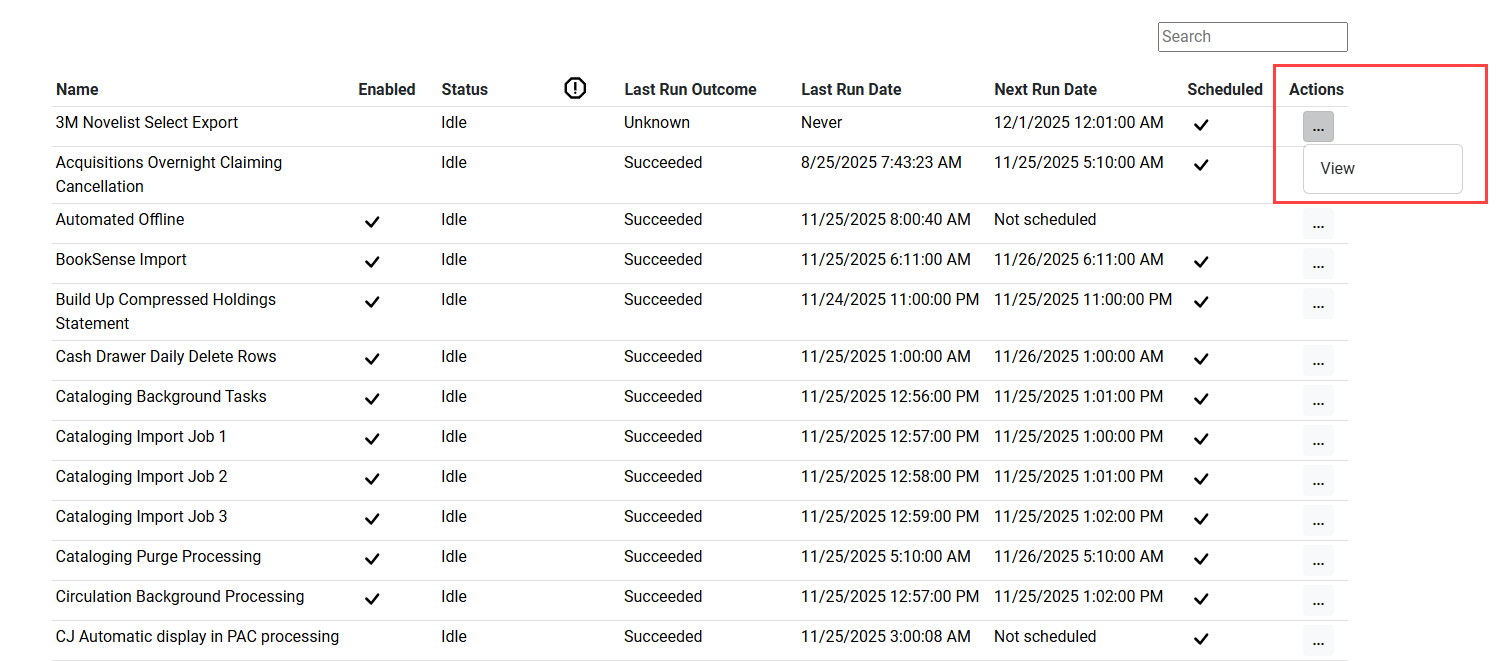
-
The page of the selected job appears, displaying the table of all job runs with the following information about a specific run:
-
Run Date - Displays the date and time of the job run.
-
Status - Shows the outcome of the most recent job run (Succeeded, Canceled, etc.)
-
Message – The summary of relevant information about the job run status and its steps.
-
Details – Clicking on the
 expands the job run row to display the details about each step of the run: Number, Name, Status, Duration and Message.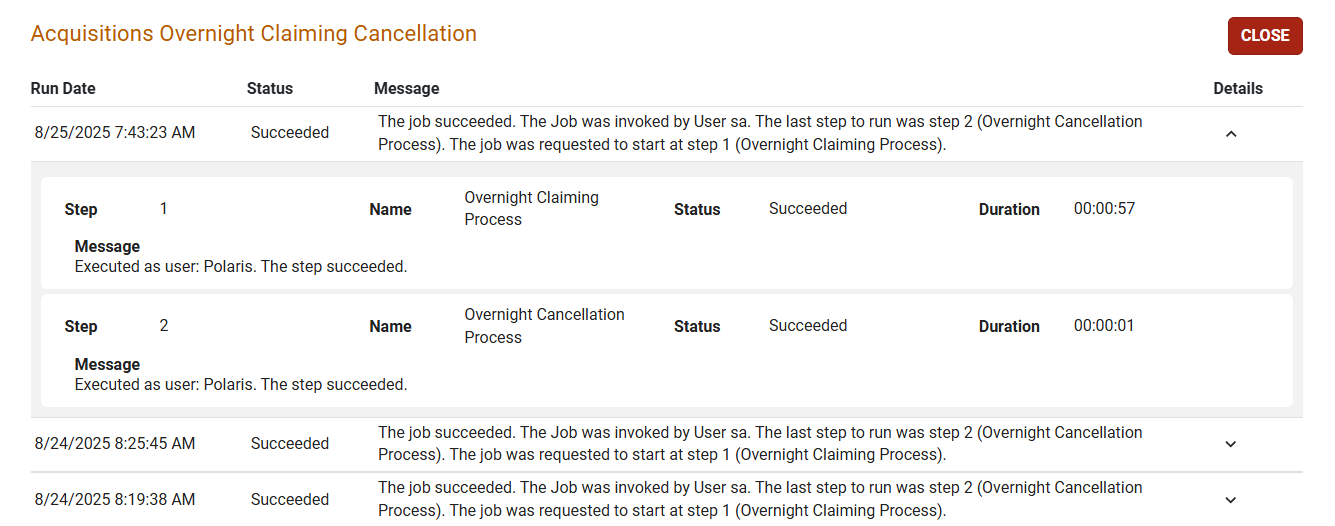
-
-
Select CLOSE to exit the job page and get back to the SQL Job Status page.
-
