
Generate and Print Patron Billing Statements
A patron billing statement summarizes all outstanding charges on a patron's account. It does not affect the notices queue.
Generate and Print Statements for Organizations
To generate and print patron billing statements for one or more organizations
- Select Utilities > Print Notices.
The Notices workform appears.
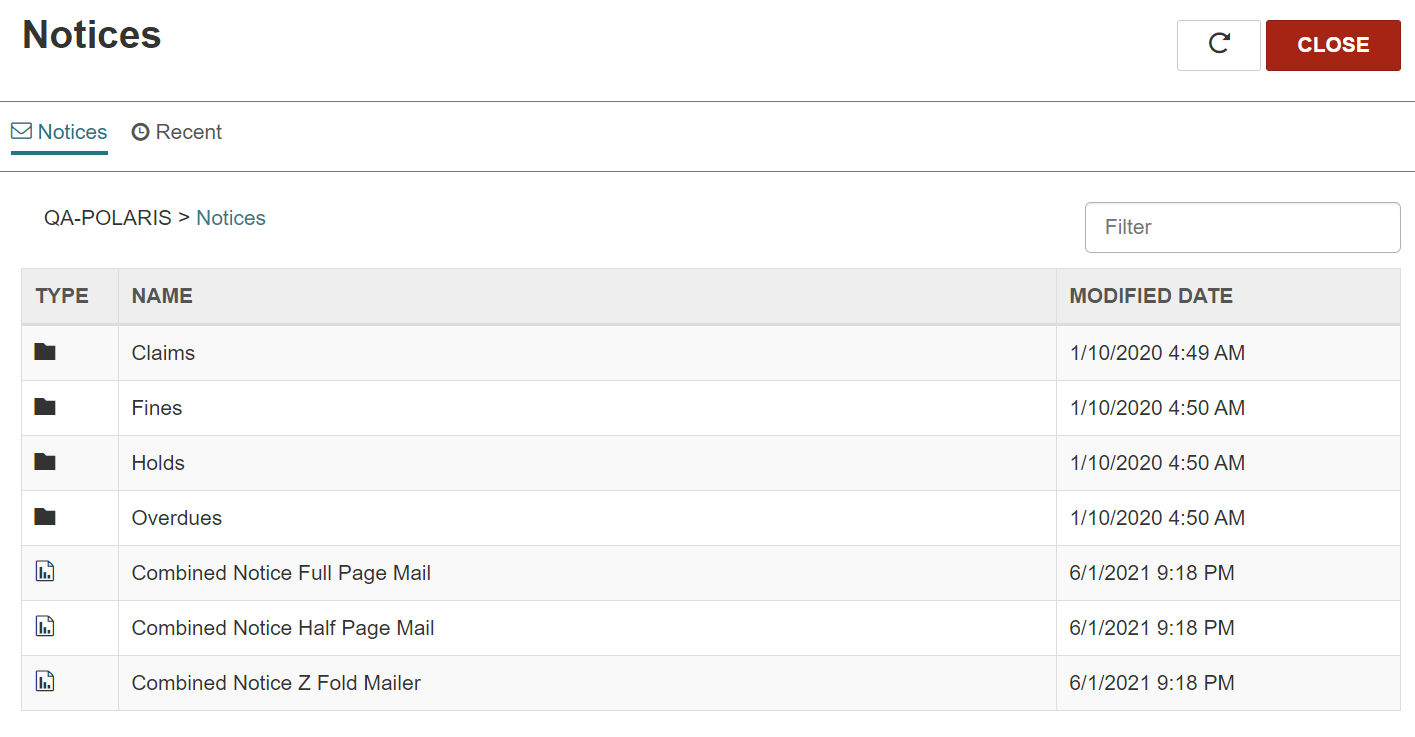
- Select Overdues.
The available overdue notices, billing notices, and patron billing statements appear.
-
Select Patron Billing Statement by Organizations.
The Report Wizard appears.
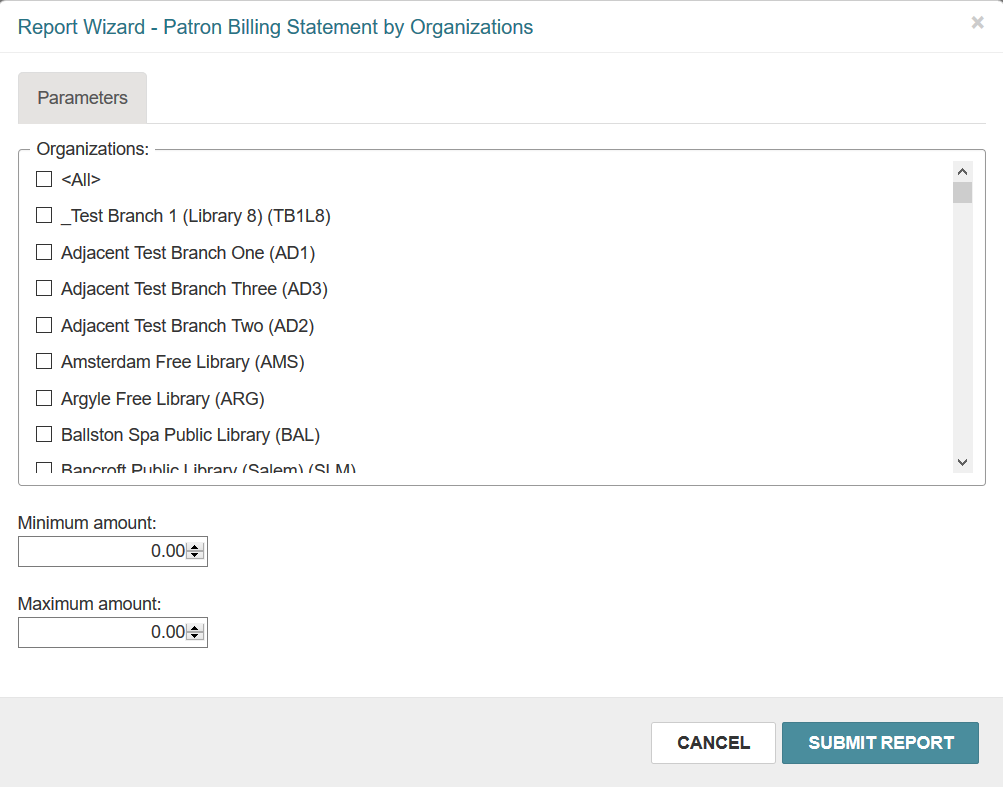
- Select the organization(s) for which you want to print billing statements.
-
Billing statements are generated for patrons with outstanding charges that fall between a minimum amount and a maximum amount that you specify.
- In the Minimum amount box, enter the minimum outstanding charges amount.
- In the Maximum amount box, enter the maximum outstanding charges amount.
-
Select Submit Report.
Leap generates patron billing statements and displays them in a preview window. This might take a few moments.
-
Review the statements in the preview window.
Note:
If you see problems or decide not to print the statements, close the preview window. - Select the printer icon to print the patron billing statements.
Generate and Print Statements for Specific Patrons
To generate and print patron billing statements for specific patrons
- Select Utilities > Print Notices.
The Notices workform appears.
- Select Overdues.
The available overdue notices, billing notices, and patron billing statements appear.
-
Select Patron Billing Statement by Patron Barcode.
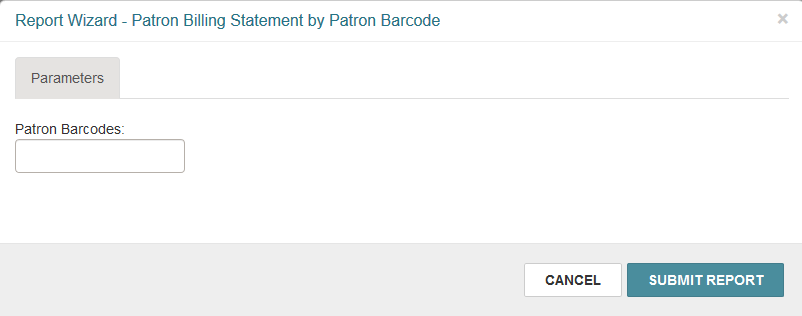
The Report Wizard appears.
-
In the Patron Barcodes box, enter the patron barcode(s). You can type or scan patron barcodes.
Note:
- Separate multiple barcodes with commas.
- You can enter a maximum of 255 characters in the Patron Barcodes field.
- Leap does not validate the barcodes you enter in the report wizard. If you enter an incorrect barcode, a billing statement for that patron is not generated.
-
Select Submit Report.
Leap generates patron billing statements and displays them in a preview window. This might take a few moments.
-
Review the statements in the preview window.
Note:
If you see problems or decide not to print the statements, close the preview window. - Select the printer icon to print the patron billing statements.
