
Mobile SFX Menu
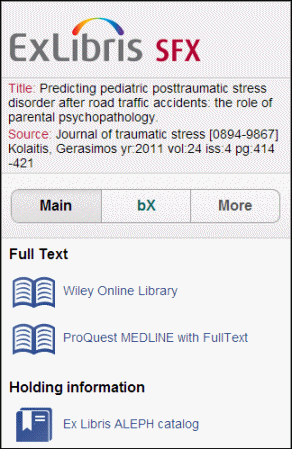
The SFX menu has been optimized for display on mobile devices. The mobile interface differs in several ways from the standard SFX menu:
- No image in the SFX menu banner. Institutional branding is done via separate header image for mobile SFX menu.
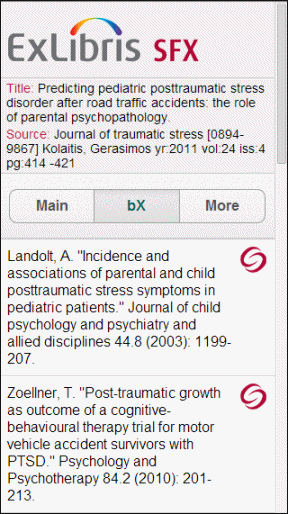
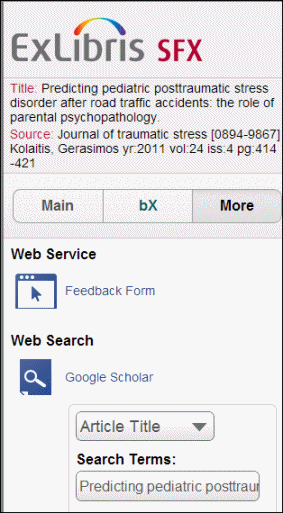
- The menu is divided into three sections, each accessible via a separate tab:
- Main – a section with basic services (displayed by default when accessing the menu)
- bX
- More – additional services
- No separate simplified and advanced template sets. All configuration is done via SFX Admin Center > Configuration > Menu design via the configuration UI for the simplified template set.
- All textual information is defined via SFXAdmin > Configuration > Translations & Display.
- Verde license information icon is not displayed in the mobile SFX menu.
Overview
You access the SFX menu interface the same way as you would the standard interface – the mobile device is automatically detected. The configuration settings that are set for the simplified template No. 1 also apply to the mobile interface, although there are cases where the mobile interface differs from the standard SFX menu (For more information, see Mobile SFX Menu Configuration.)
Mobile SFX Menu Configuration
You can enable/disable the mobile SFX menu for all sources or enable the mobile SFX menu for all sources except for Primo. For more information, see Enabling/Disabling the Mobile SFX Menu View.
All configuration is done via SFXAdmin Center > Configuration > Menu Configuration via the configuration UI for the simplified template set. If the active template is set to the advanced template you have to configure it to the simplified template:
- Select Simplified Template No. 1 from list. The Menu Design sections now become accessible.
- Make configuration changes via the sections on the left side of this screen and click Save.
Most configuration settings that are set for the standard interface also apply to the mobile interface, except that for the mobile SFX menu you change or define the header image in SFXAdmin > Configuration > Menu Configuration.
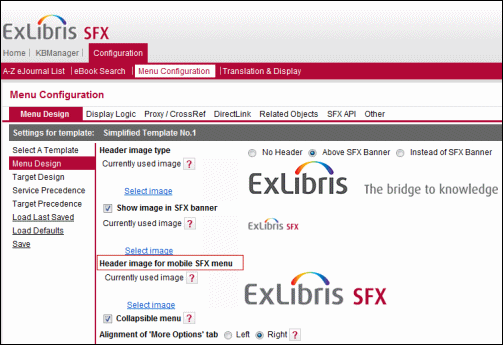
The following configuration settings are fixed for the mobile SFX menu and are not configurable via the Target Design tab in the Menu Configuration section of the SFXAdmin:
- Text to Hyperlink is set to Target Name.
- Show fill-in boxes is set to No.
- Show Go button is set to No.
- Target icon – configured to be a fixed set of target icons specific to the mobile SFX menu.
Configuration for the bX Section of the SFX Menu
bX configuration is done via config/bx.config (like in the regular SFX menu), except for the following:
- The show_full_text_button is always 0 for mobile. A full text link is available via the article title or book title hyperlink and cannot be disabled.
- The location of the bX section cannot be configured – it is always a separate tab.
- No more than 10 results are displayed - even if the bx.config file setting are higher than 10.
- The result list cannot be collapsed or expanded.
Additionally, the following differences exist between the standard SFX menu and the mobile SFX menu:
- The bX logo is not shown in the mobile SFX menu.
- Selecting and saving bX citations is not supported in the mobile SFX menu.
Target Displayers in the SFX Mobile Menu
For full text, Table of Contents, and abstract services, no fill-in boxes are used (for both the default displayers and displayers for specific targets).
For other services, the displayers are displayed (for example, Web searches).
