
Choosing Resource Identifiers in Resource Definitions
If your library has acquired ERM, you choose resource identifers in the Match against this resource drop-down menu of the resource definition to:
- restrict data tests to a portion of the coverage database
- link a resource in the coverage database to its resource record
If you are using the resource identifier only to link a resource in the coverage database with its resource record (and thus display resource and license record fields in the resource panels), you do not need to choose a data test (or field selectors) before choosing a menu option from the Match against this resource drop-down menu.
To choose resource identifiers, the process is:
- Identify the resources that require license or resource record fields to display.
- For the identified resources, edit the resource definitions:
- If the resource and license record fields will display in response to a request from an external origin, see the Resolution Server section.
- If the resource and license record fields will display in response to a request from WebPAC full record display, see the Bibliographic Record section.
Choosing Resource Identifiers in the Resolution Server Section
- Access the WebBridge Management menu by either:
- entering http://your_library_[domain]/webbridge/edit in the browser address window
- choosing Admin | WB Edit in an application
The WebBridge Management menu displays: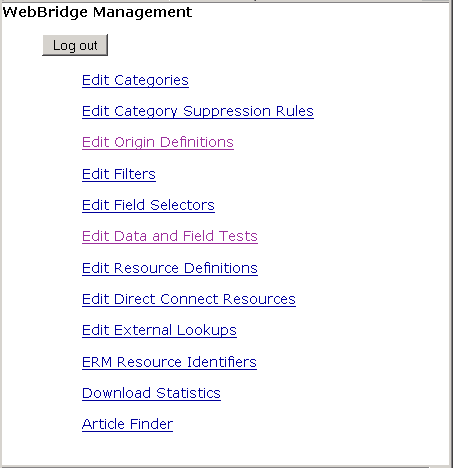
NOTE
Only one user can be logged in to the WebBridge Management menu's edit function. Other users can access the menus in View Only Mode.
If there is no activity by a login within the timeout period, the user is automatically logged out.
- Choose Edit Resource Definitions.
The WebBridge Management - Resources menu displays: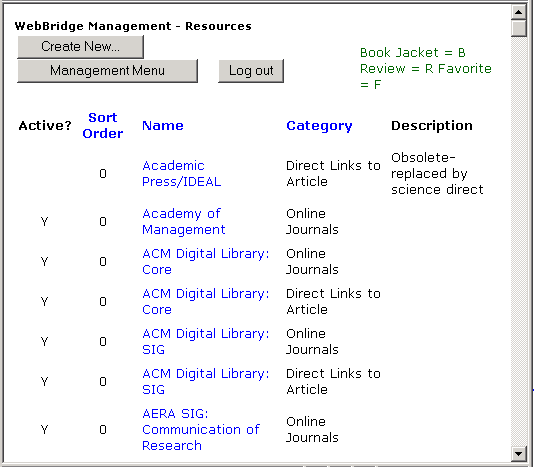
- Choose a resource definition.
The WebBridge Management - Resource menu displays. - Scroll to the Resolution Server Linking section of the WebBridge Management - Resource page:
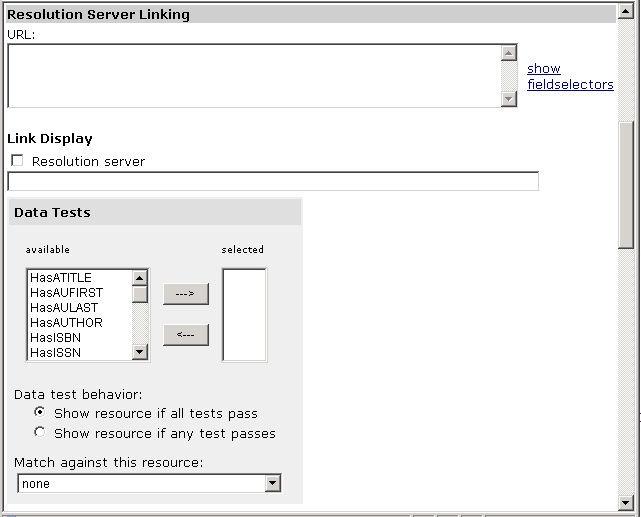
- Choose a resource identifier in the Match against this resource drop-down menu.
If a resource identifier has already been chosen (because a data test is in place), that resource identifier will be used to find the resource and license record fields. - Choose Save.
Choosing Resource Identifiers in the Bibliographic Record Section
- Access the WebBridge Management menu by either:
- entering http://your_library_[domain]/webbridge/edit in the browser address window
- choosing Admin | WB Edit in an application
The WebBridge Management menu displays:NOTE
Only one user can be logged in to the WebBridge Management menu's edit function. Other users can access the menus in View Only Mode.
If there is no activity by a login within the timeout period, the user is automatically logged out.
- Choose Edit Resource Definitions.
The WebBridge Management - Resources menu displays: - Choose a resource definition.
The WebBridge Management - Resource menu displays. - Scroll to the Bibliographic Record Linking section of the WebBridge Management - Resource page:
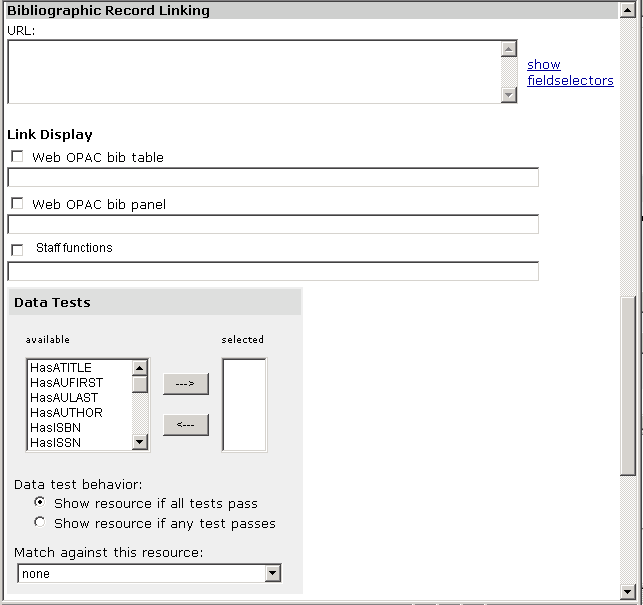
- Choose a resource identifier in the Match against this resource drop-down menu.
If a resource identifier has already been chosen (because a data test is in place), that resource identifier will be used to find the resource and license record fields. - Choose Save.
