
Displaying Resources Based on the Absence of Fields
When you want to offer resource links by matching a field in the coverage database (TITLE, for example) only if some other field is not present in the record (ISSN, for example), use a field test of the type Check for field.
To use a Check for field test, you:
- Create one or more field selectors.
The definition of the field selector is used in the field test to identify a record field. This is the element that must be missing from the record when the Check for field test is applied. The Check for field test does not examine the value of record fields. The test evaluates only the presence or absence of the fields. Therefore, the results of regular expressions in field selectors are not used by Check for field tests. - Create the Check for field test.
- Assign the Check for field test to one or more target resources.
Testing Records for the Absence of Fields
To create a field test that displays resources only if one or more elements are missing from the record:
- Choose Data and Field Tests from the menu on the left-hand side of the Pathfinder Pro home page.
The Data and Field Tests tab displays: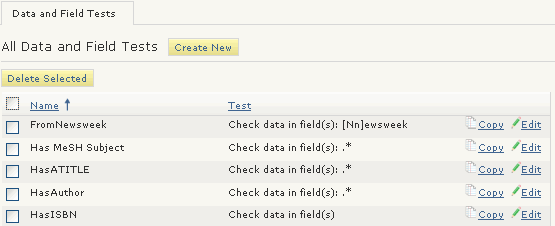
- Choose Create New.
The Data Field Test (new) tab displays: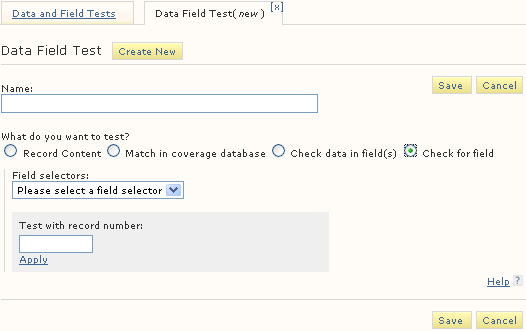
- Enter a Name.
- Choose Check for field.
- Choose a field selector from the drop down menu.
Choose a field selector in which the Additional Settings are defined. - Choose Save.
- Assign the data test to a resource.
