
Displaying Links to Resources Based on Record Range
When you want to suppress the display of a resource link in records that are related by subject area (call number range), publication date (date range), or some other characteristic that can be expressed as a range of data in a field, use a data test of the type "bool query."
Bool query data tests contain rules, such as "greater than" or "equal to," to test one or more fixed- or variable-length fields in a bibliographic record. When you request resources from the full record displays of WebPAC and Sierra, the record in the full record display is tested against the bool query.
- If the record passes the bool query data test, and the bool query data test is assigned to one or more resources, then links to those resources display when the record appears in the full record displays of WebPAC and Sierra.
- If the record fails the bool query data test, and the bool query data test is assigned to one or more resources, then links to those resources do not display when the record appears in the full record displays of WebPAC and Sierra.
- If the bool query data test is not assigned to a resource, it displays.
Typically, bool query data tests are used to identify records that belong to a range and to suppress links from displaying when those records appear in Sierra or WebPAC full record displays.
To create a bool query data test that suppresses resource links:
- Create the bool query.
- Create the bool query data test:
- Choose Data and Field Tests from the menu on the left-hand side of the Pathfinder Pro home page.
The Data and Field Tests tab displays: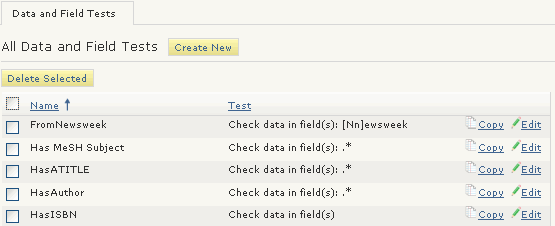
- Choose Create New.
The Data Field Test (new) tab displays: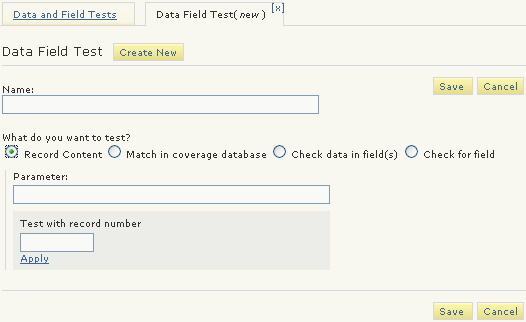
- Enter a Name.
- Choose Record Content.
- Enter the bool query in the Parameter text box.
- Choose Save.
- Choose Data and Field Tests from the menu on the left-hand side of the Pathfinder Pro home page.
- Assign the data test to resources.
Verifying That a Data Test Works
To verify that a data test is returning the desired result:
- Enter a record number in the Test with record number text box.
- Choose Apply.
The data test is applied to the record.
If the result is "False," the record failed the data test.
If the result is "True," the record passed the data test.
