
Displaying Resources Based on Coverage Data
When you want to suppress the display of a resource link because the resource is not available based on coverage data, use a data test of the type "match data." Failure to suppress such links results in the user encountering an Error 403: Access Denied message.
Match data tests determine whether field selectors match fields in the coverage database.
To use match data tests, you create one or more field selectors, create a match data test, and assign the test to one or more resources.
A match data test works like this:
- A record displays in Sierra or WebPAC.
- Pathfinder Pro searches the record for a field that matches the field selector assigned to the data test.
- Pathfinder Pro applies the Regular Expression (if any) of the field selector to the data in the field.
- The result is matched against the contents of the coverage database during the match data test.
- If the match data test passes, and the match data test is assigned to one or more resources, then those resources display.
- If the match data test fails, and the match data test is assigned to one or more resources, then those resources do not display.
- If the match data test is not assigned to a resource, it displays.
Suppressing Resources with Match Data Tests
To create a match data test that suppresses resources:
- Create a field selector.
- Create the match data test:
- Choose Data and Field Tests from the menu on the left-hand side of the Pathfinder Pro home page.
The Data and Field Tests tab displays: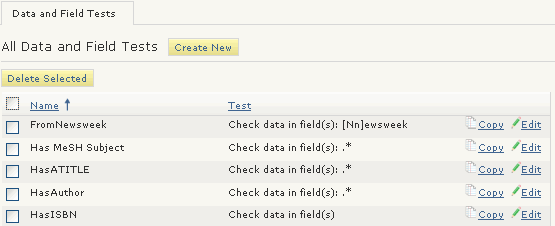
- Choose Create New.
The Data Field Test (new) tab displays: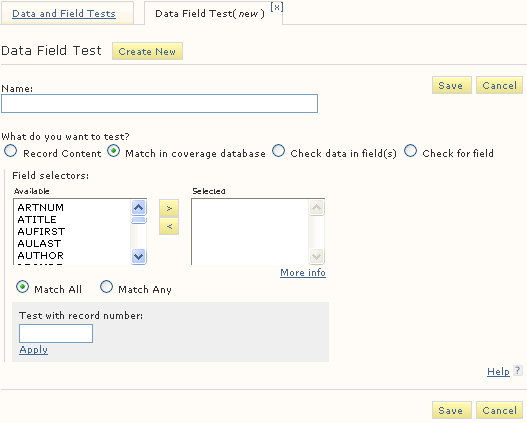
- Enter a Name.
- Choose Match in coverage database.
- Choose a field selector by moving it from the Available to the Selected column.
Choose a field selector in which the Additional Settings are defined (whether to normalize data from the record before matching, and which coverage database field to match). - To pass the data test only if all the field selectors match, choose Match All.
- To pass the data test if any of the field selectors match, choose Match Any.
- Choose Save.
- Choose Data and Field Tests from the menu on the left-hand side of the Pathfinder Pro home page.
- Assign the match data test to resources.
Verifying That a Data Test Works
To verify that a data test is returning the desired result:
- Enter a record number in the Test with record number text box.
- Choose Apply.
The data test is applied to the record.
If the result is "False," the record failed the data test.
If the result is "True," the record passed the data test.
