
Using the Article Finder
Article Finder allows patrons to locate an article using the WebBridge LR OpenURL resolution server. This HTML form can be accessed anywhere in the WebPAC. After a patron enters the citation information for an article, the data is submitted to the resolution server, which then offers contextually appropriate links.
To access the Article Finder, choose Article Finder from the menu on the left-hand side of the WebBridge LR home page or enter the following URL in your browser's address bar:
http://<Innovative server>/openurlform?genre=article
The Article Finder displays:
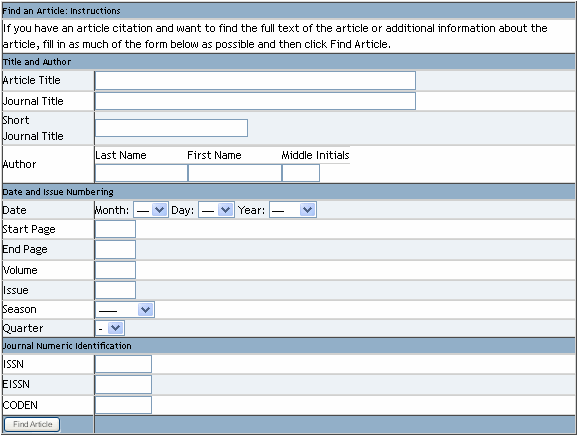
To find an article:
- Enter as much of the following as possible:
In this field: Enter the: Article Title title of an article. Journal Title title of the journal in which the article appears. Short Journal Title abbreviated journal title. Author author (Last Name, First Name, First and Middle Initials). Date date of the journal in which the article appears. Start Page starting page number for the article. End Page ending page number for the article. Volume volume of the journal in which the article appears. Issue issue of the journal in which the article appears. Season season in which the article was published (from the drop-down list). Quarter quarter in which the article was published (from the drop-down list). ISSN ISSN of the journal in which the article appears. EISSN electronic ISSN number of the journal in which the article appears. CODEN six-character identifiers used by Chemical Abstracts Service to identify serial and nonserial publications. - Choose Find Article to find the article.
You can link to the Article Finder from the WebPAC by putting the article finder URL on the appropriate page. In WebPAC, the Article Finder has the ability to auto-complete portions of the form with values from a WebPAC search.
Setting Up article.html
This page is edited in the same manner as Customizable WebPAC Forms. The article.html custom form uses the following tokens:
| <!--{action}--> | This token generates the <FORM> tags for the custom form. If this token is not used, you must enclose the remaining token between <FORM> tags formatted as follows: <FORM NAME=OpenURL ACTION="http://<Innovative server>:<port>/resserv?" TARGET="openURLWin"> Where <Innovative server> is the URL of your Innovative server (e.g., www.lib.edu) and <port> is the port number set in the RESSERV_PORT WebPAC option. |
| <!--{titleauthor}--> | This token inserts the table entries for Article Title, Journal Title, Short Journal Title, and Author as well as the HTML text boxes. |
| <!--{dateissue}--> | This token inserts the table entries for Date, Start Page, End Page, Volume, Issue, Season, and Quarter as well as the HTML text boxes. |
| <!--{numericid}--> | This token inserts the table entries for ISSN, EISSN, and CODEN as well as the HTML text boxes. |
| <!--{submit}--> | This token inserts the Find Article button. This token is required for this custom form to work. |
<HTML>
<HEAD>
<LINK REL="stylesheet" TYPE="text/css" HREF="/screens/styles.css">
</HEAD>

<BODY>
Simple article custom form<BR>
<!--{action}-->
<TABLE WIDTH="90%" class="centered" BORDER="1" CELLSPACING="0" CELLPADDING="0">>
<TR CLASS="browseHeader"><TD COLSPAN="2">Find an Article: Instructions</TD></TR>
<TR CLASS="browseEntry"><TD COLSPAN="2">If you have an article citation and want
to find the full text of the article or additional information about the article,
fill in as much of the form below as possible and then click
Find Article.</TD></TR>

<TR CLASS="browseHeader"><TD COLSPAN="2">Title and Author</TD></TR>
<TR CLASS="browseEntry">
<!--{titleauthor}-->
<TR CLASS="browseHeader"><TD COLSPAN="2">Date and Issue Numbering</TD></TR>
<!--{dateissue}-->

<TR CLASS="browseHeader"><TD COLSPAN="2">Journal Numeric Identification</TD></TR>
<!--{numericid}-->
<!--{submit}-->
</TABLE>
</BODY>
</HTML>
|
