
Creating a Lending Request
Esta página proporciona una descripción general de cómo crear solicitudes de préstamo en Alma, incluida la adición de solicitudes manualmente o desde una búsqueda. For more information on resource sharing including locating items for resource sharing, working with resource sharing partners, managing borrowing and lending requests and contributing to the resource sharing directory, see Resource Sharing.
Las solicitudes entrantes de préstamo de recursos compartidos (RS) son solicitudes de préstamo de libros u otros materiales de su institución por parte de otras bibliotecas a través de préstamo interbibliotecario (ILL). These requests are usually transmitted digitally to the lending library, and appear in Alma's Lending Requests page (Fulfillment > Resource Sharing > Lending Requests).
For information about handling existing lending requests, see Managing Lending Requests.
If you need to create lending requests in Alma directly – for example, if you receive a request over the phone or by email – you can do so from the Lending Requests page, either manually or from a search, as explained below. Una vez haya creado la nueva solicitud, podrá completar los campos relevantes según sea necesario. If the request was created from the results of a search, some of the fields are filled in by the system.
Adding a Lending Request Manually
Puede crear manualmente una solicitud de préstamo de recursos compartidos introduciendo información sobre el recurso en un formulario de solicitud de préstamo en blanco.
To add a lending request manually:
-
On the Lending Requests page (Fulfillment > Resource Sharing > Lending Requests), select Create Request > Manually and then select the type of resource – Book or Article. A blank Resource Sharing Lending Request form opens in a sliding panel.
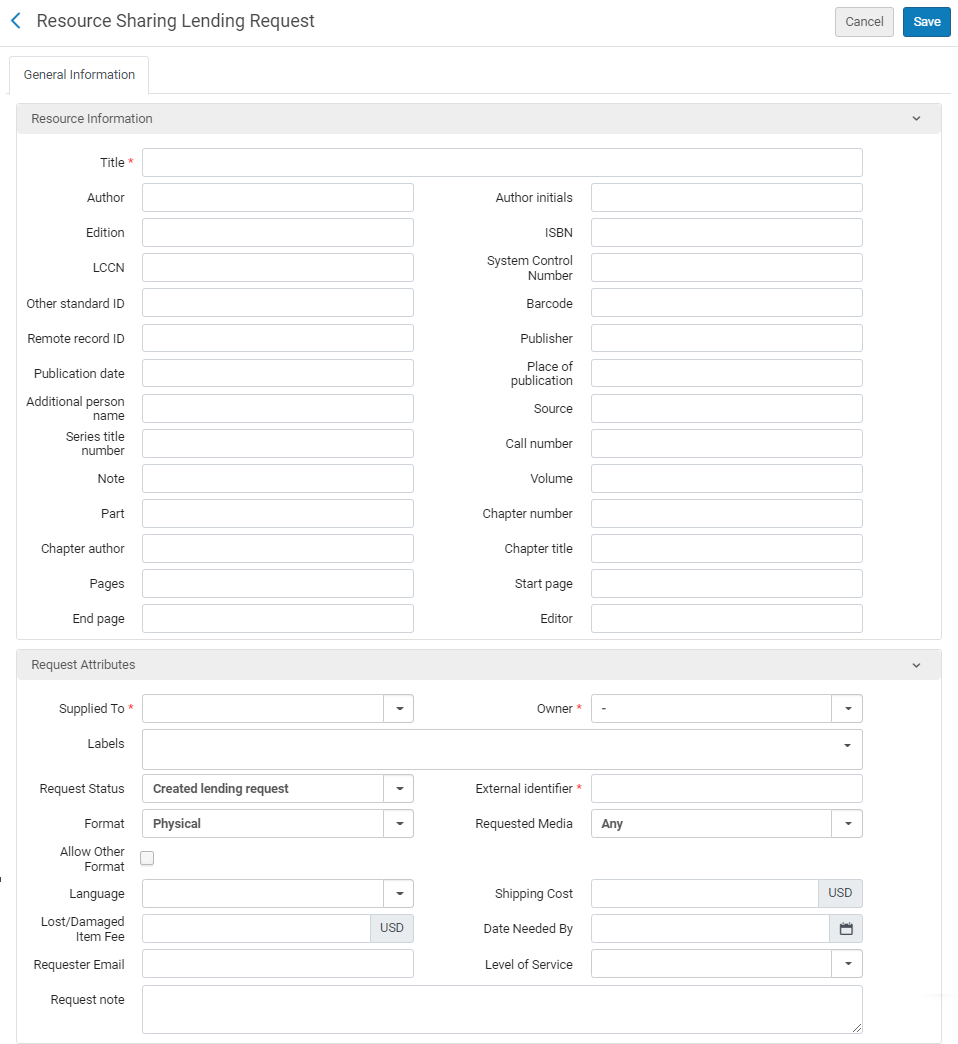
Página de solicitudes entrantes de préstamo de recursos compartidos (Libro)
- In the Resource Information area, enter the information in the relevant fields. For more information on these fields, see Adding a New Book or Journal Article.
- In the Request Attributes area, enter the required information in the relevant fields, as described in Lending Request Attribute Fields, below.
- Select Save. La solicitud de préstamo se crea y se cierra la página.
Adding a Lending Request From a Search
You can create a resource-sharing lending request by searching your institution's repository and copying the bibliographic record of the required resource from it.
-
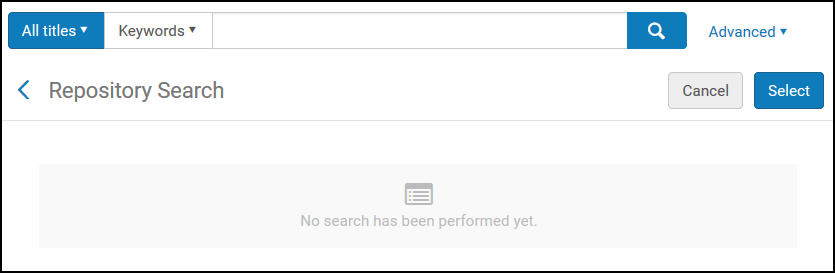
On the Lending Requests page (Fulfillment > Resource Sharing > Lending Requests), select Create Request > From Search. La página de Búsqueda en el repositorio se abre en un panel deslizante.
-
Search for the item (see Searching in Alma).
You can select only All titles in the Find box.
-
Select the checkbox of the required item, and then select Select. The Request Attributes section of the Resource Sharing Lending Request page opens.
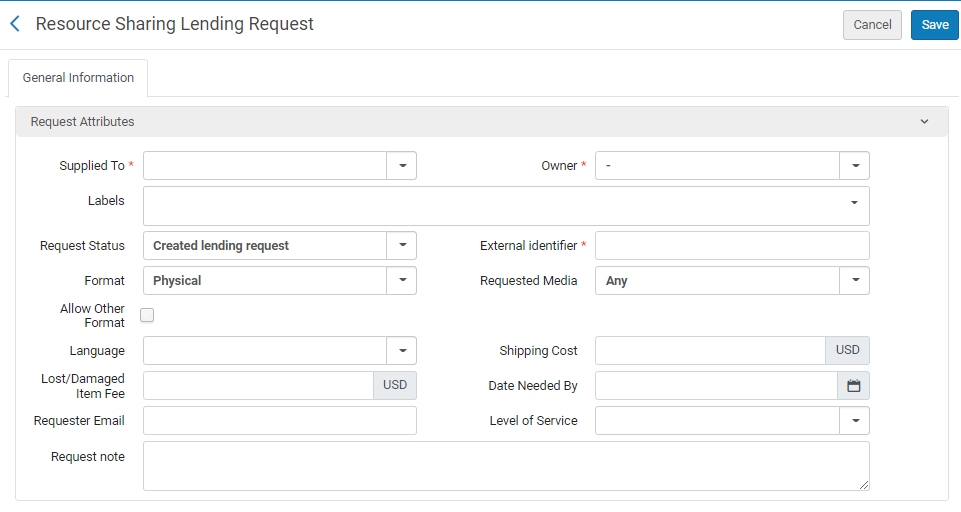
- Introducir o modificar la información solicitada, según se describe en la siguiente tabla:
Campos de atributos de solicitud de préstamo Campo Descripción Suministrado a (Requerido) Select the specific integration profile, configured on the Resource Sharing Partner List page in Fulfillment Configuration (see Resource Sharing Partners). Owner (Required)
Seleccionar la biblioteca de recurso compartido a la que el operador tiene alcance. Si la solicitud se crea automáticamente, como con un mensaje NCIP, los parámetros NCIP del socio establecen el propietario. Para un mensaje ISO, el valor se establece al símbolo ISO configurado en la biblioteca de recursos compartidos. Etiquetas Agregue una o más etiquetas (identificadores de una sola palabra) a la solicitud. Select the Labels field to see a list of existing labels. Seleccione una de las etiquetas para adjuntarla a la solicitud o comience a escribir para crear una nueva etiqueta.
See also Managing Labels for general information on managing labels in Alma.
Estado de la solicitud Seleccionar el estado de la solicitud. Seleccionar de los siguiente: - En proceso
- Cancelar respuesta
- Solicitud de préstamo creada
- Dañado
- Venció
- Devolución del prestador
- Ha fallado la localización
- Perdida
- Overdue request – The request's due date arrived.
- Recibida por el socio
- Solicitud del prestatario rechazada
- Solicitud completada - La solicitud ha sido entregada o cancelada antes de llegar al estante de reservas.
- Devuelto por el socio
- Enviado digitalmente
- Enviado físicamente
- Se proporcionará
Identificador externo (Requerido) Introducir la secuencia identificadora suministrada por el sistema externo. Formato En la lista de Formato, seleccionar el formato de la solicitud: - Digital
- Físico
- Físico no retornable
Medio solicitado El tipo de medios en los que desea que se suministre la solicitud. The values that display in the drop-down field are those configured with a value of True on the Requested Media Definition Mapping Table page (see Configuring Requested Media Definitions).
When a request is submitted with a requested media type that was added to the out-of-the-box options (see Configuring Additional Requested Media) and the request is sent to an ISO partner, the partner receives the requested media information in the Request Note field.
Permitir otro formato Si el formato solicitado no está disponible, esto indica si el usuario está dispuesto a recibir el ejemplar en otro formato. Lengua Es el idioma que el usuario solicita en la solicitud de préstamo. Estado de los Derechos de autor Refleja el estado de derechos de autor del prestatario (si el prestatario soporta estados de derechos de autor). El valor del prestatario será rellenado automáticamente para solicitudes ISO. Coste de envío Introducir un coste del envío para la solicitud. La divisa que se muestra es la divisa por defecto de la institución.
If a shipping cost lender rule is configured, it is applied to the shipping cost of the request (see Configuring Shipping Cost Lender Rules).
Fecha necesaria para Seleccionar la fecha en la que el ejemplar se necesita en el recuadro de diálogo Calendario. Nota de solicitud Introducir cualquier nota para la solicitud. See also Active and Inactive Notes. Correo electrónico del solicitante Introduzca una dirección de correo electrónico si el recurso solicitado es digital. El recurso se enviará a este correo electrónico. Nivel de servicio La velocidad de envío solicitada. To configure the available options, see Configuring Levels of Service. - Select Save. La nueva solicitud de préstamo se crea y se cierra la página.
