
Resource Sharing Partners
Esta página describe el trabajo con los socios de recursos compartidos, incluida la descarga, la configuración de los socios y la contribución de información al repositorio. See also British Library Document Supply Service (BLDSS), Configuring Alma/Broker Integration and Configuring Rota Templates.
For more information on resource sharing including locating items for resource sharing, managing borrowing and lending requests and contributing to the resource sharing directory, see Resource Sharing.
Para configurar la comunicación entre Alma y los sistemas de recursos compartidos, debe tener la siguiente función:
- Gestor de socios de recursos compartidos
Los socios de recursos compartidos se pueden crear para definir los tipos de comunicaciones de solicitud/recepción que pueden tener lugar entre Alma y el sistema de recursos compartidos.
- NCIP – Communication between Alma and resource sharing systems, such as OCLC Navigator, OCLC iLLiad, VDX, and Relais, via NCIP 2.0 messages. Note that Alma supports the OCLC CIRC ILL and Relais application profiles for both borrowing and lending, as well as the responder role for the following NCIP messages:RequestItem,CheckOutItem,CheckInItem,AcceptItem,LookupUser.
- Alma notifies the partner when an item renewal is requested by sending a RenewItem message to the partner with item information and a desired due date. The partner responds with a pending status and possibly a DateOfExpectedReply. El sistema socio puede también notificar a Alma sobre el estado de la solicitud de renovación. Alma receives an NCIP CirculationStatusUpdated message with a circulation status of
- Renew Still Pending- Marks the request as Renew Requested.
- Item Not Renewed- Manages the request as it does when a renew request is rejected.
- Checking in a single request with multiple items will create a CheckInItem request for each of the items.
- When using an NCIP Partner, all actions such as recallitem need to be preformed in the external system and not from Alma.
- Alma notifies the partner when an item renewal is requested by sending a RenewItem message to the partner with item information and a desired due date. The partner responds with a pending status and possibly a DateOfExpectedReply. El sistema socio puede también notificar a Alma sobre el estado de la solicitud de renovación. Alma receives an NCIP CirculationStatusUpdated message with a circulation status of
- ARTEmail – Communication between Alma and the British Library resource sharing system.
- ISO – Communication between Alma and another resource sharing (Alma or non-Alma) system.
- Email – The sending of borrowing requests by the Alma borrowing partner via email. Las solicitudes por correo electrónico se envían en formato XSL. The XSL used for formatting the email is FulOutGoingEmailLetter.xsl and is configurable on the Configuration Files page (see Customizing Letter XSL Style Sheets).
- SLNP – Communication between Alma and the ZFL server for the resource sharing workflow in Germany. Full integration details with this partner are available in the Alma Developer Network at https://developers.exlibrisgroup.com/alma/integrations/resource_sharing/broker/SLNP.
- BLDSS – Communication between Alma and the British Library resource sharing system. For more information, see British Library Document Supply Service.
The Service/Speed element of the CreateOrder message is mapped to the levels of service table. Los niveles de mapeo de BLDSS son:
- EXPRESS_LOCAL - Descarga inmediata
- RUSH_LOCAL - 2 horas
- PRIORITY_LOCAL - 24 horas
- NORMAL_LOCAL - Dentro de 4 días
Los niveles de servicio BLDSS se corresponden a los niveles de servicio de Alma de la siguiente manera:
Mapeo de mensaje de BLDSS
Mensaje de BLDSS Mensaje/s de Alma Descarga inmediatamente Rápido (Local) 2 horas Urgente (Local) Urgente (Extendido)
24 horas Prioridad (Local) Prioridad (Extendida)
Dentro de 4 días Normal (Completo) Normal (Local)
Cuando sea conveniente
For more information on levels of service, see Configuring Levels of Service
- External Systems- Used to receive a resource through the CCC GetItNow service.
- RapidILL- Used to create borrowing requests in RapidILL using the InsertRequest RapidILL API.
- Fulfillment Network- For institutions configured as a fulfillment network, a partner record is entered in order to use the resource sharing framework for the fulfillment network request. For more information, see Automated Fulfillment Network Requests (AFN).
- NACSIS- Used to create borrowing and lending requests in NACSIS-ILL system. For details, see Private - Integration with NACSIS-CAT/ILL.
For detailed information on broker-based resource sharing between Alma and various systems, see https://developers.exlibrisgroup.com/alma/integrations/resource_sharing/broker.
Para crear un socio que funcione con SBN ILL, debe crearse un socio ISO en Alma.
After a partner is created, the partner can only be deleted if it has no requests associated with it. All requests that are associated with the partner even if the requests are cancelled or rejected are still applicable since they can be reactivated. All requests associated with the partner in the rota, even if they are not the active partner, are still applicable since the request may reach the partner.
Downloading a Resource Sharing Partner from the Directory
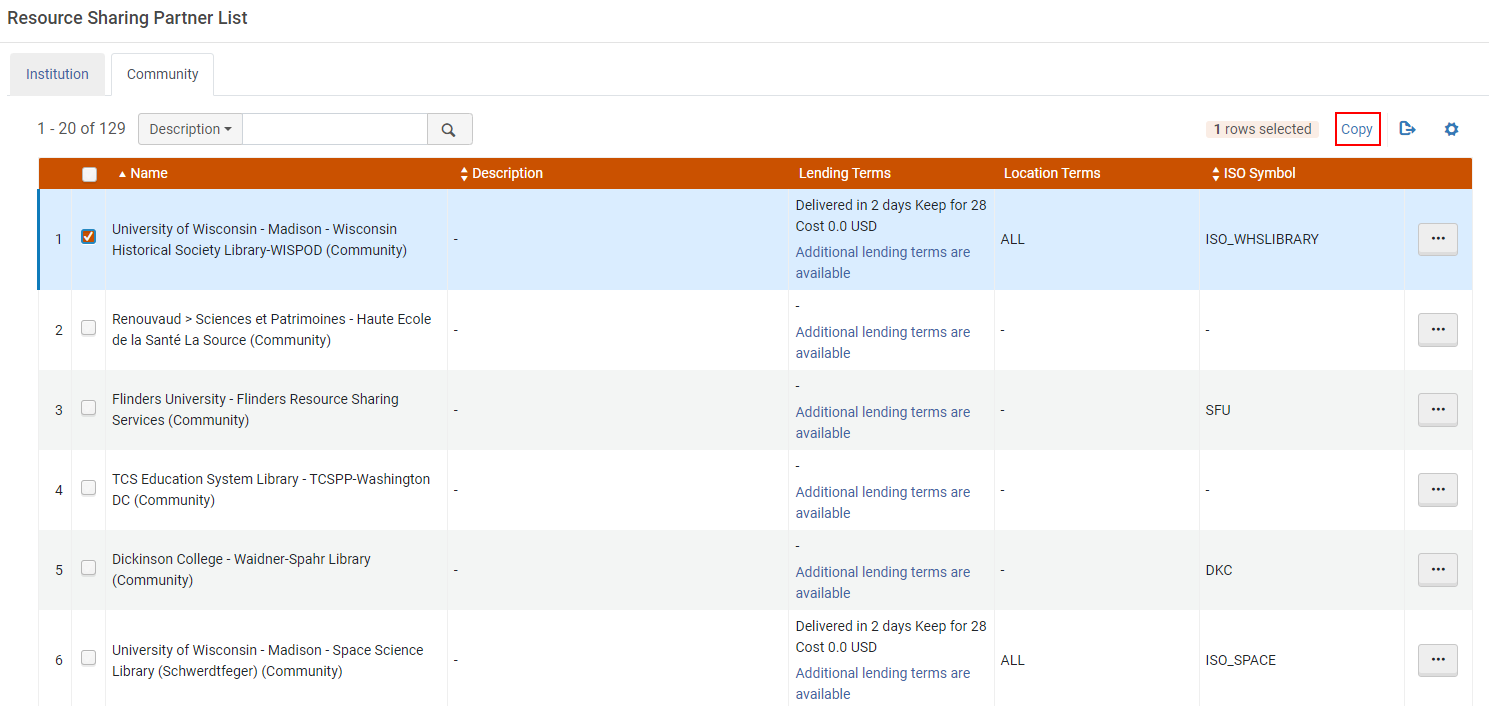
If the partner exists in the resource sharing directory (Fulfillment > Resource Sharing > Partners > Community tab), you can add a member to your institution by selecting the member and selecting Copy. El miembro y sus detalles se añaden entonces a su lista de socios.
The column Pods I'm Part Of is only displayed if you select it in the Manage column display list  .
Configuring a Resource Sharing Partner
-
On the Resource Sharing Partner List page (Fulfillment > Resource Sharing > Partners), select Add Partner. The Resource Sharing Partner page opens to the General Information tab.
To be able to add partners of type 'Fulfillment Network', you have to add a dummy entry to the Fulfillment Members table (Configuration > General > Network Groups > Fulfillment Member). Only then can you add the partners to the Fulfillment Networks Groups page (Configuration Menu > General > Network Groups > Fulfillment Network Groups). Once you have set up all the Partners in the Network Zone, you can either leave that dummy entry in the Fulfillment Members table in the Network Zone or delete it. If you decide to delete it, the partners show as Profile Type 'Fulfillment Network (Not Listed)' in the Fulfillment Partners table, but they are still functional as Fulfillment Network partners.
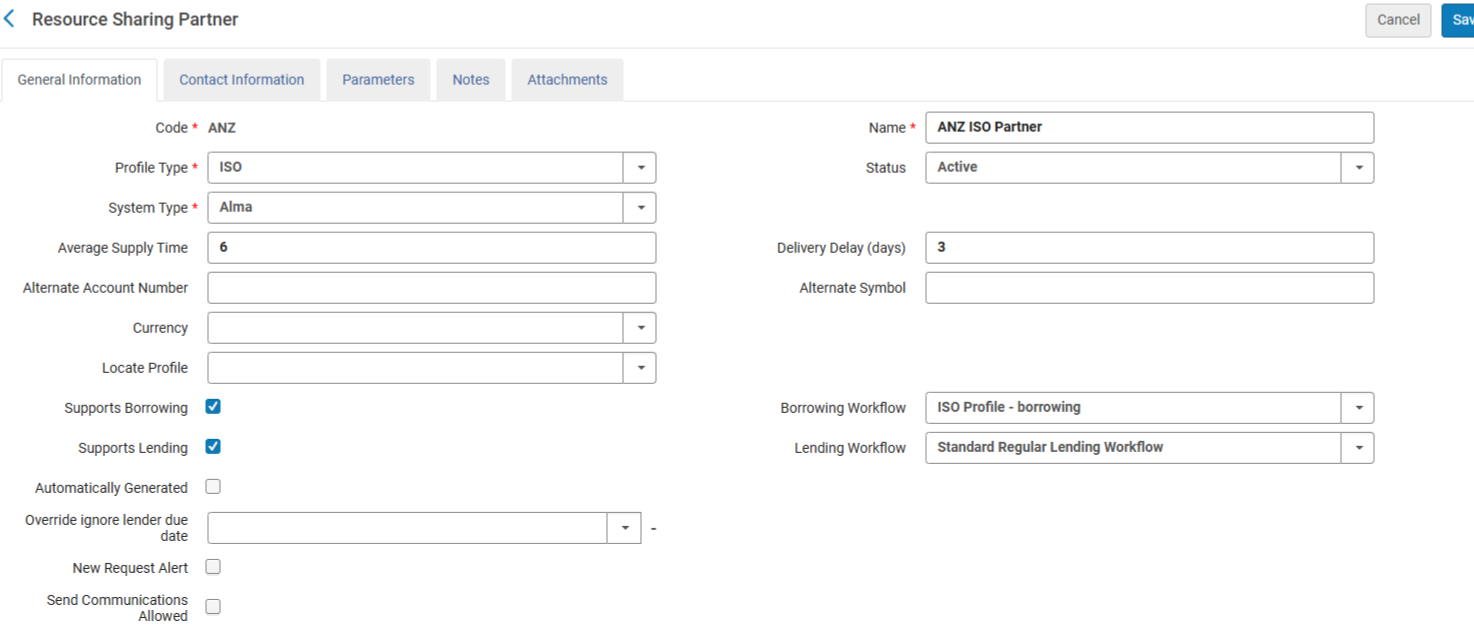
Los usuarios pueden añadir un registro de socio mediante el Directorio de recursos compartidos. Use the Community tab to look for the partner record you want to create and select Copy.The copied record is displayed in your Institution tab as one of your local partner records and can be freely updated and used in one of your rota templates. 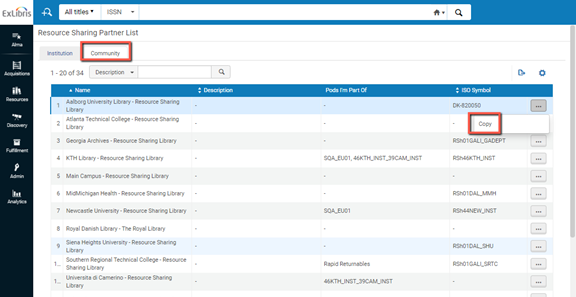
-
Introduzca un código y un nombre para el socio de recursos compartidos. Tenga en cuenta que el código solo puede contener caracteres alfanuméricos.
-
In the Profile type field, select the type of protocol you want to create. Las opciones son:
- ARTEmail
- BLDSS
- External System
- Fulfillment Network
- Inn-Reach API
- ISO
- ISO 18626
- KERIS
- NACSIS
- NCIP
- NCIP-P2P
- RapidILL
- SLNP
Los parámetros ISO son los mismos para ISO ILL 10160/10161 e ISO 18626.
-
Optionally, select Inactive from the Status dropdown list if you do not want the partner to be active.
The status affects only peer-to-peer requests, such as ISO, but does not affect broker managed requests, such as NCIP. NCIP requests are still received, even if an NCIP type profile is marked inactive.
-
Select the resource sharing system with which you are integrating from the System type dropdown list (for Ex Libris' informational purposes). Esto es obligatorio.
For a profile with an External System profile type, select CCC GetItNow as the System Type (this is the default).
When an NCIP profile is configured, the indicated broker types must be configured with the following NCIP parameters in the Parameters tab of the partner:
Configuraciones adicionales Descripción Relais Request pushing method = OpenURL The URL is defined as follows, where the XXX and YYY values are provided to each institution by Relais:https://h7.relais-host.com/<XXX>/loginRFT.jsp?LS=<YYY>
Add User to Login = Yes
Enable Service for Guest User = No
Loan Period= <Free text, which is displayed in the Get It tab>
Navegador OCLC Request pushing method = Link El Sistema de navegación no puede recibir una OpenURL como entrada; el enlace configurable puede ser únicamente un enlace estático. To configure a dynamic link to the Navigator system, use General Electronic Services (see Adding a General Electronic Service).
Enable Service to Guest User = YesEl navegador requiere un nuevo Inicio de sesión cuando se accede.
Loan Period = <Free text, which is displayed in the Get It tab>Alcance INN Request pushing method = Link A link is created by a General Electronic Service with an OpenURL template, as described in Adding a General Electronic Service.
Enable Service for Guest User = NoINN Reach no desencadena un proceso de autenticación, la autenticación se espera que ocurra antes de acceder al formulario de solicitud de INN Reach.
Loan Period = <Free text, which is displayed in the Get It tab>ILLiad Request pushing method = Link A link is created by a General Electronic Service with an OpenURL template, as described in Adding a General Electronic Service.
Add user login to URL = NoILLiad requiere volver a iniciar sesión
Enable service for guest user = YesLoan Period = <Free text, which is displayed in the Get It tab>
The configured brokers display as links on the Primo Get It tab. For more information about brokers in the Get It tab, see More Information About Resource Sharing Broker in Get It.
General Electronic Services - Displays a Primo link to an external service (such as Amazon), as an additional way to retrieve resources. También puede crear reglas para asignar distintos enlaces para ser usados por distintos recursos (como para un libro o DOI). For details, see Adding a General Electronic Service.
Display Logic Rules - Indicates when a certain broker link will display or be hidden in Primo (see Configuring Display Logic Rules).
- Enter values in the Average supply time (in days),Delivery delay, and Currency fields.
- Select the Supports borrowing and/or Supports lending checkboxes. The workflows selected here control the actions that can be performed on the borrowing and lending request task lists for the defined partner. Choose one of the workflows from the dropdown list predefined by an administrator (in Configuration Menu > Fulfillment > Resource Sharing > Workflow Profiles). For details on configuring workflow profiles, see Configuring Workflow Profiles.
- (New for February 2026) Additional fields can be configured that allow libraries to customize and expand the partner information:
Alternate Account Number – Free text field that, in addition to an alternate symbol, enables additional information to be stored on the partner record.
Account Allowances – Populated by customizable drop down options. Se pueden realizar selecciones múltiples para designar información adicional sobre los socios.
Sector – Populated by customizable drop down options to enable additional information to be stored on the partner record.
Send Communications Allowed – The value is checked/unchecked. Algunas bibliotecas pueden querer indicar si los materiales de marketing pueden entregarse a los socios o no.
Organization Type – Populated by customizable drop down options to enable additional information to be stored on the partner record
- In the Delivery delay field, enter the number of days needed for delivery of the item. A la fecha de vencimiento calculada cuando el ejemplar recibido es prestado al usuario que lo ha solicitado se le resta automáticamente el número de días indicado en este campo.
For example, if the due date when receiving the item is June 5, 2013 and Delivery Delay = 4, the Due Date value displays on the Patron Services page as June 1, 2013, to allow 4 days for item delivery and ensure that the item arrives by its 'actual' due date of June 5.
For more information about managing the due date for an interlibrary loan, see the Interlibrary Loan With Due Date video (7:01 min.).
- The symbol added to the Alternate Symbol field can be outputted on the Ful Incoming Slip Letter, Resource Sharing Shipping Slip Letter, and Resource Sharing Return Slip Letter.
- The Local Status field appears for institutions that centrally manage their partner records in the Network Zone. Esto permite a una institución individual desactivar localmente un registro de socio aúnque el socio esté activo para la red colaborativa.
- In the Locate profile field, select a locate profile to determine how the partner's catalog is to be searched. The Holding code and Institution Code fields appear.Institution Code is a display field that shows the Alma institution code that is configured for the selected locate profile. This field must be populated in order to use links (rather than attachments) for the digital shipment of a resource sharing request if the institutions are not part of the same network zone. For details on locate profiles, see Configuring Locate Profiles and Configuring Copyright Management.
- If an incoming NCIP message cannot identify the partner, the NCIP partner that has the Default Partner check box selected is used.
- In the Holding code field, enter a library or campus code. El proceso de localización para las búsquedas de socio en la biblioteca/campus se indica por el valor de este campo. Especificar un código de existencias le permite:
- Determinar si un recurso solicitado está disponible en un campus específico de un potencial proveedor.
- Solicitar el recurso desde ese prestador solo si el recurso pertenece al campus solicitado.
- For peer-to-peer partners, selecting the Automatic Claim field enables the Time to Claim (days) field. This triggers an automatic claim letter (RSBorrowerClaimEmailLetter) when a configured period of time is reached. For example, when the Automatic Claim check box is selected and the Time to Claim (days) field is set to 7, if a request was sent 7 days ago and the request's status is still Sent, a claim letter is automatically triggered and the request status is set to Claimed.
También puede configurar una opción para enviar un mensaje de cancelación y continuar con la ruta. In case of an Email/SLNP partner, the letter is sent by email. Para solicitudes ISO, el aviso se envía en un Mensaje General. El texto del mensaje se puede configurar.
-
For peer-to-peer partners, selecting the Automatic Cancel field enables the Time to Cancel (days) and Cancellation Reason fields. The cancelation uses the same workflow as the manual cancel partner option and sends an automatic cancelation notification to the partner and continues through the rota.
Para que tenga lugar la acción de cancelación y reclamación, debe activar la tarea Reclamación y Cancelación de Recursos Compartidos a través de la página Configuración de Tareas de Servicios al Usuario. See Configuring Fulfillment Jobs.
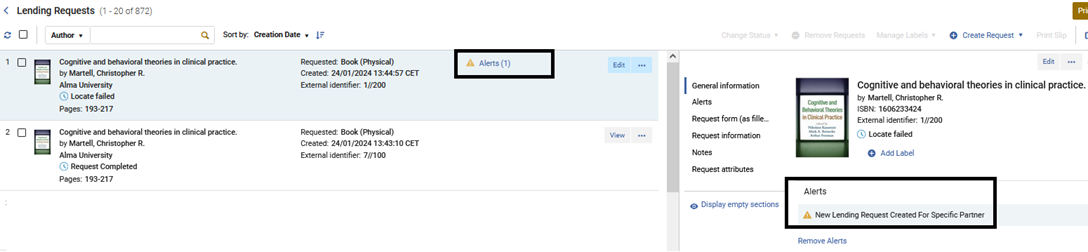
- Setting the New Request Alert checkbox will cause every lending request that is created for this partner to have a facetable alert.
- In the Contact Information tab, add address, phone number, and email information for the resource sharing partner (for informational purposes only; information for sending the resource sharing request is entered in the Parameters tab – see the following step). For instructions, see Adding User Contact Information.
-
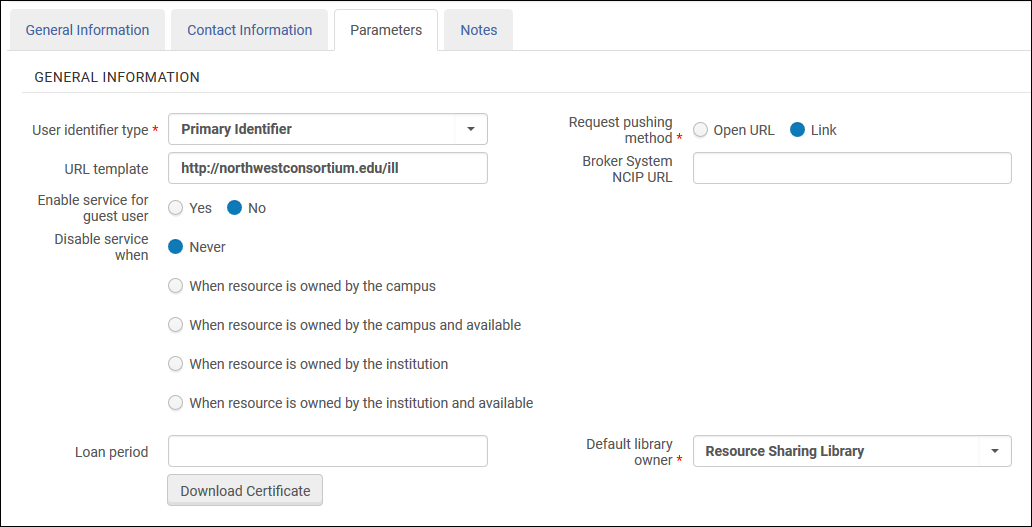
In the Parameters tab, configure the resource sharing parameters. For more information, see Partner Parameters below.
-
Select Save. El socio de recursos compartidos se crea y aparece en la página de la lista de socios de recursos compartidos.
The partner can then be selected from the Partner dropdown list (accessible when selecting the Edit,Duplicate, or Send options on the Resource Sharing Borrowing Requests page) or Supplied to drop-down list (accessible when selecting the Edit or Duplicate options on the Resource Sharing Lending Requests Task List page).
A Notes tab is available when editing the resource sharing partner (Actions > Edit).
Partner Parameters
ARTEmail Parameters
Introducir la dirección de correo electrónico de ARTEmail. Además, para cada ID de cliente que añada, debe introducir un código y una contraseña. Optionally, if you want to enable the ability to send requests to an alternate physical location or email address (which you can select to do in the Request Attribute section of the Creating a Borrowing Request page), you may select the Supports ADD request check box. You may also select keyword codes –that is, request values –to include. (Refer to the British Library's Guide to ARTEmail for an explanation of these values.) These define the communication that is possible vis-a-vis the resource sharing partner.
See also Alma Resource Sharing ARTEmail and Email.
NCIP Parameters
Configure los parámetros tal y como se describe en la siguiente tabla:
| Sección | Campo | Descripción |
|---|---|---|
| Información general | Tipo de identificador del usuario (Requerido) | El tipo de identificación que se usará para emparejar usuarios cuando un mensaje contenga una ID de usuario. Seleccione una de las siguientes opciones predefinidas por un administrador. See Viewing Additional User Identifier Types. |
| Método de envío de solicitud (Requerido) |
El socio NCIP aparecerá como un servicio en Primo. Configure este campo para determinar el enlace que activará el servicio en Primo.
|
|
| Plantilla URL | The URL that is used to send patrons from Primo to the resource sharing library's Web site. | |
| URL del agente NCIP | La URL para comunicarse con el agente NCIP. | |
| Añadir el inicio de sesión automático del usuario a la URL | Select Yes to add a user's login credentials to the URL, thereby logging the user in automatically upon accessing the URL. This field displays only when Request pushing method = OpenURL.
Select Yes when configuring integration with a Relais system (see Configuring Alma/Broker Integration). |
|
| Habilitar el servicio para usuario invitado | Indica si el enlace al socio se muestra en Primo cuando el usuario no ha iniciado sesión. | |
| Deshabilitar servicio cuando | Seleccionar los parámetros en los cuales el servicio será deshabilitado. Los posibles valores son:
Cuando un usuario invitado o un usuario sin un campus configurado realiza cualquier actividad deshabilitada a nivel del campus, Alma deshabilita/oculta el servicio basándose en una comprobación de propiedad propia realizada a nivel de la institución. |
|
| Periodo de préstamo | La cantidad de tiempo que tiene el usuario antes de tener que devolver el ejemplar a la biblioteca de intercambio de recursos. (Esto puede ser visto por usuarios en Primo.) | |
| Propietario de biblioteca por defecto | La biblioteca de recursos compartidos que gestiona la solicitud de préstamo creada por este perfil. | |
| Botón de descarga de certificado |
Este botón se usa para autenticar la comunicación TCP para mensajes encriptados enviados a Alma usando el protocolo SLNP. El botón aparece para los socios NCIP después de que el socio se haya guardado por primera vez. Cada clic en este botón crea un certificado "nuevo" y, por lo tanto, puede romper la encriptación si ese nuevo certificado no se instala inmediatamente en el lado del socio. For more information on the certificate, see the Developer Network. |
|
| Solicitud de ejemplar
Un mensaje NCIP es enviado cuando se registra una solicitud de préstamo en el lado del solicitante. |
Biblioteca de recurso compartido | La única biblioteca de recursos compartidos que es compatible con todas las acciones. Seleccionar desde una lista predefinida por un administrador. |
| Tipo de ID de registro bibliográfico |
Seleccionar un parámetro por el cual se buscarán las solicitudes de recursos compartidos. Los posibles valores son:
|
|
| Admite Préstamo: | Use if the broker system notifies Alma about new borrowing requests at the time they are created using the Request Item NCIP messages. Most broker systems do not use this message to notify a borrower about a new borrowing request. Rather, the AcceptItem message is used at the point when the item is received. Leave the checkbox unselected, unless you are sure that your broker system also uses the Request Item message for notifying about new borrower requests. | |
|
Ejemplar en préstamo Un mensaje NCIP es enviado cuando un ejemplar es enviado desde el lado prestador al lado solicitante. |
Biblioteca por defecto (Requerido) | La biblioteca de recursos compartidos que se usará por defecto, si hay múltiples bibliotecas de recursos compartidos. |
|
Ubicación por defecto (Requerido) |
La ubicación temporal en la biblioteca de recursos compartidos que será asignada a un ejemplar que es enviado a un solicitante de recursos compartidos. Seleccionar desde una lista predefinida por un administrador. | |
|
Política del ejemplar por defecto (Requerido) |
La política que se adjuntará a un ejemplar que es enviado a un solicitante de recursos compartidos. Seleccionar desde una lista predefinida por un administrador. | |
|
Aceptar ejemplar Un mensaje NCIP es enviado cuando la recepción de un ejemplar es registrada en el lado del solicitante. |
Ubicación por defecto (Requerido) | La ubicación temporal en la biblioteca receptora. Seleccionar desde una lista predefinida por un administrador.
Esta ubicación es asignada a un ejemplar que es enviado a un solicitante de recursos compartidos, a menos que se le haya asignado una ubicación distinta por una Regla de creación de ejemplar temporal. |
| Biblioteca de recurso compartido | La biblioteca de recursos compartidos, si hay múltiples bibliotecas de recursos compartidos. | |
| Biblioteca de recogida predefinida | La ubicación de recogida por defecto a la que los ejemplares temporales son transferidos cuando se recibe un ejemplar por una solicitud de préstamo. Seleccionar desde una lista predefinida por un administrador. | |
| Recepción automática |
Seleccionar para habilitar la recepción de ejemplares de recursos compartidos automáticamente. La recepción automática permite al personal registrar una acción de Recibir en el sistema agente, sin tener que repetir la acción de Recibir en Alma. Habilitar esta opción permite múltiples solicitudes AcceptItem para ser procesadas por una única solicitud multiejemplar de préstamo. Esto es aplicable si las solicitudes contienen la misma ID de solicitud pero distintos códigos de barras y la ID de la solicitud está activa. Si la opción no está habilitada, se crearán solicitudes múltiples con la misma ID de solicitud. |
|
| Mostrador de recepción | Seleccionar un mostrador donde se reciba el ejemplar. The available options are the desks of the library that is specified in the Default library owner field. El valor que seleccione indica la ubicación donde se recibe el ejemplar cuando se recibe el mensaje AcceptItem.
This field displays only when Automatic receive is selected. |
|
|
Buscar usuario Un mensaje NCIP es enviado cuando un usuario intenta crear una solicitud en el sistema de recursos compartidos. |
Requiere autenticación | Select whether authentication should or should not be required for the resource sharing library's Web site. When working with a Relais broker, select No. |
| Exportar a terceros | Exportar a terceros | Se usa para ILLiad, Tipasa, Worldshare ILL y Relais. See ILLiad parameters; Tipasa, Worldshare ILL, and Relais Parameters below. |
|
Crear usuario de transacción fiscal A received NCIP message can create a request fee. |
Crear cuota usando |
|
También debe configurar los siguientes parámetros en el socio NCIP:
- The NCIP URL, in the following format:https://<Alma domain>/view/NCIPServlet
- El AgencyID, el cual es el código de su institución Alma
- The ApplicationProfileType, which is the code defined on the Resource Sharing Partner page (see step 3 above)
NCIP Peer-to-Peer Parameters
- Supports ADD request – Select this box if you want to enable the ability to send requests to an alternate physical location or email address (which you can select to do in the Request Attribute section of the Creating a Borrowing Request page).
- User identifier type – The identification type that will be used to match users when a message contains a user ID. Seleccione una de las siguientes opciones predefinidas por un administrador. See Managing User Identifiers.
- Server – Enter the partner's server name (or IP address).
- Username – Enter the username. Ambos socios deben introducir el mismo nombre de usuario.
- Password – Enter the password. Ambos socios deben introducir la misma contraseña.
- Institution code – Enter the partner's Alma institution code.
- Partner symbol – The symbol by which the ILL partner is referred. El símbolo debe ser único para todos los demás socios y símbolos ISO. Esto incluye socios NCIP-P2P, SLNP, e ISO.
- Request Expiry – Configure when the partner's lending settings expire. Seleccionar de los siguiente:
- No expiry – The request does not expire
- Expire by interest date – The request expires on the date specified in the Needed by field on the Resource Sharing Borrowing Request page (displayed when creating a borrowing request).
- Expiry time – The Expiry time field appears, where you enter a number. Este valor indica el número de días después de que la solicitud haya sido enviada al prestador en los que la solicitud caduca.
- Send requester information – Select this option to enable requests sent via the specified partner to contain information about the requesting patron, such as their name and email. It is recommended to select this option only if the third-party system requires this information in order to properly handle the request.
- Shared barcodes – Select to enable sharing item barcodes between lending and borrowing institutions.
- Email Address – Used for sending overdue notifications.
- Resending Overdue Days Interval – A whole number that indicates the number of days for recurring overdue notifications.
An additional option available for NCIP peer-to-peer configuration is the Lookup Agency button. Seleccionando este botón contactará con el socio y devuelve el protocolo compatible u otra información que el socio desee transmitir para ayudar en el proceso de configuración del socio. You may also set your institution's information that will be transmitted to other partners by customizing the resource_sharing_protocol parameter of the Fulfillment mapping table. For information on modifying this value, see Configuring Other Settings.
NCIP de igual a igual permite enviar mensajes generales a la institución asociada.
ISO Parameters
- Alma supports the following ISO Resource Sharing messages:ILL Request,Shipped,Received,Returned,Checked-In, Answer – Unfilled, Cancel/Cancel Reply, and General Messages.
- Los socios ISO pueden realizar solicitudes de recursos compartidos digitales usando la opción de entrega de documentos de enlace.
- Los parámetros ISO son los mismos para ISO ILL 10160/10161 e ISO 18626.
- Supports ADD Address – Select to include the requester's email in the ILL request, enabling the lending partner to send the shipped resource directly to the requester.
- Server – the partner's server or IP address. If the partner also uses Alma, use the Alma domain (see Logging Into and Out of the User Interface) as the server.
- Port – the partner's ILL port number. Si el socio también usa Alma, este puerto es el 9001.
- ISO symbol – the symbol by which the ILL partner is referred. El símbolo debe ser único para todos los demás socios y símbolos ISO. Esto incluye socios NCIP-P2P, SLNP, e ISO.
- Request Expiry – configure when the partner's lending settings expire. Seleccionar de los siguiente:
- No expiry – The request does not expire
- Expire by interest date – The request expires on the date specified in the Needed by field on the Resource Sharing Borrowing Request page (displayed when creating a borrowing request).
- Expiry time – The Expiry time field appears, where you enter a number. Este valor indica el número de días después de que la solicitud haya sido enviada al prestador en los que la solicitud caduca.
- Send requester information – Select this option to enable requests sent via the specified partner to contain information about the requesting patron, such as their name and email. It is recommended to select this option only if the third-party system requires this information in order to properly handle the request.
- Shared barcodes – Select to enable sharing item barcodes between lending and borrowing institutions. If both the lending and borrowing partners have this option selected, the lending library sends a barcode with the Shipped message, and the borrowing library uses the Shipped message to determine the lender item's barcode. The barcode displays as the Temporary Barcode value on the Receiving Items page (displayed when selecting Receive for a borrowing request), and can be used for identifying the received item when accessing the Received Items page (see Receiving Items).
- Send ReturnInfo (relevant for ISO18626) – Select this to include the information for the originating lending library instead of the resource sharing library. El código ISIL de la biblioteca prestataria se incluye entonces en la solicitud de intercambio de recursos, si se ha rellenado. The ISIL code is presented on the Resource Sharing Borrowing Task List as Return Information. It is also available in the XML for the Resource Sharing Return Slip Letter (see Configuring Letters). El campo aparece en la carta cuando se rellena. Si la carta está personalizada, debe añadir manualmente el campo al XML para que se rellene. Tenga en cuenta que, al escanear un ejemplar a través de la interfaz de escaneo, la información de destino se añade a cada línea. Al devolverlo a través de Devoluciones, se añade a la ventana emergente.
- Ignore Lender Shipping Cost – Select this check box to use the borrower's set cost. Cuando la casilla de verificación no está seleccionada, los costes del lado del prestador ignoran el coste del solicitante. Tenga en cuenta que cuando la casilla de verificación no está seleccionada, el coste de la institución solicitante es ignorado aúnque el prestador no haya comunicado el coste, por ejemplo, se considerará como si el valor comunicado al solicitante fuera 0.
- Resending Overdue Days Interval – A whole number that indicates the number of days for recurring overdue notifications.
Email Parameters
- Email address- The email address to which resource sharing borrowing requests are to be sent. Note that if you are working in a sandbox environment or in a pre-”Go Live” production environment, the entered address must be added to the Email Include List Mapping Table in General Configuration > Configuration menu > External Systems > Allowed Emails. For details, see Configuring Allowed Emails).
- Resending Overdue Days Interval – A whole number that indicates the number of days for recurring overdue notifications.
ILLiad Parameters
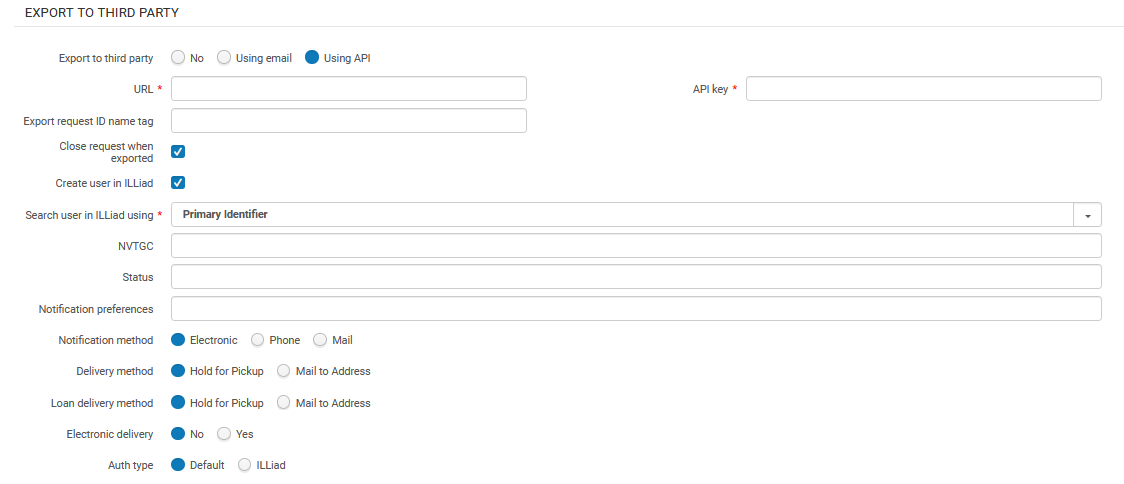
ILLiad can be set up in Alma in a peer-to-peer rota as a supplier of last resort (see Peer-to-Peer Resource Sharing in the Resource Sharing Guide), Configure this in the Export to Third Party section, at the bottom of the Parameters tab.
For the Export to Third Party radio button, select either Using API or Using email.
If you select Using email, enter the email address for ILLiad request notifications in Export email address.
ILLiad debe estar configurado para cargar los correos electrónicos enviados a la dirección configurada y usarlos para crear una solicitud interna de préstamo.
If you are using the API to export borrowing requests to ILLiad, enter the URL and API key as supplied by ILLiad. Additionally, enter the name of the XML tag to populate with the external request ID in Export request ID name tag.
Introduzca el nombre de la etiqueta a rellenar con la ID de solicitud externa. ILLiad can use this request ID for further NCIP communications with Alma. Usar esta opción le permite continuar recibiendo actualizaciones mediante NCIP. The value of this tag must be coordinated with ILLiad.
Select Create user in ILLiad if you want to use the API to push user records to ILLiad. The push only occurs if the user does not already exist in ILLiad: Before pushing a request to ILLiad, Alma checks if an account exists and creates a new user account if not.
If selected, the following API values appear (to be filled according to ILLiad's requirements):
- Search user in ILLiad using – the value that Alma uses to locate/create a user in ILLiad (user identifier or preferred email)
- NVTGC – free string
- Status – free string
- Notification preferences – repeatable free text field with two comma-separated values. The first is sent as ActivityType and the second as NotificationType. For example,{RequestPickup,Email},{RequestOverdue,Email}
- Notification method –Electronic,Phone, or Mail
- Delivery Method –Hold for Pickup or Mail to Address
- Loan Delivery Method –Hold for Pickup or Mail to Address
- Electronic Delivery –No,Yes
- Authtype –Default,ILLiad
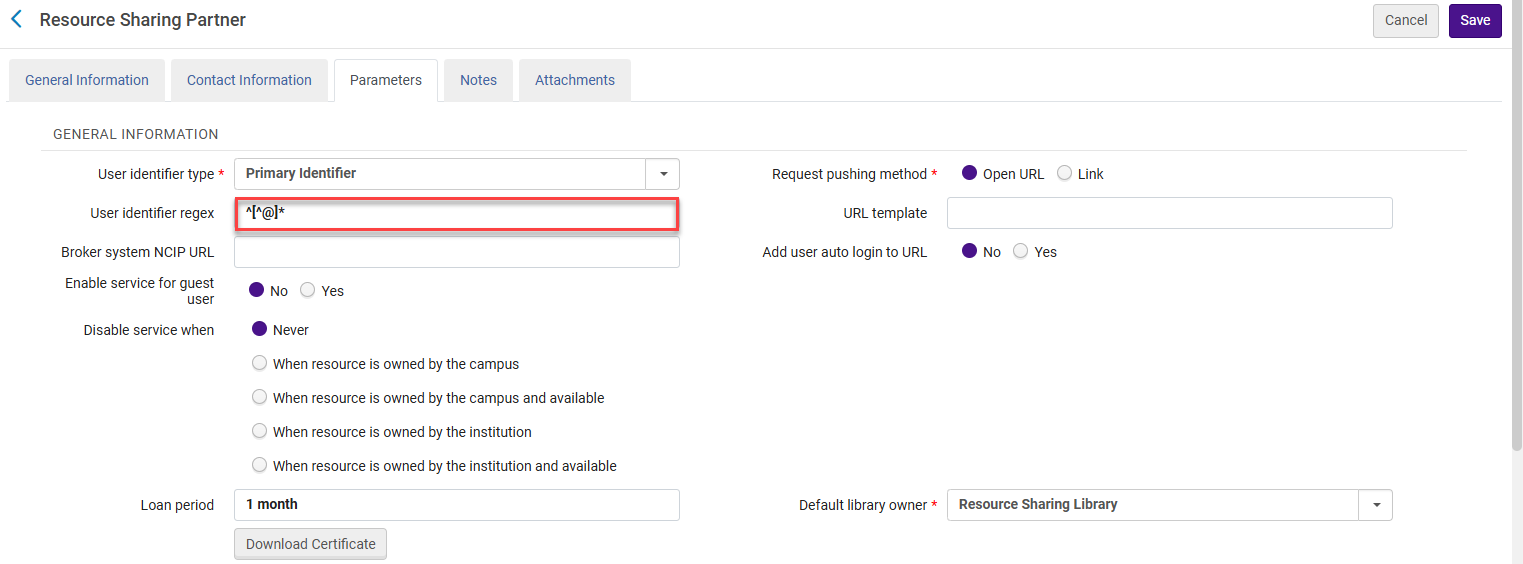
If you want to manipulate the user ID exported in the request, configure the User identifier regex field. For example, if the library wants to use the email as the identifier, but only wants to send the part before the @ sign, the library must define the following as the regular expression:^[^@]* This means that all characters until the first occurrence of @ are used as user ID. For example, if the email address is joe@clarivate.com and the User identifier regex field contains ^[^@]*, then the identifier isjoe.
Also see the Developer Network blog entry.
SLNP Parameters
- Supports ADD Address – Select to include the requester's email in the ILL request, enabling the lending partner to send the shipped resource directly to the requester.
- Server – The partner's server name (or IP address)
- Port – The partner's ILL port number
- Partner symbol – represents the library Sigel. El símbolo debe ser único para todos los demás socios y símbolos ISO. Esto incluye socios NCIP-P2P, SLNP, e ISO.
- Request Expiry – configure when the partner's lending settings expire. Seleccionar de los siguiente:
- No expiry – The request does not expire
- Expire by interest date – The request expires on the date specified in the Needed by field on the Resource Sharing Borrowing Request page (displayed when creating a borrowing request).
- Expiry time – The Expiry time field appears, where you enter a number. Este valor indica el número de días después de que la solicitud haya sido enviada al prestador en los que la solicitud caduca.
- Send requester information – Select this option to enable requests sent via the specified partner to contain information about the requesting patron, such as their name and email. It is recommended to select this option only if the third-party system requires this information in order to properly handle the request.
- Shared barcodes – Select to enable sharing item barcodes between lending and borrowing institutions. If both the lending and borrowing partners have this option selected, the lending library sends a barcode with the Shipped message, and the borrowing library uses the Shipped message to determine the lender item's barcode. The barcode displays as the Temporary Barcode value on the Receiving Items page (displayed when selecting Receive for a borrowing request), and can be used for identifying the received item when accessing the Received Items page (see Receiving Items).
- Email Address – The email address for sending overdue and recall notifications
- Resending Overdue Days Interval – A whole number that indicates the number of days for recurring overdue notifications.
Fulfillment Network Parameters
- Customer Code- The Alma customer code of the fulfillment network partner.
- URL- The Alma URL of the fulfillment network partner.
- Request Expiry- configure when the partner's lending settings expire. Seleccionar de los siguiente:
- No expiry – The request does not expire
- Expire by interest date – The request expires on the date specified in the Needed by field on the Resource Sharing Borrowing Request page (displayed when creating a borrowing request).
- Expiry time – The Expiry time field appears, where you enter a number. Este valor indica el número de días después de que la solicitud haya sido enviada al prestador en los que la solicitud caduca.
To be able to add partners (Fulfillment > Partners) of type 'Fulfillment Network', you have to add a dummy entry to the Fulfillment Members table (Configuration > General > Network Groups > Fulfillment Member). Only then can you add the partners to the Fulfillment Networks Groups page (Configuration Menu > General > Network Groups > Fulfillment Network Groups). Once you have set up all the Partners in the Network Zone, you can either leave that dummy entry in the Fulfillment Members table in the Network Zone or delete it. If you decide to delete it, the partners will show as Profile Type 'Fulfillment Network (Not Listed)' in the Fulfillment Partners table, but they will still be functional as Fulfillment Network partners.
BLDSS Parameters
- Base URL – Enter the partner's URL.
- Account – The account number supplied by the British Library.
- Password – Enter the account password.
- Digital Format – Select the type of file transfer.
- Send requester information – Select this option to enable requests sent via the specified partner to contain information about the requesting patron, such as their name and email. It is recommended to select this option only if the third-party system requires this information in order to properly handle the request.
- Allow Asynchronous Request – Enable sharing item barcodes between lending and borrowing institutions.
RapidILL Parameters
Es posible configurar un socio dedicado de RapidILL. If configured, Alma will automatically export borrowing requests that have been assigned to the RapidILL partner and create an equivalent borrowing request in RapidILL. The export action takes place when the Send action is triggered (manually or automatically) for the request with the active RapidILL partner.
If the request cannot be fulfilled by RapidILL, for example in the case where the requested resource is not lendable in RapidILL, then the Send action will be rejected and the request will automatically move on to the next partner on the rota, or get canceled when there are no other partners that can fulfill the request.
Esto permite que la biblioteca establezca a RapidILL como socio en la ruta, de manera que todas las solicitudes se exporten automáticamente para cumplirse a través de RapidILL, a menos que este no pueda cumplir la solicitud. En este caso, la solicitud se propagará a través de la ruta de Alma.
- URL – Mandatory – The URL defaults to https://rapid.exlibrisgroup.com/rapid5api/apiservice.asmx, which is the RapidILL production server.
- Username – Mandatory
- Password – Mandatory
- Requesting Rapid Code – Mandatory -- also known in RapidILL as Rapid Site Code. Puede ser el mismo que su nombre de usuario. Si es así, introduzca el mismo valor en ambos campos.
- Requesting Branch Name – Mandatory – If your institution has multiple RapidILL branches, each branch needs a different partner.
RapidILL proporciona los valores para configurar estos campos.
- Close Request when Exported- When selected, the request is closed when exported and the request status is updated to Exported to 3rd party. Este es el ajuste por defecto. When the check box is not selected, the request remains active after it is exported to Rapid, and the request status is updated to Sent to partner. This allows the request to remain viewable in Primo even though it has been exported. Requests that are left open must be manually closed.
NACSIS Parameters
Introduzca los siguientes parámetros:
- Code- NACSIS
- Name- NACSIS
- Profile Type- NACSIS
- Status- Active
- System Type- NACSIS
- Supports borrowing- Select the suitable workflow profile.
- Supports lending- Select the suitable workflow profile.
For additional details about NACSIS, see Integration with NACSIS-CAT/ILL.
Tipasa, WorldShare ILL, and Relais Parameters
Supplier of Last Resort Broker
Tipasa, WorldShare ILL, and Relais may be set up in Alma in a peer-to-peer rota as a supplier of last resort. In this case, Alma will push a borrower request to these systems, where the request lifecycle will proceed as a broker managed request (see Broker-Based Resource Sharing).
To do so, when the partner record's Profile Type is NCIP, and the System Type is Tipasa,WorldShare ILL,Relais D2D, or Relais ILL, find the section Export to Third Party at the bottom of the Parameters tab.
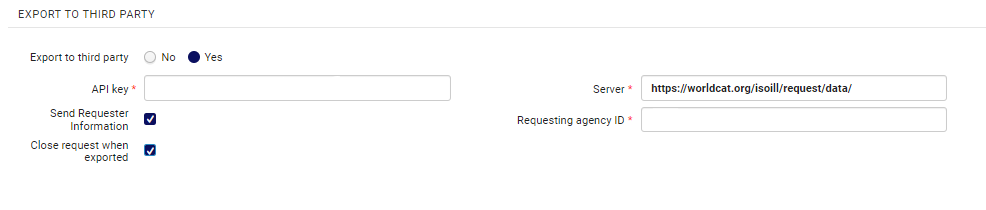
For the Export to Third Party radio button, select Yes. Enter the API key and Server URL as supplied by OCLC, and the Requesting agency ID that they provided to identify your library (e.g., the institution's OCLC symbol in OCLC-XXX format).
Send requester information – Select this option to enable requests sent via the specified partner to contain information about the requesting patron, such as their name and email. It is recommended to select this option only if the third-party system requires this information in order to properly handle the request.
The Close request when exported option defines whether the borrowing request is closed after export or is managed under the same borrowing request. Since these systems are not able to use the exported request's ID to further send NCIP messages that hook up to the existing request, it is recommended to enable this option, resulting in the request being closed in Alma when it is exported. Se creará una nueva solicitud con un ID diferente cuando el socio reciba el ejemplar, como ocurre con otros sistemas de agentes de NCIP.
Peer to Peer Partner
Once enabled by OCLC, Tipasa and WorldShare ILL can be set up as peer to peer partners using the ISO 18626 protocol. In this case, the request lifecycle will be managed as a peer to peer request (see Peer-to-Peer Resource Sharing).
To set this up, create a partner record with the Profile TypeISO 18626 and System TypeTipasa or WorldShare ILL. In the Parameters tab of the partner record, configure the following parameters:
- The partner's symbol in the Symbol field
- The server URL in the Server field
- An API key in the API key field
This feature is not currently supported by OCLC.
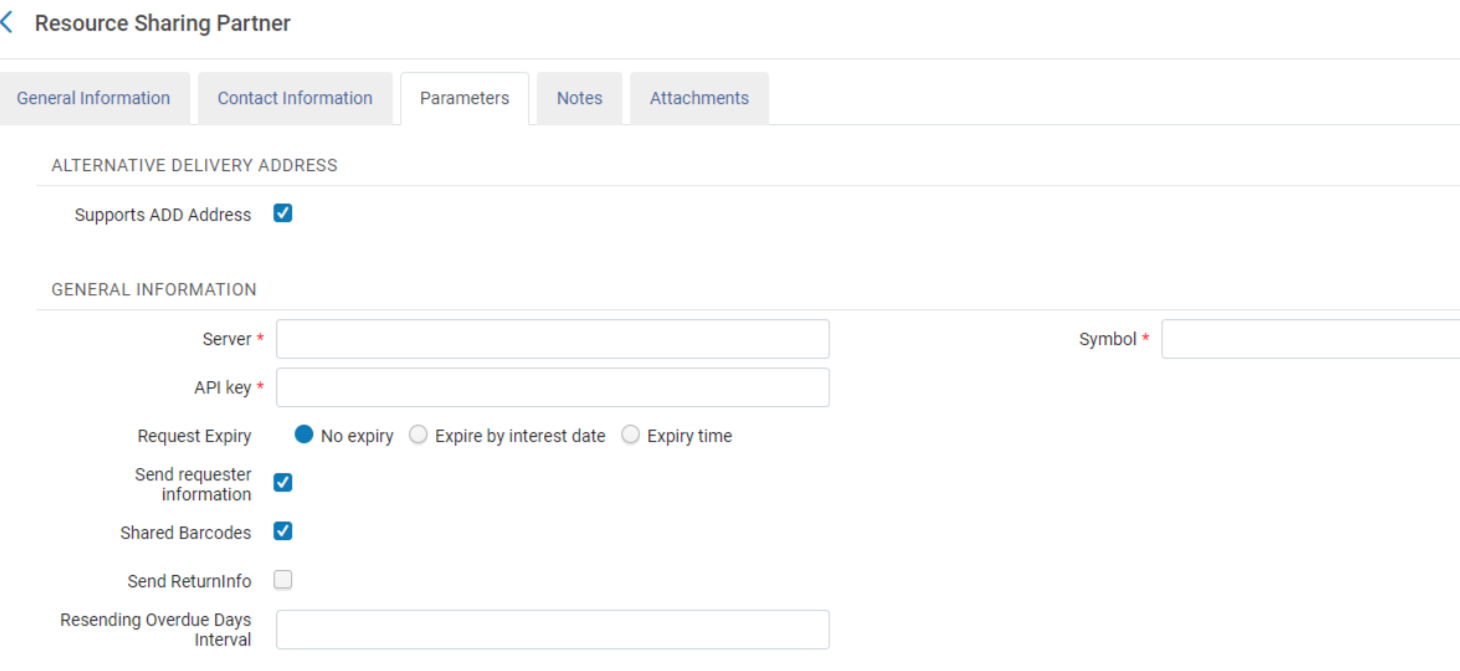
Inn-Reach API
See more information of the configuration and workflow of the API based InnReach requests, in the InnReach API Implementation Guide.
Libraries currently integrated with InnReach using NCIP and the InnReach DCB should contact Innovative in order to set up an implementation project with Innovative.
ReShare Parameters
Alma enables you to push user borrowing requests to ReShare (Fulfillment > Resource Sharing > Partners). Alma puede verificar si el recurso se encuentra en la red ReShare.
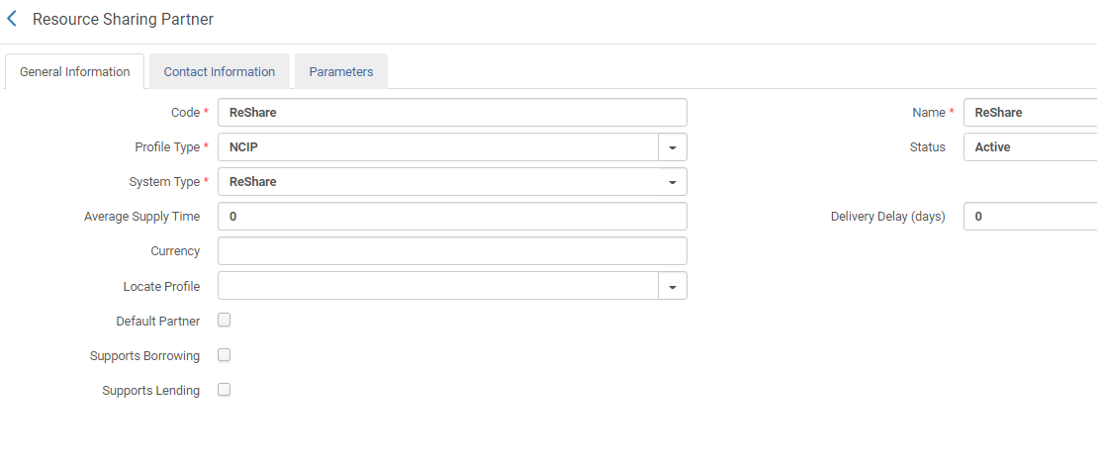
Enter the ReShare credentials on the Parameters tab.
The ReShare SHARED INVENTORY CONFIGURATION section is used for searching on the ReShare network. La sección CONFIGURACIÓN DE OPENURL CONFIGURATION de ReShare se utiliza para enviar solicitudes de préstamo.
Contributing Information to the Repository
Una biblioteca puede contribuir con su propia información al repositorio.
You can contribute your own resource sharing library information to the repository , see Contributing to the Resource Sharing Directory for details.
