
Peer to Peer Resource Sharing
This page describes the workflow for peer to peer based resource sharing including the management of borrowing requests such as rota management and managing the request after receiving, returning items to the lender, shipping items, etc. This page also covers the lending workflow for peer to peer resource sharing including creation and shipping of lending requests, checking in physical items, handling renewals and recalls, digital requests, etc. For more information on resource sharing including locating items for resource sharing, working with resource sharing partners, managing borrowing and lending requests and contributing to the resource sharing directory, see Resource Sharing.
Peer to Peer Resource Sharing - Borrowing
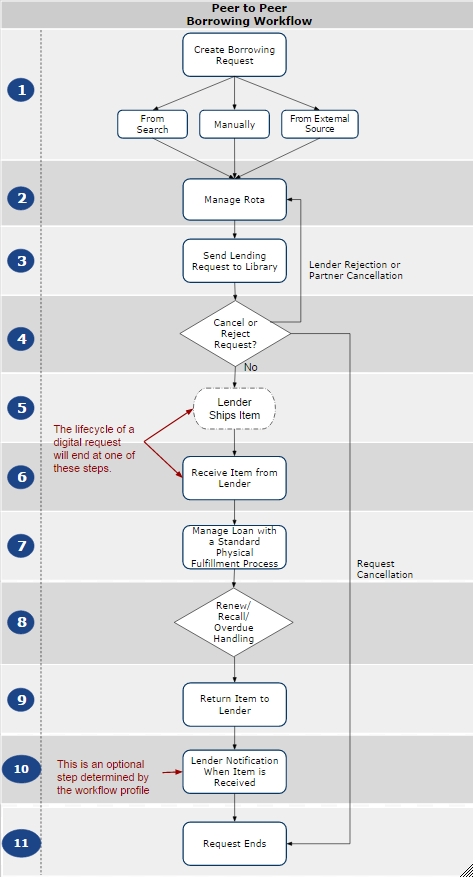
Creating a Resource Sharing Borrowing Request
This section refers to step 1 of the Peer to Peer Borrowing Workflow diagram.
Esta sección describe un flujo de trabajo como ejemplo para entregar una solicitud de recursos compartidos por medio del proceso punto a punto. For a step-by-step procedure for creating borrowing requests, see Managing Resource Sharing Borrowing Requests.
-
Alma - The request may be created from:
-
Una búsqueda local

-
Una búsqueda en Zona de red, si es aplicable

-
Un formulario en blanco
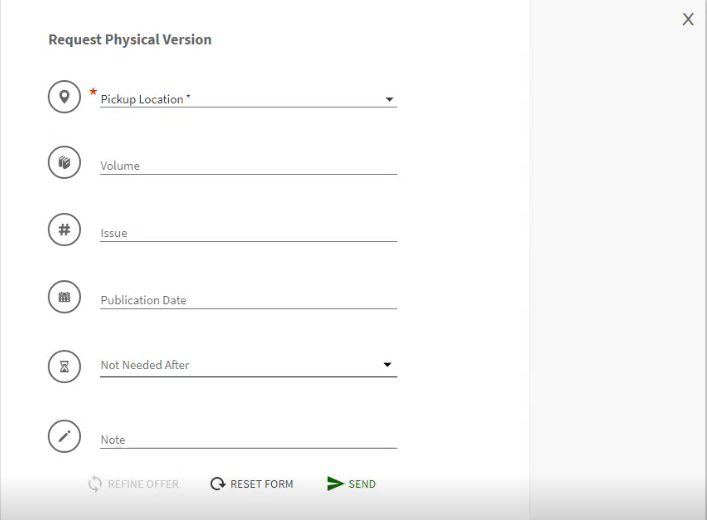
-
Desde una fuente externa
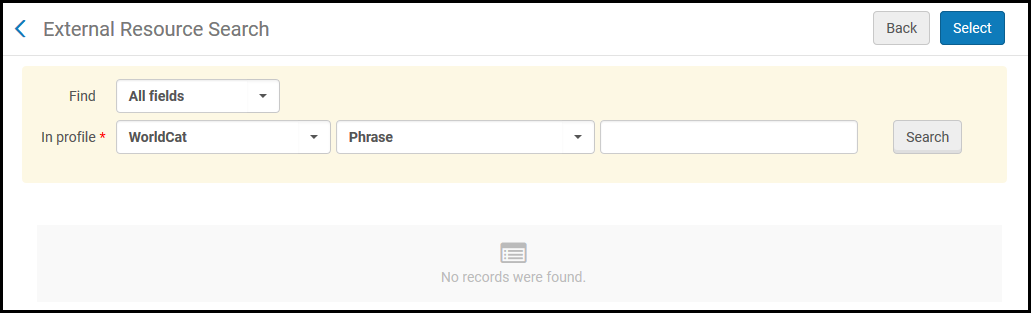
-
-
Primo - A borrowing request may be created from:
-
El panel Obtenerlo
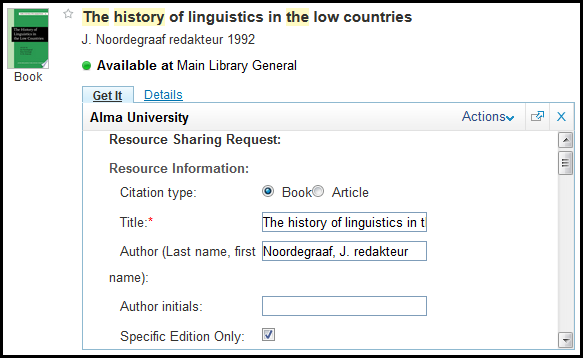
- Un formulario en blanco
-
El localizador de citas
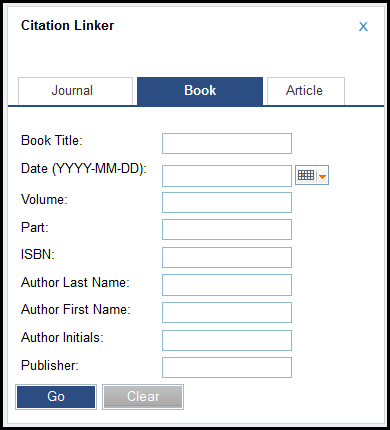
Se recomienda usar el Localizador de citas en vez de usar un formulario en blanco para la solicitud, si lo permiten las políticas de la biblioteca.
For more information on using the Citation Linker, see Citation Linker.
-
-
Other discovery platforms- A discovery system can send an OpenURL with a borrowing request to Alma. For more information on mapping the URL, see Mapping the OpenURL Form to the Resource Sharing Request.
-
A customized local form (via an API)-A form may be created by the institution using the borrowing request API. For more information, see the Developer Network.
Rota Management
This section refers to step 2 of the Peer to Peer Borrowing Workflow diagram.
Las plantillas de ruta permiten anexar rápidamente un grupo de socios a la solicitud en vez de añadir socios manualmente uno por uno. For more information, see Resource Sharing Partners and ROTAs.
- Crear un ruta - Define la lista de socios cuyas colecciones serán buscadas para la disponibilidad de ejemplares.
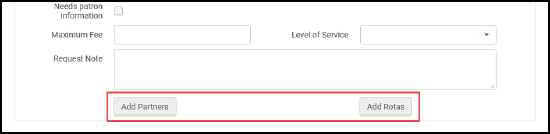
Rota may be created manually using the Add Partners or Add Rotas buttons on the request.
- Rota may be created automatically using the rota assignment rules and the rota templates.
-
Verificar ruta (también conocido como proceso de Localización): se verifica la relevancia de los prestadores potenciales. Los socios que no cumplen con las verificaciones son borrados automáticamente de la ruta. Las verificaciones se pueden hacer sobre varios atributos, tales como:
- ¿El socio tiene el ejemplar solicitado?
- ¿El ejemplar está disponible actualmente?
-
¿El ejemplar está disponible para las solicitudes de recursos compartidos?
La verificación de la disponibilidad del ejemplar y la elegibilidad de los recursos compartidos solo es relevante si el socio es otra institución de Alma.
For more information on the locate process, see Locating Items.
Sending a Resource Sharing Request
This section refers to step 3 of the Peer to Peer Borrowing Workflow diagram.
The send process may be executed automatically, using the sending borrowing request rules, or manually, using the Send button on the task list.
Los pasos reales causados por la acción de enviar dependen del tipo de socio (ISO, NCIP, correo electrónico, etc.).
Canceling a Resource Sharing Request
This section refers to step 4 of the Peer to Peer Borrowing Workflow diagram.
El prestatario puede efectuar una cancelación de una solicitud que ya fue entregada al prestador. La solicitud debe:
- Activas
- No estar prestada
- No estar enviada
- Allowed in the workflow profile
Se puede cancelar una solicitud de tres formas:
-
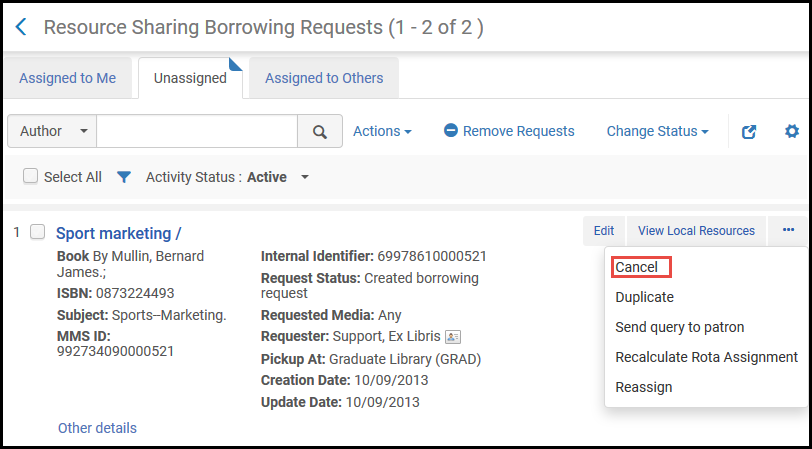
La solicitud se puede cancelar desde una acción de lista. Esta opción cancela totalmente la solicitud. Se elimina el socio actual. Todos los socios pendientes también se eliminan para que la solicitud no se mueva a otro socio.
-
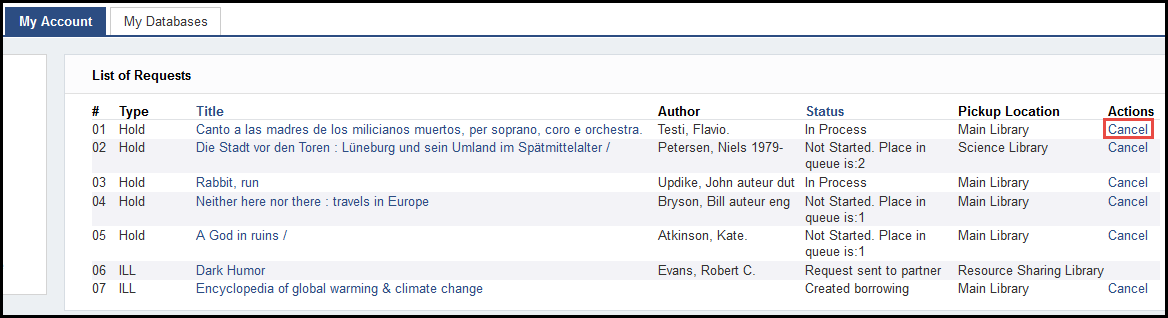
Esta solicitud se puede cancelar desde Primo. Esta opción cancela totalmente la solicitud.
-
Edit the request and select the Rota tab. Select Cancel next to a partner. Esta opción solo cancela este socio pero deja la solicitud activa. A cancellation message is sent to the partner and if there are more partners, the next partner in the rota is activated.
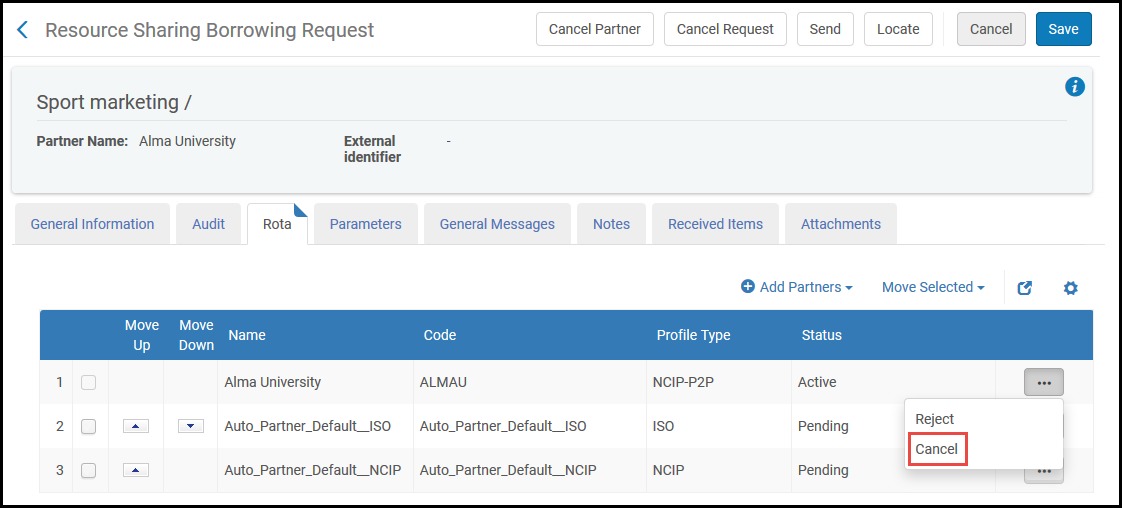
Cancelar una solicitud genera un mensaje que se envía según la configuración de socios. Cuando se cancela totalmente una solicitud, el estado cambiará según el perfil del flujo de trabajo.
Si un ejemplar está en el estante de reservas cuando se cancela, la solicitud de reserva se cancela y la solicitud de préstamo se marca como completada.
Si la biblioteca ha recibido un ejemplar pero el usuario no lo ha recogido, el socio puede cancelar la solicitud de reserva pero la solicitud de préstamo permanecerá activa.
Rejecting a Resource Sharing Request
This section refers to step 4 of the Peer to Peer Borrowing Workflow diagram.
El prestatario inicia los rechazos de una solicitud para indicar que el prestatario no tiene el deseo de cumplir con la solicitud.
Se puede hacer un rechazo si la petición está activa y el ejemplar no ha sido enviado.
Receiving an Item from a Resource Sharing Request
Para recibir ejemplares de recursos compartidos, se debe tener uno de los siguientes roles:
- Operador de servicios al usuario (para biblioteca de recursos compartidos)
- Gerente de servicios al usuario (para biblioteca de recursos compartidos)
This section refers to step 6 of the Peer to Peer Borrowing Workflow diagram.
Los siguientes componentes del sistema se utilizan en el momento en que prestamista recibe el ejemplar.
- Un registro BIB temporal, que es suprimido automáticamente
- Una existencia temporal
- Un ejemplar temporal
- Una solicitud de reserva enlazada al ejemplar temporal
Estos componentes se crean realmente cuando se crea la solicitud, aunque la primera vez que el operador los utiliza es en el momento de la recepción.
Receiving Physical Resource Sharing Requests
An item may be received in the following places: Receive Items, Scan In Items, and the Receive link on the task list. Se recomienda ampliamente utilizar la página de Recibir ejemplares, pues es la interfaz dedicada para recibir ejemplares de recursos compartidos. Ofrece opciones adicionales tales como indicación de recibo de un ejemplar digital, fecha de vencimiento, política del ejemplar y ubicación. Cuando se recibe el ejemplar, se anexa un código de barras temporal al ejemplar. El ejemplar va entonces a la estantería de reservas para su recogida o a tránsito.
Se puede ver una lista de ejemplares de recursos compartidos recibidos en la página Ejemplares recibidos.
You can receive resource sharing items only when you are at a resource sharing library circulation desk; see Library/Desk Selector in The Persistent Menu.
To view received items:
-
On the Received Items page (Fulfillment > Resource Sharing > Receiving Items), select a format for the received items in the Received format field that you want to view (Digital, Physical, or Physical non-returnable), regardless of which method you use to receive resource sharing materials.
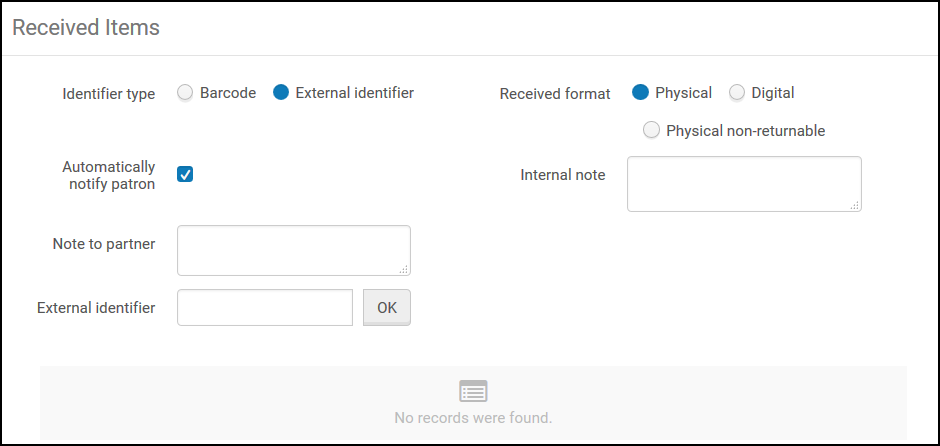
- Select an Identifier type by which received items are to be identified:
- Código de barras
- Identificador externo
- Clear the Automatically notify patron check box to prevent Alma from sending a notification email to the requesting patron when the item arrives at the resource sharing library. This can be useful for Resource Sharing Borrowing Requests with the format Physical non-returnable, when the receive operation is used to notify Alma that an item has already been supplied directly to the patron, so that no additional item ready for collection notification to the patron is required. By default, this check box is selected.
- When the Automatically notify patron check box is selected, the On Hold Shelf letter is the letter type generated for the notification.
- Esta notificación es relevante solo para los recursos físicos.
-
Optionally, add a note in either or both of the following fields: This note appears in the following format:
<Name of partner><Note text>
- Internal note: A note that appears only on the side from which it is sent (that is, when configuring a note from the borrower, the note appears only in the list of borrowing requests. Al configurar una nota de la institución prestataria, la nota aparece solamente en la lista de solicitudes de préstamo). These notes do not appear on the History tab, and are to be used for notes not intended to be publicized (that is, they are not sent to the peer partner). An example of a note would be a borrower writing,This lender has historically been difficult to deal with.
- Note to partner: The note that is sent to the partner. This note appears in the Notes tab of both the sender of the note and the receiver of the note, and on the request's History tab (i.e. –Only in reading room).
- Enter a barcode or an external identifier for the received resource in the Barcode or External identifier field and select OK. The field that appears corresponds to the Identifier type selection, performed in step 2.
If you selected Physical as the received format, a dialog box opens where you configure receiving information for the item:
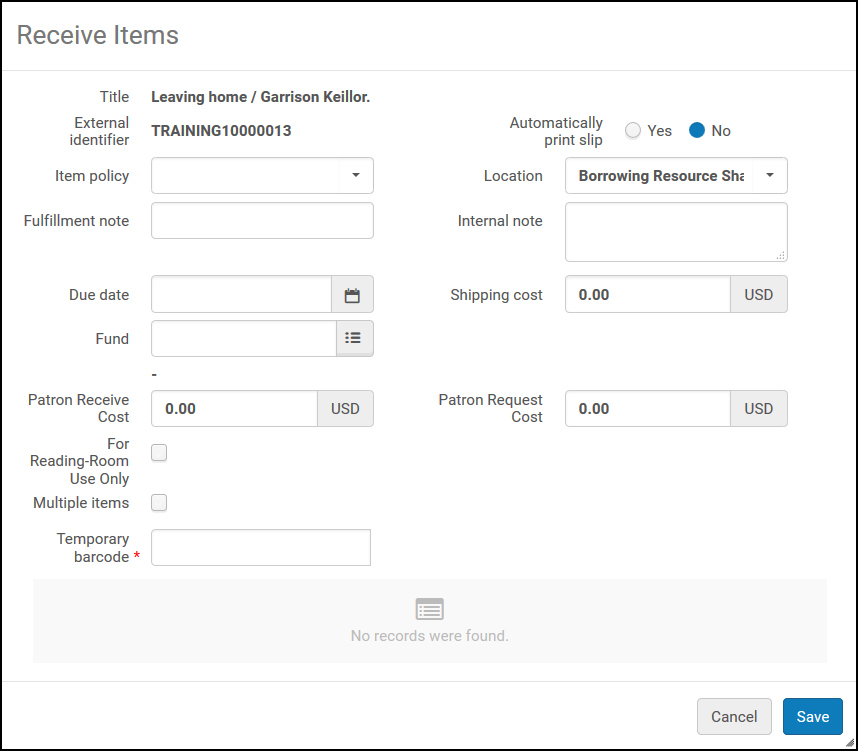
Configurar los campos en los campos del cuadro de diálogo, como se describe en la siguiente tabla:
The values of the Item policy and Location fields are populated with the values of the Temporary Item Creation Rule for the item (see Configuring Temporary Item Creation Rules). If no rule is configured, the Item Policy field is empty and the Location field contains the current location of the item, based on the library and institution default settings.
If you selected Digital as the received format, the received item displays at the bottom of the page.
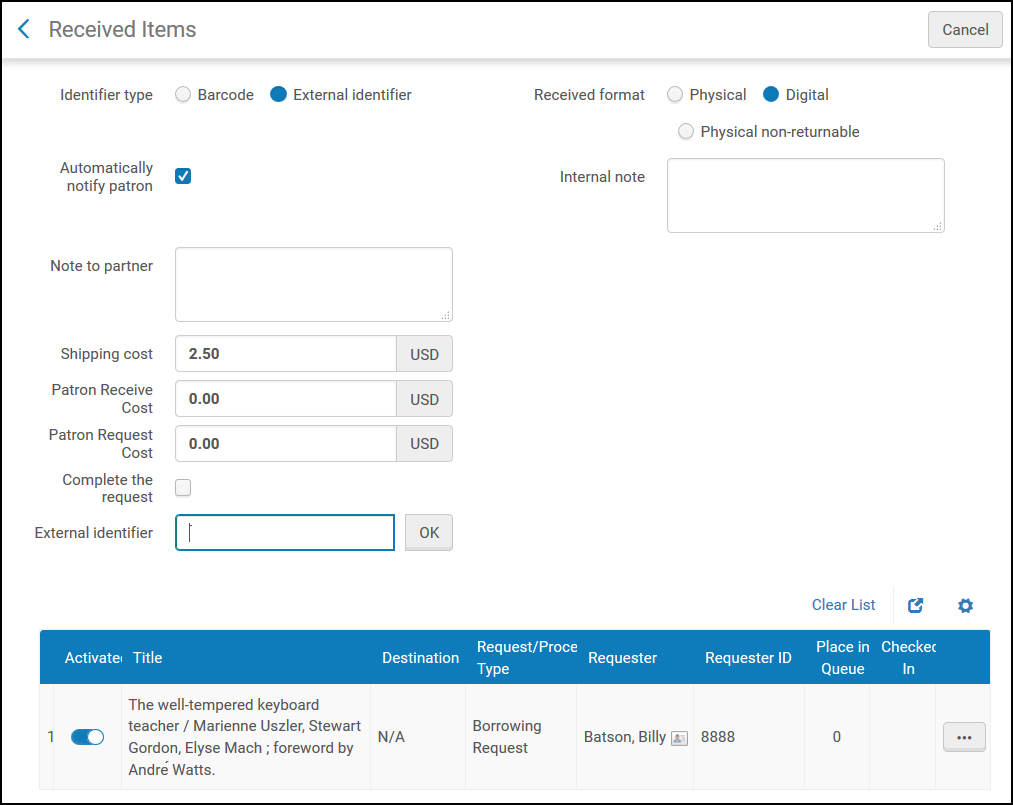
Select Complete the request when you have completed the request to mark it as closed. If you do not select this option, the resource's status is listed in the Resource Sharing Borrowing Requests list as Digitally received by library.
- When working with a Physical non-returnable request, select Complete the request to change the item's status to Request Completed and mark the request as Closed. If you do not select Complete the request, the resource's status is listed on the Resource Sharing Borrowing Requests page as Physically received by library. If Automatically Print Slip is set to Yes, the Receiving Slip Letter (code: ReceivingSlipLetter) is printed for physical and physical non-returnable items. For more information on the receive slip, see Configuring Alma Letters.
- If the lender is an ISO or NCIP partner, the request's status is updated and the Received message is sent.
Si un ejemplar se escanea dos veces, se agregará a la lista, mostrando los datos de la recepción inicial, pero no se toma ninguna acción adicional. Esto es para evitar errores cuando un ejemplar para recibir se escanea dos veces, lo que de lo contrario causaría que el paso de retorno suceda inmediatamente.
To handle a non-deliverable item and enable it for delivery:
En la página Ejemplares recibidos, si se ingresa una fecha de vencimiento para una fecha pasada o una fecha en la que no se puede entregar el ejemplar, se muestra un mensaje, Artículo no puede prestarse al usuario - fecha de vencimiento insuficiente.
Llévese a cabo una de las siguientes opciones:
- Select Cancel to return to the Received Items page and modify the due date. When you fix the due date, the item displays on the Resource Sharing Borrowing Requests page with the status Physically Received by Library.
- Select OK to retain the insufficient due date. The item displays on the Resource Sharing Borrowing Requests page with the status Received - not for loan, indicating that the item has been received by the Resource Sharing Borrowing Library, but cannot be loaned.
Receiving Multiple Items for a Single Request
Es posible recibir y devolver más de un artículo para una sola solicitud de préstamo. La operación de recepción o devolución se considerará realizada cuando se escaneen todos los ejemplares, aunque también se puede realizar una recepción parcial. Los ejemplares pueden agregarse a una solicitud después de la recepción original si la solicitud aún se encuentra en estado activo. A manual receive can be done from the row action in the Borrowing Task List and from the Receiving Items interface. A manual return can be done from Return Items, the Returns tab in Patron Services and Scan in Items.
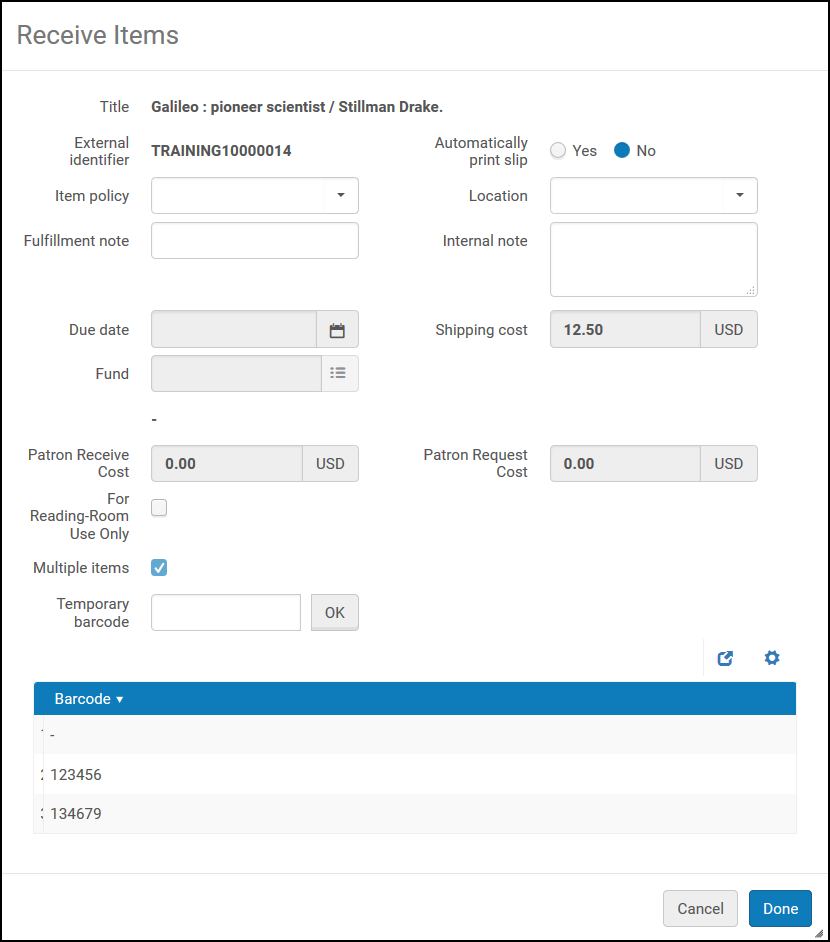
On the Receive Items screen, the Multiple Items check box is visible only if the Physical format was chosen on the receiving interface. Cuando se selecciona la casilla de verificación, al escanear y aceptar cada ejemplar, se borra el campo del código de barras. Select Done to indicate that all parts of the request have been scanned, and send a hold shelf notification to the patron. Seleccionar hecho también activa las siguientes validaciones en los códigos de barras ingresados:
- No hay códigos de barras vacíos
- No hay códigos de barras duplicados
- No se utilizan códigos de barras (en el repositorio)
Si a la solicitud aún le faltan algunos ejemplares, aún se puede hacer una recepción para indicar una solicitud recibida parcialmente. Cuando se reciben los ejemplares adicionales, se pueden agregar a la solicitud principal si la solicitud aún no se devuelve y se selecciona la opción múltiple.
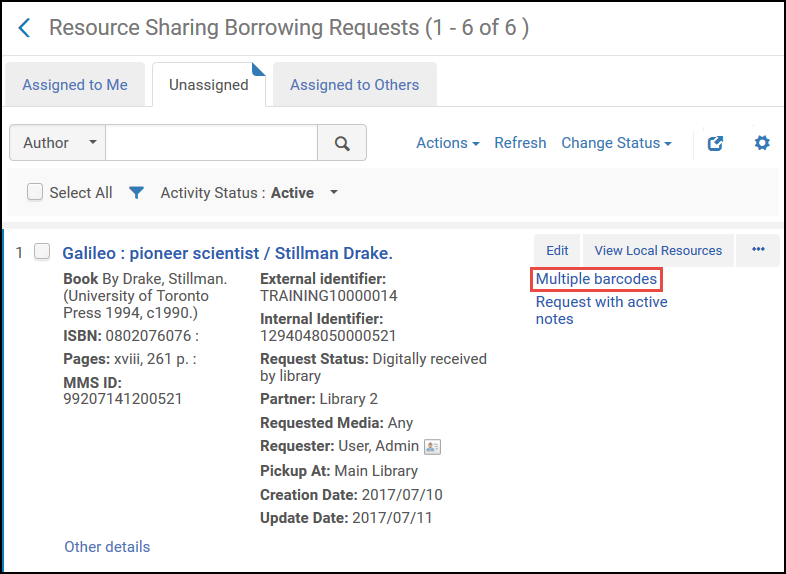
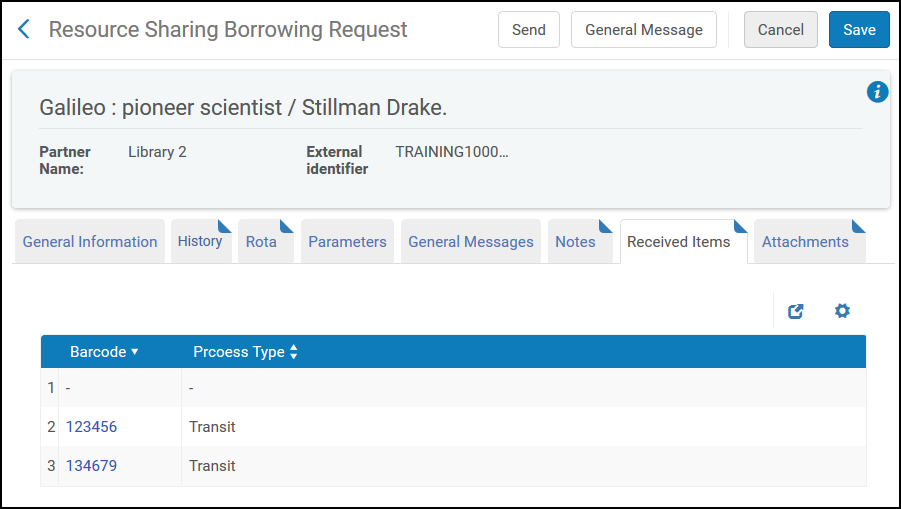
The Borrowing Requests Lists have a link for Multiple Barcodes when multiple items have been shipped or received. Selecting the link opens the request to the Received Items tab.
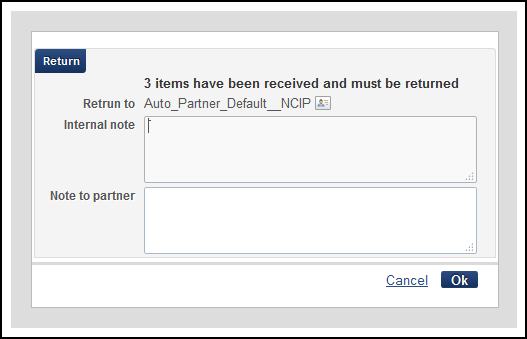
Al seleccionar la acción Devolver, la ventana emergente Devolver indica que se trata de una solicitud de varios ejemplares.
To add items to a request after the original receive:
- On the Received Items page (Fulfillment > Resource Sharing > Receiving Items), enter the External Identifier and select OK. Aparece una ventana emergente que indica que la solicitud ya se ha recibido.
-
Select Confirm. Aparece una ventana emergente para introducir los códigos de barras. Enter the barcodes one at a time and select OK after each one. (See Receive Multiple Items above.)
Al acceder la ventana emergente después de la recepción original, la casilla de verificación de múltiples ejemplares, la fecha de vencimiento y los costes son solo de vista, tomando sus valores de la recepción original.
- Select Done when all barcodes are entered.
Los siguientes comportamientos se aplican a las solicitudes de varios ejemplares:
- The status of the request changes to Loaned to Patron when any of the items is loaned.
- La cancelación de una solicitud de retención cancela solo la solicitud de retención específica. La solicitud de préstamo principal solo se cancela si todos los artículos se cancelan.
- Los mensajes de renovación y recuperación recibidos del prestamista actualizan todos los préstamos bajo la solicitud principal.
- Solo se aplica una tarifa de renovación al préstamo.
- In Primo, only one item will appear for the request on the Requests List of the My Account tab.
For more information, see Resource Sharing Requests with Multiple Items and More Information About Receiving Multiple Resource Sharing Items (Borrower).
Receiving Digital Resource Sharing Requests
When a lender sends a digital request, it is automatically forwarded to the patron, depending on the Send Borrower Document Delivery rules (see Advanced Resource Sharing Configurations). If the lender filled shipping terms of use (see Delivering Digitized Items Using the Document Delivery Page), then the digital resource is not automatically forwarded and the request remains in the Shipped Digitally status, waiting for manual processing.
Los prestatarios pueden establecer reglas que determinen si un recurso recibido digitalmente debe compartirse automáticamente con el usuario solicitante, o esperar a que el personal de la biblioteca lo gestione antes de reenviarlo al usuario solicitante. Por ejemplo, es posible que sea necesario procesar el documento para aumentar su accesibilidad para un solicitante que requiera una mayor accesibilidad. See Advanced Resource Sharing Configuration for more information.
Una institución prestadora puede enviar manualmente una solicitud digital directamente al usuario si la solicitud incluye la dirección de correo electrónico del usuario.
If the borrowing and receiving libraries are both Alma libraries, the lender can trigger a direct email to the patron with a link to the digitized resource even if the request did not include the patron email address.
The lender may send an email with the digitized resource attached . El operador del prestatario verifica el ejemplar digital y lo envía al cliente, cerrando la solicitud al mismo tiempo. El envío del fichero al usuario se realiza mediante la acción "Cargar fichero". Esta acción sube el fichero al almacenamiento en la nube de Alma y también permite enviar el fichero al cliente. The patron will receive an email with a secured link to the resource, and will have to authenticate before gaining access to the resource. The file will remain in the Alma storage for a configurable period of time (default 30 days).
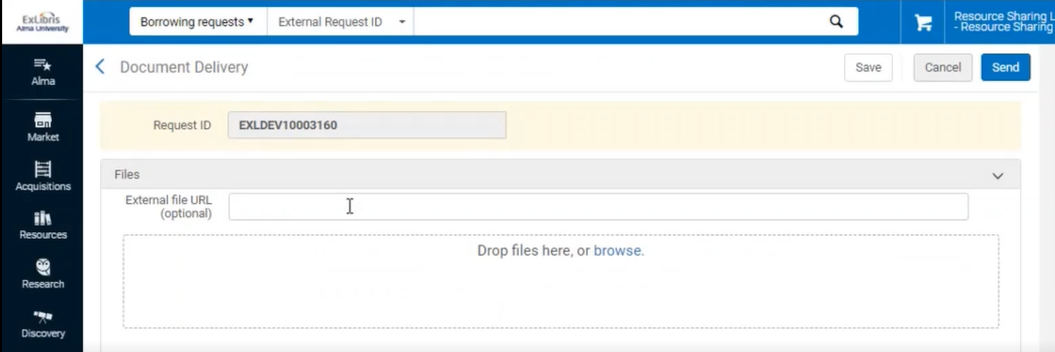
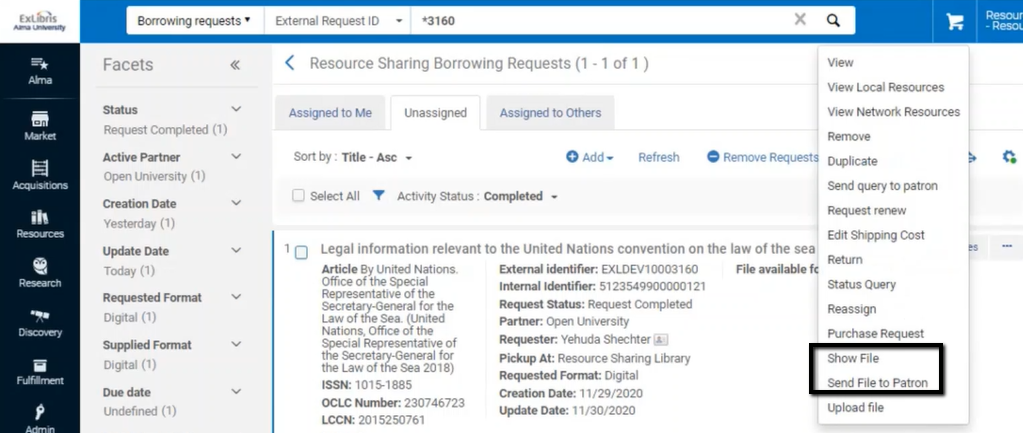
El personal también puede ver el fichero y reenviarlo utilizando las acciones "Mostrar fichero" y "Enviar fichero al usuario".
For videos on digital document delivery of resource sharing requests, see More Information About Digital Fulfillment of Resource Sharing Requests video (18:43 min.) and More Information on Article Requesting in Alma Resource Sharing(16:54 min)
The Document Delivery Notification Letter also supports social login options. For more information, click here.
Managing a Resource Sharing Loaned Item after Receival
This section refers to step 7 of the Peer to Peer Borrowing Workflow diagram.
Once a requested item has been received, the Borrower Receive Email letter is sent to the lending institution if it is an email partner. Después, el ejemplar se gestiona como cualquier ejemplar regular de servicios al usuario. Se añade a la lista del estante de reservas estándar y aparece en la lista del estante de reservas activas o de tareas vencidas. El préstamo del usuario se ejecutará a través de Gestionar Servicios al Usuario. La devolución del usuario también se puede realizar a través de la página Gestionar Servicios al Usuario o Devolución de Ejemplares.
Returning a Resource Sharing Item to the Lender
This section refers to step 9 of the Peer to Peer Borrowing Workflow diagram.
Las devoluciones se pueden hacer desde la Interfaz de Escaneo de ejemplares o desde la acción Devolver en la lista de tareas. El registro BIB temporal, la reserva temporal y el ejemplar temporal se borran del sistema. El ejemplar devuelto se envía de regreso a la institución prestadora. Si la institución prestadora es un socio ISO, el mensaje Devolución ISO se envía al socio. If the lending institution is an email partner, the Borrower Return Email letter is sent. Se puede terminar la solicitud y etiquetar como completada o puede permanecer abierta mientras se espera una respuesta del prestador. The behavior is dependent on the Lender Check In action of the partner's lending workflow profile. See workflow profile configuration and More Information About Resource Sharing Workflow Profiles. If the resource sharing material is returned at a circ desk that doesn't serve the Resource Sharing library and needs to go in Transit to the Resource Sharing library for handling the return to the lending partner, the request will be in status Returned by patron.
The Resource Sharing Return Slip Letter is printed when returning a borrowing item to the lender. For more information, see Configuring Alma Letters.
In addition to the Peer-to-Peer workflow, Broker-Based Resource Sharing defines the workflow for borrowing requests that interact with a broker system.
Peer to Peer Resource Sharing - Lending
Las bibliotecas de recursos compartidos pueden gestionar ambos aspectos de los préstamos. El flujo de trabajo que hay a continuación describe el proceso del préstamo de recursos compartidos. Los protocolos utilizados actualmente para el uso compartido punto a punto son ISO o NCIP. For more information on the ISO and NCIP protocols, see the Developer Network. For information on the borrowing process, see Peer-to-Peer Resource Sharing - Borrowing.
For more information on resource sharing, see the Resource Sharing video (1 hour 12:31 min.). It is also recommended that you watch the detailed Ask the Expert sessions on resource sharing.
Lending Workflow
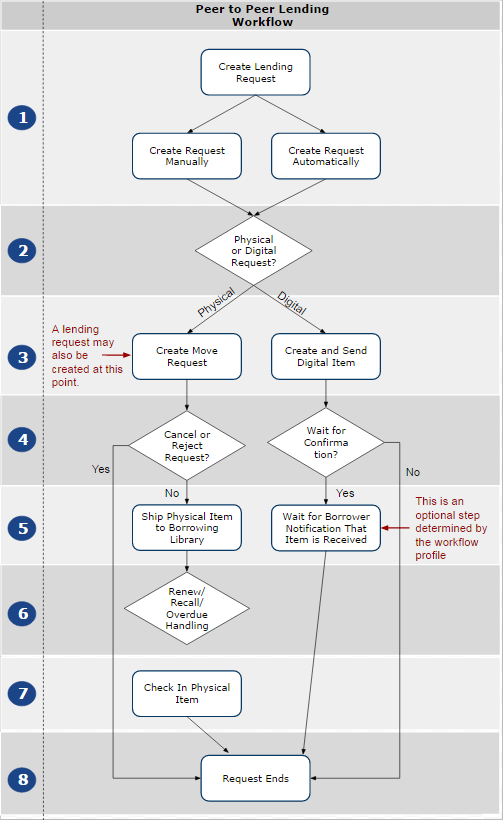
Creating a Resource Sharing Lending Request
This section refers to step 1 of the Peer to Peer Lending Workflow diagram.
-
Create Lending Request Manually - Add a lending request, either manually (see Adding a Resource Sharing Lending Task Manually) or using search (see Adding a Resource Sharing Lending Task From a Search).
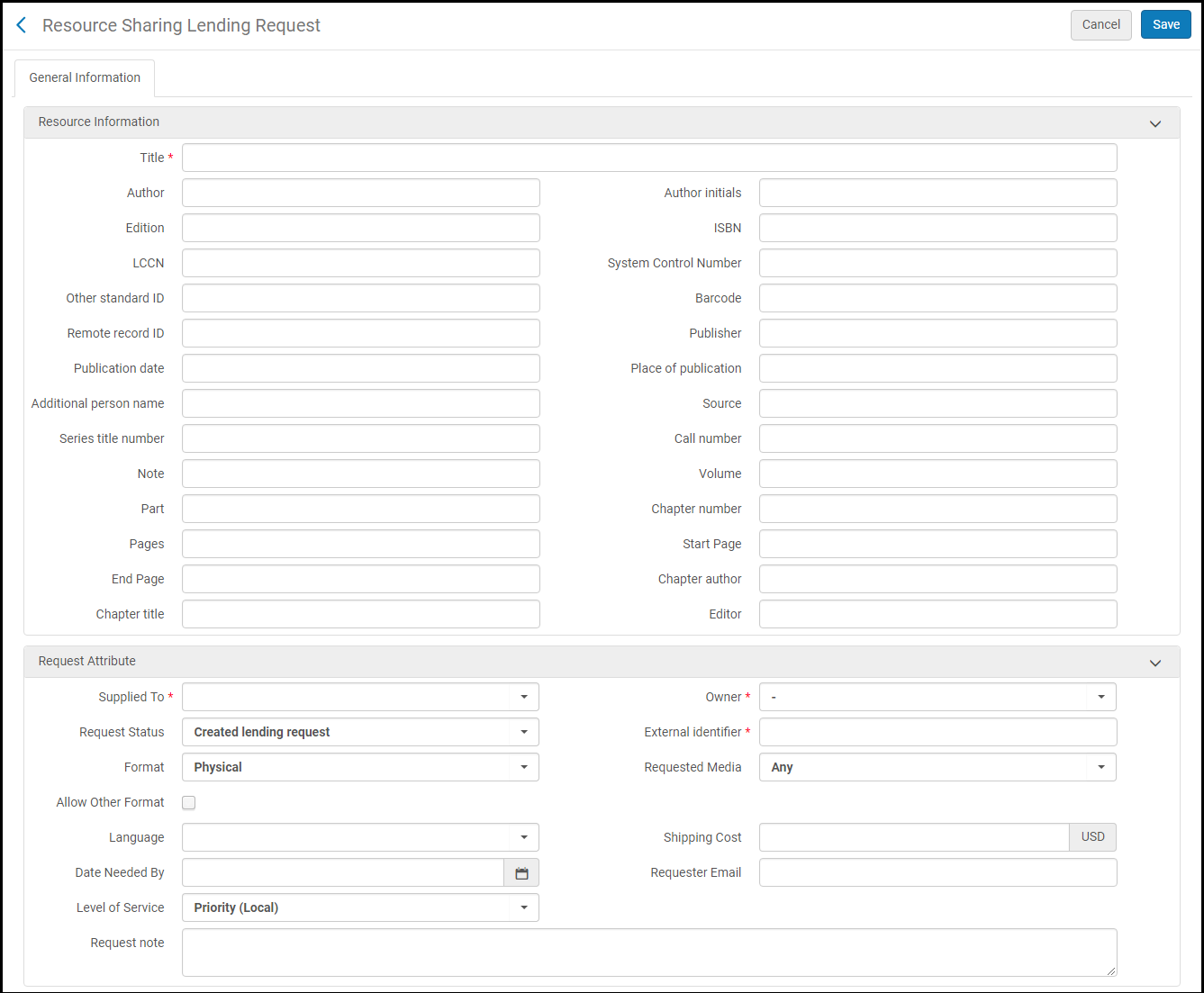
- Crear una Solicitud de préstamo de forma automática - desde un mensaje ISO, NCIP punto a punto o SNLP.
- La solicitud también se puede crear en el momento del envío cuando se escanea el ejemplar.
Physical Request
Create Move Requests
This section refers to step 3 of the Peer to Peer Lending Workflow diagram.
Use the Create Move Request action to assign physical requests that have not yet shipped to the relevant library.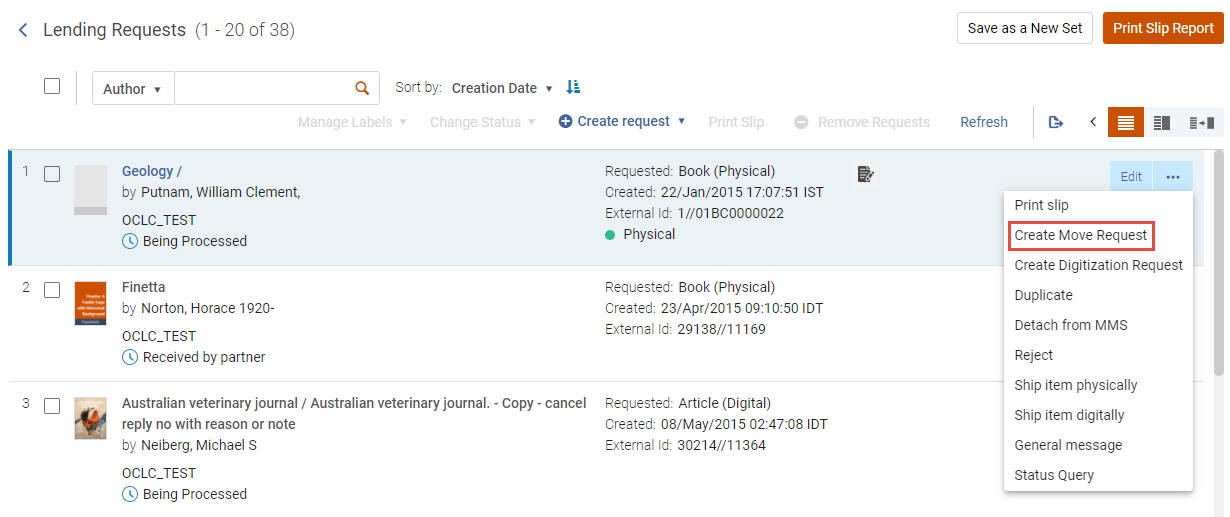
Selecting this action displays a window with the following information and options:
- Ubicación – el nombre de la biblioteca que mantiene las existencias
-
Disponibilidad - este campo contiene dos opciones:
- If the record does not have a summary holding, the number of items and how many of them are available for the resource sharing process displays
- If the record has a summary holding, the availability field displays the summary holding
 indicates that a record is suppressed.
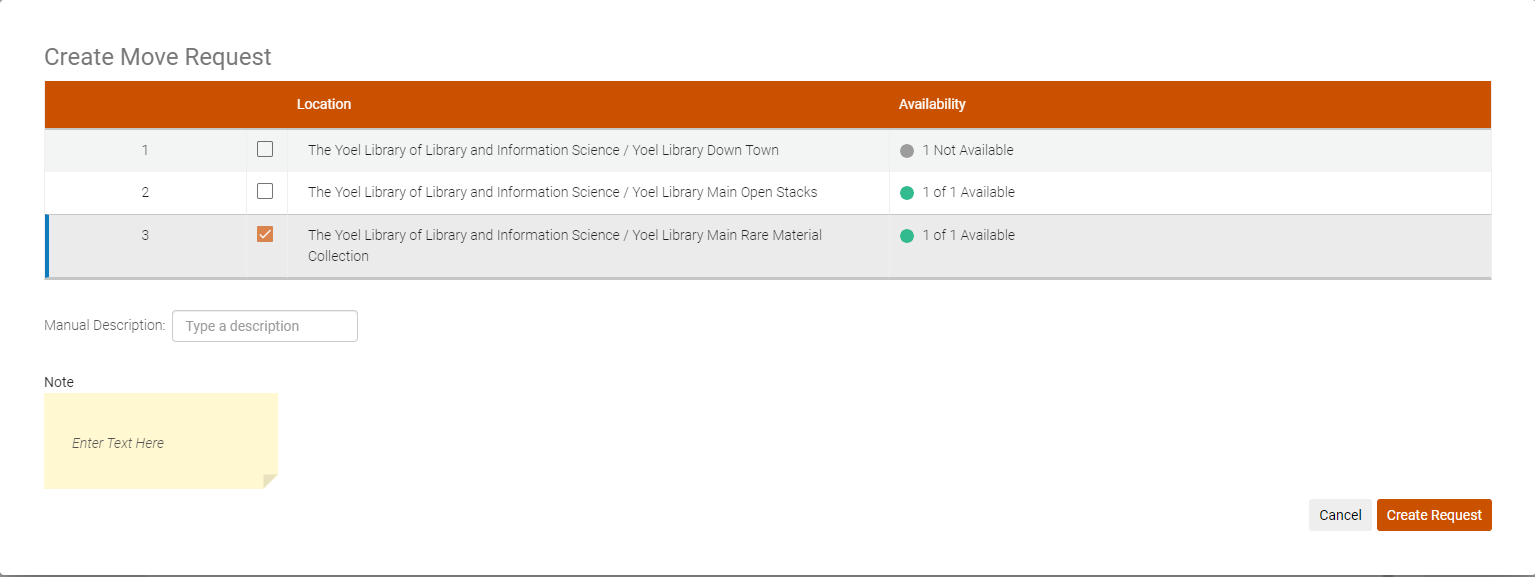
Si no selecciona una biblioteca, se elegirá la biblioteca más adecuada para usted.
When selecting Create Request, a move request is created for the item, and the status updates to Being Processed. El ejemplar siempre se entrega a la biblioteca de recursos compartidos que creó la solicitud de movimiento.
For requested resources that are multi-volume or serial resources (i.e., they include issue/volume/description, etc.), the request form contains the following:
- New Request Specific Item checkbox (unchecked by default).
- When the checkbox is unchecked, the Manual Description field is visible.
El campo es obligatorio y se rellena con la información solicitada por el usuario como se muestra en el campo de nota de la solicitud.
Cuando la casilla de verificación está marcada, se muestran listas desplegables para el año, volumen y descripción. La Descripción es obligatoria porque es necesaria para cumplir con la solicitud (según la existencia actualmente seleccionada). The Year and Volume help narrow down the description field values.
Shipping Items
This section refers to step 5 of the Peer to Peer Lending Workflow diagram.
The physical item is sent to the borrowing institution, where it is received by the resource sharing partner (see Shipping Resource Sharing Lending Request Resources). This may be done through the Shipping Items page or from the action on the request in the Lending Request Task List.
Para enviar ejemplares de recursos compartidos, se debe tener uno de los siguientes roles:
- Operador de servicios al usuario (para biblioteca de recursos compartidos)
- Gerente de servicios al usuario (para biblioteca de recursos compartidos)
Ship a Single Item
Alma realiza los siguientes pasos antes de que se envíe una solicitud de recurso compartido:
- Si una solicitud de recurso compartido no se creó anteriormente, la solicitud se crea y se vincula a un socio de recurso compartido.
- El elemento se mueve a una ubicación temporal según las configuraciones de socio que ha configurado.
- The item is marked as Shipped Physically and is unavailable in Alma.
Se puede actualizar la fecha de vencimiento y el coste de envío simultáneamente para los artículos múltiples que se envían juntos.
You can ship items on the Shipping Items page (Fulfillment > Resource Sharing > Shipping Items).
- El tipo de dirección de envío es obligatorio para todas las bibliotecas de recursos compartidos con habilitación ISO o NCIP. Cuando se envía una solicitud ISO, esta incluye la dirección de envío como la dirección a la que debería enviarse la solicitud. La institución de préstamo, cuando envía digitalmente, envía a esta dirección. For more information about configuring the shipping address, see Managing Institution/Library Contact Information.
- El sistema bloquea los artículos de envío que están en proceso, como en préstamo, en espera o en adquisición.
Los campos que se muestran en la página Enviar ejemplares dependen del Formato de envío seleccionado.
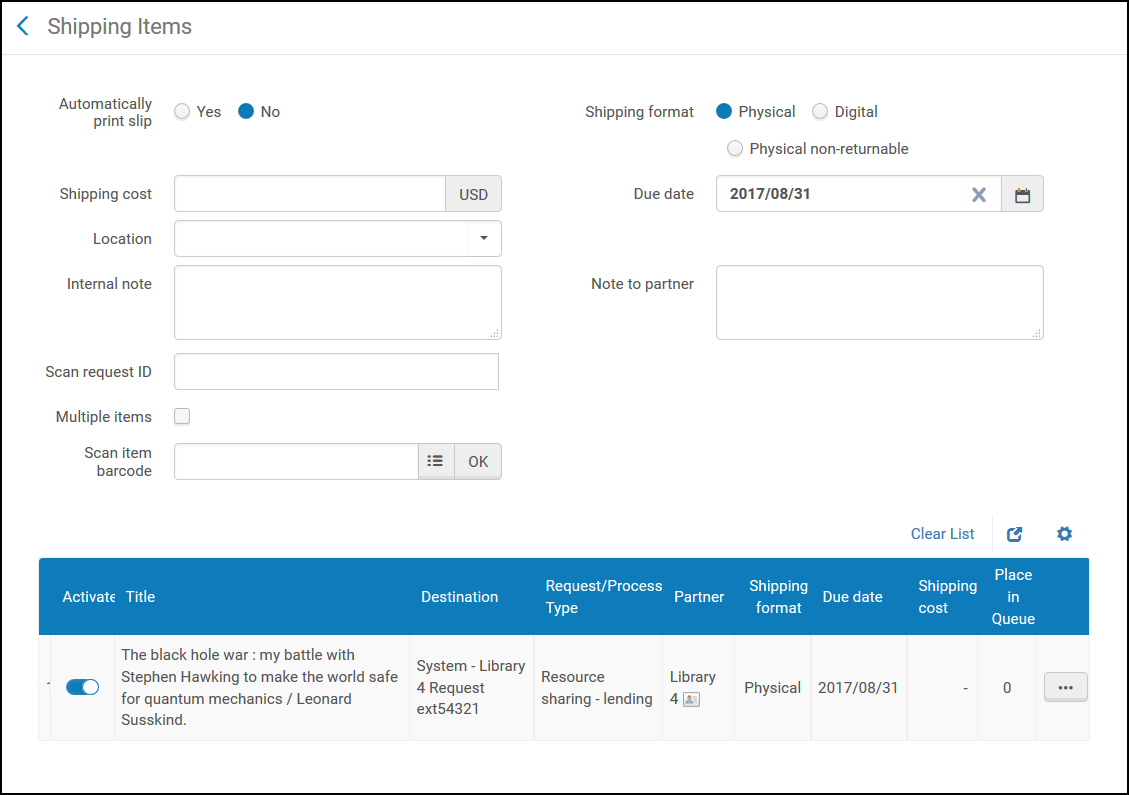
Existe una opción para crear una solicitud de préstamo automáticamente si no se ha creado al enviar un ejemplar. Esto permite que las bibliotecas que administran las solicitudes de prestamistas manualmente realicen dos pasos en una acción. In order to accomplish this, turn on the Automatic Creation attribute for the resource sharing library (see Configuring Parameters of a Resource Sharing Library). Esto hace que el campo asociado sea visible en la página de ejemplares de envío para solicitudes físicas. Es obligatorio indicar un ID de solicitud. El campo socio también es obligatorio si el ID de solicitud ingresado no existe. Si se intenta dejar el campo asociado en blanco, se genera un mensaje de error. Seleccionar un socio es obligatorio cuando la solicitud no se ha creado anteriormente. Después de seleccionar el socio, una nueva ventana emergente advierte que la solicitud de préstamo no existe en el sistema. Se creará una nueva solicitud. The pop-up window optionally may be turned off in the customer parameters (see Configuring Other Settings). La nueva solicitud de préstamo se crea y se marca como enviada.
For more information about lender workflow optimization, see the Lender Workflow Optimization video (3:11 min.).
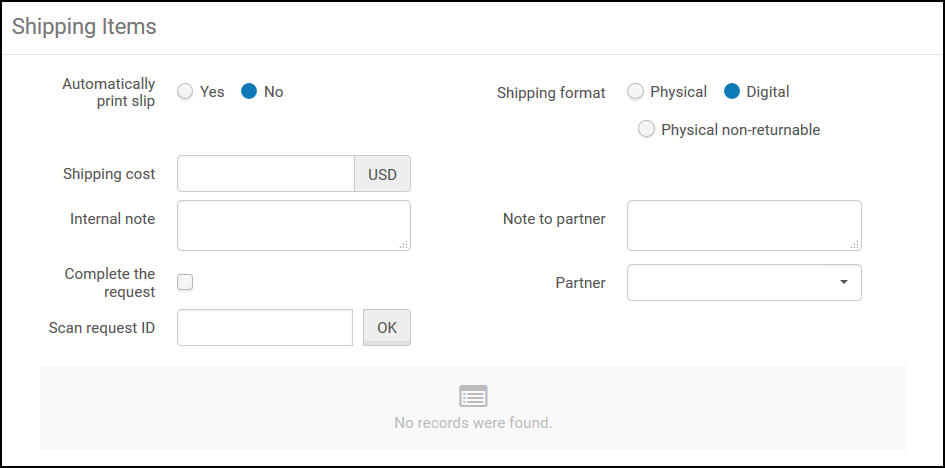
For more information about shipping items, see the Set Due Date and Shipping Costs at Ship Time video (5:13 min.).
To set a due date and shipping cost for shipping multiple items from a lending institution:
-
On the Shipping Items page, in the Automatically Print Slip field, select Yes(the default is No). La opción seleccionada en este campo es permanente para el usuario durante una única sesión. This option automatically sends a print a Resource Sharing Shipping Slip Letter when shipping an item. The shipping print slip is sent for the item specified in the Scan request ID and Scan item barcode fields. El comprobante contiene información que es específica del artículo que se envía. For information about configuring the Resource Sharing Shipping Slip letter, see Configuring Alma Letters.
You can manually print a shipping slip by selecting the Print Slip link on the Resource Sharing Lending Requests Task List page (see the Print Slip description in the Request Sharing Lending Requests Task List Links table in Managing Resource Sharing Lending Requests).
- In the Shipping Format field, select the format in which the request is shipped.
- In the Shipping cost field, enter a shipping cost for the item.
- In the Due date field, enter a date by when the item must be shipped. This field appears only when Shipping format = Physical.
- When shipping a resource sharing lending request, in the Location field, specify a temporary location for the item to be shipped. The options appearing in the Location field are the locations for the library (appearing in the Currently at: field in the persistent menu).
When specifying a location and entering the item's barcode in the Scan item barcode field, the request's status changes to Shipped Physically.
This field appears only when Shipping format = Physical, and is enabled only when one of the following is true:
- You are at a resource sharing library circulation desk; see Library/Desk Selector in The Persistent Menu.
- You enter the External ID of a lending request in the Scan Request ID field.
- You access the Shipping Items page using the Ship Item link on the Resource Sharing Lending Tasks List page.
- Optionally, add a note in either or both of the following fields: This note appears in the following format:
<Name of partner><Note text>
- Internal note: A note that appears only on the side from which it is sent (that is, when configuring a note from the borrower, the note appears only in the list of borrowing requests. Al configurar una nota de la institución prestataria, la nota aparece solamente en la lista de solicitudes de préstamo). These notes do not appear on the History tab, and are to be used for notes not intended to be publicized (that is, they are not sent to the peer partner). An example of a note would be a borrower writing,This lender has historically been difficult to deal with.
- Note to partner: The note that is sent to the partner. This note appears in the Notes tab of both the sender of the note and the receiver of the note, and on the request's History tab (i.e. –Only in reading room). For ISO requests, this note appears in the ISO message in the Attachments tab.
- In the Scan item barcode field, enter the item's barcode. This field is only displayed when Shipping format = Physical. When shipping an itemless request, leave this field blank.(New for February 2026) If the item does not have a barcode, it can be shipped by selecting it from the pickup list. You can add the Item ID column to the scanned items list by selecting Item ID in the customization menu (see New Layout).
- Select the Complete the request check box to change the item's status to Request Completed and mark the request as Closed. This check box displays only when Shipping format = Digital or Physical non-returnable.
- In the Scan request ID field, enter the item's external identification number.
- Select OK next to either the Scan item barcode or Scan request ID fields. El ejemplar se encuentra y se muestra en la parte inferior de la página.
Repita el paso 7 (introducir el código de barras del ejemplar) y el paso 9 (introducir el número de identificación externo del ejemplar) para todos los ejemplares que desee enviar. Los ejemplares se muestran en la tabla en la parte inferior de la página, y el coste de envío configurado y la fecha de vencimiento se aplican a cada uno de los artículos.
Si un ejemplar se escanea dos veces, se agrega a la lista, mostrando los datos del envío inicial, pero no se toma ninguna acción adicional. Esto es para evitar errores cuando un artículo para envío se escanea dos veces.
Ship Multiple Items for a Single Request
For more information about shipping multiple items for lending requests, see the Shipping Lending Requests with Multiple Items video (1:42 min.).
Las solicitudes de préstamo pueden enviar varios ejemplares adjuntos a una sola solicitud. Si ya se han creado varias solicitudes de movimiento para la solicitud de préstamo o si la solicitud ya se ha enviado y se están enviando más ejemplares, Alma marcará automáticamente la solicitud de préstamo como una solicitud de ejemplar múltiple. De lo contrario, la adición de varios ejemplares se realiza durante el proceso de envío de ejemplares al prestatario. This can be done from the shipping interface or the Ship Item row action of the Lending Requests Task List.
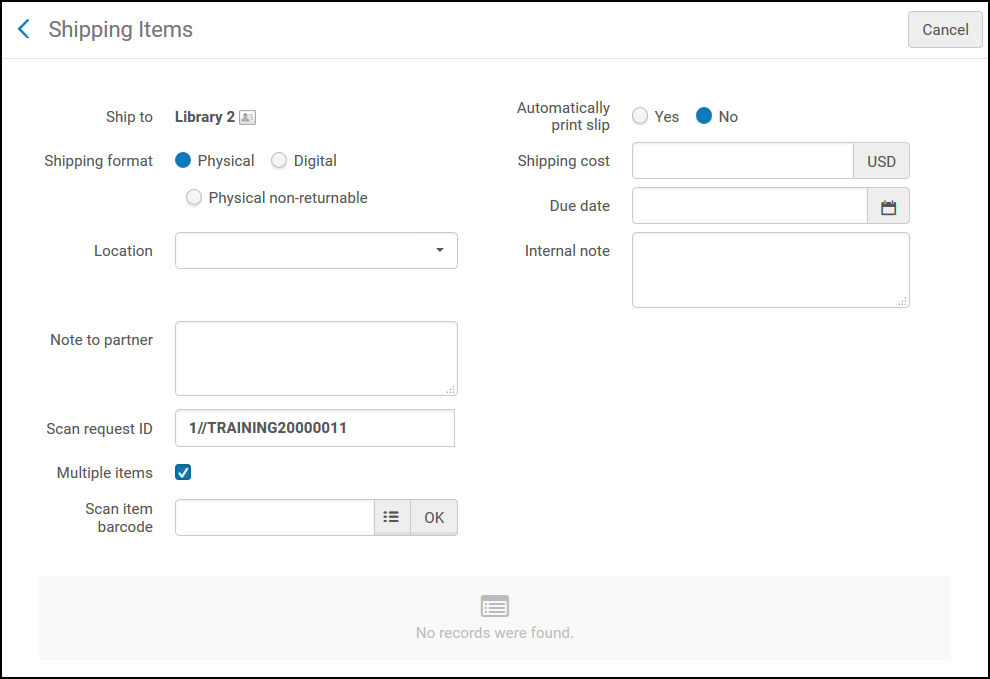
After checking the Multiple items check box and scanning the first item's barcode, the multi-item window is displayed.(New for February 2026) If the item does not have a barcode, it can instead be shipped using the Item ID. You can add the Item ID column to the scanned items list by selecting Item ID in the customization menu (seeNew Layout).
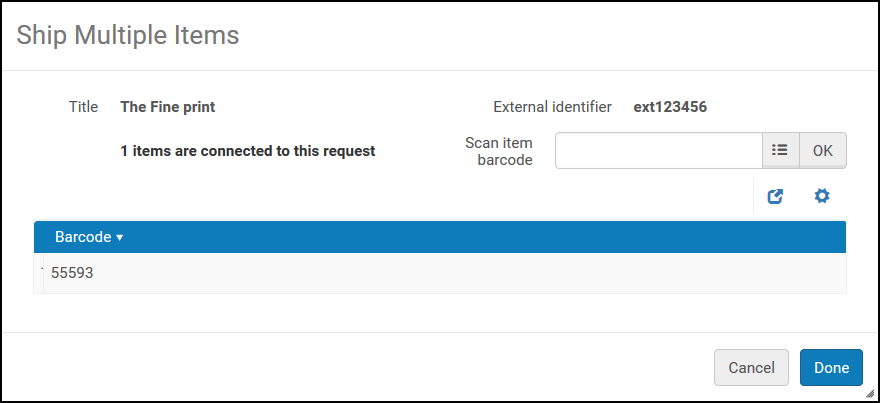
Para cada elemento, se escanea el código de barras. When all items are done, select Done. The lending request status changes to Shipped Physically and the barcode is displayed as Multiple barcodes.
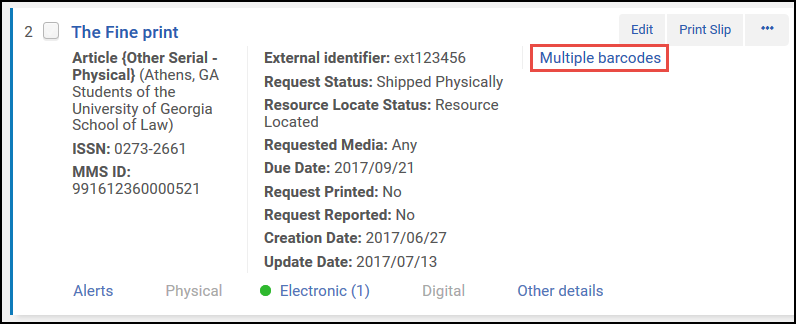
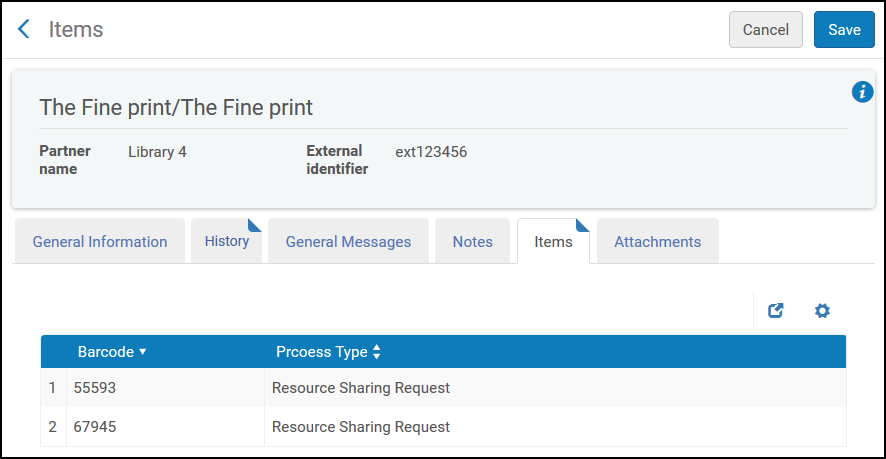
Al seleccionar los enlaces de múltiples códigos de barras, se abre la solicitud de préstamo a una nueva pestaña, Ejemplares.
When shipping to an ISO partner or an NCIP peer-to-peer partner, a shipped message is transmitted. When the borrowing institution receives the message, the message is recorded in the History tab of the borrowing request. The borrowing request's status is changed to Shipped Physically.
Renew/Recall/Overdue Handling
This section refers to step 6 of the Peer to Peer Lending Workflow diagram.
Renovar un ejemplar enviado sucede como resultado de una solicitud del prestatario. La acción de renovación se puede hacer de forma manual o automática. Puede iniciarse como resultado de la solicitud de un usuario o del personal a nombre de un usuario.
Alma marca automáticamente las solicitudes de préstamo de ISO y correo electrónico cuya fecha de vencimiento llegó como Solicitud vencida.
Los ejemplares que se han enviado pueden ser devueltos automáticamente si la función de Solicitar devolución fue habilitada en el perfil del flujo de trabajo. For email and SLNP partners, the Lending Recall Email Letter will be sent. Para los socios ISO, se enviará un mensaje ISO.
Recalls can also be automatically cancelled if the cancel recall function has been enabled in the workflow profile. For email partners, the Lending Recall Email Letter will be sent. Para los socios ISO, se enviará un mensaje ISO.
Check In Physical Item
This section refers to step 7 of the Peer to Peer Lending Workflow diagram.
Upon receipt of the item from the borrowing institution, the item or the external request ID is scanned into Alma (see Scanning Items). El proceso de escaneo informa de la ubicación a la que se debe enviar el ejemplar devuelto.
Digital Request
Create and Send Digital Item
This section refers to step 3 of the Peer to Peer Lending Workflow diagram.
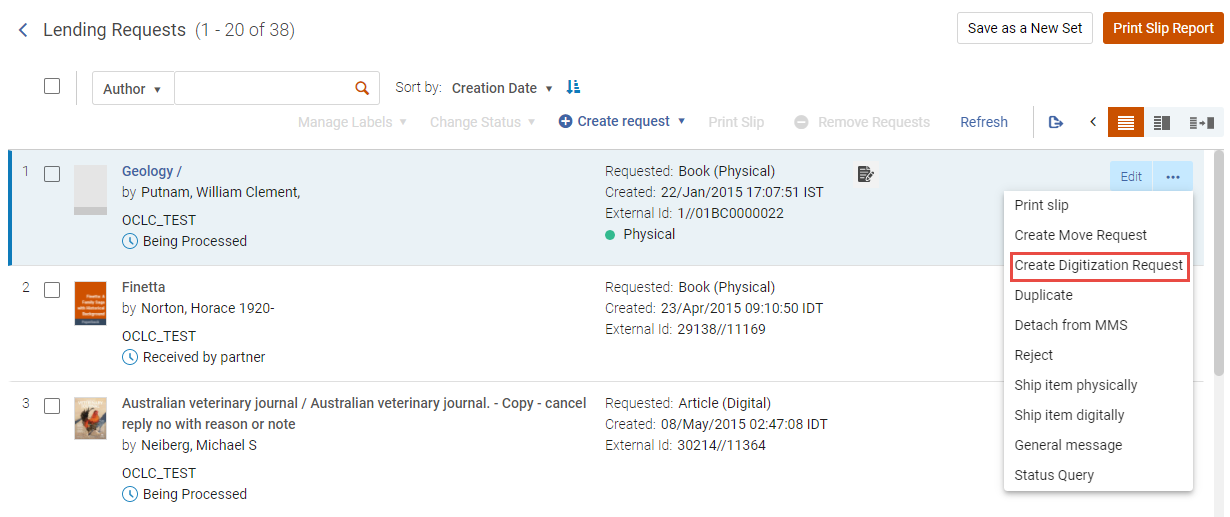
Use the Create Digitization Request action to assign digital requests that were not yet delivered to the relevant library.
Al seleccionar la acción se muestran las siguientes opciones:
- Existencias opcionales que pueden cumplir con la solicitud, la cantidad de ejemplares y cuántas existencias están disponibles para el proceso de intercambio de recursos y la existencia resumida.
- Managing Department - for shipping a digital resource, the Managing Department drop-down list is displayed, enabling the user to select which digitization department receives the digitization request. Si hay solo un departamento disponible para gestionar la solicitud, Destinación Objetivo se completaá automáticamente con ese departamento. If more than one value exists, the default value is taken from the rs_default_digitization_department customer parameter if it exists.
- Opción de agregar una nota.
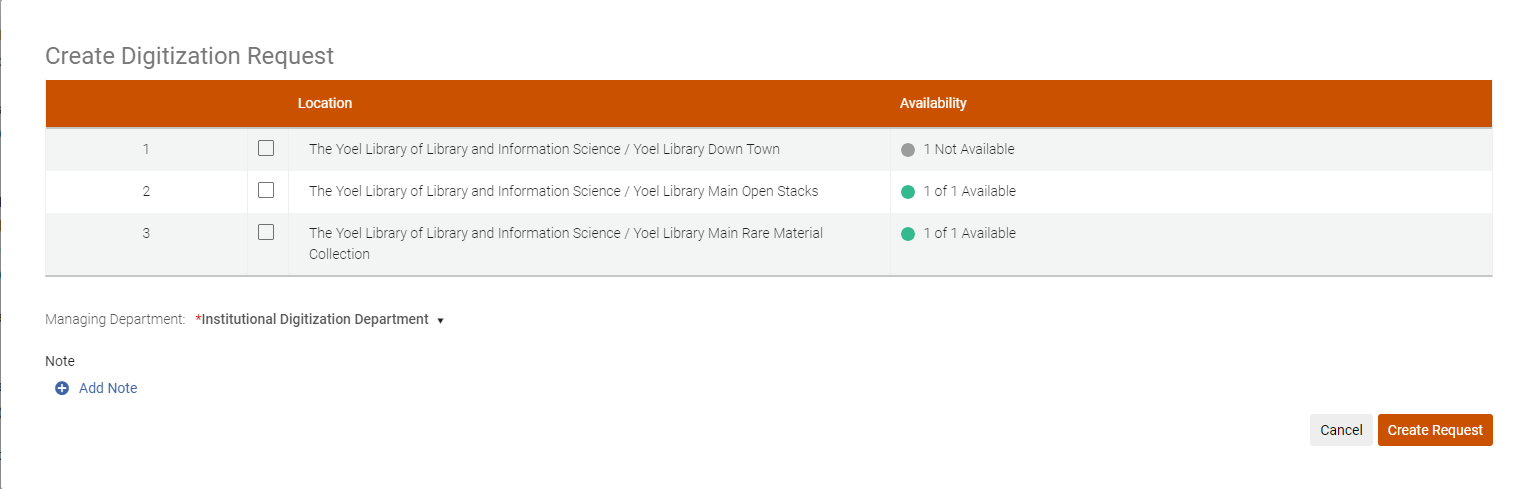
Si no selecciona una biblioteca, se elegirá la biblioteca más adecuada para usted.
When selecting Create Request, a digitization request is created for the item, and the status updates to Being Processed. El departamento de digitalización seleccionado procesa la solicitud de digitalización.
For requested resources that are multi-volume or serial resources (i.e., they include issue/volume/description, etc.), the request form contains the following:
- 'Request Specific Item' checkbox (unchecked by default)
- Cuando la casilla de verificación no está marcada, es visible el campo Descripción manual.
El campo es obligatorio y se rellena con la información solicitada por el usuario como se muestra en el campo de nota de la solicitud.
Cuando la casilla de verificación está marcada, se muestran listas desplegables para el año, volumen y descripción. La Descripción es obligatoria porque es necesaria para cumplir con la solicitud (según la existencia actualmente seleccionada). The Year and Volume help narrow down the description field values.
Wait for Borrower Notification that Item was Received
This section refers to step 5 of the Peer to Peer Lending Workflow diagram.
Dependiendo de las opciones seleccionadas en el flujo de trabajo, es posible que la solicitud no cambie a un estado de cerrado hasta que se reciba una respuesta de la institución prestatario de que se recibió el ejemplar digital.
