Managing Lending Requests
Esta página explica cómo encontrar solicitudes entrantes de préstamo específicas que requieren su atención, así como las diversas acciones que puede realizar durante el proceso de gestión de cada solicitud entrante de préstamo. Esto incluye encontrar solicitudes de préstamo que requieran gestión, ver parámetros de solicitud, gestionar solicitudes de recursos físicos/digitales, separar solicitudes de préstamo del inventario y rechazar solicitudes de préstamo. It also includes generating print slip reports, removing alerts, managing task assignment and viewing past lending request actions.
For more information on resource sharing including locating items for resource sharing, working with resource sharing partners, managing borrowing and lending requests and contributing to the resource sharing directory, see Resource Sharing.
Para gestionar las solicitudes de préstamo de uso compartido de recursos, se debe desempeñar uno de los siguientes roles:
- Operador de servicios al usuario (para biblioteca de recursos compartidos)
- Gerente de servicios al usuario (para biblioteca de recursos compartidos)
In order to manage lending requests, your role must be scoped to the resource-sharing library.
You can manage the workflow of existing resource-sharing lending requests in the Lending Requests page (Fulfillment > Resource Sharing > Lending Requests). This page presents a task list of existing lending requests, with details about the resource and the request, including information about notes and alerts attached to it, and various features for handling these requests.
El flujo de trabajo normal para gestionar las solicitudes entrantes de préstamo existentes es:
- Find a lending request that is ready to be fulfilled (see Finding Requests that Require Handling below).
- Retrieve the requested resource, either by moving a physical item or acquiring a digital file (see Handling Requests for Physical Resources, Handling Requests for Digital Resources, below).
- Ship the resource, as follows:
- Physical or Physical Non-Returnable Items – Send to resource-sharing desk (see Sending a Physical Resource below)
- Digital Items – Send by email (see Handling Requests for Digital Resources, below)
- Recibir el ejemplar devuelto por la institución solicitante del préstamo y digitalizarlo en la biblioteca para su reubicación. See Managing Returning Physical Resources, below.
Finding Requests that Require Handling
You can use the facets filtering system, the sort feature, and the secondary search to help you find the tasks you need to work with. For general information about working with the facets and sorting see New Layout 2022. Puede abrir la página Solicitudes de préstamo desde uno de los filtros predefinidos en la opción Listas de tareas del menú persistente.
Filtering Using Facets
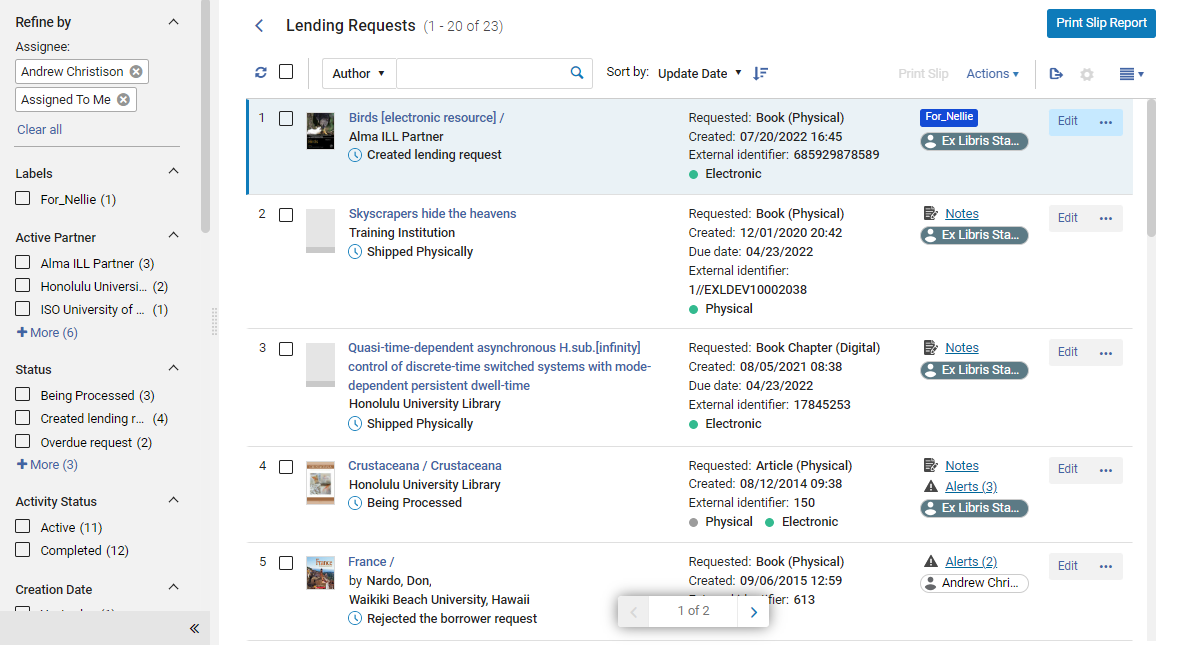
Puede filtrar la lista de solicitudes de préstamos usando las facetas en el lado izquierdo de la página. Las facetas incluyen:
- Labels – Labels that are attached to requests
- Active Partner – The borrowing institution
-
Status – Status of the lending request.
Los siguientes estados indican que el paso final en la solicitud se completó. Las solicitudes en estos estados pueden eliminarse.
- Enviado digitalmente
- Solicitud completada - Este es el estado final antes de la eliminación y puede configurarse manualmente.
Los siguientes son estados no finales (en proceso) del proceso de solicitud:
- En proceso
- Prestatario solicita devolución
- Cancelar respuesta
- Cancelado
- Condicional
- Solicitud de préstamo creada
- Dañado
- Venció
- Devolución del prestador
- Ha fallado la localización
- Perdida
- Sin vencimiento
- Solicitud vencida
- Pendiente rechazo automático
- Ejemplar con devolución solicitada
- Recibida por el socio
- Solicitud del prestatario rechazada
- Renovar solicitado
- Devuelto por el socio
- Enviado físicamente
- Se proporcionará
- Renovación por parte del personal
- Respuesta de renovación
- Renovación del usuario
- Activity Status – Active or Completed
- Request Reported – Requests that have been printed on the print slip report
- Creation Date – Date on which request was created. Los posibles valores son:
- Today – Requests created on current date
- Yesterday – Requests created on day before current date
- 2-3 days ago – Requests created two or three days before current date (excluding today and yesterday)
- 4-7 days ago – Requests created between four to seven days before current date (excluding the above three options)
- 8-30 days ago – Requests created between eight days and a month before current date (excluding the above four options)
- Older – Requests created more than one month before the current date
- Update Date – Date on which the request was updated. Possible values are the same as those for the Creation Date facet.
- Requested Format – The format of the requested item. Options are:Digital,Physical, and Physical non-returnable
- Supplied Format – The format in which the requested item was supplied. Options are: Digital, Physical, Physical non-returnable, and Undefined
- Due Date – The date by which the item must be delivered. Possible values are the same as those for the Creation Date facet.
- Last Interest Date – The date after which the requester has indicated that they are no longer interested in the item
- Notes from Partner – The requests with notes from the borrowing institution
- Owning Library – The library which owns the requested resource
- Level of Service – The level of service assigned to the request
- Alerts – Alerts attached to the request
- Assignee – The staff person to whom the request is assigned (including "Unassigned")
- Inventory Type – The formats available for the requested item
Secondary Search
La búsqueda secundaria le permite buscar la lista de solicitudes actuales para las que cumplan ciertos criterios. For example, you could search for a particular author's name in order to find all the requests in the list related to books by that author, and hide all the other requests in the list.
Unlike the primary search feature, which is always available in the persistent search box (see Searching in Alma), the secondary search does not cancel previously selected facets.
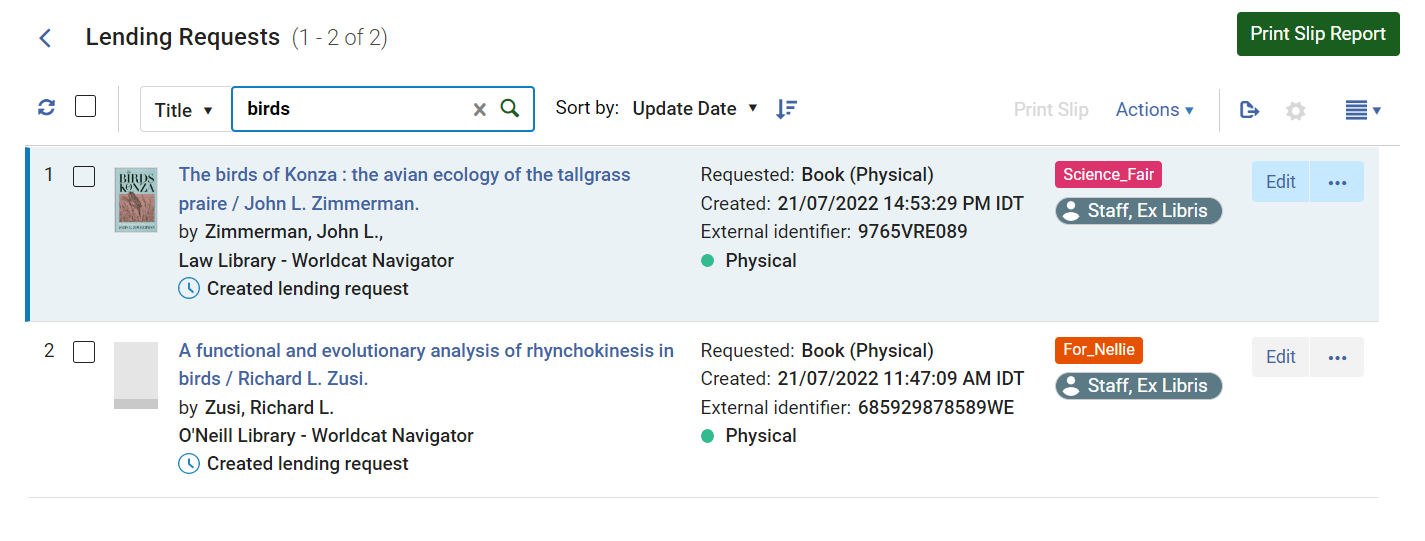
- En la parte superior de la lista de solicitudes, en los controles de búsqueda secundaria, en la lista desplegable, seleccione el campo por el que buscar.
- En el cuadro de texto, introduzca el texto que desea buscar.
- Press Enter or select:
The search is performed; the request list is updated as required so that only those requests that meet the search requirements appear in it.
- In the secondary-search controls, select the x.
Predefined Task-List Filters
You can select any of the following tasks in the Tasks List ( ) in the persistent menu (see Tasks in the Task List) to open the Lending Requests page with a preset filter:
- Lending requests - New - assigned to you
- Lending requests - New - unassigned
- Lending requests - Overdue - assigned to you - Pre-filters for requests with the status Overdue Request
- Lending requests - Overdue - unassigned - Pre-filters for requests with the status Overdue Request
- Lending requests - Recalled - assigned to you - Pre-filters for requests with the status Recalled Item
- Lending requests - Recalled - unassigned - Pre-filters for requests with the status Recalled Item
- Lending requests failed locate - assigned to you - Pre-filters for requests with the status Locate Failed
- Lending requests failed locate - unassigned - Pre-filters for requests with the status Locate Failed
- Lending requests with active general messages - assigned to you - Pre-filters for requests that have a general message
- Lending requests with active general messages - unassigned - Pre-filters for requests that have a general message
- Lending requests with active notes - assigned to you - Pre-filters for requests that have a request note
- Lending requests with active notes - unassigned - Pre-filters for requests that have a request note
Viewing and Editing the Parameters of a Lending Request
Puede ver el formulario de solicitud completo de una solicitud de préstamo existente. Dependiendo de su estado, también podrá editar la solicitud. (Editing refers to adding or modifying the parameters of a borrowing request, such as bibliographic information or information about the request. Siempre se pueden agregar notas, etiquetas y archivos adjuntos a las solicitudes).
Some of the parameters of a lending request can be viewed and edited in the Details pane, and some editing actions can be performed from the More actions( ) menu in the task list. Si es necesario, puede acceder a todos los parámetros editables abriendo la solicitud en la página Solicitudes de préstamos de recursos compartidos.
Working with the Details Pane
You can see many details about an existing lending request, and edit some parts of the request, in the Details pane.
- In the Lending Requests page (Fulfillment > Resource Sharing > Lending Requests), in the task list, select the request. The Details pane opens.
- Edit any of the fields in the Request form section, as required. Select Save at the bottom of the section when you are done.
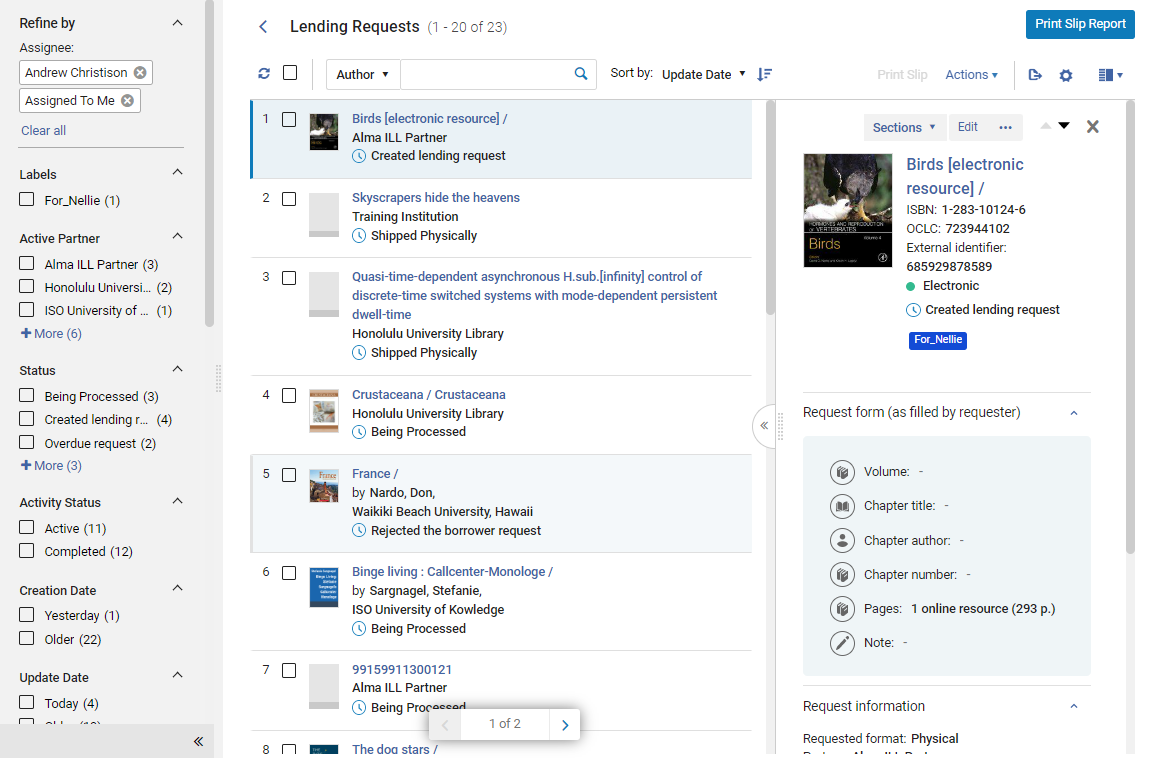
Opening the Full Request Form for Viewing or Editing
Puede acceder a todo el formulario de solicitud de préstamo según sea necesario. Dependiendo de su estado y de su función, es posible que también pueda editar el formulario.
- In the Lending Requests page (Fulfillment > Resource Sharing > Lending Requests), locate the request you want to view.
-
In the request's row, select Edit or View. (Or, when the task is selected, and its details are displayed in the Details pane, select Edit or View at the top of the pane.)
- View appears if the request is inactive or the user only has view permissions for lending requests. Otherwise,Edit appears.
- Selecting Edit for an unassigned task locks the task for editing by other users.
The Resource Sharing Lending Requests page opens in a sliding panel, with the General Information tab selected.
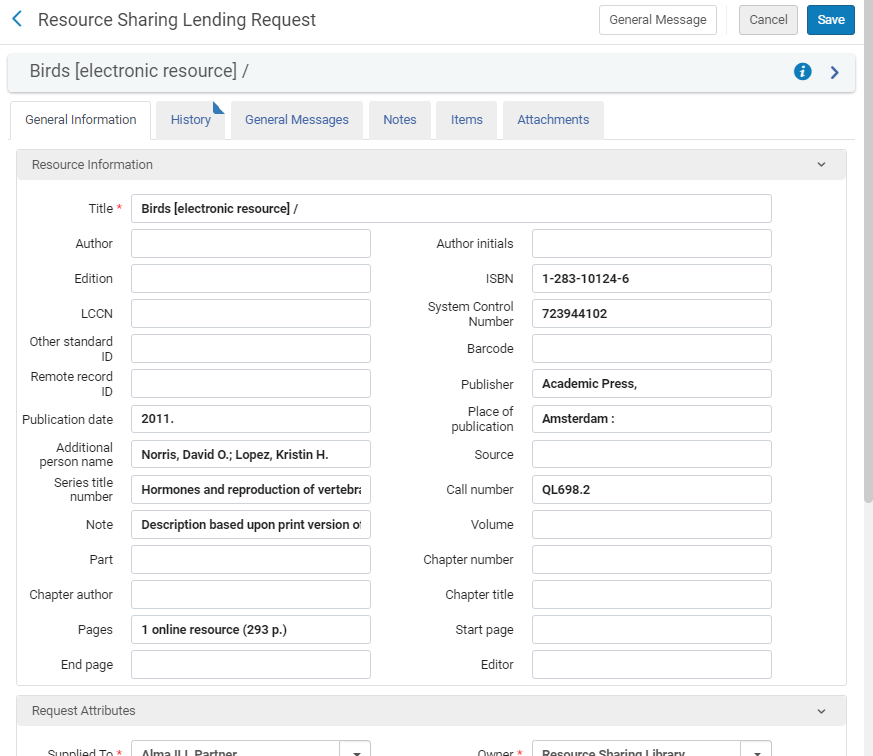
For a description of the fields, see the Resource Information Fields table in Adding a New Book or Journal Article and Lending-Request Attribute Fields table in Creating a Lending Request.
- If you opened the form by selected Edit, edit the fields as necessary.
- If you edited the form, select Save to save your changes and close the form.
Workflow Actions for Lending Requests
Usted administra el conjunto de solicitudes de préstamo de recursos compartidos existentes realizando acciones en ellas, cambiando sus estados, eliminándolas de la lista de tareas y administrando sus etiquetas.
- On the Lending Requests page (Fulfillment > Resource Sharing > Lending Requests), filter the request list as required in order to locate the tasks you want to manage (see Finding Requests that Require Handling, above.
-
To manage several requests simultaneously, select the checkboxes to the left of these requests (or Select all), and then select one of the following options:
- Change Status – Change the status of the specified items. Select a status from the drop-down list and select Change Status.
- Print Slip Report – Print a slip report that is sent to a printer or email address, or can be downloaded to a local machine (see Generating a Print Slip Report below.). The report lists the items and their information.
- Print Slip – Print a call slip for each of the selected items. Se imprime la Carta de comprobante entrante completa, también conocida como Carta de comprobante de préstamo de los recursos compartidos. For information about the slip, see Configuring Alma Letters.
- Remove Requests – Remove the selected requests from the task list (only for completed requests). Select Confirm in the Confirmation Message dialog box to remove the requests.
- To manage a single request, select one of the options in the More actions menu, as described in the following table:
| Segmentos de entrada de línea dla reserva | Descripción |
|---|---|
| Imprimir comprobante | Imprime un comprobante para el ejemplar que contenga el ID externo y el código de barras del mismo.
Para solicitudes que aún no se hayan enviado, esta opción imprime un comprobante entrante completo, la Carta de comprobante entrante completa. Para solicitudes que ya se hayan enviado, esta opción imprime un comprobante de envío, la Carta de comprobante de envío de los recursos compartidos, que contiene información adicional relativa al ejemplar que se haya enviado. For information on these slips, see Configuring Alma Letters. |
| Crear una solicitud de mover | Request that a physical item be brought to your location in order to be prepared for shipping to the borrowing institution (see Sending a Physical Resource below) |
| Crear solicitud de digitalización | Request that an institutional digitization department create a digital copy of a physical item (see Sending a Physical Resource via Digitization below). |
| Descargar recurso electrónico | Download a digital resource from a vendor in order to send it to the borrowing institution (see Handling Requests for Digital Resources below) |
| Duplicado |
Crea una nueva tarea basada en una existente. The Resource Sharing Lending Request page opens, where you modify the request parameters in the Request Attribute section, as needed (see Request Attribute Fields table). Al duplicar una solicitud de préstamo de uso compartido de recursos, los valores en los siguientes campos se copian a la nueva solicitud:
|
| Asignar a | Assign a task to a user (see Managing Task Assignments below). |
| Desvincular desde MMS | Detach a lending request from its inventory (see Detaching a Lending Request from its Inventory below). |
| Devuelto |
El ejemplar se recibió nuevamente de la biblioteca solicitante. When you select this option, the status of the request is changed to Request Completed. Selecting this option is equivalent to scanning its barcode in the Scan In Items page (Fulfillment > Resource Requests > Scan In Items). See Managing Returning Physical Resources, below. |
| Localizar |
Displayed for items for which Resource Locate Status = No Resources Located. Alma intenta localizar el recurso, ya sea porque el recurso no se encuentra o porque se hayan encontrado múltiples recursos. When multiple resources are found, the results display on the search page, where you can either select a result or select the Change Query link to modify the search value. It is recommended to select Edit for a resource and update relevant information before selecting Locate. When a resource is located, the status changes to Resource Located. |
| Buscar | Displayed for items for which Resource Locate Status = No Resources Located. Se abre la página de búsqueda que permite realizar una nueva búsqueda de recursos para localizar el recurso deseado. |
| Reactivar solicitud |
Reactivate lending request will appear when:
Seleccione esta opción para reactivar una solicitud de recursos compartidos punto a punto completada. The shipped item's process status changes to In resource sharing and the item is relinked. The request status changes to Request Reactivated. Si el ejemplar está en otro proceso, aparece un error. Se mantiene el ID externo original de la solicitud. Esta acción está disponible para Gerentes de Servicios al Usuario y puede ser activada para Operadores de Servicios al Usuario por el departamento de atención al cliente de Ex Libris. |
| Rechazar | Reject a lending request (see Rejecting a Lending Request below). |
| Perdida |
For more information about this status see Resource Sharing - Lost Item Workflow. Cuando la solicitud entrante de préstamo proviene de un socio de NCIP, la acción de la fila "Perdido" no estará disponible, ya que el protocolo NCIP no admite el envío del mensaje "Perdido". |
| Asignar liberación | Remove the assignment of the task and leave it unassigned (see Managing Task Assignments) below. |
| Renovar |
For automated requests (ISO, NCIP, etc.), this action will also appear if the Request Status is Renew Requested and the workflow profile is configured as follows:
(For details on configuring workflow profiles, see Configuring Workflow Profiles.) For non-automated requests, when Request Status is Received by Partner and Manual renew is selected as a step in the workflow profile, the action is available. You can set the lending_requests_renewed_status (Fulfillment > Other Settings) parameter so that a renewed lending request is set to a status of Renewal Accepted rather than Received by partner. Select the option to open the Due Date dialog box. Enter a due date and select OK to create the renewal. Opcionalmente, se puede añadir una nota interna y/o una nota para un socio en los campos relevantes. For details on these fields, see step 3 in Rejecting a Borrowing Request. |
|
Enviar correo electrónico a socio |
Utilice esta acción para enviar un correo electrónico a un socio directamente desde la solicitud de lista de tareas de préstamo. Esta opción facilita los flujos de trabajo, por ejemplo, cuando un prestamista quiere transmitir limitaciones o para cualquier tipo de mensajes, como una nota de agradecimiento. Estos mensajes se guardan en la solicitud para futuras consultas. Correspondence can be initiated using the Send email to partner action or from the Start Communication button on the Communications tab (see Communicating with Partners). |
| Ship item digitally |
Añada ficheros a las solicitudes entrantes de préstamo que ya están en su poder (es decir, que no han sido creadas como parte de un flujo de trabajo de digitalización). Enter the following optional information and upload the files:
|
| Enviar ejemplar físicamente | Enviar el ejemplar asociado a la solicitud. The Shipping Items page opens (see Shipping Items). |
| Envío no retornable | Enviar un recurso, como una parte escaneada o fotocopiada de un libro, a la biblioteca solicitante como copia que no se devuelve. When you select this option, a confirmation notification appears, and the status of the request is changed to Shipped Physically for a physical resource, or either Shipped Digitally or Request Completed, depending on whether “Waiting for receive digitally” is selected in the partner's workflow profile. |
| Mensaje general | Send a general message with a lending request to a borrower (see Sending a General Message With a Borrowing Request). |
| Estado de la consulta |
Solicitar una actualización de estado de la institución de préstamo. Esto solo se aplica a socios ISO. El regreso al estado ISO del prestatario se registra en una nota. Cada estado ISO corresponde a los siguientes estados de solicitud de Alma:
|
| Se proporcionará | Actualizar una solicitud que no haya sido enviada con el estado Suministrará. Displayed only when the request is not yet shipped and the borrowing partner's workflow includes Will Supply (see Configuring Workflow Profiles). |
| Condicional | A pop-up window is displayed with a mandatory Reason, a Date for reply, which is the last day the lender will wait to receive an answer from the borrower, and a Note field. When the message is submitted, the request status changes to Conditional. Se envía un mensaje ISO al prestatario. When a response is received from the borrower, if the response value is No, the request is rejected. If the value is Yes, the Date for Reply field is cleared and the request status returns to Created lending request. |
- If a request is processed automatically (by ISO/NCIP) and if either no resource is found or multiple resources are found that match the input criteria, the request is created with Citation Status = Locate Failed and Resource Locate Status = No Resources Located.
- Cuando se crea una solicitud entrante de préstamo, si un título tiene más de un ejemplar, la disponibilidad y la capacidad de solicitud no se comprueban durante el proceso de localización. La solicitud debe ser gestionada manualmente.
Handling Requests for Physical Resources
Si la solicitud entrante de préstamo es para un recurso que es propiedad de la biblioteca en forma física, puede optar por cumplir con la solicitud y enviar el ejemplar físico a la institución solicitante, o bien digitalizar el recurso y enviar la versión digitalizada a la institución solicitante. You can either send a digitization request to a digitization department in your institution (see Sending a Physical Resource via Digitization below) or digitize the resource yourself (see Handling Requests for Digital Resources below).
When a request's item is sent to Alma by the NCIP source system, the item's Note field contains a shipping note which displays in the following format:
||Shipping Note||<text of shipping note>||Shipping Note||
Los implementadores de NCIP, como OCLC Navigator, utilizan la nota de envío para actualizar el sistema de la biblioteca con información adicional sobre los ejemplares enviados, como información sobre el recurso en sí, el solicitante y las ubicaciones desde las que se han solicitado y se recogerán.
Sending a Physical Resource
Los recursos físicos solicitados se envían a la institución solicitante, que luego los entrega a los usuarios que los solicitó. Asegúrese de estar en la biblioteca de recursos compartidos antes de comenzar el proceso de envío.
Si el recurso solicitado ya se encuentra en su biblioteca, puede comenzar el proceso de envío a la institución solicitante de inmediato. Si es propiedad de su institución, pero está en una ubicación diferente, puede solicitar que se transfiera a su biblioteca y luego enviarlo.
For more information on shipping items, see Shipping Items.
- In the Lending Requests page (Fulfillment > Resource Sharing > Lending Requests), select the request in order to open the Details pane. In the Details pane, under Fulfillment request information, you can see which library manages the resource.
-
If the resource is managed at a different location in your institution, in the More actions menu, select Create Move Request. The Create Move Request dialog box opens, and lists the locations at which the resource can be found in your institution.
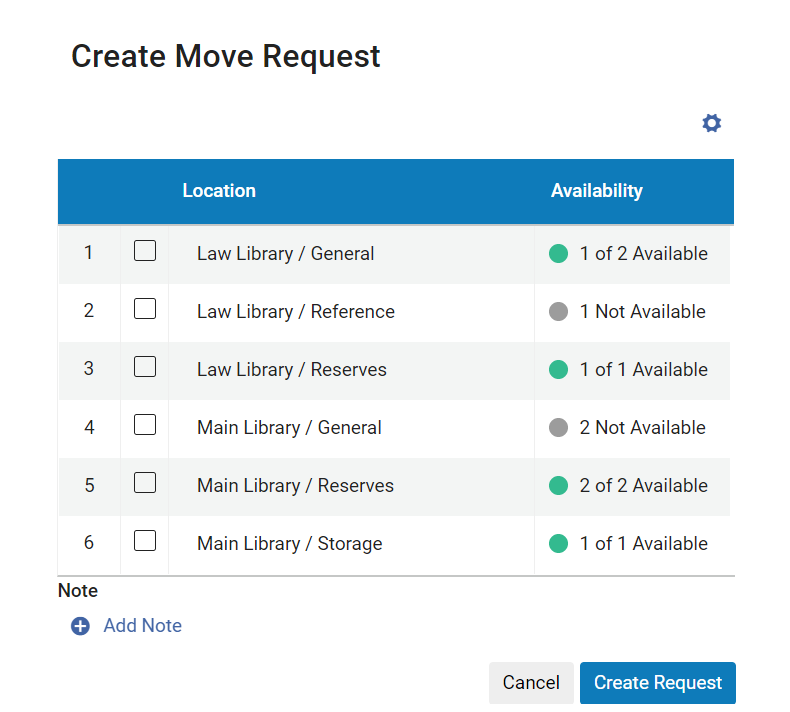
- Si aparecen varias ubicaciones y tiene preferencia sobre cuál usar, seleccione esa ubicación. (Otherwise, the system selects a location automatically when you create the request.) The Manual Description field is added to the dialog box.
- If the request is for particular issues of a serial resource, in the Manual Description field, enter the information about which issues are required. Si rellena este campo, la solicitud Mover se convertirá en una Solicitud de reserva general. For additional information about General Hold Requests, see Creating a General Hold Request.
- If you want to add a note, select Add Note, and then enter the note.
- Select Create Request. Se crea la solicitud de mover.
- Cuando el ejemplar llegue a su biblioteca, continúe con el siguiente paso.
- In the More actions menu, select Ship item physically. The Shipping Items page opens in a sliding panel, with the bibliographic information and shipping information already entered.
- Select the Due Date. If the due date falls on a closed date, then it will be affected by the ‘Closed Library Lending Requests Due Date Management' policy of the relevant Lending Resource Sharing TOU. See the Lending Resource Sharing TOU description in Adding Fulfillment Policies.
- Under Location, select the location in the lending institution that will own the resource while it is lent out.
- Enter an optional Internal note and/or Note to partner, as required.
- If the requested resource consists of multiple items, select Multiple items.
- Si enviará solo un ejemplar, digitalice el código de barras del ejemplar. The record displays at the bottom of the page, and then the sliding panel closes. If you are sending multiple items, scan the barcodes of each of the items. The records display at the bottom of the page. Press Enter or select OK when you have scanned all of the item barcodes. The sliding panel closes. The records are saved in a temporary location at the resource-sharing library, and the status of the request is changed to ShippedPhysically. When the borrowing institution is an email partner, the Lender Ship Email Letter is sent. When the borrowing institution is an ISO partner, the ISO Ship message is sent to the partner. For lending requests before shipping, if the item was already in a temporary location, then, when returned, the item will revert back to the previous temporary location. Tenga en cuenta que esto solo se aplica a la ubicación temporal y no a otras condiciones temporales como el tipo de clasificación/signatura temporal, la fecha de vencimiento, etc.
You can also ship a requested physical resource directly from the Shipping Items page (Fulfillment >Resource Sharing> Shipping Items) and, although it is not recommended, from the Scan In Items page (Fulfillment > Resource Requests > Scan In Items). Para hacer esto:
- If you are using the Scan In Items page, in the External Identifier field, select Yes. (La opción Imprimir comprobante automáticamente no es funcional cuando se hacen envíos desde la interfaz Digitalizar).
- Scan the item barcode and the request ID of the resource in the relevant fields.
- Select OK.
Sending a Physical Resource via Digitization
If the requested resource is physical, but the request was for a digital copy, you can either scan the item yourself and send it (see Handling Requests for Digital Resources below), or you can send a request for digitization to a digitization department in your institution, as explained here.
-
In the Lending Requests page (Fulfillment > Resource Sharing > Lending Requests), in the item's More actions menu, select Create Digitization Request. The Create Digitization Request dialog box opens and lists the locations at which the resource can be found in your institution.
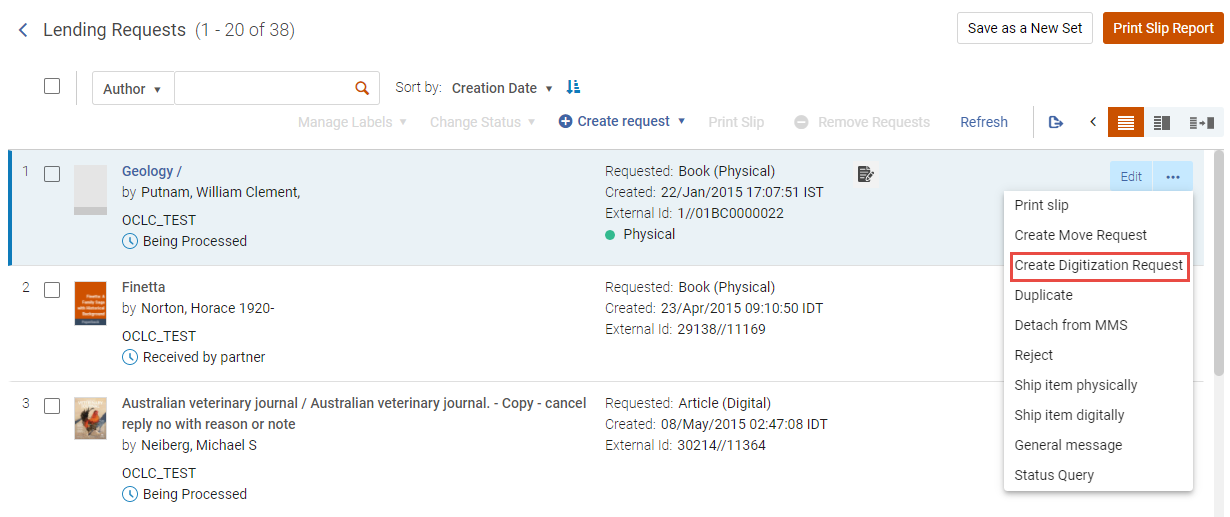
- Si aparecen varias ubicaciones y tiene preferencia sobre cuál usar, seleccione esa ubicación. (Otherwise, the system selects a location automatically when you create the request.) The Manual Description field is added to the dialog box.
- If the request is for particular issues of a serial resource, in the Manual Description field, enter the information about which issues are required.
- Under Managing Department, select the digitization department that should perform the digitization.
- If you want to add a note, select Add Note, and then enter the note.
- Select Create Request. Se crea la solicitud de digitalización. La versión digital del recurso será enviada a la institución prestataria de forma automática una vez finalizado el proceso de digitalización.
Managing Returning Physical Resources
Cuando un recurso físico prestado se devuelve a la biblioteca, se puede registrar.
- Llévese a cabo una de las siguientes opciones:
- In the Scan In Items page (Fulfillment > Resource Requests > Scan In Items), scan its barcode.
In the Lending Requests page (Fulfillment > Resource Sharing > Lending Requests), in the item's More actions menu, select Checked in.
The Checked in dialog box opens.
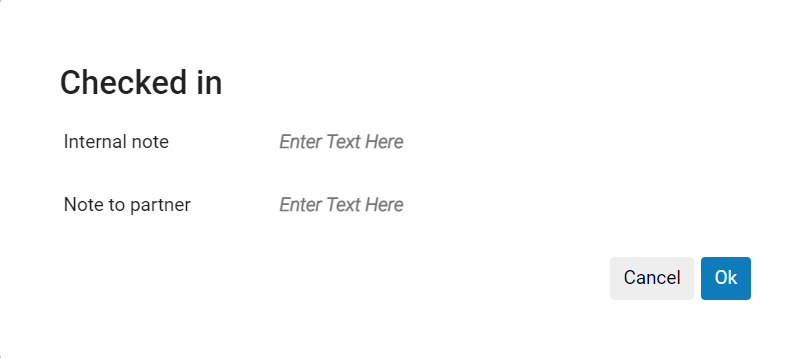
- Introducir una nota interna o una nota al socio solicitante, según corresponda.
-
Select OK. The item is checked in and the status of the lending request is changed to Request Completed.
Using the Checked in action does not change the status of the item. Para garantizar que el ejemplar se marque como devuelto al lugar o enrutado de vuelta a su lugar, el bibliotecario debe escanear el ejemplar después de usar esta acción.
Después de registrar un ejemplar en Alma, si la institución solicitante es un socio ISO, se envía un mensaje ISO de devolución a la biblioteca y la solicitud se cierra automáticamente. A checked-in ISO message is sent only if the active partner's workflow profile includes Checked In Message as a valid option (see Configuring Workflow Profiles). If the borrowing institution is an email partner, the Lender Checked-In Email Letter is sent. For information about this letter, see Configuring Alma Letters. If a lent resource is overdue, you can send a message to the borrowing institution requesting that they return it. The email / ISO message to send in this case is the Borrower Overdue Email Letter, see Alma Letters List. Tenga en cuenta que la carta solo se envía a los socios por correo electrónico. ISO partners only receive an ISO message This message is sent by the Send Overdue Message to Resource Sharing Borrowing Partner scheduled job. De modo alternativo, puede enviar manualmente un mensaje general al socio.
Handling Requests for Digital Resources
Los ejemplares digitales se envían como archivos adjuntos de correo electrónico a la institución solicitante o directamente al solicitante. If you need to send multiple files, zip them into one file before sending them. See also Ship Item Digitally.
If you have immediate access to a digital resource (i.e., it is owned by your library, or you have created it by scanning a physical resource), you can send it to the recipient directly. Si es propiedad de un proveedor, puede acceder a él en el sistema del proveedor, verificar los detalles de la licencia para asegurarse de que tiene derecho a compartir el recurso y luego descargarlo y enviarlo al destinatario.
-
In the Lending Requests page (Fulfillment > Resource Sharing > Lending Requests), in the item's More actions menu, select Download Electronic Resource. A page listing vendors from which you may be able to download the resource and licensing information for those vendors, when available, opens in a sliding panel.
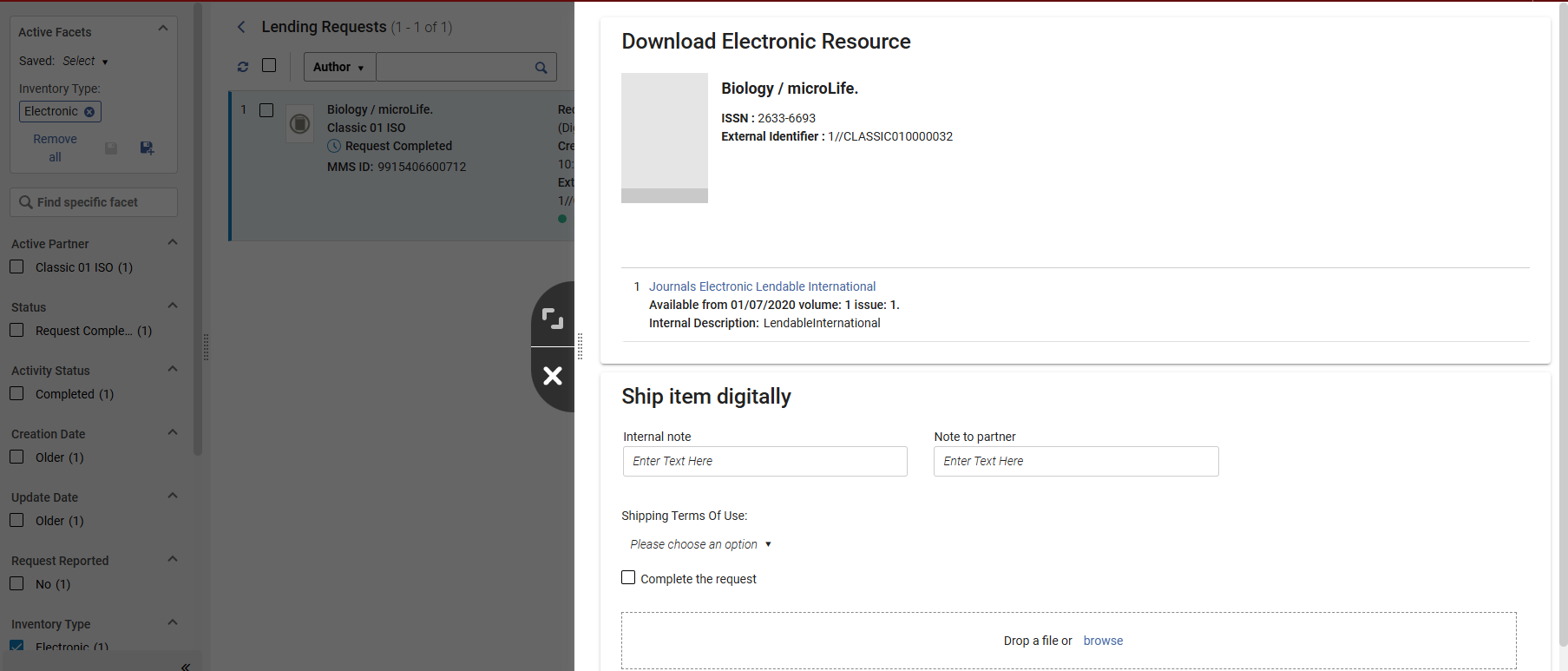
Only OTB resource sharing-related license terms appear on the Download Electronic Resource page:
- Préstamo electrónico interbibliotecario
- Nota de préstamo interbibliotecario
- Imprimir o enviar fax de préstamo interbibliotecario
- Indicador obligatorio del mantenimiento de registros de préstamos entre bibliotecas
- Transmisión electrónica segura de préstamos interbibliotecarios
- Seleccione el proveedor deseado de la lista. Es redirigido al sitio del proveedor, donde puede descargar el recurso requerido en su ordenador.
-
Opcionalmente, introduzca la siguiente información:
- Internal Note – See Peer to Peer Resource Sharing (New for February 2026)
- Note to Partner – See Peer to Peer Resource Sharing (New for February 2026)
- Shipping Terms of Use – The values that appear in the dropdown list depend on the configuration (see Configuration of Digital Shipping for Resource Sharing)
- Complete the request – Select Complete the request when you have completed the request to mark it as closed without getting feedback from the borrower.
- Once the files are uploaded and the page is saved, the request is changed either to Shipped Digitally or Request Completed depending on whether "Waiting for receive digitally” is selected in the partner's workflow profile. For more information, see Digitization Processing.
- In the Lending Requests page (Fulfillment > Resource Sharing > Lending Requests), in the item's More actions menu, select Ship item digitally.
- Navegar para seleccionar un fichero para cargar o soltar un fichero en el área de carga.
- Select Ship to send the file.
- La finalización de la solicitud de préstamo depende del ajuste del perfil de flujo de trabajo del socio.
- If a ship digitally request was created, it will be cancelled (it is possible to complete ship digitally requests by using the Deliver Digital Documents interface with the ship request ID to ship the file. Este proceso consulta las reglas de digitalización y derechos de autor, procesos de aprobación, etc.
- To add shipping notes, manually set the complete status etc. You can use the classic Ship Item interface and set the format to Digital
Overriding Local Holding Setting
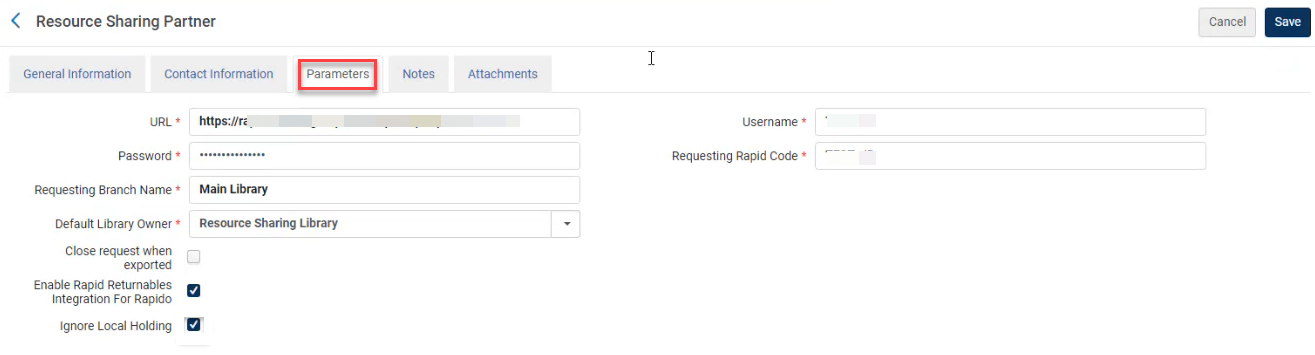
RapidILL comprueba la autopropiedad, y las solicitudes identificadas como propiedad reciben el estado de existencia local. When the checkbox Ignore Local Holding (Fulfillment > Resource Sharing > Partners > Parameters tab) is checked, libraries skip this self ownership check by RapidILL.
This configuration may be of particular interest to libraries using the Sending Borrowing Request Rules (Fulfillment Configuration > Resource Sharing > Sending Borrowing Request Rules) to stop requests from being automatically sent, if locally owned. In that case, if the request is manually sent via Rapid then rechecking for local ownership via Rapid may be redundant, and can therefore be prevented using this new option.
If none of the Rapid partners have the requested item, the request status is set to Rejected by partner.
Detaching a Lending Request from its Inventory
Puede desvincular una solicitud entrante de préstamo del MMS al que esté adjunta.
- On the Lending Requests page, locate a request that has resources attached to it (Resource Locate Status = Resource Located).
- Select Detach from MMS from the row actions list. The Lending Requests page refreshes, and the request displays with Resource Locate Status = No Resources Located.
Rejecting a Lending Request
Se puede rechazar una tarea de solicitud de préstamo de uso compartido de recurso por varias razones. Por ejemplo, si un ejemplar se encuentra en préstamo o no se encuentra en la biblioteca, se puede rechazar la solicitud del usuario.
The rs_keep_rejected_request_active customer parameter determines if a request stays in an active status even after it is rejected. When the parameter is set to None, which is the default, the request will be completed and will not be visible in the active requests queue. When the parameter is set to Lending or Both, the request will remain in the active requests queue so the staff librarian will have the option to work on the request. Esta funcionalidad se aplica solamente a los rechazos que ocurren tras el cambio del parámetro. For more information, see Configuring Other Settings (Fulfillment).
- On the Lending Requests page (Fulfillment > Resource Sharing > Lending Requests), select Reject for a request. Se abrirá el cuadro de diálogo Rechazar solicitud.
- Select a reason for the rejection in the Reject reason field.
- Optionally, add an Internal reject reason(see Advanced Resource Sharing Configurations). Note that this is only viewable by the lender.
- Optionally, add a note for the rejection in the Internal note and Note to Partner fields.
-
Select Reject. The Reject reason and Internal note are added to the request as Notes.
If the request is managed using an ISO partner, an Unfill message is sent to the borrowing library, which marks the partner request as Rejected(see Rejecting a Borrowing Request). If the borrowing institution is an email partner, the Lender Reject Email Letter is sent to the partner.
Generating a Print Slip Report
También se puede generar un informe del comprobante de la impresión que se envía a una impresora o a una dirección de correo electrónico, o se puede descargar a un ordenador local. El informe contiene los ejemplares seleccionados y su información, incluido el título, el autor, la localización, etc. El formato de la carta para este informe es la Carta de comprobante de informe de solicitudes de préstamo.
For more information about the print slip report for lending requests, see the Print Slip Report for Lending Requests video (2:35 min.).
- From the Lending Request page (Fulfillment > Resource Sharing > Lending Requests), select the checkboxes of the resources for which you want to generate a print slip report.
-
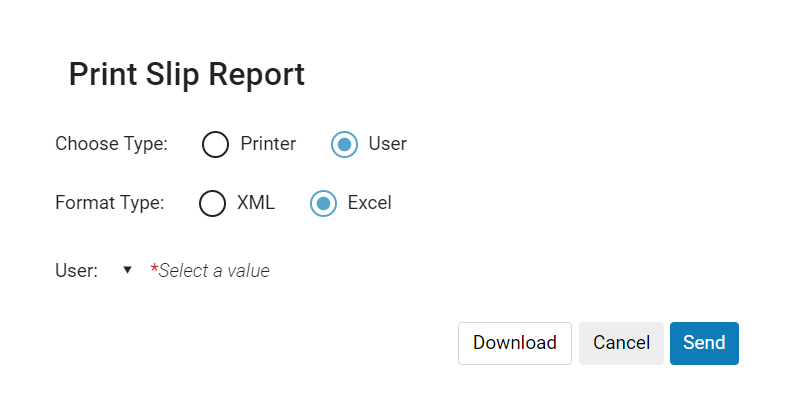
Select Print Slip Report. Aparece el cuadro de diálogo de Informe del comprobante de impresión.
-
In the Choose Type field, select whether you want to send the print slip report to a Printer or a User.
If you select Printer, the Printer field replaces the User field and is enabled. Seleccione la impresora a la que desea enviar el informe de comprobante de impresión.
If you select User, the User field is enabled. Seleccione el usuario al que desea enviar el informe de comprobante de impresión por correo electrónico. El formato de la carta para este informe es la Carta de comprobante de informe de solicitudes de préstamo.
- In the Format Type field, choose to send the print slip report either in Excel or XML format.
- Select Send to send the print slip report, or optionally, select Download to download the print slip report to your local machine.
Digital Requests for Partners Without Email Address Alert
When a lender ships a digital request for borrower who is an ISO partner, an alert is added to the lending request indicating that the borrower does not have an email address.
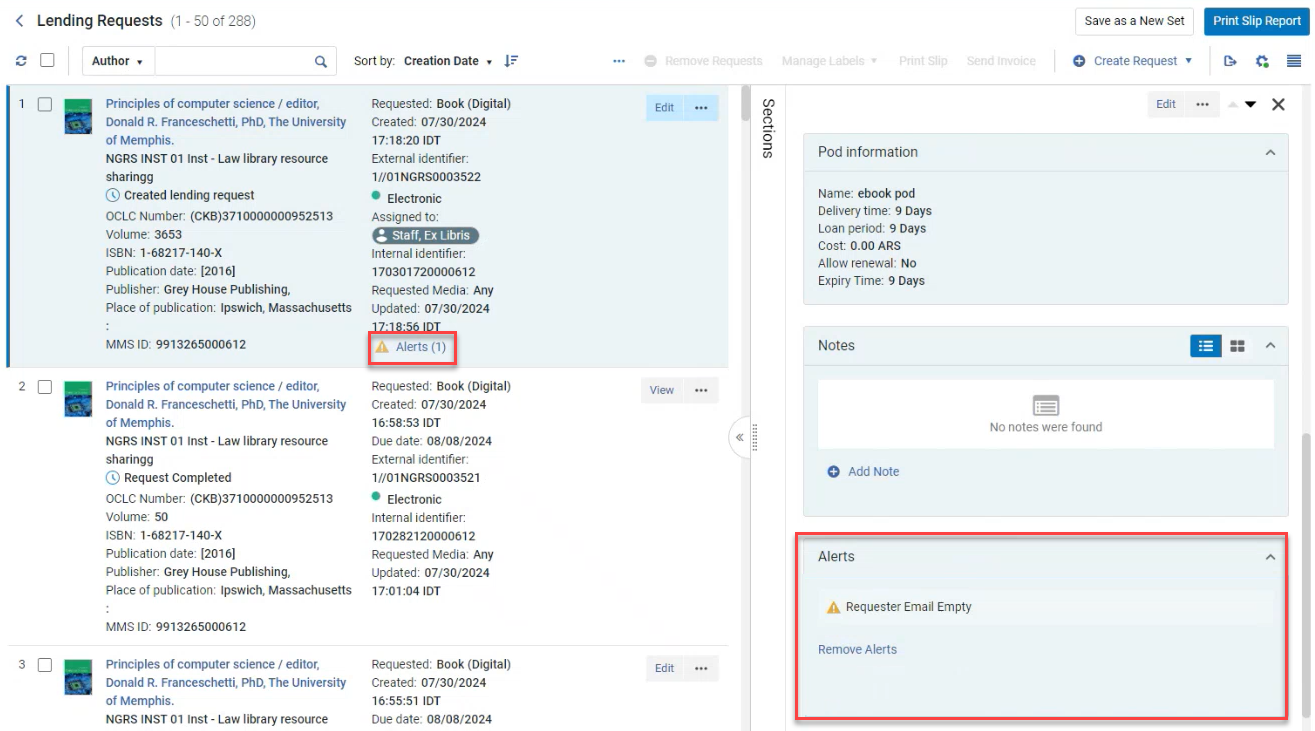
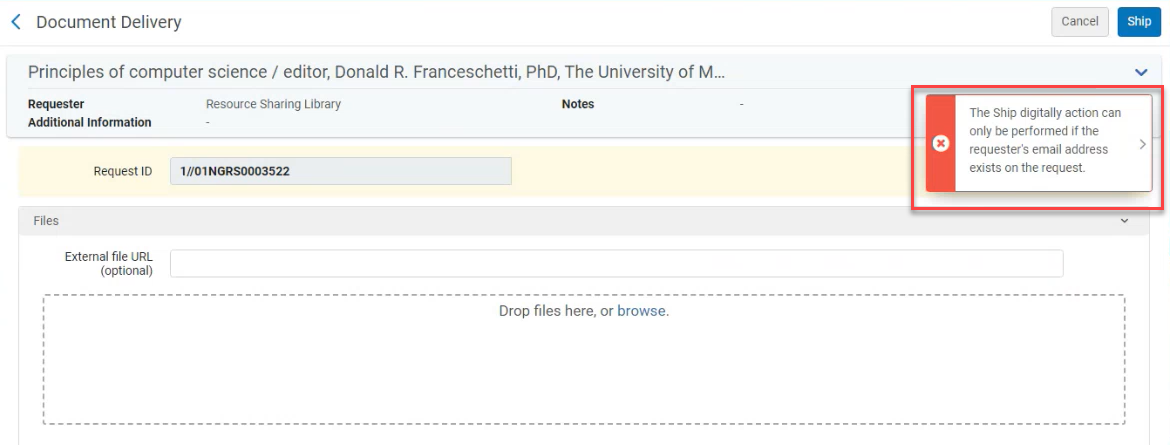
Además, cuando se envía una solicitud digital sin una dirección de correo electrónico, se genera un error que informa al prestamista de que la solicitud solo puede atenderse si el solicitante dispone de una dirección de correo electrónico.
Removing Alerts
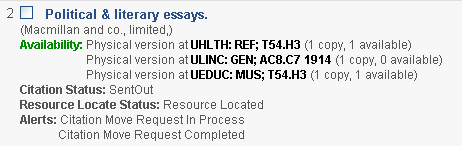
Las alertas se adjuntan a una tarea de uso compartido de recurso durante los pasos principales del flujo de trabajo de una solicitud. Las alertas muestran el progreso de una solicitud (En proceso, Cancelado o Terminado). Las alertas son:
- Solicitud de traslado en proceso
- Solicitud de traslado cancelada
- Solicitud de traslado terminada
- Solicitud de digitalización en proceso
- Solicitud de digitalización cancelada
- Solicitud de digitalización terminada
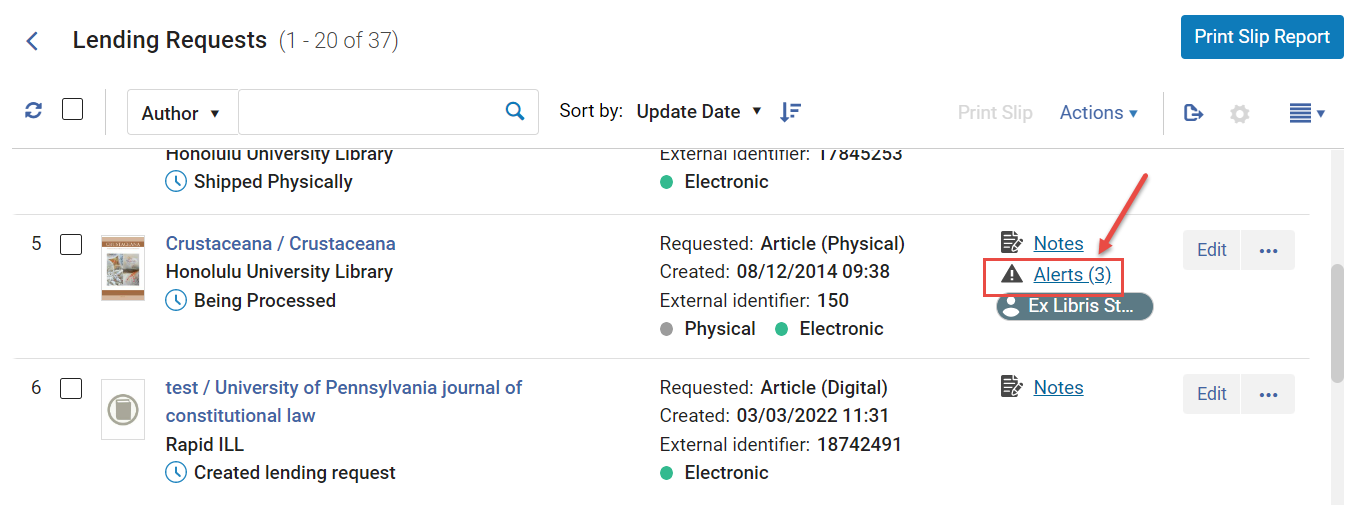
If a request has alerts attached to it, an Alerts link, with the number of alerts in parentheses, appears in the request's row in the Lending Requests page.
You can filter the displayed requests by selecting one or more alert types in the Alerts facet.
You can see the alerts attached to a lending request in the Details pane.
- On the Lending Requests page (Fulfillment > Resource Sharing > Lending Requests) page, do one of the following:
- In the request's row, select the Alerts link. The Details pane opens, scrolled to the Alerts section.
- In the Details pane, either select Sections > Alerts, or scroll down to the Alerts section.
-
- In the Details pane, in the Alerts section, select Remove Alerts.
Managing Task Assignment
Se puede reasignar una tarea solo si se le ha asignado la tarea o si no está asignada.
- On the Lending Requests page (Fulfillment > Resource Sharing > Lending Requests), select Assign from the row actions list for the relevant task. The Assign To dialog box opens.
- From the Assign to drop-down list, select an operator.La lista de operadores incluye solo aquellos usuarios que tienen el rol de Operador de servicios al usuario.
- Select the Send as e-mail check box to notify the operator of the new assignment.
- In the Note field, enter notes, as needed. El campo está limitado a 1000 caracteres.
- Select Assign To. La solicitud se asigna al usuario seleccionado.
- On the Lending Requests page (Fulfillment > Resource Sharing > Borrowing Requests), select Release assign for the relevant task. La asignación se elimina y la tarea deja de estar asignada.
Viewing Past Lending-Request Actions
You can view the actions taken on resource-sharing lending requests on the History tab, in the same manner that you do for resource sharing borrowing requests. For details, see Viewing Borrowing Request Actions.
Communicating with Partners
Utilice esta acción para enviar un correo electrónico a un socio directamente desde la solicitud de lista de tareas de préstamo entrante. Esta opción facilita los flujos de trabajo, por ejemplo, cuando un prestamista quiere transmitir limitaciones o para cualquier tipo de mensajes, como una nota de agradecimiento. Estos mensajes se guardan en la solicitud para futuras consultas.
Correspondence can be initiated using the Send email to partner action or from the Start Communication button on the Communications tab.
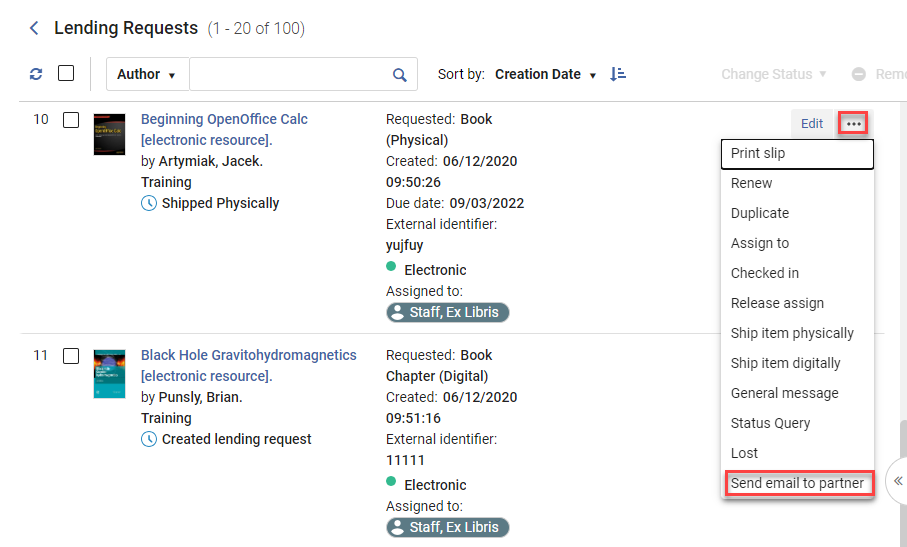

Selecting the Send email to partner action or the Start Communication button opens the Send email to partner form.
The From address is derived from the resource sharing library's preferred email shipping address. Acceptable To email addresses are the partner's preferred email shipping address or from the Rapid contact record email. Para las solicitudes entrantes de préstamo, la dirección de correo electrónico se obtiene a partir de la dirección de correo electrónico de contacto que figura en la solicitud de recursos compartidos.
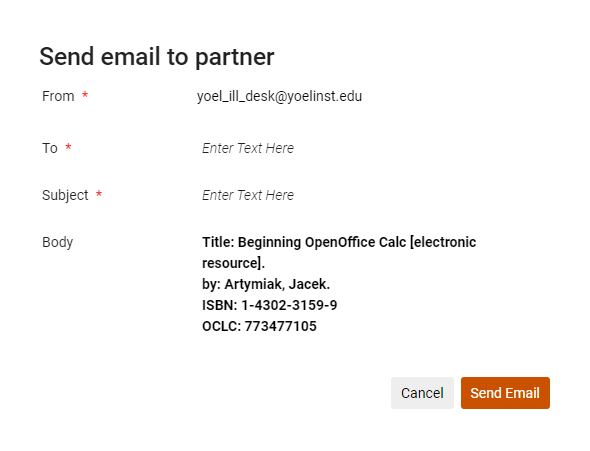
After selecting Send Email, the partner receives the Resource Sharing Conversation Letter and a Communications notification is added to request indicating that this request contains correspondence with the partner.

The correspondence log is accessible from the Communications tab.
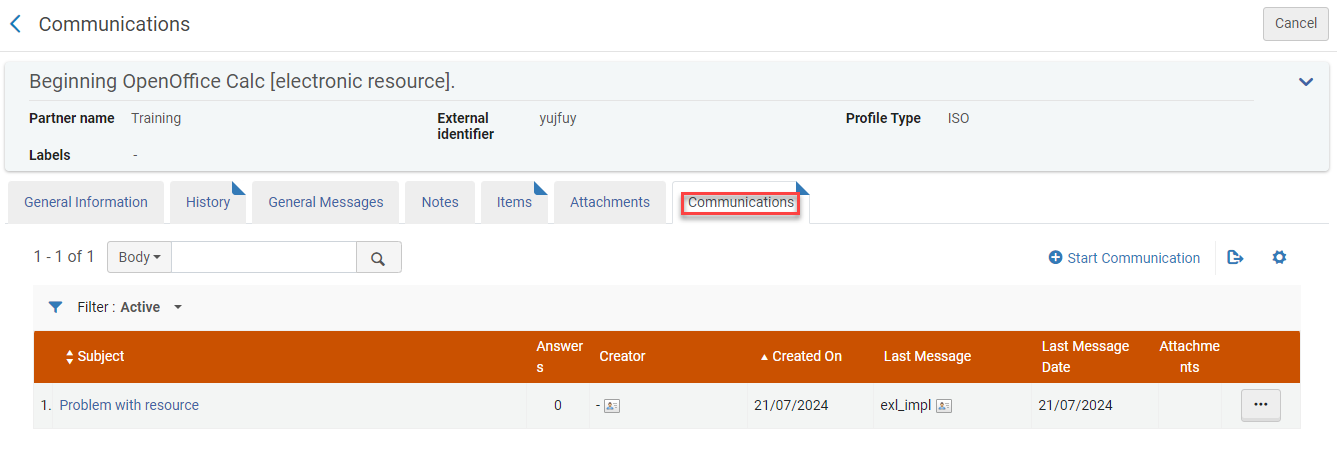
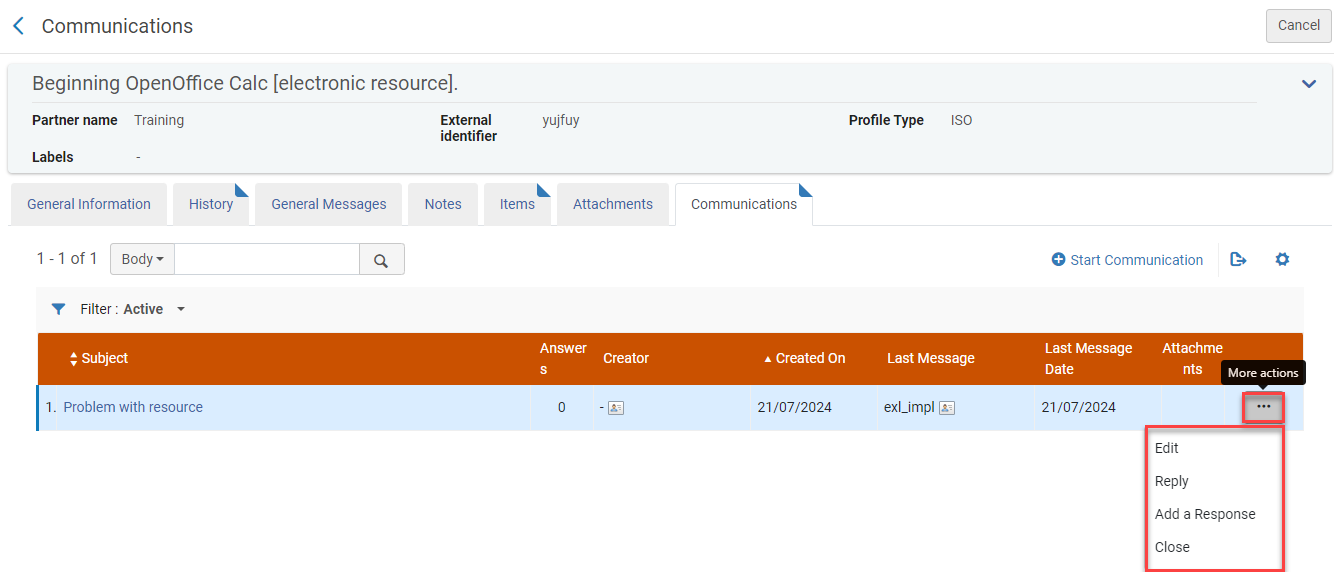
Usted puede:
- Edit a correspondence to view the full correspondence.
- Reply to a communication to send another correspondence. Each reply increases the counter in the CommunicationsAnswers column.
- Add a Response to paste the partner's response to your correspondence.
- Close the correspondence. Note: Closing the correspondence removes the Communications indicator from the request; but the correspondence remains accessible from the Communications tab under the All or Closed filters.