
Stampa di etichette per Monografia utilizzando lo strumento di stampa etichette
Alma can integrate with locally-used label printing applications. Examples of these are SpineOMatic and LIBstick, which are developed specifically for use with Alma:
- LIBSTICK (Library Sticker) is a SAAS-based, template-based label printing service, developed in 2019 by the Technion Library IS (Information System). For information about LIBstick, see LiBstick user documentation
- For information on SpineOMatic (recommended by Ex Libris), see SpineOMatic: Lable Printing Software for Alma.
Spine labels are printed directly from Alma, and can be printed either singly or in batches. You can configure how call numbers are printed on the labels; see Configuring Call Number Parsing when Printing Labels.
Download e installazione dello strumento per la stampa di etichette
You can use the Alma Label Printing tool to print book labels.
Before downloading the Alma printing tool, ensure that you have Java 1.7.0_04 or later and a third-party, XML-based PC print solution installed on your computer. Alternatively, you can use a solution such as SpineOMatic (recommended by Ex Libris) instead of the Alma printing tool. For information on SpineOMatic, see https://developers.exlibrisgroup.com/blog/SpineOMatic-Label-Printing-Software-for-Alma.
- On the Download Label Printer page (Configuration Menu > Resources > General > Label Printing Tool), select Download.
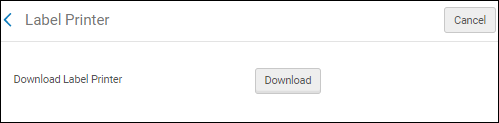
- Open or save urm_label_printer.zip, then extract the files using your computer's extraction tool or wizard.
- Complete the wizard steps to store the label-printing files and folders on your computer.
- Run run.bat from the bin directory from the location in which you saved the files. After the software is successfully installed, the Label Printer application opens to the default tab, Item Details.
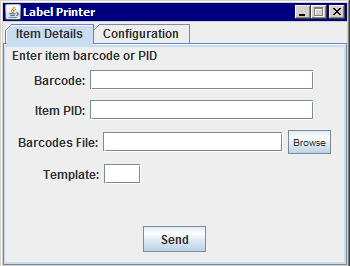 Dettagli copia
- Selezionare la Configurazione tab per inserire le informazioni su Utente e Localizzazione di biblioteca.
- Fill in the User,Password,Alma URL, and Institution fields. For the user name and password, enter the Alma credentials of the staff operator that uses the application. Ensure that this staff member has the user role 'API Label Printing Read'. If this role is not assigned to the user, the user will receive the "Authorization failure" error when attempting to print.
- Nel campo Localizzazione di biblioteca e nel campo Programma parametro, inserire le informazioni sul programma di stampa di terze parti. For information on SpineOMatic (recommended by Ex Libris), see https://developers.exlibrisgroup.com/blog/SpineOMatic-Label-Printing-Software-for-Alma.
- Nel campo Parametri del programma, inserisci anteprima per abilitare l'anteprima prima della stampa.
Stampa etichette
- Open your label printing tool from an icon or an executable in the label printing tool's folder. The Label Printer appears:
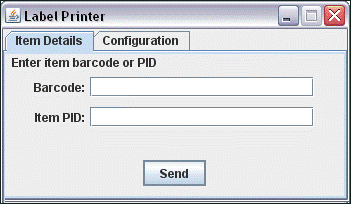
- Scansiona o inserisci un codice a barre dell'articolo o un ID articolo (PID).
- Selezionare Invia.
After sending the barcode or item ID, the client application triggers an Alma Web service. Il Servizio Web restituisce le informazioni sulla copia in Formato XML. L'applicazione client esegue quindi una delle seguenti operazioni:
- Attiva una soluzione di stampa configurabile di terze parti e invia l'XML come input a tale soluzione.
- Posiziona l'XML in una directory lato client.
