
Waiving Fines in Bulk Using a Job
パラメータを定義してジョブを実行し、罰金を一括して削除します。
- ユーザーマネージャー
- ユーザー管理者
For more information about managing user fines and fees on the User Details page, see Managing User Fines and Fees.Here, users can select fines and fees across the full fees list and waive them.
For waiving fines and fees on the Manage Patron Services page, see Managing Patron Services at a Circulation Desk.
ジョブを実行することで、ユーザーの罰金および手数料を一括して放棄できます。You run the job on the Bulk Fine Waiving page (Admin > User Management > Bulk Fine Waiving).
For information on waiving fines and fees, watch User Management Workflows (4:05).
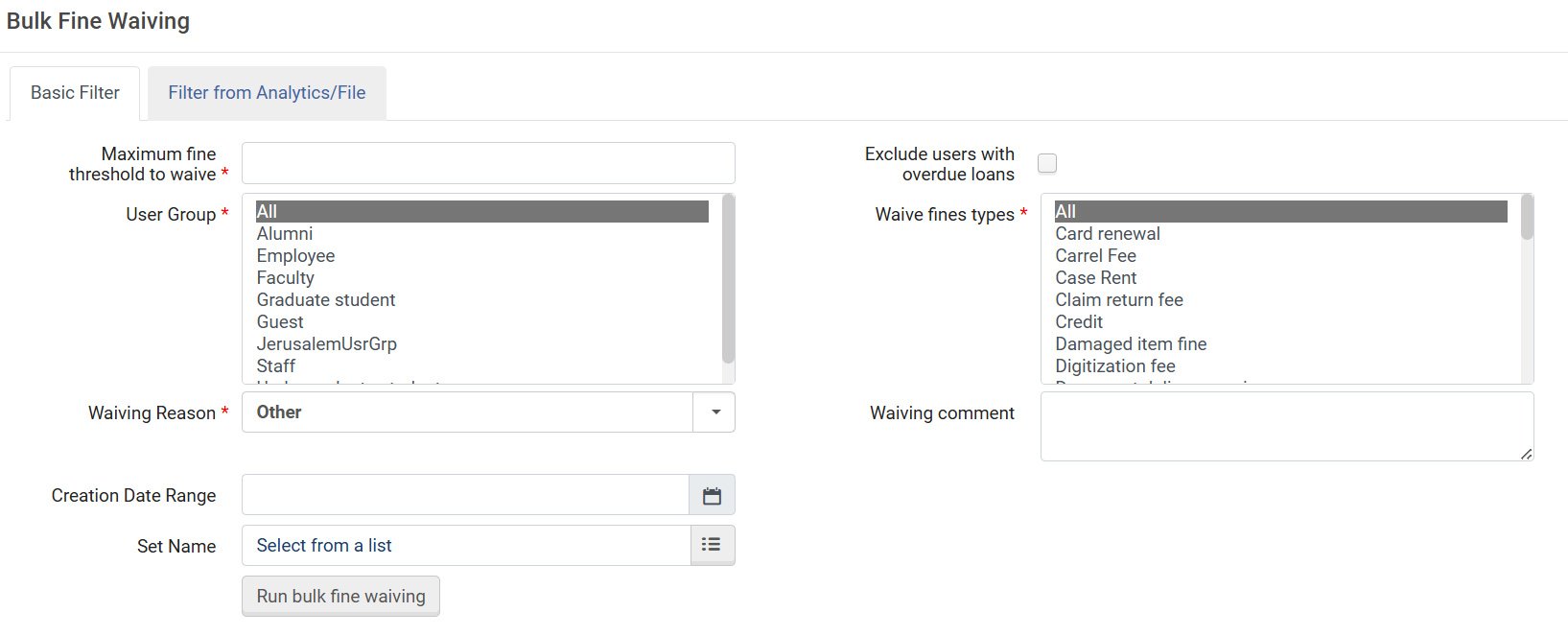
To waive user fines in bulk:
Basic Filter
In the Basic Filter tab, enter the following information:
- 放棄する罰金額の上限 – 放棄する罰金額の上限です。If the total amount of a user's fines is greater than the threshold, none of the user's fines are waived.
- For example: Since the total of the patron's fines exceeds the Maximum fine threshold to waive value, none of the fines are waived.
- Maximum fine threshold to waive= $120
- あるユーザーに、10ドル、50ドル、および70ドルの罰金が科されています
- For example: Since the total of the patron's fines exceeds the Maximum fine threshold to waive value, none of the fines are waived.
- 延滞貸出のあるユーザーを除外する – 延滞貸出のあるユーザーを除外するかどうかを示します。
- ユーザーグループ – 罰金を放棄する対象となるユーザーグループを指定します。
- 放棄する罰金のタイプ – 放棄する罰金のタイプを指定します。
- 放棄の理由 – 罰金を放棄する理由です。たとえば、教員によって発生した罰金を放棄したいと考えるかもしれません。
- Waiving comment – Add a comment as needed.このフィールドは必須ではありません。
- Creation Date Range – The fines in the selected date range will be used for waiving, together with the other filtering options that were selected on the page.このフィールドはオプションです。
- Set Name – Select the Pick-Up button and select a set of users.選択したユーザーセットに対する罰金は、ページ上で指定されたその他のフィルターオプションと併せて免除対象として使用されます。
- When you have completed Select Run bulk fine waiving and select Confirm in the confirmation dialog box.ジョブが実行され、ジョブに関する情報がページに表示されます。ジョブの進捗状況を監視するには、[更新]を選択します。Also see Viewing Running Jobs and Viewing Completed Jobs.
Filter from File
In the Filter from Analytics/File tab, select From File and enter the following information:
- File – Upload a file that contains the relevant fines.The maximum file size is 10 MB.The imported file must be a text file (.txt or .csv and the files must be encoded as UTF-8) or Excel file (.xls or .xlsx).
For the data to be read, it must have the FINE FEE ID Header at the top of the column.This header can also be with hyphens, i.e.,FINE-FEE-ID or with underscores, i.e.,FINE_FEE_ID.If the Excel file has more than one column, it looks for the first column of data that has a valid header type and uses that one.The ensuing cells of the Header column must contain the fine identifiers.Below is an example: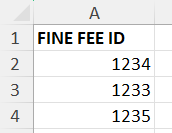 When uploading a .txt file, the first row must contain the FINE_FEE_ID header, and the ensuing rows must contain the fine identifiers (each separated by a carriage return, a commaor an apostrophe).
-
無効なデータでインポートを実行すると、無効な各セルは無視されます。
- 放棄の理由 – 罰金を放棄する理由です。たとえば、教員によって発生した罰金を放棄したいと考えるかもしれません。
- Waiving comment – Add a comment as needed.このフィールドは必須ではありません。
- When you have completed Select Run bulk fine waiving and select Confirm in the confirmation dialog box.ジョブが実行され、ジョブに関する情報がページに表示されます。ジョブの進捗状況を監視するには、[更新]を選択します。Also see Viewing Running Jobs and Viewing Completed Jobs.
Filter from Analytics
-
この機能はレポートでのみ機能し、ダッシュボードやデータ可視化(DV)では機能しません。
-
この機能が動作するには、レポートが共有フォルダー内にある必要があります。
-
The Analytics report must contain a Header with a valid field for creating the report.In this case, the Header must be the Fine Fee ID.
In the Filter from Analytics/File tab, select From Analytics and enter the following information.
- Analytics folder – Select the folder.Recent reports – Reports that were recently used in the Bulk Fine Waiving screen (not recently-created reports in Analytics).Select the report from the Name field.My Reports – Reports to which you have permissions to access (see Analytics Object List).名称フィールドからリポートを選択します。
- Name – Enter a name for the report.レポート名に特殊文字を含めることはできません。特殊文字を含めると、「分析への接続に失敗しました」というエラーメッセージが表示されます。
- When you have completed Select Run bulk fine waiving and select Confirm in the confirmation dialog box.ジョブが実行され、ジョブに関する情報がページに表示されます。ジョブの進捗状況を監視するには、[更新]を選択します。Also see Viewing Running Jobs and Viewing Completed Jobs.
