
ユーザーの消去
ユーザー消去ジョブのためにパラメータを定義し、消去ジョブを設定します。
このページの情報は、「ユーザーレコードを消去する」ページから実行されるジョブに適用されます。指定したセット内のユーザーを削除するジョブは、「手動ジョブ」ページから実行することも可能です。For more information, see Manual Jobs.
一度ユーザーレコードのパージジョブが開始されると、それを中止する方法はありません。ジョブは完了するまで実行され、指定された条件を満たすユーザーは削除されます。
ユーザーを一括で削除するジョブを実行できます。このジョブにより、消去日が過ぎたユーザーを削除します。Only users matching certain criteria can be deleted (see Deleting Users).To configure what happens with the deleted user's data, see Configuring User Deletion.Note that the history of a job is available for up to one year after it is completed.
For information on deleting users in bulk, watch User Management Workflows (4:04).
ユーザーレコードに削除日が示されているユーザーのみを削除できることに注意してください。You can set a purge date for a set of users in bulk using the "Update/Notify Users in Bulk" job (see Editing/Messaging Users in Bulk).
You delete users in bulk on the Purge User Records page (Admin > User Management > Purge User Records):
To create a purge users job:
ユーザーのパージ ジョブでは、保留シェルフにあるリソース共有リクエストを持つユーザーは削除されません。
- [ユーザーレコードを消去する]ページで、[ジョブを追加]を選択します。The Add Job dialog box appears.
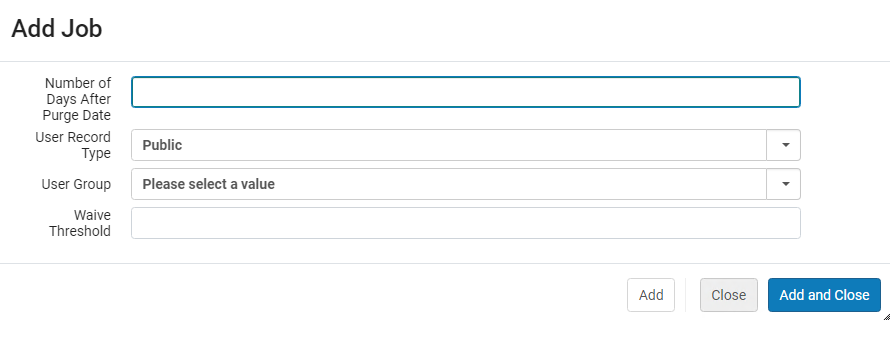
これは、手動でトリガーされる 1 回限りのジョブです。
- 必要な情報を入力してください。次のテーブルで、このダイアログボックスのフィールドについて説明します。
[ジョブを追加]のフィールド
フィールド 説明 消去日以降の日数 ユーザーの消去データに適用される猶予期間です。たとえば、このフィールドを10に設定して、このジョブを2013年12月20日に実行する場合、ジョブにより、消去日が2013年12月10日より前のすべてのユーザーが消去されます。デフォルトは0です。これは、消去日が当日またはそれ以前であるすべてのユーザーを意味します。
このジョブでは、消去日のないユーザーは消去されません。
It is recommended not to leave this setting at the default '0', as it can lead to the job not processing users as expected.Set the user purge date in the past, where possible, to ensure that the purge job processes the user.
ユーザーレコードタイプ このジョブを特定のレコードタイプに制限します。 ユーザーグループ このジョブを特定のユーザーグループに制限します。You can create user groups from Configuration > User Management > User Details > User Groups (see Configuring User Groups). このフィールドは、特定のユーザーレコードタイプを選択した後にのみ表示されます。
放棄の閾値
ユーザーが支払うべきで、ユーザーを消去する際には無視される金額を、(現地通貨で)指定します。ユーザーが総計でこの金額を超える罰金/手数料を支払う必要がある場合、そのユーザーは消去されません。デフォルトは0です。
-
以下のうちの1つを入力してください:
- Add(and Confirm in the confirmation dialog box) to add the job to the job queue and add additional purge jobs.
- Add and Close(and Confirm in the confirmation dialog box) to add the job to the job queue and close the dialog box.
To monitor the job, see Viewing Running Jobs and Viewing Completed Jobs.
For more information about purging patrons, see Patron Purge in Alma in the Developer Network.
Esploroが機関で有効になっている場合、アセットや助成金に関連付けられており、かつこのジョブによって消去される関連研究者は、関連のない研究者になります。名前、ID、Eメール、および関連のない研究者に関するその他のフィールドなど、ユーザー情報の一部が保持されます。
