
Purchase Order Actions
The Purchase Order Actions menu allows you to do the following:
Check for Duplicate Purchase Orders
Release a Purchase Order
You can only release purchase orders with a status of Pending.
To release a purchase order
-
Go to the purchase order workform.
-
Select ACTIONS > Release.
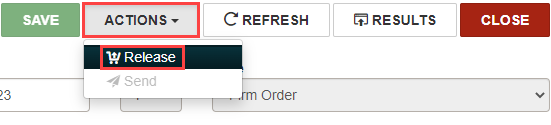
The Create on-order item records dialog opens.
-
Select one of the following options:
-
To release the purchase order and generate on-order item records, select YES. Continue to step 4.
-
To release the purchase order without generating on-order item records, select NO. Continue to step 4.
-
To stop the purchase order release process, select CANCEL.
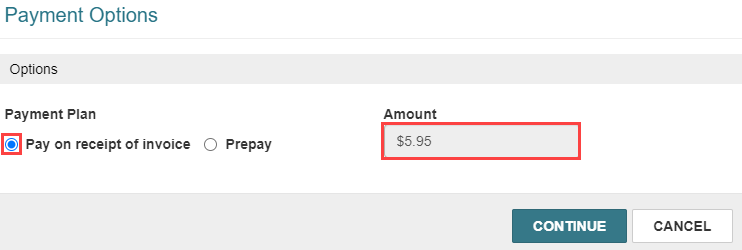
The Payment Options dialog opens.
-
-
Select one of the following payment options:
If you want to Do this Pay on receipt of invoice -
Fill in the Amount.
-
Select CONTINUE.
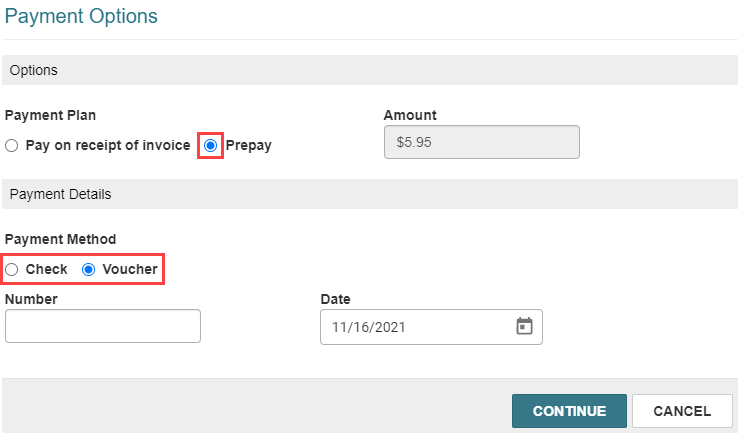
Prepay -
Select one of the following payment methods:
-
Check
-
Voucher
-
-
Enter the number for the check or voucher.
-
Select a date for the check or voucher.
-
Select CONTINUE.
-
Send a Purchase Order
You can send purchase orders only under the following conditions:
-
the purchase order has a status of Released or Continuing
-
your library has EDI enabled
-
the vendor has EDI ordering
To send a purchase order
-
Go to the purchase order workform.
-
Select ACTIONS > Send.
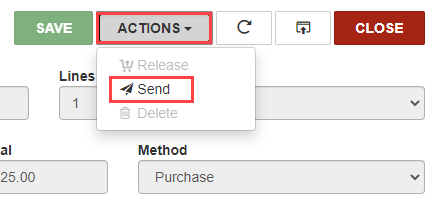
The Send Purchase Order dialog opens.
-
Select CONTINUE.
Delete a Purchase Order
You can delete purchase orders only under the following conditions:
-
the purchase order has a status of Canceled or Pending
-
your user profile has the Purchase Orders: Delete permission
-
none of the purchase order line items have transactions associated with them
To delete a purchase order
-
Go to the purchase order workform.
-
Select ACTIONS > Delete.
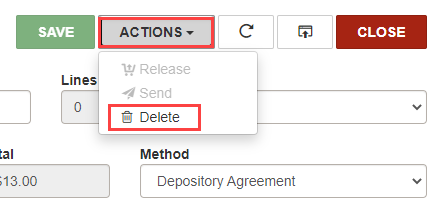
The Delete Purchase Order dialog opens.
-
Select CONTINUE.
Check for Duplicate Purchase Orders
Using the Purchase Order workform, you can detect possible duplicate PO line item segments in other purchase orders. Leap identifies potential duplicate records based on the rules your library has configured in the Purchase Order Deduplication table. For more information, search for "Change bibliographic or authority deduplication tables" in the Polaris staff client help.
Note:
Leap allows you to check for duplicates only if the PO has a status of Pending.
To check for duplicate purchase order records
-
Find the purchase order record you want to check, and open it in the Purchase Order workform.
-
Select Actions > Duplicate Check.
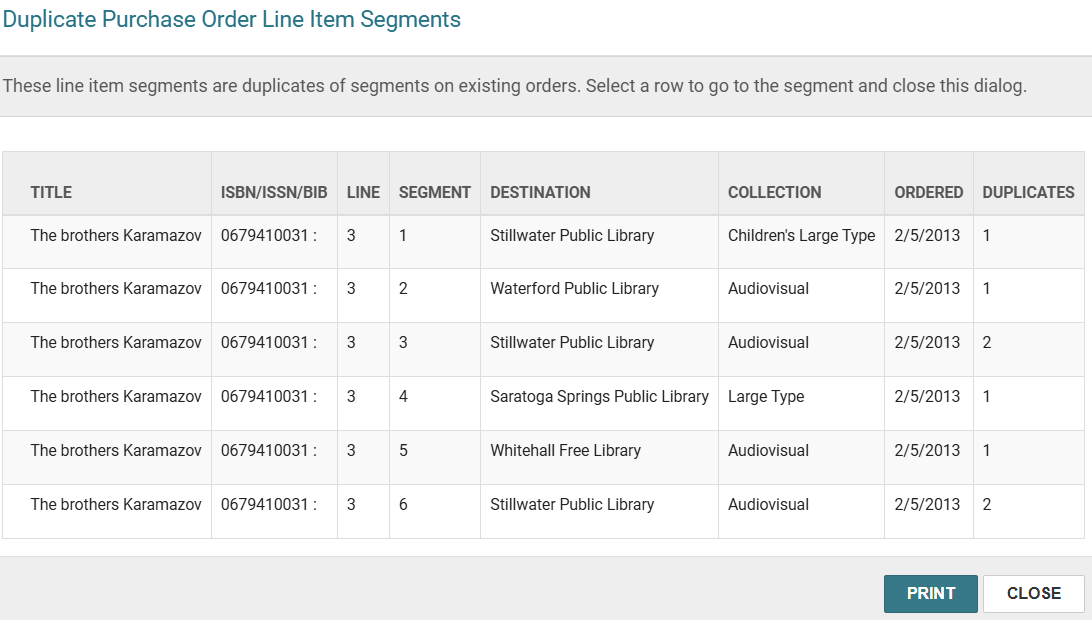
Leap performs the duplicate check and displays results on the Purchase Order Duplicate Detection Results dialog.
-
Do one of the following:
-
Select a row in the list to go to the Purchase Order Line Item workform.
-
Select PRINT to print a report that lists the duplicates in the dialog.
-
Select CANCEL to return to the purchase order record.
-
