
Add a Staff Member
You can add a staff member if you have the Staff members: Create permission in Polaris System Administration (web-based). For more information about system administration permissions, see System Administration Permissions Reference.
To add a staff member
-
On the Polaris System Administration (web-based) Home page, select Staff Members.
The Staff Members page appears.
-
Select + New Staff Member.
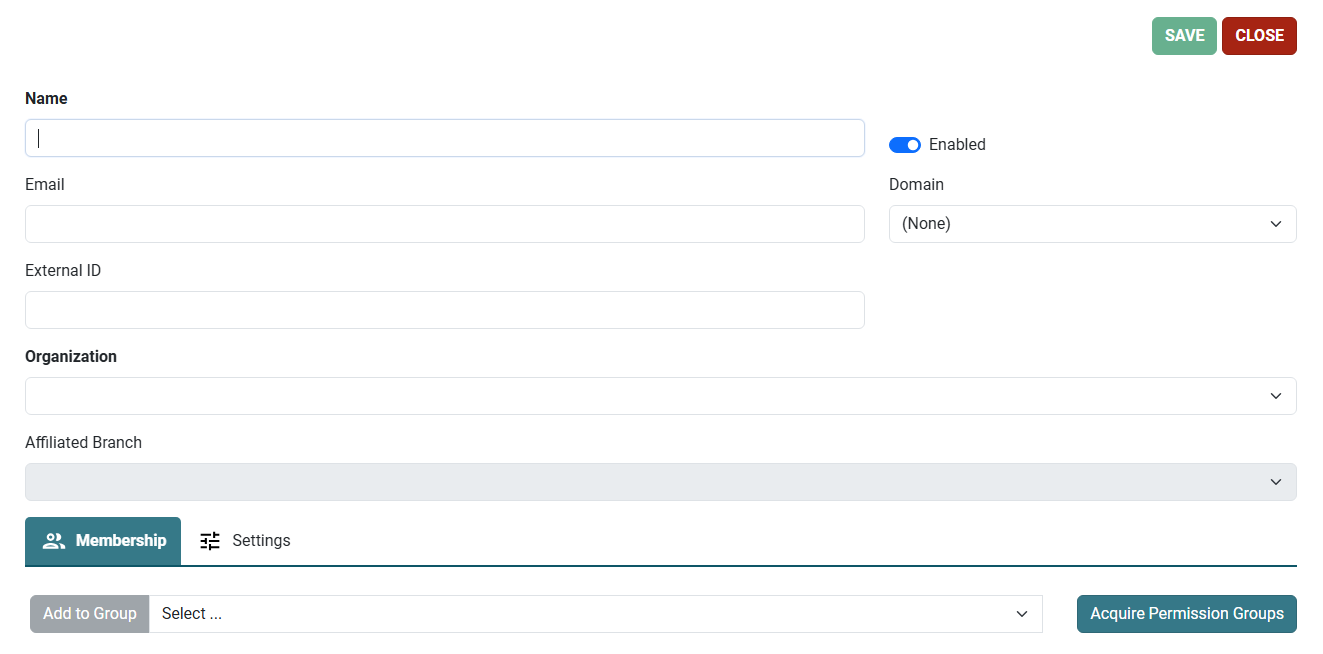
A new staff member workform appears.
-
In the Name box, enter the staff member name. The name must be unique within the staff member's domain.
-
(Optional) Select the Enabled toggle to enable or disable the staff member. When a staff member's record is enabled, the staff member can sign in to Polaris.
-
Enter the staff member's email address in the Email box.
-
If your Polaris installation is a multi-domain system, select the staff member's network domain from the Domain list.
Note:
For more information about multi-domain Polaris installations, search for "Multi-Domain System Support" in the Polaris staff client help. -
If your library's process for authenticating staff members requires an external ID, enter the value in the External ID box.
The external ID must be unique and a maximum of 100 characters.
Note:
The external ID may be used during the authentication process when a staff member signs in to Leap or Polaris System Administration (web-based). For more information, see The Staff Member External ID Field. -
From the Organization list, select the organization the staff member is associated with. The Organization list includes both libraries and branches.
-
If you selected a library from the Organization list, select the branch the staff member is associated with from the Affiliated Branch list.
-
(Optional) Add the staff member to one or more permission groups. To do this:
-
On the Membership tab, select a permission group.
-
Select Add to Group.
Note:
A new staff member has no permissions until you assign them to the staff member record. For more information about permissions and permission groups, search for "Granting Permissions" or "Managing Permissions with Permission Groups" in the Polaris staff client help. -
-
(Optional) If you want to add the same permission groups assigned to another staff member, you can acquire them. To do this:
-
On the Membership tab, select Acquire Permission Groups.
The Acquire Permission Groups dialog appears.
-
Find the staff member from whom you want to acquire permission groups. You can filter the list by typing in the Search box.
-
Select a staff member.
-
Select Acquire.
This adds all permission groups from the staff member you selected to the current staff member and closes the Acquire Permission Groups dialog. The acquired permission groups appear on the Membership tab.
-
-
(Optional) Configure user-level settings for the staff member. To do this:
-
Select the Settings tab.
Leap displays a list of the administrative settings that you can configure at the staff member level. By default, setting values are inherited from the organization specified in step 8.
-
Find the setting you want to configure. You can select an option from the Module list or type in the Search box to filter the list of settings.
-
Edit the setting.
-
-
Select SAVE.
