
Creating Field Selectors for PubMed OpenURL Elements
This procedure describes creating field selectors for these meta tags in an OpenURL:
- "pmid=PMIDVALUE"
- "rft_id=info:pmid/PMIDVALUE"
OpenURLs containing these meta tags can be resolved by an external lookup service.
The data from OpenURLs containing "rft_id=info:pmid/PMIDVALUE" values requires manipulation before you use it to retrieve an OpenURL from an external lookup service. You apply a regular expression to the data and use the result as the value of the field selector.
NOTE
WebBridge field selectors accept regular expressions such as POSIX Basic Regular Expressions (BREs) and Extended Regular Expressions (EREs) as implemented in the UNIX grep utility. If a regular expression is specified, WebBridge uses the result of the regular expression as the value of the field selector.
Creating Field Selectors for OpenURLs Containing "pmid="
- Access the WebBridge Management menu by either:
- entering http://your_library_[domain]/webbridge/edit in the browser address window
- choosing Admin | WB Edit in an application
The WebBridge Management menu displays: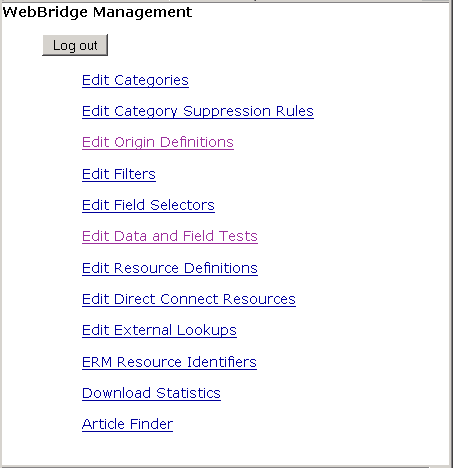
NOTE
Only one user can be logged in to the WebBridge Management menu's edit function. Other users can access the menus in View Only Mode.
If there is no activity by a login within the timeout period, the user is automatically logged out.
- Choose Edit Field Selectors.
The WebBridge Management - Field Selectors menu displays: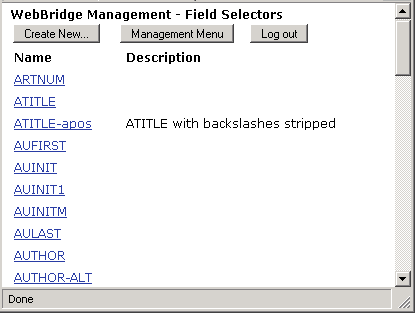
- Choose Create New.... The next page of the WebBridge Management - Field Selectors menu displays:
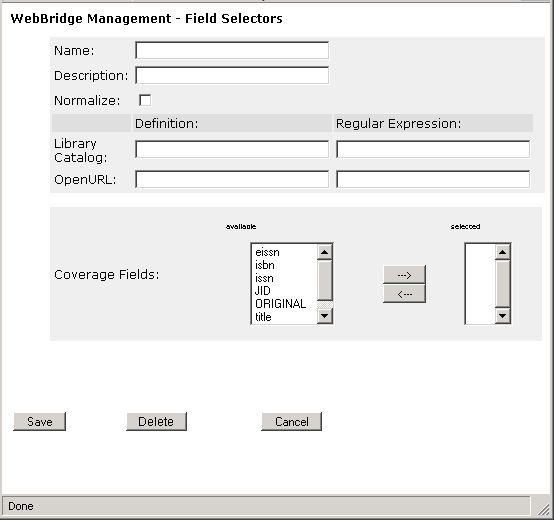
- In the Name text box, enter:
PMID - To distinguish PubMed field selectors, you can enter a description in the Description text box. Descriptions are optional. For example, enter:
pmid = value - In the Definiton text box for OpenURL, enter:
pmid - Choose Save.
Creating Field Selectors for OpenURLs Containing "rft_id=info:pmid/"
- Access the WebBridge Management menu by either:
- entering http://your_library_[domain]/webbridge/edit in the browser address window
- choosing Admin | WB Edit in an application
The WebBridge Management menu displays:NOTE
Only one user can be logged in to the WebBridge Management menu's edit function. Other users can access the menus in View Only Mode.
If there is no activity by a login within the timeout period, the user is automatically logged out.
- Choose Edit Field Selectors.
The WebBridge Management - Field Selectors menu displays: - Choose Create New.... The next page of the WebBridge Management - Field Selectors menu displays:
- In the Name text box, enter:
PMID2 - To distinguish PubMed field selectors, you can enter a description in the Description text box. Descriptions are optional. For example, enter:
rft_id=info:pmid/PMIDVALUE or id=info:pmid/PMIDVALUE - In the Definiton text box for OpenURL, enter:
rft_id=info:pmid|id=info:pmid - In the Regular Expression text box for OpenURL, enter the following regular expression:
/info:pmid\///g - Choose Save.
