
Creating PubMed External Lookups
External origins send one of two possible meta tags in OpenURLs that can be resolved by PubMed's Efetch external lookup service:
- "pmid=PMIDVALUE"
- "id=pmid:PMIDVALUE"
To use the PubMed External Lookup service, enable the WebBridge resolution server for both meta tags. Perform both of the following procedures:
- Creating a PubMed External Lookup for OpenURLs Containing "pmid=PMIDVALUE"
- Creating a PubMed External Lookup for OpenURLs Containing "id=pmid:PMIDVALUE"
Creating a PubMed External Lookup for OpenURLs Containing "pmid=PMIDVALUE"
- Access the WebBridge Management menu by either:
- entering http://your_library_[domain]/webbridge/edit in the browser address window
- choosing Admin | WB Edit in an application
The WebBridge Management menu displays: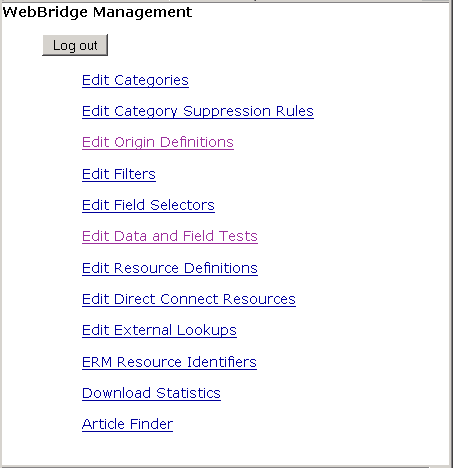
NOTE
Only one user can be logged in to the WebBridge Management menu's edit function. Other users can access the menus in View Only Mode.
If there is no activity by a login within the timeout period, the user is automatically logged out.
- Choose Edit External Lookups.
The WebBridge Management - External Lookups menu displays: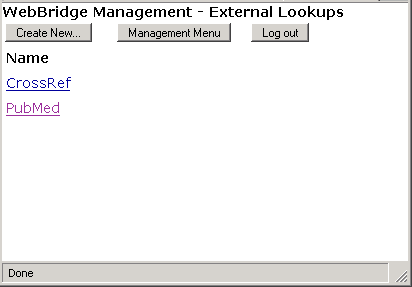
- Choose Create New.... The WebBridge Management - External Lookup menu displays:
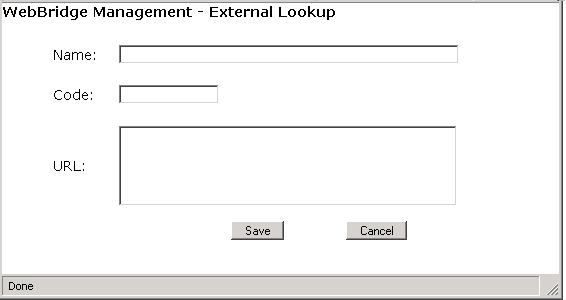
- In the Name text box, enter:
PubMedID - In the Code text box, enter:
pubmed
The code determines which mapping file the WebBridge resolution server uses. - In the URL text box, enter:
http://www.ncbi.nlm.nih.gov/entrez/eutils/efetch.fcgi?db=pubmed&id=#@PMID#&retmode=xml
The URL contains the field selector #@PMID#. You must create this field selector.NOTE
This URL appears on multiple lines for display purposes only.
Enter the URL in the text box without line breaks.
If you cut and paste a URL, you can introduce line breaks that prevent the URL from functioning. Remove line breaks from any URL that you paste into the text box.
- Choose Save.
Creating a PubMed External Lookup for OpenURLs Containing "id=pmid:PMIDVALUE"
- Access the WebBridge Management menu by either:
- entering http://your_library_[domain]/webbridge/edit in the browser address window
- choosing Admin | WB Edit in an application
The WebBridge Management menu displays:NOTE
Only one user can be logged in to the WebBridge Management menu's edit function. Other users can access the menus in View Only Mode.
If there is no activity by a login within the timeout period, the user is automatically logged out.
- Choose Edit External Lookups.
The WebBridge Management - External Lookups menu displays: - Choose Create New.... The WebBridge Management - External Lookup menu displays:
- In the Name text box, enter:
PubMedID2 - In the Code text box, enter:
pubmed
The code determines which mapping file the WebBridge resolution server uses. - In the URL text box, enter:
http://www.ncbi.nlm.nih.gov/entrez/eutils/efetch.fcgi?db=pubmed&id=#@PMID2#&retmode=xml
The URL contains the field selector #@PMID2#. You must create this field selector.NOTE
This URL appears on multiple lines for display purposes only.
Enter the URL in the text box without line breaks.
If you cut and paste a URL, you can introduce line breaks that prevent the URL from functioning. Remove line breaks from any URL that you paste into the text box.
- Choose Save.
