
Choosing Resource Identifiers in Resource Definitions
If your library has acquired ERM, you choose resource identifers in the Match against this resource drop-down menu of the resource definition to:
- restrict data tests to a portion of the coverage database
- link a resource in the coverage database to its resource record
If you are using the resource identifier only to link a resource in the coverage database with its resource record (and thus display resource and license record fields in the resource panels), you do not need to choose a data test (or field selectors) before choosing a menu option from the Match against this resource drop-down menu.
To choose resource identifiers, identify the resources that require license or resource record fields to display, and for the identified resources, edit the resource definitions.
- Open the resource definition by choosing Resources from the menu on the left-hand side of the WebBridge LR home page.
The Resources tab displays: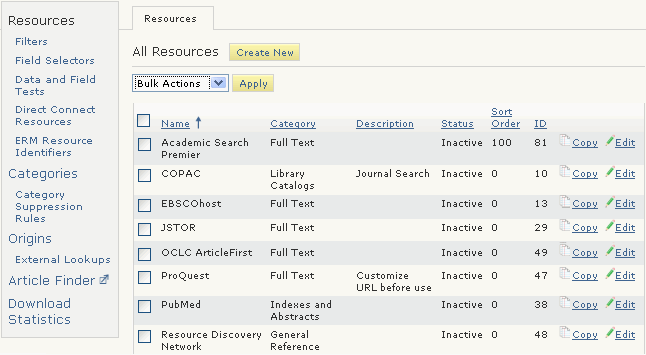
- Choose the Edit button associated with the resource.
The Resource (<resource_name>) tab displays. For example: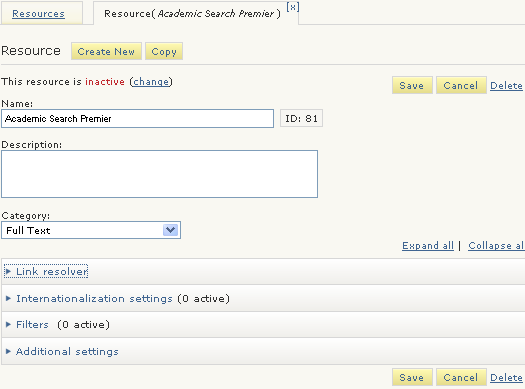
- Expand the Link Resolver menu. For example:
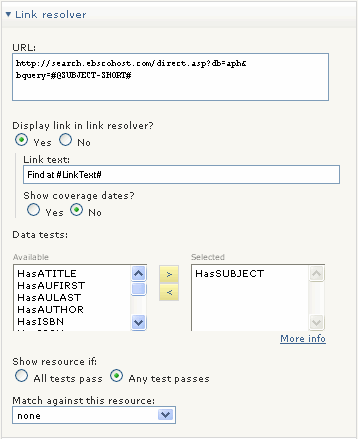
- Choose a resource identifier in the Match against this resource drop-down menu.
If a resource identifier has already been chosen (because a data test is in place), that resource identifier will be used to find the resource and license record fields. - Choose Save.
