Release Date: October 09, 2024
Grid View Icons
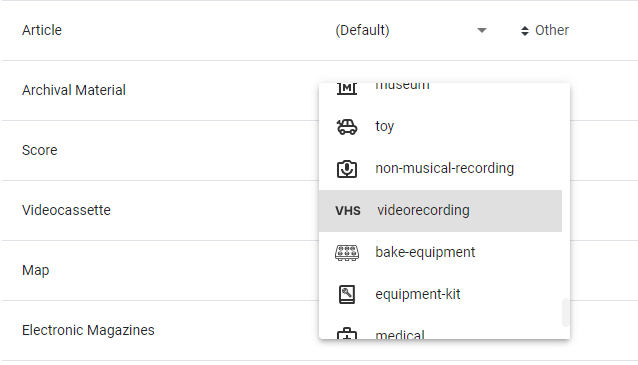
Based on feedback from Strategic Partner Meetings, the following list of icons has been added to the Material Type Settings. To make it easier to find the icon you are looking for, the name of the icon has been added to the dropdown list, and the eAudiobook icon has been renamed to Audiobook.
The new icons are at the bottom of the list, a future release will pull them into the alphabetized list, rename the Vox icon to Book + Audio, and add an icon for Atlas.
-
Museum
-
Toy
-
Non Musical Recording
-
Videorecording
-
Baking Equipment
-
Equipment Kit
-
Medical
-
Microfilm
-
Microform
Search in Showcase
More fields are searchable from the Search in Showcase search box. When searching by location, you will see results across the format types. When searching by Language, use the 3 letter language code. For example Spa instead of Spanish, we will allow for searching by full language names in an upcoming release.
-
Format
-
Location
-
Language
Hero Accessibility Improvements
Several improvements have been made to the home page hero component.
-
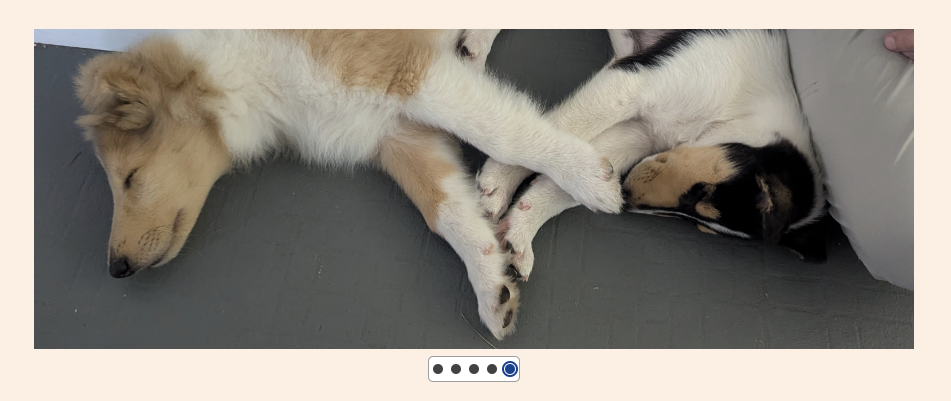
A background layer of white provides a higher contrast ratio.
-
The active/inactive colors have been updated to provide a higher contrast ratio.
-
The active state has a secondary circle to visually convey it is the active state.
Special Handling of Polaris Internal Block Messages for Patrons
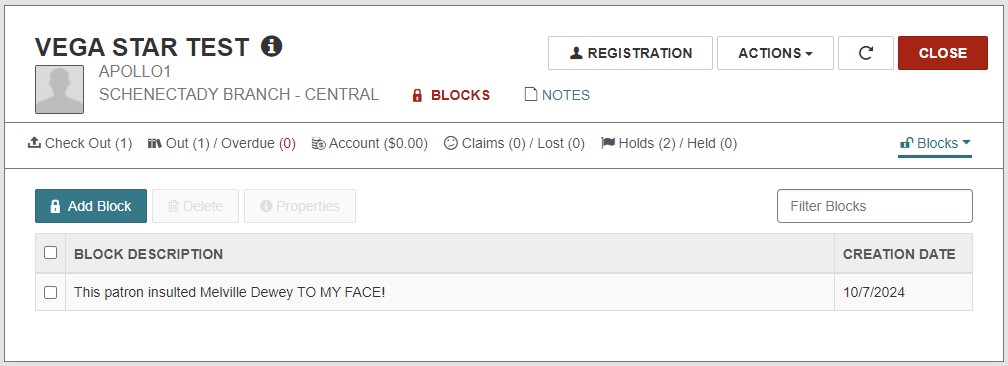
Polaris does not differentiate Internal Patron Block messaging from system generated patron account blocks in the API response. As a result, custom text from patron blocks was previously displayed to patrons when attempting to perform blocked circulation transactions such as renewals in Vega Discover.
In order to gracefully handle internal block messaging that should not be displayed to patrons, Vega now displays one of the following messages instead:
-
If the block response is PAPIErrorType1 but contains additional information in a PAPIErrorType2 such as, "Patron has a free text block, now allowed to renew", Vega will display the PAPIErrorType2 text instead of the custom block message text.
-
If the block response is PAPIErrorType1 and contains no additional block messaging to display, Vega will instead display, "Cannot complete this transaction due to a block. Contact the library for more information."
 of 090241008289095.jpg)
Multiple OverDrive Advantage Accounts Support
Already has OverDrive configured with an Advantage ID
AND is ingesting records directly into Vega using the checkbox in the OverDrive configuration.
Then you must request that support remove and add back your OverDrive configuration. They will move/add your Advantage ID(s) to the NEW Advantage IDs fields. This process will remove and reingest your OverDrive eContent, so there will be an hour or so of missing eContent in your Discover catalog during this process. We will remove the main OverDrive Account level Advantage ID field in the future. This update is REQUIRED to support accurate availability statuses for Advantage Materials.
Libraries are now able to configure Multiple OverDrive Advantage IDs when they have been shared by other participating libraries and organizations. A new section for 'Advantage account ID' fields has been added at the bottom of the OverDrive configuration at both the Main Library and Sites Levels. Enter a single ID into the field. Use the +Add Another button to add more IDs. For each entered ID, Vega will ingest the vendor records for the corresponding title holdings associated with the given ID from OverDrive directly into Vega Discover.
Advantage ID collections entered at the Main Library level are ingested to all Sites that share the main level configuration. Advantage ID collections entered at the Site Level only ingest records to that particular site.
All Advantage titles that were not already part of your subscription will be added by Vega. Until our next release these new titles will display with a status of 'Check Availability' and patrons will be able to navigate to the OverDrive site to circulate these materials if able (based on subscription permissions). In our next release, code will be added to display the correct availability status to authenticated patrons based on their ability to access the configured Advantage Account titles. (Existing titles that have additional Advantage copies will also allow circulation of Advantage copies when other copies are unavailable after this work is complete.)
Non-Integrated eContent Management
What is Non-Integrated eContent?
Non-Integrated eContent is any MARC record based content that you catalog in your ILS that is accessible only through URLs but cannot be controlled by existing API eContent connections like Hoopla, CloudLibrary, OverDrive, etc. Examples are: LinkedIn Learning courses, Kanopy, Project Gutenberg titles, and other database records.
How does the feature work?
Vega Discover can now help you manage your Non-Integrated eContent titles. Libraries that do not have Collection Sites can use this function to display an icon for non-integrated eContent collections in the catalog. Libraries with Collection Sites can additionally use this feature to control which Collection Sites display these titles AND which link is used for patrons to access that content in each site. Using this feature you can streamline the patron experience when accessing this type of content by forcing only the URL associated with your library patrons to be used in your Vega site(s).
To configure Non-Integrated eContent: In the Staff UI Settings use the Non-Integrated eContent button to view the configuration page. Use the +New Configuration button to add a new configuration. Clicking the button allows the library ot configure how specific non-integrated eContent will display based on entering a BASE URL that will be present in the 856 $u of all econtent that should match the given configuration. You can use the * character as a wild card in BASE URL configuration. Wildcards can be used in multiple locations within the same BASE URL if needed.
Examples
-
For each title in the given subscription there is no specific link to individual titles, but each library uses a different URL to access the database where the content is stored.
-
EXAMPLE BASE URL: http://evanced.mylibrary.org:8888/login?url=https://search.ebscohost.com/login.aspx?profile=mainbranch&groupid=main&authtype=ip
-
This URL is specific to the Main Branch of the library. A patron would normally click 'Check Availability' for this title and be presented with a list of URLs, one for each branch that has access to this database. Configuring for this branches link and then sharing only to the Main Branch library site will cause content with this link in the Main Branch site to link patrons directly to the correct URL, instead of displaying a list of confusing URLs.
-
YOU MUST configure for each link separaterly and share to the correct sites for all URLs to work properly at the site level.
-
-
Each library with access to this LinkedIn Learning course users the u=XXXXXX parameter in the URL to direct the patron to the correct LinkedIn Learning access for the participating library.
-
EXAMPLE TITLE: https://www.linkedin.com/learning/the-power-of-introverts?u=12345678?auth=true
-
EXAMPLE BASE URL: https://www.linkedin.com/learning/*u=12345678?auth=true
-
The Admin should share this configuration to the Site(s) that match the u=12345678 subscription to LinkedIn Learning.
-
-
All Libraries use the same, single link to access the content, but you would like to configure a specific icon to identify all materials.
-
EXAMPLE: Project Gutenberg - https://www.gutenberg.org/ebooks/23077
-
EXAMPLE BASE URL: https://www.gutenberg.org OR https://www.gutenberg.org/ebooks/
-
Upload the desired icon and share this configuration to ALL SITES.
-
After configuring all desired Non-Integrated eContent configurations, you must run a full MARC extraction from the Record Extraction page in the Vega Admin. Choose, "Create MARC Extraction Request" button. Select, "All Records" and Submit. If you configure more non-integrated eContent in the future, a subsequent all records extraction will be required to update Vega displays and button links.
BUG FIXES
Apply Date Localization to Home Page Events
If "Override date format display" and "Display day first" are selected from the Configuration > Localization settings configuration page, events on the home page show as DAY MONTH instead of MONTH DAY.
Search Bar Overlaps Custom Links
A bug was fixed where libraries with advanced search enabled saw the custom link content partically blocked on the mobile view.
Search Within a Saved Search
A bug was fixed where a user that was not logged in saw the button to view the search, but they couldn't see the results. The button is now hidden until the user logs in. This is an intermediary fix, an upcoming release will allow a user that not logged in to search within a saved search showcase.
Custom Passthrough Reordering of aCollection Site
A bug was fixed that prevented INN-Reach from being set to a different position on a collection site than the main site.
Favicon Preview
A bug was fixed that prevent the favicon icon from displaying on the preview page.
Release Date: October 23, 2024
Accessibility Updates for WCAG 2.2
-
Edition information aria labels were updated with additional contextual information to differentiate between information in the bibliographic record and item record level.
-
Patron Info popup information for Home Location, Expiration Date, and the Sign Out button were updated to be viewable/accessible at 200% zoom.
-
The Patron Info popup was adjusted to be viewable/accessible at 320px width for devices.
-
The request popup was adjusted to be viewable/accessible at 200% zoom.
-
The Language drop-down in the Vega Discover header was adjusted to be viewable/accessible at 320px width for devices.
-
The Header logo information is now available through aria-label for screen readers.
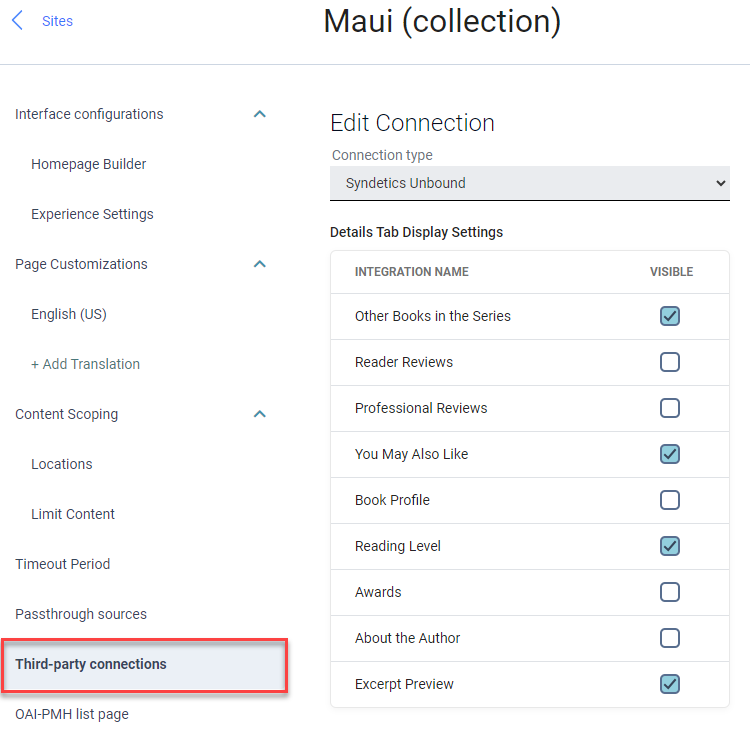
Volunteer for Collection Site Syndetics Widget Controls
Volunteer to be an early adopter! This change will allow libraries to show or hide Syndetics widgets at the Collection site level. This will provide libraries more control while we continue to work on mapping a scoped collection to Syndetics.
Bug Fixes
Home Page Scheduling Improvements
To allow for easier scheduling of home page components:
-
Opening the calendar defaults to the current day.
-
The arrows to move between months are fixed regardless of how long the month name is.
-
The date can be deleted so the showcase doesn't expire.
Advanced Search on a Kids Catalog
A problem was fixed to keep the theme layout consistent after applying an Advanced Search or using the View All link for a saved search from the home page.
Guest Users Can Click Through to the Saved Search Used for Showcases
Guest Users can use the View Search button from a showcase based on a saved search. This link takes the user to the search results with the saved search refinements applied. The user can then add and remove refinements as desired to further filter or expand the search.
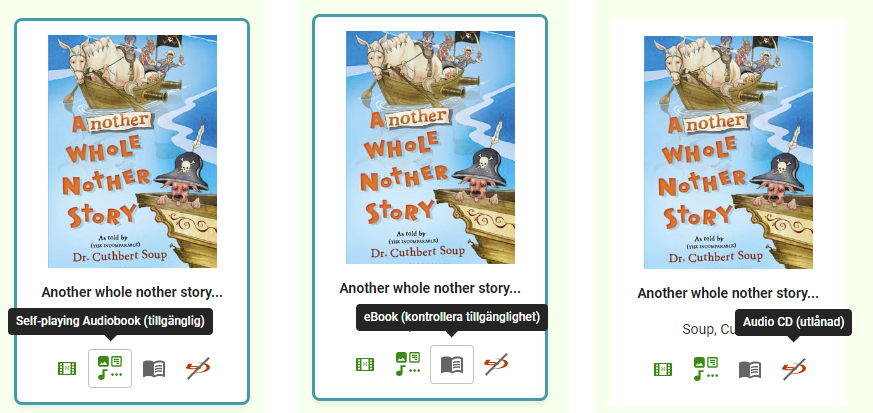
Grid View Availability Hover text translation
A bug was fixed where the hover text availability of an item wasn't translatable in the grid view. For language translations, the grid view uses the tab strings since the availability would be the same.
-
Line 2023: "tabsAvailable":"available",
-
Line 2024: "tabsCheckAvailability": "check availability",
-
Line 2025: "tabsCheckedOut": "checked out",
-
Line 2026: "tabsOnOrder": "on order",
-
Line 2027: "tabsUnavailable": "unavailable",
Search by Language in a Showcase Created from a Bookmark List
Users can search by full language names in the "View All" view of a bookmark list showcase. When searching on a translated site, the exact languages configured by that language are searchable.
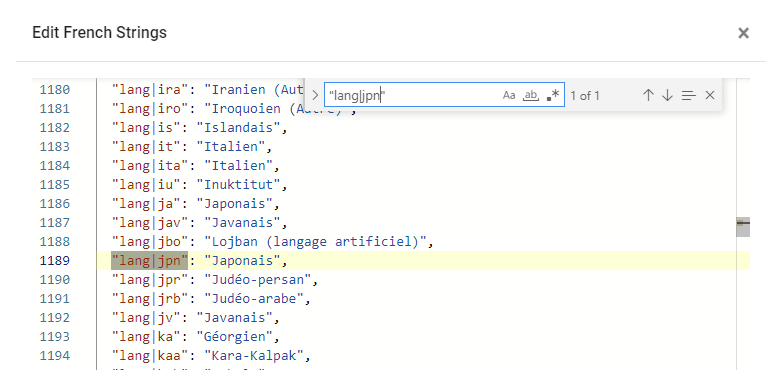
These can be updated in the translation strings for each language. For example, when searching on a French site for titles in Japanese:
-
Japonais returned correct results, this is the French spelling of Japanese.
-
Japanese had no results, this is the English spelling of Japanese.
-
Search the translation strings for "lang|jpn" or any other language code to make changes.