
Vega Mobile provides customization options that you can use to make your app easier for patrons to navigate and help them discover library content and services.
You can improve the app by using clear labels, maintaining accessible color contrast, and selecting home screen features that match the content and services you want to highlight.
Optimize home screen
The home screen is one of the first areas patrons see when they open the app. Use clear, descriptive labels and relevant content so patrons can quickly identify the available options and find what they need.
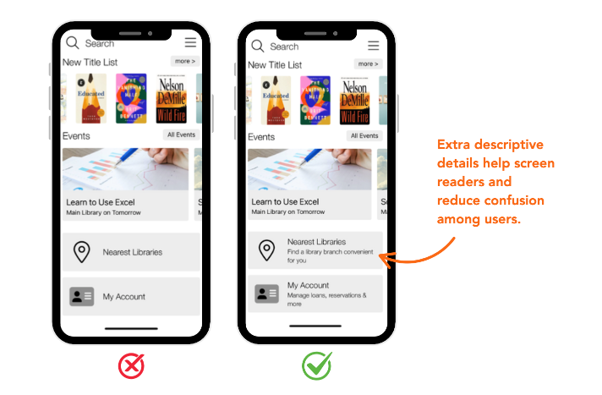
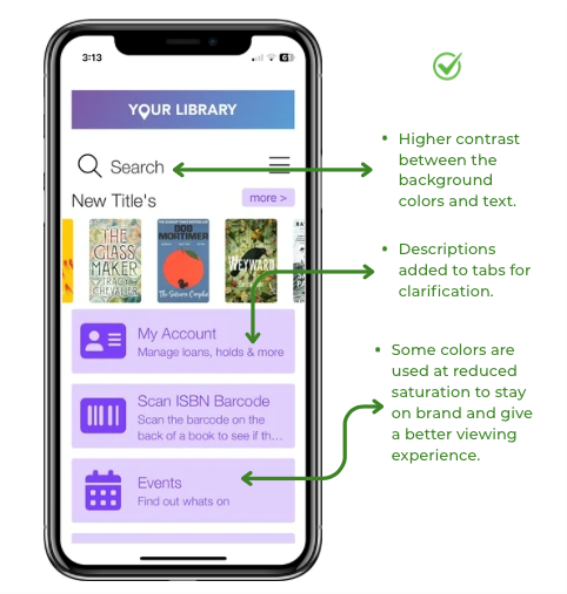
Tab titles and subtitles should provide enough context for patrons to understand what they'll find when they select a tab. Descriptive labels also provide important context for patrons who use screen readers or other assistive technologies.
For example:
Instead of:
-
My Account
-
Nearest Libraries
Use:
-
My Account – Manage loans, reservations & more
-
Nearest Libraries – Find a library branch convenient for you
Keep accessibility in mind
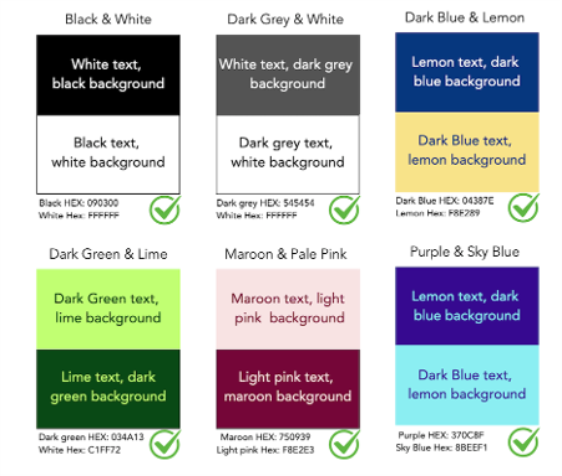
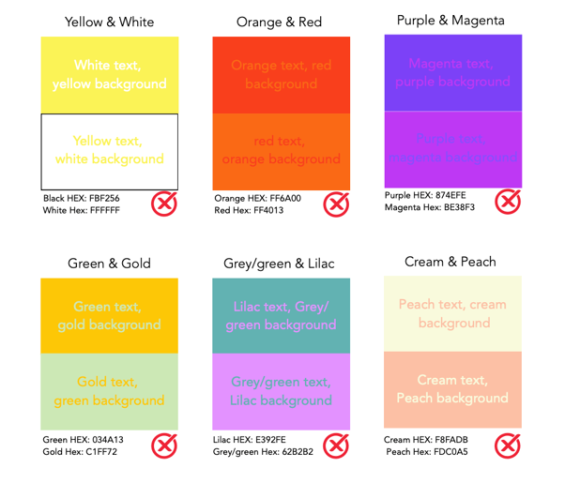
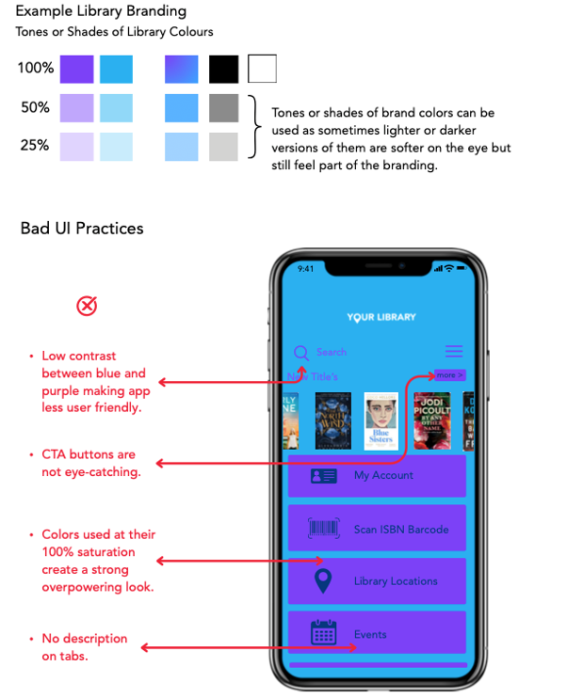
When you customize the app's UI colors, choose text and background colors that provide sufficient contrast. Good color contrast makes content easier to read, particularly for patrons with visual impairments or color vision differences.
For information about configuring colors, see Configure UI colors.
Avoid color combinations that don't provide enough contrast between text and backgrounds. You can use the WebAIM Contrast Checker to evaluate your color combinations by entering the hexadecimal values for your foreground and background colors.
More ways to improve your app
Vega Mobile provides different home screen tab types that you can use to highlight important services, promote content, and help patrons discover library resources. Consider what you want patrons to find or do and select the tab type that best supports that goal.
-
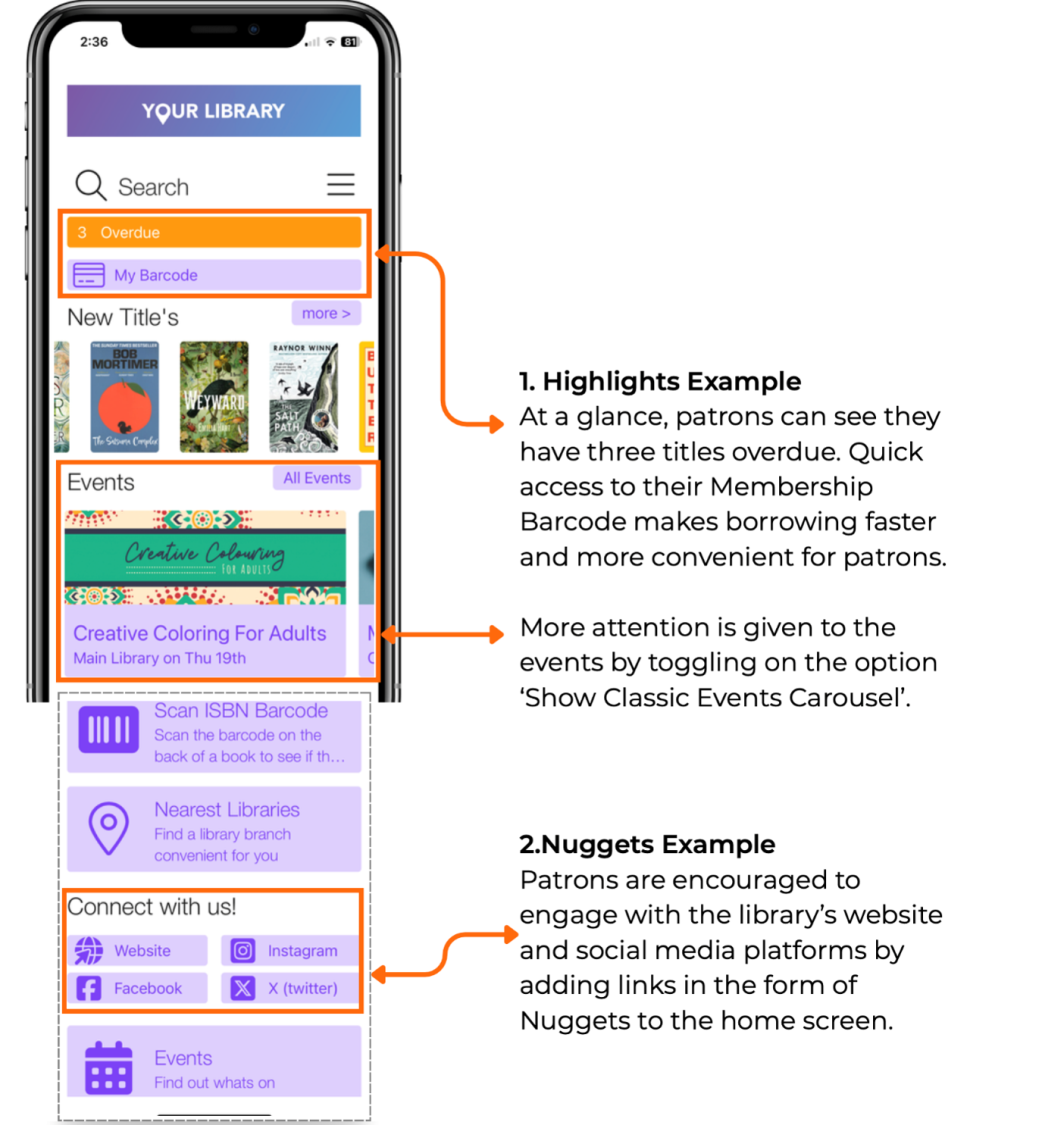
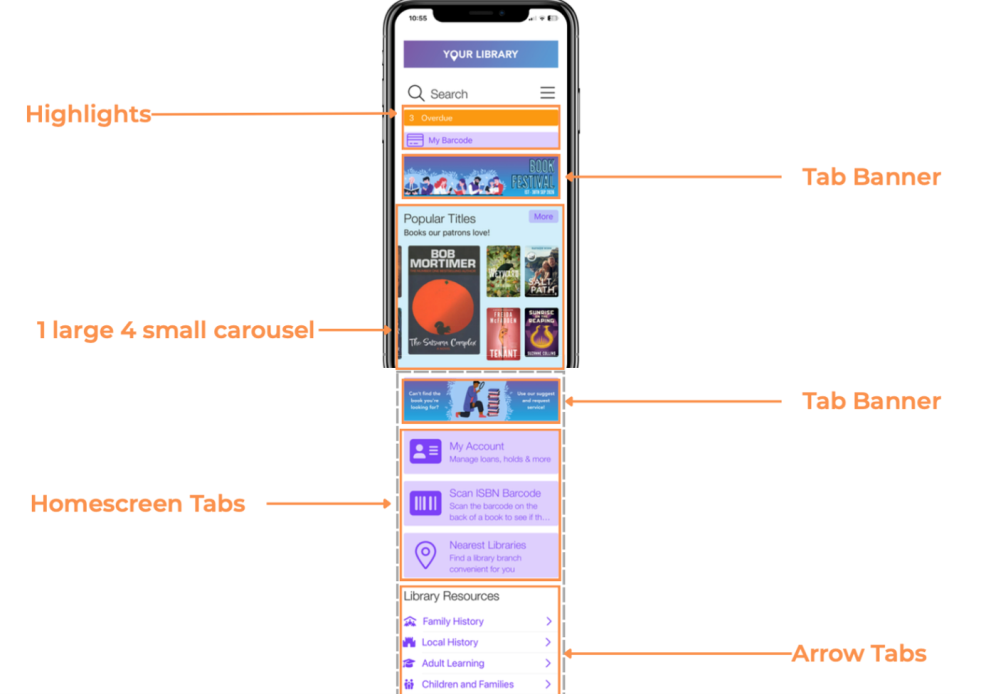
Home Screen Highlights bring important account information directly to the home screen. You can use Highlights to notify patrons when items are due soon, overdue, or ready for pickup. You can also provide quick access to their membership barcode and self-checkout functionality.
For configuration information, see Customize Account highlights on home screen.
-
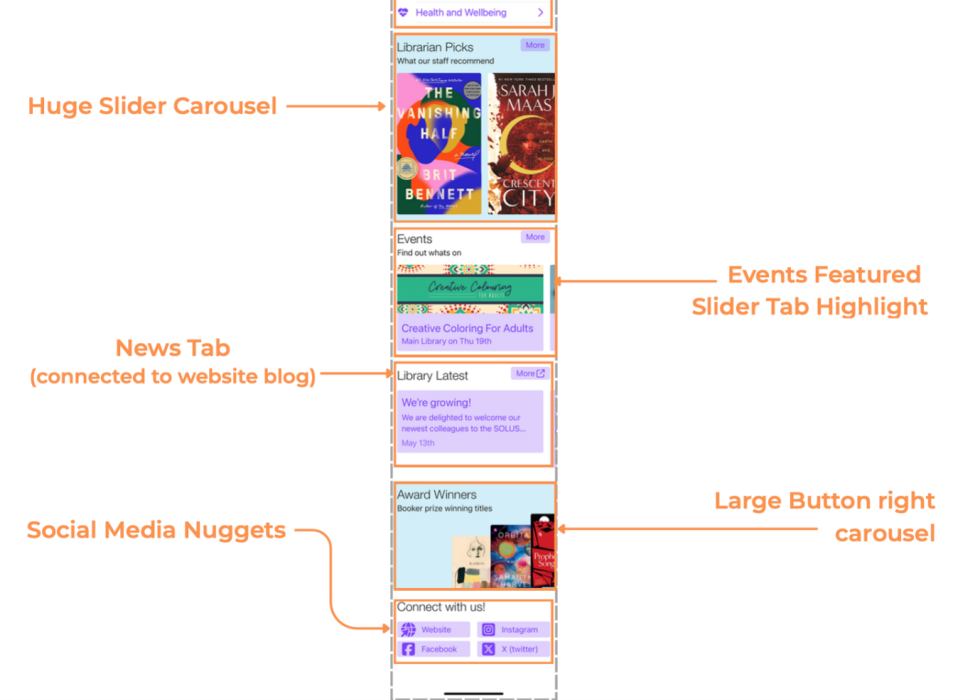
Nuggets Tabs can highlight specific resources or sections of your library's website. For example, you can use them to promote social media accounts, online resources, library services, or other content that you want patrons to discover.
For configuration information, see Nuggets Tab.
-
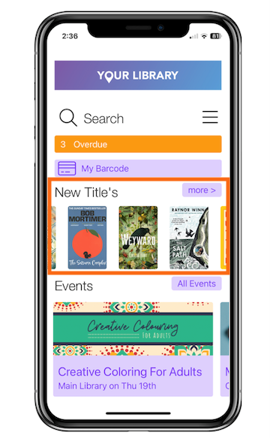
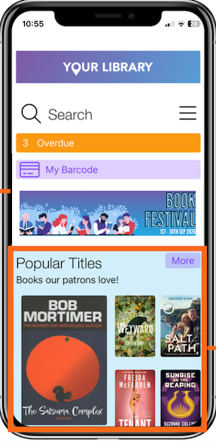
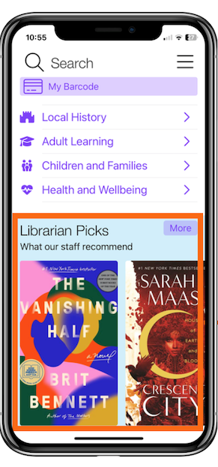
Book Showcases can highlight collections that patrons might otherwise miss, including award winners, new arrivals, seasonal collections, staff picks, and other featured titles. You can use different Showcase layouts to present the same collection in different ways, including:
-
Classic Book Showcase
-
Slider: 1 Large, 4 Small
-
Slider: Huge
-
Right-Aligned Book
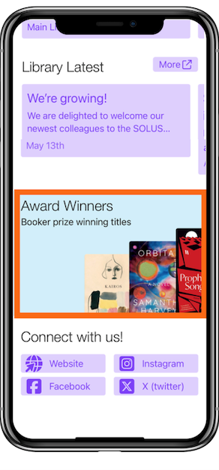
For available layouts and configuration information, see Book Showcase Tab.
-
-
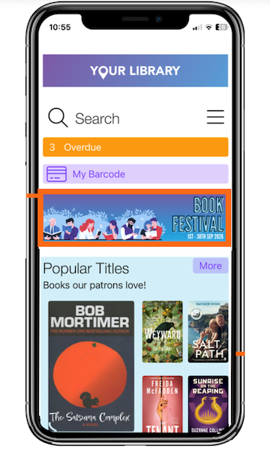
Tab Banners can draw attention to specific services, events, or announcements. For example, you can use a banner to promote an upcoming book festival, highlight your Suggest & Request service, or call attention to other important information.
For configuration information, see Images as tab banners.
-
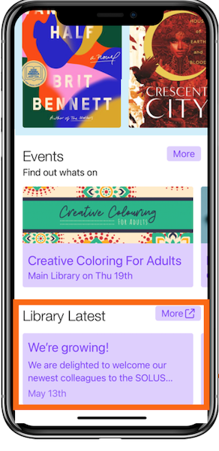
News Tabs can keep patrons informed about what's happening at your library. They can use supported RSS feeds from your library's website, blog, or showcases. When you update the source content, the app can automatically display those updates.
-
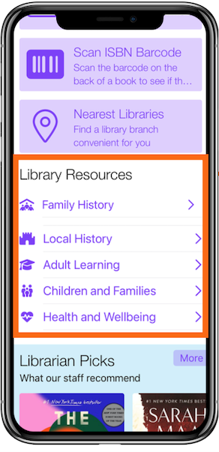
Arrow Tabs can organize related resources into subcategories, giving patrons access to multiple related destinations without displaying each one as a separate home screen tab.
For configuration information, see Arrow tab.
See it all together
You can combine these features to create a home screen that helps patrons quickly find what they need while also providing opportunities to discover library content and services.
For example, you might use Home Screen Highlights for account information, Book Showcases for staff picks, Nuggets Tabs for online resources, and Arrow Tabs to group related library services.
Next steps
Review the home screen in your production app and identify one or two changes that could make content easier to find or important services more visible.
Make the changes in your UAT app first so that you can preview and verify them before applying the same changes to your production app.
