
Account highlights on home screen
Customizing the highlights on your app's home screen allows you to highlight the most relevant information for your patrons, enhancing the user experience. By configuring which highlights appear, such as overdue checkouts, upcoming events, or holds ready for pickup, you can ensure that patrons are promptly informed about important updates.
Customize Account highlights on home screen
-
Access the Content Management System (CMS) and navigate to the Mobile Apps section from the left-side menu options, then select the app or template you want to customize.
-
In the Tab Manager, select the Home Screen tab.
-
Select Edit tab - Home Screen.
The Edit Homescreen Tab page is displayed.
-
In the Homescreen Action Highlights section, toggle which highlights you would like to display in your app:
-
Checkouts - Overdue
-
Checkouts - Due Soon
-
Holds - Ready for pickup
-
Events - Today *
-
Events - Upcoming *
-
Rooming Bookings - Today *
-
Resource Bookings - Today *
-
Account Expiry: Enter the number of days in Days Until before a patron’s account expiration when the Home Screen Highlight should appear.
Options marked with an asterisk (*) require an instance of Vega Program to be configured. If you don't have Vega Program connected to your app, don't enable them.
-
-
Click Save at the bottom of the page to update your app.
-
Navigate back to your mobile app and select Edit next to your Data Provider.
-
Navigate to the Account section and in the Due soon (days) field enter in the number of days before the item is due for the Due Soon home screen highlight to appear in the app.
Adjust the Due Soon threshold based on your system's behavior to give patrons appropriate notice.
By default, this option is set to 3.
The behavior of the Due Soon setting depends on how your instance of Polaris or Sierra determine when an item becomes overdue.
For example, if your system considers items overdue at 00:00 on the due date, setting Due Soon = 1 day will cause items due tomorrow to appear as due soon today. If your system uses 23:59 as the cutoff, those same items won’t appear as due soon until the following day. -
If you have a root app with templates, these configurations must be configured separately for each template. Follow steps 1 - 7 for each template that you want to configure these options for.
Patron experience
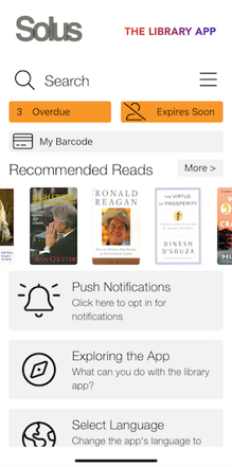
Depending on what the patron has on their account, they may see highlights at the top of the app for things like items that are Overdue, Due Soon, or For Pickup.
For things like events they have registered for, they would see events that are upcoming in the Soon highlight, or events that are happening that day in the Today highlight.
If the option to display the patron’s barcode expiry has been enabled, an Expires Soon highlight will appear at the top of the app. Selecting it will take the patron to the My Details screen, where they can view the expiration date of their account.
In the example below, the patron has 3 overdue items, and their barcode is nearing its expiration.
| String Key | Default Text | Description |
|---|---|---|
| LoanPage_Overdue | Overdue | Label displayed when a patron has items past their due date. This will only show on the home screen when the patron has an item, or items, that are overdue. |
| LoanPage_Due | Due Soon | Label for items nearing their due date on a patron’s account. This will only show on the home screen when the patron has an item, or items, that are due soon. This will depend on the response in the Due soon (days) field mentioned above in step 7. |
| LoansPage_Pickup | For pickup | Indicates items reserved and ready for patron pickup. This will only show on the home screen when the patron has an item or items that are ready for pick up at the library. |
| EventPage_BookingSoonNugget | Soon | Label for upcoming events with bookings opening soon. This will only show on the home screen when the patron has an event that is upcoming within the next 3 days. There is no configuration option for this in the Content Management System. |
| EventPage_BookingTodayNugget | Today | Label for events with bookings opening today. This will only show on the home screen when the patron has an event that is scheduled for that day. |
| HomePage_BarcodeExpireSoon | Expire Soon | Appears when the patron’s account is nearing its expiration date, based on the settings configured in the Content Management System. |
