
Patron display preferences
Patrons can control:
-
the app theme using Theme Preference
-
the home screen layout using Simplified Home View
These preferences don't change the library's underlying CMS configuration.
Theme Preference
Theme Preference lets patrons select the appearance of supported areas of the app. The following options are available:
-
Auto: Uses the appearance settings of the patron's device. This is the default setting.
-
Light: Displays supported areas of the app in light mode.
-
Dark: Displays supported areas of the app in dark mode.
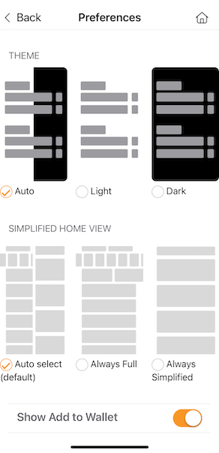
When a patron selects a different option, the app's appearance updates to reflect the selection.
Changing the theme
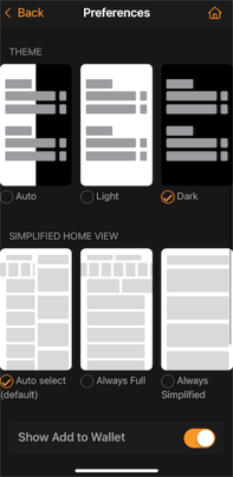
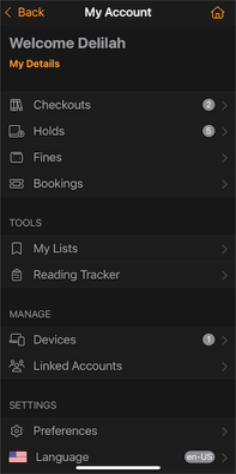
Patrons can change the theme by going to My Account > Preferences and locating the Theme section.
The Dark theme doesn't override the colors configured for the app home screen in the CMS. For example, if the home screen uses a white background, gray tabs, and black text, those colors remain the same when a patron selects Dark.
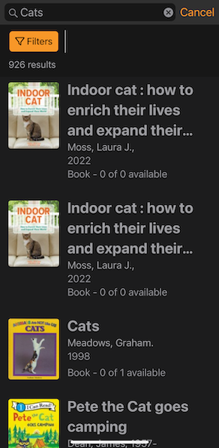
The theme preference applies to areas such as the My Account menu and related screens, Checkouts, search results, and the Item Details Display.
Simplified Home View
Simplified Home View lets patrons control how the app home screen is displayed.
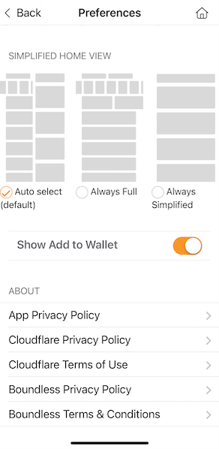
The following options are available:
-
Auto Select (default): Automatically selects the appropriate home screen layout based on the patron's device accessibility settings, including text size.
-
Always Full: Displays the tabs using the layouts configured in the CMS.
-
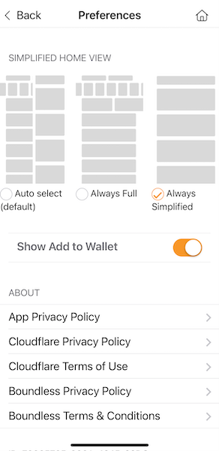
Always Simplified: Displays a streamlined version of the home screen.
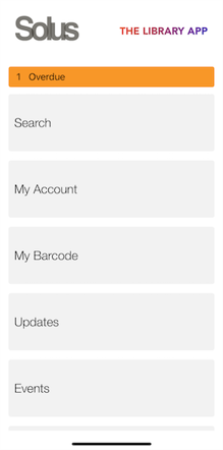
When Always Simplified is selected, only the Title of each tab appears on the home screen.
Changing the home screen layout
Patrons can change the layout by going to My Account > Preferences and locating the Simplified Home View section.
Simplified Home View is available automatically and doesn't require library configuration.
When a patron selects Always Simplified, the hamburger menu is hidden. As a result, the patron can't use the hamburger menu to access account-related options, including the option to change the display preference.
For this reason, it's best to include a Library Account tab on the home screen. The Library Account tab gives patrons access to their account when the hamburger menu isn't available.
