August 2026
New Specto Menu
Beginning with the August release, the new Specto menu will transition from opt-in to opt-out, meaning it will be enabled by default for all Alma customers unless you choose to disable it. General availability is planned for the November Release for all Alma customers.
The new Specto menu centralizes actions related exclusively to digital cataloging and digital content management.
The menu does not contain any new actions, but rather is a consolidation of the existing actions that relate to digital asset management.
All digital-only actions have been relocated to the new Specto menu, and any actions that are used for other use-cases have been duplicated into the Specto menu. The purpose is to simplify the workflows for those managing digital content, and to remove those actions from areas where they are not relevant.
To view the full list of the Alma Roles to which this menu will be available, see Specto Starter Menu Roles.
Metadata Pane in the Embedded Viewer
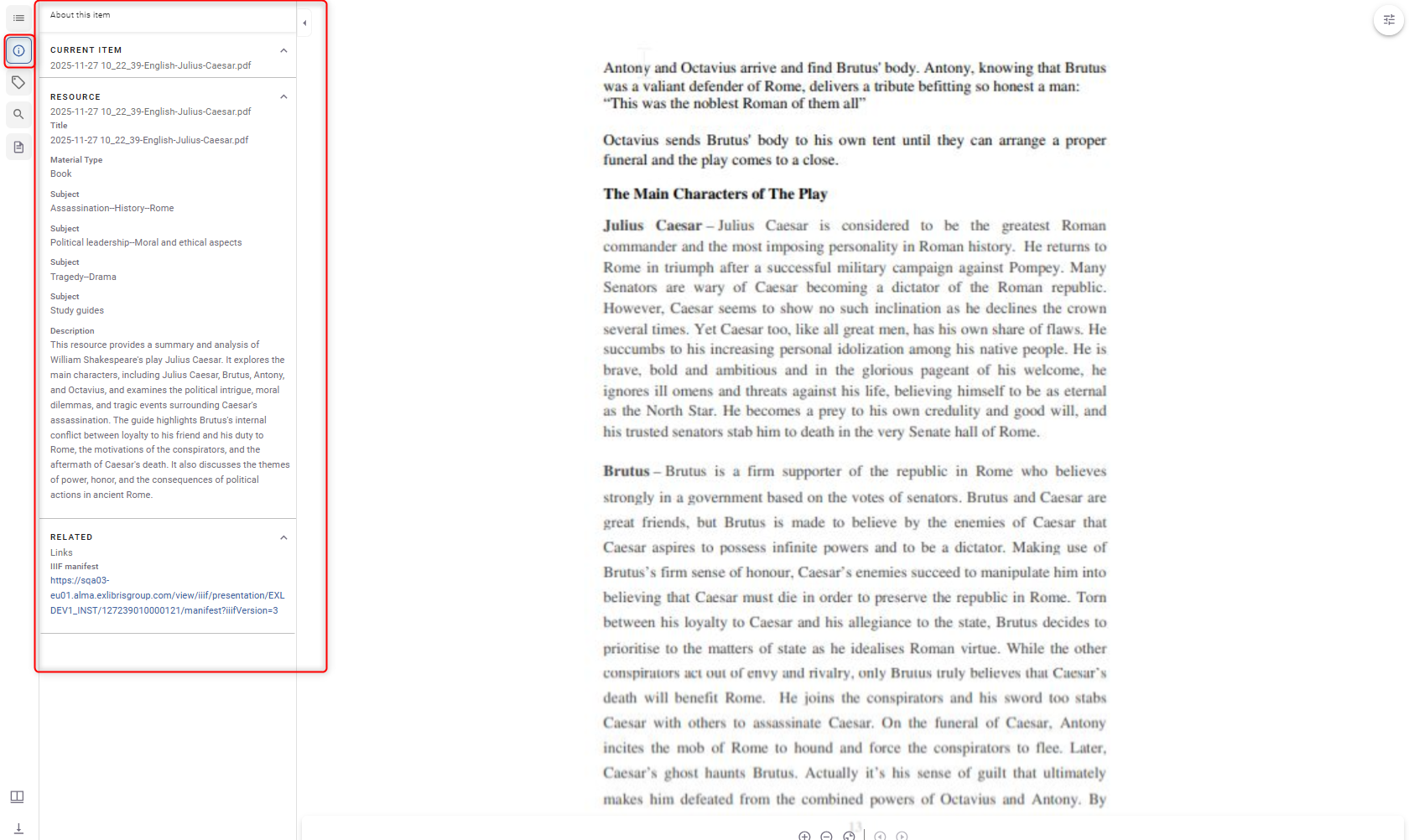
A new Metadata pane is now available in the Mirador embedded viewer, enabling users to view descriptive metadata directly within the viewer while examining a digital resource. The metadata pane is accessed from the Information (i) icon in the viewer's left sidebar and is closed by default. Metadata displayed in the pane uses the same normalized and formatted metadata presented in Primo, ensuring a consistent experience across discovery and viewing workflows. This enhancement is available for end users in the Primo NDE interface and for staff users working in Alma. To learn more, see Viewer Servies.
Impact:
-
View descriptive metadata without leaving the viewer or scrolling to another part of the page.
-
Gain immediate context about a digital resource while examining its content.
-
More easily identify and evaluate digital materials by keeping descriptive information available alongside the resource.
-
Move between discovery and viewing workflows with a consistent metadata experience across Primo and the embedded viewer.
NDE Digital Viewer Configuration in Viewer Services
A new NDE Digital Viewer section has been added to Viewer Services, enabling Digital Managers to configure how the Mirador-based viewer displays and behaves when presenting digital content in NDE.
Available configuration options include:
-
Default display layout (Single Page, Book, Thumbnail, or Scroll)
-
PDF zoom behavior
-
Paging direction based on content language
-
Display of the original image download link
In addition, Digital Managers can create rules that automatically apply Book View for content that matches defined criteria, such as a specific material type.
The configuration is managed from a dedicated NDE Digital Viewer section within the existing Viewer Services page.
Impact
-
Tailor the digital viewing experience to different types of content without requiring development changes.
-
Automatically present content in the most appropriate layout, such as opening books in Book View.
-
Control what information and viewing options are available to end users.
-
Provide a more consistent and optimized viewing experience based on the characteristics of the displayed content.
Select All Results to Run a Job
You can now select all items in a collection or list when running a job, including items that are not currently displayed on the screen.
When you select the checkbox at the top of the results list, Specto displays an option to select all results in the collection. Selecting this option includes all items in the current collection, not just those visible on the current page. When you run a job, Specto automatically creates a temporary set containing the selected items and executes the job on that set.
To run a job on all items in a collection:
-
Open a collection or list in Specto.
-
Select the checkbox at the top of the results list.
-
In the selection message that appears, select Select all results in the collection.
-
Click Run a Job.
-
Select the job that you want to run and continue as usual.
-
Specto creates a temporary set containing all items in the collection and runs the selected job on that set.
Impact:
Run jobs on an entire collection without manually selecting items across multiple pages.
Save time when performing bulk operations on large collections.
Confidently apply jobs to all relevant items, including results that are not currently visible on the screen.
Streamline collection management workflows by reducing the effort required to perform large-scale updates and actions.
Manually Select a File for Exhibition Builder
You can now choose which file within a title is used in Exhibition Builder, giving you greater control over how digital content is presented in exhibitions.
Previously, when a title was sent to Exhibition Builder, the system automatically used the first file from the first representation. With this enhancement, staff can select a specific file within the Specto representation to represent the title in the exhibition.
A new Mark for Exhibition action is available from the File List in the Digital Resource Editor. The selected file is identified by an In Exhibition indicator, making it easy to see which file is currently configured for use in Exhibition Builder. Only one file can be marked for exhibition per title at a time.
Impact
-
Choose the most appropriate file to represent a title in an exhibition.
-
Improve the presentation of curated content by selecting the file that best supports the exhibition narrative.
-
Maintain greater control over how digital resources appear in Exhibition Builder.
-
Easily identify which file is currently configured for exhibition use.
-
Update exhibition content selections without changing the title structure or representations.
Download Restrictions for Staff Users in the Back Office
You can now enforce download restrictions for staff users in Alma back office, ensuring that access rights are respected when downloading digital content.
A new Enforce Download Restrictions for Staff Users setting has been added to Fulfillment > Discovery Interface Display Logic > Other Settings. When enabled, Alma applies access-rights checks before allowing staff users to download digital content.
If a staff user does not have the required permissions, the download is blocked. Depending on the access point, Alma either displays a message indicating that the user does not have permission to download the content or removes the download option entirely.
The restriction applies to download actions throughout the back office, including file lists, search results, the Digital Resource Editor, and the Download Digital Titles Inventory job.
To enable download restrictions for staff users:
-
Navigate to Fulfillment > Discovery Interface Display Logic > Other Settings.
-
Select Enforce Download Restrictions for Staff Users.
-
Save your changes.
After the setting is enabled, Alma verifies staff access rights before allowing digital content to be downloaded.
User Interface Changes
-
Added the Enforce Download Restrictions for Staff Users setting to Other Settings.
-
Staff users without the required permissions receive a message when attempting to download restricted content.
-
In the Mirador viewer, download options are hidden when the user does not have permission to download the file.
-
The Download Digital Titles Inventory job now validates download permissions before processing files. If a restricted file is detected, the job is canceled and a message is added to the job report.
Impact
-
Protect sensitive digital content by enforcing existing access-rights policies in the back office.
-
Prevent unauthorized staff users from downloading restricted files.
-
Help ensure that staff access to digital content aligns with institutional policies.
-
Reduce the risk of unintended access to restricted materials.
-
Provide a more consistent permissions experience across staff and end-user workflows.
Handle New or Already Migrated Files in the Risk Recommendations
Specto now tracks whether a file has already been migrated for preservation and uses this information when generating risk recommendations. Files that have been successfully migrated are identified as Migrated for Preservation, allowing the system to exclude them from future recommendation sets for the same risk.
In addition, when new files matching an existing risk are identified, Specto updates recommendations more intelligently. New files can be added to existing recommendations or included in a new recommendation, depending on the status of the original recommendation.
How it works
-
Files that have been migrated to a preservation target representation are marked as Migrated for Preservation.
-
Risk recommendation sets include only files that have not been migrated for preservation.
-
If newly identified files match a risk that has already been handled, Specto creates a new recommendation containing only the newly identified files.
-
If a risk recommendation is still active, newly identified files are added to the existing recommendation.
-
Recommendations remain aligned with the current state of files and representations as preservation activities occur.
User Interface Changes
-
Added a Migrated for Preservation indicator for files.
-
Risk recommendation sets now automatically exclude files that have already been migrated for preservation.
-
Recommendations are updated when files are migrated, removed, or newly identified for an existing risk.
-
Recommendation statuses are preserved when no new files are identified for a previously handled or dismissed risk.
Impact
-
Focus preservation efforts on files that still require attention.
-
Reduce duplicate work by preventing already migrated files from reappearing in risk recommendation sets.
-
More easily identify which files have already been addressed through preservation migration workflows.
-
Keep risk recommendations synchronized with ongoing preservation activities and content changes.
-
Improve the accuracy and relevance of preservation risk management workflows.
Easier Collection Selection When Adding Digital Representations
Selecting a collection when creating a new digital representation is now faster and more streamlined.
Previously, when you selected Select from a list while assigning a representation to a collection, the collection selection dialog opened without any results and required you to perform a search before available collections could be displayed. The dialog now opens with a pre-populated list of collections that you have access to, while preserving the existing search capabilities.
This enhancement is available in multiple workflows that require collection selection, including Add Digital Representation, Import Profiles, and Deposit Profiles.
To select a collection from the list:
-
Open a workflow that requires a collection selection, such as Add Digital Representation, Import Profiles, or Deposit Profiles.
-
Select Select from a list.
-
Review the list of available collections displayed in the selection dialog.
-
Optionally, search or filter the list to locate a specific collection.
-
Select the desired collection and continue with the workflow.
User Interface Changes
-
The collection selection dialog now opens with a list of available collections.
-
Existing collection search functionality remains available.
-
A Look-up or select helper prompt is displayed in the collection selection field.
-
The enhancement is available wherever users select collections in supported Specto workflows.
Impact
-
Find and select the appropriate collection more quickly when creating or configuring digital content.
-
Reduce the number of steps required to assign representations to collections.
-
Browse available collections immediately without performing an initial search.
-
Continue using existing search capabilities when working with large numbers of collections.
-
Streamline representation creation, import, and deposit workflows.
