
September 2026
Supporting Cross-Collection Processing
Running Specto processes at different hierarchy levels and across the institution's catalog now allows institutions to benefit from entity grouping, AI recommendations and user suggestions across their catalog.
For example, an entity tagged in a specific subcollection that also appears in another unrelated collection receives a recommendation based on the original tagged entity.
Collection-level entity groups continue to reflect the relevant entities and actions from within the context of each collection. When moving up the hierarchy the entity groups contain all entities from that collection and its subcollections.
This change enables more accurate processing and better recommendations by supporting hierarchy-aware and cross-collection workflows.
Supporting Subcollection Processing
You can now run Specto Digital Metadata Assistant from all subcollection levels, enabling more targeted processing within a collection hierarchy.
With this enhancement, the Digital Metadata Assistant action is also available from subcollections, allowing you to work on a specific section of the hierarchy while maintaining the same Specto workflows and functionality.
When launched from a subcollection, Specto processes the selected subcollection and all of its descendant collections. In addition, subcollections can now be selected for import into Exhibition Builder.
Flexible Entity Tagging
Entity tagging now provides greater flexibility when creating tags without using an authority record.
When manually creating an entity tag, you can enter either a simple name, (e.g., "Einstein, Albert"), or a complete metadata field containing subfields (e.g., $$a Einstein, Albert $$x... ). If only a name is entered, Specto automatically treats the value as subfield $$a for MARC21 and UNIMARC, and as a full value for DC, preserving the metadata structure while simplifying the tagging process.
Existing tagging workflows remain unchanged, and users can continue entering full metadata fields when needed.
Exhibition Builder: Create Exhibitions with Maps
You can now create map-based exhibitions in the Exhibition Builder, enabling visitors to explore collection content through an interactive geographic view.
In addition to the existing Gallery and Timeline templates, Exhibition Builder now includes a Map template that displays exhibition items according to their geographic locations on an interactive map. Locations are derived from the item's geographic metadata and visualized on the map, allowing audiences to discover content through places and regions.
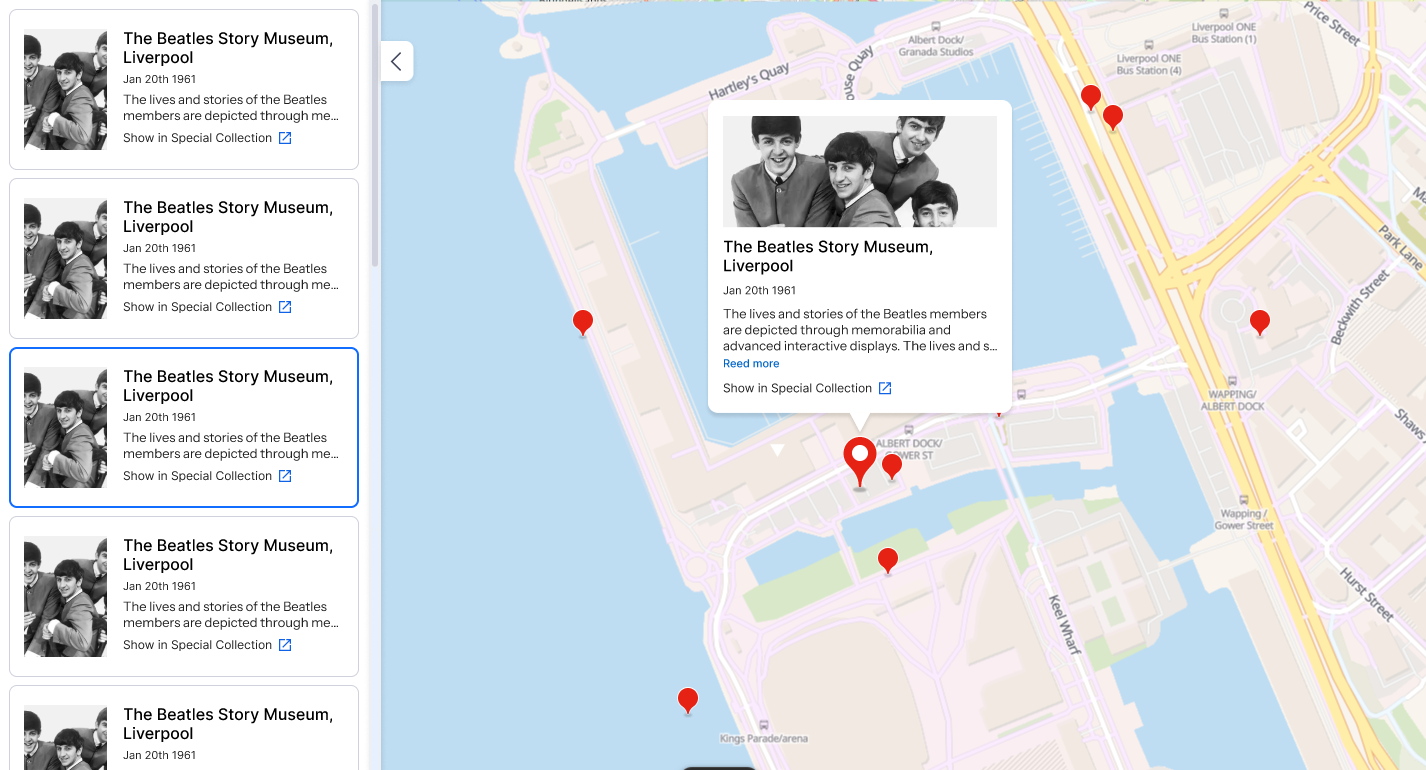
To select the map, you import the Specto App Map widget from the App Widgets list.
Map-based exhibitions display items both as markers on the map and as item cards, helping users to explore content through geographic relationships while maintaining access to the exhibition's descriptive information and source materials.
For more information, see the Exhibition Builder Workflow page.
Exhibition Builder Workflow
When creating or editing an exhibition, you can now select Map as the exhibition template.
The Map template supports configurable item cards, allowing curators to determine which metadata fields are displayed for exhibition items. The location information can also be managed and updated through the Exhibition Builder workflow.
User Interface Changes
-
Added a new Map template to Exhibition Builder, available for selection as a "preset" option or can be imported directly via the "App Widgets".
-
Added support for displaying exhibition items on an interactive map using geographic metadata.
-
Added Location as an available field for exhibition item cards.
-
Added support for viewing and managing location information within the exhibition workflow.
-
Added a new Location column to the Wix CMS table.
-
Exhibition items are displayed as both map markers and content cards.
-
Map exhibitions are available alongside existing Gallery and Timeline exhibition types.
NDE Embedded Viewer: Limited Options for Image Download Links
The Primo NDE embedded viewer now presents a simplified set of image download options, making it easier for users to select the appropriate download size.
With this enhancement, Mirador uses the predefined image sizes provided by the image service and limits the available download options to a smaller set of labeled sizes. Depending on the available image variants, users may see up to three download options: Small, Medium, and Large.
When enabled, the Original Source File option continues to be available as a separate download option.
This enhancement applies to image files displayed in both the Primo NDE and Alma back office viewers.
NDE Embedded Viewer: Time-Synced Transcripts for Audio/Video Content
Audio and video transcripts are now available in a dedicated Transcript pane in the NDE embedded viewer , making it easier to read, search, and navigate audiovisual content.
When captions or subtitles are available, the transcript is displayed separately from the media player and can be searched in the same way as full text content. For transcripts that include timestamps, the transcript and media playback remain synchronized. Selecting a transcript entry moves playback to the corresponding point in the recording, while playback automatically highlights and follows the active transcript text..
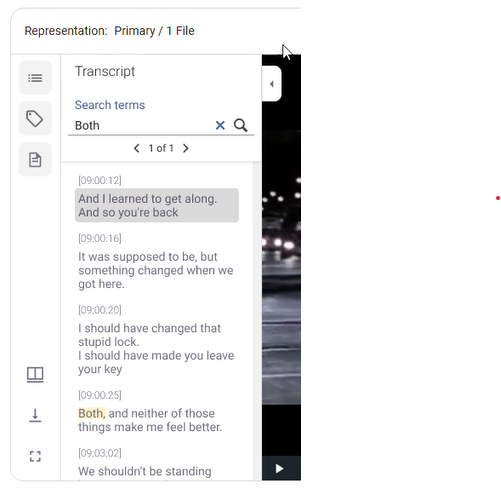
For multilingual content, the transcript automatically updates to match the selected subtitles or captions language.
User Interface Changes
-
Dedicated Transcript pane for audio and video content in the Mirador viewer.
-
Transcript search with highlighted search results.
-
Timestamp display for transcripts that contain time information.
-
Synchronization between transcript entries and media playback.
-
Sync to Video option that returns the transcript view to the currently playing section.
-
Transcript content updates automatically when users switch subtitle or caption languages.
Easier Collection Selection When Adding Digital Representations
Selecting a collection when creating a digital representation is now faster and more intuitive.
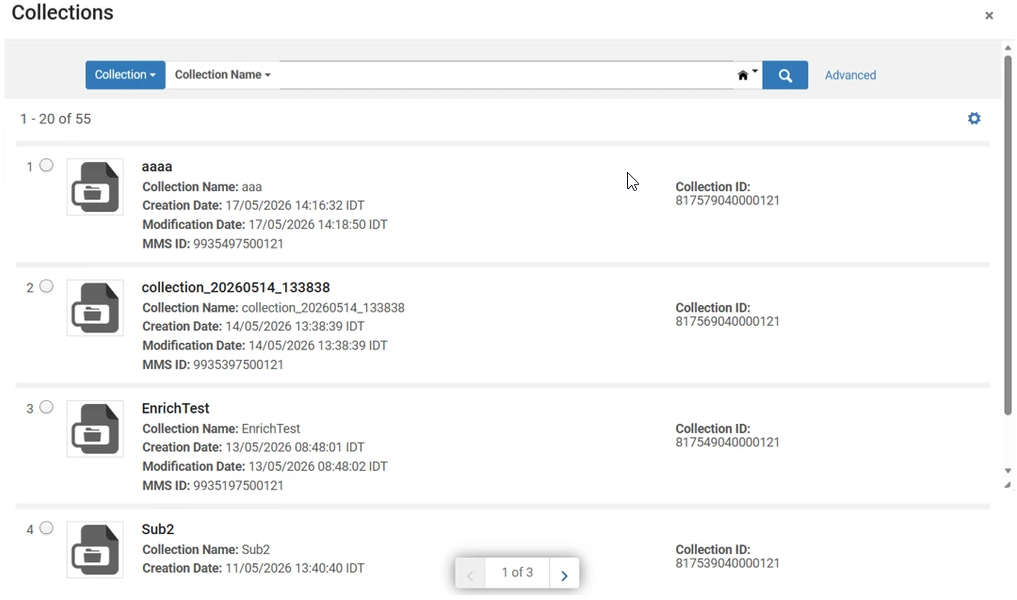
The dialog while assigning a representation to a collection now opens with a pre-populated list of your collections to select from , allowing you to immediately browse and select a collection while retaining the existing search functionality.
This enhancement is available in workflows where collection selection is required, including Add Digital Representations, Import Profiles, and Deposit Profiles.
User Interface Changes
-
The collection selection dialog now opens pre-populated with available collections.
-
Added a Look-up or select helper prompt in the collection selection field.

GND Authority Support in AI Metadata Enrichment
Specto Metadata Enrichment now supports the GND authority vocabulary, extending multilingual authority support for institutions that catalog using German-language subject authorities.
When GND is configured as the subject authority vocabulary, AI-generated subject enrichments are automatically validated against GND authority records. Matching LCSH subject headings are replaced with the corresponding GND preferred terms, ensuring that enriched metadata aligns with the institution's authority cataloging practices. Subject suggestions that cannot be mapped to a GND authority record are excluded from the enrichment results.
This enhancement is available in both the Metadata Editor (MDE) and the Digital Metadata Assistant workflows.
Added Physical Description (300 Field) for Document Enrichment
Metadata Enrichment now generates physical description metadata in MARC21 field 300 for document-type titles, providing richer and more complete enrichment recommendations.
When enriching document metadata, Specto automatically determines the physical extent of the resource and includes this information in the enrichment results. For image-based resources,the number of files associated with the document. PDF content is counted as 1 file.
The calculated physical description is added as a MARC 300 field and as a corresponding dc:format value. The generated values are presented in the cataloging language of the record and are available through both the Metadata Editor (MDE) and the Digital Metadata Assistant.
Exhibition Builder: Alt Text Support for Exhibition Images in Wix CMS
Exhibition Builder now supports Alt Text for images and media assets, helping curators create more accessible exhibition experiences.
A new Alt Text field has been added to the Wix CMS table and is automatically populated from metadata imported from Alma. When available, the field is populated using the item's Description. If no Description is available, the Title field is used instead. Curators can review and edit the generated content directly in Wix CMS to provide alternative text that best describes the image or media.
The Alt Text value is used by exhibition templates and assistive technologies, helping visitors who rely on screen readers understand the content presented in exhibitions. The alt text content does not appear on-screen (you may use the "Media Label" field for on-screen descriptions).
NDE Embedded Viewer: Search Within Video and Audio Transcripts in Primo
Primo now indexes transcript content from audio and video resources, making spoken content searchable and easier to discover.
When captions or subtitles are available for audio or video content, the transcript text is added to Primo's full-text search index. Users can now find multimedia resources by searching for words or phrases that appear in the associated transcript, even when those terms do not appear elsewhere in the record metadata.
This enhancement supports transcript files associated with audiovisual content and makes transcript content searchable alongside other indexed full text.
NDE Embedded Viewer: Display Office Files
You can now view Microsoft Office files directly within the NDE embedded viewer, eliminating the need to download files or link out before accessing their content.
The NDE embedded viewer now supports inline viewing of Word (.docx), PowerPoint (.pptx), and Excel (.xlsx) files. Rendering is handled automatically using an integrated Office viewing service.
When a file exceeds supported size limits or cannot be rendered, the NDE viewer displays a message and, when permitted, provides a download option instead.
NDE Embedded Viewer: Enable Download for Unsupported or Unknown File Formats on the NDE Record Page
Users can now access unsupported or unknown file formats directly from the NDE record page through a download option, eliminating the need to navigate to external viewers if the file cannot be displayed.
With this enhancement, unsupported files remain within the NDE viewing experience and display a message explaining that the file cannot be previewed. When download permissions allow, users are provided with a direct download option for the original file.
Access rights continue to be respected. Users without download permissions see an informational message but are not offered a download link.
NDE Embedded Viewer: On-Canvas Entity Highlighting and Tooltip for Images
The NDE embedded viewer now supports in-context discovery of extracted entities directly in the viewer .
When entity extraction data is available, faces and objects are displayed as highlighted regions on the image. Hovering over an entity reveals its location and displays a tooltip containing the entity name.
This enhancement allows users to interact with extracted entities directly within the content, without first opening the entity side panel.
