
Agrupar líneas de orden de compra en una orden de compra
Esta página describe cómo trabajar para agrupar líneas de orden de compra en una orden de compra e incluye agrupación manual y automática, revisar órdenes de compra y borrar órdenes de compra. For a list of links to pages with instructions for purchasing in Alma including creating PO lines, renewals, working with vendors, etc., see Purchasing. For information on the overall purchasing workflow see Purchasing Workflow. For an overview of working with acquisitions in Alma, including links to relevant sections such as Infrastructure, Renewals, Invoicing, etc., see Introduction to Acquisitions.
- Operador de compras
- Gerente de compras
La agrupación de líneas de orden de compra es el proceso de crear la orden de compra que será enviada al proveedor.
If the Manual packaging option was assigned during PO line creation (in the PO Line Information section of the Details pane – see Creating PO Lines), PO lines must be packaged manually into POs. If manual packaging was not assigned, PO lines are packaged automatically into a single PO if the PO Line - Packaging job is enabled (see Configuring Acquisition Jobs) and all the following properties match:
- Cuenta del proveedor
- Propietario
- Se ha creado el proveedor correctamente.
- Continuidad – Única vez/Continua
- Método de adquisición
- Source type – Source of the PO line creation for example Manual Entry (via the UI), API, EOD, etc.
- Biblioteca de pedidos
- Fund (if the po_packed_by_fund parameter is set to true; see Configuring Other Settings)
- Si la línea de orden de compra está asociada con más de un fondo, se genera un error y la línea de orden de compra debe ser agrupada manualmente.
- The maximum number of PO lines that will be added to each PO is controlled on the Acquisition Jobs Configuration page; see Configuring Acquisition Jobs.
- If a PO line is assigned to a user, the PO Line Packaging job will not be able to process it. En ese caso, tendría que liberar la asignación.
Agrupar dentro del flujo de trabajo de la compra
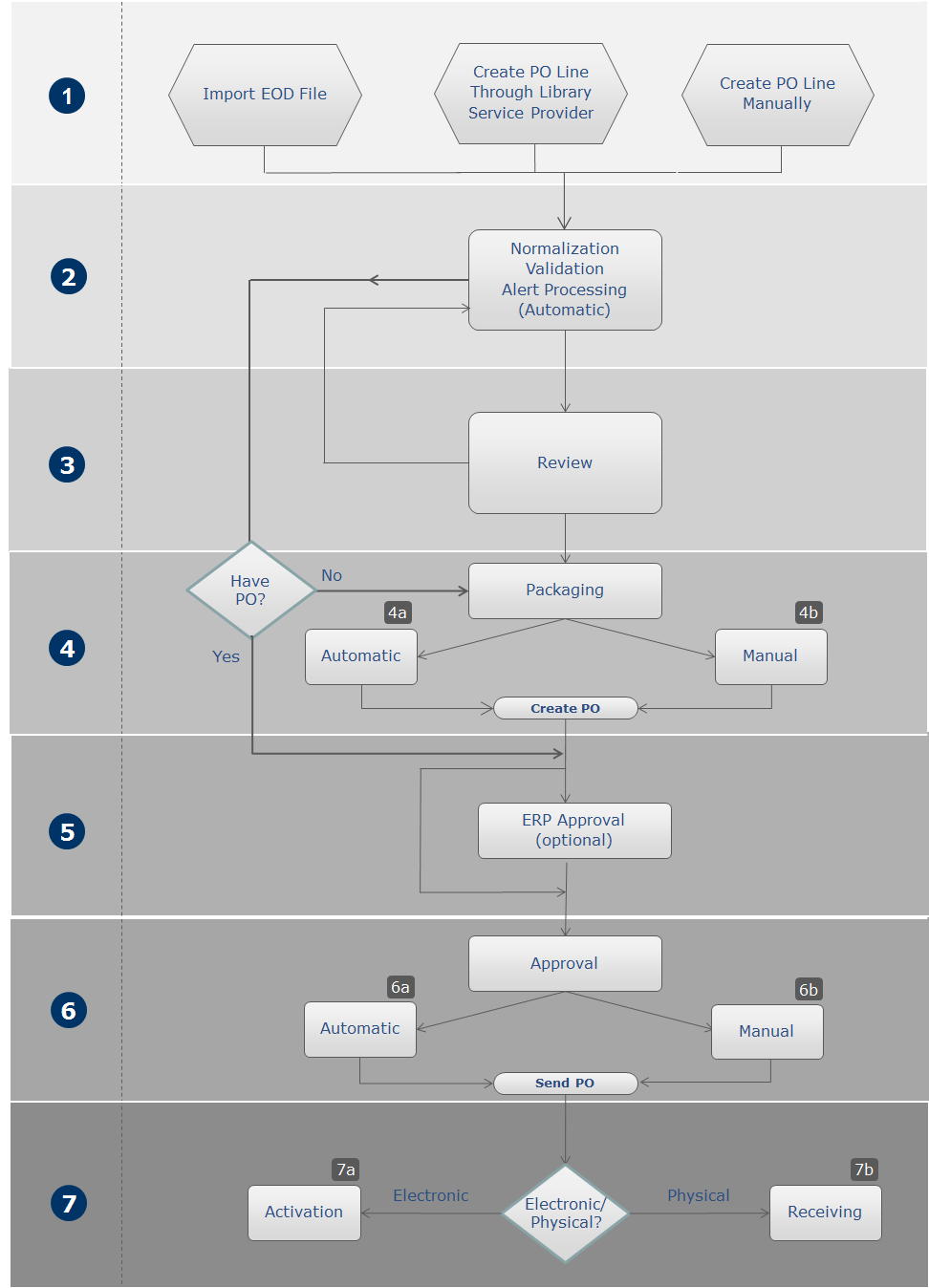
Gestionar líneas de orden de compra que requieren agrupación manual
You manage PO lines that require manual packaging in the PO Lines task list.
Ubicar líneas de orden de compra que requieren agrupación manual
You can find PO lines that require manual packaging by filtering the list of PO lines that appear in the task list (see Searching for PO Lines - New Layout).
- When the PO Line task list is open, in the Facets pane, under Workflow Step, select Manual Packaging.
- In the main menu, select Acquisitions > Purchase Order Lines > Package. The PO Lines task list opens with the Manual Packaging filter pre-selected in the facets.
- in the Tasks List in the persistent menu, under Order Lines, select Package(see Tasks in the Task List). The PO Lines task list opens with the Manual Packaging filter pre-selected in the facets.
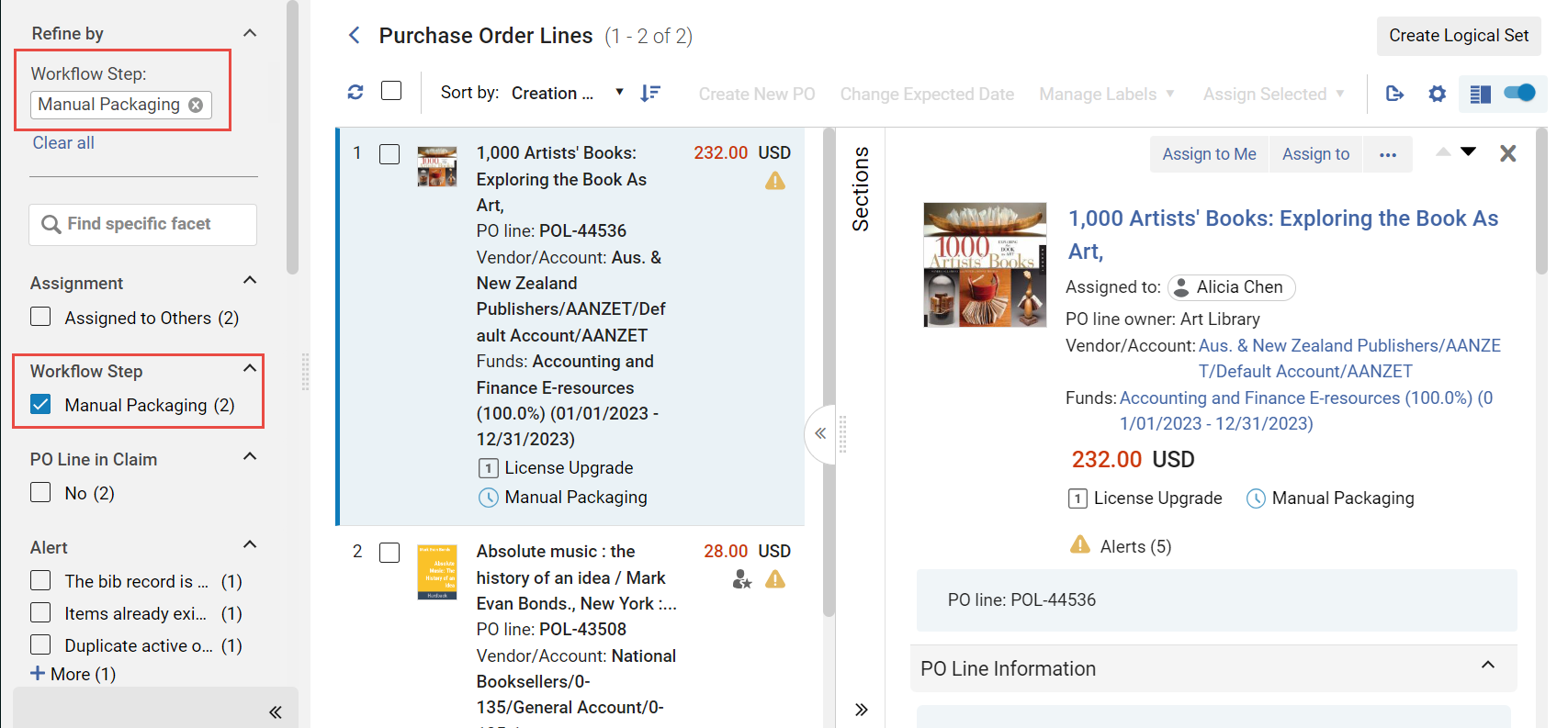
Acciones disponibles
Una vez que haya localizado una línea de orden de compra que requiera agrupación manual, puede seleccionar una de las siguientes opciones de sus acciones de fila:
- Edit – Edit the PO line. See Reviewing PO Lines.
- Create new PO – Package the PO line into its own PO. The PO is sent for approval (see Approving and Sending POs). If a purchase order's acquisition method is Purchase, the process stops at the approval stage.
- Order Now – Send the PO line to the vendor without waiting for approval (see Approving and Sending POs). If you select this option, the Order Now Letter is sent to you after the order is sent for processing. The vendor receives the order as an Order List Letter. For information on these letters, see Configuring Alma Letters.
- Defer – Defer the PO line. See Deferring PO Lines.
- Relink – Relink the PO line. See Relinking PO Lines.
- Change Bib Reference – Change the bibliographic reference of the PO line. See Changing Bibliographic Reference.
- Cancel – Cancel the PO line. See Canceling PO Lines.
- Delete – Delete the PO line. See Deleting PO Lines.
Agrupar líneas de orden de compra
PO lines can be included in the same PO if they are for the same library, have a common vendor, vendor account and common currency, share the same order pattern (one-time/continuous), and share the same acquisition method and source type.
- En la lista de tareas de las líneas de orden de compra, seleccione la casilla de verificación a la izquierda de cada línea de orden de compra que desee incluir en la orden de compra.If the task list that is currently open has more than one page, you can select PO lines from multiple pages.
- In the Actions menu, select Create New PO(see also,Managing PO Lines - New Layout). The selected PO lines are packaged into a PO and the PO is sent for approval (see Approving and Sending POs).
Revisar órdenes de compra
- Operador de compras
Una orden de compra (PO) se envía a revisión si la información obligatoria es inválida o falta cuando se crea la orden de compra. After correcting or adding the mandatory information, the PO is packaged and moves to the Approval and Sending stage of the workflow (see Approving and Sending POs).
You review POs on the Orders in Review page (Acquisitions > Purchase Order (PO) > Review (PO)). You can also access this page by selecting the task Order Lines - Review (PO) in the Tasks List in the persistent menu (see Tasks in the Task List).
- On the Purchase Orders in Review page, select Edit in the row actions list for the PO you want to review. Aparece la página de Resumen de la orden de compra
- Editar los campos en esta página tal como se necesario.
- Los campos requeridos están marcados con un asterisco y deben ser completados antes de que la orden de compra pueda avanzar a la siguiente etapa del flujo de trabajo.
- El proveedor es solo de lectura y no puede ser editado en el resumen de la orden de compra. To change a vendor, run Acquisitions > Advanced Tools > Change Vendor in Order. See Changing Vendors in PO Lines and POs.
- When Integrate by ERP Number is selected for the Export Orders (PO) job (see Financial Systems), a PO's ERP number must be filled in for the PO to proceed to the next stage of the workflow. If ERP number is not filled in, the PO is sent to the ERP to receive a number, after which it is re-imported to Alma using the Import PO Approvals job. Si el número de ERP es completado, la orden de compra (después de que sea autorizada en Alma) es enviada al proveedor y al ERP simultáneamente.
- Seleccionar uno de los siguientes:
- Save – The PO is saved. Esta opción se utiliza si no se está seguro de querer que la orden de compra continúe hasta la siguiente etapa del flujo de trabajo de compra.
- Save and Continue – The information you modified is saved, the PO is packaged, and then proceeds to the approval and sending stage of the workflow (see Approving and Sending POs).
Al guardar una línea de orden de compra, se actualiza la fecha prevista de llegada de los ejemplares asociados con la línea de orden de compra.
On the Purchase Orders in Review page (Acquisitions > Purchase Order > Review), select View in the row actions list for the PO you want to view. Aparece la página de Resumen de la orden de compra No se pueden editar los campos de esta página.
- On the Purchase Orders in Review page (Acquisitions > Purchase Order > Review), select Edit in the row actions list for the relevant PO. Aparece la página de Resumen de la orden de compra
- In the PO line list tab, select Add PO Line. The list of PO lines that can be added to the PO appear. Tenga en cuenta que solo las líneas de orden de compra con el estado de 'Listo' para la agrupación manual aparecerán en la lista y están disponibles para agregarse a la orden de compra. If the PO Line is 'In Review', it will not display in the list until all errors in the PO lines's Alerts have been resolved and that status changes to 'Ready'.
- Seleccionar una o más líneas de orden de compra para ser añadidas
- Select Select. La/s línea/s de orden de compra es/son añadida/s a la orden de compra.
Once an EDI PO line has been packaged into a PO, the Download EDI File option appears in the row actions of the PO line. Select this option to download the PO that contains the PO line as an EDI file for review. El fichero EDI es creado ad hoc en base a los datos actuales de la orden. (Para que este enlace aparezca, el proveedor debe estar configurado como un proveedor EDI y la línea de orden de compra debe estar agrupada en una orden de compra).
Eliminar órdenes de compra
On the Purchase Orders in Review page (Acquisitions > Purchase Order > Review), select Delete PO in the row actions list and select Confirm in the confirmation dialog box.
Page tags: article:topicproduct:almacontent:Documentationlang:englishpackage purchase orderpackage POreview PODelete POadd PO line to PO
