
Revisar y gestionar líneas de orden de compra
This page describes how to review and manage PO lines, including the PO review workflow, editing PO lines in review or in the PO lines task list, bulk actions for PO lines, etc. For a list of links to pages with instructions for purchasing in Alma including creating PO lines, renewals, working with vendors, etc., see Purchasing. For information on the overall purchasing workflow see Purchasing Workflow. For an overview of working with acquisitions in Alma, including links to relevant sections such as Infrastructure, Invoicing, Configuration, etc., see Introduction to Acquisitions.
- Operador de compras
- Gerente de compras
- Operador de compras extendido
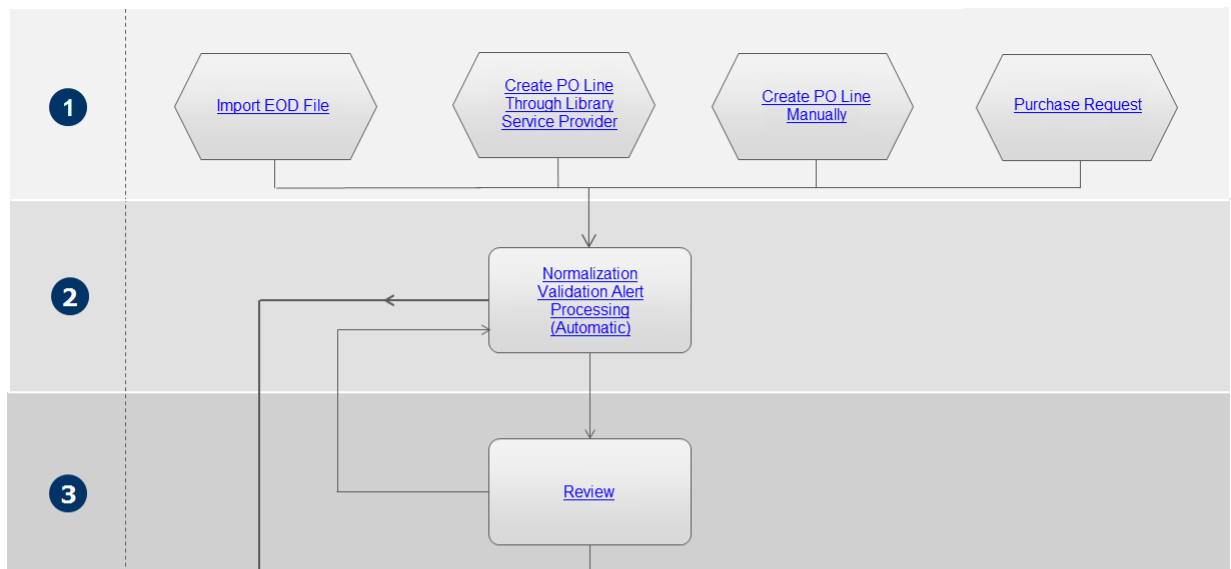
Flujo de trabajo de la revisión de líneas de orden de compra
Una línea de orden de compra se envía a revisión si hay problemas con los datos (tales como información incompleta/faltante o inválida) o alertas —como resultado de las Reglas de revisión de adquisiciones— requiriendo, por lo tanto, la atención de un empleado de la biblioteca.
Viewing the PO Lines that Require Review
Puede ver las líneas de orden de compra que requieren revisión en la página de Líneas de orden de compra.
Los operadores de compras pueden ver las líneas de orden de compra asignadas a otros usuarios, pero no pueden editarlas ni realizar ninguna acción en ellas.
- In the Purchase Order Lines page (Acquisitions > Purchase Order Lines > All PO Lines), in the Facets panel, under Workflow Step, select In Review.
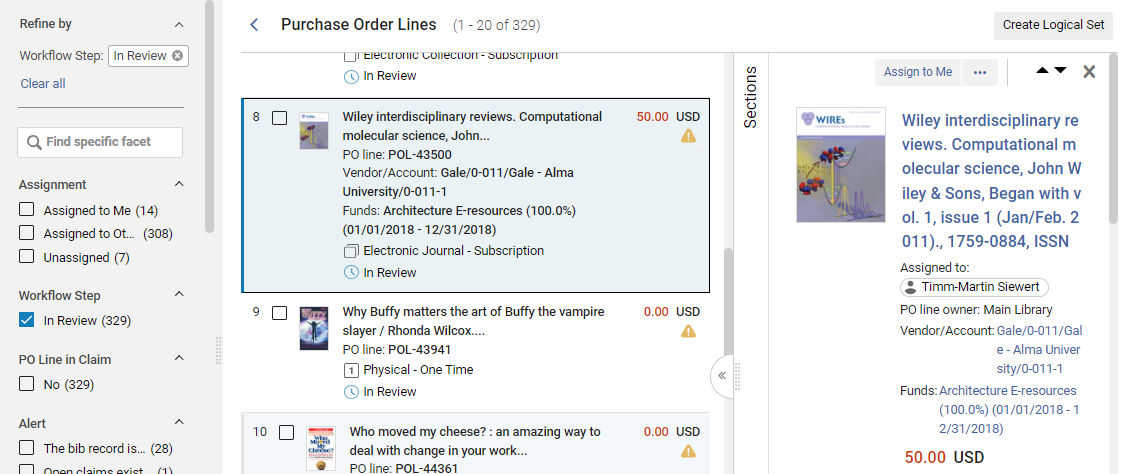
Puede usar las facetas para filtrar la lista y así poder ver líneas de orden de compra específicas. In particular, you may want to use the Assignment and Assigned User facets to filter the list based on the users to which the PO lines are assigned (see Using Facets to Refine Search Results).
You can also use the following shortcut to set the facets up so that you only see the PO lines that require review and are assigned to you:
- In the main menu, select Acquisitions > Purchase Order Lines > Review (PO Line).
Once this page appears, you can still refine the results further with the facets (see Using Facets to Refine Search Results).
Editing a PO Line In Review
PO lines in review can be edited to correct incorrect information, or to add missing information, in the Details pane. For editing PO lines in the task list see Editing PO Line Information. For information about the fields of a PO line, see Manually Creating a PO Line. For information about working with the Details pane, see New Layout 2022.
Puede editar cualquier línea de orden de compra que esté asignada a usted. Si una línea de orden de compra está asignada a otro usuario, podrá verla pero no editarla. Los operadores y administradores de compras pueden editar líneas de orden de compra sin asignar, pero los usuarios sin estos roles no. For information about changing the user assignment of a PO line, see Other Available Actions, below. Abajo hay instrucciones para editar una línea de orden de compra en revisión. For editing a PO line in general see see Editing PO Line Information.
- Ejecute alguna de las acciones siguientes para entrar en modo de edición:
- In the task list, select the Edit button (
 ).
- If the Details pane is opened, select the Edit button (
 ) that appears at the top of the pane.
- In the task list, select the Edit button (
- In the Details pane, edit the fields as required.
- When you have finished editing the PO line, select Save and Continue in its row actions. La línea de orden de compra regresa al paso 2 en el flujo de trabajo, donde se revalida (no está normalizada en este momento). Si la línea de orden de compra aún es inválida, es enviada una vez más a revisión. If all data issues have been resolved, the PO line proceeds to the Packaging step in the workflow (see step 4 in the workflow).
Otras acciones disponibles al revisar líneas de orden de compra
Dependiendo de la naturaleza de la línea de orden de compra en revisión, también están disponibles algunas o todas las opciones siguientes en sus acciones de fila:
- Assign to Me, Assign to, or Release assignment – A PO line that is unassigned can be assigned to yourself or to another user. A PO line that is currently assigned to a user can be reassigned to a different user, or it can have its assignment released, meaning that the PO line is no longer assigned to any specific user (see Assigned to Me, Unassigned, Assigned to Others). Una línea de orden de compra que es reasignada mientras está en revisión, permanece en revisión hasta que se rectifican sus problemas.
- Change Bib Reference – Enables you to link the PO line to a different bibliographic record (see Closing, Reopening, and Relinking PO Lines - New Layout).
- Cancel Line – When a PO line in review is canceled, its Workflow Step changes from In Review to Cancelled, but its is not removed from Alma. Cancelled PO lines can be found by using the persistent search box or selecting the Cancelled facet under Workflow Step. For more information on canceling PO lines, see Closing, Reopening, and Relinking PO Lines - New Layout.
- Order Now – Move the PO line to the normalization and validation stage (see step 2) of the purchasing workflow in preparation for its being packaged (see step 4) and sent. For more information on packaging PO lines, see Packaging PO Lines into a PO. If you select Order Now, you receive an Order Now message after the order is sent for processing. El proveedor recibe la orden en la forma de la Carta de lista de órdenes. For information on these letters, see Configuring Alma Letters.
- Defer – PO lines in review can be deferred for any reason. PO lines that are deferred are frozen in their current states until they are either reactivated (moved back to step 2 of the regular purchasing workflow), ordered (using the Order Now option), or canceled. For more information, see Deferring PO Lines - New Layout.
- Save and Start a Trial or Save and Request Evaluation – When a trial is requested or started for a PO line, it is automatically sent to the review task list. La línea de orden de compra se debe asignar a una persona para que pueda ejecutar cualquiera de las dos acciones. If you have the Trial Operator/Manager role, you can start the trial (Save and Start a Trial). Otherwise, you can request that a trial be started (Save and Request Evaluation). For more information on trials, see Evaluations and Trials.
- Delete – Deletes the PO line, as well as any transactions and inventory resources related to the PO line (see Closing, Reopening, and Relinking PO Lines - New Layout). To delete a PO line, you must have the Purchasing Operator Extended role.
- Save as Template – Saves some of the PO line's settings as a template that can be applied when new PO lines are created. For additional information, see Creating and Managing PO Line Templates.
- Change Currency - Changes the currency of PO lines that were packaged. For more information see Change Currency in PO Lines.
Abrir la lista de tareas de líneas de orden de compra
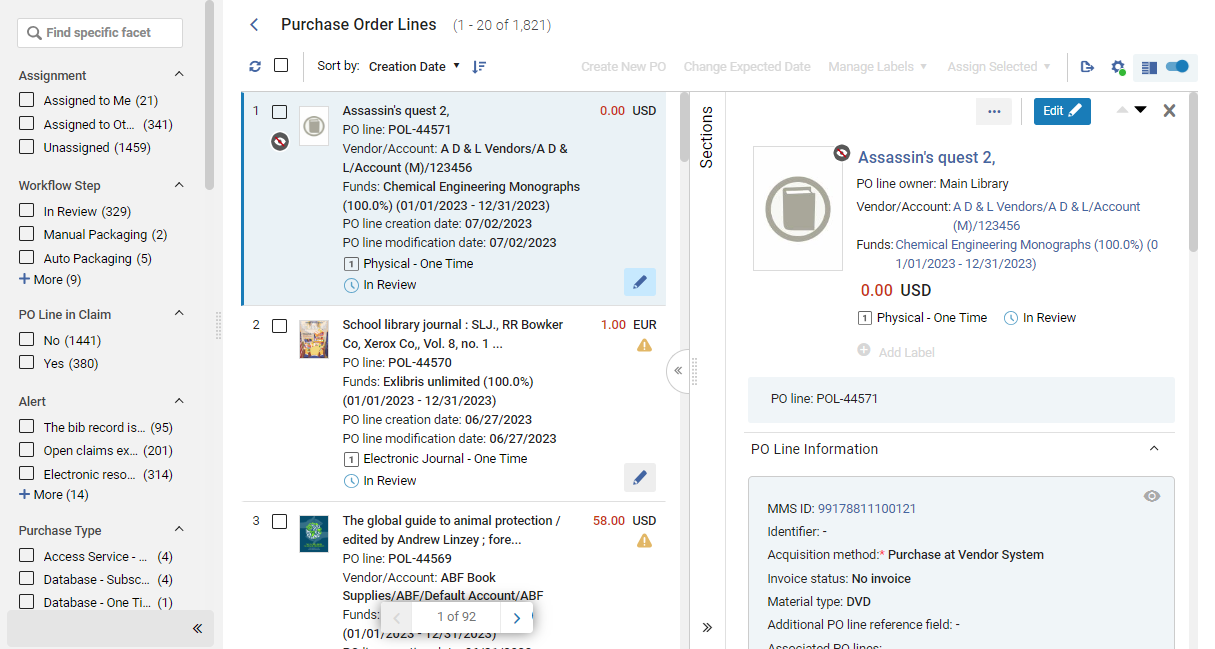
Se puede acceder a la lista de tareas de líneas de orden de compra de varias maneras:
- Navigate to Acquisitions > Purchase Order Lines > All PO Lines to open the task list with all the PO lines that exist included in it. You can then filter the list using the facets to locate the PO lines you want to work with; see Searching for PO Lines.
- In the persistent search bar, search for Order lines that meet certain conditions; see Searching for PO Lines.
- Select one of the pre-filtered options under Acquisitions > Purchase Order Lines:
- Review (PO Line) – Open the PO line task list with the Assigned to Me and In Review facets pre-selected.
- Package – Open the PO line task list with the Manual Packaging facet pre-selected.
- Claim – Open the PO line task list with the PO Line in Claim facet category set to Yes.
- Renew – Open the PO line task list with the Waiting for Manual Renewal facet pre-selected.
- Review Deferred – Open the PO line task list with the Assigned to Me and Deferred facets pre-selected.
- In the persistent menu bar, select the Tasks icon, and then, in the Tasks list, select one of the following pre-filtered options:
- Package – Open the PO line task list with the Manual Packaging facet pre-selected.
- Review (PO line) - assigned to you – Open the PO line task list with the Assigned to Me and In Review facets pre-selected.
- Review (PO line) - unassigned – Open the PO line task list with the Unassigned and In Review facets pre-selected.
- Renew – Open the PO line task list with the Waiting for Manual Renewal facet pre-selected.
- Claim – Open the PO line task list with the PO Line in Claim facet category set to Yes.
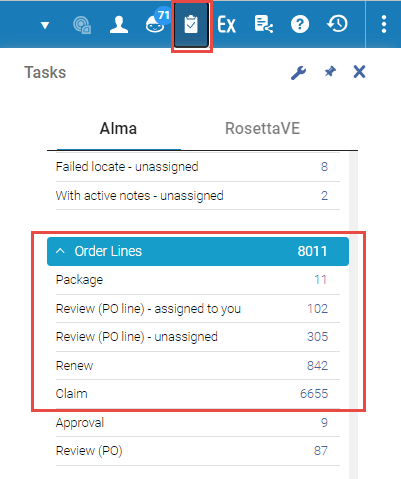
Regardless of how you open it, once the PO line task list is open, you can further sort it and change the facet settings as necessary to find the PO lines that you are looking for; see Searching for PO Lines.
Buscar líneas de orden de compra
For information about searching for PO lines and refining the search results using the facets, see Searching for PO Lines.
Editar la información de la línea de orden de compra
You can edit PO lines in the PO line task list, in the Details pane. For editing PO lines in review see Editing a PO Line in Review. For information about the sections and fields that appear in the Details pane, see Manually Creating a PO Line. No se puede editar una línea de orden de compra si está asignada a otra persona. Mientras se edita una línea de orden de compra, esta queda bloqueada y no puede ser editada por otros empleados de la biblioteca.
Las Líneas de orden de compra pueden ser editadas en cualquier etapa del flujo de trabajo de la línea de orden de compra, pero ciertos campos pueden nos estar disponibles para la edición dependiendo de la etapa del flujo de trabajo/el estado de la agrupación. Por ejemplo:
-
Acquisition method is editable only when the PO line is in the In Review status.
-
Currency,Location, and Material supplier are editable only if the PO line has not yet been packaged.
- Locate the PO line in the PO line task list, as explained under Opening the PO Line Task List, above.
- Ensure the PO line is not currently assigned to someone else.
- Select Edit(in the task list or the Edit buttonat the top of the Details pane) to switch to Edit mode. The information in the Details pane becomes editable.
- Edite la información según sea necesario.
- Select Save. Los cambios se guardan.
For PO lines in review the process is quite similar apart from how to save and continue the process. For details see Editing a PO Line in Review.
Las actualizaciones en la línea de orden de compra se reflejan en el inventario relacionado como, por ejemplo, en el tipo de material.
Reemplazar el recurso asociado a una línea de orden de compra electrónica
When you are editing an electronic PO line (Collection or Portfolio), you can detach the existing resource from the PO line and replace it with another electronic resource. This enables you to avoid having to delete a PO line if it was associated with the wrong electronic resource.
Esta operación está disponible para cualquier tipo de recurso electrónico, pero el recurso de sustitución debe ser del mismo tipo que el recurso original. For example, if the currently selected resource is Electronic Portfolio, only another Electronic Portfolio can be selected as the new resource.
Un recurso de sustitución puede pertenecer a la Zona de la institución, a la Zona de la Comunidad o a la Zona de red. An indication of the zone with which the resource is associated appears in the Ordered Portfolios section of the electronic PO line's Details pane, with color coding indicating whether the resource is available or not (see Manually Creating a PO Line).
The Replace Resource function can be used to handle purchasing and activation of electronic resources that are handled by a Network Zone (see Handling Electronic Resources that Are Managed in a Network Zone, below).
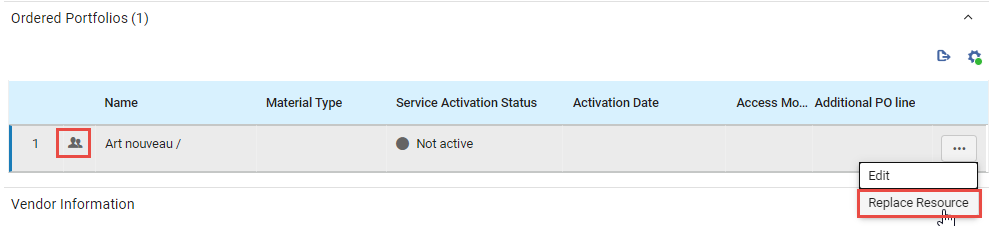
Reemplazar un recurso
Se puede cambiar el recurso asociado a una línea de orden de compra electrónica. If the resource being replaced is associated with a different bibliographic record from the new resource, the PO line will be associated with the new bibliographic record.
- Select Edit to switch to Edit mode.
- In the Ordered Portfolios section, in the row actions of the portfolio, select Replace Resource. The Electronic Portfolios page opens in a sliding panel, with the persistent search bar at the top.
Si el recurso que se sustituye está asociado a un registro bibliográfico diferente, puede que se le pregunte si desea mantener el registro bibliográfico en el repositorio o eliminarlo. If this occurs, choose one of the options, and then select Save.
If you choose to delete the resource, when Alma performs the resource replacement for the PO line, it also checks whether the bibliographic record of the original resource has any other inventory associated with it. Si no tiene ningún otro inventario, se borra. You will only see this prompt if the pol_handle_bib_record_without_inventory customer parameter is set to MANUAL. For additional information about this parameter, see Configuring Other Settings (Acquisitions).
- In the persistent search bar, search for the portfolio you want to order instead of the current portfolio.
- When you have located the resource, select the button beside its number in the list of search results.
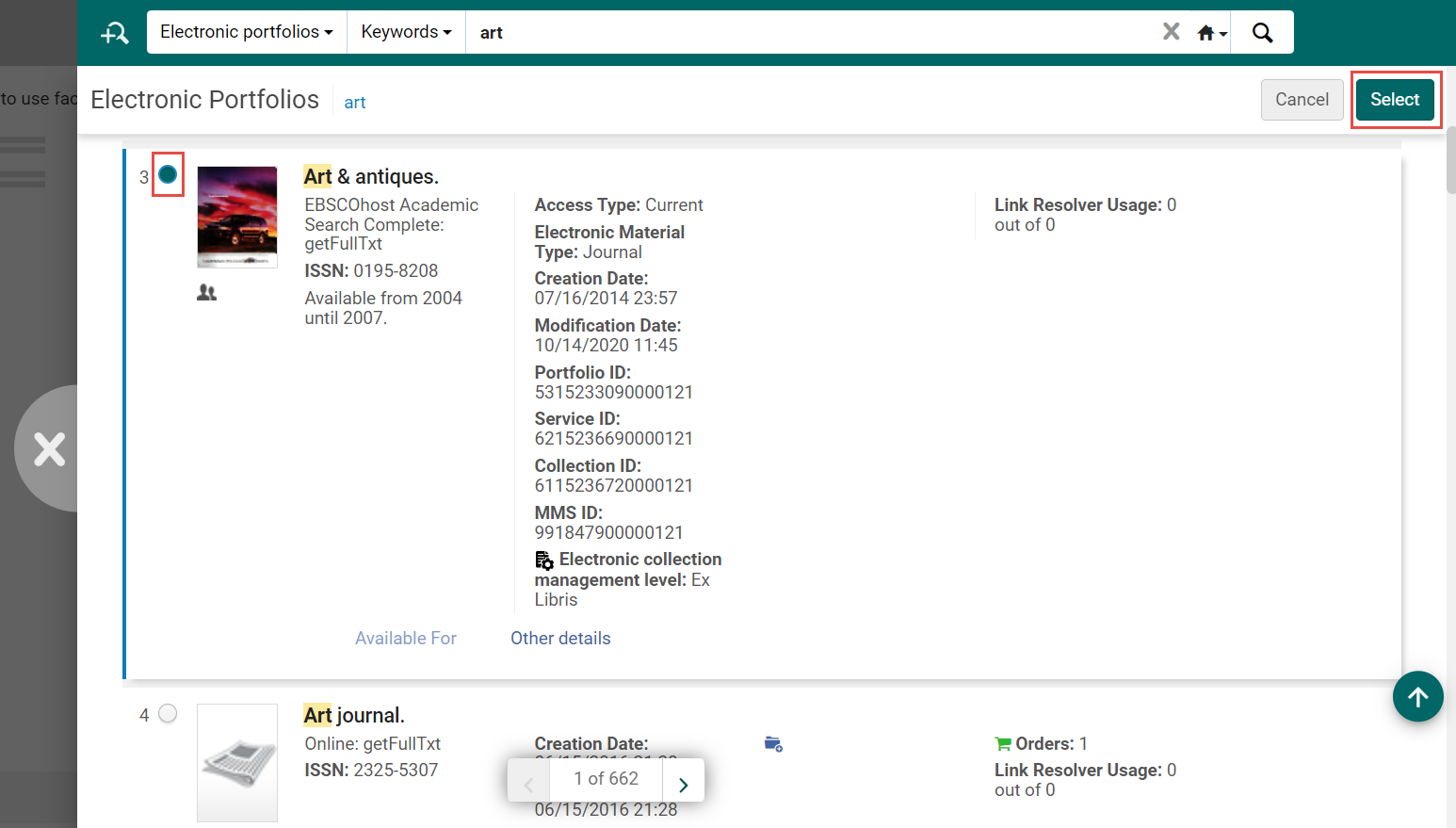
- Select the Select button. El panel deslizante se cierra y el portafolio que seleccionó reemplaza al anterior en la línea de la orden de compra.
- Select Save to save the change in the PO line.
Manejar recursos electrónicos que son gestionados en una Zona de red
Institutions that are part of a Network Zone whose electronic resources are managed by the Network Zone (although the institution's purchases are handled locally) can perform the following steps to purchase and activate an electronic resource:
- Crear una Línea de orden de compra local asociada a un recurso electrónico.
- Enviar la orden al proveedor.
- Once the resource is available, ask the network institution to enable the electronic resource in the Network Zone and make it Available for them.
- Use the Replace Resource function to replace the resource currently associated with the PO line with the Network Zone resource that was made available.
Si la línea de orden de compra no tiene licencia y el recurso de la Zona de red sí la tiene, la licencia de la Zona de red se asociará a la línea de orden de compra. Si la línea de orden de compra tiene licencia y el recurso de la Zona de red la tiene también, la licencia de la Zona de red no se asociará a la línea de orden de compra.
Performing Global Changes on Selected PO Lines
Puede realizar ciertas acciones masivas en líneas de orden de compra seleccionadas que aparezcan en la lista de tareas de la línea de orden de compra. These actions can be selected in the Bulk Actions menu (see New Layout 2022), which becomes available when one or more PO lines are selected in the task list.
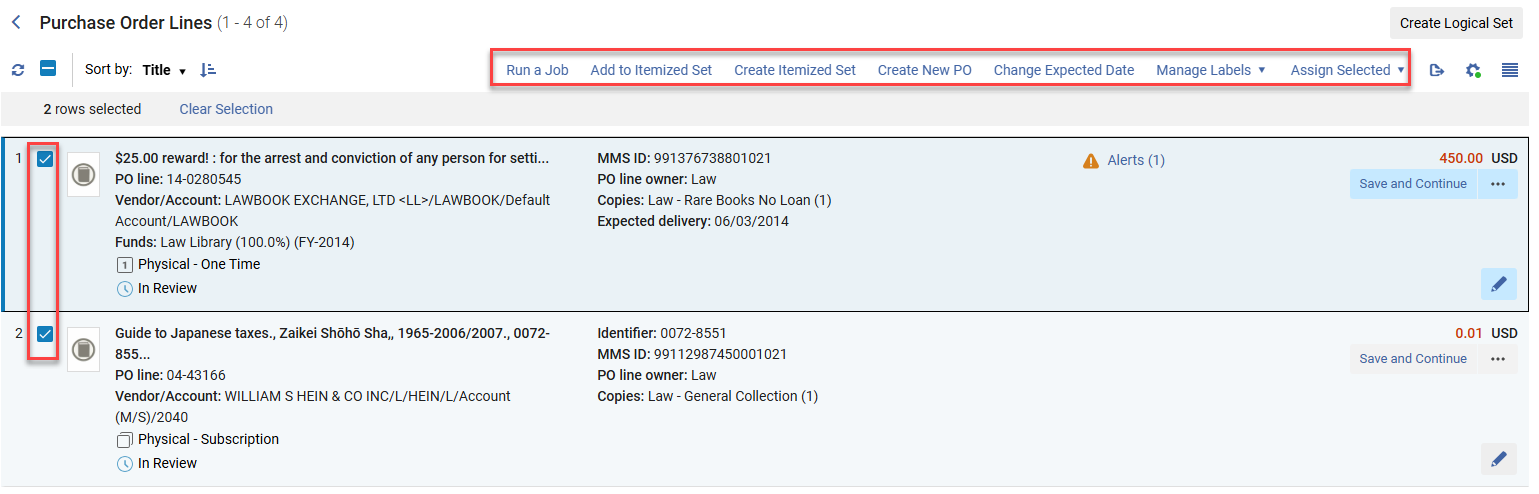
- Seleccione su casilla de verificación.
If the task list that is currently open has more than one page, you can select PO lines from multiple pages.
Las acciones disponibles son:
- Run a Job – Run a job on selected PO lines; see Manual Jobs.
- Add to Itemized Set – Add selected PO lines to itemized sets; see Managing Search Queries and Sets.
- Create Itemized Set – Create an itemized set from selected PO lines; see Managing Search Queries and Sets.
- Create New PO – Package the selected PO lines into a purchase order; see Packaging PO Lines into a PO.
- Change Expected Date – Update the expected dates of PO lines that are in claim; see Processing Claims.
- Manage Labels – Add labels to or remove labels from the selected PO lines; see New Layout 2022.
- Assign Selected – Assign the selected PO lines to yourself or to another user, or release the assignment of the selected PO lines that are currently assigned to you: In the dialog box, select the required option, and then select Assign to selected.
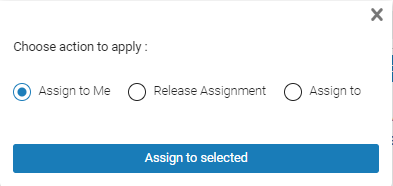 Seleccionar la acción de asignación para las líneas de orden de compra seleccionadas
Tras ejecutar la acción Asignar selección, en la parte superior de la página se muestra información sobre los resultados, incluido el número de éxitos y fracasos.
Realizar cambios globales en conjuntos de líneas de orden de compra
- Operador de compras
- Gestor de compras
- Administrador de adquisiciones
- Administrador general del sistema
To change a list of PO lines, you must first create a PO line set; see Managing Search Queries and Sets.
Ejecutar una de las siguientes tareas:
- Update PO Lines Workflow – Move PO lines to a specific stage in the workflow
- Update PO Lines Transactions – Modify PO line allocation between funds
- Update PO Lines Information – Update PO line information according to specified conditions
- Update PO Lines Information - Advanced – Modify PO line attributes after an order is created and sent to the vendor
- Change PO Lines Status – Choose a status (Cancel,Close, or Delete) to which to change a set of PO lines
- Update PO Lines Interested Users – Update the list of interested users defined for a set of PO lines
For more information about these jobs, and manually running jobs in general, see Manual Jobs.
Communicating with Vendors
- Operador de compras
- Gerente de compras
- Gerente de proveedor
You can communicate with the vendor of a PO line from the Communications section of the PO line Details pane, which opens the Communications page in a sliding panel. La comunicación puede consistir en cualquiera de las siguientes instancias:
- Enviar un nuevo correo electrónico al proveedor.
- Ingresar manualmente una respuesta del proveedor (incluso si se recibió por correo electrónico)
- Enviar una respuesta al proveedor
Communications handled by this page are primarily manual – the user manually enters a message and sends it, and manually enters any responses received from the vendor. La excepción son las notificaciones de reclamaciones, que, dependiendo de la configuración de su sistema, pueden ser enviadas automáticamente por Alma. Cuando esto sucede, aparecen en el historial de comunicaciones en la página Comunicaciones.
The communication options described in this section are also available in the Communications tab of the vendor record (Acquisitions > Acquisitions Infrastructure > [Select Edit in the vendor's row actions] > Communications). For additional information, see Managing Vendors.
- Search for a PO line (see Searching for PO Lines - New Layout). Cuando se muestra en la lista de tareas, selecciónela. The PO line opens in the Details pane.
- In the Sections menu of the PO line, select Communications. La página Comunicaciones se abre en un panel deslizante y muestra una lista de comunicaciones que ya han tenido lugar con el proveedor respecto a esta línea de orden de compra. Each item in the list is a conversation that consists of one or more emails.
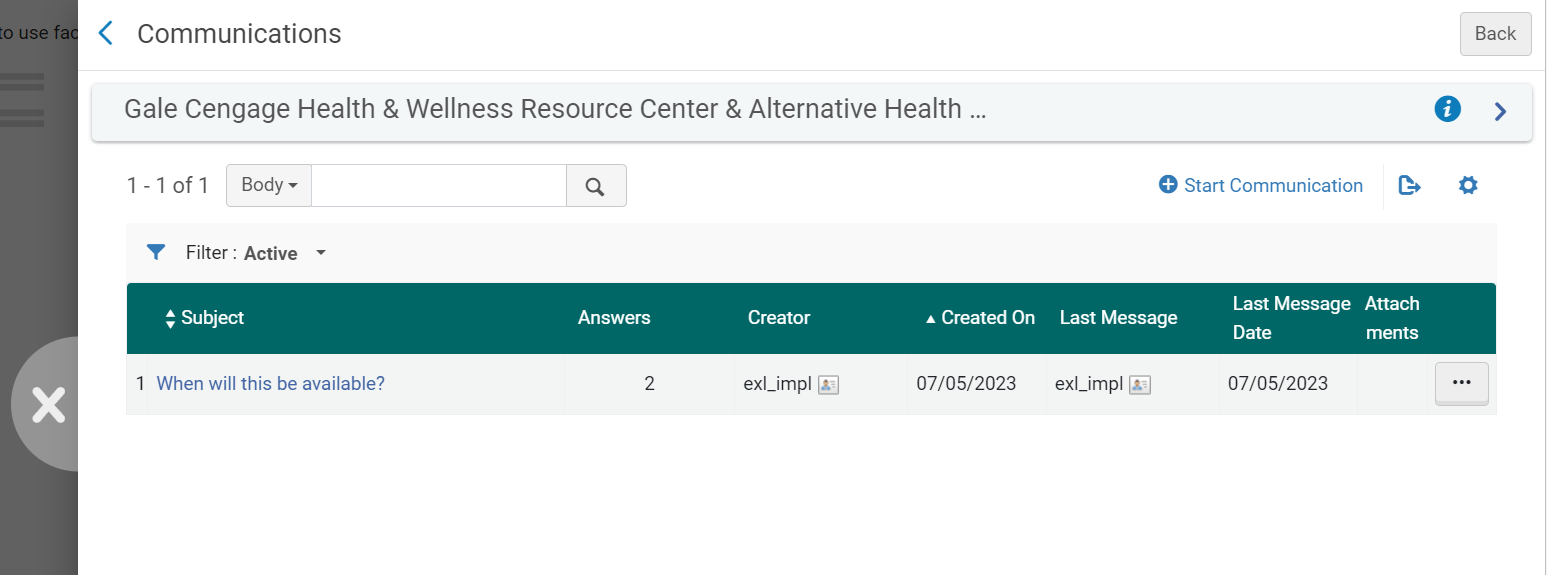
Iniciar una nueva comunicación con un proveedor
A new communication with a vendor is an email letter based on the Conversation Letter that is sent to the vendor. The letter is sent to the preferred email of the vendor (unless it is a claim letter – see Claim Communication, below). Si no se dispone de un correo electrónico preferido, se utiliza el correo electrónico para órdenes. To customize this letter, see Configuring Alma Letters.
El cuerpo del correo electrónico se rellena automáticamente con la siguiente información sobre la línea de orden de compra, en caso de estar disponible:
- Número de referencia de la Línea de orden
- Código de biblioteca
- Bibliotecas
- Título
- Autor
- Fecha prevista de llegada
- Lugar de publicación
- Editor
- Identificador
- Fecha del pedido
- Precio total
- Precio
- Número de unidades recibidas
- Número de unidades solicitadas
Puede editar manualmente esta información y añadir texto adicional al cuerpo de la carta, según sea necesario.
Una línea de orden de compra debe tener un proveedor seleccionado antes de poder iniciar la comunicación con él, pero no es necesario que esté guardada.
- In the Communications page, select Start Communication. The Start Communication dialog box opens. The Body of the letter is automatically populated with information concerning the PO line.
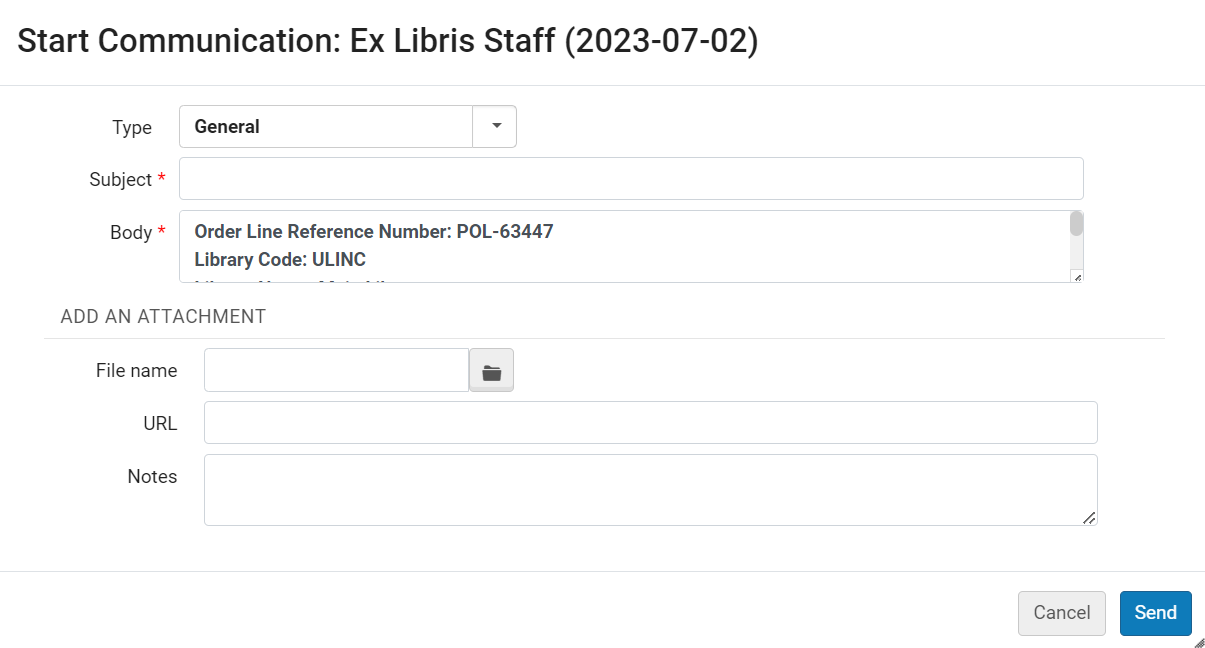 Start Communication Dialog Box
- Under Type, select one of the following:
- General – A general message, which is sent to the vendor's preferred email address.
- Claim – A manual claim letter. When this is selected, details about the last item received are added to the Body of the letter, and the letter is sent to the vendor's claim address rather than their preferred address, if one is available.
- Incident – A message used to report an issue with the order from the vendor.
- In the Subject field, enter a subject for the email. Se recomienda introducir el número de orden de compra o el número de línea de orden de compra. Aunque puede introducirse cualquier texto, una línea de Asunto que incluya el número de Orden de compra y/o el de la Línea de orden de compra hará que la comunicación con el proveedor sea más clara. Este asunto identificará esta conversación en la lista de la página Comunicaciones (aunque se modifique en mensajes posteriores de la conversación).
- In the Body field, enter the text of the email, and modify the PO-line information that was inserted automatically, as required.
- If you are sending an attachment with the email, under File name, select the file.
- Opcionalmente, añadir una URL relevante y las notas que se precisen (que se incluirán en el adjunto, no en la carta XML).
- Select Send. El correo electrónico se envía al proveedor y aparece en la lista de comunicaciones.
Introducir las Respuestas del proveedor a correos electrónicos
Las respuestas del proveedor a las comunicaciones no se registran automáticamente en la página Comunicaciones y deben introducirse manualmente. El siguiente procedimiento describe cómo introducir las respuestas del proveedor a correos electrónicos.
- In the Communications page, select one of the following options:
- Seleccione la conversación para la que quiere introducir una respuesta. The history of the conversation appears in the Communication Messages page. Select Add a Response.
- Select Add a Response in the row actions list.
The Add a Response dialog box opens.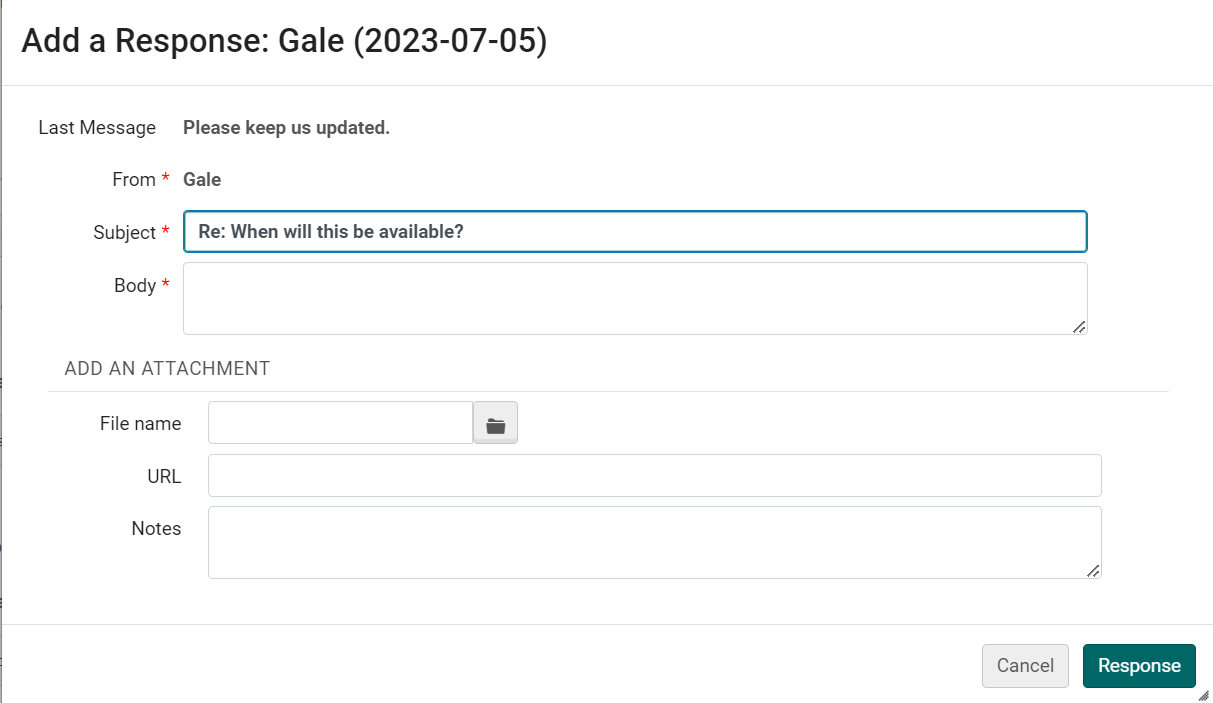 Add a Response Dialog Box
- In the Body text box, enter the response from the vendor.
- Si ha recibido un fichero adjunto con el correo electrónico, guárdelo en su sistema de ficheros. Then, upload it by selecting it under File name.
- En forma opcional, añada las URL y notas que considere relevantes.
- Select Response. La respuesta por correo electrónico del proveedor se guarda en Alma.
Responder al correo electrónico de un proveedor
Puede continuar una conversación con un proveedor al enviar correos electrónicos adicionales, por ejemplo, respuestas a sus correos electrónicos. The bodies of these emails include the text from previous messages, and carry the Subject line over from the first message.
- In either the row actions of the conversation in the Communications page, or the Messages tab of the Communication Messages page, select Reply. The Reply dialog box opens.
- Under Body, enter the text of the message.
- En forma opcional, adjunte un fichero o añada una URL o notas.
- Select Send. The email is sent to the vendor and added to the messages in the Messages tab of the Communication Messages page.
Gestión de ficheros adjuntos a las comunicaciones
You can view and modify the properties of existing attachments to a communication, download the attachments, add additional attachments, and delete existing attachments, in the Communication Messages page, in the Attachments tab..
- Select Add Attachment.
- From the row actions of the attachment, select the relevant option:Edit,Download, or Delete.
Borrar comunicaciones
No puede borrar correos electrónicos individuales de una conversación, pero puede eliminar conversaciones enteras de la lista en las Comunicaciones cuando ya no son relevantes.
- In the Communications page, in the row actions of the conversation, select Close.
Comunicación de reclamaciones
For additional information about claim handling, see Processing Claims.
Al trabajar con reclamaciones, Alma envía automáticamente un mensaje de notificación por correo electrónico al proveedor si se cumplen todas las condiciones siguientes:
- The auto_claim parameter (for one-time physical PO lines) or the auto_claim_co parameter (for continuous physical PO lines) is set to Y(see Configuring Other Settings).
- The email PO Line Claims letter is enabled (see Enabling/Disabling Letters).
- La dirección de correo electrónico del proveedor está configurada.
- One day has elapsed since the Expected Receipt Date + Claiming grace period of a PO line (see Processing Claims) and the material has not been delivered by the vendor.
Mientras se cumplan las condiciones anteriores, se enviará automáticamente un mensaje al proveedor para las líneas de orden de compra físicas. Se pueden enviar mensajes al proveedor respecto a un único ejemplar en múltiples ocasiones. For more information, see Processing Claims. Todos los mensajes enviados aparecen en la lista de la página Comunicaciones como conversaciones independientes.
If the customer parameter is not set to Automatic, you can, if required, manually send an email to the vendor; see Initiating a New Communication with a Vendor, above.
- If the vendor is configured for EDI claims (see Electronic Data Interchange (EDI)) and the EDI PO Line Claims letter is enabled, automatic claims are sent using EDI for all PO line types (see Processing Claims) as long as the above conditions are met. Claims sent using EDI do not appear in this tab. Responses to claims that are received from vendors using EDI appear in the Notes tab.
- Al enviar manualmente una reclamación, esta se envía por correo electrónico, esté o no configurado el proveedor para las reclamaciones EDI.
- When a claim notification is sent to the vendor by email, if the organizational unit (owning library) has a Claim response email address defined, this address is used in the claim notification email's From address. To use the From address in the PO Line Claim Letter, and not the library's email address, remove the Claim response email address from the organization's email addresses (see Configuring Institution/Library Contact Information) and edit the email address settings under Contact Information, clearing the Claim response option). For information on configuring the letter, see Configuring Alma Letters.
- When a purchase order is sent to the vendor by email, if the organizational unit (owning library) has an Order Response email address defined, this email is used in the email's From address.
Crear y gestionar plantillas de líneas de orden de compra
Las plantillas de Línea de orden de compra son series de configuraciones de la línea de orden de compra que se pueden aplicar a una nueva Línea de la orden de compra. Esto supone un ahorro de tiempo durante la creación de líneas de orden de compra, puesto que no es necesario introducir dichas configuraciones cada vez. Al guardar una plantilla, también puede optar por eliminar una plantilla existente si la orden de compra se encuentra en modo de vista (y no de edición). Las plantillas pueden guardarse como públicas o privadas. Al cargar plantillas, se puede elegir entre las propias plantillas privadas y todas las plantillas públicas.
Campos que se guardan en una plantilla de línea de orden de compra
Los siguientes campos de la línea de orden de compra se guardan como parte de una plantilla:
- PO Line Information section:
- Método de adquisición
- Tipo de material (ejemplares físicos)
- Agrupamiento manual (ejemplares físicos y electrónicos)
- Nota de restricción de cancelación
- Etiquetas
- Ordered Items or Holdings for Ordered Items section (physical items):
- Número de ejemplares
- Biblioteca
- Localización
- Política del ejemplar
- Vendor Information section:
- Proveedor del material
- Activación prevista - Días después del pedido o Fecha (ejemplares electrónicos)
- Nota para el proveedor
- Pricing and Funding section:
- Cantidad por precio (ejemplares físicos)
- Actualice el precio neto según la cantidad de ejemplares (ejemplares físicos)
- Fondo (ejemplares físicos y electrónicos)Cuando se guarda un fondo como parte de una plantilla, Alma guarda el código del fondo. Cuando se carga desde una plantilla, Alma siempre carga el fondo del período fiscal actual.
- Receiving Information section (physical items):
- Urgente
- Nota de recepción
- Encuadernación durante la recepción
- Reparto durante la recepción
- Activation Information section (electronic items):
- Urgente
- Nota de activación
- Licencia
- Renewal Information section (continuous items):
- Fecha de renovación
- Periodo de recordatorio de renovación (días)
- Reporting Codes:
- All the reporting codes from 1st reporting code through to 5th reporting code.
Añadir o actualizar una plantilla de línea de orden de compra
Puede guardar cualquier línea de orden de compra como plantilla. Only the template owner or an Acquisitions Administrator can update a PO line template.
- If the PO line is not currently visible, locate the PO line in the PO Line Task List (see Searching for PO Lines - New Layout).
- In the row actions of the PO line (in either its row in the task list, or in the Details pane, if the PO line is open there), select Save as template. The Save as Template dialog box opens.
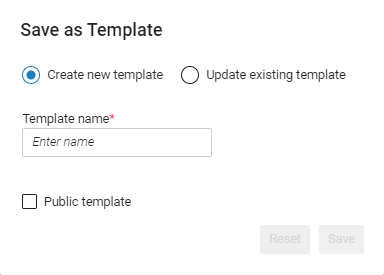 Save as Template dialog box
- Llévese a cabo una de las siguientes opciones:
- To save a new template based on the settings of the current PO line: Select Create new template, and then, under Template name, enter a name for a template.
- To replace an existing template with the settings from the current PO line: Select Update existing template, and then, under Choose a template, search for and select the template.
- Template names cannot include semicolons (;), commas (,), slashes (/), or other special characters, such as: ! or $
- To remove any selections you have made in the dialog box, and revert it to its initial state when you first selected Save as template, select Reset.
- If you are creating a new template and you want to share the template with other users in your institution, select Public template. Una plantilla pública puede ser utilizada por cualquier usuario, pero solo el propietario de la plantilla o un Administrador de adquisiciones puede editarla o borrarla.
- Select Save.
Borrar la plantilla de una línea de orden de compra
The template owner or an Acquisitions Administrator can delete a PO line template.
To delete a PO line template, the PO line must be in View mode - the Delete button does not appear in Edit mode, i.e., you cannot delete a PO line template when editing a PO.
- In the row actions of any PO line in a list, select Save as template. The Save as Template dialog box opens.
- Select Update existing template.
- Under Choose a template, search for and select the template.
- Select Delete, and then confirm your selection. La plantilla se borra.
Page tags: article:topicproduct:almacontent:Documentationlang:englishreview PO linesedit PO line
