
Trabajar con solicitudes de compra
This page describes how to work with purchase requests, including creating, assigning and approving requests, emailing the requester, creating purchase requests from citations, etc. For a list of links to pages with instructions for purchasing in Alma including creating PO lines, renewals, working with vendors, etc., see Purchasing. For information on the overall purchasing workflow see Purchasing Workflow. For an overview of working with acquisitions in Alma, including links to relevant sections such as Invoicing, Renewals, Configuration, etc., see Introduction to Acquisitions.
- Crear solicitud de Alma/Primo con el usuario como solicitante: cualquier rol
- Create request from Alma on behalf of another user: Purchase Request Operator/Manager (the right to perform this task can also be enabled for other users by Ex Libris customer support)
- Create request from reading list: Course Reserves Operator/Manager (when enabled by Ex Libris for your institution)
- Gestionar solicitudes: Selector, Operador de solicitud de compra, Gestor de solicitudes de compra
- Delete rejected requests: Purchase Request Operator + Purchase Request Operator Extended or Purchase Request Manager + Purchase Request Operator Extended
- Asignar solicitudes: Gestor de solicitudes de compra
Las solicitudes de compra permiten a los bibliotecarios que utilicen Alma y a los instructores o usuarios que usen Primo o Leganto solicitar que una biblioteca compre un recurso. Las solicitudes pueden realizarse por diversos motivos, como:
-
La biblioteca no dispone de ningún ejemplar (no hay registro bibliográfico ni inventario).
-
La biblioteca no dispone de suficientes ejemplares o del formato/edición adecuados.
-
La copia existente está dañada.
El solicitante, o un bibliotecario en nombre de un solicitante, completa tantos detalles del ejemplar como sea posible y después envía la solicitud a Alma para su revisión. Por defecto, un Operador de solicitud de compra o un Gestor de solicitud de compra pueden crear una solicitud en nombre de otro usuario. Para permitir que usuarios con otros roles también puedan crear solicitudes en nombre de otros solicitantes, póngase en contacto con el servicio de asistencia de Ex Libris.
- An Alma user with the Purchase Request Operator role can see only requests assigned to them or unassigned requests. If their role is defined for a specific library, they can create and see only those requests that belong to their library or those that don't belong to any specific library (the owning library field is empty). An operator that does not have Purchase Request Operator access will not have access to edit the requester in the purchase request form. El operador puede reasignar las solicitudes de compra a otros operadores de solicitud de compra. Para los clientes que pasaron a ser activos antes del lanzamiento de octubre de 2018, este privilegio está deshabilitado por defecto. Para todos los demás, este privilegio está habilitado por defecto. Para cambiar esta configuración, póngase en contacto con el servicio de asistencia de Ex libris.
- An Alma user with the Purchase Request Manager role can see and assign purchase requests for all operators and managers. Si el rol está definido en el ámbito de una biblioteca, es posible que solo vean y asignen solicitudes en esa biblioteca o que no pertenezcan a una biblioteca específica (el campo de la biblioteca propietaria está vacío). When the purchase request manager assigns a request, it is checked to verify that the assignee is either an operator or manager for this scope or in the institution's scope. An operator or manager that needs to delete purchase requests must also have the Purchase Request Operator Extended.
When a user with one of these above roles creates a purchase request, if the user is in the scope of a library, the library is added to the Owning Library drop-down list. If the user is in the institution scope, all the libraries are added to the Owning Library drop-down list. If the user is not a purchase request operator or manager, the Owning Library drop-down list will not be populated.
Para apoyar esta característica, se usan dos cartas:
- Purchase Request Status Letter – Sent to requester when the request is approved or rejected.
- Query to Requester Letter – Sent to the requester when the librarian queries him or her for more information.
- Bibliographic records created using purchase requests are subject to normalization processes (see Working with Normalization Processes).
- Las solicitudes de compra es un servicio expuesto desde Alma a Primo. Like any other service, it can be hidden from groups of users using Alma's Display Logic Rules. This service is initially hidden from users by default with the rule Hide Service Purchase Request.
- Para habilitar el servicio para todos los usuarios de Primo, elimine esta regla.
- Para ocultar el servicio solo para grupos específicos, eliminar esta regla y luego agregar una regla/reglas para ocultar el servicio para esos grupos.
- También se pueden configurar todas las etiquetas utilizadas para esta función.
- To create a direct link to the purchase request form from Primo, see Direct Linking to the Purchase Request Form.
For more information about configuring display logic rules and configuring labels, see Discovery Interface Display Logic.
Creating a Purchase Request
Un usuario puede crear una solicitud de compra en Primo. Requests made by patrons in Primo are submitted to Alma with the status In Review. A brief bibliographic record is created for the requested item if required (and if the metadata is added manually, as stated in the note below).
También se puede crear una solicitud de compra en nombre de un usuario en Alma. Se puede hacer esto:
- When managing citations in a reading list (see Managing Citations),if the Submit Purchase Request privilege has been added by Ex Libris Support to the Course Reserves Operator/Manager roles. Note that simply adding or editing a citation may automatically trigger a purchase request; see Configuring Automatic Purchasing Requests from Citations.
- En la página de Solicitud de compra (ver más abajo).
- On the Purchase Request page (Acquisitions > Purchase Requests > Create Purchase Request), fill in as much information as you can.Select either Create new record or Use existing record on the Bibliographic Information field. When selecting Use existing record, a quick pick list is available for the Title field while the other item fields are restricted. Una vez que se selecciona un registro existente, se puede crear la solicitud de compra a partir de este registro. Alternatively, if you want to create an item from an existing similar item, you can search on the title of the existing record to populate the item's fields, then change the Bibliographic Information radio button to Create new record. Los campos de elementos restantes no se restringen al crear un nuevo registro, por lo que los valores pueden cambiarse.
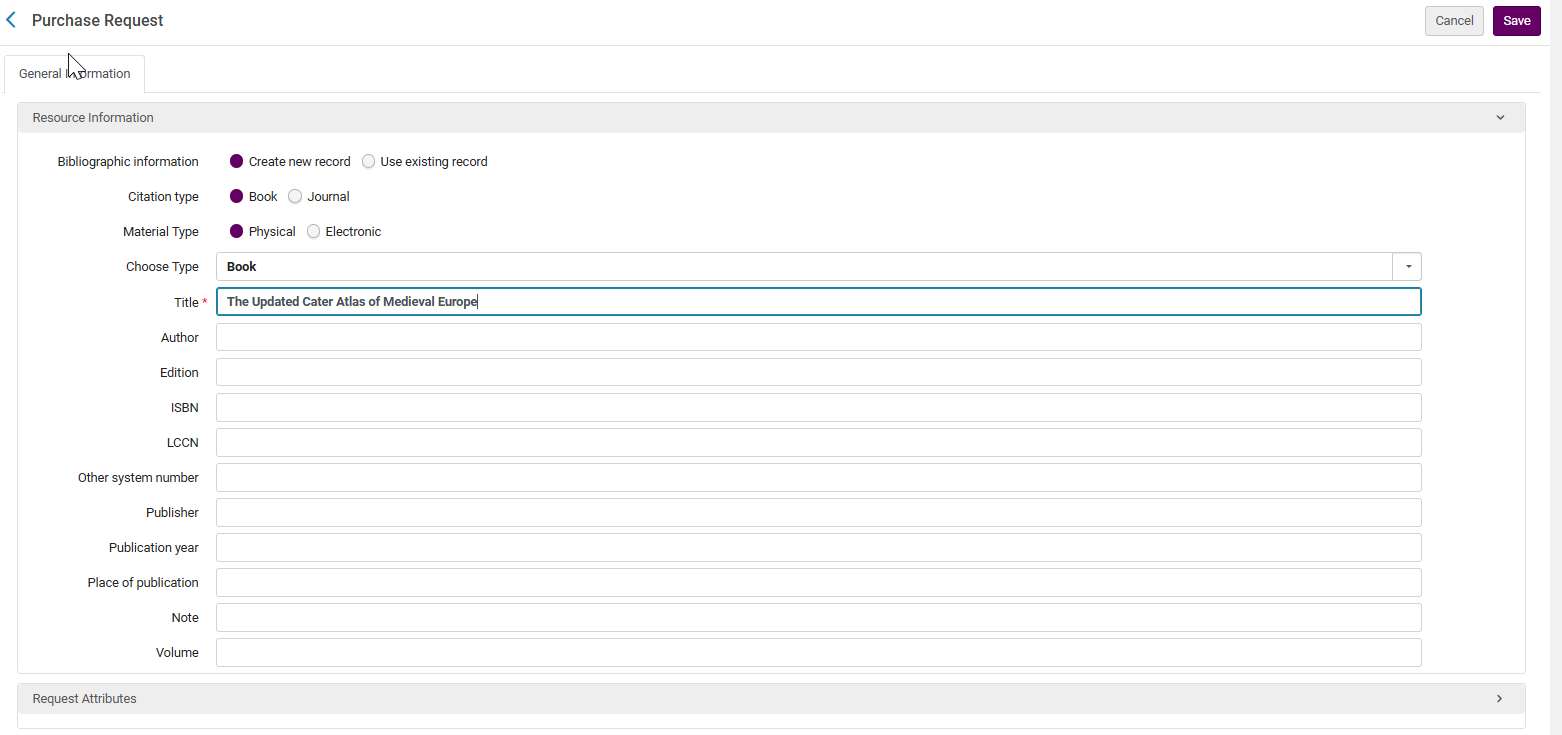
Formulario de solicitud de compra For a description of the fields in the Resource Information area, see Adding a New Book or Journal Article. The fields in the Request Attributes area are as follows:- Requester – The user who makes the request. Once the request is approved, the requester becomes an interested user on the PO line that is created following the approval of the purchase request. See Manually Creating a PO Line.
- Request Status – The initial status of the request, which is always In Review
- Owning Library – The library that should receive the item
- Estimated Cost – An estimated cost for the item, including the currency
- Fund – The fund from which to purchase the item. Este campo solo está activo después de seleccionar una biblioteca. Téngase en cuenta que se recomienda agregar el fondo inmediatamente antes de que se apruebe la solicitud de compra.
- Vendor/Account – The vendor and vendor account from which to purchase the item
- Approved By – This field is initially empty. En el futuro contendrá el nombre del usuario que aprobó el elemento, si lo hubiere.
- Requester Note – Any note to send to the user who will be approving or rejecting the request.
- Rejection Reason – This field is initially empty. This field will later contain the reason the request was rejected if any.
The fields Title and Requester are mandatory.When a purchase request is created using Create new record, Alma looks for a potential match to the record via Primo. When a patron in Primo enters an ISBN or EISBN number in a blank Purchase Request form, an alert appears indicating whether a holdings for the resource exists in the library. No se aplica a revistas. Primo muestra un mensaje de que no se encuentra una existencia para el identificador ingresado por el usuario, lo que puede deberse a que el recurso no exista, porque haya una ubicación, un registro bibliográfico o una existencia que se suprime desde el descubrimiento, o porque, para recursos electrónicos, la cartera electrónica no está activa. Se trata de algo que también es relevante para redes y campus múltiples.This functionality is controlled by the customer parameter PR_indicate_for_primo_if_isbn_is_exist, and is enabled by default. See Configuring Other Settings (Acquisitions).
La rutina de búsqueda de coincidencias busca primero un perfil de importación para determinar el proceso de búsqueda de coincidencias. The import profile can be type Repository or New Order, must be active, and its profile name stored in the purchase_request_import_profile parameter (see Configuring Other Settings (Acquisitions)). El perfil de importación puede definir qué rutina de coincidencia se usará para libros y qué rutina de coincidencia se usará para revistas. If no profile is specified in the parameter, the matching is based on the ISBN/ISSN in the purchase request (using a hard-coded matching routine that cannot be modified). Si se encuentra un registro coincidente en el repositorio, la solicitud de compra está vinculada a este registro bibliográfico. Si no se encuentra ninguna coincidencia, se crea un nuevo registro bibliográfico. Téngase en cuenta que los detalles bibliográficos del registro coincidente o nuevo se pueden editar utilizando el Editor MD. No se pueden editar editando la solicitud de compra (solo los atributos de solicitud, como el solicitante y la biblioteca propietaria, se pueden editar de esta manera). When editing the purchase request, the bibliographic information can be changed by selecting the Create New Record radio button. When changing the radio button, the user will be prompted with the following confirmation message:You are about to change the linked bibliographic record. Los datos del registro bibliográfico existente serán reemplazados. Are you sure you want to continue?
-
El tipo de cita para un ejemplar buscado proviene del ISBN o ISSN. If there is an ISBN number, the citation type is Book. If there is an ISSN number, the citation type is Journal. Si no existe ningún número, el tipo de cita es el tipo que se eligió cuando se creó la solicitud de compra. As an example of how this is applied, if the MD Editor is used to add an ISSN number to a bibliographic record, and the purchase request is then edited and saved after the purchase request is saved, the citation type of the purchase request becomes Journal.
-
Select the Material Type, which can be Physical or Electronic. El valor por defecto se determina por el conjunto de valores establecido en la tabla Tipo de material de las solicitudes de compra. When the value is Physical, the type is determined by the default value in the Physical Material Type Descriptions table (see Configuring Physical Item Material Type Descriptions). When the value is Electronic, the type is taken from an internal table of electronic types and is Book. La tabla de tipos de material electrónico es interno y no puede modificarse.
-
The Choose Type field determines the material type of the created inventory. Depending on the Material type listed in the Physical/Electronic possible material types, this will be the material type in the PO Line.
-
Instead of entering the information manually, you can search for and select an item in the repository and select Select. The item's information is pre-filled in the page's fields. See Searching in Alma.Al crear una solicitud de compra asociada con un registro bibliográfico, los metadatos bibliográficos no se pueden editar en la página de solicitud de compra. Esto es para evitar cambiar el registro existente o crear uno nuevo desde esta página. Se crea un nuevo registro desde esta página solo cuando se introduce la información manualmente. When a purchase request is made for a title that is not held by the library, it is automatically suppressed from publishing.
- (When editing a request only) If you entered a Library, you can add locations and the number of requested copies for each location; select Add Location. Si no se especifican cantidades y ubicaciones, se asume una copia en la ubicación predeterminada de Adquisiciones.
- Add any notes in the Notes tab, as required.
- When you are done, select Save. The request is submitted with the status In Review. Se crea un breve registro bibliográfico para el artículo solicitado, si es necesario.
Gestionar solicitudes de compra
Las siguientes tareas están disponibles para gestionar las solicitudes de compra:
- Viewing Pending Purchase Requests
- Assigning a Purchase Request
- Editing a Purchase Request
- Emailing a Purchase Request
- Approving or Rejecting a Purchase Request
Como ver Solicitudes de compra pendientes
To view pending purchase requests, select Acquisitions > Purchase Requests > Manage Purchase Requests from the Alma Main Menu. Alternately, if there are any unassigned requests, or there are any requests assigned to you, select one of the following tasks from the Tasks List in the persistent menu (see Tasks in the Task List):
- Solicitudes de compra - Asignadas a usted
- Solicitudes de compra - Sin asignar
Usar las pestañas para ver las solicitudes asignadas a usted u otras personas, o para ver las solicitudes no asignadas. Use the facets and the Find tool to filter the list of requests on the page.
- Seleccionar un título de solicitud para ver la solicitud en la página Vista simple de registro MARC.
- In the Unassigned or Assigned to Other tab, select View beneath a request to view the request details. The View link only appears in the Unassigned tab if the request was ordered or rejected.
Assigning a Purchase Request
Se puede asignar una solicitud de compra a un usuario o liberar una asignación. El usuario al que se asigna la solicitud debe aprobar o rechazar la solicitud.
- Select Assign to in the row actions list. Aparecerá una casilla.
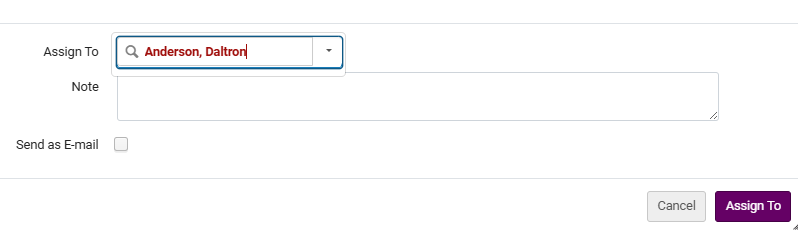 Asignar a cuadro de diálogo
- Seleccionar el usuario a quien asignar la solicitud. Solo los usuarios con el rol relevante aparecen en la lista desplegable.
- Opcionalmente, agregar una nota y seleccionar si desea enviar un correo electrónico al usuario.
- Select Assign To. La solicitud se asigna al usuario seleccionado.
In the Assigned to Me or Assigned to Others tab, select Release Assignment in the row actions list. The request is moved back to the Unassigned tab.
Editing a Purchase Request
Se puede editar una solicitud de compra.
- In the Assigned to Me or Unassigned tab, select Edit in the row actions list. Aparece la página Solicitud de compra. For more information, see Creating a Purchase Request.
- Cambiar los campos que no sean de metadatos según sea necesario.
- You can select the Relink button to change the bibliographic record for this purchase request. Cuando vuelve a enlazar, el valor de los campos ISBN y cita son anulados con el valor del nuevo registro bibliográfico.If a Purchase Request needs to be relinked to another bibliographic record, use the "Relink" page action. If Select from list > Use Existing Record is selected and the Purchase Request is being edited, updating the title (either manually or using the pickup option) doesn't relink the Purchase Request to a new bibliographic record but only updates the title on the Purchase Request. For more information, see the Relink a Purchase Request to Another Bibliographic Record video (1:41 min.)
- When you are done, select Save.Si la solicitud aún no estaba asignada a usted, ahora ya está asignada a usted.
Enviar por correo electrónico a un solicitante de compra
Se puede enviar un correo electrónico al solicitante para obtener más información sobre una solicitud de compra.
- Select Send Query to Requester in the row actions list. Aparece una caja de diálogo de mensaje de correo electrónico.
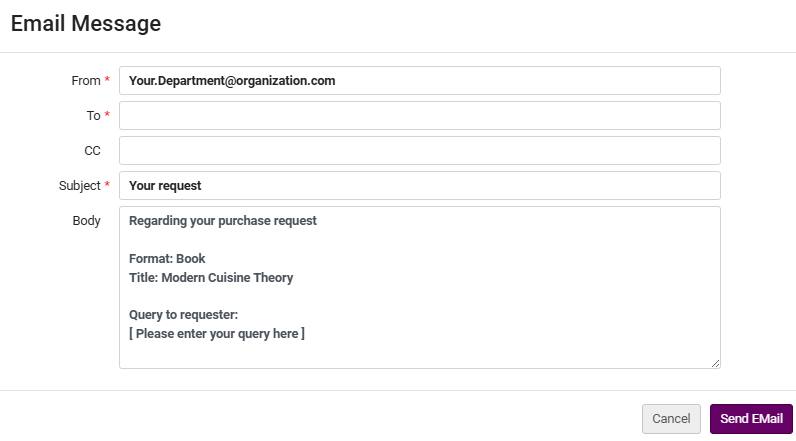 Caja de diálogo del mensaje de correo electrónico
- Introducir la información en los campos. The From,To, and Subject fields are mandatory. Note that if the requester's email is not prefilled, you must enter it manually.
- When you are done, select Send E-Mail. A Query to Requester Letter is sent to the requester. For information about configuring the letter, see Configuring Alma Letters.
Approving or Rejecting a Purchase Request
La aprobación de una solicitud de compra crea una línea de orden de compra. Si se aprueba o rechaza la solicitud, Alma envía un correo electrónico al solicitante. Las líneas de orden de compra que se empaquetaron pero que todavía no están aprobadas se pueden aplazar en algunos casos. For more details see Deferring PO Lines.
When editing the PO line, under the "Ordered Items" section, the editing actions are disabled for resources whose library does not match the user role scopes. For details, see Library set on electronic resource.
- Antes de ordenar el artículo, comprobar que se ha seleccionado una biblioteca y/o ubicación en la solicitud. If one is not selected, edit the request; see Editing a Purchase Request.
- Select Approve and Order in the row actions list. Si se rellenan todos los valores necesarios y se cumplen los requisitos, se crea una línea de la orden de compra y se envía al empaquetado automático/manual. If not, a PO line is created with the status In Review; it then proceeds through the purchasing process, as usual. El número de línea de pedido aparece en el mensaje de confirmación en la parte superior de la página. Alma le envía al solicitante una carta de confirmación, la Carta de estado de la solicitud de compra (código de carta: PurchaseRequestStatus).
Para que la Solicitud de compra funcione, se debe habilitar (activar) lo siguiente:
- PRINT_OT - Físico - Una vez
- PRINT_CO - Físico - Suscripción
- E_BOOK_OT - Libro electrónico - Una vez
- E_JOURNAL_CO - Revista electrónica - Suscripción
You enable or disable PO line types on the PO Line Type mapping table page (Configuration Menu > Acquisitions > Purchase Orders > PO Line Types). For more information, see Enabling/Disabling PO Line Types.
- Select Reject in the row actions list. Aparecerá una casilla de confirmación.Alternately, you can reject multiple requests at once: Select the checkboxes next to the requests that you want to reject and select Reject Selected at the top or bottom of the page. You can select all the requests on the page by selecting Select All at the top of the list of requests. Téngase en cuenta que no se pueden rechazar solicitudes que ya están aprobadas.
- Select Confirm in the confirmation dialog box. A reject reason dialog box appears.
- Select the reason for the rejection and select Reject. La solicitud es rechazada. If the purchase request has created a brief record when the purchase request is rejected, then the bibliographic record is deleted. Alma sends the requester a Purchase Request Status Letter to inform him/her of the request rejection. For information about configuring the letter, see Configuring Alma Letters.An administrator can configure the reasons for rejecting a request; see Configuring Purchase Request Reject Reasons.
After a request is rejected or approved it is moved automatically to the Unassigned tab for reference purposes. Las solicitudes rechazadas aparecen en la lista de solicitudes con la opción de borrar la solicitud. To delete a rejected request, select Delete in the row actions list.
Gestionar solicitudes de compra creadas a partir de citas
You can create purchase requests manually or automatically using the processing rules (see Configuring Automatic Purchasing Requests from Citations).
The Purchase Request form displays basic information about the course.
The Requester note is displayed in the Request Attributes section of a purchase request.
La nota del solicitante contiene información del curso, instructor, número de copias y número de participantes. La información en la nota del solicitante se envía a las Líneas de orden de compra y a los pedidos.
La nota del solicitante se puede generar de manera automática a partir de la información del curso. The requester_note_auto_generate parameter, found in the Other Settings table in Fulfillment Configuration > General > Other Settings, controls whether the requester note will be auto-generated.
El indicador está configurado como "falso" por defecto. Para permitir la generación automática de la nota del solicitante, debe establecer este indicador como "verdadero".
The following facets are available from the Manage Purchase Requests screen (Acquisitions > Manage Purchase Requests):
-
Departamento de procesamiento
-
Departamento académico
-
Campus
-
Año del curso
-
Semestre del curso
-
Etiqueta de citas
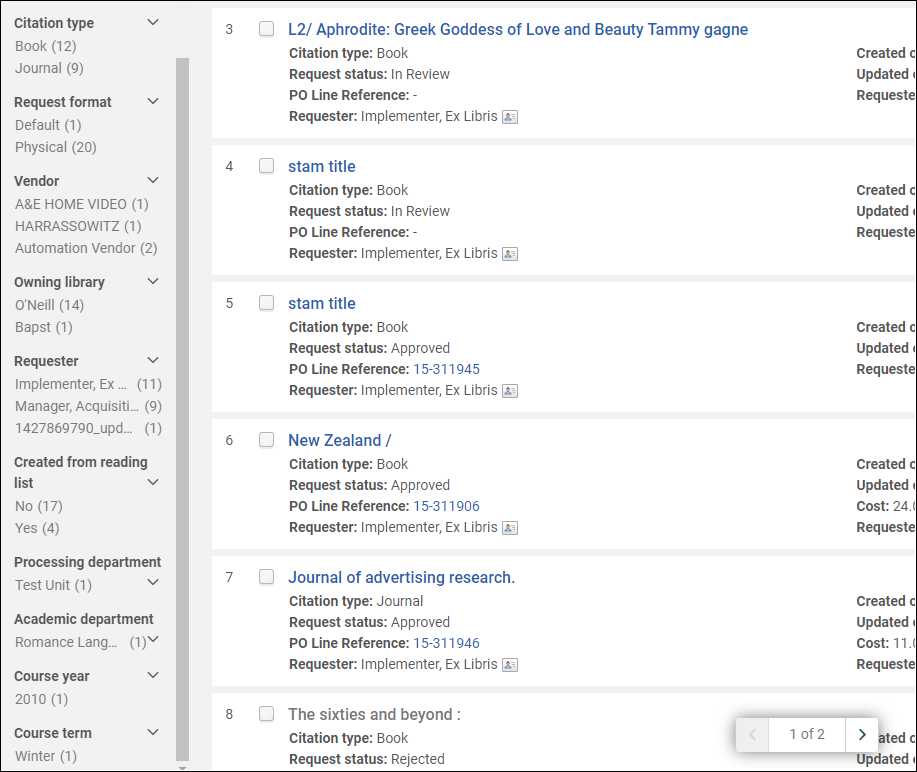
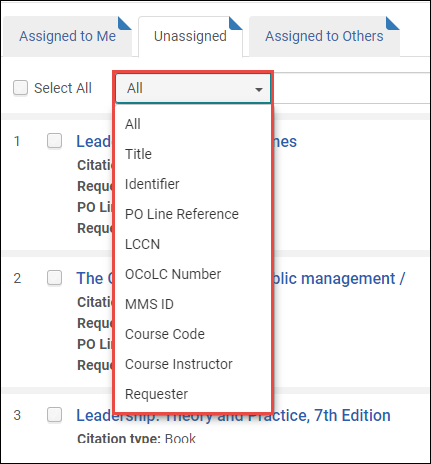
Se pueden usar los siguientes criterios cuando se hace una búsqueda.
-
Código de curso
-
Instructor del curso
-
Solicitante
Converting Purchase Requests to Resource Sharing Requests
You can convert a purchase request into a resource sharing request by rejecting the purchase request before creating the resource sharing request, or by keeping the purchase request and creating the resource sharing request. This option enables the library to service users' purchase requests by obtaining the resource via a resource sharing service, even if the decision is made not to approve the purchase or if the purchase takes a long time.
The new option is available for Purchase Request Operators or Managers who are authorized to create resource sharing requests (they have a Fulfillment Services Operator/Manager role in the resource sharing library scope). It requires a dedicated privilege to be turned on for the Purchase Request Operator/Manager role. To activate this privilege, contact Ex Libris Support.
El enlace aparece independientemente del estado de la solicitud de compra (En revisión, Aprobada o Rechazada).
From the Acquisitions > Purchase Requests > Manage Purchase Requests menu, access the Purchase Requests list. Las solicitudes de compra tienen una opción de "Crear solicitud de recursos compartidos".

Si la solicitud de compra está activa, después de seleccionar la opción para crear una solicitud de recursos compartidos, se le pedirá que rechace la solicitud de compra o que la mantenga activa. El estado de la solicitud de compra se actualizará en consecuencia. If you select to reject the purchase request, the Rejection reason in the purchase request is updated to indicate that it was "Changed to resource sharing request".

After selecting Create Request; the Resource Sharing Borrowing Request page appears with the information filled in. If the purchase request is not active, after selecting the option to create a resource sharing request, the Resource Sharing Borrowing Request page appears.

A note is added to the Request Note in the resource sharing request that the "Request has been converted from purchase request".
Page tags: article:topicproduct:almacontent:Documentationpatron purchase requestlang:englishQuery to RequesterPurchase Request Status Letterpurchase requestcreate purchase requestmanage purchase requestsapprove purchase requestreject purchase requestdelete purchase request
