
Crear manualmente una Línea de Orden de compra
This page gives instructions for creating PO lines (physical, electronic and digital) and initiating the next stage in their processing. For editing PO lines see Editing PO Line Information. For the overall purchasing workflow including the steps required for creating orders (whether using EOD, ordering manually, etc.), see Purchasing Workflow. For instructions on creating service subscription PO lines without inventory see Creating Service Subscription PO Lines Without Inventory. For an overview of working with acquisitions in Alma, including links to relevant sections such as Invoicing, Renewals, Configuration, etc., see Introduction to Acquisitions.
- Operador de compras
- Gerente de compras
To manually create a purchase order (PO) line (the first step in the Purchasing Workflow) for physical, electronic, or digital resources, you search for the resource in the bibliographic record (see Searching in Alma) and then create the PO line based on it. For an explanation of the physical and electronic purchase types that can be created from your search results, see Explanation of Purchase Types Workflow and Inventory.
Normally, when you create a PO line for a physical item or electronic resource, Alma automatically creates new inventory for the purchased resources. Alternatively, you can choose not to create new inventory for the manually created PO line, if, for example, you earlier created the inventory manually (see Assign Inventory Manually). También puede crear manualmente una Línea de orden de compra para un servicio (como el acceso a un sitio web o la suscripción a un programa informático), añadiendo o no inventario. Una compra puede consistir en una copia de un ejemplar o un portafolio, o en un ejemplar sin existencias que esté indexado a la Institución, la Comunidad o la Zona de red.
For more information, watch:Creating Orders(3:56 min).
For electronic resources, a new purchase order can be either a main PO line- the first PO line linked to the inventory - or an additional PO line- for example, a PO line to upgrade the number of concurrent users who can access a resource, or a PO line to add new titles to an existing collection. Una línea de la orden de compra principal crea inventario para el recurso. Cuando intenta eliminar una línea de la orden de compra principal, Alma intenta eliminar el inventario. Borrar una Línea adicional de la orden de compra no afecta al inventario.
Creating a PO Line
The procedure for creating a PO line for physical, electronic, and digital material is the same, except for specific PO line information unique to each material type (noted below).
Every PO line is built upon a bibliographic record. Thus, before you can create a PO line for an item (e.g., a physical book or an electronic portfolio), ensure a repository record exists for it. If a bibliographic record does not exist, you must create it before you can create a PO line for it; see Working with Bibliographic Records.
También debe existir un ejemplar de inventario y estar vinculado a una línea de la orden de compra antes de que la línea de la orden de compra pueda agruparse en una orden de compra. Por defecto, al crear una Línea de orden de compra (una Línea de orden de compra principal en el caso de los recursos electrónicos), Alma crea automáticamente un nuevo ejemplar de inventario y lo asocia a la Línea de la orden de compra. Puede impedir que Alma cree un nuevo ejemplar de inventario cuando esté creando muchos tipos de líneas de orden de compra. Esto resulta útil cuando se quiere añadir el inventario más tarde o conectar el inventario existente a la línea de la orden de compra, por ejemplo, si:
- Ha migrado numerosos registros de inventario y desea crear las líneas de orden de compra para ellos. For information on adding PO lines after migration see Best Practice Toolkit: Adding PO Lines After Implementation.
- Desea cambiar de proveedores para un pedido permanente.
- You create PO lines for bibliographic records – that is, something in the repository (a title, an item, a portfolio, and so forth). If the entity is not yet in the repository, you must first create a bibliographic record for it and add it to the repository; see Working with Bibliographic Records.
- Se debe agregar un ejemplar de inventario a la línea de la orden de compra antes de que esta se pueda enviar para agrupar.
- The PO line owner refers to the library creating the PO line, while the intended locations/access refers to the library for which the order is being placed.
- Una vez creada la Línea de la orden de compra con un tipo de compra determinado, las implicaciones para el flujo de trabajo y el inventario/datos se convierten en fijos y no pueden modificarse. Por tanto, este es un paso crítico en el proceso de creación de la Línea de orden de compra.
- See also:Acquisitions - How to handle one order to a vendor for both physical and electronic material and link them together.docx
-
Search for the title for which you want to create a PO line; see Searching in Alma.
You may also use Search External Resources (Resources > Cataloging > Search Resources) to locate a title in external systems such as the OCLC or the Library of Congress (see Search External Resources). From the Search External Resources results list, select Import to open the record in the MD Editor. In the MD Editor, select Order(Ctrl+Alt+O) and the PO Line Owner and Type page (see next step) opens.
- In the row actions of the item you want to order, select Order to create a main PO line. If the item is an electronic resource and it already has a main PO line attached to it, select Additional Order to create an additional PO line, instead. Se abrirá la página Propietario y Tipo de línea de la orden de compra.
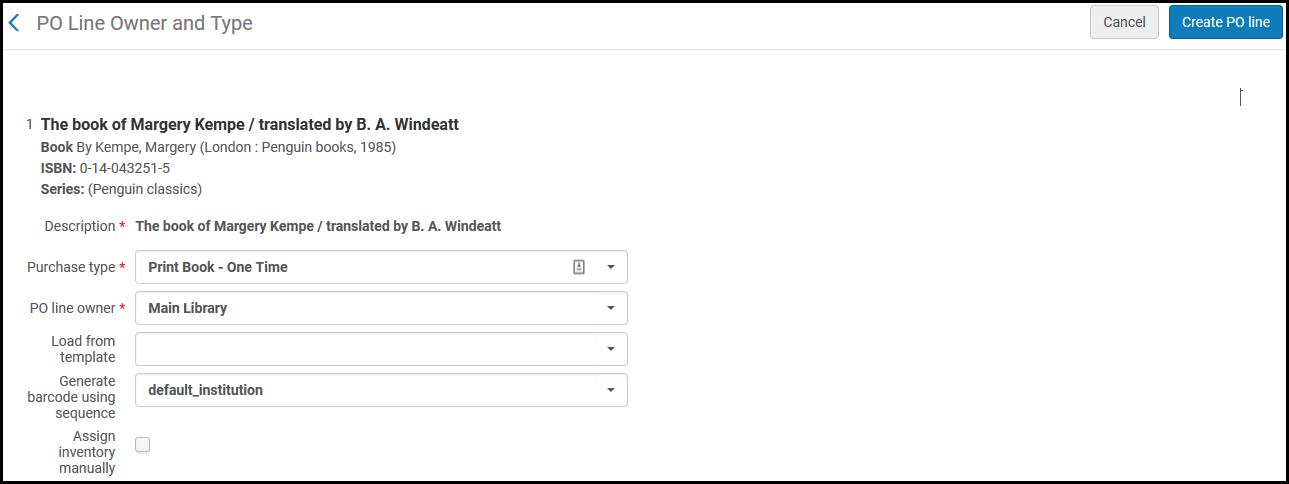 Página Propietario y Tipo de línea de la orden de compra.This is also the page that opens when you select the Order icon in the MD Editor.
-
Complete los campos en la página Propietario de la línea de orden de compra y tipo, como se describe a continuación:
Campo Descripción Tipo de línea de la orden de compraSelect the Purchase type for the PO line. Seleccione uno de los siguientes para abrir una lista de opciones:-
Recommended – Lists recommended types, which depend on the item you selected to get to this page.
-
Other – Lists all enabled purchase types (except for electronic collections and portfolios), regardless of what item you selected in the inventory to get to this page. Note, however, that when you order an item in a particular format, this does not necessarily mean that any vendor actually has the item in that format; if they do not, they may reject your order.
For an explanation of each type and how an administrator can enable/disable these types, see Enabling/Disabling PO Line Types. Also see Explanation of Purchase Types Workflow and Inventory.Los tipos digitales no están habilitados por defecto. In order to enable them, see the row for enabling digital manual orders in the Digital Manual Order table. Digital PO lines are created with no inventory(both One Time and Continuous), and you need to manually add the representation to the PO line. For more information see Digital Manual Orders.Propietario de la línea de la orden de compraSeleccione la biblioteca que será propietaria de la línea de la orden de compra. This may be different from the library/location for which you are ordering the resource (see Ordered Items Section (Physical Resources Only) and Ordered Portfolios Section (Electronic Resources Only), below).This list is defined by a system administrator; see Adding/Editing Institution Libraries. En la lista solo aparecerán las opciones pertinentes al ámbito de su trabajo como Operador de compras o Gerente de compras.Crear portafolios múltiplesThis option appears when the title that you have selected to order has multiple 856 $u entries (URLs) in the bibliographic record, and you have selected an electronic PO line type.When you select this option, a Portfolios list section appears where you can choose specifically which portfolios to order (from the URLs shown in the Portfolios list section). You may select any or all of the portfolios in the Portfolios list section. Los portafolios que usted seleccione quedarán asociados a la misma Línea de la orden de compra.The following images show an example of a bibliographic record with multiple 856 $u entries for which multiple portfolios are ordered in one PO line by selecting this option:.png "Electronic Resource (Title/Bibliographic Record) with Multiple 856 $ Entries") Electronic Resource (Title/Bibliographic Record) with Multiple 856 $ Entries
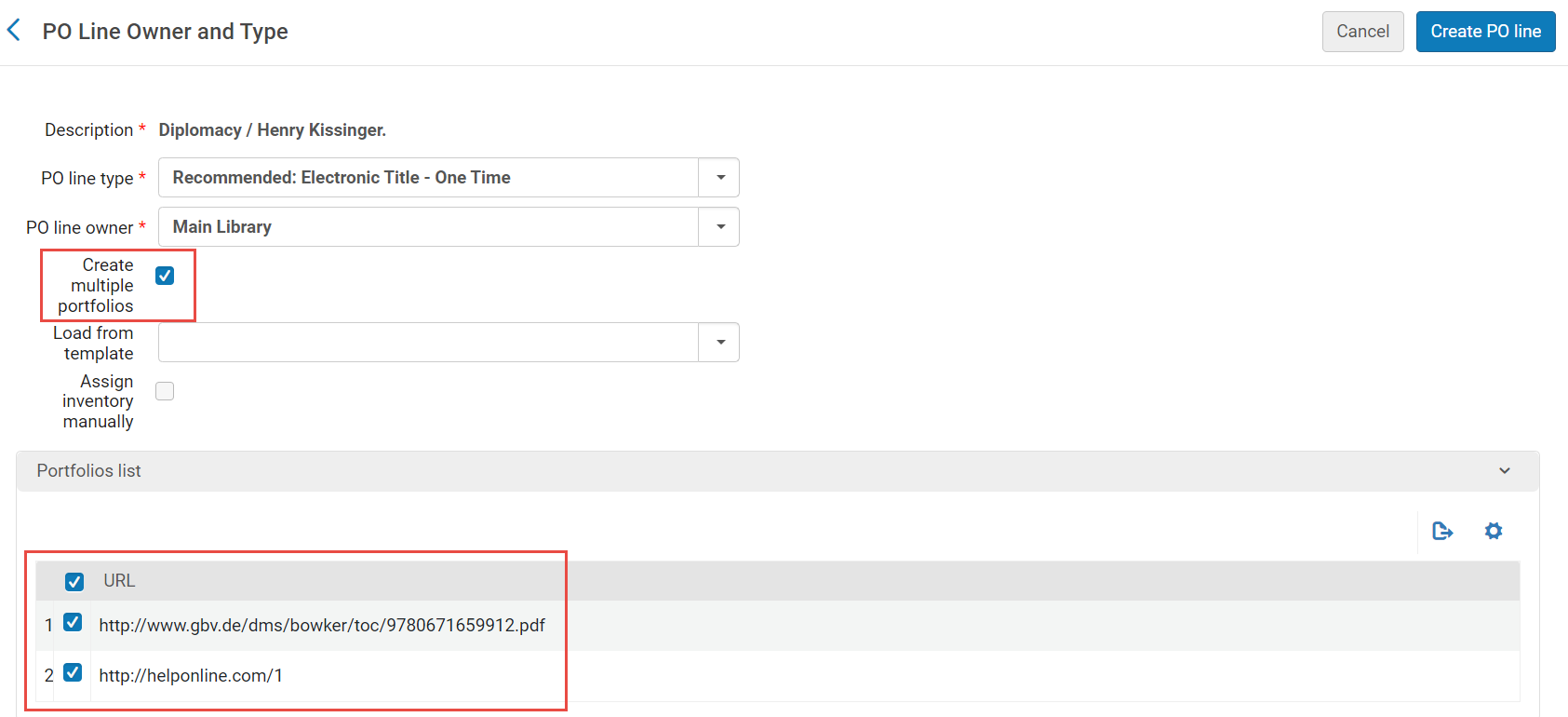 Create Multiple Portfolios Option Selected and the Portfolios List Section with Multiple Portfolios Selected
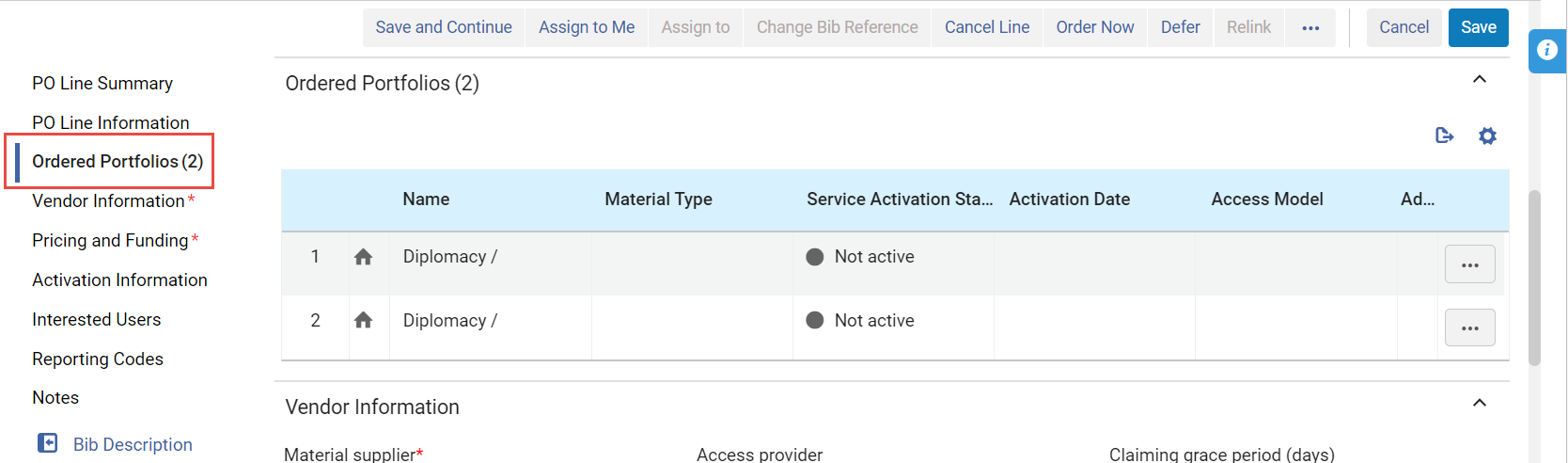 Portafolios múltiples (asociados a una Línea de orden de compra) creados para Línea de la orden de compraIf you do not select Create multiple portfolios, and there are multiple 856 $u entries in the bibliographic record from which you are ordering, Alma randomly chooses one of the 856 $u entries for which to create a PO line.Cargar desde plantillaOpcionalmente, seleccione una plantilla desde la que cargar la Línea de la orden de compra.Templates are created when you select Save as Template in the Details pane of a PO line. For more information, see Creating and Managing PO Line Templates.La plantilla debe coincidir con el tipo de línea de orden de compra.When loading a template that was saved with the Update Net Price according to item quantity field not checked, this field will be un-checked in the created PO line, even if the po_line_quantity_updated_with_items_number customer parameter is true.Generar código de barras mediante secuenciaWhen Alma is configured to automatically generate barcodes (see Configuring Barcode Generation), and you select a one-time print PO line type and a library as the PO line owner, the Generate barcode using sequence field appears.Este campo aparece para cualquier Línea de la orden de compra física que crea un inventario del ejemplar. These are types enabled on the PO Line Type mapping table (see Enabling/Disabling PO Line Types) with Continuity=One-Time and Inventory Format=Physical.If you want Alma to automatically generate a barcode for the item, specify the sequence you want Alma to use when it generates the barcode by selecting one of the barcode-sequence profiles that appears in the dropdown list of available profiles (see Configuring Barcode Generation). The list includes all institution-level barcode-sequence profiles, and all library-level barcode-sequence profiles that are defined in Alma for the PO line owner.Si selecciona un perfil, después de crear la línea de orden de compra, Alma crea un ejemplar con el código de barras generado automáticamente. Si no selecciona ninguna secuencia, se crea el ejemplar, pero no se le asigna ningún código de barras.
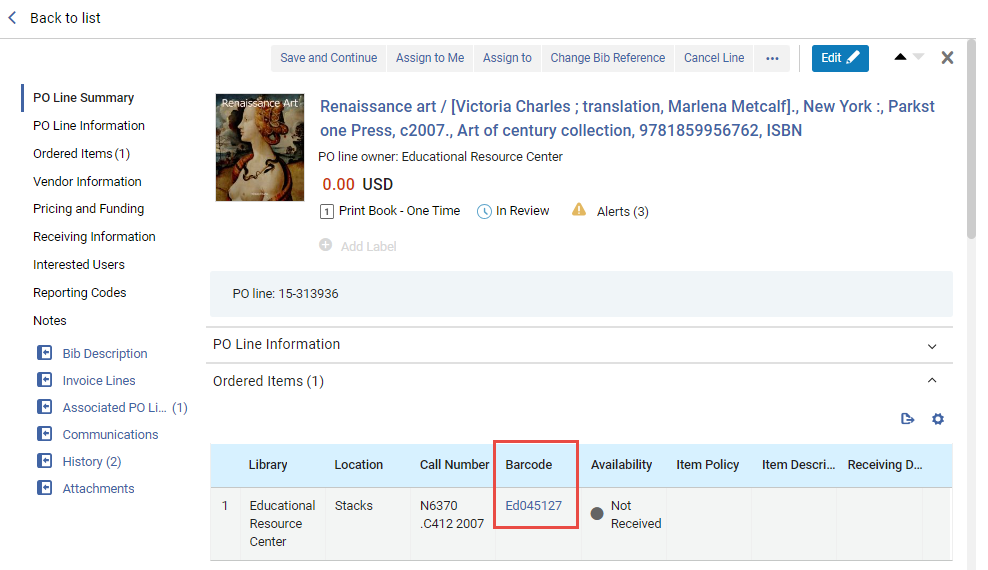 Código de barras generado automáticamente para un ejemplarPara órdenes creadas con uno de los siguientes métodos, Alma emplea el nivel de institución o el nivel de biblioteca por defecto configurados para la generación automática de códigos de barras, dependiendo de los datos de la biblioteca identificados en la orden:
-
EOD
-
Desde una API (orden en tiempo real)
-
Aprobar una solicitud de compra
-
Recibir nuevos ejemplares desde el proceso de recepción de órdenes continuas
Asignar inventario manualmenteSeleccionar este campo para impedir que Alma cree automáticamente un ejemplar de inventario para la nueva Línea de la orden de compra.This checkbox does not appear if you are creating a PO line for a standing order (except for Physical - Standing Order Non Monograph), a PO line of type service (for example Access Service - Subscription, Database Service - One Time, etc.), or the options Digital - Non Archiving or Physical - Archiving(both of which imply an order without inventory).Si se impide que Alma cree un ejemplar de inventario para la Línea de la orden de compra, se creará la Línea de orden de compra pero no se creará un nuevo inventario. Para obtener información sobre cómo adjuntar inventario a la línea de la orden de compra manualmente después de crear la línea de la orden de compra, véase:-
For physical inventory:Adding Inventory to an Item, below. Tenga en cuenta que debe agregar inventario manualmente a la línea de la orden de compra antes de que la línea de la orden de compra pueda proceder a agruparse.
-
For electronic inventory:Adding Inventory to a PO Line for an Electronic Resource, below.
-
- Select Create PO Line.
If you selected Assign inventory manually, a confirmation dialog box appears, asking you to confirm that the PO line will be created but inventory will not be created. Select Confirm to continue.
The PO line is created, and opens in the Details pane in full-page view and in Edit mode, with its workflow step set to In Review. The PO Line Summary section displays basic information about the PO line, including its owner, cost (at this stage, 0.00), type, workflow step, and number. If there are any alerts for the PO line, an Alerts icon (
 ) and link appear, with the number of alerts indicated. Seleccione el enlace para ver las alertas. (For a complete list of the alerts that may appear in a PO line, with explanations of their meanings, see Configuring Purchasing Review Rules.) Additional details about the PO line appear in the other sections, below the PO Line Summary section. Most of the fields in these sections are blank at this stage, unless the PO line was created from a template; the blank fields should be filled in as appropriate, as explained below.
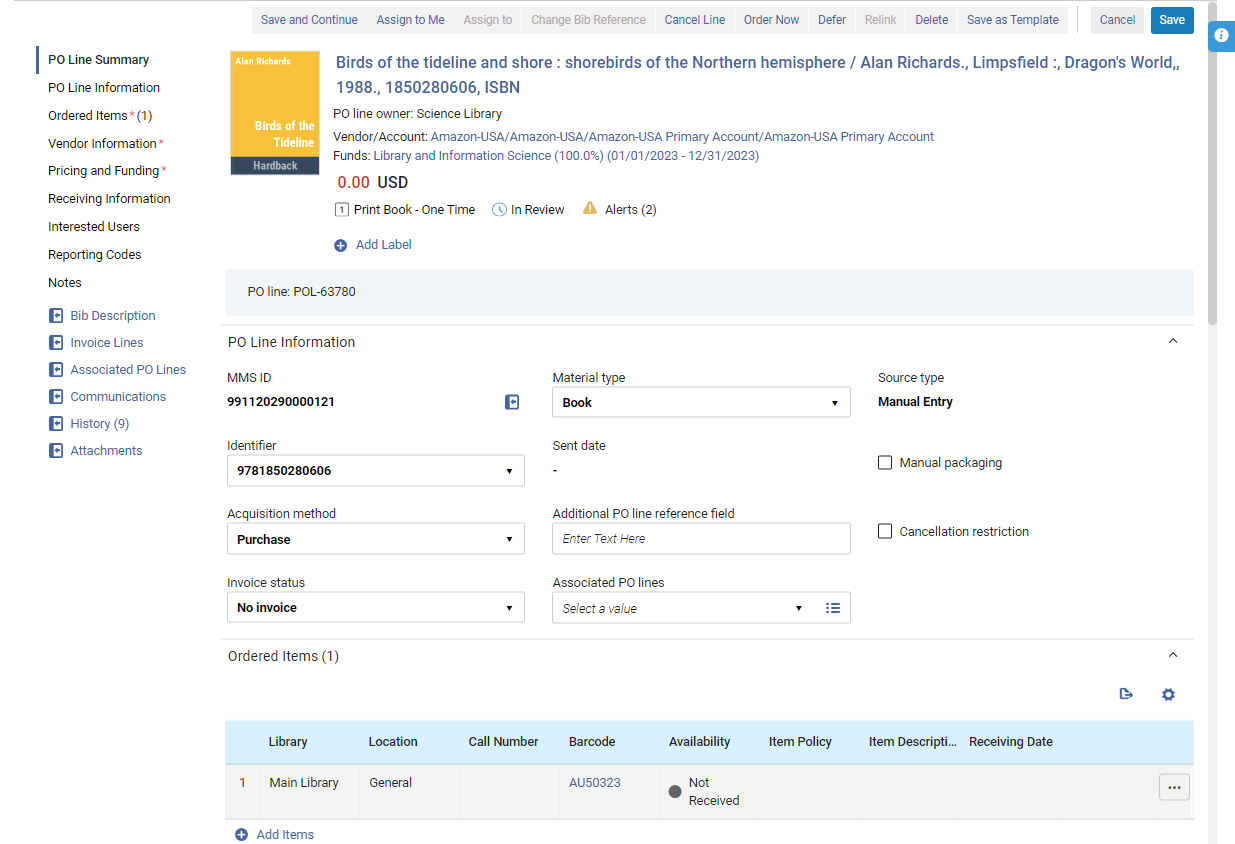 Línea de orden de compra recién creada (creada a partir de una plantilla)
Adding Information to the New PO Line
Una vez que se ha creado una nueva línea de la orden de compra como se explicó anteriormente, puede comenzar a ingresar más información al respecto en la línea de la orden de compra. You do this in the Details pane, which opens automatically when the PO line is first created, but can also be opened at any time later on by selecting the PO line in the PO-line task list. For additional information about opening PO lines from the task list, see Managing PO Lines.
When a new PO line is first created, the Details pane opens in Edit mode, so you can begin entering information into the various fields immediately. En el futuro, si abre la línea de la orden de compra desde la lista de tareas, se abrirá en el modo Vista. In order to edit it, you must make sure it is not assigned to another user (i.e., it is either assigned to you or unassigned), and then select Edit( in the task list or
 at the top of the Details pane) to switch to Edit mode. For additional information, see New Layout 2022.
Each of the sections in the Details pane, and the fields they contain, are described below. Ingrese la información de la línea de la orden de compra en las distintas secciones según sea necesario. When you have finished, select Save to save the information, or Save and Continue to save your changes and send the PO line to the next workflow step. For additional information, see Initiating the Processing of the New PO Line, below.
Al crear una nueva línea de orden de compra manualmente en Alma, para los usuarios que terminan su flujo seleccionando Ordenar ahora, Guardar o Guardar y continuar, Alma navegará a la lista con la POL específica. Este comportamiento solo se aplicará a las líneas de orden de compra creadas recientemente. Para las líneas de orden de compra existentes, cuando los usuarios editen y seleccionen una de las tres acciones anteriores, la página permanecerá como está.
PO Line Summary Section
The only change you can make directly in the PO Line Summary section is to add labels to, or or remove labels from, the PO line (see Managing Labels in the Details Pane). However, some changes you make in other sections automatically update the information in this section when you select Save or Save and Continue; for example, if you select a vendor or a fund, or enter a price for the item, this information is added to the PO Line Summary section. Cuando la línea de la orden de compra se agrupa en una orden de compra (PO), el número de la orden de compra también se agrega a esta sección, junto al número de línea de la orden de compra.
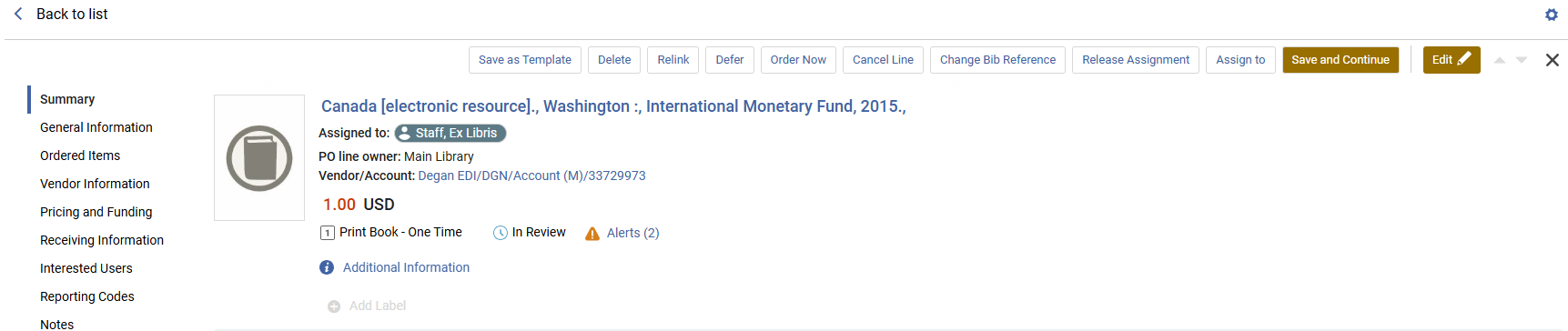
La sección Resumen de línea de la orden de compra contiene la información siguiente:
| Campo | Descripción |
|---|---|
| Descripción del ejemplar |
El nombre del ejemplar que se solicita, los nombres de los autores e información de la publicación (New for February 2026) Select the description to view the PO line's related institution record in a sliding panel. |
| Asignado a | Si la línea de la orden de compra está asignada a un usuario, aparece el nombre del usuario. |
| Propietario de la línea de la orden de compra | The library that owns the PO line (see PO line owner, above) |
| Proveedor / Cuenta |
El proveedor y la cuenta del proveedor de la línea de la orden de compra Only shown when a vendor has been selected (see Vendor Information Section, below) and the PO line has been saved. Select the vendor information to open the Vendor Details page (see Managing Vendors) in a sliding panel. |
| Error al recuperar fondos |
The funds associated with the the PO line, the proportion of the price that is to be covered by each fund, and the fiscal period defined for each fund Only shown when at least one fund has been selected (see Pricing and Funding Section, below) and the PO line has been saved. Select the name of a fund to open its fund record (see Managing Funds and Ledgers) in a sliding panel, with the Transactions tab selected and showing all the transactions related to this PO line that have already taken place. |
| Detalles del título | El precio del ejemplar y la moneda |
| Tipo de línea de la orden de compra | The Purchase type (see PO line type above) |
| Paso del flujo de trabajo | The current workflow step of the PO line (see Searching for PO Lines) |
| Alertas |
If alerts are attached to the PO line, an Alerts icon appears in this section, with the number of alerts in parentheses. Coloque el cursor del ratón sobre el icono para ver las alertas en una información de herramientas. Seleccione el icono para abrir las alertas en un panel deslizante. Las alertas más comunes generadas por Alma son las siguientes. You can see the complete list of alerts in Configuring Purchasing Review Rules.
|
| Información adicional |
Enlaces a información adicional, que incluye:
|
| Añadir etiqueta | To add a label to the PO line, select Add Label. For additional information, see New Layout 2022. |
| Línea de la orden de compra | Número de línea de la orden de compra |
| Orden de compra |
La orden de compra en la que se agrupa la línea de orden de compra y el estado de la orden de compra. Only shown when the PO line has been packaged into a PO; see Packaging PO Lines into a PO. |
Sección Información de línea de orden de compra
La sección Información de línea de orden de compra contiene información general sobre la línea de orden de compra, parte de la cual puede agregar o modificar.
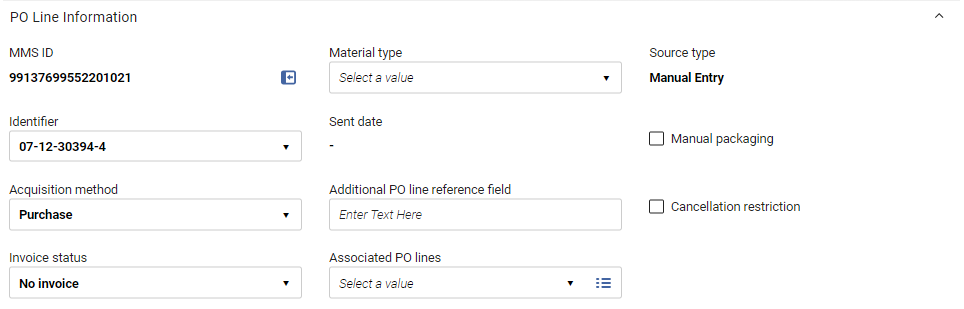
Fields in the PO Line Information Section
The PO Line Information section contains the following fields:
| Campo | Descripción |
|---|---|
| MMS ID |
The Metadata Management System ID - the internal Alma record ID - of the item To open the bibliographic record, select the |
| Identificador |
By default, this field is populated by the first identifier listed in the bibliographic/imported record's ISBN/ISSN (020 or 022) field, and all 020 and 022 values in the record appear in the dropdown list. You can also manually enter any text in the field. If the ISBN number is 13 digits and the display_isbn_13_in_predefined_result parameter is enabled, all 13 digits are displayed. Si el parámetro se deshabilita, el identificador mostrará 10 dígitos. See Configuring Other Settings. |
| Método de adquisición |
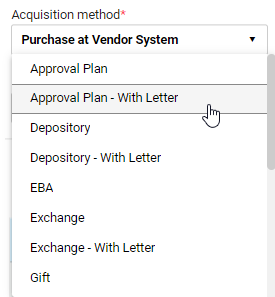
El tipo de método de adquisición para la Línea de la orden de compra. For details on the available acquisition methods, see Acquisition Methods below. Depending on your system's configuration, when you select the Acquisition method for a PO line, you may be able to choose whether an order letter is sent to the vendor or not. Si puede, ambas opciones aparecen en la lista desplegable.
Lista desplegable de métodos de adquisición con opciones para enviar una carta de orden o no
|
| Estado de la factura | This field is set by default to No Invoice and should not be modified. Alma actualiza automáticamente este campo según corresponda.
Cuando llega una factura y la Línea de factura se asocia con la Línea de la orden de compra:
This impacts the PO line workflow as follows: If a one-time PO line is set to Fully Invoiced and items are received/activated, the PO line is closed. If the PO line is set to Partially Invoiced, it remains in the Waiting for Invoice Status until it is changed (manually or by receiving a new invoice) to Fully Invoiced. The invoice status is set to Fully Invoiced when the ordered items is equal to or less than the invoiced items in all related invoice lines. Cuando se borra una factura o Línea de factura, o se elimina una Línea de la orden de compra de la Línea de factura, Alma comprueba si la Línea de orden de compra tiene asociada otra Línea de factura y el estado de la Línea de la orden de compra. If the status is active and there are no more related invoice lines, the invoice status is set to No Invoice. Borrar una factura elimina el gasto y recalcula la liberación de fondos. To remove the disencumbrance (when removing the only invoice associated with the PO line), manually set the PO line's Invoice Status to Partially Invoiced. See Creating an Invoice From a PO or Manually. |
| Facturado |
El tipo de material (por ejemplo, un libro, una revista electrónica o un CD-ROM) que representa el ejemplar. Las opciones disponibles varían dependiendo de si el ejemplar es físico o electrónico. For information on customizing material-type labels, see Configuring Physical Item Material Type Descriptions. Cuando se actualiza el tipo de material en una línea de orden de compra, todos los ejemplares se actualizan con el tipo de material. This field does not appear when creating a digital PO line without inventory. |
| Fecha enviado | La fecha en la que se envió al proveedor el pedido que contenía la línea de la orden de compra |
| Campo adicional de referencia de línea de orden de compra |
El código de referencia con el que usted desea identificar la línea de la orden de compra actual. Puede ser cualquier texto libre o información que haga referencia a la línea de la orden de compra, por ejemplo, un identificador que el EOD pueda usar. "Additional" here refers to the reference; this field has nothing to do with whether the PO line is a main PO line or an additional PO line. |
| Líneas de orden de compra asociadas |
A target PO line related to this PO line Ingrese una cadena de búsqueda (por ejemplo, un número de línea de orden de compra) en el campo de texto para realizar una búsqueda de palabras clave para una línea de orden de compra, o use la opción de búsqueda a la derecha del campo para seleccionar una línea de orden de compra de una lista. You can associate the current PO line with one target PO line, which is specified in this field. The relationship defined in this field is a one-way relationship: this PO line is associated with the target PO line, but not the reverse. Un caso en que se usa este campo es para pedir publicaciones seriadas con múltiples partes. It is recommended that you have one main PO line (with fund information) for the subscription and an additional Technical PO line for each item that you are to receive at a different interval, each of which would be associated with the main PO line using this field. The Associated PO lines section lists PO lines that are associated with this one (the reverse relationship), and not the PO line selected in this field. And the current PO line would appear in the Associated PO lines section of the PO line selected in this field. See Associated PO Lines Section, below. Las asociaciones de líneas de orden de compra tienen únicamente fines informativos y no tienen efectos funcionales. Si intenta cancelar una línea de orden de compra que tiene una línea de orden de compra asociada definida en este campo, aparece un mensaje de advertencia. |
| Tipo de fuente |
La fuente desde la que se originó la Línea de la orden de compra actual. For imported lines, select the link to open the relevant page containing the source details; for example, the MARC Record Simple View page, or the Import Job Details page. (New for February 2026) The Rialto status appears when a PO line was created as part of the Rialto workflow (see Monitoring the Order Status). |
| Agrupamiento manual | Si desea habilitar el agrupamiento manual de la Línea de la orden de compra en una Orden de compra. For details on packaging PO lines, see Packaging PO Lines into a PO |
| Restricción de cancelación | Si desea que al cancelar una Línea de la orden de compra se muestre una nota de advertencia sobre restricciones a la cancelación. (To then continue with the cancellation of the PO line, the user must select Confirm.) If you select this option, a Cancellation restriction note field is added to the section, and a Cancellation Restriction icon appears next to the relevant items in the PO line list tab of the purchase order. |
| Nota de Restricción de cancelación |
El texto de la advertencia que se mostrará al cancelar una línea de la orden de compra que tiene una restricción de cancelación This field is added to the section when Cancellation restriction is selected. |

 beside the number. El registro bibliográfico se abre en un panel deslizante en la parte superior de la página.
Acquisition Methods
The following acquisition methods are defined in Alma and can be selected for the Acquisition method field.
To enable or disable methods, or to configure the default method, see Configuring Acquisition Methods. The configuration settings make it possible to select, for each acquisition method, whether an order letter should be sent to the vendor or not (or that the user should be allowed to choose whether to send an order letter or not for each PO line).
| Método de adquisición | Descripción |
|---|---|
| Plan de aprobación | Existe el acuerdo de que el proveedor enviará lo que considere necesario para la Institución, en formato EOD. DichasTales Líneas de orden de compra no se envían al proveedor, sino que se agrupan en Órdenes de compra y se marcan como enviadas hasta su recepción/activación. La información sobre precios y fondo es obligatoria para este método.
The behavior of this method is identical to that of the Purchase at Vendor System method, with the exception of its display in a report. |
| Depósito | La Institución acepta alojar publicaciones gubernamentales y ponerlas a libre disposición.
|
| EBA | Evidence Based Acquisition: The institution deposits an EBA credit with the vendor, to be used on future eBook purchases, and subscribes for a specified period of time, at no charge, to a particular vendor collection. Hacia el final del período de suscripción, el proveedor proporciona a la institución estadísticas que describen el uso de los títulos de la colección por parte de la institución. Posteriormente, la institución usa su crédito EBA para comprar acceso perpetuo a los libros electrónicos de la colección que sus usuarios hayan usado más durante el período de suscripción. For additional information, see Real-Time Ordering. |
| Canje | La Institución acuerda intercambiar recursos con otra institución.
For more information on the exchange method, see Suggested Workflow for Acquisitions Exchange Program. |
| Regalo | El recurso es una donación que el proveedor otorga a la Institución.
|
| Depósito legal | Los Depósitos legales permiten que un valor igual a cero en una Orden de compra coexista con la notificación al proveedor, sin precisar fondos ni precio para enviar distintas versiones de la carta de pedido con la Línea de orden de compra. See Working With Legal Deposits. |
| Compra | La Institución compra el recurso y, cuando se aprueba la Orden de compra, envía la orden y las renovaciones al proveedor por EDI o correo electrónico.
For details on managing vendors and vendor accounts, see Managing Vendors. If the parameter po_line_send_notification_to_vendor_on_renewal is set to true on the Mapping Table page for Other Settings (Configuration Menu > Acquisitions > General > Other Settings), a PO Line Renewal Letter (see Configuring Alma Letters) is sent to a vendor when a subscription is renewed (see Configuring Other Settings). |
| Compra en el sistema del proveedor | La compra se gestiona mediante un sistema externo del proveedor. DichasTales Líneas de orden de compra no se envían al proveedor, sino que se agrupan en Órdenes de compra y se marcan como enviadas hasta su recepción/activación. La información sobre precios y fondo es obligatoria para este método.
The behavior of this method is identical to that of the Approval Plan method, with the exception of its display in a report. |
| Técnico | Relevante para órdenes de suscripción a servicios sin inventario o ejemplares que hayan migrado desde un sistema externo. Suele usarse para órdenes con múltiples partes, en las que se paga una vez y se reciben múltiples recursos.
Si va a pedir publicaciones seriadas con múltiples partes, se recomienda tener una Línea principal de la orden de compra (con información del fondo) para la suscripción, y una Línea de orden de compra técnica adicional para cada ejemplar que vaya a ir recibiendo con distintos intervalos. Se asocia entonces cada Línea de la orden de compra técnica con la Línea principal de la orden de compra. Si está trabajando con una orden mixta de material impreso y electrónico, se recomienda tener una Línea principal de la orden de compra (con información del fondo) para el inventario electrónico, y una Línea de orden de compra técnica adicional para el material impreso (para poder recibirlo). Se asocia entonces la Línea de la orden de compra técnica con la Línea principal de la orden de compra.
|
Ordered Resources Sections
PO lines for resources have a section listing each individual resource included in the PO line. Tenga en cuenta que las líneas de orden de compra para servicios no incluyen una sección de este tipo. El nombre de la sección y su contenido dependen del tipo de recurso solicitado. For example, if the PO line is for a physical resource, and is for a one-time order, the section is called Ordered Items, whereas if it is for an electronic resource, it is called Ordered Portfolios.
Creación inicial
Cuando se crea por primera vez una línea de orden de compra, aparece un único ejemplar en la sección de recursos solicitados, si se creó un ejemplar de inventario para ella al mismo tiempo, Si no se creó ningún ejemplar de inventario en el momento en que se creó la línea de orden de compra, inicialmente no aparecerá ninguna línea en la sección.
Ejemplares o existencias asociados
Puede asociar un ejemplar o una existencia a una línea de orden de compra de ese ejemplar/existencia. La línea de orden de compra aparece entonces en la sección de Ejemplar/Existencia ordenado.
Pagination
En los ejemplares, portafolios y colecciones ordenados, la paginación aparece por defecto cuando hay más de 20 filas.
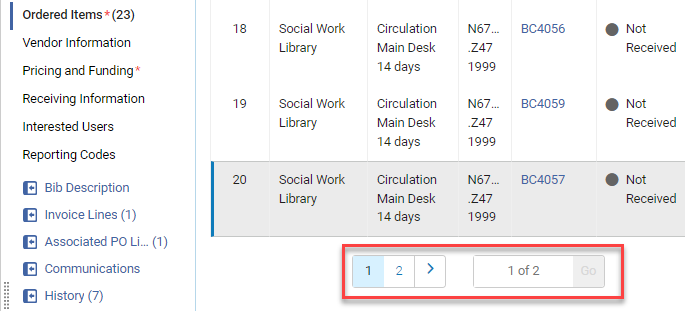
En el control deslizante, puede cambiar el número de filas necesarias para que aparezca la paginación.

El valor seleccionado en el control deslizante es almacenado por Alma después de cerrar la sesión o actualizar la página.
Secciones de ejemplares solicitados (solo recursos físicos)
Para recursos físicos, puede agregar recursos a la lista según sea necesario. Por ejemplo, puede agregar copias adicionales de un libro impreso, posiblemente para diferentes bibliotecas o con diferentes políticas de ejemplares y, para líneas de la orden de compra continuas, puede agregar existencias adicionales a la lista. Cuando se incluyen múltiples copias o existencias de un recurso en una línea de la orden de compra, cada ejemplar distinto aparece en una línea separada en esta sección.
La información en estas secciones no se puede editar directamente. When an item in the list is received, the Availability and Receiving Date are updated automatically. You can view additional details about each resource in the PO line, edit some of the information about it, receive the resource,[New for February 2026] place a request for the item, or delete it from the PO line, using the row actions of the resources in the list.
Fields in the Ordered Items Section (One-Time Physical Items)
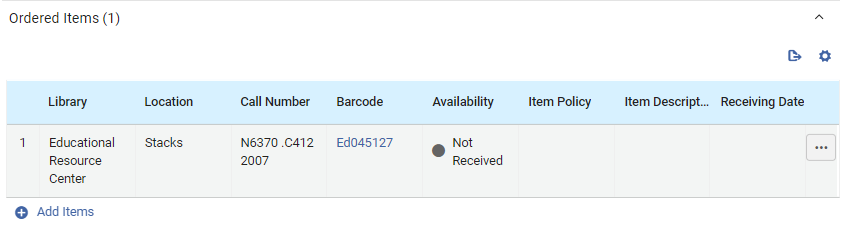
The following information is displayed in the Ordered Items section for each physical item included in a one-time PO line:
| Campo | Descripción |
|---|---|
| Biblioteca |
La biblioteca para la que se solicita el ejemplar This may be different from the PO-line owner specified when the new PO line was created (see PO line owner above). |
| Localización | La ubicación en la biblioteca en la que se pretende colocar el ejemplar. (New for February 2026) Select this link to view the holdings record in a sliding panel. |
| Código de barras | El número de clasificación del ejemplar |
|
Código de barras |
El código de barras que se está asignando al ejemplar Seleccione el código de barras para abrir el Editor de ejemplares físicos en un panel deslizante. You can view and edit information about the item there (see Updating Item-Level Information). |
|
Disponibilidad |
Si el ejemplar ya se recibió o no Cuando se recibe el ejemplar, el indicador es verde. |
| Política del ejemplar | The conditions under which patrons can access or borrow the item; for more information, see Updating Item-Level Information |
| Descripción del ejemplar | System or user-generated description as it appears in the Physical Item Editor page (see Updating Item-Level Information); normally blank for monographs and filled-in for serials. For additional information, see Description (Generate). |
| Fecha de recepción | Si se recibió el ejemplar, la fecha en que se recibió |
Fields in the Holdings for Ordered Items Section (Continuous Physical Items)

The following information is displayed in the Holdings for Ordered Items section for each continuous physical item included in a PO line:
| Campo | Descripción |
|---|---|
| Biblioteca |
La biblioteca para la que se solicita el ejemplar This may be different from the PO-line owner specified when the new PO line was created (see PO line owner above). |
| Localización | La ubicación en la biblioteca en la que se pretende colocar el ejemplar. (New for February 2026) Select this link to view the holdings record in a sliding panel. |
| Código de barras | El número de clasificación del ejemplar |
|
ID de la copia |
The copy number of the item (copy 1, copy 2, and so forth) |
|
Resumen |
Información sobre la existencia que se extrae de su registro bibliográfico. |
| Ejemplares recibidos |
El número de ejemplares físicos que ya han sido recibidos del número total de ejemplares incluidos en la línea de orden de compra Seleccione este enlace para abrir la página Lista de ejemplares en un panel deslizante. Allí se muestra información adicional sobre cada ejemplar, incluido su código de barras, información de ubicación y fecha de recepción. Select the barcode of an item in this list to open the item in the Physical Item Editor (see Updating Item-Level Information). |
Modificar la información del ejemplar físico
The information in the Ordered Items/Holdings for Ordered Items sections cannot be edited directly. When the item is received, the Availability and Receiving Date are updated automatically. You can edit many of the other fields manually, receive the item, or delete it, from the row actions of the item. También puede cambiar el recurso en sí.
Para instrucciones sobre cómo recibir un ejemplar
-
In the row actions of the item, select Edit. La información del ejemplar se abre en un panel deslizante.
-
Modify the fields as required, and select Save when you are done. Los cambios se guardan y el panel deslizante se cierra. Es posible que deba actualizar la página Líneas de orden de compra para ver los cambios reflejados allí.
-
In the row actions of the item, select Receive. Aparece un cuadro de diálogo en el que puede actualizar la información de recepción.
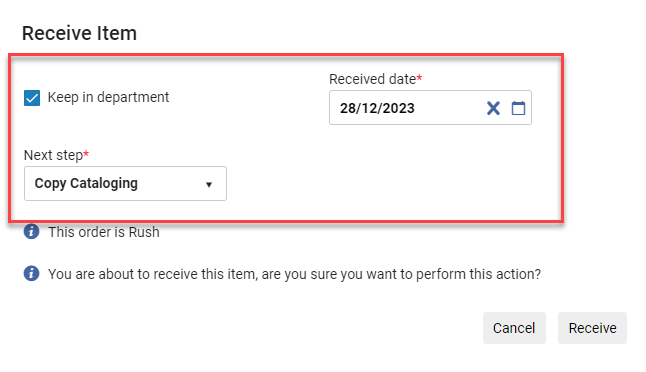 Actualizar información de recepción
The department listed under Currently At directly impacts the ability to receive the item from the PO line; an error occurs if the user is not in the correct department. Furthermore, the values shown in the Next step field in the dialogue window correspond to the Currently At department.
See also Receiving Physical Material.
-
In the row actions of the item, select Delete. This performs the same action as Withdraw when receiving physical material (see Receiving Physical Material).
Adding Items or Holdings of a Physical Resource to a PO Line
You can add items to a PO line for physical resources. Si la línea de la orden de compra es para un recurso físico único, puede agregar copias adicionales del recurso a la línea de la orden de compra. Si la línea de la orden de compra es para un recurso físico continuo, puede añadir a esta existencias adicionales.
Si la línea de orden de compra se creó sin inventario, no aparecerá ningún ejemplar en la sección de recursos solicitados. Puede seguir el procedimiento a continuación para agregar el primer ejemplar. Si se creó una línea de orden de compra para un recurso sin un ejemplar de inventario, no puede continuar con la agrupación hasta que se le agregue inventario manualmente.
- For one-time resources, in the Ordered Items section, select Add Items. For continuous resources, in the Holdings for Ordered Items section, select Add Holdings. The Add Items or Add Holdings box opens.
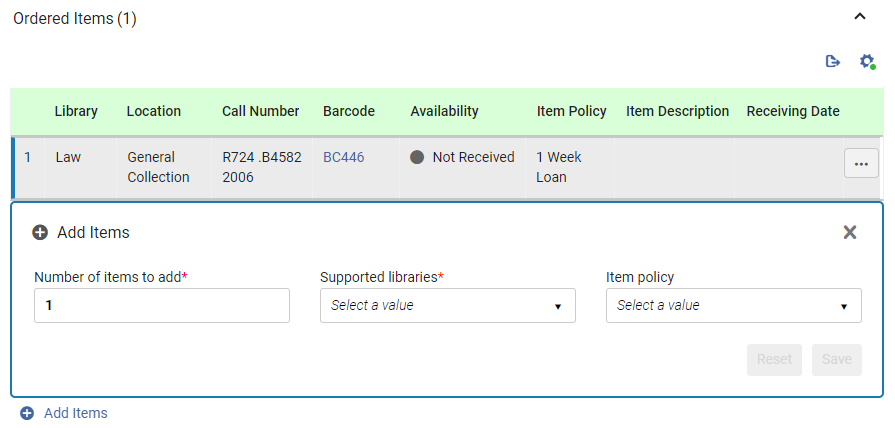
- Under Number of items to add or Number of holdings to create, enter the number of additional copies to add to the PO line for the library and location you will select in the next step.
- Under Supported libraries, select the library and location for which the items are being ordered. The list includes only those locations that can receive items of this type from the PO-line owner specified when the PO line was created (see PO line owner above).For information about creating relationships between libraries to enable the libraries to acquire items for one another, see Configuring Fulfillment Services Between Libraries Within an Institution.
- For one-time orders, select the Item policy – the conditions under which patrons will be able to borrow or access the item (optional).
- Select Save. The items are added to the PO line, and appear in the list of resources in the Ordered Items or the Holdings for Ordered Items section. (If you added more than one copy, each copy appears in the list in a separate row.)
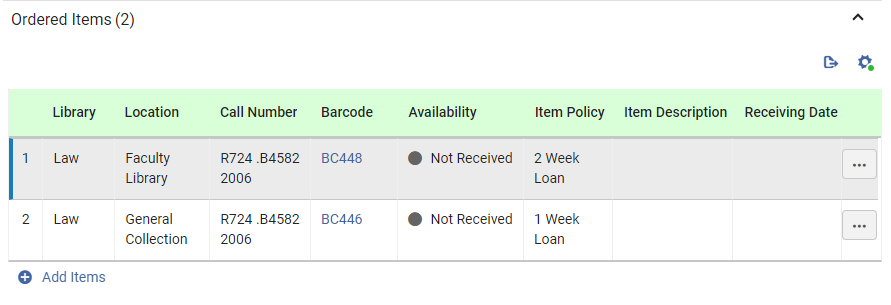
- To add additional copies, e.g., for a different Location, or with a different Item Policy, select Add Items again and enter the details as explained above.
Sección de portafolios solicitados(solo recursos electrónicos)
The Ordered Portfolios section of the PO line appears only for orders of electronic resources. It displays information about the electronic resource being ordered in the PO line. You can view additional details, edit some of the information, or change the resource being ordered using the row actions of the table.
The Replace Resource function can be used to handle purchases of electronic resources whose distribution is handled by a Network Zone; see Managing PO Lines.
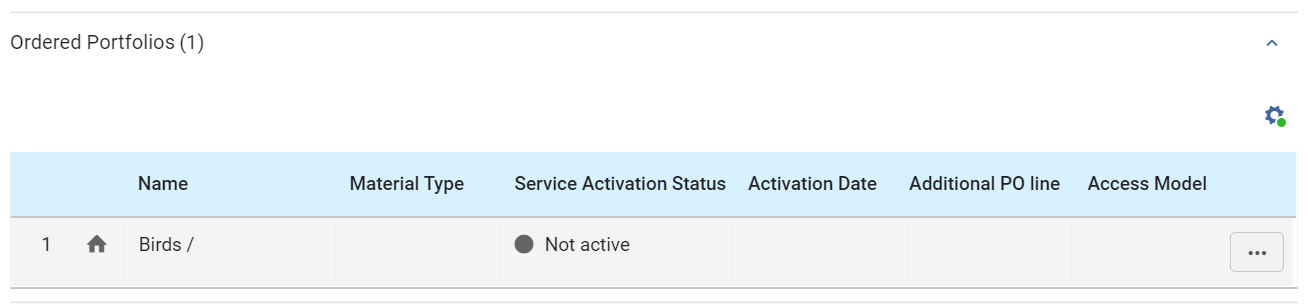
Campos en la sección Portafolios solicitados
The following information is displayed under Ordered Portfolios for the portfolio of the PO line:
| Campo | Descripción |
|---|---|
|
Indicador de zona; azul para recursos disponibles, gris para recursos que no están disponibles:
|
|
| Nombre |
El nombre del portafolio |
| LCCN | El tipo de recurso: libro, revista, disertación, etc. |
| Estado de Activación del Servicio | Si el portafolio está activo o no |
| Fecha de activación | Si el portafolio está activo, la fecha en que se activó |
| Línea adicional de la orden de compra | Si aparece una marca de verificación verde, esta línea de orden de compra es una línea de orden de compra adicional para el portafolio. |
| Modelo de acceso | El modelo de acceso define cuántos usuarios finales simultáneos pueden acceder al recurso electrónico.
The Access Model column appears for the following types of PO lines:
Puede seleccionar o modificar el modelo de acceso en una de dos ubicaciones:
The access model can also be changed by the Update PO Line Information job. For more information, see Managing Access Models. |
 – Institution Zone
 – Network Zone
 – Community Zone
Editar información de portafolio
Puede ver y editar la información del repositorio sobre el portafolio en el Editor de portafolios electrónicos. For information about this editor, see Editing a Portfolio Using the Electronic Portfolio Editor.
- In the Ordered Portfolios section, in the row actions of the portfolio, select Edit. El Editor de portafolios electrónicos se abre en un panel deslizante.
- Modifique la información según sea necesario.
- Select Save. La información del repositorio se actualiza y el panel deslizante se cierra.
Changing the Portfolio Being Ordered
Puede cambiar el portafolio que se está solicitando en la línea de orden de compra.
For additional information about this option, see Replacing the Resource Associated with an Electronic PO Line.
- In the Ordered Portfolios section, in the row actions of the portfolio, select Replace Resource. The Electronic Portfolios page opens in a sliding panel, with the persistent search bar at the top.Dependiendo de la configuración de su sistema, es posible que se le pida que elija si desea conservar el recurso en el repositorio o eliminarlo. If you are prompted, choose one of the options, and then select Save. Incluso si elige eliminarlo, el recurso solo se eliminará del repositorio si no está asociado con ningún otro inventario.
- In the persistent search bar, search for the portfolio you want order instead of the current portfolio.
- Select the resource, and then select the Select button. El panel deslizante se cierra y el portafolio que seleccionó reemplaza al anterior en la línea de la orden de compra.
Adding Inventory to a PO Line for an Electronic Resource
Puede agregar inventario a una línea de orden de compra electrónica según sea necesario. Para hacerlo, debe agregar la línea de la orden de compra al registro del portafolio. If you chose not to add inventory when you created the PO line, the Ordered Portfolios section is empty until you manually add a portfolio to the PO line.
- Search for the electronic portfolio that you want to add (see Searching in Alma).
- Select Edit Portfolio. Aparece la página Editor de portafolios electrónicos.
- In the Acquisition tab, in the PO Line field, select the PO line.
- Select Save. The portfolio is added to the PO line and appears in the Ordered Portfolios section.
Sección de colecciones ordenadas (Recurso electrónico)
The Ordered Collections section of the PO line appears only for orders of electronic resources. It displays information about the electronic resource being ordered in the PO line. You can view additional details, edit some of the information, or change the resource being ordered using the row actions of the table.
The Replace Resource function can be used to handle purchases of electronic resources whose distribution is handled by a Network Zone; see Managing PO Lines.
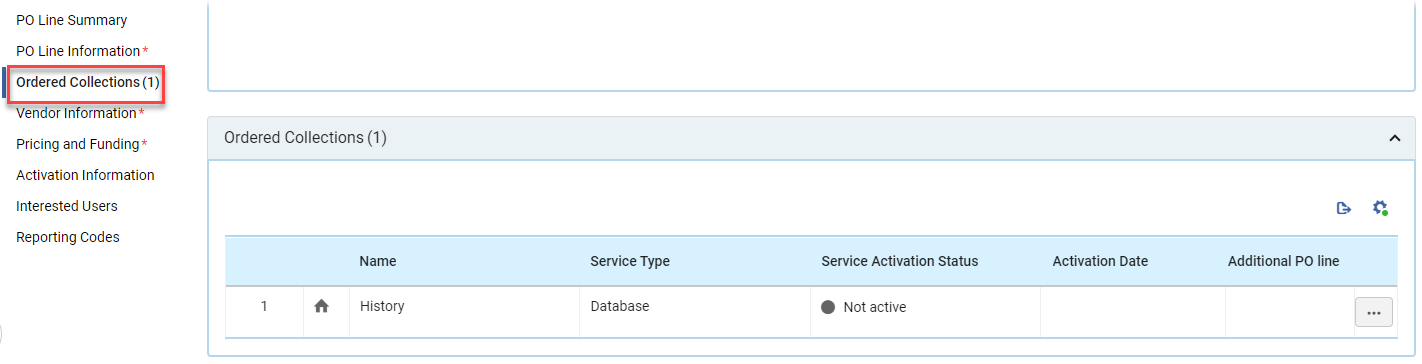
Campos en la sección Colecciones ordenadas
The following information is displayed under Ordered Collections for the collection associated with the PO line:
| Campo | Descripción |
|---|---|
|
Indicador de zona; azul para recursos disponibles, gris para recursos que no están disponibles:
|
|
| Nombre | El nombre de la colección |
| Tipo de servicio | The type of service: database, aggregator package, selector package, etc. |
| Estado de Activación del Servicio | Si la colección está activa o no |
| Fecha de activación | Si la colección está activa, la fecha en la que se activó |
| Línea adicional de la orden de compra | Si aparece una marca de verificación verde, esta línea de orden de compra es una línea de orden de compra adicional para la colección. |
Editar información de la colección
Puede ver y editar la información del repositorio acerca del portafolio en el Editor de colección electrónica. For information about this editor, see Managing Electronic Resources.
- In the Ordered Collections section, in the row actions of the collection, select Edit. El Editor de colecciones electrónicas se abre en un panel deslizante.
- Modifique la información según sea necesario.
- Select Save. La información del repositorio se actualiza y el panel deslizante se cierra.
Changing the Collection Being Ordered
Puede cambiar la colección que se está ordenando en la línea de orden de compra.
For additional information about this option, see Replacing the Resource Associated with an Electronic PO Line.
- In the Ordered Collections section, in the row actions of the collection, select Replace Resource. The Electronic Collections page opens in a sliding panel, with the persistent search bar at the top.Dependiendo de la configuración de su sistema, es posible que se le pida que elija si desea conservar el recurso en el repositorio o eliminarlo. If you are prompted, choose one of the options, and then select Save. Incluso si elige eliminarlo, el recurso solo se eliminará del repositorio si no está asociado con ningún otro inventario.
- En la barra de búsqueda persistente, busque la colección que desea ordenar en lugar de la colección actual.
- Select the resource, and then select the Select button. El panel deslizante se cierra y la colección que seleccionó reemplaza la anterior en la línea de la orden de compra.
Adding Inventory to a PO Line for an Electronic Collection
Puede agregar inventario a una línea de orden de compra electrónica según sea necesario. Para hacerlo, debe agregar la línea de la orden de compra al registro de la colección.
- Search for the electronic collection that you want to add (see Searching in Alma).
- Select Edit Collection. La página Editor de colección electrónica aparece.
- In the General tab, in the PO Line field, select the PO line number.
- Select Save. The collection is added to the PO line and appears in the Ordered Collections section.
Sección de Representaciones solicitadas (solo recursos digitales)
The Ordered Representations section of the PO line appears only for orders of digital resources - one time or continuous orders that are fulfilled by supplying files that the institution will then own and store in its own repository. The section displays information about the digital resource being ordered in the PO line. Inicialmente, todas las líneas de la orden de compra digitales se crean sin inventario. Para guardar la línea de orden de compra y continuar procesándola, debe asociarla con una colección y cargar uno o más ficheros en ella.
For additional information about working with digital representations, see Adding Representations and Editing Representation Metadata and Content.
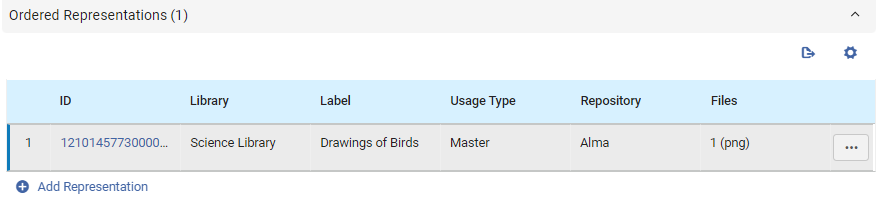
Campos en la sección Representaciones solicitadas
The following information is displayed under Ordered Representations for each representation in the PO line:
| Campo | Descripción |
|---|---|
| ID |
Un número de identificación asignado a la representación por Alma |
| Biblioteca |
La biblioteca propietaria |
| Etiqueta | An optional label identifying the representation; this label appears in the repository search results when selecting View It. |
| Tipo de uso | Options are Derivative, Master, or Auxiliary (The master is the original copy, the derivative is, for example, a copy with a lower resolution, and auxiliary is a representation that is supplementary to the main representation, for example, a table of contents). |
| Repositorio | Dónde se almacena el fichero de representación |
| Archivo | El nombre del archivo de representación |
Adding Inventory to a PO Line for a Digital Representation
Debe agregar al menos un fichero a una línea de la orden de compra digital. Puede agregar ficheros adicionales según sea necesario. The Ordered Representations section is empty until you manually add a representation to the PO line. Por defecto, Alma almacena los ficheros de representación en su propio repositorio. En su lugar, puede optar por almacenarlos en un repositorio remoto.
- In the Ordered Representations section, select Add Representation. La página Detalles de representación se abre en un panel deslizante. The Title,Library and PO Line are pre-populated as they are inherited from the PO Line.
- Select a Collection with which to associate the representation. Tenga en cuenta que no puede agregar archivos a la línea de la orden de compra hasta que seleccione una colección en la que incluirlos.
- If you want to store the representation files in a remote repository, under Representation Details, select Remote. A Remote Representation Details section is added to the page. Ingrese la información acerca de el repositorio en esta sección.
- Completar los campos que faltan según sea el caso.
- Under File Details, select the representation file. El fichero se carga al repositorio.
- Select Save. The representation is attached to the PO line, the sliding panel closes, and the PO line's Details pane is once again fully visible.
- Select Save and Continue. Se guarda la línea de la orden de compra. Depending on the type of PO line, its status (workflow step) is updated in one of the following ways:
- One Time PO Line: The PO line moves directly from In Review to Closed.
- Continuous PO Line: The PO line moves from In Review to either Recurring Renewal(if it is configured for automatic renewal) or Waiting for Manual Renewal(if it is configured for manual renewal). Cuando se reciben representaciones adicionales para la línea de la orden de compra, deben agregarse manualmente al inventario.
Visualización de información de representación digital
You can open the Digital Representation Resource Editor from the row of a representation, and view information about the representation. You can also deliver or download the representation from the Files tab of the editor. For information about this editor, see Editing Representation Metadata and Content.
- In the Ordered Representations section, in the row of the representation, select the ID of the representation. The Digital Representation Resource Editor opens in a sliding panel.
Sección Ejemplares en reclamación
The Items in Claim section appears in the Details pane when any of the items in the PO line are in claim. You can also receive items, modify the receiving information [New for February 2026] and place a request for the item in this section. Since this section never appears in a newly created PO line, it is documented under Processing Claims.
Sección de Información del proveedor
You can enter information about the intended supplier of the item, vendor reference information, the terms of the purchase, as well as a note to the vendor, in the Vendor Information section.
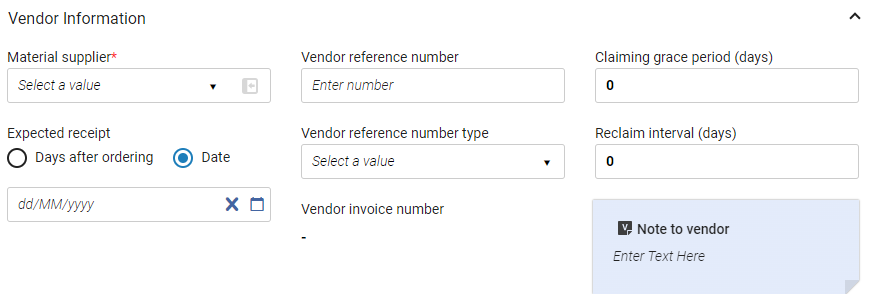
The Vendor Information section contains the following fields:
| Campo | Descripción |
|---|---|
|
Proveedor del material (Requerido) |
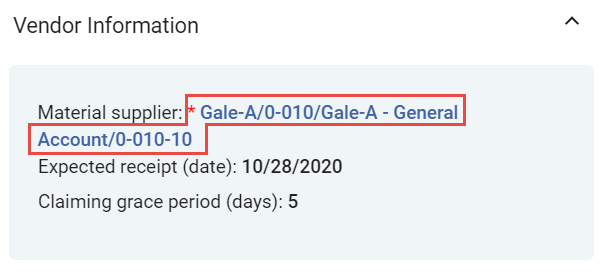
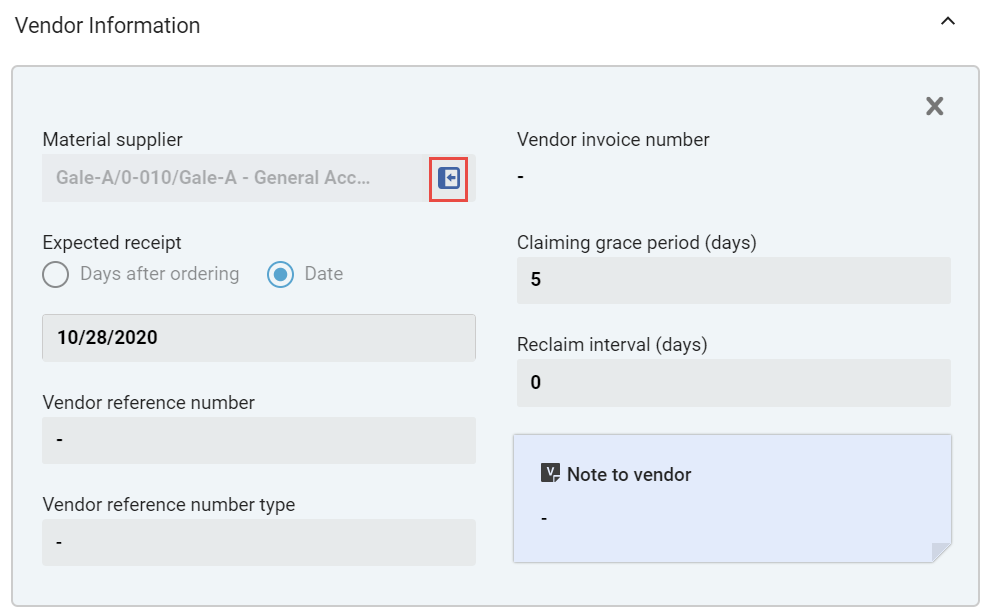
El proveedor que suministra el material que se está pidiendo; seleccionar desde la lista rápida. When a vendor is selected in this field, you can open its Vendor Details page (see Managing Vendors) in a sliding panel, as follows:
|
|
Proveedor del acceso (Solo para ejemplares electrónicos) |
La interfaz del proveedor del material que se está pidiendo; seleccionar desde la lista rápida. See Editing Vendor Interface Information. |
| Periodo de gracia para reclamar (días) | A grace period (in days) after the expected receipt/activation date, after which the PO line is sent to the claims task list (see Processing Claims). The default value is taken from the Claiming grace period field on the Vendor Account Details page (Acquisitions > Acquisitions Infrastructure > Vendors) for one-time PO lines, and from the Subscription grace period field on the Vendor Account Details page for continuous PO lines. |
| Recepción/Activación prevista |
Cuándo se espera recibir el pedido (para ejemplares físicos) o activarlo (para ejemplares electrónicos) Seleccione uno de los siguientes y luego complete el campo debajo de las opciones según corresponda:
This value is used to calculate the claim date (see Processing Claims). Este campo no aparece cuando se crean líneas de orden de compra sin inventario.
Impact on Primo Get It: When a value is entered in this field, the c.uresolver.getit2.item_list..ACQ.with_expected_date label is invoked in the Primo Get It tab and appears as On order until <date>. When no value is entered in this field, the c.uresolver.getit2.item_list..ACQ.with_no_expected_date label is invoked in the Primo Get It tab and appears as On Order. You can customize the values that appear by using the Discovery Interface Labels Code Table page (see Configuring Labels). Para invocar las etiquetas para órdenes continuas, crear un registro de existencias con un patrón de predicción. See Prediction Patterns. |
|
Activación prevista después del pedido (días) (Solo para ejemplares electrónicos) |
El número de días tras la emisión del pedido en que vence la tarea de activación. When the due date passes, the Notify E-Activation Due letter is sent to the user that is assigned the e-resource activation task and an alert is displayed in the user's list of tasks. For information on creating a default due date, see Configuring Other Settings. For more information, see Managing Electronic Resource Activation.
For more information, see the Activating Electronic Resources video (6:40 mins). |
|
Intervalo de suscripción (solo para ejemplares físicos continuos) |
El intervalo de recepción, en días, de una orden continua (30 si es mensual, 90 si trimestral, etc.). This value is used to calculate the claim date, unless prediction patterns are in use (see Processing Claims;Prediction Patterns). Al usar los Patrones de predicción, el Intervalo de suscripción debe ser el mejor cálculo del número de días, relativo a la fecha de publicación, en que el ejemplar va a llegar. For information on handling items with different receiving intervals, see the explanation for the Technical acquisition method in the Acquisition Methods table. |
| Intervalo de reclamación (días) | Cuando se rellene, Alma enviará cartas de reclamación al intervalo definido después de que se envíe la carta inicial de reclamación. Si el campo no se rellena, no se enviará la carta de reclamación. Cuando este campo se completa en la página Detalles de la cuenta del proveedor, se copia automáticamente a este campo en la página de Línea de la orden de compra cuando se selecciona la cuenta del proveedor específico. If the value in Reclaim Interval (days) field in the PO line details page is modified, that value takes precedence and becomes the actual value. |
| Número de referencia del proveedor | Un número de referencia para la Línea de orden de compra en Alma, facilitado por el proveedor. Sirve como punto de equiparación para identificar una Línea de orden de compra en Alma.
When communicating with an EDI vendor, the SLI field is the Vendor reference number matching point. The LI field is the matching point for the PO line reference number. This field is also used as a matching point for Update Inventory import profiles. |
| Tipo de número de referencia del proveedor | El tipo de número de referencia del proveedor. Las opciones disponibles vienen predefinidas por Ex Libris. |
| Número de factura del proveedor | Este campo se completa automáticamente cuando la línea de orden de compra se ha cargado desde un fichero EOD. See Importing Records Using an Import Profile. Este campo no está en uso para otros tipos de líneas de la orden de compra. |
| Nota para el proveedor | Ingrese las notas que desee pasar al proveedor junto con la línea de la orden de compra. |
 ).
Pricing and Funding Section
La sección Precio y fondo contiene información sobre el precio del ejemplar que se solicita, el coste total del pedido y los fondos que pagarán la compra.
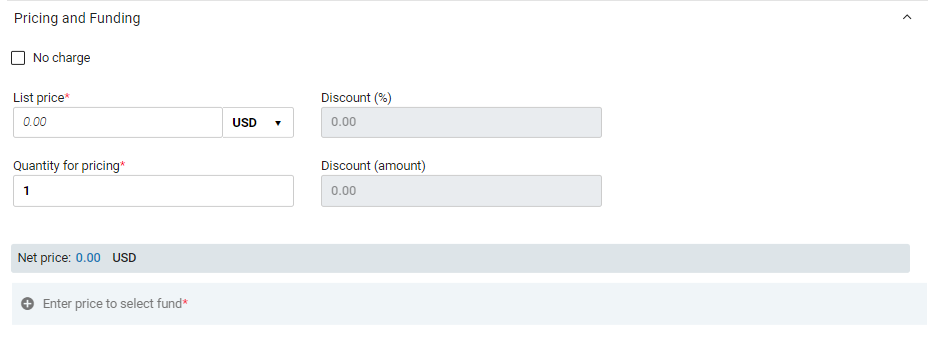
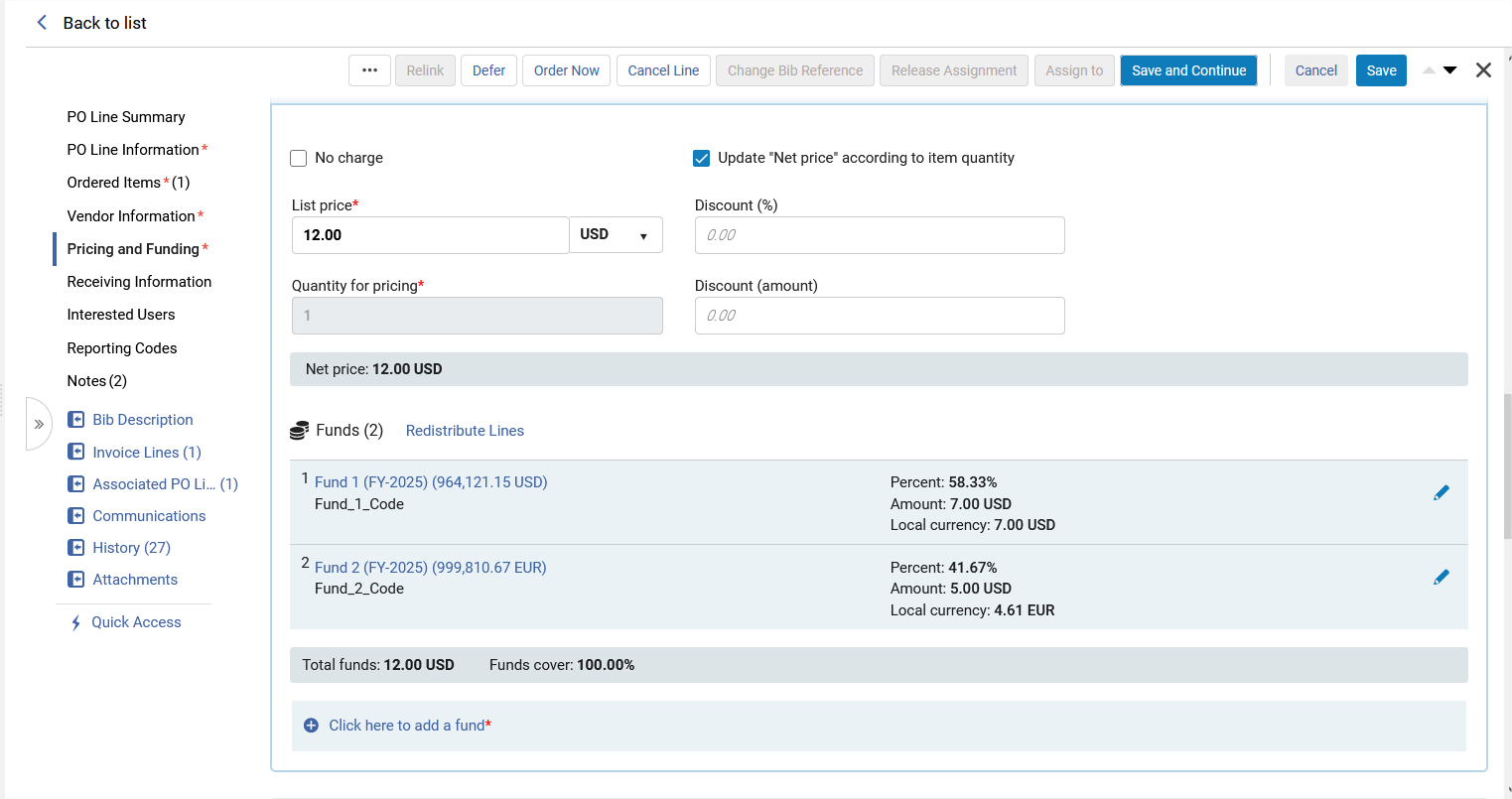
The Pricing and Funding section contains the following fields:
| Campo | Descripción |
|---|---|
| Sin cargo |
If you need to create a PO line without any charge, but the Acquisition method is one that normally requires pricing and funding information, select this checkbox. When this option is selected, the Pricing and Funding section is hidden, and Alma does not allow encumbrances to be created for the order. The following acquisition methods normally require pricing and funding information, and therefore provide the No charge option:EBA,Purchase,Approval Plan, and Purchase at Vendor System. If this option is selected after an order is created and encumbrances are recorded for the PO line, these transactions are deleted. |
| Actualizar el "precio neto" según la cantidad de ejemplares | (Solo es relevante para líneas de orden de compra físicas)
This affects the number of ordered items in the Quantity for pricing field. When the checkbox is selected, the Quantity for pricing amount is updated automatically when the user adds or removes items, and as a result, the Net Price field is also updated. The Update "Net price" according to item quantity checkbox is selected by default when creating new PO lines. To clear this checkbox by default for newly created PO lines, go to Configuration Menu > Acquisitions > Other Settings, customize the po_line_quantity_updated_with_items_number parameter, and set it to False. Las líneas de orden de compra creadas por EOD, API o las solicitudes de compra no tienen la casilla de verificación habilitada por defecto. |
| Precio de lista (requerido) | Introduzca el precio de lista para una sola copia del ejemplar y seleccione la moneda del campo a la derecha de este. Para valores inferiores a 1, introducir un 0 inicial. Por ejemplo, 0,44, no ,44. |
| Cantidad por precio | El número de ejemplares por los que se paga. Indica un número entre 1 y 100. El precio total de la línea de la orden de compra es igual a la cantidad por precio multiplicada por el precio de lista.
Note that the Quantity for pricing and the Number of items to add(when adding items to the PO line in the Ordered Items section) may be different if you have obtained discounted pricing through a deal such as "buy two items and get a third item at no additional charge." |
| Descuento (%) | El descuento, en su caso, a aplicar. Alma calcula automáticamente el precio total de la línea de la orden de compra en función del precio de lista de cada copia, el descuento y la cantidad de copias que se solicitan. The total price of the PO line is displayed in the Net price field.
Este valor se completa automáticamente si el proveedor tiene definido un porcentaje de descuento en la cuenta. See Adding a Vendor and Vendor Account. Note that updating the parameters of the vendor account only impacts PO lines created after the change is made; it does not automatically update all existing PO lines from this vendor account. |
| Descuento (cantidad) | This field enables users to insert a specific discount amount that is automatically calculated and reflected in the Discount (%) field.
Alma always looks at the Discount (%) field in order to reflect the actual Net Price. When a user populates the Discount (amount) field, a 0.01 difference between the net price and the list price may occur. |
| Cuantía pagada en el período fiscal actual | La cuantía total pagada hasta el momento durante el actual período fiscal. Este campo solo se completa cuando está visualizando o editando la línea de orden de la compra después de que se haya creado, y únicamente para órdenes de suscripción. Se calcula sobre la marcha cuando la línea de la orden de compra se abre para su edición y no se almacena en Alma; por lo tanto, no se puede buscar. |
| Haga clic aquí para añadir un fondo |
Select this link to add a fund to the PO line. An Add Fund box opens. it contains the following fields:Fund name,Percent,Amount. Fill in the fields as explained below. When you have finished, at the bottom of the box, select Save. The fund information is added under Funds. Mientras que la opción por defecto es un solo fondo con el 100% de asignación, se puede distribuir el coste de una Línea de orden de compra entre varios fondos. To add additional funds to the PO line, repeat this process for each fund you want to add, stipulating the part of the cost to be covered by each fund in its Percent or Amount fields, as explained below. See also Redistribute Lines, below. Once the funds are added, they are listed under Funds, with information about the cost they are covering. The fund names in the list are links that can be selected to open a sliding panel in which information about transactions related to the PO line for that fund is displayed. Cuando se guarda la línea de la orden de compra, se crea una transacción de gravamen para cada fondo de acuerdo con la información introducida aquí. |
| Nombre del fondo | Seleccione el fondo de la lista de selección rápida.
Un fondo está disponible para una Línea de orden de compra si sirve a la biblioteca del propietario de la línea de la orden de compra, está activo, asignado y cubierto por el actual período fiscal, o si las reglas del fondo permiten el compromiso fuera del período fiscal. El fondo puede no tener dinero en su balance en el momento de hacer el pedido. When a fund is selected in this field, select its name to open its fund record (see Managing Funds and Ledgers) in a sliding panel, with the Transactions tab selected and showing all the transactions related to this PO line for this fund. El enlace está disponible en los modos Ver y Editar.
|
| Porcentaje | The percentage of the List price value still available for fund allocation. When the Amount field is updated, the value of this field updates accordingly. |
| Importe | The amount of the List price value still available for fund allocation. When the Percent value is updated, the value of this field updates accordingly. |
| Moneda local | The value in the Amount field, given above, in the local currency (converted, if necessary) |
| Redistribuir líneas | If an amount other than 100% is allocated to funds, select Redistribute Lines to re-allocate the fund amount percentages, based on each fund's relative portion of the current total amount. For example, if there are two funds, and each is configured to cover 80% of the total cost of the PO line, so that, together, they cover 160% of the cost, Redistribute Lines would correct each to cover 50% of the total. Alternatively, if one of the funds is configured to cover 50%, and the other 25%, for a total coverage of 75%, Redistribute Lines would correct the first to 66.67% and the second to 33.33%. |
| Precio neto | Muestra el coste total de la línea de la orden de compra, según la información de los campos anteriores de esta sección. |
| Fondos totales | Muestra el importe total de los fondos seleccionados. |
| Cobertura de fondo | The percentage of the Net price which the selected funds cover. |

Sección de información de recepción (solo recursos físicos)
The Receiving Information section is where you add information about the receiving process to the PO line of a physical resource, so that the user receiving the item will be aware of any requirements or issues. También puede marcar el recurso como Urgente en esta sección.

You can can receive items and modify the receiving information from the Ordered Items section (see Modifying Physical Item Information) and from the Items in Claims section (see Items in Claims Section).
The Receiving Information section contains the following fields:
| Campo | Descripción |
|---|---|
| Urgente |
Seleccione esta opción si desea acelerar el pedido de este ejemplar. The rush icon In addition, the item is marked as Rush( |
| Reparto durante la recepción | Si se selecciona, aparecerá un mensaje de confirmación durante la recepción de la Línea de la orden de compra, informando al bibliotecario de que la orden está marcada para reparto y que debe imprimir la lista de usuarios interesados. For details on receiving physical material, see Receiving Physical Material. |
| Encuadernación durante la recepción | Si se selecciona, aparecerá un mensaje de confirmación durante la recepción de la Línea de la orden de compra, informando al bibliotecario de que la orden está marcada para encuadernación y debe enviarse a encuadernar. For details on receiving physical material, see Receiving Physical Material. Also see Binding (Merging) Items. |
| Nota de recepción |
Enter any information that the person receiving the item should be aware of. Por ejemplo, indique la ubicación prevista de los ejemplares de publicación seriada o pedido permanente en los que no se crea ningún ejemplar de inventario. The contents of the receiving note is displayed both in the PO line and in the Receive New Material page (Acquisitions > Receiving and Invoicing > Receive; see Receiving Physical Material). La nota está limitada a 4000 caracteres, pero puede modificarse en cualquier momento. Al migrar Líneas de orden de compra sin inventario, este campo contiene la información de la biblioteca/ubicación sobre la localización permanente del ejemplar. Se pueden introducir múltiples líneas de texto en este campo, pero debe tenerse en cuenta que aparecerán como un bloque de texto, sin saltos de línea. |
 ) in the Receive New Material page (
Sección información de activación (solo recursos electrónicos)
The Activation Information section is where you add information about the license and access model of an electronic resource. You can also mark the resource as Rush, and add an Activation note for the Activation Operator to see when they are activating the resource, if you wish.
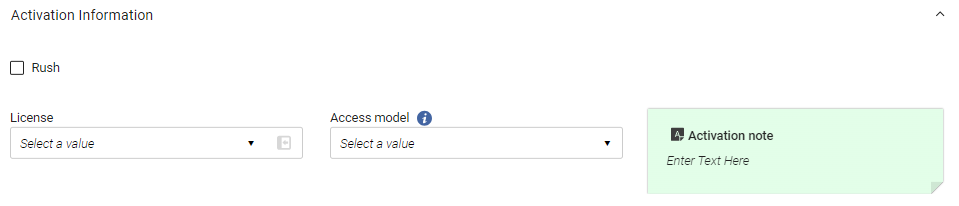
The Activation Information section contains the following fields:
| Campo | Descripción |
|---|---|
| Urgente | Seleccione esta opción si desea acelerar el pedido de este ejemplar. The rush icon  appears in the item's row in PO-line task lists. |
| Licencia | Seleccione una licencia de la lista rápida para asociarla al recurso, mostrada en la lista del inventario. For more information on licenses, see Managing Licenses and Amendments. |
| Modelo de acceso |
El modelo de acceso define cuántos usuarios finales simultáneos pueden acceder a los recursos electrónicos. Seleccione el modelo de acceso correcto para el recurso de la lista desplegable. For additional information, see Access Model and Managing Access Models. |
| Nota de activación | Ingrese cualquier información que deba conocer el miembro del personal que realice la activación del recurso. No hay límite en la longitud de la nota, y esta se puede modificar en cualquier momento. Activation notes are displayed in the Electronic Resource Activation Task List page (Resources > Manage Inventory > Manage Electronic Resource Activation; see Activating Electronic Resources and Activation Task List), where electronic resources are activated. |
Información de renovación (solo ordenes continuas)
For continuous orders like subscriptions, order-renewal information is configured in the Renewal Information section.
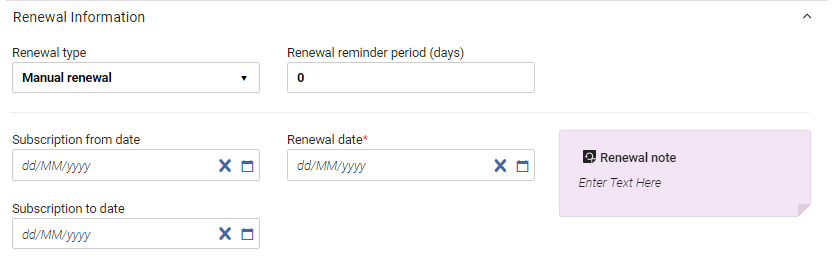
For information about managing renewals, see Processing Renewals.
The Renewal Information section contains the following fields:
| Campo | Descripción |
|---|---|
| Tipo de renovación |
Seleccionar una de las siguientes opciones: Manual renewal – When the date earmarked by the Renewal reminder period (days) arrives, the PO Line renewal job changes the Workflow Step of the PO line from Recurring Renewal to Waiting for Manual Renewal. Para renovar la suscripción, el operador debe editar manualmente la línea de la orden de compra para cambiar la fecha de renovación a una fecha futura. Automatic renewal – When the renewal date arrives, the PO Line renewal job automatically changes the renewal date to the previous renewal date plus the period of time specified under Renewal cycle. The status of the PO Line remains Recurring Renewal. |
|
Periodo de recordatorio de renovación (días) (Solo renovaciones manuales - Requerido) |
For manual renewals, the number of days before the renewal date that the operator wants to be reminded about the renewal (that is, the number of days before the renewal date that the operator wants the renewal to be added to the task list (Acquisitions > Purchase Order Lines > Renew). For example, if the renewal date is the 10th of May and the Renewal reminder period is 5, the renewal is added to the task list on the 5th of May.).
El número máximo de días que puede introducirse en este campo es 120. |
| Ciclo de renovación | For automatic renewals, the period of time after which each renewal should take place — for example, 1 year. |
| Suscripción desde fecha | Fecha en la que comenzó la suscripción de la línea de orden de compra. |
| Fecha de renovación (Requerido) |
La próxima fecha en la que se debe renovar la línea de la orden de compra:
La fecha de renovación no es obligatoria para los siguientes métodos de compra porque no representan un flujo de trabajo de compra normal:
|
| Suscripción hasta fecha |
El último día de la suscripción:
This date indicates the last day of the subscription and must not be confused with the Renewal date. For example, if you take out a subscription for five years that must be renewed annually (Renewal cycle= one year), the Subscription to date is the last day of the five-year period.
|
Interested Users Section
In the Interested Users section, you manage the users interested in the acquisition. Los cambios en la Línea de orden de compra siempre se notifican a los usuarios interesados. You can configure whether an interested user is also notified when the item is received or activated, renewed, or cancelled, and whether a hold is placed on the item for the user. The notification is sent as an Interested In letter (see Configuring Alma Letters).
When the PO line was created from an approved purchase request, the requester is automatically defined as an interested user. In this case, the requester's notification settings are initially set based on the configuration of the following customer parameters (in Configuration Menu > Acquisitions > General > Other Settings):po_line_hold_item_for_interested_users,po_line_notify_interested_users_upon_cancellation,po_line_notify_interested_users_upon_receiving_activation,po_line_notify_interested_users_upon_renewal. For additional information, see Configuring Other Settings (Acquisitions).
The item's request date is the same as the order date. Si existen otras solicitudes del ejemplar, la prioridad de solicitud se gestiona en función del rol, según lo configurado por la institución. The pickup location is the circulation desk of the item's location, as specified in the PO line.
- The Interested Users section appears only in PO lines that have inventory. PO line types defined with a material type of Generic in the PO line type mapping table do not have this section. For information on the PO line type mapping table, see Enabling/Disabling PO Line Types.
- To delete interested users on closed and canceled PO lines, use the po_line_remove_interested_users parameter (see Configuring Other Settings (Acquisitions)). When the weekly PO Line - Delete interested users system job runs, all applicable interested users are removed (see Viewing Scheduled Jobs).
- Select Add interested users.
- In the box that opens, search for the user, and then select their name. The user is added as an interested user, and a pop-up opens in which you can select various options and see the user's contact information.
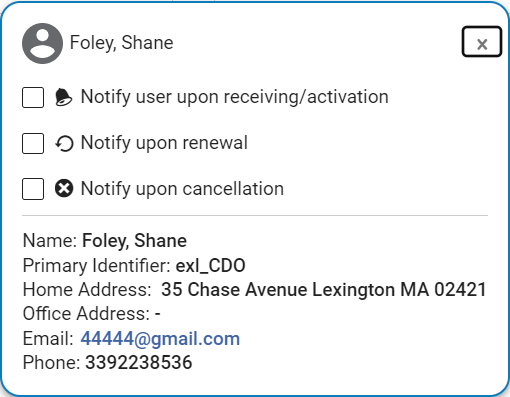
- En la ventana emergente, seleccione cualquiera o todas las opciones siguientes (cuando estén disponibles):
- Notify user upon receiving/activation – When selected, Alma sends an email to the user when the item arrives at the library's receiving department. El correo electrónico solo se envía si la opción está seleccionada y hay una dirección de correo electrónico configurada para el usuario.
- Hold item – This option appears only when working with physical items. Cuando se selecciona, Alma creará una solicitud de reserva cuando el ejemplar abandone el Departamento de adquisiciones, y no antes. Si el ejemplar se mantiene en el departamento (existe una solicitud de orden de trabajo para el departamento de adquisiciones), la solicitud de reserva se creará cuando se complete el proceso posterior a la recepción. Cuando se crea la solicitud de reserva, el solicitante será el usuario interesado de la línea de la orden de compra y el creador será el operador receptor. The item's request date is the same as the PO line's order date. Si existen otras solicitudes del ejemplar, la prioridad de solicitud se gestiona en función del rol, según lo configurado por la institución. The pickup location is the circulation desk of the item's library, as specified in the PO line. Esta biblioteca debe tener un mostrador de circulación con una estantería de reservas.
- Notify upon renewal – This option appears only for continuous orders. When selected, Alma sends the Notify Upon Renewal letter to the user when the order is sent to manual renewal. El correo electrónico solo se envía si la opción está seleccionada y hay una dirección de correo electrónico configurada para el usuario. Esta opción está limpia por defecto.
- Notify upon cancellation- When selected, Alma sends an email to the user when the order is cancelled. El correo electrónico solo se envía si la opción está seleccionada y hay una dirección de correo electrónico configurada para el usuario. Esta opción está limpia por defecto.
- Select Close(
 ) or click outside the box, to close the pop-up. El usuario se añade como usuario interesado.

To reopen the pop-up in order to view the contact information or change the settings, select the user icon
 .
Sección Códigos de informe
The Reporting Codes section contains fields in which you can select values for additional acquisitions classifications that are defined in your institution. Estos códigos de informe se pueden usar en Analytics para análisis de datos de adquisiciones. Se pueden configurar hasta cinco códigos de informe para su institución:
- 1st reporting code
- 2nd reporting code
- 3rd reporting code
- 4th reporting code
- 5th reporting code
For additional information, see Configuring Reporting Codes.
Sección Notas
In the Notes section, you can add, update, or delete notes for the PO line. For details, see New Layout 2022.
Sección Descripción bibliográfica
This section opens in a sliding panel, rather than in the Details pane itself (as indicated by the link icon ). In the future, it will be moved into the Details pane.
The Bib Description section contains additional information about the resource being ordered. All fields except Identifier Type are free text and for informational purposes only. Which fields appear depends on the Purchase type that was selected when the PO line was created, as specified in the table below.
La descripción de la Línea de orden de compra es una entidad que se genera en el momento de creación de la Línea de la orden de compra y no está conectada con o influenciada por la información bibliográfica del registro correspondiente. This means, for example, that if a PO line is created for a title Introduction to Chemistry, the PO line description title will be Introduction to Chemistry. If, at a later point in time, the title is changed to Introduction to Organic Chemistry, the PO line description title will not automatically change. Si desea actualizar el título de la descripción de la línea de la orden de compra como resultado de un cambio en el título del registro bibliográfico, puede hacerlo de una de las siguientes maneras:
- In the row actions of the PO line, select Change Bib Reference.
- In the Bib Description section, select the Reload Bib Data button. You can configure Alma to automatically update the Bib Description (and related PO line description) by enabling the po_line_description_update_upon_bib_change parameter (see Other Settings).
To edit the Bib Description, the PO Line needs to be in View mode (before selecting Edit or after selecting Save).
| Tipos de compra | Campos de descripción bibliográfica |
|---|---|
|
|
|
|
|
|
|
|
|
|
|
|
|
|
Sección Líneas de factura
This section opens in a sliding panel, rather than in the Details pane itself (as indicated by the link icon). In the future, it will be moved into the Details pane.
The Invoice Lines section contains information about any invoice lines associated with the PO line, which can be viewed, added, or edited. Cuando la línea de la orden de compra se crea por primera vez, está, por supuesto, en blanco. For information on invoice lines, see Creating an Invoice From a PO or Manually.
- Las opciones disponibles dependen de sus privilegios.
- Una Línea de orden de compra puede estar asociada a muchas líneas de factura, pero una línea de factura puede asociarse solo a una Línea de orden de compra.
Sección de Líneas de la orden de compra asociadas
This section opens in a sliding panel, rather than in the Details pane itself (as indicated by the link icon). In the future, it will be moved into the Details pane.
The Associated PO Lines section contains information about the PO lines that are associated with the current PO line. Las asociaciones de líneas de orden de compra tienen únicamente fines informativos y no tienen efectos funcionales. Las líneas de orden de compra pueden aparecer en la lista por alguna de las siguientes razones:
- They were associated automatically with this PO line by Alma – for example, other PO lines for the same title.
- They were manually associated with the current PO line in theirAssociated PO line fields in theirPO Line Information sections.
If the current PO line is associated with a target PO line (which is the reverse of the relationship of the PO lines appearing in this section), the target PO line appears in the Associated PO lines field in the PO Line Information section of the current PO line.
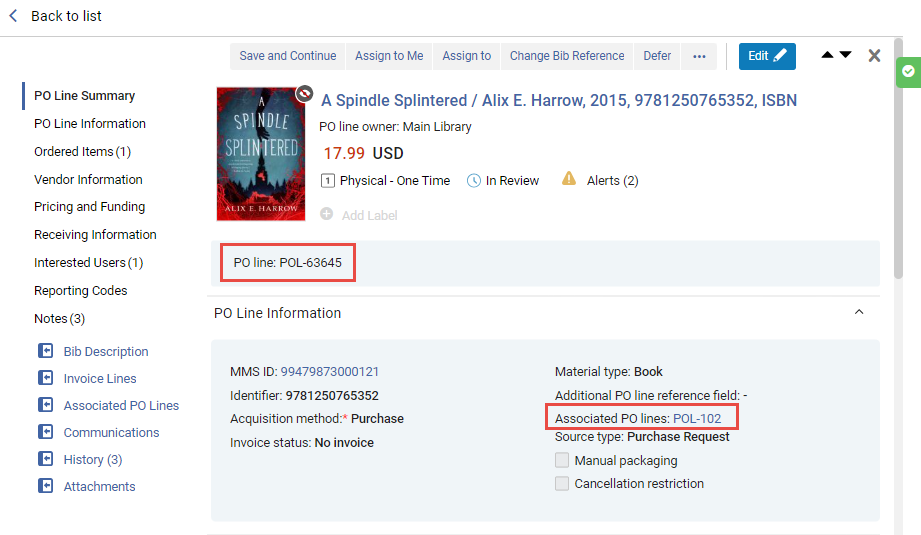
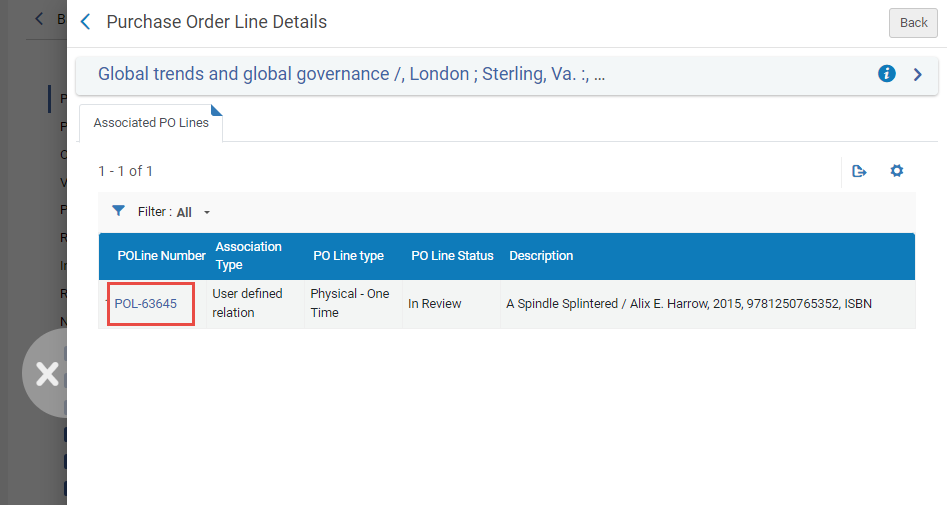
The list of associated PO lines can be filtered by the Association Type column. You can select one of the following filter options:
- All- Display all associated PO lines, regardless of the user's scope. Esto tiene únicamente fines informativos. Tenga en cuenta que en la lista de líneas de orden de compra solo se pueden gestionar las que están en el alcance del usuario.
- Same title- Display only those associated PO lines that are for resources with the same title as the resource of this PO line.
- Same Inventory Resource- Display only those associated PO lines that are for the same item (or portfolio or representation) as this PO line.
- User defined relation- Display only those associated PO lines that were manually associated with this PO line by a user.
Sección Comunicaciones con el proveedor
This section opens in a sliding panel, rather than in the Details pane itself (as indicated by the link icon). In the future, it will be moved into the Details pane.
La sección Comunicaciones es donde puede iniciar una nueva comunicación con el proveedor o, si ya existe una comunicación, puede ingresar los detalles de la respuesta del proveedor o hacer un seguimiento de la comunicación con su respuesta al proveedor. For details on this section, see Managing PO Lines.
Sección Historial
This section opens in a sliding panel, rather than in the Details pane itself (as indicated by the link icon). In the future, it will be moved into the Details pane.
The History section contains a list of the changes that have been made to the fields of the PO line after it was first created and saved. Whenever the existing value of a field is modified or removed, the change appears in the history. Las notas o adjuntos que se agregan a la línea de la orden de compra no se muestran en la pestaña.
Under Report type, you can choose from two types of lists:
- PO line changes – Changes to the values of fields, and changes in status (Workflow Step) or assignment.
Integrated with vendor system is seen in the history even if no data/values were changed. Este campo es relevante para los Pedidos OASIS en los que el proveedor está definido con un sistema Integrado. In this case, the Integrate with OASIS button is displayed, and when the user selects it the PO Line is created in the vendor's system and the Integrated with vendor system becomes true.
- Transaction changes – Changes to a fund, price, fund percentage, or anything else that affects the transaction (encumbrance, expenditure, disencumbrance). Estos pueden ser los resultados de los procesos del sistema, como un traspaso.
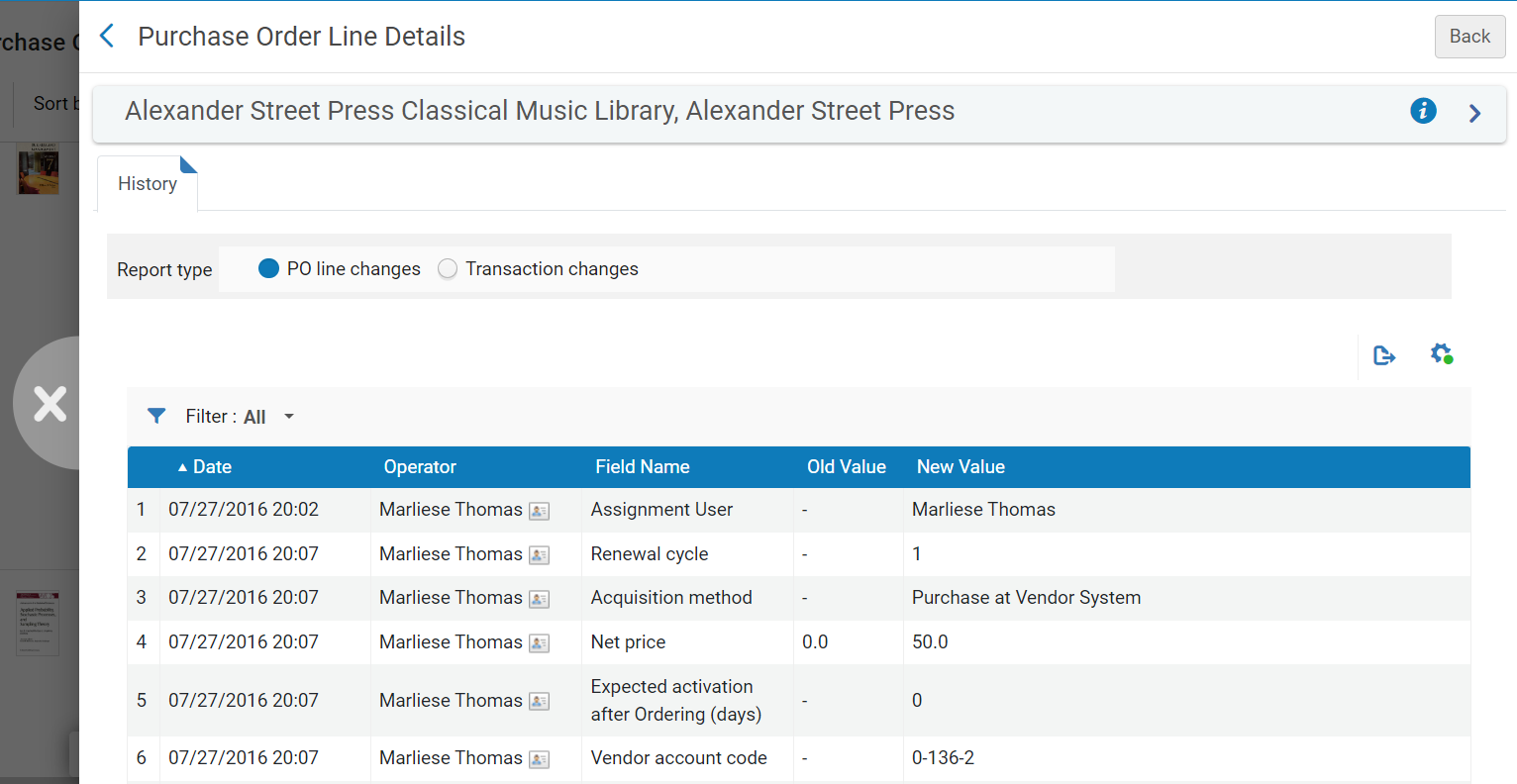
Sección de Ficheros adjuntos
This section opens in a sliding panel, rather than in the Details pane itself (as indicated by the link icon). In the future, it will be moved into the Details pane.
In the Attachments section, you can add, update, or delete files related to the PO line. El tamaño máximo para los adjuntos es de 25 MB.
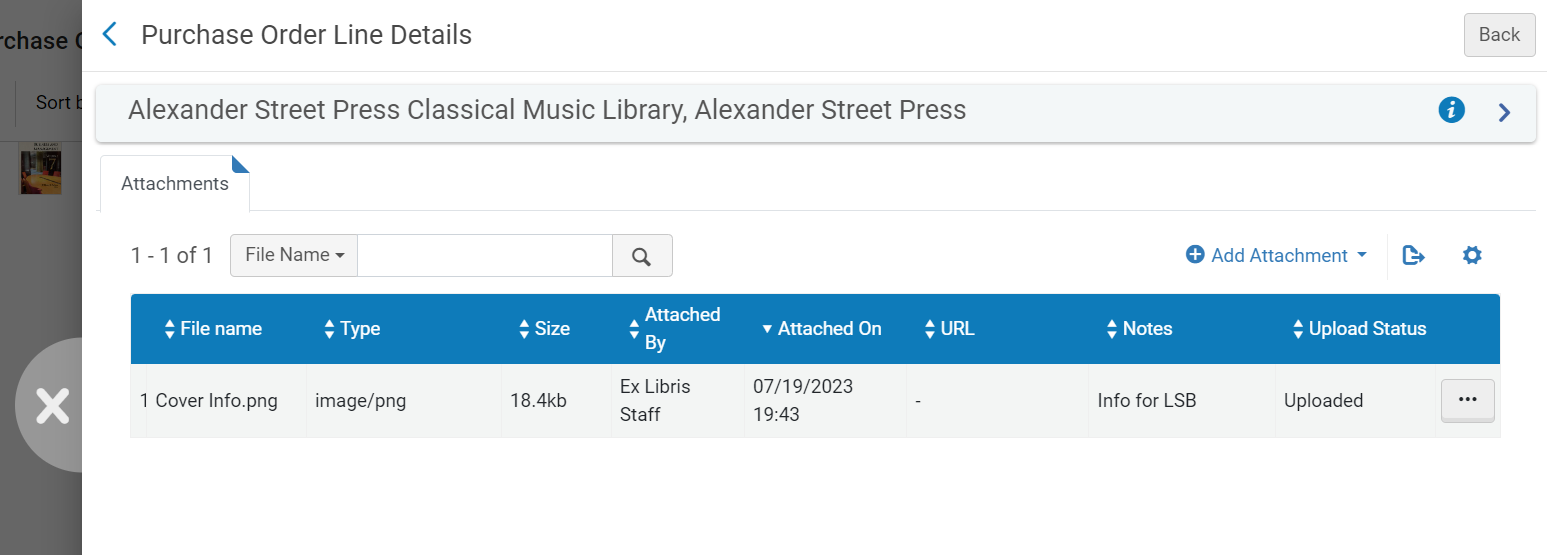
- To add an attachment, select Add Attachment. Browse for a file, add a URL and/or note, if required, and select Add Attachment.
- To edit an attachment, select Edit in the row actions menu.
- To delete an attachment, select Delete in the row actions menu, and then select Confirm in the confirmation dialog box.
- To download a file, select Download in the row actions menu, browse to the download folder, and then select OK.
Continuar el procesamiento de la nueva línea de orden de compra
When you have finished entering all the information you have available about the PO line, you can initiate the next stage of its processing by selecting options from the Actions menu. Dependiendo del tipo de línea de la orden de compra, algunas o todas las siguientes opciones están disponibles:
Al guardar la Línea de orden de compra, si el registro del ejemplar pedido es breve, puede aparecer una advertencia y un cuadro de diálogo de confirmación. See Working with Brief Record Levels for more information about brief records.
- Save – The information you entered is saved, and the PO line remains in its current workflow stage (if you just created the PO line manually, it remains In Review). Use this option, if you are unsure if you want the PO line to continue to the following stage of the purchasing workflow, or if you are editing PO lines that are in claim (see Processing Claims) or marked for renewal (see Processing Renewals).
- Save and Continue – The information you entered is saved and the PO line continues to the following stage of the workflow (review rules are not checked). For more information on the purchasing workflow, see Purchasing Workflow. Si hubiese alertas para la Línea de la orden de compra, aparecerán en un cuadro de diálogo de confirmación. For a complete list of alerts that may appear in this context, see Configuring Purchasing Review Rules.
When the "PO Line - Packaging" job is enabled, "Manual packaging" is not checked in the PO Line and the PO Line package job configuration is setup (Configuration Menu > Acquisitions > General > Acquisitions Jobs Configuration), selecting Save and Continue changes the PO line status to Auto Packaging.
Afterwards, when the scheduled "PO Line - Packaging" job runs, it checks all of the PO lines in that status and packages them together based on Vendor account, Owner, Currency, Acquisition method, Fund and so forth, into a single PO.
- Assign to Me – Assign the PO line to yourself.
- Assign to – Open a dialog box in which you can assign the PO line to another user. (Si no cuenta con los roles necesarios, no verá esta opción).
- Release Assignment – For PO lines that are assigned to you, release the assignment and leave the PO line unassigned.
- Save and Request Evaluation – The information you entered is saved and a trial is requested. Use this option if the PO line is assigned to you but you do not have the Trial Operator/Trial Manager role. The PO line's status changes to Under Evaluation and the PO line moves to the Manage Trials page with the status Requested, where the Trial Operator/Trial Manager can access it and continue with the evaluation workflow (see Evaluation Workflow). Esta opción solo se encuentra disponible para líneas de orden de compra electrónicas que crean inventario.
- Save and Start Trial – The information you entered is saved and a trial is started. Se debe utilizar esta opción si se tiene el rol de Operador de pruebas/Gerente de pruebas, le ha sido asignada la Línea de orden de compra y desea iniciar la prueba. The PO line's status changes to Under Evaluation and the Trial Details page opens (continue with the evaluation workflow at step 3). Esta opción solo se encuentra disponible para líneas de orden de compra electrónicas que crean inventario.
- Order now – Initiate the processing of the order for the PO line, by moving the PO line to the purchasing workflow where it is normalized and validated before being packaged (step 4 in the Purchasing workflow) and sent. For more information on packaging PO lines, see Packaging PO Lines into a PO. If you select Order Now, an Order Now Letter is sent to you after the order is sent for processing, and the vendor receives the order as an Order List Letter. For information on these letters, see Configuring Alma Letters.
- Cancel line – The PO line is cancelled (see Canceling PO Lines).
- Defer – The PO line is deferred and appears in the Review Deferred task list until it is either reactivated (moved back to step 2 of the regular purchasing workflow) or canceled. For more information on deferring PO lines, see Deferring PO Lines.
- Integrate with OASIS- For a PO line that has OASIS in the Material Supplier field, you can select this button to automatically send the order to OASIS. See Check Availability and Pricing.
- Relink – Change the bibliographic record to which the PO line is linked (see Relinking PO Lines).
- Request Title –[New for February 2026] Place a request on the title (see Creating a Request from the Institution). The action is visible only for PO lines with the Physical inventory format and with any continuity type .
- Delete – Delete the PO line (see Deleting PO Lines).
- Change Bib Reference – Change the bibliographic record of the PO line. See Changing Bibliographic Reference.
- Save as template – Save the current settings as a template. See Creating and Managing PO Line Templates.
- Change Currency – Change the currency of PO lines that were packaged. See Changing Currency in PO Lines.
Page tags: article:topicorderproduct:almacontent:Documentationlang:englishinterested userPO line templatecreate PO linemanually create PO linecommunicate with vendoremail vendorvendor emailvendor responseupload vendor responsePO Line Owner and Typegenerate barcodegenerate barcode using sequenceassign inventory manuallyPO Line SummaryAssociated PO LineClaiming grace periodExpected receipt after orderingexpected activation after orderingExpected receipt dateexpected activation dateE-Activation due after orderingSubscription intervalquantity for pricingadd fund to PO lineacquisition methodinvoice statusReporting CodeAdditional PO line referencerushInvoice Lines tabAssociated PO Lines tabCommunications tabapproval plandepositoryexchangegifttechnicalpurchase at vendor systemInterested Users tabcreate PO line templateedit PO line templatesend email to vendor
